TL;DR
Play games included with Prime
Start a Prime free trial and play with Amazon Luna on your devices.
Start playingAs an affiliate, we earn on qualifying purchases.
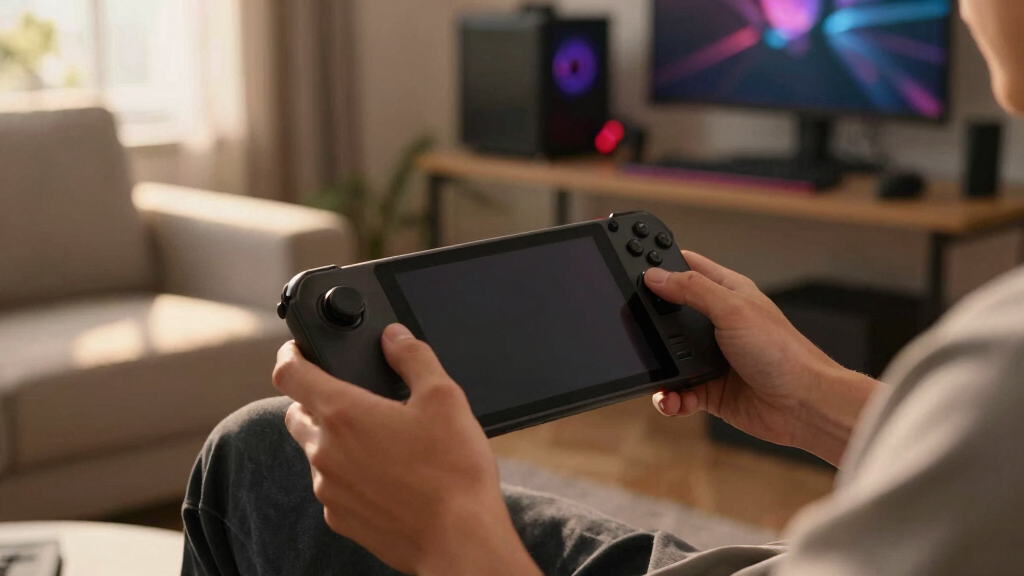
Steam Deck trackpads act like compact mouse surfaces for games that rely on pointing, dragging, scrolling, and menu-heavy control. They shine in strategy, tactics, simulation, management, and classic RPG games, while a real mouse still wins for fast competitive precision. The best experience comes from setting the right pad as a mouse, using the left pad for scrolling or menus, and tuning sensitivity per game.
A thumbstick can make a strategy game feel like trying to sign your name with a broom handle.
That is why the Steam Deck trackpads matter. They give you a flat, finger-sized patch of control for games built around cursors, tiny buttons, tooltips, inventory grids, and menus that were never meant for a couch controller.
Think of selecting a tiny unit card in Civilization VI, dragging a box around workers in Factorio, or hovering over a dialogue choice in an old isometric RPG. The trackpads are not there to replace every control. They are there for those small mouse jobs that make a normal controller feel clumsy.
You will learn when the pads help, when they get in your way, and how to tune them so mouse-heavy games feel less like a compromise and more like a clever handheld trick.
Steam Deck controls / mouse-heavy games
Trackpads on Steam Deck Explained for Mouse-Heavy Games
TL;DR: Steam Deck trackpads act like compact mouse surfaces for games built around pointing, dragging, scrolling, tooltips, inventory grids, and tiny menu targets. They shine in strategy, tactics, simulation, management, and classic RPG games, while a real mouse still wins for fast competitive precision.
Where the Pads Feel Clever
Treat Steam Deck trackpads as small mouse surfaces, not strange thumbsticks. They help most when a game asks for cursor work: hovering, selecting, dragging, scrolling, and tapping small interface targets.
Tiny UI Targets
Select city banners in Civilization VI, inventory slots in classic RPGs, or tooltips in dense menus without overshooting three times.
Box Select
Dragging around workers in Factorio or units in an RTS feels more natural than steering a cursor with analog drift.
Hover Details
Pause-heavy games like RimWorld reward slow, precise cursor placement over rooms, portraits, alerts, and command buttons.
Long Panels
The left pad can become a scroll wheel for codex pages, maps, browser-like screens, mod menus, and launcher settings.
Radial Commands
A radial menu can hold pause, map, inventory, camera, quick-save, or build commands without opening the on-screen keyboard.
Desktop Mode
Docked or handheld, the pads can move the pointer, click files, scroll pages, and handle quick chores without extra gear.
Trackpad vs Stick vs Mouse
The winning input changes with the job. Trackpads are excellent for cursor-heavy play, thumbsticks are better for analog character movement, and a dedicated mouse still owns high-speed precision.
| Game Situation | Trackpad Feel | Thumbstick Feel | Mouse Feel | Better Choice |
|---|---|---|---|---|
| Dragging units in an RTS | ✓ Fast box selection and cleaner clicks | ✗ Blunt cursor steering | ✓ Best at a desk | Trackpad handheld |
| Choosing RPG inventory items | ✓ Precise enough for small slots | ~ Works with generous UI | ✓ Easy and exact | Trackpad |
| Moving a 3D action character | ✗ Less natural than analog movement | ✓ Smooth directional control | ~ Depends on genre | Thumbstick |
| Aiming in a fast shooter | ~ Usable with tuning and gyro | ~ Familiar but slower | ✓ Highest speed ceiling | Mouse or stick plus gyro |
| Long docked strategy session | ~ Fine as a backup | ✗ Fatiguing for menus | ✓ Best posture and precision | Mouse |
Five-Minute Setup Flow
Steam Input supports per-game layouts and community configurations, so each game can keep its own cursor personality. Factorio, Disco Elysium, and Stellaris do not ask your hands to do the same job.
Open Layout
Select the game page, then the controller icon to edit controls.
Right Pad
Set right trackpad behavior to mouse for pointing and dragging.
Click Smart
Bind left click to pad click or R2 if pressing the pad shakes aim.
Left Pad
Assign scroll wheel, radial menu, right click, zoom, or map.
Save Per Game
Keep the layout attached to that title and refine after one session.
Make the Cursor Land
A slippery cursor usually means sensitivity, acceleration, haptics, or click behavior needs tuning. Small changes can turn the pad from skidding to precise.
Slippery Pointer Fixes
- Lower sensitivity if you overshoot buttons, tabs, or dialogue options.
- Raise trackball friction if the cursor keeps drifting after a swipe.
- Increase haptics if you want clearer finger feedback under your thumb.
- Move click to triggers if pad pressing nudges the pointer off target.
- Add gyro when a game mixes cursor work with careful aiming.
Use Both Pads, Not One
The Deck feels less crowded when each pad has a job. In Stellaris, the right pad can select planets while the left pad opens a radial menu for galaxy map, pause, and ship manager.
Right Pad
Mouse movement, dragging, hovering, selection, tiny UI targets, and map cursor control.
Left Pad
Scroll wheel, radial menus, right click, inventory, codex pages, zoom, or command clusters.
Back Buttons
Hotkeys, pause, map, quick-save, build menu, character sheet, or keyboard shortcuts.
R2: left click
L2: right click
Back grip: pause
Gyro: fine aim
Traceability: From Game UI to Hand Feel
The useful chain is simple: identify what the game asks from the cursor, assign each pad a role, tune the feel, then save the layout so the game opens ready next time.
Buttons, tiles, slots, portraits
Mouse movement and selection
Scroll, radial, right click
Sensitivity, friction, haptics
Saved Steam Input layout
Less compromise, more control
Key Takeaways
- Steam Deck trackpads are best for cursor-heavy games that involve pointing, dragging, scrolling, tooltips, and small UI targets.
- Set the right trackpad as a mouse and give the left trackpad a separate job, such as scrolling, radial menus, or right click.
- If the cursor feels slippery, lower sensitivity, adjust friction, strengthen haptics, or move clicking to a trigger.
- Community layouts are the fastest starting point because Steam Input supports shared, per-game configurations.
- A dedicated mouse still beats the trackpads for long desk sessions and high-speed competitive precision.
Steam Deck compatible mouse-like trackpad
As an affiliate, we earn on qualifying purchases.
As an affiliate, we earn on qualifying purchases.
Why the Deck Can Handle Games Built for a Mouse
Trackpads on Steam Deck Explained for Mouse-Heavy Games starts with one simple idea: the Deck gives you mouse-like control in a handheld body, so cursor-driven games stop feeling like a tiny desk trapped behind glass. The two pads handle movement, clicks, scrolling, radial menus, and shortcuts when a normal thumbstick feels blunt.
According to Valve, the Steam Deck includes two 32.5 mm square trackpads with haptic feedback [1]. That size gives your thumb room to glide, stop, and make small corrections, like moving a chess piece across a felt board instead of nudging it with a stick.
Take Civilization VI. With a thumbstick, you can overshoot a city banner three times before selecting it. With the right trackpad set as a mouse, you slide onto the tile, feel the tiny haptic ticks, and click without fighting the camera.
Steam Deck trackpads work best when you treat them as a small mouse, not as a weird second thumbstick.
Steam Deck thumb trackpad with haptic feedback
As an affiliate, we earn on qualifying purchases.
As an affiliate, we earn on qualifying purchases.
When Trackpads Beat Thumbsticks, and When They Do Not
Trackpads on Steam Deck Explained for Mouse-Heavy Games is really a control matchup: trackpads win when the game asks you to point, drag, hover, or select tiny UI pieces. Thumbsticks still win when you need steady movement, twin-stick aiming, or simple camera control with no cursor on screen.
| Game situation | Trackpad feel | Better choice |
|---|---|---|
| Dragging units in an RTS | Fast box selection and cleaner clicks | Trackpad |
| Choosing inventory items in an RPG | Precise enough for small slots | Trackpad |
| Moving a character in a 3D action game | Less natural than analog movement | Thumbstick |
| Aiming in a fast shooter | Usable with tuning, weaker than a mouse | Mouse or stick plus gyro |
In RimWorld, the trackpad feels at home because you pause, inspect rooms, queue orders, and click tiny colonist portraits. In Hades, the same pad feels like extra furniture because the game already sings with sticks and buttons.
gaming trackpad for handheld consoles
As an affiliate, we earn on qualifying purchases.
As an affiliate, we earn on qualifying purchases.
Set Up a Mouse-Like Feel in 5 Minutes
Trackpads on Steam Deck Explained for Mouse-Heavy Games works best after a short setup pass, because the default layout may be built for controllers, not a cursor-heavy PC layout. Five minutes in Steam Input can turn a jumpy pointer into something calm, quick, and close to a laptop touchpad.
- Open the game page on your Deck and select the controller icon.
- Edit the layout and set the right trackpad behavior to mouse.
- Bind right-pad click to left mouse click for quick selection.
- Set the left trackpad to scroll wheel, radial menu, or right mouse click.
- Lower sensitivity until small buttons stop feeling slippery.
- Save the layout per game so your changes stay attached to that title.
According to Valve, Steam Input supports per-game control layouts and community configurations [2]. That matters because Factorio and Disco Elysium do not ask your hands to do the same job.
Steam Deck control tuning accessories
As an affiliate, we earn on qualifying purchases.
As an affiliate, we earn on qualifying purchases.
Use Both Pads Instead of Treating One as Spare Space
You get more from the Steam Deck when each trackpad has a job: one pad moves the cursor, while the other handles menus, scrolling, or quick commands. That split keeps your thumbs close to the screen controls, so you spend less time stretching across buttons during a busy game.
- Right pad as mouse: best for pointing, dragging, and clicking UI elements.
- Left pad as scroll wheel: great for long menus, codex entries, maps, and browser-like screens.
- Left pad as radial menu: useful for hotkeys in tactics, builders, and MMOs.
- Outer ring commands: handy for zoom, pause, map, or inventory.
In Stellaris, you might use the right pad to select planets while the left pad opens a radial menu for galaxy map, pause, and ship manager. Suddenly the Deck feels less crowded. Your thumbs know where home is.
Community Layouts Save You From Starting Cold
Community layouts are shared Steam Input profiles that give you a ready-made control scheme for a specific game, often built by players who already solved the annoying parts. According to Valve, Steam Input lets you browse shared layouts per game, which makes experimentation much faster [2].
A good community layout gives you an overview suitable for a first session: mouse on the right pad, scroll on the left, back buttons for hotkeys, and sensible clicks. You can start there, then sand down the rough edges for your own hands.
For Project Zomboid, a player-made layout might put inventory, health, and map commands on easy buttons. That saves you from opening the keyboard every few minutes while your character stands in a dark kitchen listening to trouble outside.
Small Settings That Make the Cursor Feel Less Slippery
A slippery Steam Deck cursor usually means sensitivity, acceleration, haptics, or click behavior needs tuning, not that the trackpads are bad. Small changes create a big before-and-after: the pointer stops skidding like a wet soap bar and starts landing on inventory squares, map pins, and dialogue options.
- Lower sensitivity first if you keep overshooting buttons.
- Raise trackball friction if the cursor keeps drifting after a swipe.
- Increase haptic strength if you want clearer finger feedback.
- Move click actions to triggers if pressing the pad shakes your aim.
- Use gyro for fine aim when a game mixes cursor work with aiming.
In Path of Exile, clicking a socket or stash tab can feel fussy on the default setup. Put left click on R2, use the right pad only for movement, and the whole screen feels steadier.
What Changes When You Dock the Deck
Docked play changes the Steam Deck trackpads from your main mouse substitute into a couch-friendly backup, because a real mouse and keyboard often feel better at a desk. The pads still matter when you launch games from the sofa, tweak settings, or move around desktop mode without extra gear.
In Desktop Mode, the trackpads work much like laptop touchpads. You can move the pointer, click files, scroll pages, and handle quick chores without plugging in anything else.
The tradeoff is posture. If you are docked at a monitor for a three-hour Age of Empires II session, a mouse will save your thumbs. If you are changing a mod setting from the couch, the Deck pads are the quiet little tool you will be glad you have.
The Game Types That Feel Best First
The best first games for Steam Deck trackpads are slow enough to let you aim the cursor with intent and dense enough to make thumbsticks feel clumsy. Start with turn-based, management, sim, and classic RPG games before judging the pads in frantic shooters or twitch-heavy multiplayer.
- Turn-based strategy: Civilization VI, XCOM 2, and similar games give you time to point carefully.
- Colony and factory sims: RimWorld and Factorio reward fast menu work and map control.
- CRPGs: Baldur’s Gate 3 and older isometric RPGs benefit from cursor precision.
- Management games: parks, cities, hospitals, and zoos often depend on tiny UI buttons.
For a fair test, play one quiet game for 30 minutes with a tuned layout. Do not judge the pads by a frantic first-person shooter in the first five minutes.
Frequently Asked Questions
Are Steam Deck trackpads as accurate as a real mouse?
No, Steam Deck trackpads are not as accurate as a good desktop mouse for fast aiming or pixel-perfect work. They are accurate enough for most strategy, simulation, tactics, management, and RPG games once you tune sensitivity and click behavior.
Should I use the right or left trackpad as the mouse?
Most players should use the right trackpad as the mouse because it matches the usual right-hand mouse habit. The left trackpad works well for scroll wheel, radial menus, hotkeys, or right click.
Do Steam Deck trackpads support gestures?
Yes, Steam Deck trackpads can support touch behavior, clicking, scrolling, and gesture-style inputs depending on the layout. In Desktop Mode, they work much like laptop touchpads for pointer movement and basic system control.
Why do trackpads feel great in one game and bad in another?
Each game reads input differently, and many PC games were built with a real mouse in mind. A layout that feels smooth in RimWorld may feel jumpy in an action RPG, so save tuned settings per game through Steam Input.
Can trackpads make unsupported PC games playable on Steam Deck?
Often, yes. Trackpads can help with launchers, tiny menus, inventory screens, and games that lack controller support, but text size and performance still matter. If the UI is too small to read, even a well-tuned cursor will not fix the whole experience.
Conclusion
Remember this: Steam Deck trackpads are not magic, but they turn many mouse-heavy PC games from awkward to playable with the right layout.
Start with one slower game, tune the right pad like a mouse, give the left pad a real job, and let your thumbs learn the surface. After a while, those tiny haptic ticks start to feel like a miniature desktop under your hands.
Fall yard work Picks
leaf blowers
As an affiliate, we earn on qualifying purchases.