
TL;DR
Get ready for Prime Big Deal Days — try Prime free
Exclusive member deals on October 6–7, plus fast free delivery. Cancel anytime.
Start your free trialAs an affiliate, we earn on qualifying purchases.
Moving Steam games to microSD moves the main game files to the card, but saves, shader caches, Proton data, and Steam metadata may still live elsewhere. You gain internal storage space, but load times can stretch because even good microSD cards trail far behind SSDs in random reads and large asset streaming.
A tiny fingernail-sized card can hold a stack of Steam games, but it cannot pretend to be your SSD.
If you play on Steam Deck, a compact laptop, or a PC with a cramped drive, moving games to microSD feels like finding a hidden drawer in your desk. This guide gives you a practical overview suitable for players who want more room without mystery, guesswork, or a ruined weekend.
You will learn what really happens when you move Steam games to microSD, why some games feel almost unchanged, why others hitch and cough, and how to move them without turning your library into organized chaos.
What Really Happens When You Move Steam Games to microSD
Moving a Steam game to microSD usually relocates the main install folder, not every supporting file. You gain internal storage space, but saves, shader caches, Proton data, launcher leftovers, and Steam metadata may still live elsewhere.
A tiny card can hold a stack of games, but it cannot pretend to be your SSD.
TL;DR: space expands, speed changesYour game moves. Steam keeps the map.
Steam’s built-in Storage tools create or select a library on the card, move the core install data, and update launch records so the same library tile still works.
Main install folder
The game’s bulk data shifts to the microSD library: assets, executables, depots, updates, and the files Steam uses to launch the title.
Support data
Saves, shader caches, screenshots, Proton compatibility prefixes, and launcher data may remain on internal storage or in user folders.
Same Play button
Your shortcut does not change. Under the surface, Steam now reads textures, map chunks, audio, and patches across the slower card slot.
Speed is where the trade becomes visible.
microSD is practical expansion storage, not secret SSD speed. The bigger gap appears when games ask for many small scattered reads or stream large worlds in real time.
| Storage type | Typical speed story | What you feel in games | microSD verdict |
|---|---|---|---|
| NVMe SSD | Many drives read thousands of MB/s in large transfers. | Short loads and smoother asset streaming. | ✗ microSD cannot match it. |
| SATA SSD | Often capped near 550 MB/s for large reads. | Still quick for most Steam games. | ~ slower, but usable for many titles. |
| Hard drive | Moving parts create slow seek times and chatter. | Long waits and possible hitches. | ~ a good card can feel acceptable. |
| microSD UHS-I U3/V30 | V30 guarantees at least 30 MB/s sustained write; UHS-I tops out at a 104 MB/s bus ceiling. | Fine for many games, but slower loads are normal. | ✓ best for expansion, not peak speed. |
Why load screens stretch.
Sequential labels on the package tell only part of the story. Random reads, file size mix, thermals, and the card reader inside your device decide how smooth the game feels.
Open-world games, competitive shooters, and asset-heavy modern releases expose microSD limits fastest. Older, smaller, slower-paced, or turn-based games usually tolerate the move much better.
Move one game cleanly before moving ten.
The safest path is Steam’s Storage settings. It handles library folders, install records, and verification without making you manually stitch paths together.
Insert and format
Use the device storage menu, especially on Steam Deck.
Open Storage
Go to Steam Settings, then Storage.
Select library
Add or choose the microSD library folder.
Pick a game
Start with one medium-sized title.
Move install
Let Steam finish without sleep mode or removal.
Launch and test
Confirm loading, saves, and stability.
The card you pick changes the weekend.
For Steam games, buy reliable capacity and steady performance. UHS-I U3 or V30 is a sensible baseline; UHS-II labels may not help if the device slot is UHS-I.
Put on microSD
- Cozy games, visual novels, strategy games, and older releases.
- Large games you play occasionally and do not mind loading more slowly.
- Backlog titles that mostly need space, not constant asset streaming.
- Games after you have confirmed saves and launch behavior.
Keep internal
- Demanding open-world games with dense cities and fast traversal.
- Competitive games where hitching can ruin the moment.
- Games with huge shader caches, frequent patches, or heavy launchers.
- Anything you are actively troubleshooting.
Trace the data path.
The move is not magic. It is a chain of storage decisions, and each link explains why the game launches normally while some files stay behind.
Use Steam’s move feature unless you have a specific reason to copy files manually.
Choose UHS-I U3 or V30 from a trusted seller, with room left free after installs.
You gain storage flexibility, while load times and asset streaming may become slower.
Key Takeaways
- Moving Steam games to microSD usually moves the main install folder, not every related file on your device.
- You gain internal storage space, but load times often grow because microSD cards trail SSDs in random reads.
- UHS-I U3 or V30 is a sensible baseline for gaming, and UHS-II speed labels may not help on Steam Deck.
- Use Steam’s built-in Storage settings instead of manual copying unless you have a specific reason.
- Put slower-paced, smaller, or older games on microSD and keep demanding open-world or competitive games on internal storage.
As an affiliate, we earn on qualifying purchases.
Your Game Files Move, But Steam Still Keeps the Map
What Really Happens When You Move Steam Games to microSD is that Steam relocates the main game folder to a new library on the card, then updates its records so it knows where to launch the game. Your shortcut still looks the same, but the bytes now sit on removable storage.
According to Valve’s Steam storage tools [1], the cleanest route is Steam’s built-in move feature. It copies the game data, updates the library location, and keeps Steam from losing track of the install like a suitcase left on the wrong train.
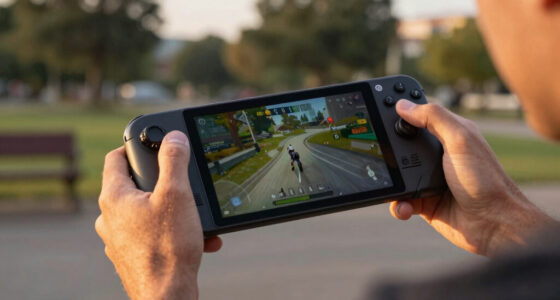
On a Steam Deck, that means your 80 GB action game may leave the internal drive and land on the microSD card. The tile in your library does not change. You still press Play, hear the fan rise, and wait for the same splash screen.
The difference sits under the surface. Steam now reads the game from the card slot instead of the internal SSD, so every texture, map file, voice line, and patch chunk has to cross that slower bridge.
high speed microSD card for Steam Deck
As an affiliate, we earn on qualifying purchases.
As an affiliate, we earn on qualifying purchases.
You Gain Space, Not Secret SSD Speed
What Really Happens When You Move Steam Games to microSD is mostly a storage win, not a performance trick. You free internal space for system updates, shader caches, and the games that need fast storage most, while the moved game runs from a slower but flexible card.
That trade can feel perfect on a Steam Deck with a small internal drive. Move a 65 GB RPG, a 40 GB racing game, and a few cozy indies to a 512 GB card, and suddenly the internal storage stops flashing angry warnings.
You trade speed for space; you gain freedom, but lose some snap. That antithesis is the whole story in one line.
On an old laptop with a tired hard drive, a good microSD card may not feel terrible. On a modern NVMe SSD, though, the card feels like swapping a bright, fast elevator for a narrow staircase.
microSD card for gaming storage expansion
As an affiliate, we earn on qualifying purchases.
As an affiliate, we earn on qualifying purchases.
Why Load Screens Stretch Like Warm Taffy
What Really Happens When You Move Steam Games to microSD becomes obvious during loading. The card has to feed game data more slowly than an SSD, especially when the game asks for thousands of tiny files instead of one clean stream, so loading screens can stretch and texture pop-in can appear.
| Storage type | Typical speed story | What you feel in games |
|---|---|---|
| NVMe SSD | Many drives read thousands of MB/s in large transfers. | Short load screens and smoother asset streaming. |
| SATA SSD | Often capped near 550 MB/s for large reads. | Still quick for most Steam games. |
| Hard drive | Moving parts create slow seek times and audible chatter. | Long waits and possible hitches in asset-heavy games. |
| microSD UHS-I U3 or V30 | V30 means at least 30 MB/s sustained write, and UHS-I has a 104 MB/s bus ceiling [2]. | Good for many games, but slower loads are normal. |
The package label can mislead you. A card bragging about high sequential speed may still struggle when a game asks for small, scattered files like a drawer full of tiny screws.
Imagine starting a big open-world game from microSD. The first load may take an extra 20 or 40 seconds, then the game feels fine until you sprint into a dense city and the textures arrive late, blurry at first, then sharp.
best microSD card for portable gaming
As an affiliate, we earn on qualifying purchases.
As an affiliate, we earn on qualifying purchases.
Some Data Stays Behind on Your Internal Drive
What Really Happens When You Move Steam Games to microSD is not a full clean-out of every related file. Steam usually moves the core install folder, but save files, shader caches, Proton compatibility data on Steam Deck, screenshots, and launcher leftovers can remain on internal storage.
This explains the small disappointment many players see after a move. You transfer a 70 GB game and expect 70 GB back, but the free-space number only rises by 60 GB because supporting files still sit on the SSD.
Steam Cloud saves also change the picture. Many games sync saves online, but some store local saves in your user folder, AppData, Documents, or a Proton prefix rather than inside the moved game folder.
On Steam Deck, shader caches can be the quiet bottleneck. They help reduce stutter by preparing compiled graphics work ahead of time, but they can also take internal space even when the game itself lives on the card.
Move a Game in 6 Clean Steps
The safest way to move a Steam game to microSD is to let Steam do the move from its Storage settings. Steam already knows the library folders, install records, and verification process, so you avoid broken paths, missing files, and the gray Play button nobody wants to see.
- Insert and format the microSD card. On Steam Deck, use the system’s storage menu so the card is ready for Steam games.
- Open Steam Storage settings. In desktop Steam, go to Settings, then Storage. On Steam Deck, open Settings, then Storage.
- Add or select the microSD library. Steam needs a library folder on the card before it can move games there.
- Choose the game you want to move. Start with one medium-sized game, not your entire library at midnight.
- Use Steam’s move option. Select the card as the new location and let the transfer finish without sleep mode or card removal.
- Launch and test the game. Play for five minutes, check loading, and confirm your saves appear before moving more games.
A 50 GB transfer can take about 10 to 30 minutes on many cards, depending on write speed and file size mix. Plug in your Steam Deck or laptop first, because a dead battery halfway through a transfer is a sour little surprise.
The Card You Pick Changes the Whole Experience
A gaming microSD card should match your device and workload, not just the loudest number on the package. For Steam games, UHS-I U3 or V30 is a sensible floor, while A1 or A2 app ratings can help with small-file work when the device supports them.
According to the SD Association’s speed-class system [2], V30 guarantees at least 30 MB/s sustained write speed. That helps with downloads and installs, but game loading also depends on read speed, random access, thermals, and the card reader inside your device.
- Pick UHS-I U3 or V30 as the baseline. Slower cards can work, but they turn big installs into long coffee breaks.
- Do not overpay for labels your device cannot use. Valve lists Steam Deck’s microSD slot as UHS-I [1], so a UHS-II card will not run at full UHS-II speed there.
- Leave breathing room. A 1 TB card often shows roughly 930 GB usable after formatting, and a nearly full card can feel sluggish.
- Buy from a trusted seller. Fake high-capacity cards still exist, and they can corrupt files after the first big install.
A good rule: put your money into reliable capacity and steady performance, not exotic speed labels. For a Steam Deck library, a dependable 512 GB or 1 TB card often beats a flashy small card that looks fast only in marketing ink.
The Risks Are Boring Until They Bite You
The main risks of moving Steam games to microSD are disconnection, corruption, slower patching, and surprise storage leftovers. None of these are dramatic when everything works, but one careless card removal during a write can turn a normal evening into a redownload marathon.
Never remove a microSD card while Steam is downloading, patching, verifying, or running a game from it. Wait until activity stops, close the game, and use the proper eject option when your device offers one.
Patching can feel worse than playing. A 4 GB update may rewrite or verify far more data than the patch size suggests, so the card sits there warm under your fingertip while the progress bar crawls.
- Back up local saves before moving games that do not use Steam Cloud.
- Keep the card seated and avoid bumping adapters on laptops.
- Verify game files in Steam if a moved game crashes after transfer.
- Do not use one card as a daily swap toy for games you patch constantly.
The dull habits save you. Close the game, let Steam finish writing, eject cleanly, and your card stays a quiet library shelf instead of a fragile trapdoor.
Put the Right Games on the Card and Keep the Rest Inside
The best Steam games for microSD are games that load once, stream little data during play, or tolerate slower storage without breaking the mood. Keep huge open worlds, competitive games with frequent map loads, and texture-heavy showcases on internal SSD when you can.
- Great microSD candidates: turn-based RPGs, visual novels, strategy games, deck builders, older games, small indies, and games you play casually.
- Better on internal storage: massive open worlds, new AAA games with high-resolution texture packs, competitive shooters, and games that patch every other day.
- Worth testing: action games that load levels in chunks, emulation-adjacent tools, and large single-player games you play slowly.
For example, a cozy farming game can run from microSD with almost no drama. A dense city game with fast travel, streaming traffic, and glossy puddles may show the card’s limits in the form of longer waits and late textures.
Use the card as a library shelf, not a race track. Store the flexible games there, then give your fastest drive to the games that gulp data like cold water after a long run.
Frequently Asked Questions
Can all Steam games run from a microSD card?
Most Steam games can run from microSD if Steam recognizes the card as a library location. The real question is comfort: some games feel fine, while others suffer longer loads, texture pop-in, or stutter when they stream lots of data during play.
Will moving a Steam game to microSD delete my saves?
Moving the install folder should not delete your saves. Many saves live in Steam Cloud, your user folder, Documents, AppData, or Steam Deck Proton data, so test the game after moving and back up local saves for older or unusual games.
Is UHS-II worth buying for Steam Deck?
Usually, no. Valve lists the Steam Deck microSD slot as UHS-I [1], so a UHS-II card will work but will not deliver full UHS-II speed in that slot. A reliable UHS-I U3 or V30 card is the smarter fit for most players.
Why did I not get all my storage back after moving a game?
Steam may move the main game files while leaving shader caches, save data, Proton prefixes, screenshots, and launcher files behind. That is why moving a 70 GB game may not return a perfect 70 GB of internal storage.
Can I remove the microSD card after moving games to it?
You can remove it when games, downloads, updates, and verification tasks are closed. Do not pull the card while Steam is writing to it, because that can cause crashes, missing files, or corrupted data.
Conclusion
Treat microSD as overflow storage, not a secret SSD. Move the games that tolerate slower reads, keep the demanding ones inside, and let Steam handle the transfer.
Do that, and your library gets room to breathe. The card becomes a quiet shelf of playable games, not a tiny source of mystery and long, cold loading screens.
Fall yard work Picks
leaf blowers
As an affiliate, we earn on qualifying purchases.