
TL;DR

Play games on Amazon Luna for your game nights, included with Prime
- A rotating selection of games, no download needed
- Play on TV, laptop or phone
- Fast, free delivery for your gear, too
Android APKs on Steam Frame are Android installation packages that may run through an official Steam release, a compatible Android layer, or manual sideloading when the current SteamOS build permits it. An APK is not automatically compatible: processor support, Google services, VR controls, anti-cheat, security, and licensing can all decide whether a game works. For the safest experience, favor developer-published Steam versions and treat universal-compatibility claims as unconfirmed.
An Android game can install perfectly and still be unplayable. You tap its icon, a bright logo fills the display, and then the app freezes because it expects Google Play services, a phone touchscreen, or a sensor that Steam Frame does not provide. The file opened; the game did not truly work.
That distinction sits at the heart of Android APKs on Steam Frame. Valve’s headset platform combines SteamOS, ARM-based hardware, and several possible ways to deliver games, so the word support can mean very different things. It may describe a developer publishing an Android build through Steam, a compatible software layer running the app, or a player manually installing a package outside the store.
This guide gives you a practical overview of what APK support offers, where compatibility breaks, and how to judge an app before giving it storage space or account access. You will also see why a flat mobile game, a standalone VR release, and a streamed Android title create three very different experiences. The goal is simple: help you choose the route that offers the fewest surprises on your current Steam Frame software version.
Treat APK installation and game compatibility as separate milestones; a package can open while login, controls, graphics, or anti-cheat still fail.
Choose an official Steam Frame release before sideloading because it offers managed updates and a clearer path for controller and platform support.
Record the SteamOS version, APK version, control method, and test date whenever you evaluate performance.
Check ARM64 support, Google service dependencies, display mode, input design, and online protection before installing.
Keep modified APKs away from valuable accounts, payment details, microphones, and younger players.
Android APKs on Steam Frame Explained for Players
An APK may install through an official release, a compatible Android layer, or manual sideloading when the current SteamOS build permits it. But installation is only the doorway: processor code, Google services, VR controls, anti-cheat, licensing, and security determine whether the game truly works.
Official release, Android layer, streaming, or another operating system.
Processor, services, graphics, input, and account protection.
Source checks through post-launch monitoring.
Managed updates and the clearest controller-support path.
One package format, five separate tests
Steam Frame being able to read an Android package does not certify the software inside it. Every layer must align before an app deserves the label “working.”
Processor
Look for ARM64 or arm64-v8a. Matching ARM hardware removes one obstacle, not every obstacle.
Entry checkServices
Google Play login, notifications, billing, maps, or manufacturer APIs may be unavailable.
Frequent blockerDisplay
A portrait phone layout may render badly in a floating window or place controls beyond reach.
Visual checkInput
Touch gestures, tilt, GPS, camera, and phone sensors do not automatically map to VR controls.
Playability checkAccess
Licensing, anti-cheat, device integrity, and regional account checks can stop online play.
Final gateFour ways in, four different compromises
The best route depends on whether you prioritize managed updates, local offline play, service compatibility, or freedom to experiment.
| Route | Best fit | Updates | Offline | Setup | Main drawback |
|---|---|---|---|---|---|
| Official Steam release | Published and tested builds | ✓Managed | ✓Often | ✓Simple | Exists only when the developer supports the platform. |
| Android APK | Legitimate ARM-compatible apps | ~Manual | ✓Possible | ~Variable | Services, controls, graphics, or anti-cheat may fail. |
| Game streaming | Titles already working elsewhere | ✓Remote | ✗No | ~Moderate | Latency and image quality depend on the network. |
| Separate operating system | Experienced users and testing | ~Separate | ✓Possible | ✗Complex | More storage, maintenance, recovery, and update work. |
Player rule: If an official Steam Frame-compatible release exists, start there. Use APK installation for legitimate software only, and verify current SteamOS support before changing the device.
Check these clues before expecting play
Failure risk rises as a game depends on more phone-specific hardware, proprietary services, or protected online systems.
ARM64 build
Confirm the package includes modern ARM code rather than relying on an unsupported architecture or translation.
Required services
Check Play services, account login, billing, cloud saves, maps, notifications, and integrity APIs.
Graphics and display
Identify portrait-only layouts, unusual codecs, unsupported graphics features, and fixed phone resolutions.
Input design
Ask whether pointer, controller, or remapping can replace multitouch, tilt, GPS, camera, and sensor input.
Online protection
Anti-cheat, DRM, device certification, or modified-environment checks may block login or multiplayer.
Test cautiously, from source to shutdown
A responsible test begins before installation and ends only after permissions, controls, temperature, battery use, and account behavior have been reviewed.
Flat, VR, and streamed games are not equivalent
The same Android label can describe three experiences with completely different input, display, performance, and network requirements.
Flat mobile game
Usually appears on a virtual screen. It may work with pointer input, but multitouch gestures and portrait layouts can remain awkward.
Standalone VR release
Needs headset-aware rendering, tracking, spatial input, performance tuning, and platform integration. A phone APK is not a substitute.
Streamed title
The phone, PC, or cloud system handles compatibility while Steam Frame receives video and returns input across the network.
APK support is a doorway, not a compatibility badge.
The safest route is the one that asks you to trust the fewest unknown layers. Choose an official release when available, verify dependencies before sideloading, and document every test.
Install → launch → control → authenticate → sustain playWhat Android APK Support Actually Gives You
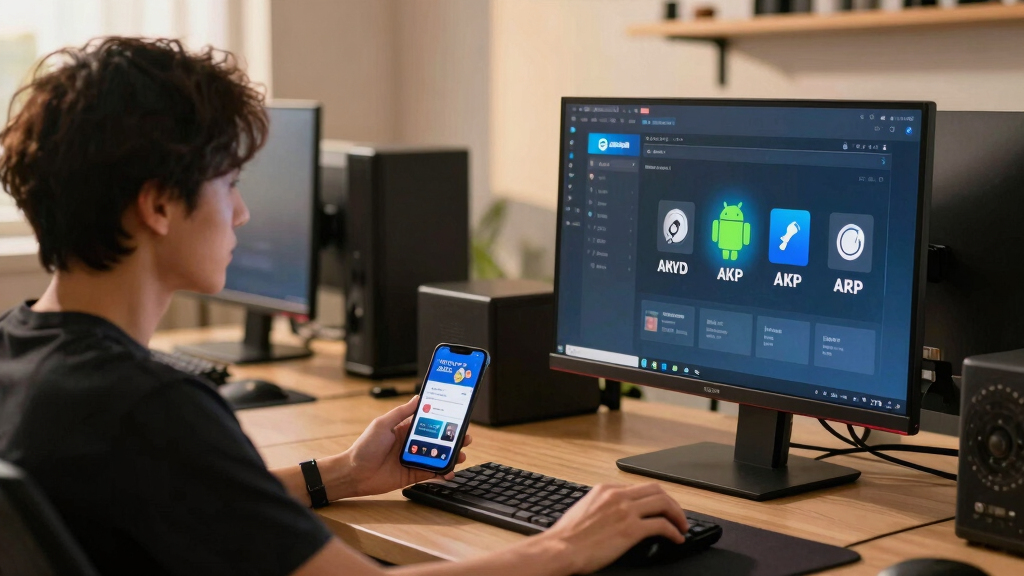
Android APKs on Steam Frame are installation packages for Android apps and games, but APK support does not promise that every package will run. It means Steam Frame has a possible route for handling Android software, subject to the app’s processor build, services, controls, permissions, and current SteamOS version.
Think of an APK as a sealed game box. The box may fit through Steam Frame’s front door, yet the pieces inside can still require equipment the headset lacks. A puzzle game might need only a screen and basic audio, while a mobile shooter may expect touch gestures, Google login, location data, and a phone-style notification system.
According to Valve’s official Steam Frame materials, the platform uses ARM-based Snapdragon hardware and SteamOS [1]. That matters because most modern Android apps already ship ARM code, which removes one possible obstacle. It does not remove dependencies on Google’s software, manufacturer-specific features, anti-cheat drivers, or display layouts designed around a narrow glass phone.
There is also a major difference between developer-published Android builds and random packages found online. A developer can adapt controls, test display behavior, package required files, and distribute updates through Steam. A manually sideloaded APK may receive none of that care, leaving you to diagnose a black screen or a login button floating beyond reach.
APK support is a doorway, not a compatibility badge. Installation tells you that Steam Frame can read the package; successful play requires the app’s code, services, input, and account systems to work together.
For example, a lightweight offline card game could open in a floating window and respond to pointer input with little trouble. A location-based monster game may install from the same folder but stop at its map because it expects GPS movement and phone permissions. Same package format. Completely different result.
Android APK installer for Steam Deck
As an affiliate, we earn on qualifying purchases.
As an affiliate, we earn on qualifying purchases.
See Which Game Route Fits Before You Install Anything
You have four practical routes to Android content on Steam Frame: an official Steam release, an Android package, streaming, or another operating system. The best choice depends on whether you value simple updates, broad compatibility, offline play, or the freedom to experiment with manual setup.
| Route | Best fit | Main advantage | Main drawback |
|---|---|---|---|
| Official Steam release | Games published and tested for Steam Frame | Library integration, updates, and clearer controller support | Only available when the developer publishes a compatible build |
| Android APK | Legitimate Android apps with compatible ARM code | Local installation and possible offline play | Google services, controls, and anti-cheat may fail |
| Game streaming | Titles already running on a phone, PC, or cloud service | The remote device handles compatibility | Image quality and response depend on the network |
| Separate operating system | Experienced users testing a wider software stack | More control over the Android setup | More storage, maintenance, and recovery work |
An official Steam build should usually be your first choice. According to Steamworks documentation, developers can manage platform-specific depots and builds through Steam [2], giving them a controlled path for distributing the right files. That structure also makes patches less messy than hunting for a fresh APK after every update.
Streaming works differently. Suppose you own an Android rhythm game that runs flawlessly on your phone. Streaming can send its picture and sound to Steam Frame, but a shaky hotel Wi-Fi connection may turn every drum hit into a dull, late thump. A fast local network can feel smooth; a congested network can smear text and add enough delay to ruin precise play.
A separate operating system offers more freedom, but it resembles adding a second kitchen to a small apartment. You gain another place to cook, then inherit another set of cupboards, pipes, updates, and repairs. For most players, official Steam delivery or a contained Android layer offers a cleaner starting point than a multi-OS setup.
No route wins every time. Local APK installation can suit a small offline app, while streaming may rescue a game tied to phone-only services. If a developer publishes a Steam Frame-compatible version, that release usually provides the clearest path for controls, updates, cloud saves, and support.
SteamOS compatible Android game controller
As an affiliate, we earn on qualifying purchases.
As an affiliate, we earn on qualifying purchases.
Check These Five Compatibility Clues Before You Expect a Game to Run
Android APKs on Steam Frame work only when several pieces line up: processor code, system services, graphics support, input, and account checks. You can avoid many dead ends by checking five compatibility clues before installation instead of treating the APK extension as proof of support.
- Processor build: Look for ARM64 or arm64-v8a support. An APK containing only older ARM or Intel code may need translation or may refuse to start.
- Required services: Check whether the game depends on Google Play services, Play Games login, push notifications, maps, or in-app billing.
- Input design: Find out whether it supports a gamepad, mouse pointer, or remappable controls rather than touchscreen gestures alone.
- Display mode: Confirm whether it is a flat Android app or a VR title built for a supported headset interface.
- Online protection: Competitive games may use anti-cheat or device-integrity checks that reject an unfamiliar system.
Imagine installing a colorful tower-defense game during a train trip. Its ARM64 build opens, the soundtrack chirps through your headphones, and pointer controls replace finger taps well enough. Then the game asks for a Play Games login to restore your save, and the sign-in window never appears. The game runs, but your progress remains trapped on your phone.
Control support deserves special attention. A two-dimensional Android app may appear on a virtual panel, where one controller acts like a laser pointer. That can work for menus and turn-based games. It feels far worse when a shooter asks you to hold two invisible touchscreen sticks while tapping small reload and crouch buttons at the same time.
VR creates another dividing line. A normal phone APK does not become an immersive VR game merely because it runs inside a headset. True VR software needs the correct rendering interface, head tracking, controller tracking, frame timing, and display behavior. Without those pieces, you may get a floating rectangle rather than a room that wraps around you.
Treat online lists claiming that all Android games work as unconfirmed unless they name the SteamOS version, app version, installation route, and test date. Compatibility can change after a game update or firmware patch. A report from one build is a useful clue, not a permanent guarantee.
Google Play services alternative for Steam Frame
As an affiliate, we earn on qualifying purchases.
As an affiliate, we earn on qualifying purchases.
Use This Seven-Step Safety Check for Every APK
A safe APK test starts before installation and ends only after you have checked permissions, controls, heat, battery use, and account behavior. Use a separate test routine for each package, because one clean app says nothing about the next file you download or the access it requests.
- Confirm ownership and origin. Download from the developer, an official store export, or another channel you trust. Avoid repacked paid games.
- Check the package details. Match the app version, processor type, and required Android version with the supported Steam Frame setup.
- Back up saves. Sync supported games and copy any local data you cannot replace.
- Read every permission. A calculator asking for contacts, microphone access, and precise location deserves an immediate stop.
- Install one app at a time. This makes crashes, battery drain, or strange network activity easier to trace.
- Test offline first when possible. Open menus, check sound, map controls, and watch temperature before signing into a valuable account.
- Remove failed packages cleanly. Delete leftover data when the app does not work, then restart before testing another build.
For a concrete example, suppose you want to try an offline pixel-art role-playing game. You verify that the developer supplies an ARM64 APK, back up the save from your phone, and inspect the permission list. The game asks only for storage access, so you install it and spend ten minutes testing menus before copying over any personal data.
Now compare that with an APK from a file-sharing page promising unlimited currency. The installer asks for accessibility access, microphone use, contacts, and permission to install other packages. Those requests glow like red warning lights in a dark hallway. Delete the file; free coins are not worth handing an unknown publisher broad control of your headset.
Keep notes during testing. Record the SteamOS build, APK version, control method, and any fixes you applied. If an update breaks the app later, that short record tells you what changed. It also makes any compatibility report you share far more useful than a vague post saying that the game worked once.
Installation menus and supported methods may change across Steam Frame updates. Follow instructions written for your current platform version, not a months-old screenshot with different buttons. If Valve or the developer provides an official Steam package, use that route before reaching for manual sideloading.
As an affiliate, we earn on qualifying purchases.
Know What Performance Claims Really Mean on Your Headset
Android APKs on Steam Frame can perform well when they use compatible ARM code and modest graphics, but no single frame-rate claim applies to every app. Performance changes with the APK version, SteamOS build, rendering method, thermal conditions, resolution, and whether the game runs as flat or VR software.
Steam Frame’s Snapdragon platform gives Android software a familiar processor family [1], which can reduce the need to translate CPU instructions. Yet the graphics path still matters. An app written for a specific phone driver may show purple textures, missing shadows, or a black menu even when its processor code runs without complaint.
VR also demands steadier frame delivery than a casual phone app. On a handset, a brief hitch may look like a tiny stutter while you swipe through a menu. Inside a headset, uneven movement can feel like the floor slipping half an inch beneath your shoes. Comfort depends on consistent frame pacing, not merely a high average number.
Take a flat 2D farming game as an example. It may sit in a virtual window, draw little power, and remain responsive while you plant rows of bright green crops. A graphically heavy Android action game could push the chip harder, warm the headset, shorten battery life, and still struggle with controls designed for two thumbs.
When you read a performance report, demand four details: Steam Frame model, SteamOS version, app version, and test mode. A result such as stable play on a named build carries more value than runs great. Compatibility labels can also change after updates, just as Steam Deck Verified status can change when software or testing results change.
Do not assume a Steam Deck result applies to Steam Frame. Steam Deck uses a different hardware platform and targets PC games on its own SteamOS setup, while Steam Frame adds headset-specific display, tracking, and comfort demands. Claims that blend both devices without naming the tested platform should be treated as unconfirmed performance claims.
Protect Your Account, Purchases, and Younger Players
Using an APK is generally lawful when you obtained the app legally and follow its license, but the file format does not grant permission to copy paid games or bypass protection. Protect yourself by using legitimate downloads, checking regional rules, and keeping valuable accounts away from modified packages.
APK websites vary wildly. One page may host the developer’s untouched free app; another may wrap a popular game in tracking code or remove its payment checks. The icon can look identical, right down to the glossy red sword, while the package underneath behaves like a stranger wearing the developer’s coat.
Account bans are another risk. An online game may treat an unsupported Android layer, altered package, root-like access, or failed device-integrity check as suspicious. Even if the game reaches its login screen, that does not mean the publisher permits the setup. Check the game’s rules before using a long-held account filled with purchases and years of progress.
Age ratings need a fresh check too. A Steam store release may display an ESRB, PEGI, USK, or regional rating, while a sideloaded APK can arrive without the storefront page that normally shows content warnings. If a younger player uses the headset, review the game’s official rating, chat features, user-made content, purchases, and privacy settings before handing over the controllers.
For example, a cartoon racing game may carry a low age rating but still include open voice chat and randomized purchases. A child can move from bright tracks and squealing tires to conversations with strangers in seconds. The art style alone tells you very little about online interaction or spending pressure.
Warranty questions depend on what you change. Installing third-party software is different from opening the headset or modifying hardware, and policies can vary by region. Keep recovery options available, avoid physical changes unless you accept their consequences, and read Valve’s current warranty language before making a change that is difficult to reverse.
Your safest rule: never give an unverified APK a valuable login, payment method, microphone, or private files merely because its title screen looks familiar.
Choose the Right Route in Less Than a Minute
Your quickest decision comes from asking what you actually want to do. Pick the official Steam release for reliable library use, try a legitimate APK for a simple compatible app, choose streaming for phone-bound services, and reserve a separate operating system for experiments you are ready to maintain.
If the app has a Steam Frame-ready store version, start there. You gain managed updates, a cleaner launch path, and a better chance of usable controller prompts. This works well except when the Steam release lacks features or saved progress available in the Android version, so check the developer’s notes before moving your account.
If you only want a flat offline utility, a trusted APK can make sense. Imagine loading a reading app for a quiet flight: no competitive anti-cheat, no location tracking, and no rapid touch controls. You can test it in a window, enlarge the text, and remove it with little drama if the page controls feel clumsy.
Choose streaming when an app depends heavily on a phone’s certified services or when you do not want to copy account data onto the headset. A local network with a strong Wi-Fi signal can carry the experience well. Cloud streaming adds distance and internet congestion, so fast action may feel softer and slower than a locally rendered game.
Use a multi-OS setup only when the wider Android environment justifies the extra work. It can consume storage and add another update cycle, boot process, and recovery plan. If you enjoy tinkering, that maintenance may be part of the fun; if you only want one puzzle game, it is a large toolbox for a very small screw.
Before deciding, ask three blunt questions: Is the download legitimate? Does the app support your required controls and services? Can you recover if it breaks? Three confident answers point toward a sensible test. One uncertain answer means you should pause and look for an official build or streaming route.
Frequently Asked Questions
Can Steam Frame install every Android APK?
No, Steam Frame cannot be expected to run every Android APK. An app may require unsupported Google services, phone sensors, graphics features, anti-cheat systems, or touchscreen controls. Check the specific app version and current SteamOS build instead of relying on a general compatibility claim.
Does an Android APK become a VR game on Steam Frame?
No, a standard Android APK does not automatically become VR software. A flat app may appear on a virtual panel, while a true VR game needs compatible head tracking, controller tracking, rendering, and frame timing. Without those features, you are using a phone-style app inside VR, not stepping inside the game world.
Is sideloading APKs on Steam Frame legal?
Sideloading is generally lawful when you own or may legally use the app, but copyright and license rules still apply. Do not download repacked paid games, remove payment checks, or distribute files without permission. Regional law can differ, so use developer-approved downloads whenever possible.
Will Google Play games work on Steam Frame?
Some may work, but Google Play dependencies can block login, saves, billing, or notifications. A game can reach its menu and still fail when it requests Play Games authentication or a device-integrity check. Favor a Steam-published version when you need dependable account access.
Can an APK damage Steam Frame or void its warranty?
A malicious or unstable APK can compromise data, drain power, or cause software problems. Software installation differs from physical hardware modification, and warranty treatment depends on the policy and region. Keep backups, use a recovery path, and read Valve’s current warranty terms before making harder-to-reverse changes.
Will Android games perform as well as native Steam games?
Performance depends on the individual game and the way it runs. Compatible ARM code can help, but graphics drivers, resolution, heat, controls, and software layers still shape the result. Trust only tests that name the Steam Frame hardware, SteamOS build, APK version, and test date.
Should I use an APK or stream the game from another device?
Use a local APK for a trusted, compatible app that benefits from offline play. Choose streaming when the game relies on phone services, already works well elsewhere, or would expose a valuable account to an unsupported setup. Streaming needs a strong network, while local installation places more compatibility work on Steam Frame itself.
Conclusion
Remember one thing: an APK is a package, not a promise. Start with the official Steam Frame release when one exists, then use legitimate Android packages only after checking processor support, services, controls, permissions, and the current SteamOS build. That small inspection can save you from broken logins, lost saves, account trouble, and an evening spent staring at a black rectangle.
Steam Frame can give Android software another screen and another set of controls, but you still need the right match. Test one app carefully, keep notes, and stop when permissions or account rules feel wrong. The best result is not a folder stuffed with APKs; it is one game that starts cleanly, responds when you move, and leaves you thinking about the adventure instead of the machinery behind it.
Halloween Picks
halloween
As an affiliate, we earn on qualifying purchases.