TL;DR

Play games on Amazon Luna for your game nights, included with Prime
- A rotating selection of games, no download needed
- Play on TV, laptop or phone
- Fast, free delivery for your gear, too
Why Wi-Fi Matters More Than You Think for Steam Frame: game streaming needs a steady local network, not just a fast internet plan. A nearby Wi-Fi 6 or Wi-Fi 6E router, a clean 5 GHz or 6 GHz band, and a wired gaming PC can reduce lag, blur, and dropouts.
Your expensive gaming PC can feel cheap the moment your Wi-Fi coughs.
Steam Frame lives or dies on the invisible trip between your router, your gaming PC, Steam services, and the screen in your hands or on your wall. This guide shows you why speed tests only tell part of the story, what numbers matter, and how you can fix the usual stutter traps at home.
If you are reading about Steam Frame through rumors or leaks, treat hardware claims as unconfirmed until Valve publishes final specs. The Wi-Fi advice here still applies to Steam Remote Play, Steam Deck-style streaming, and any Steam-connected display that has to move fast video across your home network.
Why Wi-Fi Matters More Than You Think for Steam Frame
Game streaming needs a steady local network, not just a fast internet plan. A nearby Wi-Fi 6 or Wi-Fi 6E router, a clean 5 GHz or 6 GHz band, and a wired gaming PC can reduce lag, blur, and dropouts.
Bottom line: your expensive gaming PC can feel cheap the moment your Wi-Fi coughs. Every frame and every button press has to survive the invisible trip through your home network.
A streamed frame that arrives late is already stale. Downloads can recover; gameplay cannot wait.
Higher refresh rates tighten the deadline and expose jitter faster.
Wiring the gaming PC removes one fragile wireless hop from the stream.
Your internet plan gets the blame, but your living room Wi-Fi often holds the controller.
Streaming is a deadline, not a download
A 500 Mbps plan cannot rescue a stream if packet loss, jitter, or weak signal makes frames arrive unevenly. Movies can buffer ahead. A streamed game has to feel immediate.
Picture clarity
More video data can sharpen the image and reduce blocky patches, but high bitrate over weak Wi-Fi can make timing worse.
Button feel
Latency decides whether inputs feel crisp or late. Even small delays become obvious in platformers, shooters, and action games.
Stutter traps
Latency spikes and missing data cause random freezes, audio pops, sudden quality drops, and rubber-band movement.
Every frame takes a tiny obstacle course
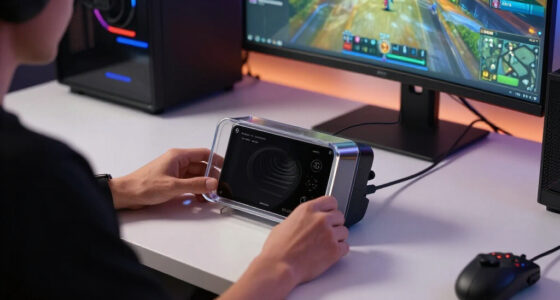
The strongest gaming PC still depends on the weakest link between the host, router, Steam services, and the screen in your hands or on your wall.
What Steam Frame needs before more speed
Better streaming usually starts with stability. The table shows what each network factor means in play and which symptoms point to trouble.
| Network factor | What it means in play | What you notice | Priority |
|---|---|---|---|
| Bandwidth | How much video data the stream can carry. | Sharper image, fewer blocky patches. | ~ Useful after signal is stable. |
| Latency | How long input and video take to travel. | Buttons feel late or crisp. | ✓ Critical for game feel. |
| Jitter | How much latency jumps around. | Random stutters and uneven motion. | ✓ Critical for consistency. |
| Packet loss | Missing data during the stream. | Freezes, audio pops, quality drops. | ✗ Must be reduced. |
Five checks that solve most stutter
Start with placement, band choice, and background traffic before buying new hardware. These steps remove the most common variables first.
Lowering bitrate can look softer but feel better when the router can deliver frames on time.
When Wi-Fi 6, Wi-Fi 6E, or mesh is worth it
Wi-Fi 6 and Wi-Fi 6E help most in busy homes. Mesh helps when distance, walls, and dead zones are the real problem.
| Option | Best use | Tradeoff | Steam Frame fit |
|---|---|---|---|
| Wi-Fi 5 | Small homes, few devices, short range. | Can struggle when phones, TVs, and laptops pile on. | ~ Fine in clean setups. |
| Wi-Fi 6 | Busy homes with many connected devices. | Needs compatible hardware for the biggest gains. | ✓ Strong default upgrade. |
| Wi-Fi 6E | Clean 6 GHz connections near the router. | Shorter reach through walls than 2.4 GHz. | ✓ Great close-range band. |
| Mesh Wi-Fi | Larger homes, long hallways, upstairs rooms. | Bad node placement can add delay. | ~ Best with strong backhaul. |
| Ethernet | Gaming PC, router backhaul, fixed rooms. | Less tidy, but most stable. | ✓ Best anchor point. |
Good hardware can still feel bad
Interference from microwaves, Bluetooth gear, TV cabinets, crowded apartment channels, and background updates can make a strong setup stumble at the worst time.
Buried routers
Routers under desks, inside cabinets, behind TVs, or tangled in cables lose usable signal before the stream even starts.
Noisy rooms
Kitchen appliances, Bluetooth gear, and nearby networks can cause stutters even when a speed test looks healthy.
Nightly traffic
Smart TVs, cloud backups, console patches, and launcher downloads create bandwidth pressure and latency spikes.
Treat Steam Frame hardware claims carefully until Valve publishes final specs.
The Wi-Fi advice still applies to Steam Remote Play, Steam Deck-style streaming, and any Steam-connected display that needs fast local video.
From router choice to game feel
A smoother stream is usually the result of several small decisions lining up, not one magic speed number.
Key Takeaways
- Steam Frame streaming depends on steady local Wi-Fi more than headline internet speed.
- A wired gaming PC plus 5 GHz or 6 GHz Wi-Fi for Steam Frame removes many common stutter causes.
- Wi-Fi 6 and Wi-Fi 6E help most in busy homes, while mesh helps when distance and dead zones are the real issue.
- Interference from microwaves, Bluetooth gear, TV cabinets, and crowded apartment channels can make good hardware feel bad.
- Game ratings and platform claims still matter: ratings follow the game, and performance depends on device, firmware, game version, and network setup.
As an affiliate, we earn on qualifying purchases.
Why your router can make a powerful PC feel slow
Why Wi-Fi Matters More Than You Think for Steam Frame is simple: the game may run on a strong PC, but your Wi-Fi carries every frame you see and every button press you make. If that local link wobbles, a smooth game turns soft, late, and smeared.
That matters because streaming is not like downloading a file. A download can slow down, recover, and still arrive complete. A streamed frame has a deadline. If it arrives late, it is not useful anymore; the next frame has already taken its place. This is why a huge internet plan can still feel terrible when the local wireless path is noisy.
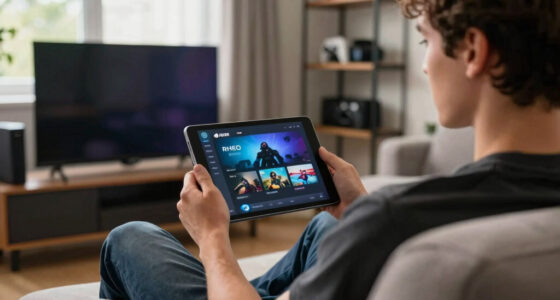
Think about playing Elden Ring from a gaming PC upstairs while Steam Frame sits in the living room. Your GPU can push crisp frames all night, but the stream still has to squeeze through walls, kitchen appliances, and a router that may also be feeding phones, TVs, tablets, and a laptop downloading a 90 GB update.
Valve’s Remote Play guidance points players toward a strong home network and wired connections where possible for the host machine [2]. That advice matters because a wired PC removes one wireless hop. Your router then spends its attention on the Steam Frame side of the stream instead of juggling two fragile wireless links at once.
Your internet plan gets the blame, but your living room Wi-Fi often holds the controller.
As an affiliate, we earn on qualifying purchases.
What Steam Frame needs before it needs more speed
Steam Frame needs stable latency, low jitter, and clean signal strength before it needs a bigger internet package. A 500 Mbps plan will not save a stream if the router sits behind a brick wall and your Wi-Fi drops packets during every busy hallway battle.
| Network factor | What it means in play | What you notice |
|---|---|---|
| Bandwidth | How much video data the stream can carry | Sharper image, fewer blocky patches |
| Latency | How long input and video take to travel | Buttons feel late or crisp |
| Jitter | How much latency jumps around | Random stutters, rubber-band movement |
| Packet loss | Missing data during the stream | Freezes, audio pops, sudden quality drops |
The tradeoff is that these factors pull in different directions. More bandwidth can make the picture cleaner, but pushing a higher bitrate through a weak Wi-Fi signal can also make the stream less stable. Lowering bitrate may look softer, yet feel better because the router can deliver frames on time.
At 60 fps, each frame gets about 16.7 milliseconds. At 90 fps, that window shrinks to about 11.1 milliseconds. When your network misses those tiny beats, the stream feels like a drummer who keeps losing the rhythm.
Here is the real-world test: if Netflix looks fine but your game feels mushy, your problem is probably responsiveness, not raw download speed. Movies can buffer ahead. A streamed game cannot wait politely while your router catches up.
As an affiliate, we earn on qualifying purchases.
5 network checks that fix most Steam Frame stutter
Why Wi-Fi Matters More Than You Think for Steam Frame shows up fastest when you run a few boring checks before buying anything. Most stutter comes from placement, band choice, or one noisy device nearby, so start with the fixes that cost zero dollars.
- Wire the gaming PC to the router with Ethernet if you can. This removes one wireless jump and gives the stream a steadier launch point, which is often more valuable than upgrading the client device.
- Use 5 GHz or 6 GHz Wi-Fi for Steam Frame when the signal is strong. These bands usually carry more data with less crowding than 2.4 GHz, but they lose strength faster through walls.
- Move the router into the open, not under a desk, inside a cabinet, or behind the TV. Radio waves hate being buried in wood, metal, and cable knots.
- Pause big downloads on PCs, consoles, and launchers before a streaming session. A background update can swallow bandwidth like a drain opening under your game, and it can also create latency spikes.
- Test in the same room first, then move farther away. If the stream is clean nearby and rough on the couch, distance and walls are your suspects.
The order matters. Wiring the PC first removes a major variable. Testing close to the router gives you a baseline. Only after that does it make sense to blame Steam Frame, buy mesh nodes, or start changing advanced router settings.
A simple example: your Steam Frame stutters only at night. Then you notice a smart TV starts streaming 4K video in the next room, two phones begin cloud backups, and your PC launcher grabs a patch. The problem is not mysterious. Your network got crowded.
home network optimization for game streaming
As an affiliate, we earn on qualifying purchases.
As an affiliate, we earn on qualifying purchases.
When Wi-Fi 6, Wi-Fi 6E, or mesh is worth it
Why Wi-Fi Matters More Than You Think for Steam Frame becomes obvious when an older router has to serve a busy home. Wi-Fi 6 and Wi-Fi 6E help most when many devices compete at once, while mesh helps when distance and dead zones create weak signal.
| Option | Best use | Tradeoff |
|---|---|---|
| Wi-Fi 5 | Small homes with few devices and short range | Can struggle when phones, TVs, and laptops pile on |
| Wi-Fi 6 | Busy homes with many connected devices | Needs compatible hardware for the biggest gains |
| Wi-Fi 6E | Clean 6 GHz connections near the router | Shorter reach through walls than 2.4 GHz |
| Mesh Wi-Fi | Larger homes, long hallways, upstairs rooms | Node placement matters; bad placement can add delay |
| Ethernet | Gaming PC, router backhaul, fixed rooms | Less tidy, but the most stable |
According to the Wi-Fi Alliance, Wi-Fi 6 uses features such as OFDMA and MU-MIMO to handle busy networks with many devices more efficiently [1]. In plain English, the router gets better at serving a crowded dinner table instead of making everyone shout at once.
The implication is not that every player needs the newest router. If Steam Frame sits ten feet from a decent Wi-Fi 5 router and the gaming PC is wired, you may already be fine. The upgrade starts to make sense when several people use the network at the same time, when your router is old enough to lack modern traffic handling, or when your play space sits in a weak corner of the house.
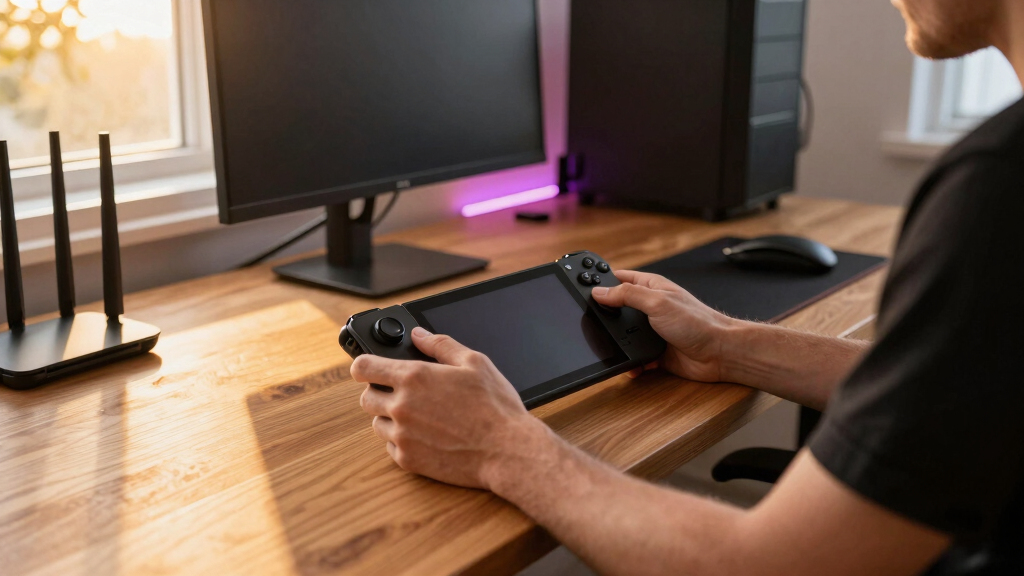
Mesh helps when your Steam Frame lives far from the router, such as a basement sofa or a bedroom tucked behind thick plaster. Put a mesh node halfway between the router and the play area, not right beside the Steam Frame with a weak backhaul. The node needs a good signal too.
For the most stable mesh setup, Ethernet backhaul is the prize. A wired mesh node acts more like a second strong access point. A wireless mesh node can still help, but it may trade better coverage for extra delay if it has to repeat a weak signal.
The hidden home problems that make streaming feel mushy
Steam Frame streaming feels mushy when interference, distance, or router congestion makes the signal uneven. The fix starts by looking at what sits between the router and the screen: walls, mirrors, microwaves, Bluetooth gear, and neighbors using the same channels.
- Microwaves can bother 2.4 GHz Wi-Fi, especially during quick kitchen breaks.
- Bluetooth devices add noise in the same crowded 2.4 GHz space.
- Apartment buildings can stack dozens of nearby Wi-Fi networks on top of yours.
- TV cabinets trap routers near metal frames, power bricks, and HDMI cables.
- Old repeaters can extend range while cutting throughput and adding delay.
These problems matter because they rarely look like a clean failure. The stream usually does not disconnect in a dramatic way. Instead, the picture softens, input timing wanders, audio pops, or one room feels cursed while another feels perfect. That pattern points to signal quality, not Steam Frame horsepower.
Here is a small but common scene: you sit down after dinner, the room glows blue from the TV, and your game suddenly looks like wet paint. Then the microwave dings in the kitchen. If you are on 2.4 GHz, that little blast of radio noise can line up perfectly with the stutter.
Move the router a few feet higher, rotate the antennas if it has them, and keep it away from thick electronics. It sounds too simple, but radio signal behaves like light in a cluttered room. Give it space, and it travels cleaner.
The tradeoff is convenience. The neatest router spot is often the worst radio spot: hidden low, boxed in, and surrounded by cables. A slightly uglier placement in the open can do more for game feel than another month of blaming the device.
What changes when kids, guests, and ratings enter the room
Steam Frame makes your Steam library feel more present around the house, so account controls and game age ratings matter as much as network setup. Wi-Fi decides how smooth the stream feels, but your Steam account decides what can appear on that screen.
If a child picks up a controller in the den, the display does not magically change the game’s rating. ESRB, PEGI, or local age ratings still follow the game itself. A cozy-looking streaming screen can still launch an M-rated shooter if the account allows it.
That changes the risk from technical to practical. A device that feels casual and shared can still expose a full PC library, saved accounts, chat notifications, and store access. Before Steam Frame becomes a living-room object, check Family View, account switching, PINs, and which games are easy to launch.
Guests create a second issue: network load. A house party with eight phones, a smart speaker, and someone casting music can turn a clean stream into a choppy one. Put visitors on a guest network when your router supports it, and keep Steam Frame plus your gaming PC on the main network.
The tradeoff is isolation versus convenience. A guest network keeps visitors from crowding or seeing your main devices, but Steam Frame and the gaming PC usually need to find each other easily. Keep the streaming path simple and protected: trusted devices on the main network, casual visitors somewhere else.
Performance claims also need a platform and version. A game that feels fine on Steam Deck or carries a Steam Deck Verified label can change after a patch, driver update, or Proton update [2]. For Steam Frame, judge performance on the exact device, router firmware, band, and game version you use.
A five-minute test that tells you what to fix next
A quick test can separate a Steam Frame problem from a Wi-Fi problem in five minutes. Start near the router, change only one thing at a time, and write down what improves. Guessing wastes money; controlled testing points at the real weak link.
- Play near the router for five minutes. If the stream improves, your issue is coverage or interference.
- Connect the gaming PC by Ethernet, then test again. If lag drops, the host PC’s Wi-Fi was part of the problem.
- Switch between 2.4 GHz and 5 GHz or 6 GHz. Use the band that feels steady, not the one with the biggest number on the box.
- Stop downloads and cloud backups. If the stream clears up, your router needs traffic control or better scheduling.
- Test at the time you usually play. Evening congestion can be very different from a quiet morning.
Each result tells you what kind of fix is worth trying. If close-range play is clean, do not buy more internet speed; improve coverage. If Ethernet fixes the host PC, leave it wired. If stopping downloads helps, look for QoS, device priority, or household scheduling before replacing hardware.
Picture your usual setup: the PC hums in the office, Steam Frame sits by the couch, and the router blinks behind the TV. You run the same game in each test spot. When one move turns a blurry sword swing into a clean arc, you have found your next fix.
The goal is not a perfect lab result. It is enough evidence to make the next move obvious. Steam Frame streaming has many possible weak links, but testing one variable at a time turns a messy feeling into a short repair list.
Frequently Asked Questions
Is Wi-Fi 6 required for Steam Frame?
Wi-Fi 6 is not always required, but it helps in homes with many connected devices. If your current router already gives you clean 5 GHz coverage near Steam Frame, you may see more gain from wiring the gaming PC than replacing the router.
Is Ethernet better than Wi-Fi for Steam Frame streaming?
Ethernet is better for any fixed device that can use it, especially the gaming PC that hosts the stream. Many Steam Frame-style setups will still use Wi-Fi for the screen, but wiring the PC gives the stream a steadier starting point.
Does faster internet make Steam Frame less laggy?
Faster internet helps with downloads, cloud services, and remote play away from home. Inside your house, local Wi-Fi latency, jitter, and signal quality usually decide whether Steam Frame feels sharp or sluggish.
Should I use 2.4 GHz, 5 GHz, or 6 GHz?
Use 5 GHz or 6 GHz when Steam Frame is close enough to the router for a strong signal. Use 2.4 GHz only when range matters more than speed, such as through several rooms or thick walls.
Are Steam Frame leaks reliable for performance planning?
Treat Steam Frame rumors and leaks as unconfirmed until Valve publishes final hardware details. Plan around network basics instead: strong signal, low jitter, wired host PC, and tested performance on your own router and game versions.
Conclusion
Remember this: Steam Frame does not just need fast Wi-Fi. It needs calm Wi-Fi, the kind that delivers frames in a steady rhythm while the rest of the house hums around it.
Wire the PC, use the cleanest band, move the router into the open, and test before you buy new gear. A smoother stream can start with one cable, one better router spot, and a game that finally feels like it is in your hands.
Fall Picks
fall essentials
As an affiliate, we earn on qualifying purchases.