
TL;DR

Play games on Amazon Luna for your game nights, included with Prime
- A rotating selection of games, no download needed
- Play on TV, laptop or phone
- Fast, free delivery for your gear, too
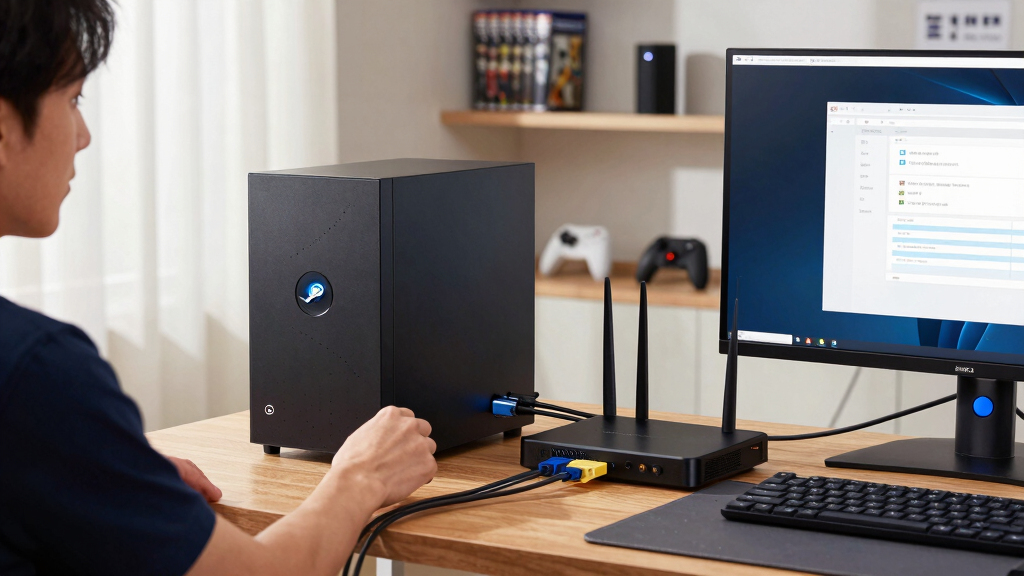
A stable Steam Machine network setup uses Ethernet whenever possible, a nearby 5 GHz or 6 GHz Wi-Fi connection when cabling is impractical, and a download region that performs consistently. Test one layer at a time, compare Steam’s rate with a wired speed test, and remember that 25 Mbps equals only about 3.1 MB/s before network overhead.
A download can race along at 40 MB/s, fall to zero, and then crawl back like a cold engine. Your internet plan may advertise plenty of speed, yet a weak Wi-Fi hop, a busy router, or a hard-working storage drive can turn a Steam update into an overnight job.
This guide gives you a practical Steam Machine network setup, along with common fixes for unstable downloads. You will learn where to connect the machine, which Steam settings deserve attention, when router changes help, and how to tell a network slowdown from a disk or server problem.
The name Steam Machine can refer to an original SteamOS living-room computer or a newer PC built for a television and running Steam. Menu labels vary across SteamOS and Steam client versions, but the network principles remain the same: create a clean path, measure it, and change one variable at a time. According to Valve’s Steam Support guidance, download region, local network conditions, background traffic, and storage activity can all affect the rate you see [1].
Run one temporary Gigabit Ethernet test before changing router settings; it quickly separates Wi-Fi trouble from wider network or storage trouble.
Convert internet speed from Mbps to Steam’s MB/s by dividing by eight, then allow extra room for overhead and competing traffic.
Test each Steam download region for at least five minutes and favor a steady average over a brief speed spike.
Treat QoS and port forwarding as targeted tools, not automatic fixes; poor values can create a new bottleneck.
Compare Steam’s network and disk graphs because a zero network rate during heavy disk activity often means unpacking or patching.
Steam Machine Network Setup Explained for Stable Downloads
A fast internet plan is only one link in the chain. Build a clean path from Steam’s servers to your storage drive, measure each layer, and favor repeatable speed over a spectacular five-second spike.
Choose the connection that stays steady
Ethernet gives large downloads a predictable private lane. Strong 5 GHz or 6 GHz Wi-Fi is the practical alternative when cabling is impossible; 2.4 GHz is best reserved for range or older hardware.
Gigabit Ethernet
Best for large games, frequent updates, low packet loss, and consistent throughput.
Best default5 GHz Wi-Fi
Fast and widely supported in the same room or through a small number of light walls.
Strong alternative6 GHz Wi-Fi
Cleaner radio space for modern devices, but with shorter reach and variable support.
Clear short range2.4 GHz Wi-Fi
Reaches farther, yet shares crowded spectrum and usually delivers lower real speed.
Range fallbackMatch the link to the room
Full signal bars do not reveal interference, airtime congestion, or packet retries. A Steam Machine hidden behind a metal television stand can perform far worse than one moved just 60 centimeters into the open.
| Connection | Stability | Best use | Main advantage | Common weakness |
|---|---|---|---|---|
| Gigabit Ethernet | ✓ Excellent | Large games and updates | Consistent speed; low loss | Cable route required |
| 5 GHz Wi-Fi | ✓ Good nearby | Same-room setups | Fast; broad support | Weakens through walls |
| 6 GHz Wi-Fi | ✓ Good in clear range | Modern short-range setups | Less crowded spectrum | Short reach; support varies |
| 2.4 GHz Wi-Fi | ~ Variable | Long range or old hardware | Travels farther | Interference; lower speed |
| Powerline adapter | ~ Home-dependent | Difficult cable routes | Uses existing wiring | ✗ Old wiring can fluctuate |
Build stability in five controlled steps
Change one layer at a time and repeat the same download when possible. Each step answers a distinct question about the internet feed, local network, Steam configuration, or storage drive.
Measure
Pause other jobs. Record wired or Wi-Fi speed, latency, Steam rate, and graph behavior.
Clear traffic
Stop cloud backups, 4K streams, console patches, VPNs, and large uploads for ten minutes.
Wire it
Connect temporarily to the main router—not a distant extender—and repeat the test.
Tune Steam
Review region, bandwidth cap, schedule, cache behavior, and local transfer options.
Watch disk
Compare network and disk graphs to spot unpacking, verification, or patching pauses.
If the dips disappear, focus on Wi-Fi placement and interference. If they remain, investigate Steam’s region, household congestion, the internet feed, and storage activity.
Translate the numbers before diagnosing
Internet plans usually advertise megabits per second. Steam may display megabytes per second. Divide Mbps by eight, then expect a little less after protocol overhead and competing traffic.
Network dip, server dip, or disk pause?
A rate that falls to zero is not automatically a connection failure. Steam may stop receiving data while it writes, decompresses, verifies, or patches game files.
Likely Wi-Fi
Ethernet becomes stable while Wi-Fi swings. Move the machine into the open, reduce distance, bypass the extender, or test a cleaner 5/6 GHz channel.
Likely Steam region
Speed tests are healthy and the disk is quiet, but Steam remains erratic. Test nearby regions for at least five minutes and keep the steadiest average.
Likely storage
Network use drops while disk activity remains high. Allow patching to finish, confirm free space, and compare performance on a faster SSD if available.
Follow every byte through the chain
Stable downloads require every stage to keep pace. The slowest active stage becomes the effective ceiling, even when the internet plan looks fast on paper.
High-value adjustments
- Update firmware and place the router above floor level in the open.
- Pause background traffic before comparing configurations.
- Test nearby regions for steady averages, not momentary peaks.
- Disable VPNs or proxies during diagnosis.
Use targeted tools carefully
- QoS can protect traffic when uploads saturate the connection.
- Bandwidth limits help prevent Steam from overwhelming the household.
- Port forwarding is rarely the first fix for ordinary downloads.
- One change at a time preserves a useful, repeatable comparison.
Ethernet or Wi-Fi: Pick the Connection That Will Stay Steady
Steam Machine Network Setup Explained for Stable Downloads begins with one choice: use Gigabit Ethernet when you can, and use strong 5 GHz or 6 GHz Wi-Fi when you cannot. A cable offers a steadier path because walls, neighboring networks, microwaves, and distance cannot disturb its radio signal.
| Connection | Best use | Main advantage | Common weakness |
|---|---|---|---|
| Gigabit Ethernet | Large games and frequent updates | Consistent speed and low packet loss | Requires a cable route |
| 5 GHz Wi-Fi | Same-room or nearby setups | Fast and widely supported | Loses strength through walls |
| 6 GHz Wi-Fi | Modern hardware in a clear, short range | Less crowded radio space | Shorter reach and device support varies |
| 2.4 GHz Wi-Fi | Longer range or older hardware | Travels farther through a home | More interference and lower speeds |
Think of the connection as a road between your router and the Steam Machine. Ethernet gives you a private lane, while Wi-Fi shares an intersection with phones, speakers, cameras, and every neighboring router shouting on the same channels. The internet plan sets the distant speed limit, but your local link decides whether traffic reaches that road cleanly.
For example, a Steam Machine beside a television may show full Wi-Fi bars while sitting behind a metal TV stand. Move it 60 centimeters into the open, and a wavering 18 MB/s download may become a steady 35 MB/s. Signal bars show strength, though they do not reveal interference, packet retries, or crowded airtime.
If a permanent cable would cross a hallway, run a temporary Ethernet cable for one large download. That quick test is your best dividing line: if Ethernet fixes the dips, focus on router placement and Wi-Fi; if it does not, examine Steam settings, internet congestion, and disk activity. Powerline adapters can help in some homes, but old wiring and separate electrical circuits can make their performance as uneven as Wi-Fi.
As an affiliate, we earn on qualifying purchases.
Build a Stable Setup in Five Measured Steps
Steam Machine Network Setup Explained for Stable Downloads works best as a five-step test: establish a baseline, remove competing traffic, test Ethernet, adjust Steam, and watch the storage drive. This order keeps you from changing six settings at once and losing track of which change solved the problem.
- Measure a baseline. Pause other downloads, run a speed test on the Steam Machine, and record latency, download speed, and whether the graph jumps sharply.
- Stop competing traffic. Pause cloud backups, 4K streaming, console updates, and large phone uploads for ten minutes.
- Test Ethernet. Connect directly to the main router, not a distant extender, and download the same game or update again.
- Check Steam settings. Review the download region, bandwidth limit, download schedule, and local transfer options available in your client version.
- Watch network and disk graphs. If network use falls while disk use stays high, Steam may be unpacking or patching files rather than waiting for the internet.
Suppose your household has a 100 Mbps connection. A television streaming 4K video, a laptop uploading photos, and a console patching a game can squeeze the Steam Machine from roughly 12 MB/s to 3 MB/s. Pausing those jobs for ten minutes gives you a clean comparison without touching the router.
Do not judge a change from the first few seconds. Steam downloads often arrive in bursts because the client writes, verifies, decompresses, or patches data between network transfers. Test for at least five minutes, and use the same title when possible; comparing a tiny update with a 90 GB installation mixes two very different workloads.
Change one layer at a time. A stable result you can repeat is more useful than one spectacular speed spike.
This method gives you a setup for stable results because every step answers a specific question. Is the internet feed slow? Is Wi-Fi dropping packets? Is another device consuming the line? Or is a storage drive pausing the download while it sorts a mountain of compressed files?
As an affiliate, we earn on qualifying purchases.
Tune Your Router Without Creating New Problems
Steam Machine Network Setup Explained for Stable Downloads needs only a few router changes: install current firmware, place the router in the open, use a clean Wi-Fi channel, and apply QoS carefully. Port forwarding is rarely the first fix for downloads because Steam normally starts its connections from inside your network.
Start with placement. Put the router above floor level, away from thick masonry, aquariums, metal cabinets, and the buzzing clutter behind a television. A router hidden in a cupboard is like a singer performing through a closed door: the sound exists, but every barrier steals clarity.
In a small apartment, automatic channel selection may work well. In a crowded building with twenty visible networks, test a different 5 GHz channel or let a modern router rescan after a reboot. Keep the same network name during testing so your Steam Machine does not cling to a distant extender with a weak backhaul.
Quality of Service can protect a game session or voice chat when someone else fills the upload link, but broad gaming priority does not always make a bulk download faster. Some routers classify Steam downloads as ordinary file traffic, and a poorly chosen bandwidth value can cap the entire home. If you enable QoS, enter realistic measured speeds rather than the larger numbers printed on your service plan.
For example, if your plan says 300 Mbps but repeated wired tests reach 270 Mbps, a QoS value near the measured rate gives the router room to manage the queue. Setting it to 100 Mbps would build an artificial bottleneck. Compare a five-minute Steam download before and after the change.
Avoid opening a long list of ports simply because a forum post recommends it. Port forwarding may help a specific multiplayer or remote-access problem, but it does not repair weak Wi-Fi, an overloaded router, or a slow download server. Valve documents ports used by Steam services [2], yet any manual rule should answer a known problem and match your current Steam feature and platform.
As an affiliate, we earn on qualifying purchases.
Use Steam’s Download Controls to Avoid Congested Routes
Steam Machine Network Setup Explained for Stable Downloads also depends on three client controls: download region, bandwidth limits, and download scheduling. Use a nearby region as your baseline, remove accidental limits, and schedule very large transfers outside the hours when your household or internet provider’s local network is busiest.
Steam normally selects infrastructure intended to serve your location, but the geographically closest region is not always the fastest at every hour. A nearby server can become crowded during a major release, much like the shortest supermarket line suddenly filling with loaded carts. Test one neighboring region, then keep the one that holds a steady rate rather than chasing the highest two-second peak.
For a real-world test, record ten minutes from your current region, switch once, and repeat with the same download. If one region averages 22 MB/s with sharp collapses while another holds 19 MB/s, the steady region may finish first because it spends less time stalled. According to Valve’s guidance, changing the Steam download region can help when a regional content server is slow or overloaded [1].
Check the bandwidth limit even if you never remember setting one. A previous limit of 5 MB/s can survive long after you upgrade your connection. On a shared 50 Mbps line, however, deliberately limiting Steam to about 4 MB/s can leave room for a video call rather than making every face freeze into a blocky mosaic.
Current Steam clients may also offer local network game transfers, which let one PC provide installed game files to another device on the same network. Availability and labels depend on the Steam client or SteamOS version [2]. When both machines use wired Gigabit Ethernet and fast storage, a local copy can avoid redownloading tens of gigabytes from the internet.
Clearing Steam’s download cache can help when the client remains stuck after region changes or repeated failures, but treat it as a later step. You may need to sign in again, and the action will not fix radio interference. First prove that the connection works outside Steam; then repair the client layer.
As an affiliate, we earn on qualifying purchases.
Read the Speed Numbers Correctly Before Blaming Your Internet
A speed test and Steam can appear to disagree because providers advertise megabits per second, while Steam often displays megabytes per second. Divide Mbps by eight for the rough ceiling: a 100 Mbps service can deliver about 12.5 MB/s before protocol overhead, Wi-Fi retries, and other traffic take their share.
This conversion clears up one of the most common false alarms. If your plan offers 50 Mbps and Steam shows 5.5 MB/s, you are receiving roughly 44 Mbps of file data. That is close to the line’s practical capacity, not evidence that Steam lost ninety percent of your speed.
Use download size to set realistic expectations. At a perfectly steady 25 Mbps, a 100 GB game needs about 8 hours and 53 minutes; at 100 Mbps, it needs about 2 hours and 13 minutes. Real transfers take longer because packet headers, server load, disk writes, and household traffic consume part of the path.
The shape of the graph matters as much as the average. A smooth 10 MB/s line usually beats a connection that leaps to 30 MB/s, falls to zero, and repeats every minute. The second pattern points toward Wi-Fi retries, router overload, storage pauses, or Steam unpacking data.
Imagine installing a heavily compressed 70 GB game on an older hard drive. Steam may pull data quickly, stop the network, and hammer the disk while patching thousands of files. The machine sounds like rain tapping inside a metal box, yet the internet is innocent; check the Steam Downloads page and your operating system’s resource monitor to compare network use with disk use.
Challenge yourself to write down four numbers: the wired speed-test result, Steam’s MB/s rate, disk activity, and the time when slowdowns appear. Those numbers turn a vague complaint into a map. If every device slows at 8 p.m., examine household or provider congestion; if only Steam pauses while disk use reaches 100 percent, investigate storage space, drive health, and real-time scanning.
Fix Sudden Drops by Following the Failure to Its Source
Stable troubleshooting means matching the failure pattern to the right layer. Drops on every device point toward the router or internet service; drops only on Wi-Fi point toward radio conditions; pauses only inside Steam point toward its region, cache, security software, or storage workload.
- Every device slows: reboot the modem and router, check cables, test at another hour, and review your provider’s service status.
- Only the Steam Machine slows: update its network driver or SteamOS, forget and reconnect to Wi-Fi, and test another cable or router port.
- Only Steam slows: change the download region once, check limits, and compare another Steam title.
- Speed falls during disk spikes: leave more free storage, check drive health, and let the patching stage finish.
- Downloads fail with a VPN active: disconnect the VPN briefly and repeat the same test.
For example, suppose a wired laptop reaches 500 Mbps while the Steam Machine beside it reaches 80 Mbps through the same router. Swap their Ethernet cables and ports. If the problem follows the cable, replace it; if it stays with the Steam Machine, inspect its adapter negotiation, driver, power-saving settings, and processor or disk load.
VPNs and proxies add another junction to the route. That extra stop can send traffic across a distant city, limit throughput, or trigger connection resets. Disable the service for one controlled test, but restore it afterward if you rely on it for privacy or work; the goal is diagnosis, not a permanent security decision.
Firewalls can also block or inspect Steam traffic, though turning protection off for hours creates more risk than insight. Confirm that Steam is allowed through the operating system firewall, remove duplicate third-party filters, and test briefly. According to Valve’s support material, security programs and other applications can interfere with Steam connectivity [1].
Keep firmware, SteamOS, the Steam client, and network drivers current for your exact hardware. Claims about speed or menu locations should always name the platform version because an original Steam Machine running an old SteamOS release behaves differently from a modern living-room PC. Any report of a future Steam Machine feature that lacks confirmation from Valve remains an unconfirmed rumor, not a setting you can rely on today.
Frequently Asked Questions
Is Ethernet always better than Wi-Fi for Steam downloads?
Ethernet is usually more consistent because it avoids radio interference and signal loss through walls. Fast 5 GHz or 6 GHz Wi-Fi can match it at short range, but a temporary cable test remains the clearest way to check whether wireless conditions cause your drops.
Why does Steam show 12 MB/s on a 100 Mbps connection?
100 Mbps equals 12.5 MB/s before overhead because one byte contains eight bits. A Steam rate near 11–12 MB/s means the connection is performing close to its practical ceiling, even though the two displayed numbers look far apart.
Should I change my Steam download region?
Change the download region when your current region stalls repeatedly or performs poorly during busy hours. Test one nearby alternative with the same download for at least five minutes, then keep the region with the steadier average.
Does Steam need port forwarding for stable downloads?
Normal Steam downloads rarely need manual port forwarding because the client starts connections from inside your network. Check weak Wi-Fi, router load, bandwidth limits, and the download region before opening ports, and use Valve’s current port documentation for any feature-specific rule [2].
Why does my Steam download fall to zero while disk use stays high?
Steam is probably unpacking, verifying, or patching files on the storage drive. This happens often with compressed games and large updates; wait for the disk stage to finish, keep free space available, and investigate the drive if the pauses become unusually long.
Can a VPN make Steam downloads unstable?
Yes. A VPN adds another server and route, which can raise latency, reduce throughput, or cause resets when that route becomes crowded. Disconnect it for one controlled test, compare the same download, and reconnect it afterward if you need its privacy features.
Is 25 Mbps enough for Steam game downloads?
25 Mbps is workable, but large games will take hours. A 100 GB download needs about 8 hours and 53 minutes at the theoretical maximum, so scheduling it overnight and pausing competing traffic can make the experience far less frustrating.
Conclusion
Your best move is simple: connect by Ethernet for one controlled test, record the speed, and follow the slowdown from the cable to the router, Steam client, and storage drive. That single baseline cuts through guesswork and shows whether you need a better Wi-Fi path, a different download region, or patience while Steam patches files.
A stable download is less like a fire hose and more like a clean railway line: every junction must stay clear. Fix the first weak link you can prove, then watch the graph settle into a smooth, quiet ribbon instead of a row of jagged peaks.
Halloween Picks
halloween
As an affiliate, we earn on qualifying purchases.