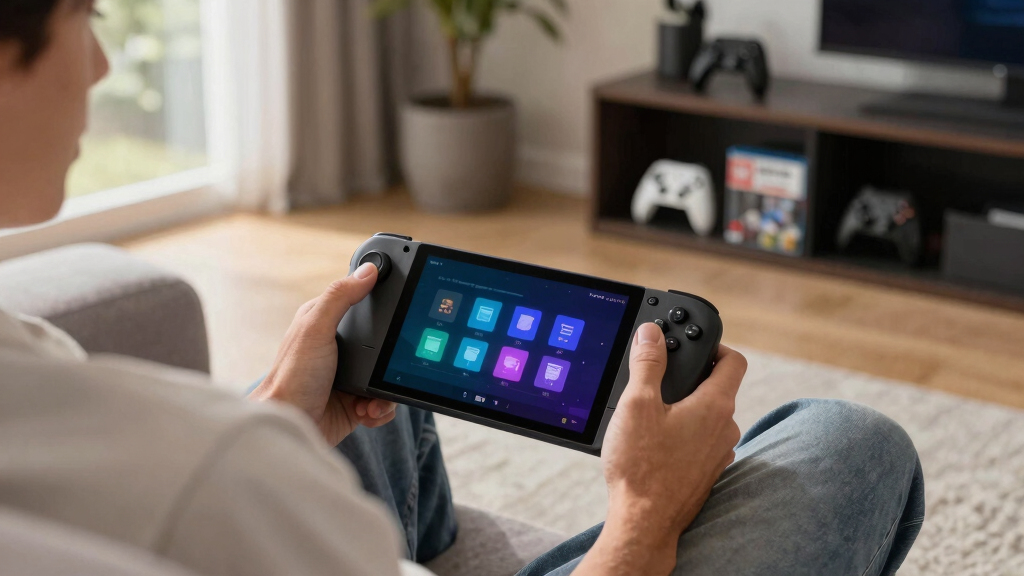

TL;DR

Play games on Amazon Luna for your game nights, included with Prime
- A rotating selection of games, no download needed
- Play on TV, laptop or phone
- Fast, free delivery for your gear, too
File paths on Steam Deck usually fall into three main buckets: Steam Cloud/userdata, native Linux folders under the deck user’s home directory, and Proton prefixes under compatdata. For save hunters, the fastest method is to find the game’s Steam AppID, open the matching compatdata folder, and back up the whole save directory before editing or moving anything.
Your save file is not lost. It is probably wearing a Windows disguise inside a Linux handheld.
On Steam Deck, save hunting means learning three homes: Steam Cloud copies, native Linux folders, and Proton’s fake C: drive. This guide shows you where to look, how to identify the right AppID, and how to back up progress before a mod, transfer, or reinstall turns into cold coffee and panic.
This guide targets Steam Deck running SteamOS with Proton, not Windows installed on the device. Path hunting is about storage layout, game support, and version behavior rather than frame rates.
File Paths on Steam Deck Explained for Save Hunters
TL;DR: Steam Deck saves usually fall into three homes: Steam Cloud/userdata, native Linux folders under the deck user’s home directory, and Proton prefixes under compatdata. For save hunters, the fastest move is to find the Steam AppID, open the matching compatdata folder, and back up the whole save directory before editing anything.
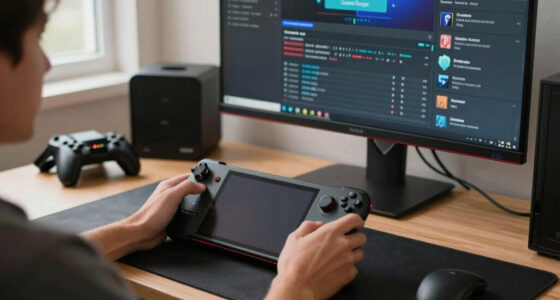
Cloud copies, Linux-native folders, and Proton’s fake Windows drive.
The folder number matters more than the game title in compatdata.
Your save is probably wearing a Windows disguise inside a Linux handheld.
Cloud, native Linux, Proton prefix.
Userdata, home folders, compatdata, Flatpak.
Desktop Mode to dated backup.
Reveals .steam and .local in Dolphin.
Save folders include metadata too.
Check These 4 Save Homes Before You Search Blind
Start with the layer that runs the game. SteamOS keeps compatibility files contained, so the visible install folder is often the wrong place to look.
Steam Cloud copies
~/.local/share/Steam/userdata/<account-id>/<AppID>/remote/Useful when a game supports Cloud, but it does not prove every local file the game needs is synced.
Hidden home folders
~/.local/share/ or ~/.config/Native games usually follow Linux habits, with folders named after the game, studio, or engine.
Fake C: drive
~/.steam/steam/steamapps/compatdata/<AppID>/pfx/drive_c/users/steamuser/Windows games under Proton store saves inside a private Windows-like home.
Sandboxed launchers
~/.var/app/<flatpak-id>/Launchers from Discover may write inside a sandbox that feels like a second home folder.
Find the Right Proton Save Folder in 6 Steps
The AppID points to the correct compatdata prefix faster than scrolling through every folder named steam.
Desktop Mode
Switch from the Steam power menu before browsing files.
Dolphin
Open the file manager. Discover installs apps; Dolphin browses files.
Reveal
Press Ctrl+H so .steam and .local appear.
AppID
Use the Steam store URL or SteamDB to identify the number.
Prefix
Open compatdata/<AppID>/pfx/drive_c/users/steamuser/.
Backup
Copy the whole save folder before editing, moving, or modding.
Example: The Witcher 3
AppID: 292030

compatdata/292030/pfx/drive_c/users/steamuser/Documents/The Witcher 3/gamesaves/
For Proton games, drive_c is the tell. After that, check Documents, Saved Games, AppData/Roaming, AppData/Local, and Application Data.
Tell Native, Proton, and Flatpak Saves Apart Fast
Two games can sit beside each other in Gaming Mode while storing saves in entirely different systems underneath.
| Game or App Type | Most Likely Save Area | What You Will See | Path Signal |
|---|---|---|---|
| Steam native Linux game | ~/.local/share/ or ~/.config/ | A folder named after the game, studio, or engine. | ✓ Direct |
| Steam Windows game through Proton | compatdata/<AppID>/pfx/drive_c/users/steamuser/ | Windows-style Documents, Saved Games, AppData, or Application Data. | ✓ drive_c |
| Steam library on SD card | /run/media/deck/<drive-name>/steamapps/compatdata/ | The same Proton shape, but on the card’s mount point. | ~ Varies |
| Flatpak launcher | ~/.var/app/<flatpak-id>/ | A sandboxed app folder, often used by launchers from Discover. | ~ Sandbox |
| Cloud-only assumption | Steam Cloud/userdata may help, but may not include every local file. | Missing profiles, settings, thumbnails, or metadata after transfer. | ✗ Trust |
Convenience vs Control
Cloud sync is convenient. A dated backup is visible, portable, and under your control before mods, offline trips, and reinstalls.
Treat Steam Cloud Like a Seatbelt, Not a Vault
Steam Cloud is a sync feature, not a full backup plan. Support is set per game, and developers choose which files sync.
When Steam shows a cloud conflict, compare timestamps and file sizes before clicking. One sleepy tap can replace a fresh Deck save with yesterday’s PC save.
Quit Before Copying
Close the game fully so the save is not half-written.
Copy Whole Folders
Many games need profile data, metadata, config, or thumbnails beside the .sav file.
Sync Before Switching
Let Steam finish syncing before moving between PC and Deck.
Trace the Save Before You Move It
Source Notes
[1] Valve Steam Cloud documentation: Cloud support is game-specific, and synced files are selected by the developer.
[2] SteamDB and Steam store URLs can be used to identify a game’s Steam AppID, such as 292030 for The Witcher 3.
Key Takeaways
- Start save hunts by sorting the game into Steam Cloud/userdata, native Linux, Proton compatdata, or Flatpak storage.
- For Proton games, the AppID points you to the right compatdata folder faster than the game title does.
- Dolphin is the file manager to use in Desktop Mode, and Ctrl+H reveals hidden folders such as .steam and .local.
- Steam Cloud is helpful, but it is not a substitute for a dated manual backup before mods, transfers, or uninstalling.
- Copy whole save folders, not just one visible .sav file, because many games need profile and metadata files too.
As an affiliate, we earn on qualifying purchases.
Check These 4 Save Homes Before You Search Blind
File Paths on Steam Deck Explained for Save Hunters starts with a simple map: Steam Cloud may copy your save, Linux-native games often use hidden home folders, Proton games live inside compatdata prefixes, and Flatpak apps store data under ~/.var/app/. Check those zones before you poke through every folder on the device.
- Steam Cloud/userdata: Some synced files sit under ~/.local/share/Steam/userdata/<account-id>/<AppID>/remote/, while the cloud copy lives on Steam’s side when the game supports it [1]. This matters because Cloud can tell you whether a save is portable, but it does not prove every local file the game needs is synced.
- Native Linux saves: Look in ~/.local/share/, ~/.config/, or a game-named folder in your home directory. Native games usually follow Linux habits, so they are often easier to browse but less predictable from Windows guides.
- Proton saves: Start at ~/.steam/steam/steamapps/compatdata/<AppID>/pfx/drive_c/users/steamuser/. Proton keeps each Windows game in its own prefix, which reduces cross-game mess but makes the AppID more important than the title on the box art.
- Flatpak apps: Non-Steam launchers installed as Flatpaks often write under ~/.var/app/. The sandbox is useful for app isolation, but it can make launcher saves feel like they vanished into a second home folder.
If you have an 80-hour RPG save and no idea where it went, start with the AppID and the game’s runtime. A Steam game forced through Proton will usually hide deeper than a native Linux game, even when both icons sit beside each other in Gaming Mode. The tradeoff is neatness versus discoverability: SteamOS keeps compatibility files contained, but that containment means the obvious game install folder is often the wrong place to look.
As an affiliate, we earn on qualifying purchases.
Tell Native, Proton, and Flatpak Saves Apart Fast
File Paths on Steam Deck Explained for Save Hunters is easiest when you sort each game by the layer that runs it. A native Linux game writes like a Linux app, a Windows game under Proton writes into a fake C: drive, and a launcher may keep its own sandboxed folder. That first classification matters because it decides whether you should trust Linux folder conventions, Windows save guides, or Flatpak sandbox paths.
| Game or app type | Most likely save area | What you will see |
|---|---|---|
| Steam native Linux game | ~/.local/share/ or ~/.config/ | A folder named after the game, studio, or engine. |
| Steam Windows game through Proton | compatdata/<AppID>/pfx/drive_c/users/steamuser/ | Windows-style folders such as Documents, Saved Games, AppData, or Application Data. |
| Steam library on SD card | /run/media/deck/<drive-name>/steamapps/compatdata/ or /run/media/mmcblk0p1/steamapps/compatdata/ | The same Proton shape, but on the card’s mount point. |
| Flatpak launcher | ~/.var/app/<flatpak-id>/ | A sandboxed app folder, often used by launchers from Discover. |
A quick clue saves time: if the folder contains drive_c, you are inside Proton. If you see a normal Linux folder with a dot at the front, press Ctrl+H in Dolphin and the hidden parts of the map appear like ink under a lamp.
The implication is practical: do not use one game’s path as proof for another unless both games run through the same layer. Two installs can look identical in Gaming Mode while storing saves in entirely different systems underneath. That is why a Windows guide can be perfect for a Proton game and useless for a native Linux build of the same title.
As an affiliate, we earn on qualifying purchases.
Find the Right Proton Save Folder in 6 Steps
The fastest way to find a Proton save folder is to identify the game’s Steam AppID, open its compatdata prefix, then follow the Windows path the game expects. For example, The Witcher 3 uses AppID 292030 on SteamDB [2], which points you to one Proton prefix before you inspect Documents. The AppID matters because compatdata folders are built for Steam’s database, not for human browsing.
- Switch to Desktop Mode from the Steam power menu.
- Open Dolphin, the file manager. Discover installs apps; Dolphin browses files.
- Press Ctrl+H so hidden folders such as .steam and .local appear.
- Find the AppID from the Steam store URL or SteamDB [2].
- Open the matching prefix at ~/.steam/steam/steamapps/compatdata/<AppID>/pfx/drive_c/users/steamuser/.
- Check Documents, Saved Games, AppData/Roaming, AppData/Local, and Application Data, then copy the whole save folder before editing.
For The Witcher 3 on Proton, a likely path is compatdata/292030/pfx/drive_c/users/steamuser/Documents/The Witcher 3/gamesaves/. That one number, 292030, cuts through the noise faster than scrolling through every folder named steam.
The deeper reason this works is that Proton gives each Windows game a private Windows-like home. That keeps settings, registry data, and user folders from colliding across games, but it also means deleting or replacing a prefix can affect more than a single visible save file. When in doubt, back up the whole <AppID> folder before making bigger changes.
Steam Deck file management software
As an affiliate, we earn on qualifying purchases.
As an affiliate, we earn on qualifying purchases.
Treat Steam Cloud Like a Seatbelt, Not a Vault
Steam Cloud is a sync feature, not a full backup plan. According to Valve’s Steam Cloud documentation, support is set per game and developers choose which files sync [1]. That means your 80-hour save may be safe in one game and completely local in another sitting beside it.
Warning: Steam Cloud can protect progress, but it can also sync the wrong version if you pick the older file during a conflict.
Say you play on PC Friday night, take your Deck offline on a train Saturday, then reconnect Sunday. If Steam shows a cloud conflict, compare timestamps and file sizes before clicking. One sleepy tap can replace a fresh Deck save with yesterday’s PC save.
- Back up manually before uninstalling a game with no Cloud support.
- Quit the game fully before copying files, so the save is not half-written.
- Let Steam finish syncing before you move between PC and Deck.
The tradeoff is convenience against certainty. Cloud sync is excellent when you move between devices often, but it follows the developer’s file list and Steam’s most recent sync state, not your personal sense of which save is precious. A manual dated copy is boring, visible, and under your control, which is exactly what you want before mods, offline sessions, or reinstalls.
Move Saves Between Deck, PC, and SD Card Cleanly
File Paths on Steam Deck Explained for Save Hunters matters most when you move saves between devices, because copying the wrong folder can create duplicate profiles or empty slots. Match the game version, copy the smallest useful save folder, and keep one untouched backup before you let Steam Cloud merge anything.
Use this simple rule: copy data, not guesses. If a Windows PC save lives under Documents\My Games\GameName, the matching Proton spot is often under drive_c/users/steamuser/Documents/My Games/GameName. On an SD card, the prefix may sit under /run/media/deck/<drive-name>/steamapps/compatdata/.
- PC to Deck: Match the Windows folder inside Proton’s drive_c, then launch the game once to test the save list.
- Deck to PC: Copy from the Proton folder back to the matching Windows save path, not to the Steam install folder.
- Deck to SD backup: Make a plain folder such as SteamDeck_Save_Backups_2026-06 outside any Steam library.
When versions differ, pause. A save from a modded PC build can load badly on an unmodded Deck install, like forcing the wrong key into a soft brass lock. DLC, mod loaders, language packs, and even patch versions can change what the save expects to find. The safest transfer is not always the largest copy; it is the copy that preserves the save folder’s neighboring profile and metadata files while avoiding old config files that could drag broken settings to the new device.
Avoid the 6 Save-Hunting Mistakes That Hurt Most
Most lost Steam Deck saves come from small, ordinary mistakes: hidden folders stay invisible, the wrong AppID looks convincing, or Steam Cloud overwrites a newer local file. Slow down before edits, copy the whole save folder, and label backups with the game name, AppID, and date.
- Skipping Ctrl+H: Hidden folders are normal on SteamOS, not a sign that the save is gone. If you never reveal them, you may search only the visible surface and miss the real home folder entirely.
- Copying the install folder: Game files and save files often live in different places. Install folders are mostly replaceable; saves are the personal state that Steam may not recreate.
- Editing while the game runs: Some games rewrite saves on exit and wipe your changes. Closing the game first gives the file system one clear version to preserve.
- Backing up one .sav file: Many games need profile, index, settings, or metadata files beside the main save. A lone file can look right in Dolphin and still fail at the load screen.
- Trusting Cloud without checking: Valve makes Steam Cloud available, but each game chooses what it syncs [1]. Cloud support is a clue, not a guarantee that every slot, profile, or settings file made the trip.
- Believing every forum claim: Treat rumors or leaks about new global save paths as unconfirmed until Valve notes or game patch notes confirm them. SteamOS updates can change tooling, but individual games still decide much of their save behavior.
A JRPG folder may hold Save01.sav, system.dat, and a profile file that tracks unlocked chapters. Grab only the shiny save file and the load screen may show a gray, empty slot. The lesson is not to become paranoid; it is to treat save folders as small ecosystems where the supporting files can matter as much as the file with the obvious name.
Read SteamOS Path Clues Without a Linux Dictionary
File Paths on Steam Deck Explained for Save Hunters gets easier once you read paths like street addresses. A leading dot means hidden, the tilde points at your home folder, and Proton’s drive_c is a stage set where Windows games pretend they are still inside C:\Users\steamuser.
A file path is a set of directions from one folder to another. On Steam Deck, ~ usually means /home/deck, while .steam and .local are hidden by default. That single dot is tiny, but it changes the whole hunt.
- ~ means your Deck user’s home folder.
- . at the start of a folder name means hidden.
- steamapps holds Steam installs, prefixes, and related game data.
- pfx is Proton’s game-specific Windows-style container.
- drive_c mirrors a Windows C: drive.
If you see pfx/drive_c/users/steamuser/AppData/Roaming, you are not in a random maze. You are standing where a Windows game expects its user data to live.
These clues also help you avoid dangerous assumptions. A folder named steamapps does not automatically mean you are looking at disposable game files, and a Windows-looking path does not mean you installed Windows on the Deck. It usually means SteamOS is translating the game’s expectations into a Linux layout, which is why path literacy is the difference between a careful backup and deleting the wrong container.
Build a 10-Minute Backup Habit Before You Mod
A repeatable save-hunting checklist turns a messy search into a five-minute routine. You identify the game layer, confirm the AppID, inspect the likely folder, make a dated copy, and test the restore before you celebrate. It feels slow once; after that, it is muscle memory.
- Quit the game completely, including any launcher.
- Find the save folder using AppID, native Linux paths, or Flatpak paths.
- Copy the entire folder to a backup location outside compatdata.
- Name the backup clearly, such as GameName_AppID_before_mod_2026-06.
- Test the game after restoring or editing, before you delete the backup.
Before using a save editor for a single-player game, make a clean copy and keep it untouched. For multiplayer or anti-cheat games, save edits may break rules or trigger penalties, so stick to offline profiles and read the game’s own policy first.
The point of the habit is recovery, not neat filing. A dated folder outside Steam’s managed library survives accidental prefix cleanup, gives you a clear rollback point, and lets you compare before-and-after files if a mod changes more than expected. Ten minutes feels expensive before something breaks; afterward, it feels like the cheapest insurance on the device.
Frequently Asked Questions
Where are Steam Deck save files usually stored?
Steam Deck saves usually live in ~/.local/share/, ~/.config/, ~/.local/share/Steam/userdata/, or ~/.steam/steam/steamapps/compatdata/<AppID>/. Proton games most often hide their Windows-style saves inside pfx/drive_c/users/steamuser/.
Can I back up Steam Deck saves without using the terminal?
Yes. Switch to Desktop Mode, open Dolphin, press Ctrl+H, then copy the save folder to a USB drive, SD card folder, or cloud storage app. Konsole helps for advanced searches, but most save hunters can do the job with the file manager.
Are saves deleted when I uninstall a Steam Deck game?
Do not rely on uninstalling to preserve saves. Some saves may remain in compatdata or Steam Cloud, but storage cleanup, Proton file deletion, or games that save inside their own install folder can remove progress. Back up first if the save matters.
How do I find a Steam AppID?
Open the game’s Steam store page and look for the number after /app/ in the URL. SteamDB also lists AppIDs [2]; for example, The Witcher 3 uses 292030, which matches its compatdata folder on Steam Deck.
Why does my Windows save path appear inside Linux on Steam Deck?
Proton creates a Windows-style prefix so Windows games can store files where they expect them. That is why a Linux handheld can contain paths that look like C:\Users\steamuser\Documents. It is normal, and it is often the exact place your save is hiding.
Conclusion
Your save hunt gets calmer when you stop searching by game name and start searching by layer: Cloud, Linux folder, Proton prefix, or Flatpak sandbox.
Before the next mod, reinstall, or PC transfer, make one dated backup and write down the AppID. That tiny note can be the difference between a clean restore and staring at an empty load screen at midnight.
Fall Picks
fall essentials
As an affiliate, we earn on qualifying purchases.