
TL;DR

Get games and gaming gear delivered free — and shop member deals
- Fast, free delivery on millions of items
- Access to Prime Big Deal Days deals on October 6–7
- Prime Video, Amazon Music and more included
Workshop Mods vs Manual Mods on Steam Deck Explained: Workshop mods are best when you want quick installs, automatic updates, and fewer file headaches. Manual mods are better when a game has no Workshop support, a mod needs custom files, or you want deeper control inside SteamOS and Proton folders.
A mod that takes 10 seconds on a desktop PC can turn into a tiny treasure hunt on Steam Deck. You tap subscribe, wait for Steam to download, launch the game, and everything works. Or you unzip a file, stare at a maze of folders, and wonder why your texture pack is sitting politely in the wrong place.
This guide gives you Workshop Mods vs Manual Mods on Steam Deck Explained in plain language. You will learn when Steam Workshop feels like magic, when manual installs are worth the extra work, and how SteamOS and Proton change the usual PC modding steps.
You will also get a practical safety lens. Mods can change stability, online access, and even the type of content in a game, so you should treat them like tiny tools with tiny sharp edges.
Use Workshop mods first when the game supports them and you only need simple maps, cosmetics, tweaks, or scenarios.
Use manual mods when you need custom files, older community mods, script extenders, total conversions, or exact version control.
On Steam Deck, manual mods often involve both the game install folder and the Proton compatdata prefix, so folder paths matter.
Back up saves, install one mod at a time, and test after each change to avoid breaking a large mod setup.
Treat Steam Deck performance claims as platform-specific; look for SteamOS, Proton, game version, and hardware details.
Workshop Mods vs Manual Mods on Steam Deck Explained
Fast Magic or File-Level Control?
Workshop mods are best for quick installs, automatic updates, and fewer file headaches. Manual mods are better when a game has no Workshop support, needs custom files, or demands deeper control inside SteamOS and Proton folders.
Use it first when the game supports simple maps, cosmetics, tweaks, or scenarios.
Choose manual installs for total conversions, script extenders, older mods, or exact version control.
“On Steam Deck, a 10-second desktop mod can become a tiny folder hunt.”
Usually subscribe, download, launch.
Minutes, depending on folders and tools.
Install folder plus Proton compatdata prefix.
Install one mod, test, then continue.
Look for SteamOS, Proton, and game version notes.
What Each Mod Type Is Really Good At
Workshop skips most file management. Manual modding trades convenience for precision, especially when Windows-style instructions meet SteamOS and Proton.
Workshop Feels Like Magic
Tap subscribe, let Steam download the files, and launch the game. It is the cleanest path for simple add-ons and handheld comfort.
Manual Mods Go Further
Use manual installs when you need custom folders, patchers, configuration edits, script extenders, or older community packages.
Proton Changes the Map
Many Windows games store related files inside Proton prefixes, so a mod may need more than the obvious game directory.
Workshop vs Manual Mods
The practical difference is speed versus control. Workshop wins when it already does exactly what you need. Manual wins when the mod author needs file-level access.
| Factor | Steam Workshop Mods | Manual Mods | Deck Verdict |
|---|---|---|---|
| Setup Time | ✓Usually under 1 minute after you find the mod. | ~Often 5 to 30 minutes, depending on tools. | Workshop is easier on a handheld. |
| Updates | ✓Steam handles many updates automatically. | ✗You check pages and replace files yourself. | Manual needs a notes file. |
| Control | ~Good for simple add-ons, weaker for file edits. | ✓Strong control over versions, folders, and order. | Manual is better for complex setups. |
| Safety | ✓Lower risk through Steam hosting and management. | ~Depends on source trust and installer behavior. | Unknown sites deserve caution. |
| Best Use Case | ✓Maps, cosmetics, simple tweaks, scenarios. | ✓Total conversions, script extenders, old games. | Use both when the game supports it cleanly. |
How to Install Without Losing Your Save
Manual modding is less about bravery and more about pacing. Move one piece, test it, and keep a clean way back.
Check Version
Match the mod to the exact game build when the author lists one.
Back Up Saves
Copy saves before touching files. Two minutes can protect an 80-hour run.
Read Twice
Look for dependencies, load order notes, Proton comments, and folder names.
Use Desktop
Dolphin gives clearer folder control than small overlay tools in Gaming Mode.
Test Each Mod
Launch after every change so you know exactly which file caused trouble.
Convenience, Control, and Risk
Steam Deck modding works best when you choose the install style that matches the mod’s complexity, not just the one that sounds easiest.
Fit Score by Mod Type
Safety Exposure SpectrumSafety Lens
- ABack up saves before changing files or adding new managers.
- BInstall one mod at a time so failures are easy to trace.
- CAvoid random installers from unknown sites, especially for Windows tools.
- DCheck SteamOS, Proton, game version, and hardware notes before trusting performance claims.
Where a Steam Deck Mod Can Break
Workshop hides much of the path. Manual installs expose every link, which is powerful when you know what each link does.
Workshop, trusted site, forum, or archive.
Extenders, loaders, patches, or extra libraries.
The visible install location inside Steam storage.
The fake Windows drive for many Windows games.
Which file wins when mods overlap.
Menu, save load, frame pacing, and online access.
Use Workshop When It Works. Use Manual When It Matters.
Workshop mods are the clean default for Steam Deck comfort. Manual mods are worth the extra work when you need custom files, version control, or community tools that Steam Workshop cannot manage. Either way, back up saves, change one thing at a time, and test before building a giant mod stack.
What You Get From Workshop Mods in One Tap
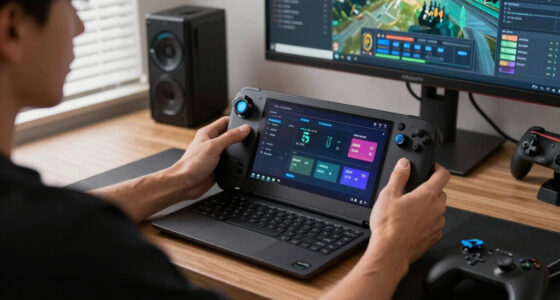
Workshop Mods vs Manual Mods on Steam Deck Explained starts with the easy path: Workshop mods are files hosted through Steam Workshop that you install by subscribing on Steam. Steam downloads them, keeps them attached to the game, and often updates them without you opening the file manager.
For example, say you want a new map in Cities: Skylines or a rules tweak in a strategy game that supports Workshop. You open the game page, tap Workshop, hit subscribe, and let Steam hum in the background while the Deck fan spins softly in your hands.
That convenience matters on a handheld. On the Steam Deck, you often switch between Gaming Mode and Desktop Mode, use a small touchscreen keyboard, and work with Linux folders that look different from Windows paths. Workshop skips most of that finger gymnastics.
Workshop mods are the best first choice when the game supports them and the mod does not need extra tools, file edits, or load-order surgery.
As an affiliate, we earn on qualifying purchases.
When Manual Mods Give You More Control
Manual mods on Steam Deck are mods you download outside Steam Workshop and place into the game files yourself. You use them when Workshop support is missing, the mod lives on a trusted community site, or the install needs custom folders, patchers, scripts, or a mod manager.
Think of a player installing a texture overhaul for an older RPG. The mod page says to copy files into Data, edit an .ini file, and load the mod after another package. Workshop cannot always handle that. Manual installs can.
The tradeoff is simple. You gain control and lose some convenience. You handle downloads and updates yourself, and you also handle the tiny mistakes: one folder too high, one capital letter wrong, one missing dependency.
Manual modding can feel satisfying, though. You open Dolphin file manager, move files like little puzzle pieces, launch the game, and see the new armor gleam under a torch. You moved files and the mood of the whole game.
As an affiliate, we earn on qualifying purchases.
Workshop vs Manual Mods: The Fast Comparison
Workshop mods vs manual mods on Steam Deck comes down to speed versus control. Workshop wins for simple installs and automatic updates. Manual mods win when you need custom files, older mod communities, special tools, or access to games that never added Steam Workshop support.
| Factor | Steam Workshop Mods | Manual Mods |
|---|---|---|
| Setup time | Usually under 1 minute after you find the mod | Often 5 to 30 minutes, depending on folders and tools |
| Updates | Steam handles many updates automatically | You check mod pages and replace files yourself |
| Control | Good for simple add-ons, weaker for file-level tweaks | Strong control over folders, versions, and load order |
| Steam Deck comfort | Works well in Gaming Mode when the game supports it | Often easier in Desktop Mode with a mouse or trackpad |
| Safety | Lower risk because Steam hosts and manages the files | Higher risk if you use unknown sites or run random installers |
| Best use case | Maps, simple gameplay tweaks, cosmetics, community scenarios | Total conversions, script extenders, older games, custom patches |
A good rule: if the Workshop version does exactly what you need, use it. If the mod author says the Workshop upload is limited or outdated, manual may be the better path.
Steam Deck manual mod installation tools
As an affiliate, we earn on qualifying purchases.
As an affiliate, we earn on qualifying purchases.
How SteamOS and Proton Change the Modding Map
Steam Deck explained for modding means understanding one thing first: SteamOS is Linux-based, while many PC mods expect Windows folders. Proton bridges that gap by running Windows games through a compatibility layer, but it also creates folder paths that can surprise you.[1]
According to Valve, Steam Deck runs SteamOS, and Steam uses Proton to run many Windows games on the device.[1][2] In plain language: your game may think it lives on Windows, while your Deck stores it in a Linux layout. That mismatch explains many failed manual installs.
Here is the common scenario. You install a Windows game, download a mod that says to place files in Documents/My Games, then search the Deck and find nothing familiar. The files may live inside a compatdata prefix that acts like a fake Windows drive for that one game.
Workshop mods usually hide this complexity. Manual mods make you meet it face to face, like opening a tidy drawer and finding another tiny drawer inside it.
As an affiliate, we earn on qualifying purchases.
How to Install Manual Mods Without Losing Your Save
- Check the game version first. Match the mod to the exact game build when the mod page lists one. A mod built for last year’s patch can crash a freshly updated game.
- Back up your saves. Copy the save folder before touching files. A 2-minute backup beats a lost 80-hour character.
- Read the mod instructions twice. Look for required folders, dependencies, load order notes, and Proton comments from other Steam Deck users.
- Use Desktop Mode for file work. Dolphin file manager gives you clearer folder control than the small overlay tools in Gaming Mode.
- Install one mod, then test. Launch the game after each change. If the title screen breaks, you know which file caused the smoke.
- Keep a small notes file. Write down the mod name, version, install path, and date. Future you will be grateful.
How to install manual mods on Steam Deck safely is less about bravery and more about pacing. Move one piece at a time, test it, and keep a clean way back. That slow rhythm saves you from reinstalling a 90 GB game because one loose file landed in the wrong folder.
For example, if you add a lighting mod to a survival game, launch the game after that single change. Walk into a dark room, swing the camera, check the frame pacing, and make sure your save loads. Then add the next mod.
Where Each Mod Type Can Break on Steam Deck
Workshop Mods vs Manual Mods on Steam Deck Explained also means knowing where each path can fail. Workshop mods usually break through missing game support, bad updates, or mod conflicts. Manual mods usually break through wrong folders, missing dependencies, Proton quirks, or Windows-only installers.
- Workshop conflict: Two subscribed mods change the same item table, and your game loads with missing icons or invisible objects.
- Manual path error: You place files in the Steam install folder, but the game reads config files from the Proton prefix instead.
- Dependency miss: A mod needs a script extender, framework, or library you skipped because it looked optional.
- Update mismatch: Steam updates the game overnight, and your manual mod still expects the old executable.
- Controls mismatch: A UI mod assumes keyboard shortcuts that feel cramped on the Deck’s buttons and touchpads.
Here is the kitchen-table version: Workshop can make conflicts easy to create, while manual mods can make mistakes easy to hide. Both can be fixed. You just need to know where the mess usually starts.
How to Choose the Safer Mod Source
The safer mod source is usually Steam Workshop because Steam hosts the files, ties them to your account, and manages updates inside the Steam ecosystem. Manual mods can still be safe, but you need to treat downloads, installers, and scripts with more care.
Use a simple smell test. If a mod page has clear install steps, recent comments, version notes, and a long community history, it feels like a well-lit store. If it pushes a mystery installer from a mirror link, back away.
- Prefer known community hubs for manual downloads, especially pages with visible update history.
- Avoid random executable files unless the tool has a strong reputation and clear documentation.
- Scan archives before opening them, especially if they come from a forum link.
- Read recent comments from Steam Deck or Linux users when Proton compatibility matters.
- Mark rumors and leaks as unconfirmed when a mod claims to restore hidden content or future DLC files.
Age ratings also deserve a quick pause. A game’s ESRB or PEGI rating covers the released game, not every user-made mod. A harmless-looking character pack can add harsher language, gore, or sexual content.
When Steam Deck Performance Claims Need a Label
Performance claims for Steam Deck mods need a platform and version label. A mod that runs smoothly on a Windows desktop may stutter on Steam Deck, and a fix tested on one Proton version may behave differently after a SteamOS or game update.
When a mod page says it improves FPS, ask: on what hardware, what resolution, what graphics preset, what Proton version? A claim like 40 FPS on Steam Deck OLED, SteamOS 3.6, Proton Experimental gives you something useful. A claim like runs perfectly gives you fog.
Valve’s Steam Deck Verified program checks base-game compatibility, not every mod combination.[1] If a game is Verified today, a heavy texture pack can still push it into fan noise, battery drain, or crashes. The badge is a starting point, not a force field.
Try a real test. Stand in the same busy town square before and after the mod, set the same graphics preset, and watch frame time for 3 minutes. The Deck’s small screen hides some rough edges, but stutter still feels like gravel under the wheels.
The Best Choice for Common Steam Deck Modding Scenarios
Workshop is best for quick, supported mods; manual is best for complex or unsupported mods. That answer sounds tidy, but your real choice depends on the game, the mod type, and how much time you want to spend in Desktop Mode instead of actually playing.
| Scenario | Better Choice | Why |
|---|---|---|
| You want one new map for a Workshop-supported game | Workshop | Fast install, easy removal, automatic updates |
| You need a script extender for an RPG | Manual | Requires files near the executable or custom launch steps |
| You play offline often | Depends | Workshop needs prior download; manual files stay where you put them |
| You want a total conversion mod | Manual | Large overhauls often need custom folders and load order control |
| You share the Deck with a younger player | Workshop, carefully filtered | Easier to review subscriptions, but user content can still change age-appropriate boundaries |
Imagine you are modding a cozy farming game before a flight. Workshop is the friendlier pick because you can subscribe at the gate and test before boarding. If you are rebuilding a giant fantasy RPG with 40 mods, save that for a desk, a charger, and a calm evening.
Frequently Asked Questions
Can you use Workshop and manual mods together on Steam Deck?
Yes, you can often use Workshop and manual mods together, but the game decides how well that works. Watch for load order conflicts, duplicate files, and mods that change the same systems.
Are manual mods harder on Steam Deck than on Windows?
Manual mods are often harder on Steam Deck because SteamOS uses Linux folders and many Windows games run through Proton. The biggest hurdle is usually finding the right game folder or Proton prefix.
Do Workshop mods update automatically on Steam Deck?
Workshop mods usually update automatically through Steam when the creator publishes a new version. That convenience can also cause surprises if a mod update breaks an old save, so keep backups for heavily modded games.
Will mods affect Steam Deck Verified status?
Steam Deck Verified applies to the base game, not every mod setup.[1] A Verified game can still crash, drain battery faster, or stutter after you add demanding textures, scripts, or UI changes.
What should you do before installing a big manual mod?
Before a big manual install, back up your saves, check the game version, read recent Steam Deck comments, and install one piece at a time. A calm 10-minute setup check can save you from a full reinstall later.
Conclusion
The cleanest answer is this: use Workshop for convenience and manual mods for control. Steam Deck makes both paths possible, but SteamOS and Proton reward patience, backups, and careful notes.
Start with the lightest touch that gets the result you want. One smart subscribe button or one well-placed folder can change a game from familiar to strange, bright, and yours.
Halloween Picks
halloween
As an affiliate, we earn on qualifying purchases.