TL;DR

Get games and gaming gear delivered free — and shop member deals
- Fast, free delivery on millions of items
- Access to Prime Big Deal Days deals on October 6–7
- Prime Video, Amazon Music and more included
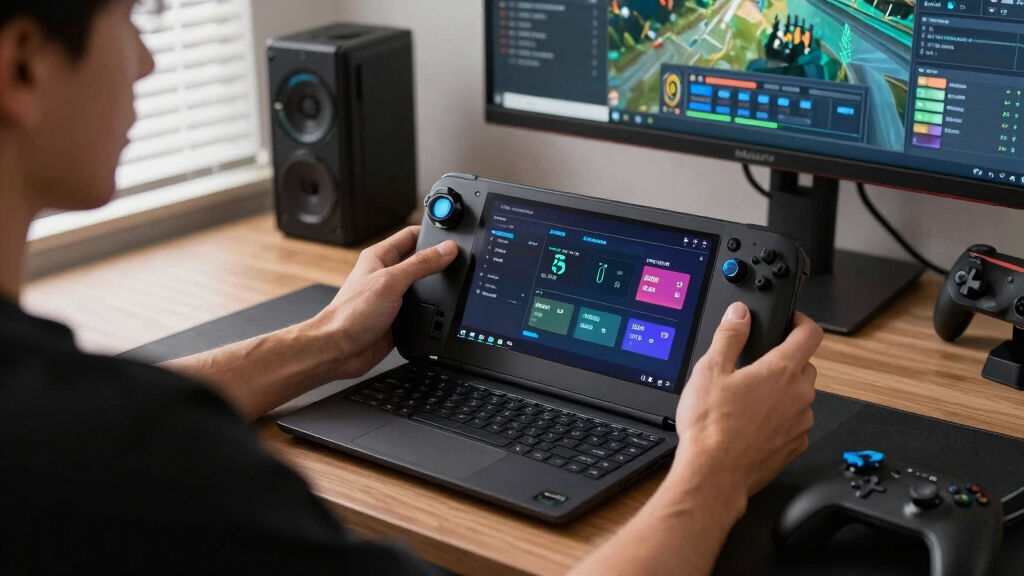
FPS counters explained simply: an FPS counter shows how many frames your PC or Steam Deck renders each second, but the smoother-feeling number often comes from stable frame time. Use Steam’s built-in overlay for quick checks, Steam Deck’s performance overlay for handheld tuning, and deeper tools only when you need CPU, GPU, temperature, or stutter data.
Your game can say 60 FPS and still feel like it is dragging a boot through wet gravel.
That is why FPS counters explained badly can send you chasing the wrong fix. You do not just need a bigger number in the corner; you need to know what that number means, when to trust it, and when frame time tells the real story.
This guide gives you fps counters explained for Steam Deck and PC players, with practical settings, real examples, and the tradeoffs that matter when SteamOS, Proton, Windows, V-Sync, and upscaling all enter the room.
FPS measures rendered frames per second, but frame time shows whether those frames arrive smoothly.
Steam’s built-in FPS counter is best for quick PC checks, while Steam Deck’s overlay gives better handheld tuning data.
A steady 40 FPS at 40 Hz on Steam Deck can feel better than an unstable 60 FPS because frame pacing stays consistent.
When FPS drops, lower resolution, shadows, volumetrics, and ray tracing before changing every setting at once.
Upscaling and generated frames can raise the counter without always improving input feel.
FPS Counters Explained for Steam Deck and PC Players
TL;DR: an FPS counter shows how many frames your PC or Steam Deck renders each second, but smoothness often comes from stable frame time. Use Steam’s overlay for quick checks, Steam Deck’s performance overlay for handheld tuning, and deeper tools when you need CPU, GPU, temperature, or stutter data.
A locked 40 FPS on a 40 Hz Steam Deck screen can feel smoother than an unstable 60 FPS.
FPS is speed. Frame time is rhythm.
Your game can say 60 FPS and still feel wrong if frames arrive unevenly. A cleaner read starts by separating the counter in the corner from the pacing your hands actually feel.
Frames per second
FPS measures how many separate images your hardware renders each second. Higher usually means smoother motion, until dips and pacing problems enter the picture.
Frame time
Frame time measures how long each frame takes to appear. A steady 25 ms can feel calmer than a number that jumps between fast and slow.
Overlay detail
Steam gives quick FPS checks. Steam Deck adds battery, temperature, CPU/GPU load, and timing clues when you raise the performance overlay level.
Pick the lightest overlay that answers the question.
Start simple, then add detail only when the feel and the number disagree. The goal is a better game, not a permanent dashboard over the game.
Which FPS counter should you use?
The best counter depends on how much context you need. Quick checks should stay small; stubborn stutter deserves a richer tool with frame time and hardware telemetry.
| Tool | Best for | FPS | Frame time | CPU/GPU data | Tradeoff |
|---|---|---|---|---|---|
| Steam FPS Counter | Fast PC checks inside Steam | ✓ Built in | ✗ Limited | ✗ Limited | Simple, but not diagnostic enough for stutter. |
| Steam Deck Overlay | Handheld tuning on SteamOS | ✓ Strong | ✓ Higher levels | ✓ Useful | Higher levels take more screen space. |
| MSI Afterburner + RTSS | Windows PC diagnosis | ✓ Detailed | ✓ Graphs | ✓ Detailed | More setup and more overlay clutter. |
| Game Built-In Counter | Benchmarks and specific titles | ✓ Usually | ~ Varies | ~ Varies | Convenient, but every game reports differently. |
Why 30, 40, 60, and 120 FPS feel different.
Every target changes how long one image stays on screen. The smaller the frame time, the quicker the game can update motion and input, but stability still matters.
Frame time by target
Shorter bars mean frames arrive more often. The 40 FPS Steam Deck target lands in a useful middle zone.
Smoothness spectrum
Averages matter less when pacing is uneven. Locking the display and cap together can turn a jumpy graph into a steadier one.
Steam Deck trick: 40 FPS at 40 Hz gives each frame a steady 25 ms slot, often improving battery life, fan noise, and perceived smoothness compared with an unstable 60 FPS chase.
When the counter drops, change the right thing first.
FPS drops usually mean one part of your system cannot keep up with the scene on screen. Read the overlay, then make one deliberate adjustment.
If GPU load is pinned
Lower resolution, upscaling quality, shadows, volumetrics, ray tracing, and screen-space effects. These usually hit the graphics side first.
If frame time spikes
Look for shader compilation, asset streaming, Proton translation hiccups, background tasks, or a cap that fights the display refresh rate.
From corner number to better gameplay.
Treat an FPS counter as the first clue, not the final verdict. The useful path connects the number, the rhythm, the bottleneck, and the setting change.
What An FPS Counter Actually Tells You
An FPS counter is a live readout of how many frames your system renders each second. If it shows 60 FPS, your hardware is producing about sixty separate images every second, which usually feels smoother than 30 FPS because motion updates more often.
Think of it like a kitchen timer on a busy stove. The number tells you how fast things are moving, but it does not tell you whether the pan is scorching on one side. A game at 55 FPS with even pacing can feel cleaner than a game bouncing between 90 and 35 FPS.
On a Steam Deck, you might open an open-world game, hear the fan rise into a soft whine, and see the counter hover around 38 FPS. That number tells you the Deck is working hard, but the feel in your hands tells you whether you need lower shadows, a frame cap, or a different Proton version.
FPS is speed. Frame time is rhythm. Smooth gaming needs both.
As an affiliate, we earn on qualifying purchases.
Why 30, 40, 60, And 120 FPS Feel So Different
30, 40, 60, and 120 FPS feel different because each target changes how long one frame stays on screen. At 30 FPS, each frame lasts about 33.3 ms; at 60 FPS, it lasts about 16.7 ms; at 120 FPS, only 8.3 ms.
| Target | Frame Time | Best Fit | What You Feel |
|---|---|---|---|
| 30 FPS | 33.3 ms | Big cinematic games, battery saving | Playable, heavier camera motion |
| 40 FPS | 25 ms | Steam Deck handheld play | A good middle ground |
| 60 FPS | 16.7 ms | Most PC games and action titles | Sharp, responsive movement |
| 120 FPS+ | 8.3 ms or less | Competitive shooters and high-refresh monitors | Very quick input response |
Here is the Steam Deck trick: 40 FPS at 40 Hz can feel surprisingly fluid because every frame lands at a steady 25 ms. You give up some crispness compared with 60 FPS, but you often gain quieter fans, better battery life, and fewer ugly dips.
On PC, the story changes with your monitor. A 144 Hz display can show more frequent updates than a 60 Hz screen, but only if your game and settings can feed it enough frames. Otherwise, the counter becomes a reminder that your monitor is hungry and your GPU is making sandwiches one at a time.
As an affiliate, we earn on qualifying purchases.
How To Turn On The Steam FPS Counter Fast
- Open Steam settings on your PC.
- Go to In Game.
- Find the in-game FPS counter option.
- Pick a corner, such as top-left or top-right.
- Launch a game and check the overlay while you play.
The Steam FPS counter is the fastest option for PC players because it lives inside Steam’s own overlay. According to Valve’s Steam support documentation, the Steam Overlay includes an in-game FPS counter you can enable from Steam settings [1].
This is perfect when you only need a quick answer. Say you lower texture quality in a Proton game and want to see whether performance moves from 48 FPS to 60 FPS. The Steam counter gives you that answer without filling your screen with charts.
The tradeoff is detail. Steam’s simple counter does not show CPU usage, GPU temperature, or a frame time graph. When a game feels rough but the number looks fine, you need a richer overlay.
As an affiliate, we earn on qualifying purchases.
How Steam Deck Makes Performance Tuning Easier
FPS counters explained for Steam Deck starts with the handheld’s built-in performance overlay. In Gaming Mode, you can use the Quick Access menu and performance controls to view FPS, frame timing, battery draw, CPU/GPU load, and temperature, depending on the overlay level [2].
That makes the Deck feel less like a sealed console and more like a tiny workshop with a screen. You can launch a game, hear the buttons click under your thumbs, watch the overlay, and make a clean call: lower shadows, cap to 40 FPS, or leave the settings alone.
A practical example: a demanding RPG may jump between 44 and 58 FPS with a bright frame time line that jitters like a loose wire. Set the display to 40 Hz, cap the game at 40 FPS, and the experience may feel calmer even though the raw number went down.
- Use overlay level 1 for a simple FPS check.
- Use higher overlay levels when you need temperature, wattage, or CPU/GPU clues.
- Hide the overlay once the game feels right so you can stop staring at the corner.
As an affiliate, we earn on qualifying purchases.
When Frame Time Explains The Stutter Your FPS Hides
Frame time is how long each frame takes to appear, and it often explains stutter better than FPS. A game can average 60 FPS while still feeling choppy if some frames arrive in 16 ms and others spike to 45 ms.
Imagine walking across a tiled floor where most tiles are smooth, but every few steps one tile sticks up just enough to catch your shoe. That is bad frame pacing. The average walking speed looks fine, but your body remembers the trip.
On PC, tools like MSI Afterburner with RivaTuner Statistics Server can show a frame time graph. On Steam Deck, higher performance overlay levels can expose similar timing clues. You want a line that looks steady, not one that flicks up like a spark on a dark screen.
This matters most in games with shader compilation, asset streaming, or Proton translation hiccups. A fresh area in a game may stutter once as data loads, then smooth out after a minute. That is different from constant stutter every time you turn the camera.
Which FPS Counter Should You Use On PC Or Steam Deck?
The best FPS counter depends on how much detail you need. Use Steam’s counter for quick FPS checks, Steam Deck’s overlay for handheld tuning, and advanced PC tools when you need frame time, temperatures, or CPU/GPU usage in the same view.
| Tool | Best For | Strength | Tradeoff |
|---|---|---|---|
| Steam FPS Counter | PC players using Steam | Simple, built in, low fuss | Limited data |
| Steam Deck Overlay | SteamOS handheld tuning | Great battery and performance context | Takes screen space at higher levels |
| MSI Afterburner + RTSS | Windows PC diagnosis | Detailed metrics and graphs | More setup |
| Game Built-In Counters | Specific games and benchmarks | Often accurate to that game engine | Options vary by title |
| Monitor Overlays | Refresh rate checks | No software overlay needed | May show refresh, not true rendered FPS |
If you are tuning a Steam Deck game on a train, use the built-in overlay and keep it simple. If you are diagnosing a desktop PC that drops frames whenever explosions fill the screen with orange smoke, use a richer tool that shows GPU load and temperature.
One caution: some overlays can cost a small amount of performance or create conflicts with anti-cheat systems. For competitive games, check the game’s policy and use platform-safe overlays. No counter is worth a kicked match.
What FPS Drops Usually Mean And What To Change First
FPS drops usually mean one part of your system cannot keep up with the scene on screen. Big shadows, dense crowds, glass reflections, shader compilation, heat, battery limits, or background apps can all pull performance down.
Start with the settings that hit hardest. In many 3D games, shadows, volumetric effects, ray tracing, and resolution cost more than texture quality, especially if you still have enough VRAM. On Steam Deck, resolution scaling and a stable frame cap often help more than tiny preset changes.
- Cap the frame rate to a realistic target, such as 30, 40, or 60 FPS.
- Lower resolution or use upscaling before gutting every visual setting.
- Reduce shadows and volumetrics if outdoor scenes tank performance.
- Turn off ray tracing on handheld hardware unless the game is light enough.
- Check temperatures if performance starts fine and fades after 10 minutes.
Here is a real scenario: your PC runs a shooter at 120 FPS in quiet hallways, then drops to 72 FPS when smoke, sparks, and reflections fill the map. That points to GPU-heavy effects. Lower volumetric fog and reflections before blaming the whole machine.
Why V-Sync, Refresh Rate, And Frame Caps Change The Number
V-Sync, refresh rate, and frame caps change your FPS number because they control when frames can appear. V-Sync reduces screen tearing by syncing frames to your display, while a frame cap limits output to a chosen target such as 30, 40, 60, or 120 FPS.
On a 60 Hz monitor, V-Sync often nudges a game toward 60 FPS because the display refreshes 60 times per second. If the game cannot hold that pace, you may feel input lag or see uneven motion, depending on the game and driver settings.
On Steam Deck, frame caps are part of the handheld magic. A game that cannot hold 60 FPS may feel much better capped at 40 FPS on a matching refresh rate. The screen stops asking for more than the hardware can comfortably deliver.
This works well, except when a game has poor internal pacing or broken limiter behavior. If the built-in cap feels uneven, try the SteamOS limiter, the game’s own limiter, or a different combination. Trust your hands as much as the graph.
How DLSS, FSR, And Generated Frames Can Fool You
DLSS, FSR, and frame generation can make FPS counters harder to read because they change how frames are produced. Upscaling renders at a lower internal resolution and reconstructs the image, while frame generation can add synthetic frames between rendered ones on supported hardware.
That can look great. A PC game with NVIDIA DLSS may jump from 58 FPS to 92 FPS, and the screen may feel cleaner when you pan across a rainy neon street. But input response may not improve as much as the counter suggests, especially when generated frames are involved.
Steam Deck players usually deal more with FSR and resolution scaling than high-end frame generation. Lowering internal resolution from 1280 x 800 and using upscaling can save performance, but it may soften fine text, grass, fences, and distant signs.
A higher counter is not always a faster game. If input feels heavy, check latency, frame pacing, and whether generated frames are inflating the visible number.
How To Read FPS Data Without Ruining The Game
FPS counters explained for real play means knowing when to stop measuring. Use the overlay to find a stable target, test the worst areas of a game, then turn the counter off once the experience feels good.
A good test route beats random staring. Walk through a crowded hub, spin the camera near water, trigger a fight with smoke effects, and ride through a fast-loading area. If those moments hold your target, quieter scenes will usually behave.
- Test worst-case scenes, not empty rooms.
- Watch frame time when FPS looks fine but motion feels rough.
- Keep notes when comparing Proton versions or graphics presets.
- Prioritize consistency over peak numbers for handheld play.
- Turn overlays off after tuning so the game can breathe again.
For example, a racing game may show 75 FPS on average, but if it dips every time you enter a rain-slick corner with headlights reflecting off the road, that is the scene to tune for. Your memory of a race comes from those corners, not the quiet menu screen.
Frequently Asked Questions
What is a good FPS for Steam Deck?
40 FPS is often the sweet spot on Steam Deck when paired with a 40 Hz refresh rate. Lighter games may hold 60 FPS, while demanding games may feel better at a locked 30 FPS with steadier frame time.
Does an FPS counter lower performance?
Simple FPS counters usually have a tiny performance cost. Heavier overlays with graphs, logging, temperatures, and multiple sensors can use more resources, so keep them off during normal play once you finish tuning.
Why does my game stutter even at 60 FPS?
Stutter at 60 FPS usually points to uneven frame time, shader compilation, asset streaming, or background load. Check a frame time graph if you can; sharp spikes tell you more than the average FPS number.
Should I use Steam’s FPS counter or MSI Afterburner?
Use Steam’s FPS counter when you only need a quick number. Use MSI Afterburner with RTSS on PC when you need deeper data like GPU usage, CPU usage, temperature, VRAM, and frame time.
Can FPS counters help with Proton game performance?
Yes. On SteamOS, an FPS counter can help you compare Proton versions, graphics presets, and frame caps in the same scene. Mark any claims about a specific game and Proton version carefully, because updates can change performance over time.
Conclusion
The best way to use an FPS counter is simple: pick a realistic target, tune for the roughest moments, then stop staring at the number.
Your goal is not a glowing corner overlay. It is a game that feels steady under your thumbs, sharp on your screen, and quiet enough that the hardware fades into the background.
Halloween Picks
halloween
As an affiliate, we earn on qualifying purchases.