
TL;DR

Play games on Amazon Luna for your game nights, included with Prime
- A rotating selection of games, no download needed
- Play on TV, laptop or phone
- Fast, free delivery for your gear, too
SteamOS Explained for Players Who Have Never Used Linux is simple: SteamOS is Valve’s Linux-based gaming OS that puts Steam’s controller-friendly interface first, especially on Steam Deck. Proton lets many Windows-only games run, but compatibility badges, anti-cheat, launchers, and hardware support decide whether your favorite game feels console-smooth or needs tinkering.
Your first surprise with SteamOS is how little Linux you see. You press the power button, the screen glows, your library slides in, and the OS politely stays out of your way.
This guide gives you an overview suitable for players who have never typed a Linux command and just want to know what changes when Steam runs the whole machine. You will learn what SteamOS does, why Proton matters, which games behave, and where you still need a little patience.
SteamOS Explained for Players Who Have Never Used Linux
SteamOS is Valve’s Linux-based gaming operating system that puts Steam’s controller-friendly interface first, especially on Steam Deck. Most of the time, you see your library, not Linux. The real decisions live underneath: Proton compatibility, anti-cheat, launchers, patches, and hardware support.
“The first surprise is how little Linux you see.”
Gaming Mode opens like a console: power button, library grid, play button, save file.SteamOS 3 on Steam Deck is based on Arch Linux for newer updates.
Valve’s compatibility layer helps many Windows games run on Linux.
Controller-first, TV-readable, and built around your Steam library.
Verified, Playable, Unsupported, and Unknown guide install expectations.
The smoother path is usually inside Steam with controller support.
Ratings can change after Proton updates, anti-cheat changes, or game patches.
What Changes When Steam Runs the Machine
SteamOS hides the operating system until you ask for it. Gaming Mode handles the console-like experience; Desktop Mode waits behind a menu for files, apps, mods, screenshots, and deeper fixes.
Linux stays mostly invisible
You wake the device, choose a game, and the library takes center stage. The desktop does not interrupt unless you open it.
SteamOS changed families
Older SteamOS versions used Debian Linux. SteamOS 3 on Steam Deck moved to Arch Linux for fresher system and hardware updates.
Focus beats total freedom
Windows supports more apps and stores natively. SteamOS gives a calmer route from couch to save file.
How Proton Makes Windows Games Feel Native
Proton works like a busy interpreter. A Windows game asks for Windows-style graphics, files, and system calls; Proton translates those requests into Linux-friendly ones, often without you seeing the exchange.
Install
Steam sees a Windows-only game and selects a Proton version behind the scenes.
Translate
Wine, DXVK, and VKD3D-Proton convert Windows calls and graphics APIs.
Launch
The game opens from SteamOS like any other title when compatibility is good.
Troubleshoot
Anti-cheat, launchers, codecs, and fresh patches are the usual trouble spots.
SteamOS vs. Windows Without the Jargon
Think of SteamOS as a living-room launcher first, not as a general laptop system. The question is not which OS is “better”; it is which one gives your game night fewer interruptions.
| What You Notice | Windows | SteamOS | Player Impact |
|---|---|---|---|
| First screen | Desktop plus launchers | Gaming Mode first | ✓ SteamOS feels cleaner from a sofa. |
| Game support | Best native Windows coverage | Steam, Linux-native games, and many Proton titles | ~ Check badges before promising a session. |
| Other stores | Steam, Epic, GOG, Xbox app, browser installs | Steam first; other stores need extra setup | ✗ Non-Steam libraries can mean tinkering. |
| Fixes you may use | Driver panels and Windows settings | Proton versions, controller layouts, Desktop Mode | ~ Different knobs, not always harder knobs. |
Compatibility Is a Spectrum, Not a Promise
Valve’s badges are the fastest pre-install signal, but the badge details matter. Playable can mean tiny text, a launcher, or manual keyboard input, and a game patch can change the story.
Where trouble usually appears
Single-player Steam games often feel uneventful. Competitive games with kernel-level anti-cheat, custom launchers, Microsoft Store ties, or unusual mod tools can push you into research mode.
Check Your Library Before You Wipe a Drive
The safest move is boring and effective: check every must-play game close to install day, back up saves, and treat performance claims as platform-specific.
Good fits
- Single-player games with controller support.
- Indies, RPGs, cozy games, and racing games inside Steam.
- Steam titles with green compatibility notes and recent player reports.
- Steam Deck use cases where 800p and 30fps are acceptable targets.
Risky fits
- Competitive games using kernel-level anti-cheat.
- MMOs with custom Windows launchers.
- Mod managers that expect Windows folder paths.
- Games tied to Xbox app, Microsoft Store, or background Windows services.
Desktop Mode Is the Side Door
You do not need to become a terminal person. Desktop Mode opens a KDE Plasma desktop for files, screenshots, Discover apps, USB transfers, Discord, and mod folders.
Move saves and screenshots
Open the file manager, copy a screenshot to a USB drive, or inspect a game folder without touching commands.
Install common tools
Discover works like an app store for many Linux apps, including browsers, utilities, and chat tools.
Handle the odd launcher
When a game asks for config files or manual input, Desktop Mode gives you the normal computer workspace.
The Player’s Traceability Chain
When something works beautifully, these links disappear. When something breaks, this chain tells you where to look first.
Key Takeaways
- SteamOS is Linux, but Gaming Mode hides most Linux details until you open Desktop Mode.
- Proton is the reason many Windows-only Steam games run, but anti-cheat and launchers remain common trouble spots.
- Check Verified, Playable, Unsupported, and Unknown badges close to install day because ratings can change after patches.
- Performance claims need a platform and version; 30fps at 800p on Steam Deck is not the same claim as 30fps at 1080p on Steam Machine.
- If your favorite games live outside Steam, expect more setup than a normal Steam library.
As an affiliate, we earn on qualifying purchases.
Know What SteamOS Is Before You Touch Settings
SteamOS Explained for Players Who Have Never Used Linux is simple at the surface: SteamOS is Valve’s Linux-based gaming operating system, built to put your Steam library first. On Steam Deck, it opens straight into a controller-friendly gaming screen instead of a normal desktop, so your first click feels more like a console than a PC.
The confusing part is the family history. Older SteamOS releases were based on Debian Linux, while SteamOS 3 on Steam Deck moved to Arch Linux for faster system updates and newer hardware support. Plainly: SteamOS hides Linux until you ask for it.
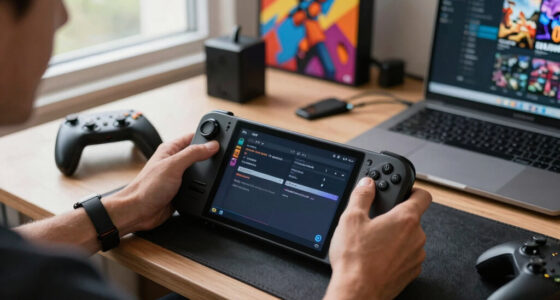
Think of a Steam Deck on a train. You wake it, hear the soft fan, tap a cozy farm sim, and the desktop never enters the room. If you want the file browser later, Desktop Mode waits behind a menu like a side door.
As an affiliate, we earn on qualifying purchases.
See Why Proton Makes Windows Games Feel Native
SteamOS Explained for Players Who Have Never Used Linux needs Proton because most PC games still ship for Windows first. Proton is Valve’s Steam Play compatibility tool that lets many Windows-only games run on Linux by using Wine and extra parts such as DXVK and VKD3D-Proton for graphics translation [2].
Proton acts like a busy interpreter at a noisy counter. The game asks for Windows-style graphics and files; Proton translates the request into calls Linux can handle, often without you seeing the exchange.
That is why a Windows game can show a green Play button on SteamOS. You may still hit trouble with anti-cheat, launchers, video codecs, or fresh patches, but many ordinary single-player installs feel pleasantly uneventful.
Proton is powerful because it disappears when it works. You only notice it when a game stutters, crashes, or asks for a Windows piece SteamOS cannot provide.
As an affiliate, we earn on qualifying purchases.
Compare SteamOS and Windows Without the Jargon
SteamOS Explained for Players Who Have Never Used Linux gets easier once you compare it to Windows as a living-room game launcher, not as a general laptop system. Windows gives you wider app support; SteamOS gives you a calmer, controller-first path from the sofa to your save file.
| What You Notice | Windows | SteamOS |
|---|---|---|
| First screen | Desktop plus launchers | Gaming Mode first |
| Game support | Best native Windows coverage | Steam, Linux-native games, and many Proton titles |
| Other stores | Steam, Epic, GOG, Xbox app, and browser installs | Steam first; other stores need extra setup |
| Fixes you may use | Driver panels and Windows settings | Proton versions, controller layouts, and Desktop Mode |
Imagine you connect a handheld to a TV. Windows may greet you with update popups, tiny tray icons, and a mouse pointer begging for a desk. SteamOS tries to hand you a big, readable library grid and a controller cursor that behaves from ten feet away.
The tradeoff is freedom versus focus. Windows opens more doors; SteamOS keeps the hallway quiet.
As an affiliate, we earn on qualifying purchases.
Check Your Library Before You Wipe a Drive
The fastest way to avoid disappointment is to check every game you care about before you wipe a drive, book a weekend, or promise couch co-op to three friends. Valve uses compatibility badges, and those badges tell you whether a game should work cleanly, need tinkering, fail, or still await testing [1].
- Open each must-play game’s Steam page and look for its Steam Deck or SteamOS compatibility badge.
- Read the badge details, not just the icon, because Playable can mean tiny text, a launcher, or manual keyboard input.
- Test your nightly game first, especially if it uses anti-cheat or online matchmaking.
- Back up cloud saves and local saves before changing operating systems.
- Check again near install day, because Proton updates and game patches can change a rating.
Valve’s four common labels are plain: Verified should run without setup, Playable may need manual work, Unsupported does not work on that device, and Unknown has not finished review [1]. A badge can change after patches, so check near the day you install.
For the fact-check trail, [1] is Valve’s Steam Hardware Compatibility Review at https://partner.steamgames.com/doc/steamhardware/compat, and [2] is Valve’s Proton project at https://github.com/ValveSoftware/Proton.
Know the Games and Tools That May Fight Back
SteamOS works best when your game lives inside Steam, supports controllers, and plays nicely with Proton. It pushes back when a title depends on kernel-level anti-cheat, a tiny launcher, unusual mod tools, or a store outside Steam that expects Windows paths and background services.
- Good fits: single-player games, controller-friendly indies, RPGs, and Steam titles with green compatibility notes.
- Risky fits: competitive games with kernel-level anti-cheat, MMOs with custom launchers, mod managers that expect Windows folders, and apps tied to Microsoft Store.
- Family check: SteamOS does not change age ratings. If a game is ESRB Mature, PEGI 18, or USK 18 on Steam, treat it that way on SteamOS too.
Say your Friday rotation is Hades, Balatro, and a racing game with controller support. That stack will likely feel smooth. Swap in a Windows-only shooter with strict anti-cheat, and the night can turn into forum reading with a cold pizza beside you.
Use Desktop Mode Without Becoming a Linux Person
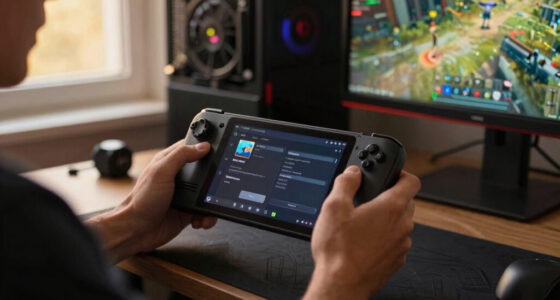
Desktop Mode is the escape hatch for normal computer tasks, and you do not need to become a terminal wizard to use it. On Steam Deck, it opens a KDE Plasma desktop where you can browse files, install many apps through Discover, manage screenshots, and move mods around.
Use it when a game stores config files, when you want Discord, or when a mod asks you to drop a folder into a specific place. The window buttons, taskbar, and app store feel familiar enough, though the file paths use Linux names instead of C drive.
A good example: you take a screenshot in a racing game, switch to Desktop Mode, open the file manager, and copy it to a USB stick. You did a Linux task, but it felt like moving a photo from one folder to another.
Install SteamOS on a PC With Fewer Surprises
Installing SteamOS on a PC means treating it like a gaming-focused operating system, not a skin you place on top of Windows. You usually plan for a clean install, confirm hardware support, back up saves, and accept that some devices may behave differently from a Steam Deck.
Before you start, list your GPU, Wi-Fi chip, controller, dock, and display. AMD and Intel hardware often has the smoothest Linux support, while Nvidia setups can still vary by driver and SteamOS release. Any performance claim should name the platform and version, such as Steam Deck OLED on SteamOS 3.x, not just SteamOS.
For a living-room PC, the safest practical route is boring: back up saves, download the current SteamOS installer or the right recovery media from Valve for your device, read device support notes, and keep a Windows recovery USB nearby. Treat unconfirmed Steam Machine leaks or forum install scripts as unconfirmed until Valve or the device maker says otherwise.
Spend Your First Week Testing the Right Things
Your first week with SteamOS should be boring in the best way: install a few Verified games, test your must-play titles, set controls, and learn where Desktop Mode lives before you chase mods. The goal is not to master Linux; the goal is to make Friday night play smoothly.
- Install two easy wins: one Verified game and one smaller indie. Let SteamOS build confidence while the fan barely whispers.
- Try your must-play game next, not ten random games from a sale backlog.
- Check controls in Steam Input before blaming the game; one community layout can save an awkward menu.
- Test sleep and resume during a safe moment, then watch for audio, controller, or cloud-save weirdness.
- Write down fixes in a note so future you does not repeat the same settings hunt.
By Sunday, you should know whether SteamOS fits your habits. If your core games work, the OS fades into the background like a quiet console menu. If they do not, you learned that before losing a whole library weekend.
Frequently Asked Questions
Is SteamOS good if I have never used Linux?
Yes, if most of your gaming happens inside Steam and you like a controller-friendly interface. You can ignore the terminal for normal play, updates, downloads, and cloud saves. The learning curve appears when you install non-Steam launchers, use mods, or troubleshoot hardware.
Will all my Windows games run on SteamOS?
No. Proton lets many Windows-only games run on SteamOS, but anti-cheat, launchers, video playback, and fresh patches can still break a game. Check the game’s compatibility badge and recent player reports before treating it as safe for your setup.
Can I play non-Steam games on SteamOS?
Yes, but expect more hands-on work than clicking Install in Steam. You may need Desktop Mode, a third-party launcher, manual file paths, or a custom Proton setup. If your library is mostly outside Steam, test before replacing Windows.
Is SteamOS faster than Windows for gaming?
Sometimes, but the honest answer depends on the game, hardware, driver, Proton version, and SteamOS version. A useful performance claim names the device and target, such as Steam Deck at 800p or Steam Machine at 1080p. Vague claims about SteamOS being faster or slower are noise.
Does SteamOS change game age ratings or parental controls?
No. SteamOS does not change ESRB, PEGI, USK, or other regional age ratings shown on store pages. For younger players, use the same rating checks and Steam family settings you would use on Windows.
Conclusion
Remember this: SteamOS is not Linux homework; it is a Steam-first gaming system that happens to have Linux under the floorboards.
Start with your real library, not an imaginary perfect setup. If your favorite games check out, SteamOS can make a PC feel like a quiet black box under the TV, waiting for the next click of the controller.
Fall Picks
fall essentials
As an affiliate, we earn on qualifying purchases.