TL;DR

Get games and gaming gear delivered free — and shop member deals
- Fast, free delivery on millions of items
- Access to Prime Big Deal Days deals on October 6–7
- Prime Video, Amazon Music and more included
GameScope is Valve’s lightweight game-focused compositor for Linux gaming, and on SteamOS 3.x it helps manage fullscreen behavior, scaling, refresh rates, overlays, and frame presentation for games running natively or through Proton [1][2]. It does not magically raise every frame rate, but it can make the game-to-screen path cleaner, steadier, and easier to tune on Steam Deck.
Your game can look fullscreen without really owning the screen. That sounds like a trick, but it is one of the quiet reasons SteamOS feels smooth when you bounce from a Proton game to the Steam menu, tweak a frame cap, then jump back in without a jagged desktop flash.
This is GameScope explained for SteamOS players in plain English: what it does, where Proton fits, which settings matter, and when you should leave it alone. You will get an overview suitable for a Steam Deck owner, a Linux desktop player, or anyone trying to understand why SteamOS gaming feels different from a normal Linux desktop.
Think of GameScope as the stage manager in a small theater. The actors are your games, Proton handles translation for Windows titles, and GameScope controls the lights, frame, curtains, and the exact shape of what reaches your screen.
GameScope is the SteamOS display layer that manages fullscreen behavior, scaling, frame presentation, and overlays for games running natively or through Proton.
Proton helps Windows games run on Linux; GameScope controls how the rendered game image reaches your screen.
On Steam Deck, start with resolution, frame cap, refresh rate, and scaling mode before editing launch options.
Performance claims should name the platform, SteamOS version, Proton version, refresh rate, and game patch when possible.
Treat leaked or rumored GameScope features as unconfirmed until Valve documentation, public release notes, or the project repository backs them up.
GameScope is the quiet stage manager behind SteamOS gaming.
TL;DR: GameScope is Valve’s lightweight game-focused compositor for Linux gaming. On SteamOS 3.x, it helps manage fullscreen behavior, scaling, refresh rates, overlays, and frame presentation for games running natively or through Proton.
Your game can look fullscreen without really owning the screen.
Try a steady 40 fps cap on a 40 Hz target before chasing raw peak frames.
It sits between the running game and the display path in Gaming Mode.
Compositing, scaling, fullscreen handling, overlays.
Runs many Windows games; GameScope presents the image.
SteamOS Gaming Mode is where the experience feels most console-like.
Resolution, frame cap, refresh rate, scaling mode.
Cleaner presentation is not the same as free performance.
The simple job between your game and the screen.
Think of GameScope as display plumbing for games. It lets SteamOS frame a running game cleanly, scale it, show overlays, apply presentation choices, and return to the Steam interface without a rough desktop flash.
Game-like, not desktop-like
A game can behave like fullscreen while SteamOS still controls menus, overlays, sleep-resume, and quick settings.
Render lower, present cleanly
A demanding game can render below native resolution while SteamOS scales it to the Deck screen or external display.
Rhythm beats raw spikes
A stable 40 fps at 40 Hz can feel calmer than an unstable range bouncing around a 60 Hz target.
Where GameScope sits in the SteamOS chain.
Proton helps a Windows game speak Linux. GameScope then manages how the rendered image reaches the screen. SteamOS wraps both with system controls, power tools, and the quick access interface.
Game Renders
Native Linux game or Windows game through Proton produces frames.
GameScope Frames
Fullscreen behavior, scaling, frame presentation, and overlays are managed.
SteamOS Tunes
Refresh rate, frame cap, TDP, and performance overlay choices apply.
Display Shows
The Deck screen or docked monitor receives the final presented image.
GameScope and Proton are partners, not twins.
If a Windows game crashes before the title screen, test Proton first. If it launches but looks stretched, blurry, or awkward on a display, check GameScope-related presentation settings first.
| Tool | Primary Handles | SteamOS Example | Will Not Fix Alone | Signal |
|---|---|---|---|---|
| Proton | Windows compatibility, DirectX-to-Vulkan paths, game launch behavior. | A Windows-only RPG starts on Steam Deck through Proton Experimental. | Bad frame cap, blurry scaling, or awkward display mode. | ✓ Compat |
| GameScope | Compositing, scaling, fullscreen handling, refresh presentation, overlays. | The RPG renders at 900p docked while SteamOS presents it to a 1080p TV. | Broken game logic, anti-cheat blocks, missing codec support. | ✓ Display |
| SteamOS | System settings, drivers, power profiles, quick access controls. | You set a 45 fps cap and lower TDP for a train ride. | A game that needs a newer Proton fix or patched game files. | ~ System |
| Rumors | Leaked or unverified feature claims from social posts or forums. | A claimed feature appears before public release notes or repository proof. | Trustworthy performance expectations or buyer advice. | ✗ Verify |
Start with the visible knobs before launch options.
On Steam Deck, most players should tune the obvious display controls first. Launch options are useful, but they are not the first stop for every blurry image or uneven frame graph.
Performance claims need context.
“It runs badly” is hard to compare. A useful report names the platform, SteamOS version, Proton version, refresh rate, frame cap, resolution, docked state, and game patch.
Good bug report shape
Use this checklist when asking other players to compare settings or reproduce a GameScope-related issue.
When to leave it alone
If a game already looks right, holds a stable cap, resumes cleanly, and responds well, do not tweak GameScope launch behavior just because a forum post mentions a flag. Smooth is the goal.
From game code to handheld feel.
The useful way to think about SteamOS is as a connected chain. One weak link can affect how a game feels, but each layer has a different job.
The Simple Job GameScope Does Between Your Game and Screen
GameScope Explained for SteamOS Players starts with one plain idea: GameScope is a gaming compositor, which means it controls how a game window gets presented on your display. According to Valve’s public GameScope project documentation [1], it can run a game inside a managed environment and then present that game at a chosen resolution, scale, and refresh behavior.
That sounds dry until you feel it. Say you launch a chunky action game on Steam Deck at 1280×800, then cap it at 40 frames per second for battery life. GameScope helps keep that little window of moving pixels dressed up like a clean console-style fullscreen game, instead of a loose desktop window sliding around behind the curtain.
The useful definition is this: fullscreen does not always mean the game owns the whole display. On SteamOS, it often means GameScope frames the game so it behaves like fullscreen while Steam can still show overlays, performance graphs, quick settings, and sleep-resume controls.
Key idea: GameScope is display plumbing, not a magic performance engine. It can make presentation cleaner, but it cannot turn a heavy scene at 24 fps into a locked 60 fps by itself.
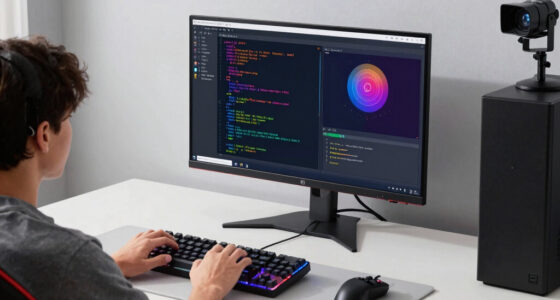
Steam Deck compatible gaming monitor
As an affiliate, we earn on qualifying purchases.
As an affiliate, we earn on qualifying purchases.
Why SteamOS Feels More Like a Console Than a Desktop
SteamOS uses GameScope because games need steadier handling than ordinary desktop apps. A browser tab can tolerate a messy resize; a boss fight cannot. On SteamOS 3.x Gaming Mode, GameScope helps keep games in a controlled display box while the Steam interface stays ready in the background [2].
You see the benefit when you press the Steam button mid-game. The screen dims, the menu slides in, the fan keeps whispering, and your game waits behind it instead of fighting the desktop for attention. That smooth pause-and-return feeling is one of the key aspects and real strengths of the Steam Deck experience.
Linux gaming used to feel rough around the edges compared with Windows, especially when games expected very specific fullscreen behavior. GameScope helps reduce that friction by giving SteamOS a predictable presentation layer. Proton may get the Windows game running; GameScope makes it feel at home on the SteamOS screen.
This is why a desktop Linux session and SteamOS Gaming Mode can feel different even on similar hardware. In Gaming Mode, the whole setup behaves more like a handheld console: one game in focus, fast access to settings, and fewer desktop distractions.
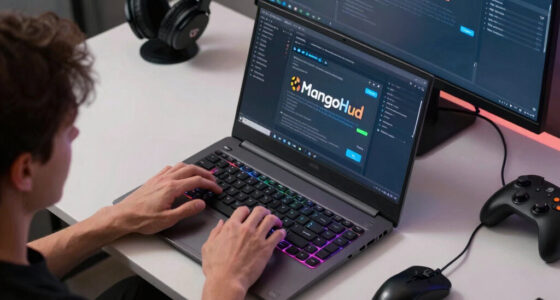
Linux gaming performance optimization tools
As an affiliate, we earn on qualifying purchases.
As an affiliate, we earn on qualifying purchases.
What You Can Actually Feel While Playing
GameScope Explained for SteamOS Players gets practical when you watch what changes under your thumbs: frame pacing, scaling, overlays, and switching behavior. On Steam Deck LCD or OLED running SteamOS 3.x, those changes depend on the game, Proton version, graphics API, and your refresh-rate setting [2].
Frame pacing is the big one. A game at 40 fps on a 40 Hz screen can feel smoother than a wobbly game bouncing between 43 and 55 fps on a 60 Hz target. The number is lower, but the rhythm is steadier, like footsteps on a wooden floor instead of loose coins rattling in a drawer.
Scaling is the other everyday win. If you run a demanding game at 1152×720 and scale it to the Deck’s 1280×800 display, GameScope helps present the result cleanly. The picture may look a touch softer, but you might gain quieter fans, longer battery life, or fewer dips during busy scenes.
Input latency is more nuanced. GameScope can help by managing presentation cleanly, but extra scaling, frame limiting, or buffering can add delay in some setups. For a slow strategy game, you may never notice; for a rhythm game, one bad setting can feel like tapping through syrup.
GameScope compatible display settings
As an affiliate, we earn on qualifying purchases.
As an affiliate, we earn on qualifying purchases.
GameScope and Proton Do Different Jobs
GameScope and Proton are partners, not twins. Proton helps Windows games run on Linux by translating Windows calls into Linux-friendly ones, while GameScope manages how the finished image reaches your display. If Proton is the interpreter at the table, GameScope is the person arranging the room so the meeting works.
| Tool | What it handles | SteamOS example | What it will not fix alone |
|---|---|---|---|
| Proton | Windows compatibility, DirectX-to-Vulkan paths, game launch behavior | A Windows-only RPG starts on Steam Deck through Proton Experimental | A bad frame cap, blurry scaling, or awkward display mode |
| GameScope | Compositing, scaling, fullscreen handling, refresh presentation, overlays | The RPG renders at 900p docked while SteamOS presents it to a 1080p TV | Broken game logic, anti-cheat blocks, or missing codec support |
| SteamOS | System settings, drivers, power profiles, quick access controls | You set a 45 fps cap and lower TDP for a train ride | A game that needs a newer Proton fix or patched game files |
A real example makes the split clearer. If a Windows game crashes before the title screen, you usually test another Proton version. If the game launches but looks stretched on an external monitor, you check GameScope scaling, resolution, and SteamOS display settings.
This is also where including key aspects in bug reports helps. Instead of saying, “It runs badly,” write the SteamOS version, Deck model, Proton version, resolution, frame cap, and whether you are docked. That short list gives other players something solid to compare.
As an affiliate, we earn on qualifying purchases.
How to Check Your GameScope Setup Without Guessing
- Start in SteamOS Gaming Mode. Test there before judging performance from Desktop Mode, because Gaming Mode uses the Deck’s game-focused presentation path [2].
- Open the Quick Access menu. Check your frame limit, refresh rate, scaling mode, and performance overlay before changing game files.
- Set one clear target. Try 40 fps at 40 Hz, 45 fps at 90 Hz on Steam Deck OLED, or 60 fps at 60 Hz when the game can hold it.
- Change one setting at a time. Lower resolution first, then test scaling, then adjust the frame cap. Fast changes feel tempting, but they make results muddy.
- Play the same scene twice. Use a busy town, a rainy race, or a combat arena with lots of effects so your test has real pressure.
GameScope checks work best when you treat them like a small kitchen experiment. Same pan, same heat, same ingredients. If you change resolution, refresh rate, Proton version, and graphics preset all at once, you will not know which knob actually helped.
For example, a player trying to stretch battery life in a 3D adventure game might set 10 watts TDP, cap at 40 fps, and lower internal resolution. If the camera still stutters in the same market square, the next suspect may be the game engine or Proton path, not GameScope.
The Settings Worth Touching First
GameScope Explained for SteamOS Players becomes useful when you focus on the settings that change what you see and feel. Start with resolution, frame cap, refresh rate, scaling mode, and overlay readouts. Those are the knobs most likely to affect smoothness, sharpness, battery drain, and heat.
- Resolution: Lower it when the GPU struggles. A docked game at 1600×900 may feel steadier than a shaky 1080p target.
- Frame cap: Use it to trade peak fps for consistency. A locked 40 fps often feels better than a jumpy 35-55 fps range.
- Refresh rate: Match it to your cap when possible. Steam Deck OLED gives more room here with its 90 Hz panel.
- Scaling mode: Pick the look you prefer. Integer scaling suits crisp pixel art; softer scaling can hide jagged edges in 3D games.
- Performance overlay: Use it briefly, then turn it down. Numbers help diagnose trouble, but they can steal your eyes from the road.
Here is a concrete Steam Deck moment. You dock to a 4K TV, launch a big open-world game, and the fan starts shouting. Instead of forcing native 4K, set the game closer to 1280×720 or 1600×900, let scaling handle the TV output, and see whether the frame graph calms down.
Do not chase the sharpest image every time. Handheld screens forgive lower resolutions because they sit close, small, and bright in your hands. On a couch across the room, clean motion may matter more than counting roof tiles in the distance.
When GameScope Helps and When You Should Look Elsewhere
GameScope helps most when the problem involves presentation: awkward fullscreen behavior, scaling, overlays, frame caps, or refresh matching. It helps least when the bottleneck is game code, CPU load, shader compilation, anti-cheat support, or a Proton compatibility gap. The trick is knowing which kind of problem you are staring at.
| What you see | Likely place to check | Quick test |
|---|---|---|
| Game looks stretched or blurry | GameScope scaling and game resolution | Try native panel resolution, then one lower step |
| FPS is high but motion feels uneven | Frame cap, refresh rate, pacing | Match cap and refresh, then replay the same scene |
| Game will not launch | Proton version or game compatibility | Switch Proton version and check recent reports |
| Huge dips in crowded areas | CPU, GPU, game engine, graphics preset | Lower shadows, crowd density, or resolution one at a time |
| Controls feel late | Frame cap, VSync, buffering, scaling path | Test uncapped briefly, then try a cleaner cap |
Imagine a city-builder that drops frames when hundreds of tiny cars clog the streets. GameScope can present frames neatly, but it cannot make the simulation lighter. In that case, lowering simulation-heavy settings beats poking at display flags for an hour.
Now take a pixel-art platformer that runs fast but looks smeared on a TV. That is a better GameScope-shaped problem. Try integer scaling or a cleaner output resolution, and the ladders, bricks, and tiny character outlines may snap back into place.
What to Trust Before You Change Launch Options
Trust documented behavior first: Valve’s GameScope project notes [1], SteamOS update notes [2], and repeatable player tests with listed versions. Treat social posts about future GameScope flags, leaked SteamOS changes, or rumored performance boosts as unconfirmed until a public build or project documentation backs them up.
This matters because launch options can become a junk drawer. One player copies a string from an old forum post, another adds a Proton flag from a different game, and soon the command line looks like tangled earbuds. For a SteamOS 3.x player, cleaner testing usually beats longer launch commands.
Performance claims also need labels. A tip that works on Steam Deck OLED at 90 Hz may not behave the same on the LCD Deck, a desktop AMD GPU, or a handheld running another Linux distribution. Version, hardware, and game patch level are part of the claim, not fine print.
Age ratings rarely enter GameScope talk, but the line is simple. GameScope changes display handling, not game content, ESRB ratings, PEGI ratings, online interactions, or parental-control rules. If a game is rated Mature or PEGI 18, a smoother frame cap does not make it family-safe.
The Practical Rule: Tune for the Moment You Are Playing
The best GameScope setup is the one that fits your current play session. Handheld on a train, docked on a TV, plugged into a monitor, and lying on a couch at midnight all ask for different choices. The same game may deserve 60 fps plugged in and 40 fps on battery.
For a quiet handheld session, you might lower resolution, cap at 40 fps, and enjoy a cooler grip. For docked play, you might accept more heat and power draw to keep a cleaner image on a bigger screen. Neither choice is the “right” one forever; each is right for the room, the screen, and your patience.
That is the heart of a blog article about GameScope that actually helps: it should give you judgment, not a magic incantation. GameScope is a tool for shaping the path from game to glass. Your job is to decide whether you want sharper edges, smoother motion, quieter fans, or longer battery life tonight.
Frequently Asked Questions
Is GameScope required for SteamOS gaming?
GameScope is part of the SteamOS Gaming Mode experience, so most Steam Deck players use it without thinking about it. You do not need to manually manage it for normal play, but understanding it helps when you tune resolution, scaling, frame caps, and refresh rates.
Does GameScope make Proton games run faster?
GameScope does not directly translate or fix Windows games; that is Proton’s job. It can make a Proton game feel better by improving presentation, scaling, and frame pacing, but launch failures or compatibility bugs usually need a Proton change.
Should you use custom GameScope launch options?
Use custom launch options only when you have a clear reason, such as testing a specific resolution or display behavior. Start with SteamOS quick settings first, because they are easier to reverse and less likely to leave old commands stuck to one game.
Can GameScope affect Steam Deck battery life?
GameScope settings can affect battery life indirectly when they help you run a lower resolution, lower frame cap, or calmer refresh target. A game capped at 40 fps with lower GPU load can draw less power than the same game chasing 60 fps, but results vary by game and SteamOS version.
Does GameScope change age ratings or content warnings?
No. GameScope changes how a game is displayed, not what the game contains. ESRB, PEGI, online interaction warnings, and parental controls still come from the game, platform settings, and store listing.
Conclusion
Remember this: GameScope is not a cheat code for free performance; it is the clean frame around your SteamOS game. Use it to control smoothness, scaling, and screen behavior, then judge changes in the same scene with the same settings.
When your Deck feels just right, quiet fan, steady frame graph, crisp buttons under your thumbs, GameScope is probably doing its work in the background. The best setup is the one that disappears while you play.
Fall Picks
fall essentials
As an affiliate, we earn on qualifying purchases.