
TL;DR
Listen free for 30 days with Audible
Thousands of audiobooks and originals — cancel anytime.
Start your free trialAs an affiliate, we earn on qualifying purchases.
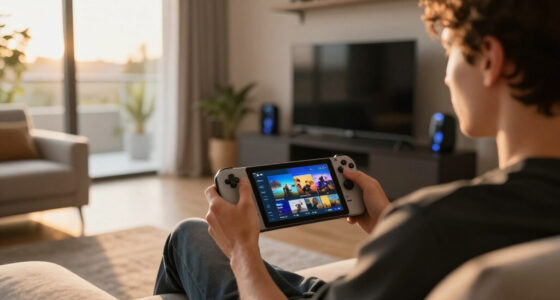
Steam Deck accessibility settings help you make text easier to read, controls easier to reach, colors clearer, and audio more useful before a long handheld session. New owners should start with Quick Access shortcuts, per-game button remapping, display scaling, color filters, captions, and external controllers, then save profiles for games that strain your hands or eyes.
The Steam Deck can feel perfect for ten minutes, then slowly turn into a brick of tiny text, stiff thumbs, and squinting at a glowing 7-inch screen.
That is why you should treat accessibility setup like charging the battery. Do it early, and the whole machine feels calmer. According to the CDC, more than 1 in 4 U.S. adults reports some type of disability, which makes flexible controls and readable screens a normal part of good design, not a niche extra [2].
This guide gives you a practical overview of accessibility settings for new owners: what to change first, where the useful features on Steam live, and which tweaks matter most when your hands, eyes, or ears start asking for mercy.
Steam Deck Accessibility Settings That New Owners Should Learn
Steam Deck accessibility settings help you make text easier to read, controls easier to reach, colors clearer, and audio more useful before a long handheld session. Start with Quick Access shortcuts, per-game button remapping, display scale, color filters, captions, and external controllers.
Treat accessibility setup like charging the battery: do it early, and the whole machine feels calmer.
U.S. adults reports some type of disability, making flexible controls normal design.
Move painful actions without rewriting your entire Steam Deck layout.
Small handheld displays make text scale and contrast matter fast.
Back grip buttons can absorb sprint, dodge, crouch, and stick-click strain.
Check system settings and each game’s own accessibility menu.
Play briefly, notice discomfort, adjust, then save the profile.
Look for deuteranopia, protanopia, and tritanopia options where offered.
Settings that change comfort fast
Open Settings before a demanding game. Then test in the exact place you play: couch, bed, train, desk, or docked setup. A menu can look fine while a foggy cave or busy boss fight tells the truth.
Use the three-dot button as your session dashboard
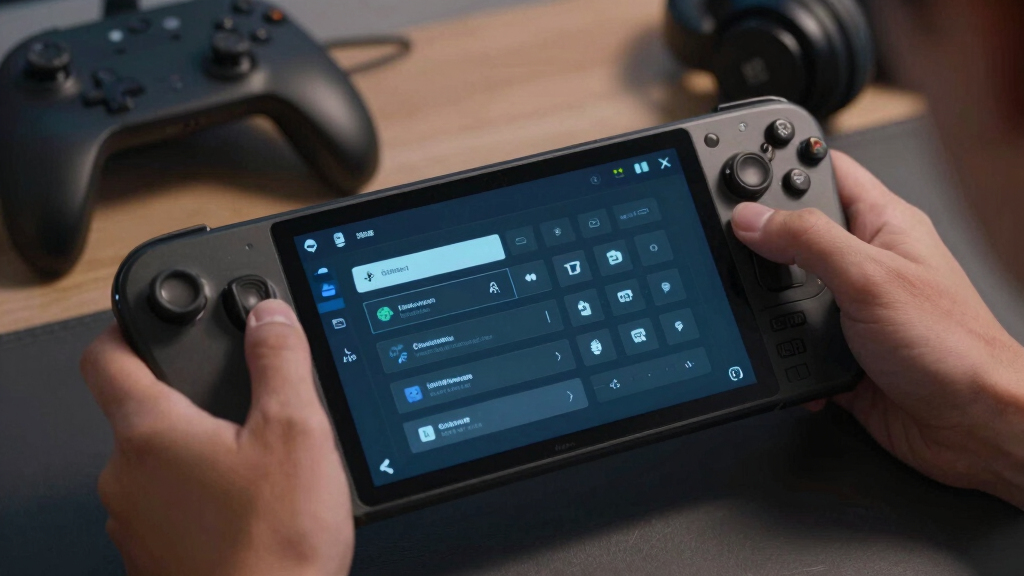
Brightness, audio, performance, and quick toggles live close enough to adjust without breaking the play session.
Raise scale before your eyes get tired
Increase UI scale, check subtitle size, lower night brightness, and use magnification for stubborn launcher windows.
Move painful actions to buttons your hands like
Put sprint, dodge, reload, crouch, or stick-click commands on L4, L5, R4, or R5 for softer repeated inputs.
Check filters when games hide the signal
Use colorblind modes and high-contrast HUD options when red-green warnings, pale icons, or dark rooms blur together.
Turn captions and effects into useful information
Keep effects clear, lower music when needed, enable captions, and route sound to headphones when footsteps matter.
Portable does not always mean handheld
A stand, dock, Bluetooth controller, headset, keyboard, mouse, or adaptive device can make long sessions easier.
Remap discomfort while it is still fresh
Steam Input is the accessibility workhorse: customize layouts per game, test quickly, and save the version that makes one awkward title feel natural.
Open settings
Press Steam, then check display, controller, audio, and accessibility areas.
Tune the screen
Set scale, brightness, contrast, captions, and color options before fatigue arrives.
Move the pain
Shift sprint, dodge, crouch, reload, or stick-click inputs to easier buttons.
Play five minutes
Use a real fight, menu, puzzle, or driving sequence instead of judging from the title screen.
Save the profile
Keep good layouts per game so one awkward title does not rewrite your whole Deck.
The thumb rule
If sprint lives on left-stick click and your thumb starts aching, move sprint to a back grip. A hard jab becomes a soft squeeze.
Best for repeated actions such as sprint, dodge, reload, interact, or ping.
Useful for fine aiming when small stick movements feel shaky or tiring.
Helpful for PC-first games built around mouse menus, cursors, or radial commands.
What to check before pressing Play
Start with the basics that reduce the most friction: display scale, brightness, subtitles, controller layout, and output device. Then go deeper only when the game asks for it.
Read a quest log at your normal holding distance. If you lean forward, increase text or UI scale.
Keep effects high when combat cues, footsteps, or engine sounds carry important information.
Lower music in stealth or competitive games when it masks cues you need to react to.
Where the useful adjustments live
The Deck gives you multiple routes to solve the same comfort problem. New owners should think in surfaces: input, visual clarity, audio, shortcuts, and game compatibility.
Accessibility surface breadth
Count of practical adjustment routes new owners should inspect first.
Readable screen test
Sit where you actually play, hold the Deck at your normal distance, and read a dense quest log for 30 seconds. If you lean forward without thinking, the text is too small.
Raise HUD, subtitle, and menu size where the game allows it.
Use high-contrast UI and color filters when the signal disappears.
Lower white menus at night so the screen does not fight your eyes.
Match the symptom to the setting
A game can be Steam Deck playable and still need manual accessibility tuning. Check the system first, then the in-game menu, then save the profile.
| Problem you notice | Setting to try | Real play example | Tradeoff | Signal |
|---|---|---|---|---|
| Red and green markers blend together | Colorblind filter or game color mode | Team markers in a shooter look too similar | Some art may look less natural | ✓ Clearer color signal |
| Menus glow too hard at night | Brightness, night mode, or lower contrast | White inventory screens burn in a dark bedroom | Dark scenes may need extra tuning | ~ Context dependent |
| Small icons disappear in motion | HUD scale and high-contrast UI | Cooldown icons vanish during a boss fight | The screen may feel busier | ✓ Better scanning |
| Stick-click sprint hurts after a few rooms | Per-game Steam Input remap | Move sprint to L4 or R4 in an online shooter | Muscle memory needs a short reset | ✓ Lower thumb strain |
| Important dialog disappears under music | Captions, subtitle size, effects mix | Whispered story lines vanish on a train | Captions depend on each game’s implementation | ~ Game dependent |
| Advanced tools are missing in one title | Check both system and in-game menus | An older PC port has fixed text size | Some fixes may require magnification or external gear | ✗ Manual workaround |
Source notes: Valve Steam Input support materials describe per-game layout customization. CDC disability prevalence data notes that more than 1 in 4 U.S. adults reports some type of disability.
Connect gear that lets your body relax
The Steam Deck is portable, but comfort may come from putting it on a stand, docking it, or using a controller that fits your hands better than the built-in controls.
Use a larger controller when the Deck feels cramped
Pair an external controller and keep the screen on a stand so your wrists can rest.
Dock, hub, keyboard, mouse, or wired headset
For PC-first games, a docked setup can make menus and aiming feel less forced.
Bring in assistive input devices when needed
External and adaptive accessories can preserve the games you love while changing how you access them.
Choose output for the room you are actually in
Headphones help footsteps, engines, and environmental cues survive noisy spaces.
Make dialog visible before the room gets loud
Turn on captions early and increase subtitle size where the game offers it.
Save the setup that makes the session feel calm
Keep layouts for games that strain your hands, eyes, or ears, then reuse what works.
From discomfort to saved profile
New owners do not need to master every setting at once. Follow the symptom, change one thing, test in a real scene, and preserve the fix.
Text strain
Quest logs, inventories, and subtitles make you lean forward.
Scale and contrast
Raise UI scale, adjust brightness, and check game-specific text settings.
Hand strain
Move repeated inputs like sprint or dodge to a back grip.
Missed cues
Enable captions, tune audio mix, and choose a useful output device.
Saved comfort
Store the per-game profile and keep playing without redoing the work.
Key Takeaways
- Start with display scale, brightness, captions, and controller settings before your first long session.
- Use Steam Input per-game layouts to move painful actions like sprint, dodge, or stick-click commands to easier buttons.
- Check both system settings and in-game menus because text size, subtitles, and color modes often live in different places.
- External controllers, docks, stands, and adaptive devices can make the Deck easier to use without changing the games you love.
- A game can be playable on Steam Deck and still need manual accessibility tuning.
As an affiliate, we earn on qualifying purchases.
Start Here: The Settings That Change Comfort Fast
Steam Deck accessibility settings are the system and game-level options that make Valve’s handheld gaming PC easier to see, hear, hold, and control. Start with the settings that reduce friction fast: display scale, brightness, button layouts, Quick Access shortcuts, captions, and external input options.
Think of it like adjusting the seat in a car before a long drive. You could start the engine right away, but ten minutes later your shoulder will remind you that comfort is not decoration. It is part of control.
- Open Settings first: press the Steam button, then check display, controller, audio, and accessibility areas before launching a demanding game.
- Use Quick Access: the three-dot button is your fast lane for brightness, audio, performance, and other session-level changes.
- Test in a real game: a menu may look fine, but a foggy cave in an RPG or a frantic boss fight tells the truth.
For example, if you start Hades on the couch and your thumb starts aching from repeated dash inputs, do not force it. Move that action to a back grip, play one room, and adjust again.
Steam Deck display scaling accessories
As an affiliate, we earn on qualifying purchases.
As an affiliate, we earn on qualifying purchases.
Make Tiny Text Readable Before Your Eyes Get Tired
Steam Deck accessibility settings can make small text easier to read by changing display scale, brightness, contrast, magnification, and game text options. On a 7-inch LCD or 7.4-inch OLED screen, a font that looked fine on your monitor can turn into gray dust.
The first pain point often shows up in inventory screens. You open a dense RPG, read a sword description, and the words look like they were printed on a grain of rice. That is your cue to adjust the screen before the headache arrives.
- Raise UI scale where the game allows it, especially in strategy games, RPGs, and management sims.
- Use magnification for launcher windows, small dialog boxes, or older PC games with stubborn menus.
- Lower brightness at night so white menus do not blast your eyes in a dark room.
- Check game settings too because many games keep subtitle size, HUD scale, and color filters inside their own menus.
A good test is simple: sit where you actually play, hold the Deck at your normal distance, and read a quest log for 30 seconds. If you lean forward without thinking, the text is too small.
As an affiliate, we earn on qualifying purchases.
Move Hard-to-Reach Actions to Buttons Your Hands Like
Steam Deck accessibility settings shine brightest in Steam Input, where you can remap buttons, use back grips, add gyro aiming, change touchpad behavior, and save layouts for one game at a time. This is the fix when a game plays well but asks your hands to work too hard.
- Open the game page in your library and choose the controller settings before you press Play.
- Move repeated actions like sprint, crouch, reload, or dodge to L4, L5, R4, or R5.
- Add gyro for fine aiming if tiny stick movements feel shaky or tiring.
- Try a community layout when a game was built for keyboard and mouse.
- Play for five minutes, then change the layout again while the discomfort is fresh.
Say an online shooter puts sprint on the left stick click. That click can feel like pressing a doorbell with your thumb joint a thousand times. Moving sprint to a back grip turns a painful jab into a soft squeeze.
According to Valve’s Steam Input support materials, control layouts can be customized per game, which means one awkward title does not have to rewrite your whole Deck [1].
As an affiliate, we earn on qualifying purchases.
Use Color and Contrast When Games Hide the Signal
Color and contrast settings help when a game buries useful information in red-green warnings, pale icons, dark rooms, or low-contrast menus. New owners should check system display controls, then open the game’s own accessibility menu for colorblind modes such as deuteranopia, protanopia, or tritanopia when offered.
This matters fast in games where color carries meaning. If a puzzle marks danger in red and safety in green, the wrong palette can make the screen feel like a bowl of muddy soup. You are not bad at the puzzle; the signal is bad.
| Problem You Notice | Setting To Try | Real Play Example | Tradeoff |
|---|---|---|---|
| Red and green markers blend together | Colorblind filter or game color mode | Team markers in a shooter look too similar | Some art may look less natural |
| Menus glow too hard at night | Brightness, night mode, or lower contrast | White inventory screens burn in a dark bedroom | Dark scenes may need extra tuning |
| Small icons disappear in motion | HUD scale and high-contrast UI | Cooldown icons vanish during a boss fight | The screen may feel busier |
Valve’s device emphasizes inclusivity by giving players multiple routes to tune the screen, while many studios add their own color and subtitle tools inside the game [1]. Check both places before you give up on a hard-to-read title.
Turn Audio Into Information You Can Actually Use
Audio accessibility means shaping sound so you catch the information a game expects you to hear. Use volume controls, captions, subtitle size, output selection, Bluetooth devices, and speech features where available, especially when you play in noisy rooms, shared spaces, or late at night.
Handheld play rarely happens in a perfect studio-silent room. You may be on a train, next to a humming dishwasher, or half-listening for a sleeping kid down the hall. In those places, a footstep cue can vanish like a coin dropped into thick carpet.
- Turn on captions in story games so whispered dialog does not disappear under music.
- Check subtitle size because some games ship with text that feels built for a TV, not your hands.
- Use headphones or Bluetooth audio when positional sound matters, such as footsteps or engine noise.
- Lower music before effects if combat cues matter more than the soundtrack in that game.
One practical move: in a stealth game, drop music to 70% and keep effects at 100%. Suddenly the scrape of a guard’s boot has a clean edge, and you stop guessing.
Connect Gear That Makes Long Sessions Easier
External controllers and adaptive accessories can make Steam Deck handheld gaming easier when built-in controls feel cramped, heavy, or painful. Use Bluetooth, USB-C, a dock, or a hub to connect controllers, keyboards, mice, headsets, and adaptive devices that match how your body wants to play.
The Deck is portable, but portable does not always mean handheld. Some nights, the best setup is the Deck propped on a stand, a larger controller in your lap, and your wrists resting on a soft blanket.
- Bluetooth controllers help if the Deck’s weight bothers your wrists during long sessions.
- USB-C hubs let you add wired controllers, keyboards, mice, or audio gear.
- Adaptive controllers can support larger buttons, switches, or custom input setups.
- A stand or dock changes the angle, which can reduce neck strain during slower games.
For a turn-based strategy game, you might dock the Deck on a desk and use a mouse for crisp map clicks. For an action game, you might keep the Deck screen close but use a controller with larger, softer triggers.
Save Per-Game Profiles So Fixes Stay Fixed
Per-game profiles keep your accessibility work from becoming a chore. Set controls, gyro, touchpads, and display habits around the game you are playing, then let Steam remember that layout the next time you launch it. This saves time and protects your hands from repeat experiments.
Different games ask for different bodies. Hollow Knight wants fast, rhythmic movement, like tapping rain on a window. Civilization VI asks for calm pointing, long reading, and slow decisions.
- Create a baseline layout that feels good for most games.
- Clone it for tricky titles instead of starting from scratch.
- Name layouts clearly, such as back-grip sprint or gyro aim low sensitivity.
- Keep one spare layout for experiments that may not stick.
The Steam Deck community also shares custom layouts, which helps a lot with older PC games. If a classic RPG opens with keyboard prompts and tiny mouse targets, a shared layout can save you from an hour of button trial and error.
Know the Limits Before You Blame Your Setup
Steam Deck accessibility settings can improve comfort, but some limits come from the game itself. A title may ignore system text scale, hide captions in its own menu, use tiny launcher windows, or offer color options that only affect part of the interface.
This is the messy part of PC gaming in handheld form. The Deck can translate a lot, but it cannot rewrite every menu, subtitle file, or old launcher. Some games behave like they were squeezed through a keyhole.
Best rule: tune the Deck first, tune the game second, and treat community layouts as a shortcut when the default setup fights you.
Verified status can help set expectations, but it does not promise that every accessibility need is covered. A game may run smoothly and still have subtitles that feel too small during a late-night session.
Give yourself permission to adjust or refund when a game hurts to play. Comfort is not a bonus round. It is part of whether the game works for you.
Frequently Asked Questions
Can I customize Steam Deck controls for each game?
Yes. Steam Input lets you create and save per-game layouts, so one game can use gyro aiming while another keeps a simple console-style setup [1]. This is one of the best Steam Deck accessibility settings for new owners because it fixes discomfort without changing every game at once.
Where should I look first if text is too small on Steam Deck?
Start with system display settings, then check the game’s own menu for UI scale, subtitle size, HUD scale, or font options. Many PC games keep text controls inside the game, so the fix may be one layer deeper than you expect.
Does Steam Deck support colorblind settings?
Steam Deck and SteamOS include display tools, and many games add colorblind modes for deuteranopia, protanopia, and tritanopia. Check both system settings and the in-game accessibility menu because color changes may apply to different parts of the experience.
Can I use an adaptive controller with Steam Deck?
Yes, the Steam Deck can work with many external controllers and adaptive accessories through Bluetooth, USB-C, docks, or hubs. The exact setup depends on the device, the game, and the layout you build in Steam Input.
Are Steam Deck accessibility settings enough for every game?
No. They can make many games easier to play, but some issues depend on the game itself, such as tiny hardcoded text, missing captions, or menus built for a desktop monitor. When that happens, try community layouts, in-game options, external gear, or a different version of the game.
Conclusion
The smartest Steam Deck accessibility habit is simple: adjust the machine the moment something feels small, stiff, loud, dim, or awkward. Do not wait until your eyes ache or your thumb starts complaining.
Set up the Deck like it belongs to your body, not some imaginary default player. The screen gets clearer, the buttons feel closer, and the whole device starts to feel less like hardware and more like a game night that actually fits in your hands.
Flea & tick season Picks
flea and tick prevention
As an affiliate, we earn on qualifying purchases.