TL;DR

Play games on Amazon Luna for your game nights, included with Prime
- A rotating selection of games, no download needed
- Play on TV, laptop or phone
- Fast, free delivery for your gear, too
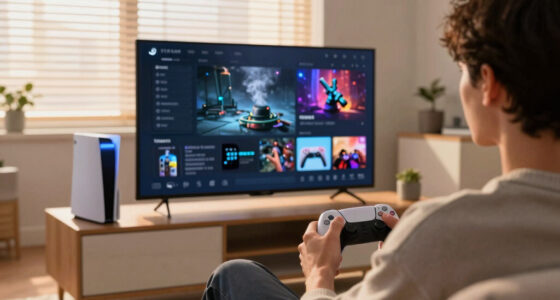
Steam Machine display modes explained for TVs means choosing how the game appears on screen, then matching resolution, refresh rate, HDR, and scaling to your TV. For most couch gaming, use fullscreen or borderless fullscreen, native TV resolution, Game Mode, and VRR when your TV and Steam Machine support it.
Your TV can make a sharp PC game look smeared, stretched, or strangely delayed if one setting sits in the wrong place. A Steam Machine is still a gaming PC at heart, so it brings PC-style display choices into the living room: fullscreen, windowed, borderless, resolution, HDR, and refresh rate.
This guide gives you Steam Machine display modes explained for TVs in plain English, along with common fixes for black bars, washed-out HDR, soft 4K, and sluggish controls. You will learn what each mode does, when to use it, and which TV settings actually matter.
Use fullscreen for timing-sensitive games, and use borderless fullscreen when overlays, launchers, or quick switching matter more.
Match SteamOS output and in-game resolution to the TV’s native resolution, usually 3840 x 2160 for 4K or 1920 x 1080 for Full HD.
Turn on TV Game Mode and disable motion smoothing before chasing controller or performance fixes.
Enable HDR and VRR only when your Steam Machine, cable, TV port, operating system, and game all support them together.
Fix black bars by checking aspect ratio first, then TV picture size, overscan, and in-game resolution.
Make Your TV Behave Like a Gaming Display
TL;DR: choose how the game appears on screen, then match resolution, refresh rate, HDR, scaling, HDMI capability, and TV Game Mode. One wrong link can turn a sharp PC game into a soft, stretched, delayed living-room mess.
Best for focused play, clean timing, and direct resolution switching.
Best when overlays, chat, launchers, or quick switching matter more.
Turn this on before chasing controller lag or performance fixes.
Pick the Mode That Matches How You Play
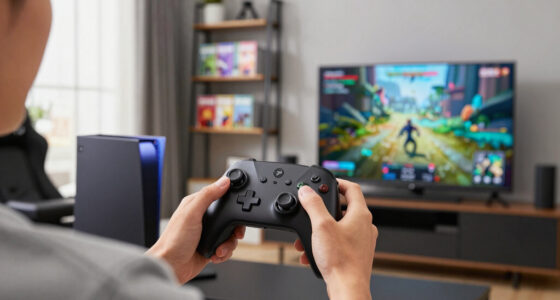
Steam Machine display modes explained for TVs starts with one choice: should the game take over the screen, behave like an app window, or sit between those two worlds?
Fullscreen
Hands the game direct control of the TV. Use it for racing, shooters, fighters, and anything where timing feels important.
Borderless
Looks fullscreen but behaves like a desktop window. Use it for Steam overlay, chat, browser checks, or quick audio tweaks.
Windowed
Useful for troubleshooting, mod tools, and launchers. Usually awkward from the sofa because menus and borders stay visible.
Mode Comparison
Use fullscreen when the game should own the display. Use borderless when living-room convenience matters. Use windowed when you are fixing something.
| Display mode | Best use | Overlay friendly | TV handoff | Tradeoff |
|---|---|---|---|---|
| Fullscreen | Focused couch gaming, lower overhead, cleaner resolution switching | ~ Moderate | ✓ Strong | Alt-tabbing or opening overlays can feel clunky |
| Borderless windowed | Steam overlay, chat, browser, quick app switching | ✓ Strong | ~ Shared | Some games may add latency or lock to desktop settings |
| Windowed | Troubleshooting, mod tools, launchers, multitasking | ✓ Strong | ✗ Weak | Often uncomfortable on a TV from the sofa |
Run the Five-Minute TV Setup Check
The fastest fix is to test the chain in order. Do this before changing graphics presets or reinstalling drivers.
TV Port
Use the HDMI input labeled for gaming, 4K, 120Hz, enhanced, or high bandwidth.
Cable
Use certified high-speed for 4K HDR, or ultra-high-speed for 4K 120Hz setups.
SteamOS Output
Set the system to the TV native resolution before tuning each game.
TV Game Mode
Enable Game Mode and disable motion smoothing to reduce input delay.
Game Menu
Match resolution, aspect ratio, refresh rate, HDR, and fullscreen mode.
Resolution Is the Sharpness Lever
Native resolution is the TV speaking its own language. Anything else asks the TV to translate, scale, and guess.
Black Bars, Soft 4K, Washed HDR
Most TV display problems are not mysterious. They usually come from one mismatch between the game, SteamOS, HDMI path, or TV picture settings.
Check Shape First
Choose 16:9 for most TVs. Older 4:3 games may preserve their original shape, while 21:9 ultrawide output will not fill a normal TV cleanly.
Match Pixels
Set SteamOS and the game to the TV native resolution unless performance drops. Use the TV’s 1:1, Just Scan, or Screen Fit option if available.
Kill Processing
Turn on Game Mode and disable motion smoothing. Picture processing can feel like controller delay even when the Steam Machine is performing well.
Enable Premium Modes Only When the Whole Chain Supports Them
HDR can make sunlight, neon, fire, and night skies richer, but only when the Steam Machine, game, HDMI cable, TV port, operating system, and TV all agree. VRR helps when frame rate moves up and down, especially between roughly 48 and 90 frames per second.
For slower adventure games, 4K at 60Hz can feel cinematic. For fast shooters, 1080p or 1440p at 120Hz may feel better under your thumbs. Sharpness and speed often pull in opposite directions.
Trace the Signal Before You Blame the Game
A Steam Machine is still a gaming PC at heart. Treat the living-room display path as a chain, not a single setting.
Pick the Mode That Matches How You Play
Steam Machine display modes explained for TVs starts with one choice: do you want the game to take full control of the screen, act like an app window, or behave like both? For most TV setups, fullscreen gives the cleanest handoff, while borderless fullscreen makes switching menus and overlays feel smoother.
| Mode | Best Use | Tradeoff |
|---|---|---|
| Fullscreen | Focused couch gaming, lower overhead, cleaner resolution switching | Alt-tabbing or opening overlays can feel clunky |
| Borderless windowed | Steam overlay, chat, browser, or quick app switching | Some games may add a little latency or lock to desktop settings |
| Windowed | Troubleshooting, mod tools, launchers, multitasking | Usually awkward on a TV from the sofa |
Think of fullscreen mode as handing the game the TV remote. The game chooses the resolution and refresh rate directly. In a racing game, that can mean a cleaner, steadier image as the road rushes under bright streetlights.
Borderless fullscreen is more like placing the game behind a sheet of glass. It fills the TV, but your system still treats it like a desktop window. That helps when you open Steam friends, tweak audio, or check a walkthrough without the screen blinking black.
As an affiliate, we earn on qualifying purchases.
Set Resolution So the Picture Looks Crisp, Not Soft
Steam Machine display modes explained for TVs works best when the output matches your TV’s real pixel grid. A 4K TV has 3840 x 2160 pixels, while a Full HD TV has 1920 x 1080 pixels. Native resolution mode sends the cleanest image because the TV does less guessing.
If your game looks like someone rubbed petroleum jelly over the screen, check resolution first. A Steam Machine set to 1080p on a 4K panel can still look fine from across the room, but tiny text, thin HUD lines, and map icons often lose their bite.
Here is an overview of the important aspects of resolution setup: set SteamOS to your TV’s native resolution, then set the game to the same resolution unless performance drops. According to Valve’s Steam Deck documentation, verified status and display behavior can change by game and software version, so platform and version matter when you judge results [1].
Plain version: native resolution is the TV speaking its own language. Anything else asks the TV to translate.
As an affiliate, we earn on qualifying purchases.
Fix Black Bars and Stretched Images Fast
Steam Machine display modes for TVs can show black bars when the game, SteamOS, and TV disagree about shape. Most TVs use 16:9, older games may offer 4:3, and ultrawide settings like 21:9 will not fill a standard living-room screen without cropping or stretching.
- Check the game’s aspect ratio and choose 16:9 for most TVs.
- Set the TV picture size to options such as Screen Fit, Just Scan, or 1:1 if available.
- Turn off overscan if the edges of the Steam interface disappear.
- Use native resolution before testing scaling modes.
- Restart the game after changing display mode, because some older titles apply changes only after relaunch.
A common example: you launch an older strategy game and the map fills the center of the screen with black curtains on both sides. That is not always a bug. The game may be preserving its original 4:3 shape so soldiers, menus, and circles do not become squat and weird.
If the image spills past the TV edges, your TV may be applying overscan, a leftover habit from broadcast video days. Turn it off and the Steam interface should stop hiding buttons in the corners.
As an affiliate, we earn on qualifying purchases.
Use HDR Only When the Whole Chain Supports It
HDR mode is a wider brightness and color signal that can make sunlight, neon, fire, and night skies look richer on supported TVs. It only works well when the Steam Machine, game, HDMI path, SteamOS or operating system, and TV all support HDR together.
When HDR works, a torch in a dungeon has hot orange edges and the shadows still hold detail. When it fails, menus can look gray, skin tones can turn waxy, and white clouds can bloom into flat patches. That is your signal to test SDR again.
According to HDMI Licensing Administrator materials, HDMI 2.0 supports 4K at 60Hz with HDR-related formats, while higher-bandwidth features such as 4K at 120Hz commonly rely on HDMI 2.1 hardware [2]. Use the right TV port, because many TVs label only one or two ports for high-bandwidth gaming.
- Enable HDR in the system display settings before checking the game menu.
- Use a certified high-speed or ultra-high-speed HDMI cable for 4K HDR setups.
- Calibrate in-game HDR sliders with the room lighting you actually use.
- Turn HDR off for games that look washed out or were built around SDR.
As an affiliate, we earn on qualifying purchases.
Choose 60Hz, 120Hz, or VRR Without Guesswork
Refresh rate controls how often your TV redraws the picture, usually 60Hz or 120Hz on modern TVs. VRR, or variable refresh rate, lets the TV adjust to the game’s frame rate, which can reduce tearing and stutter when performance moves up and down.
For a slower adventure game, 4K at 60Hz can feel smooth and cinematic. For a fast shooter, 1080p or 1440p at 120Hz may feel cleaner under your thumbs, even if the image has fewer pixels. Sharpness and speed often pull in opposite directions.
VRR is helpful when a game swings between 48 and 90 frames per second. Instead of tearing the image like a badly folded poster, the TV follows the game’s rhythm. Check your TV’s Game Mode menu for names like VRR, FreeSync, or compatible adaptive sync.
Performance claims need a platform and version. A game that feels smooth on one SteamOS build, driver version, or Steam Machine configuration may behave differently after an update, especially when HDR, VRR, and high refresh rate all run at once.
Lower Input Lag Before You Blame the Controller
Input lag is the delay between your button press and the action on screen. On TVs, the biggest fix is usually Game Mode, which cuts extra image processing such as motion smoothing, noise cleanup, and heavy contrast tricks. Those features make movies glossy, but they can make games feel syrupy.
You feel lag most in games with tight timing. In a fighting game, a late block feels unfair. In a platformer, a jump lands just short, even though your thumb hit the button at the right moment.
- Turn on Game Mode for the HDMI port used by the Steam Machine.
- Disable motion smoothing, often labeled Motion Plus, TruMotion, MotionFlow, or similar brand names.
- Use fullscreen mode for games where timing matters.
- Match refresh rate to the game target, such as 60Hz for locked 60 fps games.
- Try wired controller input if Bluetooth feels inconsistent from the sofa.
Think of TV processing as a stack of glass panes between you and the game. Each pane polishes the image, but each one can also add distance. Game Mode removes several panes at once.
Know When Borderless Beats Fullscreen on the Sofa
Borderless fullscreen is best when convenience matters more than direct display control. It looks fullscreen on your TV, but it lets Steam overlays, chat windows, launchers, and quick settings appear with fewer black-screen pauses. For many living-room players, that comfort matters more than a tiny performance difference.
Use borderless when you play a cozy sim while checking a browser guide, or when a game launcher opens before the game starts. It keeps the living-room flow calm. No flashing screen, no lost audio device, no awkward pause while friends wait in voice chat.
Use fullscreen when the game has exclusive display settings you need, such as a specific refresh rate, unusual resolution, or cleaner HDR handshake. Some older games also behave better in true fullscreen because they were built before borderless became the default PC comfort mode.
A good rule: start with borderless fullscreen for modern games, then switch to fullscreen if you see stutter, lag, HDR problems, or refresh-rate limits. That one swap can turn a fussy setup into a quiet one.
Run This 5-Minute TV Setup Check
The fastest way to fix Steam Machine display problems is to test the chain in order: TV port, cable, system output, game mode, then in-game settings. This keeps you from changing ten settings at once and forgetting which one fixed the fuzzy text or weird colors.
- Move the HDMI cable to the TV port labeled 4K, 120Hz, HDR, HDMI 2.1, or Game.
- Open SteamOS display settings and choose the TV’s native resolution.
- Set refresh rate to 60Hz or 120Hz based on your TV and game target.
- Enable Game Mode on the TV for that exact HDMI input.
- Launch one familiar game and test fullscreen, borderless, HDR, and VRR one at a time.
Use a familiar game because your eyes already know it. If the grass in your usual open-world game suddenly looks too neon, HDR needs tuning. If the minimap text looks soft, resolution or scaling needs attention.
Keep one small note on your phone: TV port, resolution, refresh rate, HDR on/off, and VRR on/off. It sounds plain, but it saves you from re-solving the same living-room puzzle after a system update.
Avoid These TV Display Traps
Most Steam Machine TV problems come from mixed settings rather than broken hardware. A game can run in 4K while the TV scales the picture, or HDR can be active in the system but disabled inside the game. Small mismatches create big visual annoyances.
- Do not force ultrawide modes on a 16:9 TV unless you want black bars.
- Do not assume HDR is better in every game; poor HDR can look flatter than SDR.
- Do not leave the TV in movie mode for action games; processing can add lag.
- Do not trust auto-detection blindly; confirm resolution and refresh rate yourself.
- Do not treat leaks as facts; unannounced Steam Machine hardware rumors remain unconfirmed until Valve or the maker confirms them.
Age ratings matter when you set up a shared TV. A Steam Machine can sit in the same room as family movie night, so check game ratings such as ESRB, PEGI, or your local rating board before leaving mature games visible in Big Picture mode.
For searches like modes explained for living-room gaming or modes for TVs, the answer is rarely one magic setting. You are balancing clarity, speed, color, and comfort. The best setup is the one that makes your game feel invisible between your hands and the screen.
Frequently Asked Questions
What is the best Steam Machine display mode for a TV?
Fullscreen is usually best for competitive or timing-heavy games because it gives the game stronger control over display output. Borderless fullscreen is better when you use Steam overlay, chat, guides, or launchers from the sofa.
Why does my Steam Machine game not fill the whole TV screen?
The most common cause is an aspect ratio mismatch. Set the game to 16:9 for most TVs, choose the TV’s native resolution, and turn off overscan or choose a 1:1 picture-size setting if your TV offers it.
Should I use 4K or 120Hz on my TV?
Use 4K at 60Hz for sharper visuals in slower games, cinematic adventures, and strategy titles. Use 120Hz at 1080p, 1440p, or 4K when your hardware supports it and fast response matters more than maximum detail.
Does HDR always make Steam Machine games look better?
No. HDR looks better only when the game, Steam Machine, operating system, HDMI cable, TV port, and TV settings support it well. If colors look gray or highlights look blown out, switch back to SDR or recalibrate the game’s HDR sliders.
Do Steam Machine performance claims apply to every TV setup?
No. Performance depends on the Steam Machine hardware, SteamOS or operating system version, game version, TV refresh rate, HDR, VRR, and resolution. Treat any leaked or rumored hardware claims as unconfirmed until officially announced.
Conclusion
Remember the chain: game mode, system resolution, HDMI path, TV processing, then in-game settings. When those pieces agree, your Steam Machine stops feeling like a PC fighting a television and starts feeling like a clean couch console.
Set it once, test with a game you know by heart, and keep the image honest: sharp text, quick controls, rich color, and no mystery black bars glowing at the edge of the room.
Halloween Picks
halloween
As an affiliate, we earn on qualifying purchases.