
TL;DR

Play games on Amazon Luna for your game nights, included with Prime
- A rotating selection of games, no download needed
- Play on TV, laptop or phone
- Fast, free delivery for your gear, too
A Steam Machine may treat some games like a PC and others like a console because SteamOS preserves PC features while its controller-first interface hides much of the usual desktop friction. Native support, Proton compatibility, input design, developer testing, and your chosen settings determine where each game lands.
One game can open with a clean controller menu, fill the television, and start playing in seconds. The next may drop you into a tiny launcher filled with graphics presets, mouse-sized buttons, and a request to install another account system. That contrast is the heart of why Steam Machine experiences vary, even when both games came from the same Steam library.
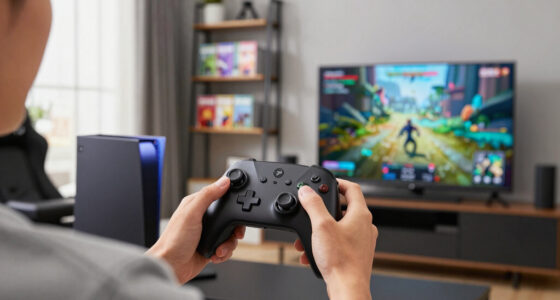
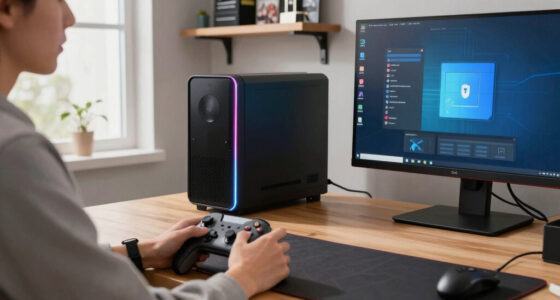
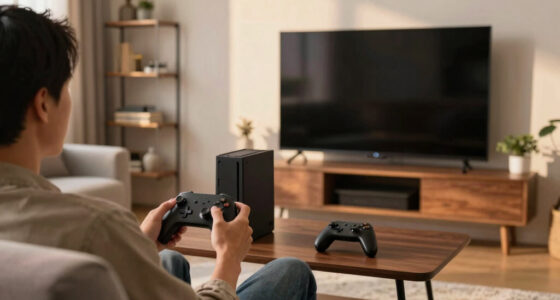
A Steam Machine sits between two familiar ideas. It uses PC hardware and PC game builds, yet SteamOS can present them through a full-screen interface designed for a couch, television, and gamepad. You get a front door that feels like a console, but many of the rooms behind it still contain PC settings, launchers, files, mods, and compatibility tools.
This guide gives you an overview of the moving parts: SteamOS, Proton, controller support, game design, hardware, and developer testing. You will also learn how to predict which experience a game is likely to offer and how to make awkward titles feel smoother. Any reports about a new Valve-branded Steam Machine remain unconfirmed unless Valve announces the hardware; the principles here apply to SteamOS-based living-room PCs and similar systems.
Treat SteamOS as a console-style front end for PC games, not as a system that converts every title into a console edition.
Check the current game, SteamOS, Proton, and hardware versions before trusting any compatibility or performance claim.
Controller support, readable television text, and launcher behavior often shape the couch experience more than raw graphics power.
Use one change at a time when tuning Proton, controller layouts, interface scale, or frame-rate limits.
Treat new Steam Machine leaks and promised game support as unconfirmed until Valve or the developer publishes an announcement.
Why Steam Machine May Treat Some Games Like a PC and Others Like a Console
SteamOS creates a console-shaped doorway into a PC game library. Native support, Proton compatibility, controller design, launchers, developer testing, hardware and personal settings determine how much of each game’s underlying PC machinery remains visible.
One device, three layers of experience
A SteamOS living-room PC combines computer hardware, a controller-first operating environment and game builds originally designed around many different assumptions. The final feel comes from the interaction between all three.
PC underneath
Configurable graphics, files, mods, launch arguments, multiple input devices and varied hardware remain part of the platform.
Console at the surface
Large library tiles, controller navigation, full-screen launching and quick suspend-style interactions reduce ordinary desktop friction.
The game decides
Interface scale, launchers, input support, external services and developer testing determine which underlying PC details break through.
“PC-like” and “console-like” are outcomes, not labels
SteamOS does not permanently classify a purchase. A single game can move along this spectrum after an update, a controller-layout change, a Proton revision or the addition of an outside launcher.
PC-like session: graphics presets, account prompts, tiny controls, file tools, mod managers and keyboard shortcuts remain visible.
Console-like session: controller detection, readable text, full-screen presentation and direct access to play happen automatically.
What changes the couch experience?
Raw graphics power matters, but input, legibility and launch behavior frequently have a greater effect on whether a game feels comfortable from three metres away.
| Factor | PC-like behavior | Console-like behavior | Why it matters |
|---|---|---|---|
| Startup | ✗External launcher or desktop dialog | ✓Direct full-screen boot | Determines whether a mouse or keyboard interrupts play. |
| Controller input | ~Mapped keyboard commands | ✓Native prompts and navigation | Native input usually produces clearer menus and fewer conflicts. |
| Interface scale | ✗Dense toolbars and small text | ✓Large television-safe elements | A technically compatible game can still be difficult to use. |
| Graphics setup | ~Manual presets and resolution | ✓Sensible automatic defaults | Stable defaults reduce setup time and performance surprises. |
| Outside services | ✗Login, anti-cheat or account layer | ✓No interruption after launch | Extra components can fail independently of the core game. |
| Customization | ✓Mods, files and launch options | ~Curated, simplified controls | Flexibility is valuable, but it exposes more computer-like complexity. |
How a Windows game can feel native
Proton helps Windows-focused games run on Linux by translating expected software calls and supplying compatible supporting components. When the chain works smoothly, the player may never see it.
Press Play
SteamOS starts the selected PC game from its full-screen library.
Choose runtime
The title runs as a native Linux build or through a Proton version.
Translate needs
Graphics, system calls and Windows-facing components are handled.
Resolve input
The game and Steam Input detect or map the active controller.
Show the game
A direct title screen feels console-like; a dialog exposes the PC layer.
Proton is not a permanent compatibility guarantee. Results remain tied to the precise game build, SteamOS release, Proton version, hardware, anti-cheat setup and online services in use.
Use five quick checks
A short pre-install review can predict whether a game will provide a polished couch session, require a few adjustments or remain better suited to a desk.
Compatibility
Review current native or Proton behavior for the exact game version.
Input
Look for full controller support, correct prompts and menu navigation.
Launchers
Identify publisher accounts, login windows and mandatory outside tools.
Performance
Match resolution and frame-rate expectations to the actual hardware.
Services
Confirm anti-cheat, codecs, multiplayer and copy protection support.
Console-like signs
- Automatic controller detection
- Large, television-readable text
- Correct on-screen button prompts
- No mandatory typing
- Direct full-screen startup
Middle-ground signs
- Community controller layouts
- Trackpad or stick-driven cursor
- Radial command menus
- Mixed gamepad and mouse input
- One-time graphics tuning
PC-like signs
- Mouse-only launchers
- Dense toolbars and tiny icons
- Manual graphics configuration
- Keyboard-only shortcuts
- Mod managers and file tools
Follow the experience from code to couch
No single switch decides the outcome. Each stage can preserve a smooth controller-first path or introduce friction that exposes the underlying PC.
When a game feels awkward, change one variable at a time.
Multiple simultaneous tweaks make it difficult to identify what fixed—or broke—the experience. Test after each change and keep a known-good configuration.
The practical rules to remember
The best mental model is not “PC or console.” It is a sliding experience shaped by software, interface design and the specific environment in which the game runs.
SteamOS is a console-style front end for PC games.
It streamlines access without converting every title into a separate console edition.
Compatibility claims need version context.
Check the current game, SteamOS, Proton and hardware combination.
Couch design can matter more than raw power.
Input support, readable text and launcher behavior often define the experience.
Tune methodically.
Change one controller, graphics, frame-limit or Proton setting at a time.
Expect variability—and use it.
The same flexibility that creates occasional friction also enables mods, custom mappings, performance tuning and access to a broad PC library.
Reports about any new Valve-branded Steam Machine should be treated as unconfirmed unless Valve announces the hardware. The principles above apply broadly to SteamOS-based living-room PCs and similar systems.
See Where the PC Ends and the Console Experience Begins
A Steam Machine is a gaming PC running SteamOS, usually through a controller-friendly interface that resembles a console dashboard. It can hide desktop chores during normal play, but it still launches PC versions of games. That split explains why the menu can feel like a console while the software underneath behaves like a PC.
Think of SteamOS as a polished hotel lobby built in front of a busy workshop. The lobby gives you large tiles, readable text, controller navigation, and quick access to your library. Open the wrong door, though, and you may find configuration files, graphics drivers, launch arguments, and a Windows compatibility layer humming behind the wall.
For instance, you might start Stardew Valley from a television, pick up a gamepad, and never see a desktop. Its straightforward menus and modest hardware demands create a console-like session. A heavily modified role-playing game can send you through a mod manager, load-order tools, and folders full of plug-ins, giving you the familiar flexibility and occasional mess of traditional PC gaming.
The difference is about presentation, not a secret label attached to each purchase. SteamOS does not permanently classify one title as PC-like and another as console-like. Instead, each game exposes different parts of the underlying computer, depending on how it launches, accepts input, stores settings, and handles outside services.
The useful mental model is simple: SteamOS supplies the console-shaped doorway, while each game decides how much of its PC machinery you can see.
Steam Deck controller support accessories
As an affiliate, we earn on qualifying purchases.
As an affiliate, we earn on qualifying purchases.
Learn Why Proton Makes One Game Seamless and Another Fussy
Why Steam Machine May Treat Some Games Like a PC and Others Like a Console often depends on whether a title runs natively on Linux or through Proton. Proton translates Windows-focused game technology for Linux, and a smooth translation can make the process invisible. A rough one may expose launch options, workarounds, or missing features.
According to Valve’s public Proton project documentation, Proton combines Wine with supporting components that help Windows games run on Linux [2]. It is not conventional hardware emulation. Instead, it translates calls and supplies replacements for Windows services, graphics systems, and other pieces a game expects to find.
For instance, imagine a Windows action game that launches through Proton, detects your controller, compiles its shaders, and opens directly in full-screen mode. You press one button and hear the title screen roar through the television speakers. That feels like a console, even though a compatibility system handled the game in the background.
Now add a separate publisher launcher that requests a mouse, opens a login box at 4K resolution, and forgets your credentials after an update. The same SteamOS device suddenly feels like a desktop PC balanced awkwardly on the couch. Launchers, anti-cheat tools, video codecs, and copy protection can all affect the result because they sit outside the core game.
This works well for a large range of software, except when a game depends on an unsupported component or an online service changes. A game that works today can encounter trouble after a patch, while a later Proton update may repair an older problem. Compatibility remains tied to specific game, SteamOS, Proton, and hardware versions, not a permanent promise.
SteamOS compatible gaming controllers
As an affiliate, we earn on qualifying purchases.
As an affiliate, we earn on qualifying purchases.
Spot the Controls That Make a Game Feel Built for Your Couch
Why Steam Machine May Treat Some Games Like a PC and Others Like a Console becomes obvious when you inspect the controls. Games with full gamepad support, large interface elements, and an on-screen keyboard flow naturally from the couch. Titles built around a mouse, tiny icons, or text entry reveal their PC roots much faster.
A good controller layout does more than map keys to buttons. It changes how you move through menus, select inventory items, aim, and read prompts. In a well-adapted game, pressing the left stick highlights the next item and every prompt shows the correct button. The interface feels wide, bold, and easy to read from three metres away.
For instance, a racing game with steering on the left stick, acceleration on a trigger, and vibration over rough asphalt feels ready for a living room. You hear the engine snarl, feel the controller buzz, and never reach for a keyboard. A strategy game with dozens of small unit icons may still work, but dragging a pointer with a trackpad can feel like moving a marble with winter gloves.
- Console-like signs: automatic controller detection, large text, button prompts, pause-friendly menus, and no mandatory typing.
- PC-like signs: mouse-only launchers, dense toolbars, chat boxes, manual graphics setup, and keyboard shortcuts with no controller equivalent.
- Middle-ground signs: community controller layouts, touchpad cursors, radial menus, and automatic switching between gamepad and mouse input.
Steam Input can bridge many gaps by mapping keyboard commands to a controller. That flexibility is powerful, but only if the game tolerates mixed input. Some games repeatedly swap their button prompts when they detect virtual mouse movement, producing a flicker of keyboard letters and controller symbols. In that case, a custom layout improves access without fully creating a console-style interface.
gaming monitor with TV compatibility
As an affiliate, we earn on qualifying purchases.
As an affiliate, we earn on qualifying purchases.
Compare What You Gain From PC Freedom and Console Simplicity
A PC-style Steam Machine experience gives you more settings, mods, and hardware choices, while a console-style experience gives you faster setup and fewer interruptions. Neither approach wins every time. The better fit depends on whether you want to tune the machine like an instrument or press Play and relax.
| Feature | PC-style behavior | Console-style behavior |
|---|---|---|
| Graphics | Individual controls for resolution, textures, shadows, frame limits, and upscaling | Presets or automatic settings with fewer visible controls |
| Input | Keyboard, mouse, gamepad, remapping, and mixed devices | Gamepad-first menus with fixed button prompts |
| Mods | Workshop support, manual files, and external mod managers | Limited built-in mod menus or no mod support |
| Launching | Possible launchers, login boxes, and configuration tools | Direct start from a full-screen library |
| Troubleshooting | More tools and more possible failure points | Fewer exposed choices but fewer user fixes |
For instance, suppose you want a role-playing game to run at a stable 40 frames per second on a compact SteamOS PC. PC-style controls let you lower shadow quality, select an upscaler, reduce crowd density, and cap the frame rate. The image may lose a little fine detail, but combat can feel smoother and the cooling fan may settle into a softer whisper.
The console-shaped path asks less from you. A developer-tested preset can select sensible settings and present a clean Play button. This works well, except when your hardware differs from the tested target or you prefer sharper visuals over steadier motion. A fixed preset cannot know whether you sit close to a monitor or across the room from a television.
Games like a competitive shooter also expose the tradeoff clearly. A mouse offers quick, precise aiming, while a controller offers analog movement and couch comfort. The Steam Machine can support both, but the game’s interface and matchmaking rules decide whether switching devices feels natural or creates an uneven match.
PC gaming keyboard and mouse for SteamOS
As an affiliate, we earn on qualifying purchases.
As an affiliate, we earn on qualifying purchases.
Use Five Quick Checks Before You Install a Game
You can predict a game’s Steam Machine experience by checking compatibility, input, launchers, performance targets, and outside services before installing it. These five checks take only a few minutes and can save an evening of typing passwords with an on-screen keyboard or chasing a stuttering opening scene.
- Check the current compatibility report. Valve’s Steam Deck program uses Verified, Playable, Unsupported, and Unknown categories [1]. Deck results offer useful clues for Linux and Proton behavior, but they do not certify every Steam Machine because the processor, graphics hardware, display, and SteamOS version may differ.
- Read the input details. Look for full controller support, readable text, automatic keyboard prompts, and whether the launcher needs a mouse. A green controller icon cannot tell you whether a strategy game’s dense late-game menus feel comfortable from the sofa.
- Look for third-party accounts. A publisher login, anti-cheat client, or external launcher adds another moving part. For instance, a password reset during a Friday game night can turn a one-button start into ten minutes of squinting at a bright login window.
- Choose a realistic performance target. A compact device connected to a 4K television does not have to render every game at native 4K. On your exact hardware and current software version, a 1080p or 1440p image with upscaling may provide steadier motion.
- Check recent reports after major patches. Proton and game compatibility can change. Pay attention to the report date, SteamOS release, Proton version, and hardware model instead of treating a two-year-old comment as a permanent verdict.
For example, imagine you are choosing a co-op game for four people arriving in an hour. Full controller support, local multiplayer, readable television text, and no extra login matter more than an enormous graphics menu. In that scenario, console-style reliability beats extra control, even if you usually enjoy tuning PC settings.
Age ratings remain tied to the game and region, not to whether SteamOS presents it like a console. Check the relevant ESRB, PEGI, or local rating before sharing a title with younger players. Community mods and online chat can also add material that the original rating did not cover.
Make Awkward Games Feel Better Without Losing PC Flexibility
Why Steam Machine May Treat Some Games Like a PC and Others Like a Console does not mean you must accept every rough edge. You can improve many games by selecting a stable Proton version, building a clear controller layout, setting a sensible frame cap, and removing avoidable launcher friction while keeping PC-level control.
Start with the smallest change. If a game already runs, avoid replacing five settings at once. Change one item, launch the same scene, and watch for smoother frame pacing, correct button prompts, or a cleaner startup. This turns troubleshooting into a row of stepping stones instead of a dark room full of switches.
- Use a frame-rate cap that your hardware can hold during busy scenes, not only in an empty tutorial room.
- Choose a community controller layout as a starting point, then move frequently used actions to comfortable buttons.
- Increase interface scale when text looks like pale grains of rice across the room.
- Keep one known-good Proton version for a game that breaks after a compatibility update.
- Record your changes so you can reverse a setting that causes crashes, missing audio, or broken online play.
For instance, a city-building game may need a right-trackpad mouse, triggers for clicks, and a radial menu for speed controls. After ten minutes of setup, you can lean back and guide traffic with your thumbs. It still behaves like a PC game, but the rough keyboard-shaped corners have been smoothed for the couch.
Be careful with competitive online games. Custom compatibility files, modified executables, or unsupported anti-cheat workarounds can block access or conflict with game rules. Use official settings and documented tools, and treat rumors about secret fixes or future SteamOS support as unconfirmed until Valve or the developer publishes details.
Know Why a Perfectly Consistent Library Is Unlikely
A perfectly consistent Steam Machine library is unlikely because Steam contains games built across decades, engines, control schemes, and business models. SteamOS can standardize the library screen and system controls, but it cannot rewrite every launcher, interface, anti-cheat service, or graphics menu. Game-by-game differences will remain.
Consider two releases sitting side by side in your library. One is a modern platform game built for simultaneous PC and console release, with scalable text and full controller support. The other is a 2008 strategy title designed for a 19-inch monitor, a mouse, and a keyboard. Asking both to behave identically is like asking a bicycle and a delivery van to use the same dashboard.
Developer support also changes the result. A studio can test SteamOS, repair controller prompts, remove a troublesome launcher, and submit useful compatibility data. Another developer may focus on Windows alone. Proton can fill many gaps, but it cannot always repair an interface designed around tiny buttons or an online service that rejects Linux.
According to Valve’s Steam Deck compatibility documentation, reviews check areas such as input, display, seamlessness, and system support [1]. That framework helps answer questions related to couch play, yet its ratings can change after game or software updates. Verified status belongs to a tested setup and time; it is not a lifetime guarantee for every SteamOS computer.
The practical goal is consistency where it matters: launching, controlling, reading, and recovering from problems. Let PC-style options remain available when you want them, then hide them once a game behaves well. That balance is the reason a Steam Machine can feel like a console on Tuesday and like an enthusiast PC on Wednesday without being defective.
Frequently Asked Questions
Why do some Steam Machine games open desktop-style launchers?
Some PC games depend on publisher launchers, account logins, configuration tools, or copy-protection systems that sit between Steam and the game. SteamOS can start those programs, but it cannot always redesign their small buttons or mouse-focused windows for a television. A launcher update can also change behavior without changing the main game.
Does Proton remove PC features such as mods and graphics settings?
Proton does not automatically remove PC features. Many games keep their graphics menus, Steam Workshop support, save folders, and mod options while running through Proton. External mod managers can be harder to configure because they may expect Windows file paths or services, so check game-specific instructions before changing files.
Does Steam Deck Verified mean a game will work on every Steam Machine?
No, Steam Deck Verified applies to Valve’s tested Deck experience, and the status can change after updates [1]. Another SteamOS computer may use a different graphics processor, controller, screen resolution, firmware release, or Proton version. Treat the rating as a strong clue, then confirm reports for your particular setup and date.
Can you make a mouse-heavy game work like a console game?
You can often make it more comfortable with Steam Input, trackpad or stick mouse controls, radial menus, and larger interface scaling. For instance, mapping pause, speed, and build commands to a radial menu can make a strategy game practical from the couch. This works well, except when tiny text or complex drag actions remain central to play.
Will a 4K television make every game run at 4K?
No, the television’s resolution is not a performance guarantee. A SteamOS device can output a 4K interface while rendering a demanding game at 1080p or 1440p and scaling the image to the screen. Performance depends on the exact processor, graphics hardware, game settings, SteamOS build, and Proton version.
Do age ratings change when a game behaves more like a PC title?
No, console-style or PC-style behavior does not change the official age rating. Use the ESRB, PEGI, or rating body for your region when choosing games for younger players. Online chat, user-created content, and unofficial mods may introduce material outside the reviewed game, so check those features separately.
Conclusion
Remember the doorway-and-workshop model. SteamOS can give you a smooth, controller-first entrance, but each game brings its own PC design, services, settings, and habits through that door. Before installing, check compatibility, controls, launchers, and a realistic performance target for your exact hardware and software version.
Do that, and the hybrid nature stops feeling random. You will know when to enjoy a one-button console-style evening and when to roll up your sleeves for a little PC tuning. The goal is not to make every game identical; it is to make the machine disappear once the screen glows, the controller settles into your hands, and the game begins.
Halloween Picks
halloween
As an affiliate, we earn on qualifying purchases.