TL;DR
Steam Deck Bluetooth wake lets a paired controller wake the handheld from sleep, but reliability depends on SteamOS version, Deck model, controller type, and whether the Deck is actually asleep. OLED models use Bluetooth 5.3 with a dedicated Bluetooth antenna, while LCD models use Bluetooth 5.0; SteamOS 3.8 preview re-enabled Bluetooth Wake for LCD models [1][2]. Keep SteamOS updated, pair controllers in Game Mode, and treat headphones as audio devices, not reliable wake remotes.
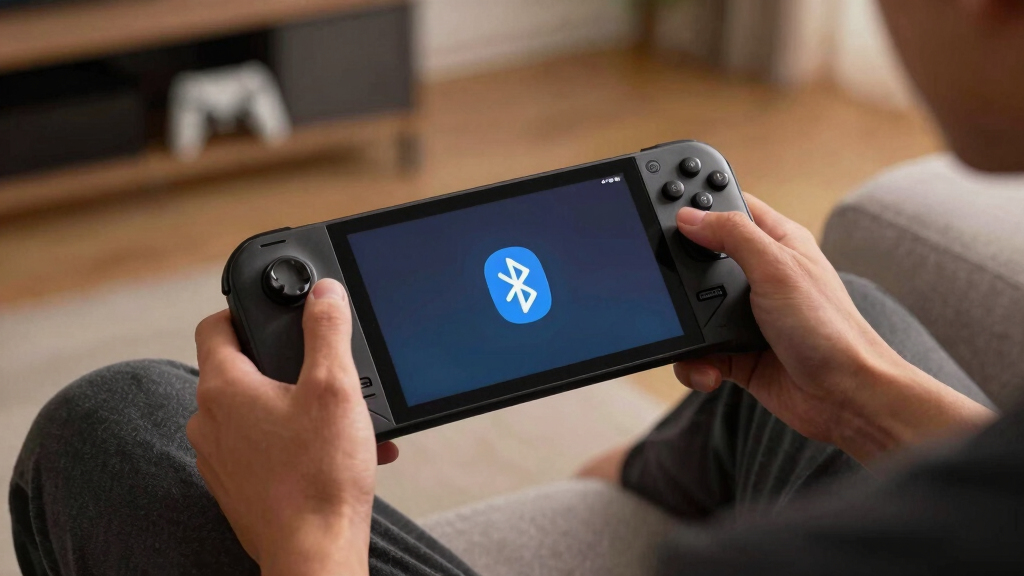
Your controller button should feel like a light switch: press it from the sofa, hear the TV click awake, and land back in your game without crossing the room.
That is the dream behind Steam Deck wake from Bluetooth. In real life, it can feel smooth one night and stubborn the next, with a controller blinking in your hand while the Deck sits dark under the TV.
If you want an overview suitable for the living room, not a terminal session, start here. You will learn what Bluetooth wake can do, why it breaks, and the quick habits that make couch play feel less fiddly.
Steam Deck Wake From Bluetooth Explained for Couch Players
Wake The Deck Without Leaving The Sofa
Bluetooth wake works when the Steam Deck is asleep, not shut down. A paired controller can nudge SteamOS awake, but reliability depends on the Deck model, SteamOS version, controller behavior, battery state, and whether the wireless radio is still listening.
Steam Deck OLED lists Bluetooth 5.3 and a dedicated Bluetooth antenna, giving it a different couch-play foundation than LCD.
Steam Deck LCD lists Bluetooth 5.0, and SteamOS 3.8 preview reporting says Bluetooth Wake was re-enabled for LCD models.
Sleep is the porch light. Shutdown is the whole house dark. For controller wake, leave the porch light on.
Controllers send input SteamOS can treat like a wake signal.
Headphones behave like audio gear first, not reliable wake buttons.
LCD is listed at 40 Whr; OLED is listed at 50 Whr.
A dedicated controller beats one constantly paired to phones, PCs, and consoles.
Why Wake Works One Night And Fails The Next
The controller is only one link in the chain. Bluetooth wake depends on SteamOS, Deck model, sleep state, controller battery, radio placement, and stale pairing data.
Sleep, Not Shutdown
Bluetooth wake needs the Deck to keep enough wireless hardware awake to listen. A fully powered-off Deck cannot hear a controller.
One Loyal Controller
If an Xbox or PlayStation pad last connected to a phone or console, it may chase that host first while the Deck stays asleep.
OLED And LCD Differ
OLED lists Bluetooth 5.3 with a dedicated antenna. LCD lists Bluetooth 5.0. That does not make OLED perfect, but it changes the wireless baseline.

AceGamer Aurora II 2.4G Wireless Bluetooth Controller for PC/Android/Switch/iOS/Switch 2/Steam Deck with Rotary Motors, RGB Hall Effect Joysticks – Upgraded PC Gaming Controller and Back Buttons Lock
🎮【Newly Enhanced】1、Upgraded receiver and encryption dongle for stronger, more stable connectivity. 2、Added support for host SW 2 connection….
As an affiliate, we earn on qualifying purchases.
As an affiliate, we earn on qualifying purchases.
Which Devices Can Actually Wake It?
Input devices have the best odds. Audio devices usually make poor wake remotes, so wake with a controller first and connect headphones after the Deck is awake.
| Device | Wake Chance | Why It Behaves That Way | Couch Tip |
|---|---|---|---|
| Bluetooth controller | ✓ High | Gamepads send button input the Deck can treat as a wake signal. | Keep one controller dedicated to the Deck. |
| Bluetooth keyboard | ✓ Medium to high | Keyboards are input devices, though some sleep deeply to save battery. | Tap a key twice, two seconds apart. |
| Bluetooth headphones | ✗ Low | Headphones focus on audio profiles, not waking a sleeping host. | Wake with a controller, then connect audio. |
| Mouse or trackpad | ~ Mixed | Some wake from clicks; others sleep too hard after idle time. | Use it as a backup, not the main remote. |
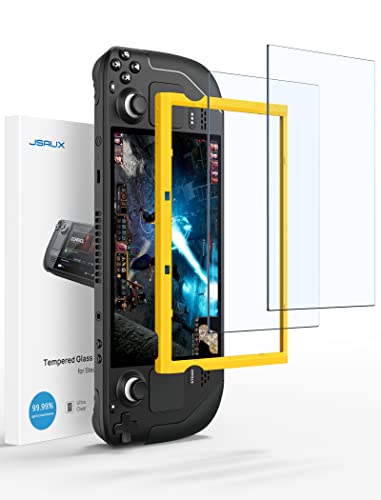
JSAUX 2-Pack Screen Protector for Steam Deck, Ultra HD Glass Protector 9H Hardness Easy to Install with Guiding Frame Scratch Resistant Tempered Glass for Steam Deck OLED, Come with Toolkits
Both for Steam Deck LCD & OLED: JSAUX Full-screen coverage 7-inch tempered glass screen protector compatible with Steam…
As an affiliate, we earn on qualifying purchases.
As an affiliate, we earn on qualifying purchases.
The Six-Step Couch Setup
Make the setup boring once, then let Friday night feel easy. Update, pair cleanly, test sleep, and keep the controller close to the Deck’s living-room role.
Update
Install SteamOS updates before judging wake behavior.
Pair Clean
Remove old controller copies, then pair again in Game Mode.
Test Power
Try wake unplugged, then docked and charging.
Sleep
Tap the Deck power button once instead of shutting down.
Press Home
Use the controller guide button and wait three seconds.
Stay Loyal
Avoid bouncing the same controller across every device.
AceGamer Aurora II 2.4G Wireless Bluetooth Controller for PC/Android/Switch/iOS/Switch 2/Steam Deck with Rotary Motors, RGB Hall Effect Joysticks – Upgraded PC Gaming Controller and Back Buttons Lock
🎮【Newly Enhanced】1、Upgraded receiver and encryption dongle for stronger, more stable connectivity. 2、Added support for host SW 2 connection….
As an affiliate, we earn on qualifying purchases.
As an affiliate, we earn on qualifying purchases.
Reliability Is A Chain, Not A Switch
A controller can only wake the Deck when every link is ready. These visual scores show why controllers are the couch-player default and headphones are the wrong expectation.
Sleep-State Spectrum
Bluetooth wake belongs near normal sleep, where the Deck can keep listening. Hibernation and Memory Power Down work may improve battery life, but they can change what remains awake enough to hear input.
Steam Deck gaming couch setup
As an affiliate, we earn on qualifying purchases.
As an affiliate, we earn on qualifying purchases.
When Nothing Happens
Most failures are simple: low controller battery, stale pairing, the wrong SteamOS channel, bad dock placement, or expecting Bluetooth to wake a Deck that is fully off.
The Two-Minute Test
Launch a low-stakes game, pause it, tap the Deck power button, count to ten, then press the controller home button from three feet away.
If that works but the sofa fails, room layout or interference is likely. If it fails up close, repair the pairing first.
The Couch-Player Trace
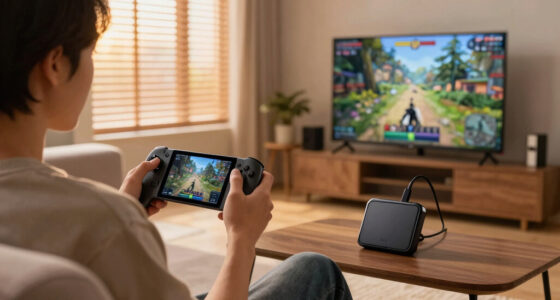
The ideal living-room path is simple: the Deck is docked, asleep, updated, and listening; the controller is charged, paired, and loyal.
Key Takeaways
- Use sleep, not shutdown, when you want a controller to wake your Steam Deck from the sofa.
- A dedicated Deck controller is more reliable than one you constantly pair with phones, PCs, and consoles.
- Steam Deck OLED has Bluetooth 5.3 with a dedicated Bluetooth antenna, while LCD uses Bluetooth 5.0, so behavior can differ by model [1].
- SteamOS updates matter; SteamOS 3.8 preview re-enabled Bluetooth Wake for Steam Deck LCD according to March 2026 reporting on Valve’s notes [2].
- Headphones are poor wake devices. Wake with a controller first, then connect audio.
You Can Wake a Docked Deck Without Leaving the Sofa
Steam Deck Wake From Bluetooth Explained for Couch Players is this: a paired controller can send a tiny input signal while the Deck sleeps, and SteamOS can treat that signal like a nudge on the power button. When it works, your TV lights up before your drink loses its fizz.
The key word is sleep. Bluetooth wake is not the same as turning on a fully powered-off handheld. Your Deck needs to keep just enough of its wireless system awake to hear the controller say, hey, time to play.
Think of it like leaving a porch light on. The house is quiet, but the doorbell still works. If you shut off power to the whole house, no controller on earth can ring it.
Best couch rule: use sleep for quick resume, use shutdown only when you are done for the day.
Why the Same Controller Works One Night and Fails the Next
Steam Deck Wake From Bluetooth Explained for Couch Players also means accepting one annoying truth: the controller is only one piece of the chain. Wake depends on the controller’s battery, its Bluetooth behavior, the Deck model, the SteamOS build, and whether the system is sleeping rather than fully off.
Why does a controller that worked yesterday suddenly blink like a tiny lighthouse? Often, it woke up looking for its last host, found stale pairing data, and gave up before SteamOS finished listening.
A real example: you pair an Xbox controller to your phone for cloud gaming at lunch, then try to wake your docked Deck at night. The controller may chase the phone first. Your Deck stays silent, even though nothing is truly broken.
According to Valve’s Steam Deck technical specifications, the OLED model uses Bluetooth 5.3 with a dedicated Bluetooth antenna, while the LCD model lists Bluetooth 5.0 [1]. That does not make OLED perfect, but it gives the wireless link a different hardware base.
Which Devices Are Most Likely to Wake the Deck
Controllers and keyboards have the best chance of waking a Steam Deck because they send input. Headphones usually do not, because they act like audio gear first. For couch players, the safest wake device is a familiar gamepad that stays paired only to the Deck.
| Device | Wake Chance | Why It Behaves That Way | Couch Tip |
|---|---|---|---|
| Bluetooth controller | High | Gamepads send button input the Deck can treat as a wake signal. | Keep one controller dedicated to the Deck. |
| Bluetooth keyboard | Medium to high | Keyboards are input devices, but some sleep deeply to save battery. | Tap a key twice, two seconds apart. |
| Bluetooth headphones | Low | Headphones focus on audio, not waking a sleeping host. | Wake with a controller, then connect audio. |
| Mouse or trackpad | Mixed | Some wake from clicks; others sleep too hard after idle time. | Use it as a backup, not your main remote. |
If you play from a recliner with the Deck tucked beside the TV stand, this table saves guesswork. Reach for the controller first. Treat everything else as a nice extra.
The 6-Step Setup That Makes Wake Feel Instant
The fastest setup is boring in the best way: update SteamOS, pair the controller cleanly, test sleep while the Deck is docked, and keep the controller loyal to that Deck. Do those steps once and you remove most of the living-room friction.
- Update SteamOS: open Settings > System and install available updates before testing wake.
- Pair in Game Mode: open Settings > Bluetooth, remove old copies of the controller, then pair it again.
- Test on battery and power: try wake while unplugged, then again while docked and charging.
- Sleep with the power button: tap power once instead of choosing shutdown from the menu.
- Wake with a real button: press the controller’s main home or guide button and wait three seconds.
- Keep one clean pairing: avoid bouncing the same controller between phone, PC, console, and Deck every day.
Here is the couch-player test: launch a low-stakes game, pause it, tap the Deck’s power button, count to ten, then press the controller’s home button. If the screen wakes and the game resumes, your setup is ready for Friday night.
The Sleep-State Trap That Makes Bluetooth Look Broken
Bluetooth wake can fail when the Deck is not in a sleep state that keeps the Bluetooth radio listening. A sleeping Deck is like a dozing friend on the couch; hibernation or shutdown is more like someone locked the front door and took out the doorbell battery.
SteamOS keeps changing here, so check the fine print after major updates. According to The Verge’s March 19, 2026 report on Valve’s SteamOS 3.8.0 preview notes, Valve re-enabled Bluetooth Wake for Steam Deck LCD and added early hibernation and Memory Power Down work for LCD models [2].
That matters because hibernation saves more battery than light sleep, but it can change what listens for wake input. If you care more about instant sofa resume than saving every drop overnight, use normal sleep for short breaks.
Valve lists the LCD Deck at 40 Whr with 2 to 8 hours of gameplay and OLED at 50 Whr with 3 to 12 hours [1]. Those battery numbers shape the tradeoff: quick wake feels great, but deeper rest protects battery during long gaps.
A Simple Troubleshooting Path When Nothing Happens
Most Bluetooth wake failures come from stale pairing data, low controller battery, or power-state confusion. Do this before you blame the controller: fix the simple stuff first, then test one clean wake cycle with the Deck docked, TV on, and the controller within a few feet.
- Charge the controller: a weak battery can pair badly and wake slowly.
- Forget and re-pair: remove the controller from Bluetooth settings, restart the Deck, then pair again.
- Check the update channel: Stable, Beta, and Preview can behave differently after SteamOS changes.
- Move the dock: do not bury the Deck behind a TV, metal shelf, hard drive stack, or thick cabinet wall.
- Test one controller: remove extra gamepads while you diagnose the wake problem.
- Use the power button as your fallback: if the Deck is fully off, Bluetooth wake is the wrong expectation.
A good test takes two minutes. If your controller wakes the Deck from three feet away but fails from the sofa, your room layout may be the problem. If it fails from three feet away, repair the pairing first.
What Couch Players Should Change About Their Setup
Steam Deck Wake From Bluetooth Explained for Couch Players is really a living-room setup problem. You want the Deck on power, the dock breathing in open air, the controller charged, and the Bluetooth path free from a pile of USB drives, soundbars, and crowded 2.4 GHz gear.
Bluetooth does not need line of sight, but your room still matters. A metal media cabinet can turn a simple button press into a weak whisper. A controller under a blanket can also go to sleep more aggressively than you expect.
For a cleaner setup, place the dock near the front edge of the TV stand, not behind the panel. Keep the Deck’s top edge and power button reachable. Leave a short USB-C cable slack so you can lift the Deck without yanking the dock.
If you share the TV, label one controller as the Deck controller. That tiny habit prevents the classic Saturday problem: someone pairs it to a laptop, then everyone blames the Deck when movie-night gaming starts late.
When Bluetooth Wake Is the Wrong Tool
Bluetooth wake is the wrong tool when you need guaranteed power-on from a fully shut-down Deck, when your controller roams across several devices, or when your setup hides the Deck in a tight cabinet. In those cases, the power button gives you fewer surprises.
This is the practical line: Bluetooth wake is for short breaks, paused games, and docked sofa play. It is not a replacement for a console’s dedicated remote-power system in every room and every power state.
For example, if you shut the Deck down before leaving for the weekend, do not expect your controller to revive it on Monday. Walk over, press power, let SteamOS boot, then use Bluetooth normally once the system is awake.
That may sound less slick, but it saves frustration. You stop asking Bluetooth to do a power button’s job, and your couch setup starts feeling predictable.
Frequently Asked Questions
Can any Bluetooth controller wake a Steam Deck?
No. A controller has to pair correctly, send the right kind of input, and work with the Deck’s current SteamOS behavior. Common modern controllers have a better shot, but no controller is a universal promise.
Does Steam Deck LCD support Bluetooth wake?
Steam Deck LCD support has changed over time. According to March 2026 reporting on Valve’s SteamOS 3.8.0 preview notes, Bluetooth Wake was re-enabled for the LCD model [2]. Check your SteamOS channel before judging your setup.
Will Bluetooth headphones wake my Steam Deck?
Usually, no. Headphones are audio devices first, so they are not the best wake remote. Use a controller to wake the Deck, then let your headphones reconnect once SteamOS is awake.
Does Bluetooth wake drain the Steam Deck battery?
It can use a small amount of power because part of the system must stay ready to listen. For short breaks, that convenience usually feels worth it. For overnight storage or travel, shut the Deck down or use a deeper power state.
Why does wake work handheld but fail when docked?
Your docked setup can add distance, interference, and awkward placement. Move the dock forward, charge the controller, remove old Bluetooth pairings, and test wake from three feet away before blaming the TV setup.
Conclusion
Remember this: Bluetooth wake works best when your Steam Deck is asleep, updated, docked sensibly, and paired to a controller that treats it as home.
Set it up once, test it from the sofa, and keep the power button as your backup. The payoff is small but sweet: one button press, a soft glow from the TV, and your game waiting right where you left it.