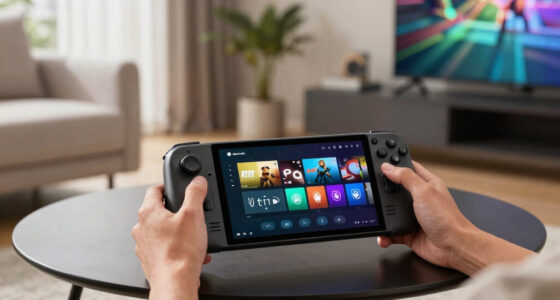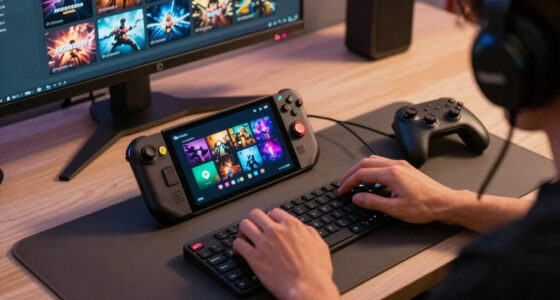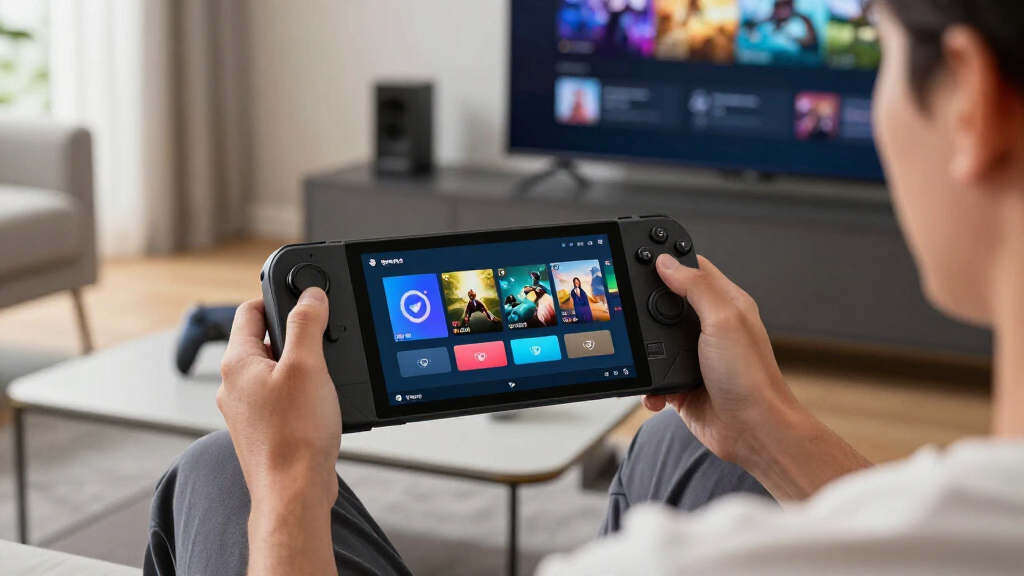

TL;DR

Play games on Amazon Luna for your game nights, included with Prime
- A rotating selection of games, no download needed
- Play on TV, laptop or phone
- Fast, free delivery for your gear, too
The Steam Deck Verified Status — Top & New Games snapshot for July 25, 2026 lists Halo: Campaign Evolved, Palworld, Tears of Metal, and BACKROOMS ANOMALY as Verified, while Shift At Midnight and Dinoblade are Playable. Verified promises smoother setup, not a fixed frame rate, long battery life, or permanent compatibility, so check recent player reports before buying.
A green Verified badge can save your evening, but it cannot promise that a game will hold 60 frames per second while your Steam Deck stays cool and quiet. Valve’s badge tells you whether the controls, display, launch process, and underlying software work correctly. It does not grade every stutter, battery dip, or fan-whine spike.
This July 25, 2026 snapshot gives you a clear starting point. Halo: Campaign Evolved, Palworld, Tears of Metal, and BACKROOMS ANOMALY are listed as Verified, while Shift At Midnight and Dinoblade carry Playable ratings on their named Steam pages [2]. You will learn what those labels mean, where they can mislead you, and how to check whether a recent patch has changed the experience.
Think of the badge as a key that fits the front door. Verified means the key should turn cleanly; Playable means you may need to jiggle it. Once you step inside, performance, battery life, online support, and text size still shape the evening you actually have.
Treat the July 25, 2026 list as a dated snapshot: Halo: Campaign Evolved, Palworld, Tears of Metal, and BACKROOMS ANOMALY are Verified; Shift At Midnight and D…
Read the detailed warning behind a Playable badge because the issue may be as small as one touchscreen tap or as persistent as hard-to-read text.
Do not use Verified as a performance score; check the game version, Deck model, graphics preset, frame cap, and tested area.
Check Steam first, then use SteamDB for badge history and ProtonDB for recent player reports.
Test offline startup, suspend and resume, text entry, saves, and the busiest gameplay scene while a refund remains available.
- Halo: Campaign Evolved — Verified
- Palworld — Verified
- Tears of Metal — Verified
- BACKROOMS ANOMALY — Verified
- Shift At Midnight — Playable
- Dinoblade — Playable
Steam Deck compatibility for current top & new games, as of 2026-07-25.
The Six Games You Can Put on Your Deck Shortlist Today
Steam Deck Verified Status — Top & New Games for July 25, 2026 gives you four Verified choices and two Playable choices. The snapshot contains no Unsupported or Unknown entries, so every listed game should run on Deck, although the Playable pair may ask you to make a small adjustment.
- Halo: Campaign Evolved — Verified: Valve’s badge indicates that its Steam build passes the Deck checks for controls, display, seamless operation, and system support.
- Palworld — Verified: The survival game is listed as ready for Deck controls and the handheld display without required setup.
- Tears of Metal — Verified: Its listing places it in the lower-friction group for handheld play.
- BACKROOMS ANOMALY — Verified: The Steam page carries the same green compatibility result as the three games above.
- Shift At Midnight — Playable: It should run, but Steam may flag an issue such as small text, manual keyboard use, or a controller-related step.
- Dinoblade — Playable: It belongs in the works-with-a-catch category rather than the zero-friction Verified group.
Imagine choosing a game for a train ride with patchy internet and 45 minutes before departure. A Verified title gives you the safer setup bet because you are less likely to meet a launcher that demands a tiny touchscreen tap. A Playable title can still be excellent, but you should install and launch it at home before the platform slides past your window.
This list records the named Steam store-page statuses supplied for July 25, 2026 [2]. Ratings can change after a game update, a Proton release, or a fresh Valve review, so treat the date like the label on a jar: useful only when you read it.
Popular right now

Breville Bambino Espresso Machine, Brushed Stainless Steel
Dyson Car+Boat Cordless Handheld Vacuum

Ninja Luxe Café Premier 3-in-1 Espresso Machine, Drip Coffee & Cold Brew
As an affiliate, we earn on qualifying purchases.
What Verified and Playable Will Change During Your First Hour
Steam Deck Verified Status — Top & New Games separates titles that should work without required fixes from titles that run with one or more disclosed rough edges. Verified is the smoother first-hour experience. Playable can involve manual text entry, small interface text, a launcher interaction, or a controller configuration step [1].
| Badge | What you can expect | What may interrupt you | Best response |
|---|---|---|---|
| Verified | Deck controls, readable display output, controller-friendly startup, and supported system components | Performance dips, battery drain, bugs, or online issues can still occur | Check recent performance reports and choose your settings |
| Playable | The game runs and can be completed or enjoyed on Deck | Small text, touchscreen input, a manual keyboard call, or a controller tweak | Read Steam’s exact compatibility details before installing |
| Unsupported | Valve found a major compatibility blocker | Anti-cheat, VR requirements, crashes, or missing Proton support | Check current community tests before spending money |
| Unknown | Valve has not published a review | The experience could range from flawless to nonfunctional | Use recent ProtonDB reports and Steam discussions |
Suppose you open Shift At Midnight on the sofa and Steam warns that some text may be hard to read. The game can still run beautifully, yet a dense note rendered like gray ants on a dark wall may push you toward the Deck’s magnifier. That inconvenience earns Playable even when the frame rate feels steady.
Now take Halo: Campaign Evolved. Its Verified badge says the basic handheld path has passed Valve’s four checks, not that every firefight has a guaranteed frame-time line as flat as glass. Compatibility and performance are two separate report cards, and Verified grades only the first one.
The Four Tests Every Verified Game Has to Pass
A Verified game must pass four practical checks: input, display, seamless operation, and system support. These checks cover the moments that can make handheld gaming feel natural or clumsy, from waking the on-screen keyboard to displaying readable text at the Deck’s 1280×800 native resolution [1].
- Input: The game must offer full controller support. When you need to type a character name or search term, the on-screen keyboard should appear without a hidden shortcut.
- Display: The game must support the Deck’s screen and keep its interface legible. A menu designed for a large television cannot shrink into a knot of pale six-point lettering.
- Seamlessness: Startup must avoid compatibility warnings and controller-hostile launchers. You should not need a mouse just to reach the main menu.
- System support: The game and its required components must work natively on Linux or through Proton. Middleware such as anti-cheat cannot block the verified path.
You can feel these rules in a simple scenario. You start Palworld, enter a world name, and settle into controller play without reaching for a keyboard or squinting at a miniature dialog box. That smooth chain is what the green badge tries to protect.
Valve’s review is closer to a roadworthiness inspection than a racing trophy. The inspector checks whether the steering, lights, brakes, and engine function together; the inspection does not promise a silent cabin or sports-car speed. In the same way, Verified confirms functional fit, while frame rate, graphics quality, heat, and battery runtime need separate evidence.
The badge answers “Does the Deck path work?” It does not answer “How luxurious, fast, or power-efficient will that path feel?”
How to Check a Game Before a Patch Spoils Your Weekend
- Open the game’s Steam page and read its current Deck Compatibility panel, including every detail under a Playable badge.
- Check the Great on Deck hub when you want current Verified and Playable discoveries from Steam rather than an old article snapshot.
- Read recent ProtonDB reports for the exact game version, Proton build, and Deck model used by other players.
- Review SteamDB’s rating history when a badge appears to have changed after an update.
- Test during the refund window and check controls, saves, offline startup, performance, and battery drain in your own use case.
Checking a game properly takes about five focused minutes before purchase and a short hands-on test after installation. Start with Steam’s official badge, then add current community evidence. This catches the gap between formal compatibility and the messier experience created by patches, online services, and individual settings.
Say Dinoblade receives a Friday update just before your weekend trip. Its Steam page still says Playable, while fresh community posts report that the opening video now freezes under one Proton version. Steam’s badge remains useful, but the newer field reports tell you to test the opening sequence before leaving Wi-Fi behind.
Ratings can move in both directions because Valve rechecks games and Proton keeps changing. An older title may gain Verified status when a launcher becomes controller-friendly, while a working game may lose it after a patch breaks text entry. The badge is a dated inspection, not a tattoo burned permanently into the store page.
Also check the game’s regional age rating when buying for a younger player. Deck compatibility says nothing about violence, fear, online chat, or spending systems, and ratings can differ by country.
Why Verified Still Cannot Promise 60 FPS or Long Battery Life
Steam Deck Verified Status — Top & New Games measures whether a title works correctly on Deck, not whether it delivers 60 fps, three hours of battery, or silent fans. A demanding Verified release can run less smoothly than a lightweight Playable game whose only warning concerns small text or manual keyboard input.
Consider two evening sessions. A visually dense battle in Tears of Metal could make the fan hiss like a narrow air vent and pull more power, while a Playable game with modest graphics could sip the battery but ask for one touchscreen tap at launch. The green badge favors the smoother interface path, not the longer train ride.
Your Deck model adds another layer. Steam Deck LCD and Steam Deck OLED share the same compatibility badge, although the OLED model has a 90 Hz display, different battery characteristics, and HDR-capable hardware. A report that mentions only “Steam Deck” may hide the very hardware detail that explains another player’s brighter image or longer session.
Performance also changes with your choices. Lowering shadows, setting a frame-rate cap, or using an upscaler can trade a little sharpness for calmer frame pacing and extra battery time. It is like turning down a stove: the meal still cooks, but the room stops filling with heat.
Look for reports that name the game version, Deck model, resolution, frame cap, graphics preset, and test area. “Runs great” tells you almost nothing. “Steam Deck OLED, 30 fps cap, medium preset, tested for 40 minutes in a crowded combat zone” gives you something you can use.
Where Proton and Anti-Cheat Can Change the Badge Overnight
Proton lets many Windows games run on SteamOS, while anti-cheat remains a common reason some multiplayer titles fail on Deck. A Proton update can repair videos, launchers, or graphics calls without the game developer rewriting the whole port. An anti-cheat system can still stop play when its developer has not enabled Linux or Proton support.
Proton works like a skilled interpreter standing between a Windows game and SteamOS. When the game asks for something in Windows language, Proton translates the request quickly enough that the player often never notices. A mistranslated line, however, can appear as a missing video, broken input, crash, or black screen.
Easy Anti-Cheat and BattlEye gained routes for Linux and Proton support before this snapshot, but game developers still need to configure and enable that support. That is why two games using similar technology can receive very different Deck results. The lock exists, the key exists, yet someone still has to cut it for the right door.
This matters even when all six featured games sit in the Verified or Playable groups. A future update to Palworld, for example, could alter a launcher, online component, or system dependency and prompt another review. That scenario is an example, not a claim that such a problem has occurred.
Valve introduced the Deck program with the handheld in February 2022, and the combined Verified and Playable catalog passed 10,000 titles during 2023 [1]. Use Steam’s live Great on Deck hub for a current count because the catalog keeps moving; a static total ages faster than a battery estimate.
How to Turn This Snapshot Into a Smarter Buying Decision
The best buying decision combines the badge with your own use case. Choose Verified when you value quick startup and controller-friendly menus, but investigate performance when frame pacing or battery life matters more. For a Playable game, identify the exact warning and decide whether that single inconvenience bothers you.
If you travel often, your priorities may be offline startup, readable text, cloud-save behavior, and battery draw. A commuter boarding a packed train needs a game that launches without a login screen or Wi-Fi check. The same title can be a fine desktop purchase and a frustrating handheld travel companion.
If you mainly play at home near a charger, a Playable warning may barely matter. You might tap the screen once to start Shift At Midnight, settle under a blanket, and play for two hours without meeting the issue again. In that setting, rejecting the game solely because its badge is yellow would throw away useful nuance.
Price and return options belong in the decision too. Install the game promptly, test its busiest scene, suspend and resume it, enter text, reconnect a controller, and try offline mode if travel matters. A quiet tutorial can hide the frame drops that arrive later when sparks, smoke, enemies, and physics effects fill the screen.
Skeldrift’s blog research brief gives you the dated map: four Verified games and two Playable games on July 25, 2026 [2]. Your final check supplies the weather. Read the live Steam panel and recent player reports before you set out.
Frequently Asked Questions
What is the difference between Steam Deck Verified and Playable?
Verified means the game passes Valve’s four Deck checks without required manual fixes, while Playable means it runs with at least one disclosed issue. That issue may involve small text, touchscreen input, manual keyboard use, or a controller-hostile launcher [1].
A Playable game can perform better than a Verified game, so the yellow badge does not mean poor frame rate. Read the detailed warning before deciding.
Does Steam Deck Verified mean a game runs at 60 fps?
No, Verified does not guarantee 60 fps or any other fixed performance target. It covers input, display compatibility, seamless operation, and system support rather than frame rate or battery life.
A demanding Verified game may feel best with a 30 or 40 fps cap, depending on the title, settings, and Deck model. Check a recent test that names its exact setup.
Can I play an Unsupported or Unknown game on Steam Deck?
Sometimes, but neither label promises a working experience. Unknown means Valve has not published a Deck review, while Unsupported means its test found a major blocker.
Recent ProtonDB reports may show a workaround, yet updates can break those fixes. Test carefully, especially when anti-cheat or online access controls the main game mode.
Why did a game lose its Steam Deck Verified status?
A patch, Proton update, launcher change, or new Valve review can alter a game’s rating. Compatibility changes in both directions because games and the software beneath them keep evolving.
Use SteamDB to inspect rating history, then compare the change date with the game’s patch notes. Mark community claims as unconfirmed until current tests or the official Steam panel support them.
Is the Verified badge different on Steam Deck OLED and LCD?
No, both Steam Deck models use the same compatibility badge. The OLED model’s 90 Hz screen, HDR support, and different battery behavior can still change how a game looks and how long a session lasts.
When reading performance claims, check whether the test used Steam Deck OLED or Steam Deck LCD. A badge shared across both models does not make their battery results identical.
Conclusion
Use the badge to screen for friction, then use fresh reports to judge the actual ride. The July 25 snapshot makes four games the easier starting choices, but Verified cannot promise a fixed frame rate, long battery life, or freedom from future patch problems. Five minutes of checking can protect an entire weekend of play.
Before you buy, open the live Steam panel, read the exact compatibility notes, and find one recent report that matches your Deck model and game version. Then launch the game before your trip. You want the first sound from your Deck to be the game’s opening music, not the dry click of a launcher refusing to cooperate.