TL;DR

Play games on Amazon Luna for your game nights, included with Prime
- A rotating selection of games, no download needed
- Play on TV, laptop or phone
- Fast, free delivery for your gear, too
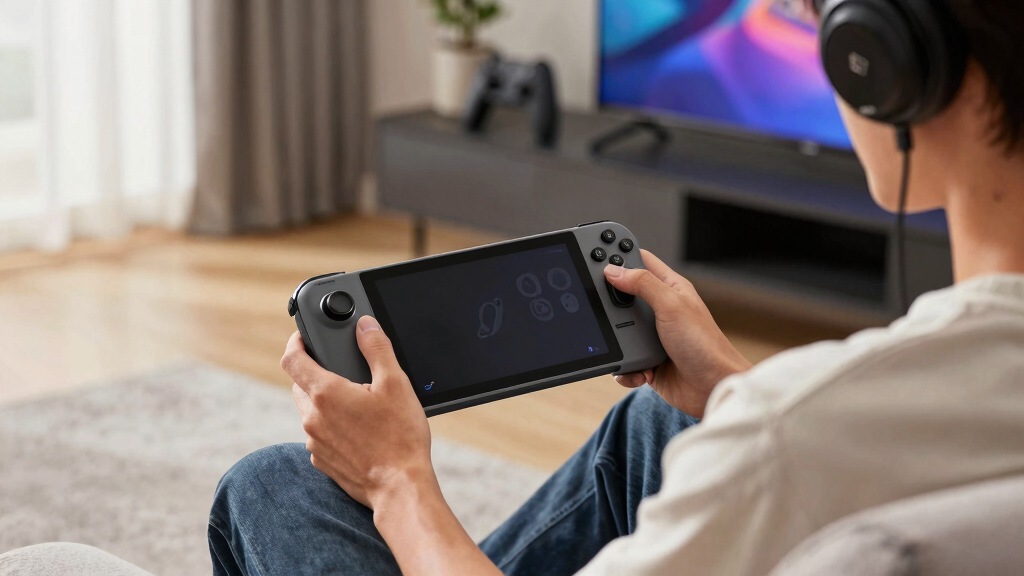
Steam Deck Bluetooth audio delay is the lag between what happens on screen and what you hear through wireless headphones, often landing around 100ms to 200ms depending on codec, headset, and SteamOS behavior [1]. You can reduce it with low-latency devices, updated firmware, and fewer wireless obstacles, but wired 3.5mm or USB-C audio remains the cleanest fix for rhythm games, shooters, and cutscenes.
A sword clash that sounds late can make your Steam Deck feel slightly haunted, even when the game runs fine.
You press the trigger, see the muzzle flash, then hear the crack a split second later. That tiny gap is Bluetooth audio delay, and once your brain catches it, it becomes hard to ignore.
This guide explains why it happens, which fixes work, and when you should stop fighting Bluetooth and plug in a cable. No product hype. Just the clean version you can use before your next session.
Why wireless sound lands a beat late on Steam Deck
TL;DR: Bluetooth audio delay is the gap between what happens on screen and what reaches your wireless headphones. On Steam Deck, it often lands around 100ms to 200ms depending on codec, headset processing, firmware, and wireless conditions.
A sword clash that sounds late can make the game feel off even when the frame rate is fine. You press the trigger, see the muzzle flash, then hear the crack a split second later.
Bluetooth gives freedom. Wired audio gives timing.
The sound has to travel through a tiny processing chain
Bluetooth audio is not broken just because it arrives late. The Steam Deck has to package the sound, send it wirelessly, and let the headset unpack and process it before you hear the result.
Encode
The Deck compresses game audio into a Bluetooth codec.
Transmit
The signal crosses the room through a crowded wireless band.
Decode
Your earbuds or headset reconstruct the audio stream.
Process
Noise cancellation, EQ, spatial effects, and buffering can add more lag.
How delay feels by use case
Codecs decide how much timing you trade for wireless convenience
Codec support only helps when both sides agree. Your headset may advertise low latency, but the Steam Deck, SteamOS, Bluetooth hardware, and headset firmware all have to line up.
| Codec | What to expect | Latency fit | Best use |
|---|---|---|---|
| SBC | Common and reliable, but often higher latency than gaming-focused options. | ✗ High risk | Casual games, music, podcasts. |
| AAC | Can sound good, but latency varies heavily by device and implementation. | ~ Variable | Video, lighter games, general listening. |
| aptX | Often better than SBC, though standard aptX is not automatically low latency. | ~ Mixed | Mixed gaming and media. |
| aptX LL | Designed for tighter sync, but support can be limited by hardware and licensing. | ✓ Best case | Timing-sensitive play with matching hardware. |
| LDAC | High-bitrate audio is built for quality, not necessarily fast game response. | ✗ Not ideal | Music quality over game timing. |
The catch
Both devices need the same useful codec. A low-latency headset cannot force the Steam Deck to use a codec path that the system does not support or negotiate.
The practical read
Specialized low-latency codec support can be limited by hardware, software, and licensing. That is why one headset can feel fine while another makes every menu click sound soft and late.
The more your ears guide your hands, the more Bluetooth lag stands out
A 150ms delay may feel like a small mismatch in a slow RPG, but the same delay can ruin a rhythm chart, a parry cue, or the snap of a close-range shot.
Rhythm games
Perfect notes can feel unfair because the beat arrives after the visual moment.
Shooters
Late footsteps and gunshots make positional audio feel less trustworthy.
Fighters
Hit sparks and impact sounds lose snap, which can muddy timing reads.
Story games
Dialogue may drift from lip movement, especially in close-up scenes.
Turn-based play
Delay usually matters less when timing pressure stays low.
Horror games
A late creak still scares you, but the timing can feel rubbery instead of sharp.
Key idea
Bluetooth delay is usually normal wireless behavior, not proof that your Steam Deck or headphones are defective. The real question is whether the lag matters for the game you are playing.
Reduce the delay first, then stop fighting Bluetooth when timing matters
Updates, game mode, fewer wireless obstacles, and cleaner testing can help. But when you need near-zero lag, wired 3.5mm or USB-C audio remains the most reliable answer.
Update before changing everything
Update SteamOS from Settings, then update your earbuds or headset through the maker’s app if one exists. Bluetooth behavior can change between firmware builds.
Turn on low-latency mode
Use game mode if your headset has it. It often reduces buffering and may disable extra processing that makes audio feel slower.
Clean up the wireless path
Disconnect unneeded Bluetooth devices, move closer to the Deck, and keep hands, blankets, stands, and metal accessories away from the antenna path.
Compare against wired audio
Test the same menu click, cutscene, or weapon sound through speakers, Bluetooth, and wired headphones before blaming one setting.
Update SteamOS
Start with the system layer.
Update headset
Use the official mobile app.
Enable game mode
Prefer low-latency profiles.
Reduce clutter
Remove extra wireless traffic.
A/B test
Use the exact same scene.
Plug in
Use 3.5mm or USB-C for timing.
Follow the delay from cause to decision
The simplest diagnosis is a connected chain: codec choice, headset processing, wireless conditions, game sensitivity, then the right audio path.
Codec
The format sets the baseline delay.
Processing
ANC, EQ, spatial audio, and multipoint can add time.
Signal
Distance and obstacles can force more buffering.
Sensitivity
Timing-heavy games reveal lag fastest.
Fix
Use wired or USB-C when precision beats comfort.
Use Bluetooth when comfort wins
For exploration, turn-based games, music, podcasts, and casual handheld sessions, wireless audio is usually worth the small delay.
Use wired when timing wins
Best practical rule: plug in when missing a beat, shot, parry cue, or line of dialogue would bother you.
Key Takeaways
- Steam Deck Bluetooth audio delay usually comes from codec encoding, wireless transmission, decoding, and headset processing.
- A delay around 100ms to 200ms can feel minor in RPGs but obvious in rhythm games, shooters, fighters, and lip-synced cutscenes.
- Low-latency or game mode can help, especially if your headphones support it and turn off extra processing.
- Wired 3.5mm headphones or USB-C audio remain the most reliable fixes when timing matters.
- Always test speakers, wired audio, and Bluetooth with the same scene before changing settings.
low latency Bluetooth headphones for gaming
As an affiliate, we earn on qualifying purchases.
As an affiliate, we earn on qualifying purchases.
Why Your Steam Deck Sound Arrives Late
Steam Deck Bluetooth audio delay is the gap between an on-screen event and the sound reaching your Bluetooth headphones. The delay comes from encoding, wireless transmission, decoding, and device processing. In real play, that can mean footsteps, dialogue, or impact sounds land around 100ms to over 200ms late [1].
Think of Bluetooth audio like sending a tiny sealed package across the room. The Steam Deck has to pack the sound, send it, and wait while your earbuds unpack it. Wired headphones skip most of that trip, which is why they feel tighter and more immediate.
For instance, in a slow RPG, a 150ms delay may feel like a soft mismatch during dialogue. In a rhythm game, that same delay feels like tapping a drum after the beat has already passed.
Key idea: Bluetooth delay is usually normal wireless behavior, not proof that your Steam Deck or headphones are defective.
As an affiliate, we earn on qualifying purchases.
How Codecs Change the Delay You Hear
Steam Deck Bluetooth audio delay depends heavily on the Bluetooth codec, which is the format used to compress and send sound. SBC, AAC, aptX, aptX Low Latency, and LDAC handle timing differently. Lower delay usually means less buffering, tighter sync, or a codec designed for gaming and video.
| Codec | What You Should Expect | Best Use |
|---|---|---|
| SBC | Common, reliable, but often higher latency | Casual games, music, podcasts |
| AAC | Can sound good, latency varies by device | Video, lighter games, general listening |
| aptX | Often better than SBC, but not always low-latency | Mixed gaming and media |
| aptX Low Latency | Designed for tighter audio sync, but support is limited | Timing-sensitive play with matching hardware |
| LDAC | High-bitrate audio, usually not the best choice for latency | Music quality over game timing |
The catch is simple: both sides need to support the same codec. Your earbuds may advertise a low-latency mode, but the Steam Deck and the audio device still need to agree on what they can use.
According to skeldrift.com, the Steam Deck’s built-in Bluetooth support focuses on standard Bluetooth behavior, while support for specialized low-latency codecs can be limited by hardware, software, and licensing [1]. That is why one headset can feel fine and another can make every menu click sound slightly late.
USB-C gaming headset for Steam Deck
As an affiliate, we earn on qualifying purchases.
As an affiliate, we earn on qualifying purchases.
When Bluetooth Delay Actually Hurts Your Game
Bluetooth delay hurts most when the game asks you to react to sound, rhythm, or exact timing. A short delay may barely matter in exploration games, but it can throw off shooters, fighters, rhythm games, and cutscenes. The more your ears guide your hands, the more the lag stands out.
- Rhythm games: A 120ms delay can make perfect notes feel unfair, like the song keeps stepping on your toes.
- Competitive shooters: Late footsteps can make an enemy sound farther away than they are.
- Fighting games: Hit sparks and impact sounds lose their snap, which can mess with timing reads.
- Story games: Dialogue can drift from lip movement, especially in close-up scenes.
- Turn-based games: Delay usually matters less because timing pressure stays low.
Say you play a quiet horror game in bed. The hallway creaks on screen, then the sound arrives late in your earbuds. The scare still lands, but the timing feels rubbery instead of sharp.
This is the core tension: Bluetooth gives you freedom, wired audio gives you timing. Neither choice wins every night.
Bluetooth audio delay fix for gaming
As an affiliate, we earn on qualifying purchases.
As an affiliate, we earn on qualifying purchases.
How to Cut Steam Deck Bluetooth Audio Delay
- Update SteamOS from Settings before testing anything else.
- Update your headphones or earbuds through the maker’s mobile app if one exists.
- Turn on low-latency or game mode on your audio device.
- Disconnect extra Bluetooth devices you do not need during play.
- Move closer to the Deck and keep hands, blankets, and metal stands away from the antenna path.
- Test the same scene with wired audio so you know whether the issue is Bluetooth or the game itself.
Steam Deck Bluetooth audio delay can often be reduced, but you usually cannot remove it completely through settings alone. Updates, low-latency modes, and cleaner wireless conditions help most when your delay comes from software bugs or extra buffering. For near-zero lag, use 3.5mm wired headphones or a USB-C audio adapter [2].
A good test takes two minutes. Open a game menu with sharp click sounds, switch between Bluetooth and wired audio, and listen for the snap. If wired feels instant and Bluetooth feels soft around the edges, you have found the bottleneck.
Valve has continued to improve SteamOS Bluetooth stability through updates, so checking your SteamOS version matters [2]. Make claims about performance carefully: a fix that helps on one SteamOS build may feel different after a later update.
When Wired or USB-C Audio Is the Better Move
Wired or USB-C audio is the better move when timing matters more than convenience. A cable removes the Bluetooth codec chain, cuts out wireless buffering, and gives you the cleanest sync the Steam Deck can offer. For rhythm games and competitive play, that reliability beats a tidy wireless setup.
Imagine you are playing a boss fight where the parry cue is a metallic ping. With Bluetooth, that ping may arrive after your eyes already did the work. With wired headphones, the sound hits like a tap on glass, fast and exact.
You do not need a fancy setup. The Steam Deck includes a 3.5mm headphone jack, and many USB-C DACs or wired USB-C headsets work well for portable play. If you dock the Deck, your monitor, dock, or controller path may add its own delay, so test the full chain before blaming the headphones.
Best practical rule: Use Bluetooth for comfort and casual play. Use wired audio when missing a beat, shot, or line of dialogue would bother you.
Why Some Headphones Feel Worse Than Others
Some headphones feel worse because every Bluetooth device handles buffering, codec choice, and sound processing differently. Noise cancellation, spatial audio, multipoint pairing, and EQ features can add extra processing time. Two headsets can use the same codec and still feel different on the Steam Deck.
For instance, earbuds with heavy active noise cancellation may sound lush on a train but feel slow in a fast game. A simpler headset in game mode may sound less glossy, yet respond faster when you open a menu or fire a weapon.
Look for clear language like low latency, game mode, or a published latency number. Treat vague marketing with care. Rumors or forum claims about hidden Steam Deck codec switches are unconfirmed unless Valve or the device maker documents them.
If your headset has an app, check whether game mode turns off extras like spatial effects or multipoint. That tradeoff can be worth it: less sparkle, better sync.
The Simple Test That Tells You What Is Wrong
Steam Deck Bluetooth audio delay is easiest to diagnose by comparing one game scene across Bluetooth, wired audio, and built-in speakers. If only Bluetooth sounds late, your wireless chain is the issue. If every output feels delayed, the game, emulator, dock, display, or audio settings may be involved.
- Use a repeatable sound: Pick a menu click, reload sound, jump sound, or dialogue line.
- Test built-in speakers: They give you a quick baseline with no headphones involved.
- Test wired headphones: This shows whether the Deck itself feels synced.
- Test Bluetooth last: Now you can hear the added delay clearly.
- Change one thing at a time: Codec mode, game mode, docked play, or headset features.
A real-world example helps. If a platformer jump sounds instant on speakers and wired earbuds but late on Bluetooth, the game is fine. If the jump sounds late everywhere while docked, your TV or monitor may be adding video or audio processing.
This test saves you from chasing the wrong fix. It turns a vague feeling into a clean yes-or-no check.
What Updates Can and Cannot Fix
SteamOS updates can improve Bluetooth stability, pairing behavior, and audio handling, but they cannot make every Bluetooth headset act like a cable. Software can reduce rough edges in the Bluetooth stack. It cannot erase codec limits, headset buffering, or wireless processing delays built into your earbuds.
According to Valve support guidance, keeping SteamOS updated gives you the latest fixes for system behavior and hardware support [2]. That matters because Bluetooth performance can change across SteamOS versions, especially when Valve adjusts drivers or audio services.
Still, be realistic. If your headphones add 180ms of their own delay, a SteamOS patch may improve stability without making rhythm games feel crisp. It is like tightening a loose hinge on a door that still opens slowly.
Community tweaks and custom firmware discussions can be useful, but they carry risk and may break after updates. Treat unofficial fixes as experimental, and assume any leak or rumor about future codec support is unconfirmed until Valve says it plainly.
Frequently Asked Questions
Why is my Steam Deck Bluetooth audio lagging?
Your Steam Deck Bluetooth audio is lagging because the sound has to be compressed, sent wirelessly, decoded, and processed by your headphones. That chain commonly adds around 100ms to 200ms of delay depending on codec and device behavior [1].
Can I completely fix Bluetooth audio delay on Steam Deck?
You can reduce Bluetooth delay, but you usually cannot remove it completely. For the tightest sync, use the Steam Deck’s 3.5mm jack or a USB-C audio adapter.
Does low-latency mode on earbuds help with Steam Deck?
Low-latency or game mode can help if your earbuds actually reduce buffering in that mode. You may lose some features, such as spatial audio or stronger noise processing, but the trade can make games feel snappier.
Is Bluetooth delay worse when the Steam Deck is docked?
It can feel worse docked if your TV, monitor, dock, or soundbar adds its own delay. Test the same scene handheld and docked, then compare speakers, wired audio, and Bluetooth.
Will a SteamOS update fix my Bluetooth latency?
A SteamOS update can improve Bluetooth stability and system-level audio behavior [2]. It cannot remove the delay built into a headset, codec, or wireless processing chain, so wired audio still wins for exact timing.
Conclusion
Remember this: Bluetooth audio on Steam Deck is convenient, but it is not magic. If the delay only bugs you in timing-heavy games, save yourself the fuss and use wired audio for those sessions.
For everything else, update SteamOS, turn on game mode, and enjoy the freedom of wireless sound. The best setup is the one where the sword clash, menu click, or whispered line lands right when your eyes expect it.
Fall Picks
fall essentials
As an affiliate, we earn on qualifying purchases.