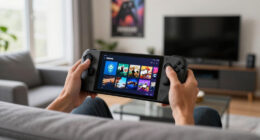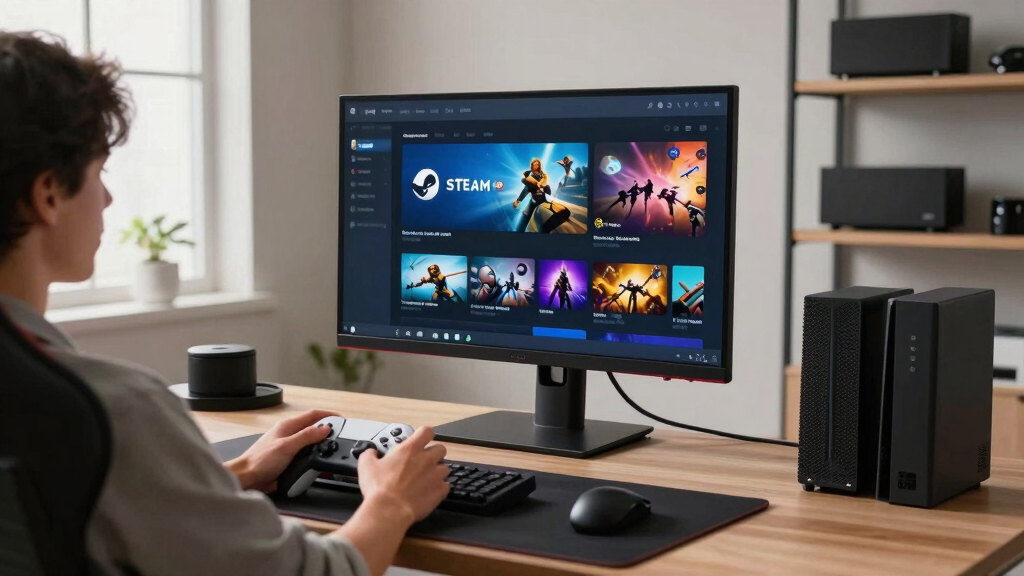

TL;DR
Steam Frame Streaming vs Standalone Play means choosing between running a game remotely and streaming the video to your device, or running it directly on your own hardware. Streaming works best for slower, cinematic, or hardware-heavy games on a strong 15-25 Mbps connection, while standalone play is still the better pick for competitive games, mods, offline trips, and steady input response.
Your game can look gorgeous and still feel wrong the second your jump lands half a beat late.
That is the real choice behind Steam Frame Streaming vs Standalone Play. You are not only choosing where the game runs; you are choosing how much control, image quality, battery life, and internet risk you are willing to trade.
This guide gives you a practical overview suitable for PC, Steam, and Steam Deck players. You will learn when streaming feels like magic, when standalone play wins, and how to pick the right mode before you waste a Saturday night fighting lag.
Remote Power or Local Control?
Steam Frame Streaming vs Standalone Play means choosing between running a game remotely and streaming the video to your device, or running it directly on your own hardware. Your game can look gorgeous and still feel wrong the second your jump lands half a beat late.
You are not only choosing where the game runs. You are choosing how much control, image quality, battery life, and internet risk you can trade.
Streaming shines with slower, cinematic, hardware-heavy games.
Standalone play is better for shooters, fighters, racers, and rhythm games.
Streaming adds a network round trip to every input.
Check current Steam Deck status by game build and SteamOS version.
What You Actually Choose
Streaming moves the heavy lifting away from your device. Standalone play keeps the whole game inside your own hardware, with fewer moving parts between your hands and the result on screen.
Remote power
The game runs somewhere else. Your device decodes a live video feed and sends button presses back across the network.
Local control
Your PC, handheld, or console handles graphics, CPU work, storage, saves, mods, and frame delivery directly.
Feel beats theory
Load a familiar game, spin the camera, jump ten times, and watch for delayed controls, blur, stutter, or compression.
Input leaves device
Mouse, button, trigger, or stick movement is sent outward.
Remote game reacts
The host PC or server processes the command.
Frame is encoded
The new image becomes a compressed video frame.
Video returns
Your device receives and decodes the stream.
Your hands judge
If it feels rubbery, standalone play probably wins.
Steam Deck gaming controller
As an affiliate, we earn on qualifying purchases.
As an affiliate, we earn on qualifying purchases.
How Each Mode Feels
In a turn-based tactics game, delay can disappear into the background. In a twitchy shooter, the same delay can feel like your aim is moving through syrup.
| Factor | Streaming | Standalone Play | Best Pick |
|---|---|---|---|
| Weak local hardware | ✓ Lets a tablet, thin laptop, or handheld borrow stronger hardware. | ✗ Limited by your own CPU, GPU, RAM, cooling, and battery. | Streaming |
| Competitive input response | ✗ Network travel can turn into lost duels. | ✓ Faster, steadier response because the game runs locally. | Standalone |
| Offline trips | ✗ Hotel Wi-Fi, trains, and weak mobile signal can break the session. | ✓ Installed games keep going when the connection disappears. | Standalone |
| Storage pressure | ✓ Avoids huge installs on every device. | ~ Requires local storage, patches, and shader caches. | Streaming |
| Mods and tinkering | ~ Depends on host access and service rules. | ✓ Better for config files, reshade tools, local saves, and launch options. | Standalone |

Kootek Laptop Cooling Pad Cooler Stand with 5 Quiet Fans for 12"-17" Laptop
Whisper-Quiet Operation: Enjoy a noise-free and interference-free environment with super quiet fans, allowing you to focus on your...
As an affiliate, we earn on qualifying purchases.
As an affiliate, we earn on qualifying purchases.
Targets That Matter
A stable 15-25 Mbps connection and response time under about 50 ms are useful targets for good streaming feel. They are not magic numbers, but they are a practical line in the sand.
Game Type Fit
Latency Feel Scale
Streaming is most convincing when response stays low and stable. Spikes are often more noticeable than the average number.

Samsung 27" Odyssey G5 (G51F) Series QHD (1440P) Gaming Monitor
QHD Resolution (2560 x 1440) has 1.7 times the pixel density of Full HD for incredibly detailed pinsharp...
As an affiliate, we earn on qualifying purchases.
As an affiliate, we earn on qualifying purchases.
When Standalone Play Wins Without a Fight
Latency becomes a lost duel
For shooters, fighters, rhythm games, and ranked modes, your click, dodge, parry, or headshot should land without a network round trip.
The internet exits the stack
A locally installed game keeps going on trains, flights, hotels, and patchy countryside routes where streaming can collapse into blocks.
Files stay in your hands
Custom config files, reshade tools, local saves, and experimental launch options usually make more sense when the game is installed locally.
No adaptive blur surprise
Standalone play can still drop frames, but it does not have to hide network trouble behind compression, bitrate shifts, or sudden stream quality drops.
Ozeino Gaming Headset for PC, Ps4, Ps5, Xbox Headset with 7.1 Surround Sound Gaming Headphones with Noise Canceling Mic, LED Light Over Ear Headphones for Switch, Xbox Series X/S, Laptop, Mobile White
Superb 7.1 Surround Sound: This gaming headset delivering stereo surround sound for realistic audio. Whether you're in a...
As an affiliate, we earn on qualifying purchases.
As an affiliate, we earn on qualifying purchases.
Pick Before You Press Play
The best answer can change between your desk, couch, hotel Wi-Fi, and a handheld on battery. Match the mode to the game, the device, and the connection you have right now.
Stream It When
- Your device cannot meet the game’s CPU, GPU, or RAM needs.
- The game is slower, cinematic, turn-based, strategic, or story-led.
- You want to play around the house without moving your gaming PC.
- Storage is tight and you do not want a 100 GB install everywhere.
Install It Locally When
- You are playing competitive, twitchy, timing-heavy, or ranked games.
- You may lose internet during the session.
- You rely on mods, custom files, or local configuration tools.
- You want the most consistent image quality and input response.
Steam Deck Player Flow
Key Takeaways
- Streaming is best when your device is weak, your connection is stable, and the game does not demand split-second input.
- Standalone play is still the better choice for competitive games, offline trips, mods, and consistent image quality.
- A stable 15-25 Mbps connection and response time under about 50 ms are useful targets for good streaming feel.
- Steam Deck players should check current Steam Deck Verified or Playable status by game build and SteamOS version before relying on local play.
- Rumors about future Steam streaming hardware or features should stay marked as unconfirmed until official details exist.
What You Actually Choose When You Stream or Play Locally
Steam Frame Streaming vs Standalone Play is a choice between remote power and local control. In streaming, the game runs somewhere else and your screen receives a live video feed; in standalone play, your own PC, handheld, or console does the work right in front of you.
Think of streaming like driving a car through a camera feed. You can still steer, brake, and drift, but every input has to travel out and back. Standalone play is your hands directly on the wheel, with the engine humming under the floor.
A simple example: you launch a demanding RPG on a low-power laptop. With streaming, your laptop mostly decodes video and sends button presses. With standalone play, that same laptop must push the graphics, handle the CPU load, cool itself, and keep the frame rate steady.
Key idea: streaming moves the heavy lifting away from your device, while standalone play keeps the whole game inside your own hardware.
How Each Mode Feels in Your Hands
Steam Frame Streaming vs Standalone Play feels different because your inputs take different routes. Streaming adds network travel to every button press, mouse flick, and trigger pull, while local play usually responds faster because the game runs on the same device you are holding or sitting beside.
In a turn-based tactics game, that delay may vanish into the background. You tap a command, sip coffee, and watch the animation roll out. In a twitchy shooter, the same delay can feel like your aim is moving through syrup.
| Mode | Best Feel | Risk | Good Example |
|---|---|---|---|
| Streaming | Smooth when your connection is stable | Input lag, compression, dropped quality | Playing a big RPG on a tablet at home |
| Standalone play | Direct and consistent | Limited by your GPU, CPU, and battery | Playing a ranked shooter on your gaming PC |
According to common cloud gaming guidance, a stable 15-25 Mbps connection is a practical floor for smooth streaming, and fast-paced games feel best when response time stays under about 50 ms [1]. Those numbers are not magic, but they give you a useful line in the sand.
When Streaming Makes Your Setup Feel Bigger Than It Is
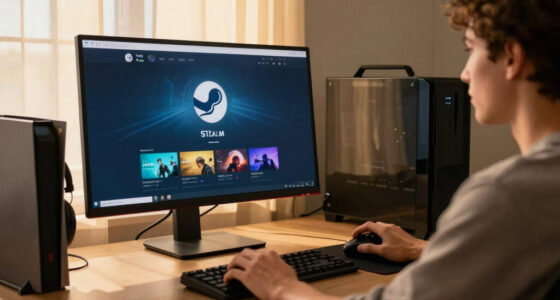
Steam Frame streaming works best when your device is weaker than the game you want to play, but your internet connection is strong. It lets a phone, tablet, thin laptop, or handheld act like a window into a beefier machine or remote service.
You might be on the couch with a lightweight laptop that would normally wheeze under a new AAA release. Instead, the fans stay quiet, the keys stay cool, and the game arrives as a sharp moving image over Wi-Fi. That is the sweet spot.
- Use streaming when your local device cannot meet the game's hardware needs.
- Use streaming for slower single-player games, RPGs, strategy games, visual novels, and builders.
- Use streaming when you want to play around the house without moving your gaming PC.
- Use streaming when storage space is tight and you do not want a 100 GB install on every device.
Steam Remote Play sits in this middle lane: your own gaming PC runs the game, then streams it to another device on your network or over the internet [2]. It is not the same as a full cloud service, but it solves a very real problem: the best PC in your home is not always in the room where you want to play.
When Standalone Play Still Wins Without a Fight
Standalone play is best when you care most about quick response, offline access, mod support, steady image quality, or full control over files and settings. The game runs on your own hardware, so you remove the internet as the fragile middle layer.
Say you are taking a Steam Deck on a train through patchy countryside. A streamed game may turn into a smear of blocks the moment the connection dips. A locally installed game keeps going while the window fills with gray sky, fields, and tunnels.
Standalone play also gives you more room for tinkering. Mods, custom config files, reshade tools, local saves, and experimental launch options usually make more sense when the game is installed on your own machine. That matters if your Steam library is half games and half little personal projects.
For competitive games, local play is the plain answer. You want your click, dodge, parry, or headshot to land without a network round trip. You can still stream casual matches, but ranked play is where latency stops being a number and starts being a lost duel.
How to Pick the Right Mode Before You Press Play
To choose between Steam Frame streaming and standalone play, match the mode to the game, the device, and the connection you have right now. The best answer can change between your desk, couch, hotel Wi-Fi, and a handheld on battery.
- Check the game type. Stream slower games first; run shooters, fighters, rhythm games, and racers locally when you can.
- Test your connection. Aim for stable 15-25 Mbps and low latency before you trust streaming for a long session [1].
- Look at your hardware. If your device falls below the game's CPU, GPU, or RAM needs, streaming may save the night.
- Check your situation. If you may lose internet, install the game locally before you leave.
- Try ten minutes first. Move the camera, open menus, fight one enemy, and watch for stutter, blur, or delayed controls.
A practical test beats guessing. Load a familiar game, stand in a busy area, spin the camera, and press jump ten times. If the screen feels like it follows your hands, streaming is fine; if it feels rubbery, switch to standalone play.
What Steam Deck Players Should Check First
Steam Deck players should check game compatibility, SteamOS version, battery needs, and network quality before choosing streaming or standalone play. A game that runs locally today may perform differently after updates, and Steam Deck Verified status can change by game build and SteamOS version.
On Steam Deck, standalone play gives you a tidy handheld bubble: installed game, sleep mode, controller layout, and no need for hotel Wi-Fi. You can pause a dungeon crawl, stuff the Deck into a case, and resume later with the same warm glow from the screen.
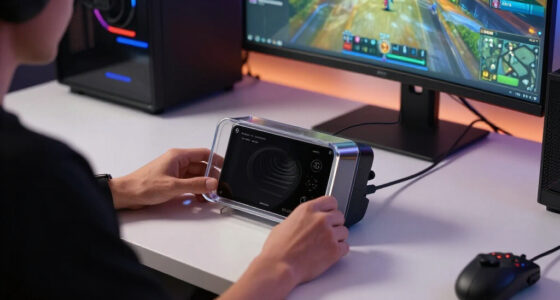
Streaming can still be brilliant on Deck. If a demanding game eats battery or runs hot locally, streaming from a desktop PC can keep the handheld cooler and stretch playtime. You trade fan noise for network dependence.
- Check the current Steam store status before relying on Verified or Playable labels.
- Use 5 GHz Wi-Fi at home when streaming from a PC, if your router and Deck support it.
- Install locally before travel, long flights, school breaks, or shared hotel networks.
- Test controller layouts in both modes because streamed games may expose different prompts or launchers.
Age ratings still apply either way. If a child streams a mature-rated game from your PC to a handheld, the content did not become different just because the install lives elsewhere.
Why Image Quality Can Change Mid-Session
Streaming image quality can change mid-session because the video feed adapts to your network. When Wi-Fi gets crowded or your connection dips, the stream may lower resolution, soften detail, or add blocky compression even if the game is still running well remotely.
You may see it first in dark scenes. A black cave turns into a gray soup, smoke loses its soft edges, and tiny text on a map starts to shimmer. The game has not become ugly; the video pipe got squeezed.
Standalone play has its own visual limits, but they are usually more predictable. If your PC can hold 60 frames per second at 1080p today, it will likely feel similar tomorrow unless drivers, patches, thermals, or settings change. Streaming adds the mood of your network to the mix.
Practical warning: a beautiful stream on Tuesday night can look worse on Saturday when three people are watching 4K video on the same home network.
Where Costs Hide in Both Options
Streaming can lower hardware pressure, but it may add subscription, data, and service limits; standalone play asks more from your device up front. Neither path is automatically cheaper, because the real cost depends on how often you play, what you own, and what you need next.
A gaming PC upgrade can feel like a brick on your budget: GPU, storage, RAM, maybe a better power supply. Streaming can feel lighter at first, especially if you only want to play a few demanding titles each month. But monthly fees add up quietly.
Standalone play has fewer service surprises. Once the game is installed and your hardware can run it, you control settings, files, and access more directly. Streaming depends on availability, account rules, service queues, and network conditions.
| Cost Area | Streaming | Standalone Play |
|---|---|---|
| Hardware | Lower local demands | Needs capable CPU, GPU, RAM |
| Internet | Needs stable bandwidth and low latency | Needed for downloads, patches, and online modes |
| Ongoing fees | May involve paid services | Usually no extra play fee after purchase |
| Storage | Can save local space | Large installs can fill drives fast |
If you play one cinematic game a month on a modest laptop, streaming may make sense. If you play the same competitive game every night, local hardware starts to look less like a luxury and more like the cleanest path.
What Rumors and Future Talk Should Not Distract You From
Unconfirmed rumors about new Steam devices, cloud features, or branded streaming hardware should not drive your setup choices. Treat leaks as unconfirmed until Valve or the relevant platform holder confirms names, specs, regions, dates, and supported games.
The useful future trend is clear without chasing every rumor: streaming keeps getting better through faster networks, edge servers, sharper compression, and handhelds that can switch between local and streamed play [2]. Still, better does not mean perfect for every genre.
Imagine buying around a leak, then discovering your favorite game does not support the service, your region has weak server coverage, or your home Wi-Fi adds jitter at the worst moment. That is a cold splash of reality. Build around what works for your library today.
Your best move is boring in the best way: test the games you already play on the network you already use. Real input feel beats spec sheets, trailers, and unconfirmed chatter every time.
Frequently Asked Questions
Is Steam Frame streaming the same as Steam Remote Play?
Steam Frame streaming is best treated as a broad way to describe playing through a streamed video feed, while Steam Remote Play is Valve's feature for streaming games from your own PC to another device [2]. The practical idea is similar: the game runs elsewhere, and your device receives the feed.
Can streaming replace standalone play for every Steam game?
No. Streaming works very well for many slower or cinematic games, but standalone play still wins for competitive shooters, fighting games, rhythm games, mods, offline access, and steady input response. The better question is whether the game you want to play can tolerate delay.
What internet speed do you need for smooth game streaming?
A stable 15-25 Mbps connection is a practical starting point for smooth streaming [1]. Speed alone is not enough, though; low latency, low jitter, and a steady Wi-Fi signal matter just as much.
Is standalone play better on Steam Deck?
Standalone play is better on Steam Deck when you need offline access, reliable sleep mode, or a game that runs well locally. Streaming is useful when a demanding game drains battery, runs hot, or performs better on your desktop PC than on the handheld.
Should parents care whether a game is streamed or installed?
Yes. Age ratings and content concerns stay the same whether a game is streamed or installed locally. A mature-rated game streamed from a PC to a handheld is still the same mature-rated game on the screen.
Conclusion
The smart choice is not streaming or standalone forever; it is picking the right tool for tonight's game. Stream when you want reach, convenience, and cooler hardware. Play locally when you want control, speed, and fewer surprises.
Before your next session, test one familiar game both ways for ten minutes. Your hands will tell you the truth before any spec sheet does.