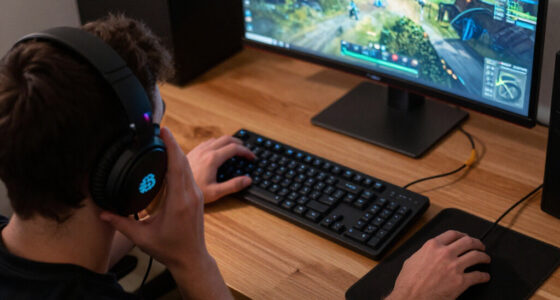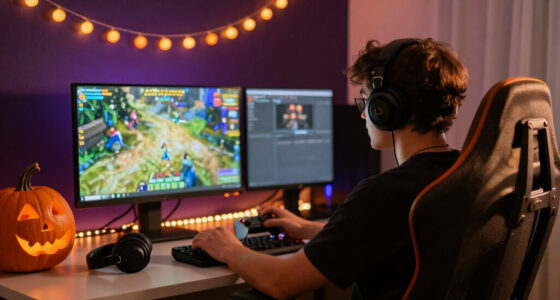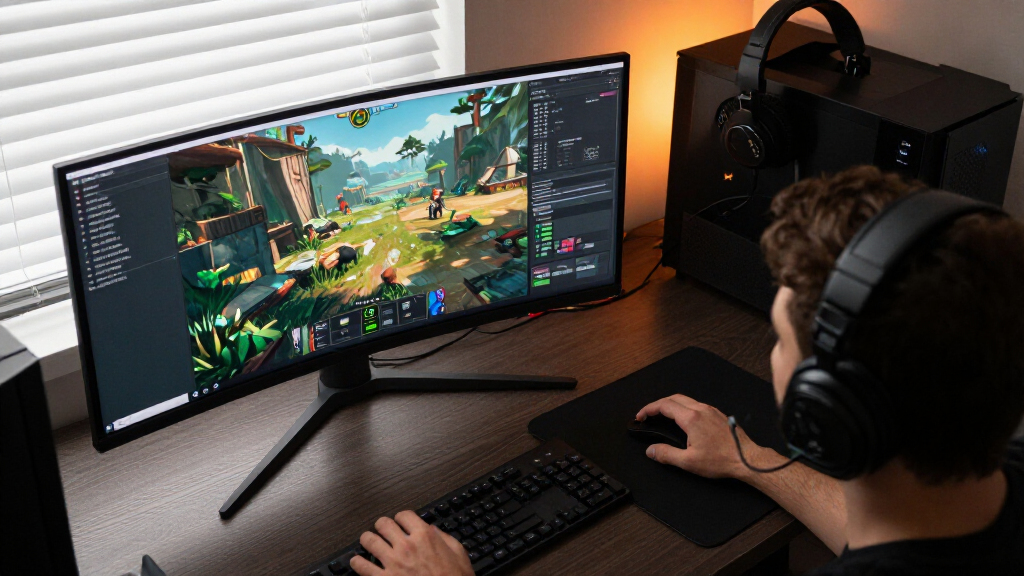

This checklist is designed for serious gamers who are ready to elevate their visual experience in 2026. Whether you are upgrading from a basic office screen or enhancing an existing high-end setup, this guide ensures you do not overlook critical components that affect performance and comfort. We focus on the essential hardware ecosystem that surrounds your primary display, rather than just the monitor itself.

Play games on Amazon Luna for your game nights, included with Prime
- A rotating selection of games, no download needed
- Play on TV, laptop or phone
- Fast, free delivery for your gear, too
The guide is organized by component priority, starting with the centerpiece display and moving outward to supporting accessories like mounts, cables, and lighting. Each section addresses specific compatibility needs and common pitfalls, helping you build a cohesive station that maximizes immersion while minimizing ergonomic strain. This structure allows you to tackle the upgrade in logical phases, ensuring each part works seamlessly with the next.
To use this checklist effectively, review your current desk space and PC hardware capabilities before purchasing any items. Verify your graphics card outputs and desk load capacity to avoid compatibility issues. Treat this as a roadmap for a complete refresh, ensuring that every cable and mount supports the high-refresh-rate potential of your new display without introducing bottlenecks or safety hazards.
Gaming Monitors
Choosing the right monitor is the most impactful decision in your gaming setup, dictating clarity, speed, and immersion. Many buyers focus solely on resolution, but panel technology and curvature play equally vital roles in competitive and cinematic experiences. For instance, ultrawide formats require a specific viewing distance to avoid neck strain, while high-refresh-rate panels demand robust GPU power to maintain frame consistency. Ignoring these factors can lead to a setup that looks impressive on paper but feels uncomfortable or underwhelming during actual play sessions. A common mistake is purchasing a curved monitor for a desk that is too shallow, which compromises the intended field of view. Additionally, users often overlook the importance of variable refresh rate technologies like G-Sync or FreeSync, which are essential for eliminating screen tearing in fast-paced shooters. Ensure your graphics card supports the monitor’s maximum refresh rate and resolution combination. Proper calibration settings for contrast and brightness are also crucial, as out-of-the-box settings rarely match the specific lighting conditions of your gaming room, affecting visibility in dark scenes.What to look for:
- Native resolution and aspect ratio compatibility
- Refresh rate and response time specifications
- Panel type (OLED, IPS, VA) characteristics
- Curvature radius suitability for desk depth
- Variable refresh rate technology support
Samsung 49-Inch Odyssey G93SC QD-OLED Curved Gaming Monitor

This 49-inch ultrawide QD-OLED monitor has a 5120 × 1440 resolution, 32:9 aspect ratio, and 1800R curvature for immersive gaming. It supports a 240 Hz refresh rate, 0.03 ms response time, HDR10+, G-Sync compatibility, and FreeSync Premium Pro, with an adjustable stand and HDMI, DisplayPort, and USB connectivity.
Pros:
- Large ultrawide QD-OLED display with deep blacks and high contrast
- Fast 240 Hz refresh rate and 0.03 ms response time
- Supports both G-Sync compatibility and FreeSync Premium Pro
- Picture-by-Picture supports two input sources
Cons:
- Large footprint may require substantial desk space
- USB hub supports data transmission only
Best for: Competitive and immersive gaming
Not ideal for: Small desks or budget builds
Bottom line: This monitor offers top-tier visual fidelity but requires significant desk space and GPU power.
Monitor Arms
Monitor arms are frequently underestimated but are critical for ergonomic health and desk aesthetics. They allow you to position your display at eye level, reducing neck strain during long gaming sessions. Many users attempt to save money by using the stock stand, but these often lack the range of motion needed for proper posture. When selecting an arm, you must consider the weight and size of your monitor, as well as the thickness and material of your desk surface. A mismatch here can lead to sagging or damage to the desk edge. Another frequent error is ignoring the clamp mechanism’s compatibility with your desk construction. Hollow-core desks may require a reinforcement plate to distribute weight evenly and prevent collapse. Furthermore, cable management is often overlooked; look for arms with integrated channels or clips to keep DisplayPort and power cables tidy. A cluttered setup not only looks unprofessional but can also interfere with the arm’s movement. Always verify the VESA pattern of your monitor matches the arm’s plate to ensure a secure fit.What to look for:
- Weight capacity exceeding monitor weight
- VESA mount pattern compatibility
- Clamp or grommet installation options
- Integrated cable management features
- Range of motion for tilt and swivel
ASUS ROG Ergo Monitor Arm (AAS01R)

The ASUS ROG Ergo is a spring-assisted monitor arm with adjustable height, tilt, swivel, pivot, rotation, and extension. It supports flat and curved monitors with VESA 100 x 100 mm mounts and includes clamp or grommet installation options and integrated cable management.
Pros:
- Multiple adjustment options for positioning the monitor
- Supports both clamp and grommet mounting
- Integrated cable management
- Tested through 10,000 range-of-motion cycles
Cons:
- Weight capacity varies by monitor type
- Desk clamp and grommet fit within specified thickness and hole ranges
Best for: Adjustable viewing angles and space saving
Not ideal for: Very thin or fragile desk surfaces
Bottom line: This arm provides robust support and smooth movement for large gaming displays.
DisplayPort Cables
DisplayPort cables are the lifeline of your high-performance gaming setup, yet they are often the last thing purchased. Using an old or low-quality cable can throttle your monitor’s potential, causing black screens or limiting refresh rates. It is essential to match the cable version (such as 1.2, 1.4, or 2.0) with both your GPU and monitor specifications. A mismatch can result in the system defaulting to a lower bandwidth mode, negating the benefits of your expensive display investment. Buying in bulk is a practical strategy, as cables can be lost or damaged during moves. However, ensure the length is appropriate for your desk layout; excessively long cables can create visual clutter and signal degradation over extreme distances. Look for cables with locking connectors to prevent accidental disconnection during vigorous gaming sessions. Additionally, check for gold-plated connectors, which offer better corrosion resistance and reliable contact over time. Always test the cable immediately upon arrival to ensure it supports the desired resolution and refresh rate combination.What to look for:
- Correct DisplayPort version for hardware
- Locking connector mechanism
- Appropriate length for desk layout
- Gold-plated connector reliability
- Bulk pack value for replacements
Amazon Basics 10-Pack DisplayPort 1.2 Cable, 6 Feet, Black

This 10-pack of 6-foot DisplayPort cables transmits HD audio and video from computers to displays, supporting 4K resolution at 60Hz and 2K at 165Hz. Designed for durability with gold-plated connectors and shielding, it is ideal for gaming, streaming, and extending workstations.
Pros:
- High-quality gold-plated connectors for reliable connectivity
- Supports high-resolution video up to 4K at 60Hz
- Durable construction suitable for dynamic use
Cons:
- Limited to 6-foot length, may not suit all setups
Best for: Multiple setups or cable redundancy
Not ideal for: Single-monitor setups with existing good cables
Bottom line: This pack ensures you have reliable, high-bandwidth connections for critical gaming displays.
Monitor Light Bars
Monitor light bars have revolutionized desk lighting by providing focused illumination without screen glare. They reduce eye strain by lighting your keyboard and notes while keeping the screen itself free from reflections. When choosing a light bar, consider the width of your monitor; the bar should be slightly wider than the screen to evenly illuminate the desk surface. Features like auto-dimming and adjustable color temperature are vital for adapting to different times of day, helping to maintain natural circadian rhythms during late-night gaming sessions. A common mistake is selecting a bar that is too short for an ultrawide monitor, leaving dark spots on the desk. Additionally, the mounting mechanism must be compatible with your monitor’s bezel thickness and curvature. Some bars use a heavy base that sits on the desk, which may not fit well with monitor arms. Wireless control options are convenient, but ensure the battery life is sufficient for your usage patterns. Proper placement is key; the light should direct downward, not toward your eyes or the screen, to maximize comfort and visibility.What to look for:
- Width relative to monitor size
- Adjustable color temperature and brightness
- Mounting compatibility with curved screens
- Auto-dimming sensor accuracy
- Control method (wireless vs. touch)
BenQ ScreenBar Halo 2 LED Monitor Light Bar

The BenQ ScreenBar Halo 2 provides a wide, adjustable backlight that reduces screen glare and eye fatigue with flicker‑free, blue‑light‑safe LEDs. It features an anti‑glare front light at an 18° angle, a wireless dial for brightness, color temperature and mode control, and automatic on/off syncing with your monitor.
Pros:
- Wide, adjustable backlight reduces eye strain and improves visual comfort.
- Glare‑free front lighting with ASYMLight technology prevents screen reflections.
- Wireless dial controller allows precise brightness, color temperature, and mode adjustments.
- Clamp fits both flat and curved monitors (0.17"–2.36" thick) while saving desk space.
Cons:
- Requires a USB power source, which occupies a computer port.
- Mounting clamp may not fit ultra‑thin monitors thinner than 0.17 inches.
Best for: Reducing eye strain and desk lighting
Not ideal for: Very thin bezel monitors without clips
Bottom line: This light bar offers premium features and even lighting for large curved monitors.
Screen Cleaning Kits
Maintaining your gaming monitor requires specific care, especially with delicate coatings on OLED or QD-OLED panels. Using household cleaners or paper towels can strip anti-glare coatings or leave micro-scratches that degrade image quality over time. A dedicated cleaning kit with a microfiber cloth and alcohol-free solution is essential for preserving the screen’s clarity and longevity. The right solution evaporates quickly without leaving streaks, ensuring that your vibrant colors remain true and unobstructed by residue. Many users make the error of spraying cleaner directly onto the screen, which can seep into the bezel and damage internal components. Always apply the solution to the cloth first. Look for kits that include a high-density microfiber cloth, as lower-quality fabrics can trap dust particles that act like sandpaper. Regular cleaning prevents dust buildup, which can attract moisture and cause permanent spotting. Investing in a quality kit is a small cost compared to replacing a damaged panel, making it a crucial part of your maintenance routine.What to look for:
- Alcohol-free and ammonia-free solution
- High-density microfiber cloth quality
- Streak-free drying performance
- Safe for OLED and coated screens
- Proper application method instructions
EVEO Screen Cleaner Spray Kit (Streak-Free) for TV, LCD, LED, OLED, Computer, an

This screen cleaning kit includes a spray and microfiber cloth designed to safely and effectively remove dust, fingerprints, and smudges from various electronic screens. It is safe for sensitive LCD, LED, OLED, and CRT displays and helps eliminate static electricity for a clear, streak-free shine.
Pros:
- Effective at removing dust, fingerprints, and smudges
- Safe for all major screen types including LCD, LED, OLED, and CRT
- Includes a plush microfiber cloth for easy cleaning
Cons:
- Requires spraying onto cloth before wiping, which may be less convenient for some users
- Contains multiple bottles, which may be unnecessary for infrequent use
Best for: Regular cleaning of premium screens
Not ideal for: Non-coated glass screens (overkill)
Bottom line: This kit provides safe, streak-free cleaning for sensitive gaming monitor surfaces.
VESA Mount Adapters
Not all monitors come with standard VESA mounting holes, particularly smaller or budget-friendly models. If you wish to use a monitor arm but lack the built-in holes, a VESA adapter kit is the solution. These kits clamp onto the monitor’s back or attach to existing stands, providing a standard 75×75 or 100x100mm mounting pattern. It is crucial to verify the adapter’s weight capacity and compatibility with your monitor’s shape, as curved backs can sometimes interfere with the clamp mechanism. A frequent oversight is ignoring the monitor’s center of gravity. Some adapters shift the weight distribution, causing the monitor to tilt forward on the arm. Ensure the adapter includes adjustable plates to balance the load properly. Additionally, check if the adapter obstructs any ports or buttons on the back of the monitor. Proper installation requires tightening screws to the manufacturer’s specifications to prevent slippage. This accessory is a versatile bridge between non-standard displays and high-end ergonomic setups, allowing for greater flexibility in desk design.What to look for:
- Compatibility with monitor back shape
- Standard VESA pattern support
- Weight capacity and balance adjustment
- Non-obstructive port clearance
- Secure clamping mechanism
HUANUO Universal VESA Mount Adapter Kit, Non-VESA Adapter for 17‑27 Inch Monitor

The HUANUO VESA adapter converts non‑VESA monitors (17–27 inches) to fit standard 75 mm x 75 mm VESA mounts. It features adjustable bars, powder‑coated steel construction, and includes all necessary screws for quick installation.
Pros:
- Universal fit for 17‑27 inch monitors
- Adjustable bars accommodate varying monitor thicknesses
- Sturdy powder‑coated steel construction
- Easy installation with included screws and manual
Cons:
- Adds extra depth to the monitor rear
- Limited to 75 mm x 75 mm VESA pattern only
Best for: Upgrading older or budget monitors
Not ideal for: Monitors with already integrated VESA
Bottom line: This adapter kit enables ergonomic mounting for monitors lacking native VESA holes.
When planning your budget, prioritize the monitor and arm first, as these define your core experience. Next, invest in quality cables to ensure performance stability, followed by lighting and cleaning accessories for long-term comfort and maintenance. This order ensures you have a functional, high-performance setup before adding polish and protection. Avoid spending on extras until the foundational hardware is correctly configured and working seamlessly together.
Building a gaming station is an iterative process that enhances both performance and enjoyment. By following this checklist, you avoid common compatibility traps and ensure each component supports the others effectively. Take your time to research specific model details and desk dimensions before purchasing. A well-planned upgrade not only improves your gameplay but also creates a sustainable, ergonomic environment that respects your physical health and visual preferences.