
TL;DR

Play games on Amazon Luna for your game nights, included with Prime
- A rotating selection of games, no download needed
- Play on TV, laptop or phone
- Fast, free delivery for your gear, too
HDR on Steam Deck OLED and PC gaming explained: HDR expands brightness, contrast, and color so games can show deeper shadows, brighter highlights, and richer scenes than standard dynamic range. Steam Deck OLED gives you a strong portable HDR screen, while PC HDR depends more heavily on your monitor, Windows settings, GPU drivers, and each game’s own HDR implementation.
HDR can make a dark cave feel black enough to swallow your torchlight, then let one spell flash across the screen like a struck match.
That is the promise. The reality is messier: one game looks gorgeous, another looks gray and flat, and your PC monitor may need three settings changed before anything looks right.
This guide gives you HDR on Steam Deck OLED and PC gaming explained in plain English: what HDR does, why OLED matters, how PC setup differs, and when you should leave HDR off.
Brighter highlights, deeper blacks, and a few settings traps.
HDR expands brightness, contrast, and color so games can show darker shadows, sharper light sources, and richer scenes than standard dynamic range. Steam Deck OLED makes the effect easier to see because OLED contrast is built for black depth; PC HDR can look spectacular too, but it depends on your monitor, Windows settings, GPU drivers, cable path, and each game’s HDR tuning.
A cave can stay black enough to swallow torchlight, then one spell can flash like a struck match.
It gives games more room for light.
HDR does not automatically add detail. It lets a game use a wider brightness and color range when the display, operating system, and game implementation all agree. SDR squeezes the image into a narrower box; HDR lets neon signs, campfires, muzzle flashes, and sunlight stand apart without turning every shadow gray.
Highlights can actually peak.
Sun glints, fire, sparks, glowing UI, magic effects, and headlights get a higher ceiling, so they feel like light sources instead of bright paint.
Dark scenes keep their weight.
Good HDR keeps caves, alleys, night skies, and basements deep while preserving the objects that should still be visible.
Color can stay vivid under light.
Reds, blues, greens, and warm oranges can remain saturated across more brightness levels instead of fading into dull gray.
One path is simpler. The other has more knobs.
Steam Deck OLED gives you a known portable display, so HDR is easier to judge. A Windows gaming PC can outclass it with a high-end OLED or mini-LED monitor, but the chain is longer: monitor mode, Windows HDR, Auto HDR, GPU drivers, cable bandwidth, and in-game calibration can all change the final image.
| Setup | What you control | Common win | Common problem | Best verdict |
|---|---|---|---|---|
| Steam Deck OLED | Game HDR setting, SteamOS support, brightness, per-game behavior. | ✓ OLED contrast makes small highlights easy to appreciate. | ~ Not every game supports HDR cleanly on Deck. | Best for straightforward portable HDR. |
| Windows gaming PC | Windows HDR, Auto HDR, monitor HDR mode, GPU driver, cable, in-game sliders. | ✓ High-end OLED and mini-LED monitors can look spectacular. | ✗ Bad calibration can make HDR washed out, dim, or too bright. | Best for maximum quality after tuning. |
| PC handhelds and laptops | Panel quality, Windows HDR, battery mode, brightness limits, game settings. | ~ OLED panels can deliver excellent portable contrast. | ~ Battery profiles and lower peak brightness can reduce impact. | Best when the panel is genuinely strong. |
Washed-out HDR usually means the chain is misaligned.
Use native HDR first, launch the game after enabling system HDR when required, then tune peak brightness, paper white, and black level inside the game. Change one scene at a time instead of chasing every slider at once.
Setup friction index
Brightness spectrum
When HDR looks right
- Bright highlights pop without crushing face detail or menu text.
- Black coats, caves, and night skies stay dark instead of chalky.
- Color feels rich, not radioactive.
A clean HDR setup is a sequence, not a switch.
Some games only detect HDR at launch. On PC, that means Windows HDR and the monitor’s HDR mode may need to be active before opening the game. On Steam Deck OLED, start with the game’s own display menu and check whether HDR is supported natively.
Check support
Confirm the display, platform, and game all support HDR.
Enable system HDR
Use Windows Display settings on PC when required before launching.
Launch fresh
Restart the game if the HDR toggle is missing or inactive.
Calibrate in-game
Set peak brightness, paper white, and black level carefully.
Compare one scene
Use a familiar spot and inspect shadows, UI text, skin tones, and highlights.
Great HDR is authored. Bad HDR is stretched.
A strong HDR implementation maps brightness with intent. A weak one may simply stretch an SDR image into a wider container, making everything brighter but not clearer. The difference is obvious in games with rainy cities, sci-fi panels, desert sun, campfires, neon signs, and dark interiors.
Real HDR sliders.
Peak brightness, paper white, and black level controls usually mean the game expects proper tuning.
Highlights stay selective.
Lightning, muzzle flash, neon, and sunlight stand out while skin, stone, grass, and menus stay believable.
The image turns milky.
If the whole scene gets flatter, paler, or harder to read, lower paper white, check black level, or turn HDR off.
The best setting is the one that makes play clearer.
HDR is worth disabling when it hurts readability, battery life, color accuracy, or visual comfort. A brighter badge in the settings menu does not matter if the image is gray, the UI blooms, or enemies disappear into a doorway.
Turn HDR off for
- Competitive games where visibility matters more than cinematic lighting.
- Older games where forced HDR makes colors look strange.
- Battery-sensitive handheld sessions where brightness drains too fast.
- Games with weak HDR modes that wash out shadows or overcook color.
Keep HDR on for
- Native HDR games with dark scenes, strong lighting, neon, fire, sunlight, or magic effects.
- Steam Deck OLED sessions where contrast is immediately visible.
- High-quality PC OLED or mini-LED monitors after proper calibration.
- Cinematic titles where atmosphere matters as much as raw frame rate.
Why HDR succeeds or fails.
HDR is a connected system. If one link is weak, the final image can look flat even when the game has an HDR toggle. Follow the chain from content to screen before blaming a single setting.
Bottom line: Steam Deck OLED makes HDR easier to appreciate because the screen’s contrast is fixed and strong. PC HDR can go further, but it asks for more care. If the image looks washed out, check black level, lower paper white, update drivers, and compare one familiar scene before changing everything.
Key Takeaways
- HDR gives games a wider brightness and color range, but it only works well when the display, system settings, and game implementation line up.
- Steam Deck OLED makes HDR easier to appreciate because OLED contrast gives dark scenes true black depth and lets small highlights stand out.
- On PC, Windows HDR, monitor quality, GPU drivers, cables, and in-game calibration all affect the final image.
- If HDR looks washed out, lower paper white, check black level, and compare one familiar scene before changing every setting.
- Turn HDR off for games where readability, battery life, or poor implementation matters more than brighter highlights.
Steam Deck OLED HDR screen protector
As an affiliate, we earn on qualifying purchases.
As an affiliate, we earn on qualifying purchases.
What HDR Actually Changes While You Play
HDR is a display and content system that lets games use a wider range of brightness and color than standard dynamic range. Instead of squeezing every scene into the same narrow brightness box, HDR lets a game show deep blacks, bright highlights, and more vivid color at the same time.
Think of SDR like painting with a basic set of markers. HDR is closer to walking into an art store where the reds look lacquered, the blues feel electric, and the whites can glare like sunlight off a car hood.
In a game like Cyberpunk 2077, HDR can make neon signs punch through rainy streets while alley corners stay properly dark. In a fantasy RPG, it can keep a campfire warm and orange without turning the night sky into gray soup.
HDR does not automatically add more detail. It gives the game more room to show brightness, contrast, and color when the game, display, and settings all support it.
As an affiliate, we earn on qualifying purchases.
Why Steam Deck OLED Makes HDR Easier To See
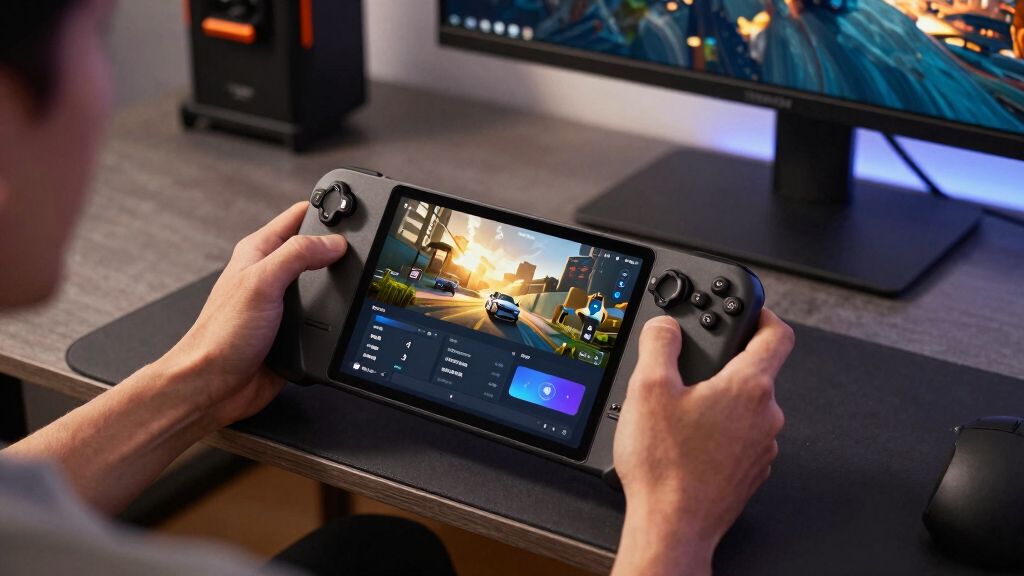
HDR on Steam Deck OLED and PC gaming explained starts with the screen: OLED pixels can dim or shut off individually, so black areas look genuinely dark while bright objects still pop. That matters because HDR is built around contrast, not just raw brightness.
On the Steam Deck OLED, a torch in a cave can glow without lifting the entire cave into a milky haze. You notice the small stuff: a muzzle flash, a glowing potion bottle, the blue edge of a sci-fi door panel.
Steam Deck OLED also has a different job than a desktop monitor. It gives you a fixed handheld display, so you do not have to wonder whether your HDMI cable, monitor mode, or Windows profile is sabotaging the image.
- Best fit: Native HDR games with strong lighting, dark scenes, neon, fire, sunlight, or magic effects.
- Mixed fit: Older games with no HDR mode, where forcing HDR can make colors look odd.
- Practical tip: Check each game’s display settings before blaming the Deck. Some titles hide HDR under video, calibration, or brightness menus.
As an affiliate, we earn on qualifying purchases.
Steam Deck OLED vs PC HDR: What Changes For You
Steam Deck OLED gives you a simpler HDR path, while PC HDR gives you more power and more ways for things to go wrong. On Deck, the screen is known. On PC, your monitor, GPU, cable, Windows settings, and game settings all affect the final image.
| Setup | What You Control | Common Win | Common Problem |
|---|---|---|---|
| Steam Deck OLED | Game HDR setting, SteamOS support, brightness, per-game behavior | OLED contrast makes dark scenes and highlights easy to appreciate | Not every game supports HDR cleanly on Steam Deck |
| Windows gaming PC | Windows HDR, Auto HDR, monitor mode, GPU driver, in-game HDR | High-end OLED or mini-LED monitors can look spectacular | Bad calibration can make HDR look washed out or too dim |
| PC handhelds and laptops | Panel quality, Windows HDR, battery mode, game settings | Portable HDR can look great on OLED panels | Brightness limits and battery settings can reduce impact |
Here is the everyday version: your Steam Deck OLED is like a good fixed camera. Your PC is like a camera bag full of lenses, filters, and knobs. More control, more reward, more tiny traps.
According to Microsoft’s Windows HDR guidance, PC players need an HDR-capable display and Windows HDR enabled before HDR content can display correctly [1]. That sounds obvious, but it explains why a game’s HDR toggle may appear missing or useless until the operating system sees the display properly.
As an affiliate, we earn on qualifying purchases.
How To Turn On HDR Without Making Games Look Washed Out
- Confirm your display supports HDR. On PC, check your monitor specs and Windows display settings. On Steam Deck OLED, check whether the game itself supports HDR.
- Enable HDR at the system level when needed. On Windows, turn on HDR in Display settings before launching the game. Some games only detect HDR at launch.
- Use the game’s native HDR mode first. Native HDR usually beats forced HDR because the game knows which lights, skies, menus, and effects should get brighter.
- Run the in-game HDR calibration screen. Set peak brightness, paper white, and black level until logos or symbols are barely visible, not glowing like a flashlight under a blanket.
- Compare one familiar scene. Stand in the same place, toggle HDR, and look at shadows, skin tones, UI text, and bright highlights.
How to set up HDR well is simple: enable it only where the display and game support it, then calibrate inside the game instead of trusting defaults. A good HDR setup keeps shadows dark, highlights bright, and normal objects believable.
Use a scene you know. In a rainy city, neon should shimmer on wet pavement while black coats still look black. If every surface turns chalky, your HDR black level or system setting is probably wrong.
On PC, keep GPU drivers current, especially if you use NVIDIA RTX 30 or 40 series cards or AMD RX 6000 or 7000 series cards. Driver updates often improve display detection, HDR behavior, and game-specific issues [2].
Why Some HDR Games Look Amazing And Others Look Broken
HDR on Steam Deck OLED and PC gaming explained also means accepting a frustrating truth: HDR quality depends heavily on the game. A strong HDR implementation maps brightness carefully, while a weak one can make the whole image look pale, dim, or overcooked.
A good HDR game treats light like a stage director. It knows when to blind you with desert sun, when to keep a basement thick and black, and when to make a tiny red warning light pull your eye across the room.
A weak HDR mode may just stretch the old SDR image into a wider container. That is like turning up a radio recording until it gets louder but not clearer.
- Good sign: The game includes HDR sliders for peak brightness, paper white, and black level.
- Good sign: Bright highlights pop without crushing face details or menu text.
- Warning sign: The whole image gets brighter, flatter, and less contrasty.
- Warning sign: Colors look radioactive, especially grass, red UI elements, or skin tones.
Games such as Control, Cyberpunk 2077, and Red Dead Redemption 2 are often discussed by players because their lighting-heavy worlds make HDR differences easy to spot. Always check the current platform version, because patches can change HDR behavior over time.
When HDR Is Worth Turning Off
HDR is worth turning off when it makes a game less readable, less accurate, or more tiring to look at. Better image quality means better-looking play, not a brighter badge in the settings menu.
Imagine playing a competitive shooter where a doorway turns into a gray smear and enemy outlines disappear in glare. That is not cinematic. That is a problem you can lose to.
HDR can also drain more battery on handheld devices when higher brightness gets involved. On Steam Deck OLED, a dazzling HDR scene may look beautiful, but you may prefer SDR during a long flight, train ride, or couch session away from a charger.
- Turn HDR off if UI text blooms or looks fuzzy.
- Turn HDR off if shadows hide enemies in competitive games.
- Turn HDR off if the game has no real HDR mode and forced HDR looks strange.
- Turn HDR off if you want longer handheld battery life more than brighter highlights.
Age ratings do not usually affect HDR itself, but content does. Horror games, mature shooters, and dark fantasy titles often lean on pitch-black rooms, blood-red lighting, and sudden flashes, so HDR can make those scenes more intense.
What The HDR Settings Actually Mean
HDR settings are easier once you know the three knobs that matter most: peak brightness, paper white, and black level. Peak brightness controls the brightest highlights, paper white controls everyday brightness, and black level controls how dark shadows can go before detail disappears.
Peak brightness is the fireworks knob. It affects sun glints, explosions, lightning, spell effects, and white-hot reflections on metal.
Paper white is the normal-world knob. It affects menus, snow, walls, clouds, and the parts of a scene that should look bright but not eye-searing.
Black level is the midnight knob. Set it too high and caves turn gray; set it too low and you lose the shape of rocks, doors, and enemies hiding in shadow.
| Setting | What It Changes | Quick Test |
|---|---|---|
| Peak brightness | Small intense highlights | Sun, fire, lightning, neon, explosions |
| Paper white | General scene and UI brightness | Menus, clouds, pale walls, snow |
| Black level | Shadow depth and dark detail | Caves, night scenes, black clothing |
If you only change one thing, adjust paper white first. Many washed-out HDR complaints come from making the whole image too bright instead of letting highlights do the heavy lifting.
How To Judge HDR In 60 Seconds
You can judge HDR quickly by checking one dark area, one bright highlight, one human face or natural surface, and one UI element. If all four look right, your HDR setup is probably healthy.
Use a checkpoint, camp, garage, menu room, or town square you can revisit. Stand still. Do not test while sprinting, fighting, or spinning the camera like you lost your mousepad.
- Check black areas. Shadows should look deep, but you should still read shapes and edges.
- Check highlights. Sunlight, fire, or neon should pop without turning nearby objects white.
- Check color. Skin, stone, grass, and wood should look richer, not fake.
- Check UI. Text and icons should stay sharp and comfortable.
- Check comfort. If your eyes tense up after a minute, lower paper white or disable HDR for that game.
For example, load a night scene in an open-world game. If the moon looks crisp, windows glow warmly, and the street still has texture under your character’s feet, HDR is doing its job.
The Smart Way To Think About HDR Before You Buy Hardware
HDR should influence your hardware choices only if the display can actually show strong contrast, enough brightness, and wide color well. The HDR logo alone does not tell you whether games will look dramatic or dull.
On PC, an OLED or good mini-LED monitor usually gives you the clearest HDR upgrade because it can separate bright highlights from dark backgrounds. A low-brightness edge-lit monitor may accept an HDR signal but still look like SDR wearing a shiny name tag.
If you already own Steam Deck OLED, start with games you have before buying anything else. Try a moody title, a neon-heavy title, and a bright outdoor title. You will learn more in 20 minutes than from staring at spec sheets all afternoon.
Practical rule: Great SDR on a good screen beats bad HDR on a weak screen. HDR is a chain, and the weakest link shapes what you see.
Rumors and leaks about future handhelds, monitor panels, or SteamOS features should be treated as unconfirmed until Valve, Microsoft, GPU makers, or display manufacturers announce details directly. HDR support can change through firmware, drivers, and game patches, so always check the platform and version before trusting performance claims.
Frequently Asked Questions
Does Steam Deck OLED support HDR in every game?
No. Steam Deck OLED can show HDR, but each game still needs proper HDR support and platform behavior can vary by version. Check the game’s current Steam Deck notes, patch history, and in-game display settings before assuming HDR will appear.
Why does HDR look washed out on my PC?
Washed-out HDR usually comes from a mismatch between Windows HDR, monitor settings, game calibration, or the game’s HDR implementation. Start by enabling HDR before launching the game, then adjust paper white and black level inside the game.
Does HDR lower FPS?
HDR can add some GPU and display-processing work, but the impact depends on the game, hardware, and settings. On modern gaming PCs, the frame-rate hit is often small, while handhelds may feel the tradeoff more through brightness and battery use.
Is Auto HDR as good as native HDR?
Native HDR is usually better because the game was built or tuned for a wider brightness range. Auto HDR can improve some older SDR games, but it may misread brightness, menus, or colors because it is interpreting content after the fact.
Should I always leave HDR on?
No. Leave HDR on for games that look richer, clearer, and more comfortable with it enabled. Turn it off when the image looks gray, UI text blooms, shadows hide useful detail, or you want longer battery life on a handheld.
Conclusion
Remember this: HDR is not better because it is brighter; HDR is better when light behaves more like light.
Use it when it gives your game shape, depth, and sparkle. Turn it off when it turns the world flat. The goal is simple: a screen that feels less like a panel and more like a window with weather on the other side.
Fall Picks
fall essentials
As an affiliate, we earn on qualifying purchases.