TL;DR
Steam Deck display scaling is the way SteamOS turns the Deck’s 1280 x 800 handheld image into a TV or monitor picture without ugly stretching, blur, or misplaced black bars. For most docked play, use 720p or 1080p on TVs, 800p or 1200p-style targets on 16:10 monitors, integer or nearest scaling for pixel art, and FSR or linear scaling when modern 3D games render below the screen resolution. According to Valve, Steam Deck LCD and OLED models use 1280 x 800 displays, while USB-C DisplayPort output can support far higher external signals [1][2].
A Steam Deck can look crisp in your hands and oddly mushy on a 55-inch TV five seconds later.
The problem usually is not your game. It is the handoff between the Deck’s 1280 x 800 handheld screen, your TV’s 16:9 shape, your monitor’s native resolution, and the scaling filter SteamOS uses to stretch the image.
This guide gives you an overview suitable for fixing the picture before your couch co-op session starts. You will learn what each setting does, when 4K helps, when it hurts, and why a tiny menu can turn into a soft gray smear across the room.
Make The Deck Look Sharp On The Big Screen
TL;DR: Steam Deck display scaling is how SteamOS turns the handheld’s 1280 × 800 image into a TV or monitor picture without ugly stretching, blur, or misplaced black bars. Use 1080p for most TVs, 16:10 targets for monitors, integer or nearest for pixel art, and FSR or linear scaling for modern 3D games rendering below screen resolution.
1280 × 800
Both LCD and OLED Steam Deck models use a 16:10 handheld display.
1080p
The best couch baseline for readable menus, easy HDMI compatibility, and lighter game rendering.
Pick the screen shape first. Then pick the scaling filter.
1280 × 800 baseline.
About twice the built-in screen.
Roughly 8.1× the handheld workload.
Most common source of bars or stretch.
What Scaling Is Actually Doing
SteamOS can send one resolution to the display while the game renders at another. Scaling decides whether those pixels stay crisp, soften gracefully, or stretch into the wrong shape.
16:10 Deck To 16:9 TV
A 1280 × 800 game image is taller than a TV frame. Preserving it can create side bars; forcing it can squash the HUD.
Output Is Not Render
A 4K signal can carry Steam menus, desktop mode, or video. It does not mean a demanding game is truly rendering 4K frames.
Sharp, Smooth, Or Smart
Integer and nearest keep hard pixels. Linear smooths. FSR sharpens lower-resolution 3D games, sometimes with shimmer.
Set A Clean External Resolution
Choose the TV or monitor resolution first, then tune the game. This prevents tiny menus, odd modes, and heavy 4K defaults before the game even starts.
Connect Dock
Use USB-C, a hub, or a dock with video output.
Open Display
Check SteamOS display settings after the screen appears.
Check Hz
Confirm resolution and refresh rate before launching.
Pick 1080p
Use 1920 × 1080 for most living-room TVs.
Use Native
For monitors, start at native, then lower game render.
Game Mode
Set Game Resolution to Native when modes are missing.
Tune Filter
Adjust scaling until HUD text and motion both feel right.
Match The Filter To The Game
Pixel art wants hard edges. Modern 3D games can benefit from reconstruction. Text-heavy games care most about readable UI, even if that means accepting borders.
| Scaling choice | Best for | What you will see | Example setup | Fit |
|---|---|---|---|---|
| Integer | Retro and pixel-art games | Sharp blocks, possible black bars | 720p game on a 4K TV scales cleanly by 3× | ✓Sharp |
| Nearest | Hard-edged 2D art | Crisp pixels with a chunky look | A pixel platformer that should stay blocky | ✓Clean |
| Linear | General use | Smooth image, slightly soft edges | 1080p output from a lower internal resolution | ~Soft |
| FSR | 3D games below screen resolution | Sharper upscale, possible shimmer on thin lines | 720p or 800p render stretched to 1080p | ~Varies |
| Native | Desktop work and crisp UI | Exact pixels, no extra cleanup | SteamOS desktop on a 1440p monitor | ✓Precise |
When 4K Helps And When It Hurts
Valve lists USB-C DisplayPort output far above the Deck’s built-in panel, but output support and smooth game rendering are different questions. Scaling can fill 4K glass; it cannot create true 4K detail from a low render.
Use 4K For Light Work
Library browsing, desktop mode, video playback, and light 2D games can look elegant at high output resolutions, especially on close monitors.
Avoid 4K Rendering For Heavy Games
Demanding titles can become sluggish, laggy, or noisy. A 1080p signal with 720p or 900p game rendering is usually the better couch compromise.
Black Bars, Stretching, And Tiny Text
Fix the screen shape before sharpness. A stretched image will still look wrong after any filter, so solve aspect ratio first and then tune the upscale.
Black Bars On The Sides
Your 16:10 game image is being preserved on a 16:9 TV. Try 1280 × 720 or 1920 × 1080 in game.
Squashed Characters
The display is stretching the picture. Use Just Scan, Screen Fit, 1:1, or Original in the TV picture menu.
Tiny Menus
Lower SteamOS external output to 1080p, or raise the game’s UI scale when the option exists.
Soft HUD Text
Avoid awkward scaling jumps. Try 720p to 1080p, 720p to 1440p, or clean integer paths for pixel art.
Best Target By Screen Distance
1080p output
native or 1080p
scale wisely
The Docked Picture Chain
The final image is the result of several linked choices. Change one link at a time and test from the seat where you actually play.
Game Render
Internal resolution and graphics settings.
SteamOS Filter
Integer, nearest, linear, FSR, or native.
Dock Signal
USB-C DisplayPort or HDMI chain limits.
Display Mode
Resolution, refresh rate, and aspect ratio.
Couch Test
Read small text, watch motion, adjust once.
Key Takeaways
- Use 1080p external output for most TVs, then lower the in-game render resolution only when a game needs breathing room.
- Pick integer or nearest scaling for pixel art, and try FSR or linear scaling for modern 3D games rendered below the screen resolution.
- A 4K signal is not the same as true 4K game rendering; 4K asks for about 8.1 times as many pixels as the Deck’s built-in 1280 x 800 screen.
- For black bars or stretched images, fix aspect ratio first by using 16:9 resolutions on TVs or 1:1 and Screen Fit modes on the display.
- Use Valve’s published specs for hardware limits, but judge performance per game, per SteamOS version, and per display setup.
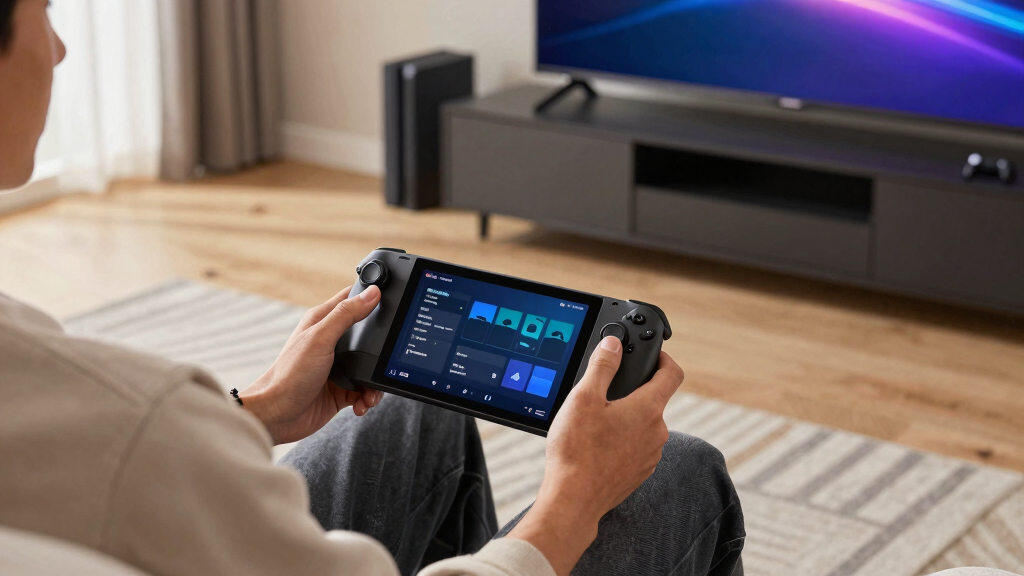
Steam Deck display scaling settings
As an affiliate, we earn on qualifying purchases.
As an affiliate, we earn on qualifying purchases.
Get The Big Idea Before You Change A Setting
Steam Deck Display Scaling Explained for TVs and Monitors starts with a simple idea: the Deck can send one resolution to the screen while a game renders at another, and SteamOS has to stretch that image cleanly. Scaling decides whether pixels stay sharp, smear softly, or stretch like warm taffy.
Think of it like printing a small photo onto a poster. If the printer lines up the dots neatly, the poster looks clean from the couch. If it guesses between dots, faces blur and text gets fuzzy around the edges.
The Deck’s built-in display is 16:10, while most TVs are 16:9. That shape mismatch explains why a game that fills the handheld screen can show side bars, cropped edges, or a slightly squashed HUD on a living-room TV.
For example, a cozy farming game at 1280 x 800 can look perfect in handheld mode, then show black bars on a 1080p TV. The TV is not broken; it is trying to fit a taller image into a wider frame.
HDMI cable for Steam Deck TV output
As an affiliate, we earn on qualifying purchases.
As an affiliate, we earn on qualifying purchases.
Set A Clean TV Or Monitor Resolution In Seven Moves
The cleanest setup starts by choosing the external screen resolution first, then choosing the game resolution second. If your Steam Deck wakes up on a TV and picks 4K automatically, menus can look tiny and games can feel heavy before you touch a single graphics option.
- Connect the Deck through USB-C, a dock, or a hub that supports video output.
- Open SteamOS Settings after the TV or monitor appears.
- Go to Display and check the detected resolution and refresh rate.
- Pick 1920 x 1080 for most TVs if you want a steady, readable couch setup.
- Pick the monitor’s native resolution for desktop use, then lower in-game resolution if performance drops.
- Open the game’s Properties from its Steam page and set Game Resolution to Native when you need external modes to appear.
- Adjust the in-game resolution and scaling filter until the HUD looks sharp and movement feels smooth.
A practical example: on a 4K Samsung TV, set SteamOS output to 1080p at 60Hz, then let a demanding 3D game render at 720p or 900p with upscaling. The TV still fills the room with color, but the Deck does not have to shovel 4K pixels every frame.
monitor resolution calibration tools
As an affiliate, we earn on qualifying purchases.
As an affiliate, we earn on qualifying purchases.
Pick The Scaling Mode That Makes Your Game Look Right
Steam Deck Display Scaling Explained for TVs and Monitors depends on matching the filter to the game style. Pixel art wants hard edges, modern 3D games often tolerate softer reconstruction, and text-heavy games need readable letters more than perfect full-screen coverage.
| Scaling choice | Best for | What you will see | Example setup |
|---|---|---|---|
| Integer | Retro and pixel-art games | Sharp blocks, possible black bars | 720p game on a 4K TV scales cleanly by 3x |
| Nearest | Hard-edged 2D art | Crisp pixels with a chunky look | A pixel platformer that should go click-clack, not smear |
| Linear | General use | Smooth image, slightly soft edges | 1080p output from a lower internal resolution |
| FSR | 3D games below screen resolution | Sharper upscale, possible shimmer on thin lines | 720p or 800p render stretched to a 1080p TV |
| Native or no scaling | Desktop work and crisp UI | Exact pixels, no extra cleanup | SteamOS desktop on a 1440p monitor |
If you play a game like Celeste or Stardew Valley, try integer or nearest first. If you play a big 3D RPG from the couch, FSR may give the grass, stone, and armor edges more bite than plain linear scaling.
pixel art scaling filters for gaming
As an affiliate, we earn on qualifying purchases.
As an affiliate, we earn on qualifying purchases.
Know When 4K Helps And When It Turns To Soup
Steam Deck Display Scaling Explained for TVs and Monitors gets messy at 4K because output support and game rendering are different things. Valve lists DisplayPort over USB-C support up to 8K at 60Hz or 4K at 120Hz, but that does not mean demanding games should render at those settings [2].
A 4K signal is useful for the Steam library, desktop mode, video playback, light 2D games, and very readable menus on a close monitor. It can look gorgeous: tiny text like white thread, clean icons, no stair-step edges.
For heavier games on Steam Deck LCD or OLED running SteamOS Game Mode, 4K rendering asks too much from the hardware. You may get a slideshow feeling, input lag, or fans that answer with a steady whirr while the image still looks softer than expected.
Here is the math: 1280 x 800 equals about 1.024 million pixels, 1080p equals 2.07 million, 1440p equals 3.69 million, and 4K equals 8.29 million. Scaling can stretch a smaller picture onto 4K glass, but it cannot invent true 4K detail from a lower render.
Fix Black Bars, Stretching, And Tiny Text Fast
Most ugly docked-display problems come from an aspect ratio mismatch, an overexcited TV scaler, or a game UI built for handheld distance. Fix the screen shape first, then tune sharpness, because a stretched image will still look wrong even after you add a fancy filter.
- Black bars on the sides: your 16:10 game image is being preserved on a 16:9 TV. Try a 16:9 in-game resolution such as 1280 x 720 or 1920 x 1080.
- Squashed characters: the TV or monitor is stretching the picture. Set the display to Just Scan, Screen Fit, 1:1, or Original in its picture menu.
- Tiny menus: lower the SteamOS external resolution to 1080p, or raise UI scale inside the game when the option exists.
- Soft HUD text: avoid odd scaling jumps such as 800p to 4K on a TV. Try 720p to 1080p, 720p to 1440p, or 720p to 4K depending on the screen.
- Shimmering fences or wires: lower FSR sharpness or use linear scaling for that game.
A real couch test works better than staring at a settings menu. Sit where you actually play, open a dense inventory screen, and read a small item description. If the letters buzz like a cheap neon sign, change one setting and test again.
Choose TV And Monitor Targets That Match Real Games
The best target resolution depends on the screen, the game, and where your face sits. A TV across the room forgives lower render resolutions, while a desk monitor at arm’s length exposes blur, jagged diagonals, and shaky text much faster.
For a living-room TV, 1080p output is the friendly middle ground. It keeps SteamOS readable, works with almost every HDMI chain, and gives you room to run demanding games at 720p or 900p without making the picture look like wet paper.
For a 1440p monitor, try a lighter game at native 1440p, then drop heavier games to 720p or 1080p and scale. A 720p render scales by a clean 2x to 1440p, which can look surprisingly tidy from a normal desk distance.
For ultrawide monitors, expect tradeoffs. Some games support 21:9, some show side bars, and some stretch the image unless you force a normal 16:9 or 16:10 mode. Treat rumors about future ultrawide fixes as unconfirmed until Valve or the game developer ships an update.
Use One Living-Room Setup That Usually Behaves
A reliable living-room profile uses 1080p output, game-specific render settings, and a TV picture mode that leaves the image alone. This setup will not win a spec-sheet contest, but it keeps controller input snappy, menus readable, and the picture clean from the couch.
Try this on a typical 55-inch 4K TV: set the TV to Game Mode, set the Deck’s external output to 1920 x 1080 at 60Hz, and set the game to 1280 x 720, 1600 x 900, or 1920 x 1080 depending on how heavy it is.
For a 2D game, choose integer or nearest scaling and let the pixels pop like colored tiles. For a 3D game, try FSR with a moderate sharpness setting, then lower it if grass, railings, or subtitles start to fizz.
Rule of thumb: if the game feels slow, lower the game’s render resolution before lowering the TV output. If the Steam menu looks tiny, lower the SteamOS external output before changing every game.
Trust These Specs Before You Blame The Cable
Steam Deck Display Scaling Explained for TVs and Monitors also means separating official hardware limits from game-by-game behavior. According to Valve, Steam Deck LCD uses a 7-inch 1280 x 800 screen at up to 60Hz, while OLED models use a 7.4-inch 1280 x 800 screen at up to 90Hz [1].
According to Valve’s tech specs, the Deck’s USB-C port can carry DisplayPort video, with external connectivity listed up to 8K at 60Hz or 4K at 120Hz [2]. That is a signal ceiling, not a frame-rate promise for every game.
If a display fails to appear, test the boring stuff before blaming SteamOS. Swap the HDMI cable, try a different dock port, connect power to the dock, and check whether the TV has a low-latency Game Mode or a hidden PC input label.
Deck Verified labels can also change after game and SteamOS updates, so treat them as current store guidance rather than a permanent badge. Display scaling does not change a game’s age rating; the game content and regional rating board do that.
Frequently Asked Questions
Why does my Steam Deck look blurry on a 4K TV?
Your Deck may be rendering below 4K and stretching that image across a much larger pixel grid. A 4K TV has 8.29 million pixels, so low internal resolutions can look soft unless the scaling mode suits the game. Try 1080p output first, then use FSR or integer scaling based on the game’s style.
Should I use 720p, 800p, or 1080p when docked?
Use 720p for demanding games on a 16:9 TV, 800p for 16:10-friendly games or monitors, and 1080p when the game runs well and text clarity matters. On a couch TV, 720p scaled well can look better than a shaky 1080p render.
What scaling mode is best for pixel-art games?
Integer scaling is usually best for pixel art because it enlarges the image by whole-number steps and keeps edges crisp. If integer scaling adds bars you dislike, try nearest scaling next. Avoid aggressive FSR sharpness on tiny pixel art, because it can make edges sparkle in motion.
Does the official Steam Deck Dock make games run faster?
No. Docking changes display, power, and peripheral options, but it does not turn the Deck into a stronger PC. On Steam Deck LCD or OLED in SteamOS Game Mode, a demanding game still needs realistic render settings even if the TV accepts a 4K signal.
Can display scaling affect Steam Deck Verified status or age ratings?
Display scaling itself does not change a game’s age rating or content rating. Steam Deck Verified and Playable labels can change after game patches or SteamOS updates, so check the current Steam store page when compatibility matters. Scaling only changes how the picture fits and looks on your screen.
Conclusion
The crispest Steam Deck TV setup is rarely the biggest number in the menu. Start with a sensible external resolution, match the game’s shape to the screen, then choose the scaling filter that fits the art style.
When it looks right, you will know fast: clean HUD text, steady motion, no stretched faces, and a gamepad in your hands while the screen stops fighting you.