
TL;DR

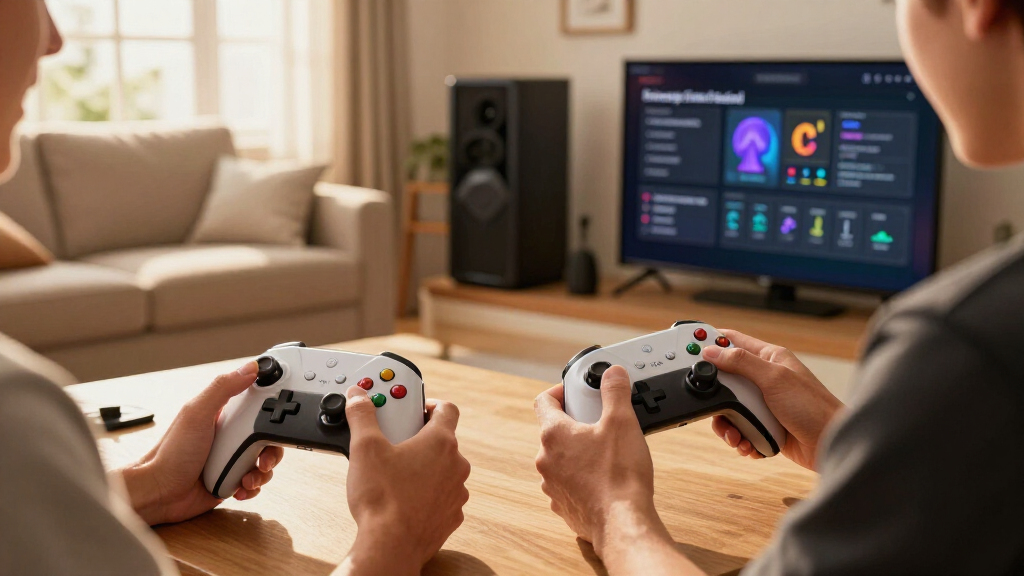
Play games on Amazon Luna for your game nights, included with Prime
- A rotating selection of games, no download needed
- Play on TV, laptop or phone
- Fast, free delivery for your gear, too
Controller remapping lets players change which buttons, sticks, triggers, switches, pedals, or gestures perform each game action. Effective remapping covers every mode, supports alternative devices, updates on-screen prompts, and pairs with toggles or rapid-press alternatives so players can build controls around their bodies.
A single fixed button can make an otherwise playable game impossible to finish. You may move smoothly through a glowing forest for an hour, only to reach a door that requires a painful stick click or a two-button chord your hands cannot perform. Controller remapping turns that dead end into a solvable setup problem.
This guide explains how remapping works, why moving an action is only part of the answer, and what separates full remapping from a thin settings menu. You will see how players combine buttons, paddles, switches, pedals, keyboards, and adaptive controllers to match their reach, strength, coordination, and stamina.
You will also learn how to test a layout before a difficult mission, compare in-game and system-level tools, and spot gaps before buying a game. The goal is practical: help you create controls that remain usable during combat, menus, vehicles, tutorials, and long sessions, even when pain or fatigue changes from one day to the next.
Treat remapping as full only when every required action—including menus, tutorials, vehicles, and special modes—can be reassigned.
Move frequent or painful actions to easy inputs, then test the layout during a demanding encounter rather than only in the settings menu.
Pair new bindings with toggles, rapid-press alternatives, timing controls, dead-zone settings, and adjustable trigger thresholds.
Prefer native in-game remapping when available because it can update prompts, detect contextual conflicts, and store mode-specific layouts.
Check current platform and game-version details before buying; a generic customizable-controls claim does not prove full accessibility.
Controller Remapping for Accessibility Explained
Remapping changes which buttons, sticks, triggers, switches, pedals, or gestures perform each action. Done well, it turns an inaccessible command into a solvable setup choice—and keeps that solution usable across combat, menus, vehicles, tutorials, and long sessions.
One fixed required action can make an otherwise playable game impossible to finish.
Build controls around the player
Standard layouts assume similar reach, strength, timing, coordination, and stamina. Remapping lets the physical setup follow the player’s body instead of forcing the player to adapt to one fixed arrangement.
Move difficult actions
Transfer a painful stick click, distant bumper, or hard-to-reach face button to a paddle, switch, pedal, keyboard key, or easier gamepad input.
Reduce repeated effort
Place frequent actions under stronger fingers and combine remapping with toggles, adjustable hold times, rapid-press alternatives, and lighter trigger thresholds.
Simplify the layout
Replace difficult button chords with single inputs and group common actions on clearly separated controls that remain dependable during demanding scenes.
Full means every required context
A custom combat layout is not enough if confirming an upgrade, completing a tutorial, or leaving a vehicle still requires an inaccessible input. Rare actions count because they can still block progress.
If one essential command remains fixed, the entire experience can still end at that point.
Core play
Movement, camera, aiming, attacks, interaction, stick clicks, triggers, and accessibility shortcuts.
Menus
Pause, confirm, cancel, save, load, inventory, maps, communication, and recovery from mistakes.
Special modes
Driving, flying, swimming, puzzles, companions, minigames, photo mode, and multiplayer screens.
Guidance
Tutorials, quick-time events, control diagrams, button prompts, and contextual hints must follow the new bindings.
Where should the change happen?
Several layers can alter an input, but they do not provide the same awareness. Native game settings usually offer the clearest result because the game understands modes, conflicts, tutorials, and prompts.
| Remapping layer | What it does well | Common limitation | Prompt accuracy |
|---|---|---|---|
| Inside the game | Supports contextual layouts, real conflicts, and updated instructions. | Quality and completeness vary by title, mode, and platform version. | ✓ Best potential |
| Console or operating system | Adds basic reassignment when a game lacks native options. | A global swap may fit one context poorly and leave displayed prompts unchanged. | ~ Often mismatched |
| Controller software | Configures paddles, sensitivity, profiles, and device-specific features. | Some functions require supported hardware or background software. | ~ Device-dependent |
| Adaptive hardware | Connects switches, joysticks, arcade buttons, and pedals in personalized positions. | The game still needs sensible software support and flexible action rules. | ✗ Usually external |
Preferred order: native remapping first, then use platform, controller, or adaptive tools to close remaining gaps.
From body signal to reliable action
A useful layout begins with the action that causes difficulty, not a diagnosis. Each choice should reduce effort and survive real play conditions.
Build for reach and energy
Start with the actions that create the most friction. A layout that feels fine in a quiet settings screen may fail during a fast encounter, so testing must include realistic pressure and a longer session.
Observe for ten minutes
Record painful, slow, unreliable, or unreachable actions. Note how often each appears and whether fatigue changes performance.
Move high-cost actions first
Assign frequent commands to the easiest inputs. Reserve harder reaches for optional or rare actions.
Remove timing barriers
Replace holds, chords, and rapid presses where possible. Adjust trigger thresholds, stick dead zones, and timing windows.
Stress-test every context
Try combat, menus, vehicles, tutorials, and recovery actions before a difficult mission or competitive session.
Check before buying—or before a difficult mission
“Customizable controls” does not prove complete accessibility. Confirm the current game version, platform behavior, device support, prompt updates, and every mode you expect to use.
Include menus, tutorials, vehicles, maps, communication, special abilities, and accessibility shortcuts.
Confirm simultaneous input if movement and actions will come from different controllers, switches, or keyboards.
On-screen instructions, quick-time events, tutorials, and diagrams should show the new physical assignment.
Look for toggles, hold-duration controls, rapid-press alternatives, timing adjustments, and trigger settings.
The system should flag genuine same-context conflicts without blocking harmless overlaps across separate modes.
Multiple layouts, simple presets, default restoration, synchronization, and settings persistence reduce setup fatigue.
What Controller Remapping Changes—and Why It Opens More Games
Controller remapping for accessibility is the ability to assign an existing game action to a different physical input. Controller remapping lets players change which buttons, sticks, triggers, pedals, switches, or gestures perform actions such as jumping, aiming, pausing, or opening a map. It is an essential accessibility feature because standard control layouts assume similar reach, strength, timing, and coordination.
Imagine that pressing the left stick causes a sharp ache in your thumb. Moving sprint to a rear paddle can remove that pressure while leaving movement on the stick. For another player, placing jump and interact on two large desk switches may turn a cramped gamepad layout into something spacious and dependable.
Remapping can support limited mobility, tremors, fatigue, one-handed play, temporary injuries, and repetitive-strain concerns. It can also help when a dense layout is hard to remember: putting the most common actions on four clearly separated inputs reduces the mental scramble during a loud, flashing fight.
The benefit reaches beyond disability. A player recovering from a broken finger may need a new layout for six weeks, while someone playing after work may move repeated actions away from a sore index finger. The diagnosis does not define the right configuration; the action that feels difficult does.
Remapping changes what an input does. It does not require you to justify why the original input does not work for you.
Popular right now

Roborock Robot Vacuum and Mop with LiDAR Navigation and 10,000 Pa Suction

Dyson Ball Animal 3 Extra Upright Vacuum

KitchenAid Classic Series 4.5 Quart Tilt-Head Stand Mixer K45SS, Onyx Black
As an affiliate, we earn on qualifying purchases.
How Full Remapping Prevents One Fixed Action From Blocking You
Controller remapping for accessibility counts as full remapping only when every meaningful action can be reassigned, including commands used in menus and special modes. That means face buttons, directional controls, stick clicks, triggers, bumpers, touch inputs, camera commands, communication tools, and accessibility shortcuts all need editable bindings.
What good is a custom combat layout if you cannot leave the inventory screen? A game might let you move attack from a trigger to a face button, then keep the original trigger fixed for confirming upgrades. That small gap feels like finding a smooth wheelchair route that ends at one narrow step.
Games also change their control rules constantly. Walking may use one set of inputs, while driving, swimming, flying, lock-picking, or controlling a companion uses another. Context-specific layouts let you move accelerate to a paddle without changing how that paddle works during exploration.
Microsoft’s Xbox Accessibility Guidelines recommend giving players broad control over input assignments and avoiding interactions that depend on simultaneous inputs [1]. Game Accessibility Guidelines also treats fully configurable controls as a major motor-access feature, including support beyond the main action screen [2]. These guidelines matter because a fixed command can hide inside a tutorial, minigame, map, or downloadable chapter.
- Check menus: Can you pause, save, load, confirm, cancel, and recover from a mistake?
- Check every mode: Test walking, combat, vehicles, puzzles, dialogue, and multiplayer screens.
- Check rare actions: Photo mode, communication wheels, special abilities, and accessibility shortcuts still count.
Which Remapping Layer Gives You the Most Reliable Controls?
Controller remapping for accessibility can happen inside the game, through a console or operating system, in controller software, or within programmable hardware. Native in-game remapping usually gives you the clearest experience because the game understands each context, can flag real conflicts, and can show your chosen buttons in tutorials.
Suppose you swap A and B at the console level. Your game may still display “Press A” beside a bright green door even though the physical B button now sends that command. The action works, but the mismatch can feel like following road signs that point in the wrong direction.
| Remapping layer | What it does well | Common limitation |
|---|---|---|
| Inside the game | Updates prompts and supports separate layouts for combat, driving, or menus | Quality varies by title and platform version |
| Console or operating system | Applies changes to games that lack native options | Prompts may remain wrong, and one global layout may fit poorly |
| Controller software | Configures paddles, sensitivity, profiles, and device-specific features | Some settings require the software or supported hardware |
| Adaptive hardware | Accepts large switches, joysticks, pedals, and personalized input placement | The game still needs sensible software support |
An adaptive controller is best understood as a hub, not a universal answer. One player might steer with a left-hand joystick, place jump under a right elbow switch, and use a foot pedal for aim. Another player with a similar condition may need the exact opposite arrangement.
Platform features and game support can change after patches or firmware updates. Before relying on a specific setup, check the current game version, platform accessibility page, device compatibility, and prompt behavior. A listing such as Steam Deck compatibility can also change, so treat its current status as version-specific rather than permanent.
How to Build a Layout That Matches Your Reach and Energy
- Identify the painful or unreachable actions. Play for ten minutes and note every stretch, hard press, long hold, or rushed combination.
- Move frequent actions first. Put jump, interact, attack, or camera reset on the easiest inputs rather than spending prime buttons on rare commands.
- Replace difficult input patterns. Turn holds into toggles, move stick clicks, and use single presses instead of button chords where the game allows it.
- Test every game context. Walk, fight, open menus, drive, pause, and complete a tutorial prompt before committing to the layout.
- Save a second profile. Create a lower-effort version for tired or painful days and label it clearly.
Building an accessible controller layout starts with the actions your body finds hardest, not with copying another player’s preset. A short test reveals more than a diagnosis: watch for tense shoulders, whitening fingertips, missed inputs, or the dull burn that appears after repeated trigger presses. Those details tell you what to move.
For example, a one-handed player might keep movement on the left stick, move camera recentering to a shoulder button, place jump on a rear paddle, and route attack to a desk switch. If holding aim drains strength, a toggle setting keeps the action active after one press.
Test the setup during pressure, not only in a quiet settings room. A layout can feel comfortable while you stroll through a sunlit village, then fall apart when alarms howl, enemies surround you, and four commands arrive within five seconds. Run the same encounter twice and track accidental presses, missed actions, and discomfort.
Save more than one layout when the game supports profiles. Your hands may feel steady in the morning and heavy by evening because of fatigue, pain, medication, or a changing condition. A backup low-effort profile lets you keep playing without rebuilding everything mid-session.
Why Toggles and Timing Options Fix Problems Remapping Cannot
Controller remapping for accessibility cannot solve an action that still demands a long hold, rapid tapping, precise stick movement, or two buttons pressed together. Useful control settings change both where an action lives and how the game expects you to perform it, turning strenuous patterns into manageable single inputs.
Say you move sprint from a stick click to a large switch. If sprint still requires continuous pressure, your arm may tire while crossing a wide desert. A toggle lets one tap start sprinting and another stop it, cutting dozens of seconds of sustained force from each journey.
Rapid-press sequences create a similar problem. Moving a “tap ten times” command to another button does not remove the speed requirement. A setting that replaces repeated tapping with one press, a hold, or an automatic sequence changes the demand itself.
- Toggle modes replace prolonged holds for aiming, sprinting, crouching, or opening selection wheels.
- Hold-duration controls shorten the time required to confirm an action.
- Rapid-press alternatives replace repeated tapping with a hold or single activation.
- Timing-window settings allow more time for quick events or chained inputs.
- Dead zones and sensitivity reduce unwanted movement or the force needed to turn.
- Trigger thresholds make an action register before a trigger reaches its deepest, stiffest point.
These related options are not strictly button remapping, but they complete the same job. Microsoft guidance separates ordinary remapping from more complex automation while encouraging alternatives to demanding simultaneous or repeated inputs [1]. In competitive games, one-to-one remapping may be allowed even when timed macros remain restricted, so check the current game rules before using automated sequences online.
How Clear Prompts and Profiles Keep Your Setup Working
Clear prompts, saved profiles, and accessible menus keep a remapped layout usable after you leave the settings screen. Every tutorial, quick-time event, control diagram, map hint, and interaction prompt should display the current assignment. The game should also preserve your choices across restarts, updates, downloadable content, and different gameplay modes.
Imagine moving reload from X to a rear paddle, then reaching a tutorial that flashes “Tap X rapidly” in white letters over a smoky battlefield. You now have to remember whether the prompt means the labeled button or the reassigned action. Updated prompts remove that guessing at the exact moment your attention is already stretched.
The settings screen must also work with the accessible controls. Requiring the original button to open remapping creates a locked door with the key placed behind it. Readable text, a strong focus outline, screen-reader support where available, and navigation without a two-button chord make setup possible without outside help.
Multiple profiles add another layer of resilience. You might save one layout for a fast character, another for driving, and a simplified version for days when your hands shake more. Import, export, or cloud synchronization can prevent hours of careful work from disappearing when you replace a console or reinstall a game.
Presets still have value as starting points. A one-handed preset can show what is possible, much like a pencil sketch before the final painting. Yet no single “accessible” layout fits everyone, so presets should sit beside full customization, clear conflict warnings, duplicate bindings, and an easy reset option.
What to Check Before You Buy or Start a New Game
You can judge remapping support by checking whether the game covers every action, device, mode, and input pattern you expect to use. Look beyond a store-page claim that says “custom controls.” Meaningful support includes mixed-device input, updated prompts, menu access, saved profiles, and alternatives to holds, tapping, motion, or touch.
Before buying, search the publisher’s current accessibility page and look for a detailed control list. A vague sentence about customizable controls may hide fixed stick clicks, untouchable menu commands, or remapping that exists only on PC. Accessibility reviews and videos from disabled players can reveal these gaps in a few minutes.
- Coverage: Can you remap gameplay, menus, vehicles, minigames, tutorials, and communication?
- Devices: Can a controller, keyboard, mouse, switches, pedals, or adaptive hub work together?
- Prompts: Do instructions change when you change the binding?
- Input demands: Are there alternatives for holds, button chords, rapid taps, motion, touch, and precise stick movement?
- Persistence: Do profiles survive restarts, updates, and different characters?
- Online rules: Does the game distinguish basic remapping from prohibited macros?
For example, a player planning to use a joystick for movement and two external switches for actions needs simultaneous mixed input. A game that pauses controller input whenever it detects a keyboard can make that setup stutter between devices, with prompts flickering back and forth like a faulty sign.
Age ratings describe content such as violence or language; they do not certify controller accessibility. Platform labels and compatibility badges can help, but their meaning and status may change with game updates. Confirm the platform, edition, patch version, and required modes that match how you plan to play.
Frequently Asked Questions
Is controller remapping only for disabled players?
No. Controller remapping benefits disabled and nondisabled players by reducing strain, supporting personal preferences, and adapting controls around injuries or fatigue. A player with no diagnosed disability may still move sprint away from a painful stick click during a 40-hour game.
What is the difference between remapping and an adaptive controller?
Remapping changes what an input does, while an adaptive controller changes how you physically provide that input. You might connect large switches, a joystick, or pedals to an adaptive hub, then use the game’s remapping menu to assign jump, movement, and aim to those devices.
Is system-level remapping enough?
System-level remapping is a useful fallback, but it may leave prompts showing the original buttons and apply one layout across every game context. Native remapping usually handles separate modes, current prompts, and conflict warnings more cleanly.
Can two actions share one button?
Yes, when the actions occur in different contexts or the overlap is intentional. For example, one paddle might reload while walking and accelerate while driving. A good interface warns you about genuine same-context conflicts without blocking every duplicate assignment.
Does remapping create an unfair advantage in online games?
Ordinary one-to-one remapping changes access and comfort rather than performing extra actions. Macros can trigger several actions or timed inputs from one command, so competitive games may restrict them under current rules. Check the game’s policy for your platform and version before using automation.
Conclusion
Your best controller layout is the one your body can use reliably, including on tired, painful, or unsteady days. Start by moving the hardest frequent action, replace demanding holds or repeated taps, and test the result across menus, tutorials, combat, and special modes. One comfortable button can remove hundreds of difficult presses from a long game.
Do not let a polished preset define what accessible play should look like. Build around your reach, timing, strength, and preferred devices, then save a lower-effort backup profile. The right setup should fade into the background until all you notice is the soft click of an input—and the door opening when you press it.