
TL;DR

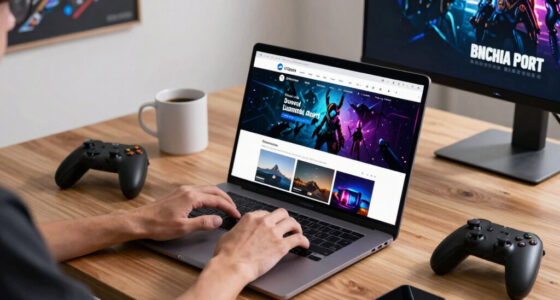
Play games on Amazon Luna for your game nights, included with Prime
- A rotating selection of games, no download needed
- Play on TV, laptop or phone
- Fast, free delivery for your gear, too
Bluetooth controllers on Steam Deck pair through the built-in Bluetooth menu and then run through Steam Input, so Xbox, PlayStation, Switch Pro, and many third-party pads can work without a dongle. Use Bluetooth for docked play and couch co-op, use USB when one frame matters, and update both SteamOS and controller firmware when pairing or button labels act strange.
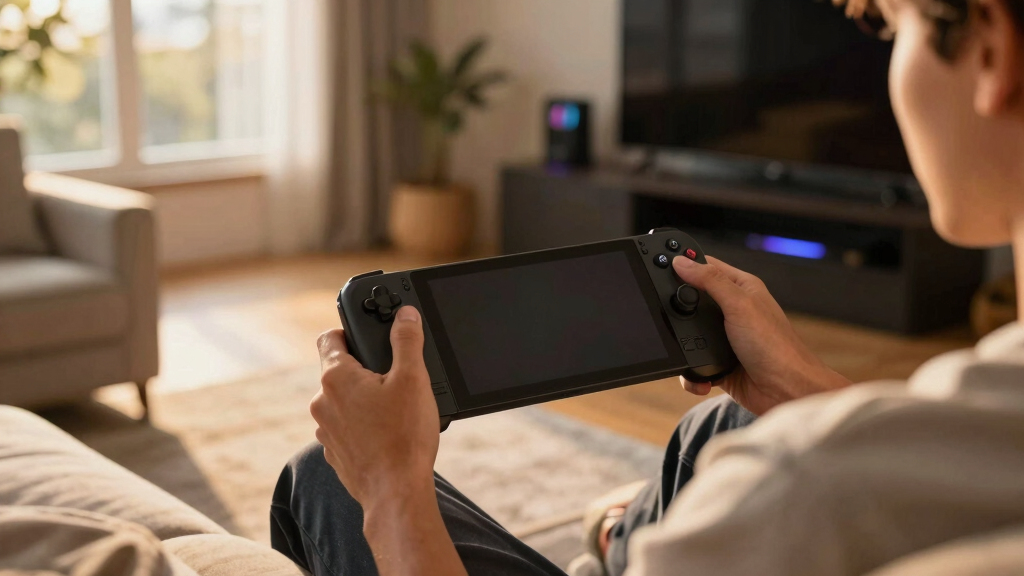
The tiniest victory over Steam Deck friction is hearing a controller connect with that soft little chime, then sinking into the couch while your game fills the TV.
This guide explains what Bluetooth can and cannot do on the Deck, from pairing and latency to button layouts, couch co-op, and firmware fixes. Here’s an overview written for players who want fewer menus and more play, along with common reader questions for the moments when a controller blinks at you like it knows a secret.
You will also see where Bluetooth is the right tool and where a USB cable still wins. Comfort and precision can live together, but they do not always sit in the same chair.
Bluetooth Controllers on Steam Deck Explained
TL;DR: Steam Deck pairs Bluetooth controllers through the built-in Bluetooth menu, then Steam Input translates the pad for each game. Xbox, PlayStation, Switch Pro, and many third-party controllers can work without a dongle. Use Bluetooth for docked play and couch co-op; use USB when one frame matters.
Comfort and precision can live together, but they do not always sit in the same chair.
What Works Right Away
Pairing creates the radio connection. Steam Input does the translation work: mapping buttons, sticks, gyro, deadzones, and per-game layouts so older PC games and modern console ports understand the pad in your hands.
Bluetooth Pairing
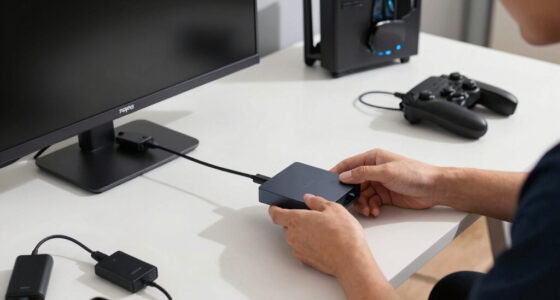
Turn Bluetooth on, put the controller in pairing mode, select it from the Deck list, then check the connected label before launching a game.
Steam Input
A DualSense can behave like an Xbox controller when a game expects XInput, while community layouts can rescue odd older titles.
Firmware First
When pairing, rumble, button labels, or stale entries act strange, update SteamOS and the controller firmware before deeper troubleshooting.
Settings
Press Steam, open Settings, then Bluetooth.
Pair
Hold the controller pairing buttons until it flashes.
Select
Pick the controller from Available Devices.
Test
Move sticks, triggers, and face buttons in Controller settings.
Play
Load the game layout that feels right for your hands.
Which Controller Fits Your Games?
Xbox pads usually create the least button-icon friction, PlayStation pads bring gyro and a Sony-style grip, Switch Pro controllers suit Nintendo-trained guests, and generic Bluetooth pads make useful travel spares.
| Controller Type | Best Fit | Feature Confidence | Watch For | Quick Tip |
|---|---|---|---|---|
| Xbox Wireless Controller | Most PC games and Xbox-style prompts | ✓Strong baseline | Older Xbox One pads may lack Bluetooth | Update firmware with the Xbox Accessories app |
| DualShock 4 | PlayStation ports, 2D games, gyro aiming | ~Game-dependent icons | Some games show Xbox prompts | Pair with PS plus Share |
| DualSense | Modern action games and Sony PC releases | ~Advanced haptics vary | Adaptive triggers may be limited on PC | Keep firmware current before blaming SteamOS |
| Switch Pro Controller | Nintendo-style platformers and guests | ~Layout needs attention | A/B labels can feel flipped in PC games | Fix labels in Steam Input |
| Generic Bluetooth Pad | Travel, kids, spare controllers, casual co-op | ✗Features may be missing | Rumble, gyro, or battery status may not report | Test in Controller settings first |
Latency: Fine Until It Is Not
Bluetooth generally feels responsive enough for RPGs, platformers, racing games, farming sims, and most action games. USB still has the edge when the timing window gets brutally small.
One Frame Is 16.7 ms
At 60 fps, tiny input differences can show up in parries, rhythm hits, fighting games, and ranked shooters. In Stardew Valley, the same delay barely registers. In Elden Ring, it may turn a clean roll into a glowing red health bar.
Connection Stress Meter
Room conditions matter. A dock behind a metal TV stand, crowded 2.4 GHz devices, Bluetooth audio, and distance can add little hiccups even when the controller itself is healthy.
Couch Co-op Without Cable Spaghetti
Multiple Bluetooth controllers can connect at the same time, turning a docked Steam Deck into a compact living-room console. The smooth setup is procedural: pair one controller at a time, verify player order, then reduce radio clutter if inputs skip.
Pair One by One
Name and test each controller before adding the next. This keeps duplicate-looking pads from becoming a mystery mid-game.
Check Order
Open Controller settings and confirm which player lights up. Reorder controllers if the game starts on the wrong pad.
Clear the Air
If audio or inputs stutter, move Bluetooth earbuds, keyboards, routers, and the dock away from the play zone.
When Things Feel Weird
Most controller issues are not dramatic failures. They are stale pairings, old firmware, confusing button prompts, deadzones, or a game reading the wrong layout.
Fast Fix Order
- 1Update SteamOS and restart the Deck before testing again.
- 2Update controller firmware with the maker’s tool when available.
- 3Forget stale Bluetooth entries, then pair again from close range.
- 4Try an Xbox-style Steam Input layout when button icons or actions are wrong.
Steam Input Knobs
Wrong prompts? Load a layout the game understands. Drifty aim? Add a small deadzone. Hard-to-reach sprint, dodge, or map actions? Move them to a bumper or rear button if your controller has one. Save per-game layouts so guests do not overwrite your favorite setup.
The Connection Chain
Controller
Xbox, PlayStation, Switch Pro, or third-party Bluetooth pad.
Bluetooth
The Deck sees and pairs the wireless device.
Steam Input
Buttons, sticks, gyro, and profiles are translated.
Game Layout
The title receives the controller shape it expects.
Couch Play
Docked TV sessions and local multiplayer become cleaner.
USB Backup
Use wired play when one-frame timing matters most.
Key Takeaways
- Steam Deck pairs Bluetooth controllers through Bluetooth settings, but Steam Input controls how each game reads the pad.
- Xbox, PlayStation, Switch Pro, and many third-party pads can work, though rumble, gyro, icons, and trigger features vary by game and firmware.
- Bluetooth is right for couch play and travel; USB is better when timing matters at the one-frame level.
- For local multiplayer, pair controllers one at a time, check player order, and reduce 2.4 GHz clutter if inputs skip.
- Keep SteamOS and controller firmware current before troubleshooting rare drops or stale pairing entries.
Bluetooth gaming controllers for Steam Deck
As an affiliate, we earn on qualifying purchases.
As an affiliate, we earn on qualifying purchases.
What Works Right Away, and What Needs Steam Input
Bluetooth Controllers on Steam Deck work because the Deck natively supports Bluetooth and then hands controller behavior to Steam Input. Pairing makes the radio connection; Steam Input maps buttons, sticks, gyro, and game profiles so older PC games and modern console ports can understand the pad in your hands [2].
Think of Bluetooth as the front door and Steam Input as the translator at the table. Your DualSense may speak PlayStation, your Xbox pad may speak XInput, and a no-name travel controller may speak something odd, but Steam can often turn all of that into a layout the game accepts.
For example, Hades II may show clean Xbox-style prompts right away with an Xbox Wireless Controller, while an older indie game may need a community layout before the right stick behaves. You do not need a new controller for that; you need the right profile.
Wireless Xbox controller for Steam Deck
As an affiliate, we earn on qualifying purchases.
As an affiliate, we earn on qualifying purchases.
Pair a Bluetooth Controller in Under a Minute
Pairing is a short settings-menu job: turn on Bluetooth, put the controller in pairing mode, select it on the Deck, then test it in Steam’s controller settings. If the controller has paired with a console before, start with the console off so it does not steal the connection.
- Open Settings: Press the Steam button, choose Settings, then Bluetooth.
- Turn Bluetooth on: Wait a few seconds for the device list to refresh.
- Start pairing mode: On Xbox, hold the sync button; on DualSense, hold PS and Create; on DualShock 4, hold PS and Share; on Switch Pro, hold the small sync button.
- Select the controller: Pick it from Available Devices and wait for the connected label.
- Test the layout: Open Controller settings and move the sticks, triggers, and face buttons before launching a game.
A common couch setup looks like this: your Deck sits in a dock under the TV, the Xbox pad flashes, and the device list shows Xbox Wireless Controller after a few seconds. If it never appears, turn the pad off, hold pairing again, and move it closer than arm’s length for the first connection.
PlayStation DualSense controller for Steam Deck
As an affiliate, we earn on qualifying purchases.
As an affiliate, we earn on qualifying purchases.
Which Controller Type Fits Your Games Best
Pick the controller that matches the games you actually play: Xbox pads give you the least button-icon friction, PlayStation pads add gyro and a familiar grip for Sony ports, and Switch-style pads shine for guests who live on Nintendo layouts. The table gives you a clean snapshot.
| Controller type | Best fit | Watch for | Quick tip |
|---|---|---|---|
| Xbox Wireless Controller | Most PC games and Game Pass-style layouts | Older Xbox One pads without Bluetooth | Update firmware with the Xbox Accessories app |
| DualShock 4 | PlayStation ports, 2D games, and gyro aiming | Button icons may vary by game | Pair with PS plus Share |
| DualSense | Modern action games and Sony PC releases | Advanced haptics and adaptive triggers may be limited | Keep firmware current before blaming SteamOS |
| Switch Pro Controller | Nintendo-style platformers and guests | A/B labels can feel flipped in PC games | Fix labels in Steam Input |
| Generic Bluetooth pad | Travel, spare controllers, kids, and casual co-op | Rumble, gyro, or battery status may be missing | Test in Controller settings first |
If you mostly play Steam PC games, the Xbox pad feels boring in the best way: the on-screen A/B/X/Y prompts usually match what your thumb sees. If you play Spider-Man Remastered on the TV, a DualSense can feel more natural, even when some PS5-only features are toned down on PC.
Switch Pro controller for Steam Deck
As an affiliate, we earn on qualifying purchases.
As an affiliate, we earn on qualifying purchases.
Why Bluetooth Lag Is Usually Fine, Until It Is Not
Bluetooth Controllers on Steam Deck usually feel responsive enough for RPGs, platformers, racing games, farming sims, and most action games, but USB still wins when you chase the lowest possible delay. At 60 fps, one frame lasts 16.7 milliseconds, so tiny input differences become visible in parries, rhythm hits, and ranked shooters.
According to Valve’s Steam Deck technical specifications, the LCD model lists Bluetooth 5.0 and the OLED model lists Bluetooth 5.3 [1]. That gives you modern Bluetooth hardware, but your room still matters: Wi-Fi routers, Bluetooth earbuds, and a dock tucked behind a metal TV stand can all add little hiccups.
Use Bluetooth when comfort matters most. Use USB when the timing window feels thinner than a sheet of paper.
In Elden Ring, a tiny delay may turn a clean roll into a glowing red health bar. In Stardew Valley, the same delay barely registers because you are watering crops, not threading a needle at full speed.
Make Any Pad Feel Like Yours With Steam Input
Steam Input is the Deck’s controller workshop: it lets you remap buttons, adjust deadzones, swap gyro behavior, and load layouts per game. According to Valve’s Steam Input guidance, games can receive a layout that differs from the physical controller, which is why a PlayStation pad can act like an Xbox controller when needed [2].
That sounds technical, but in your hands it feels simple. Maybe you set the back paddles on a third-party controller to sprint and map gyro aiming to a soft squeeze of the left trigger, so a bow shot in a noisy boss arena feels steadier.
- Wrong prompts: Try an Xbox-style layout if a game ignores PlayStation icons.
- Drifty aim: Add a small deadzone before blaming the stick.
- Hard-to-reach actions: Move sprint, dodge, or map to a bumper or rear button if your pad has one.
- Shared Deck: Save per-game layouts so guests do not wreck your favorite setup.
For a concrete case, Monster Hunter Rise feels better when item cycling and camera control sit where your fingers already rest. A layout tweak can turn a cramped claw grip into a calm hunt.
Set Up Couch Co-op Without Cable Spaghetti
Multiple Bluetooth controllers can connect to Steam Deck at the same time, so the handheld can become a small living-room console when it sits in a dock. The smoothest setup is simple: pair controllers one by one, check player order, and keep Bluetooth headphones out of the mix if audio or inputs start stuttering.
A family Overcooked session is the perfect stress test. Four pads, one docked Deck, a warm TV stand, and someone sitting half behind the couch can expose weak range faster than any settings screen.
- Pair one controller at a time: Name and test each pad before adding the next.
- Open Controller settings: Move each stick and confirm which player lights up.
- Reorder controllers: Put the primary player first if the game starts on the wrong pad.
- Reduce radio clutter: Move Bluetooth earbuds, keyboards, and mice away if inputs skip.
Range is about 10 meters or 33 feet in clean conditions, but your living room is not a lab [1]. A thick wooden cabinet, a soundbar, or a crowded apartment building can shave that distance down.
Fix Pairing Drops and Weird Button Labels Fast
Most Bluetooth controller problems on Steam Deck fall into four buckets: pairing failure, dropped connections, wrong player order, or mismatched button labels. Fix the radio link first, then fix the layout. That order saves time because a perfect Steam Input profile cannot help a controller that keeps disconnecting.
- Controller does not appear: Charge it, hold pairing mode longer than usual, and stand within 1 meter of the Deck for the first attempt.
- It connects then drops: Remove the device, restart the Deck, re-pair, and check for low battery.
- Buttons look wrong: Open the game controller layout and pick an Xbox, PlayStation, or community profile.
- Two pads fight for player one: Use the reorder controller menu before launching the game again.
- Audio stutters too: Try wired headphones or the Deck speakers to cut Bluetooth traffic.
Do not troubleshoot everything at once. Change one thing, test for 30 seconds, then move to the next fix.
If a DualShock 4 pairs but the game shows Xbox prompts, that is not a Bluetooth failure. The signal arrived; the layout just needs a better name tag.
Do These Three Things Before Game Night
Bluetooth Controllers on Steam Deck get steadier when SteamOS, controller firmware, and game updates stay current. Valve has improved Bluetooth behavior through SteamOS updates over time, and controller makers also patch pairing quirks, battery reporting, rumble behavior, and wireless stability after launch.
- Charge everything: A weak controller battery causes stranger problems than a dead one because it can connect, drop, and reconnect.
- Update before guests arrive: Use SteamOS updates, the Xbox Accessories app, PlayStation Accessories, or the controller maker’s tool when available.
- Launch the actual game: The Steam menu may look fine even when the game needs a different layout.
This is the practical payoff of the whole setup. Five quiet minutes before guests arrive can save you from kneeling under the TV while everyone hears menu music loop for the tenth time.
Frequently Asked Questions
Do all Bluetooth controllers work on Steam Deck?
Most modern Bluetooth gamepads work on Steam Deck, including Xbox Wireless Controllers, DualShock 4, DualSense, Switch Pro Controller, and many third-party pads. Older Xbox One controllers without Bluetooth will not pair directly, so check the model if your pad never appears in the Bluetooth list.
Can I connect two or four controllers at once?
Yes, the Steam Deck can use multiple Bluetooth controllers for local multiplayer. Pair them one at a time, then use the controller order menu so the right person gets player one.
Why does my controller connect but not work in a game?
The Bluetooth link may be fine while the game layout is wrong. Open Steam Input for that game, choose a matching layout, and test the sticks and face buttons before changing Bluetooth settings again.
Does DualSense haptic feedback work on Steam Deck over Bluetooth?
Basic DualSense controls can work well, but advanced haptics and adaptive triggers depend on the game, Steam Input support, firmware, and connection method. If a PlayStation PC game feels plain over Bluetooth, try USB before assuming the controller is broken.
Is Bluetooth better than using a USB controller on Steam Deck?
Bluetooth is better for comfort, travel, and docked couch play. USB is better when you want the most dependable timing, especially for rhythm games, fighting games, and shooters where one frame can decide the moment.
Conclusion
The best way to think about Bluetooth controllers on Steam Deck is simple: Bluetooth connects the pad, Steam Input makes it useful, and your game decides how picky the setup needs to be.
Pair once, test from the couch, and keep a USB cable nearby for the games where one frame feels like a cliff edge. The rest of the time, let the Deck disappear under the TV and play with your hands relaxed.
Fall Picks
fall essentials
As an affiliate, we earn on qualifying purchases.