
TL;DR

Play games on Amazon Luna for your game nights, included with Prime
- A rotating selection of games, no download needed
- Play on TV, laptop or phone
- Fast, free delivery for your gear, too
Motion Comfort on Steam Frame is about reducing nausea, eye strain, and disorientation by using stable frame rates, good headset fit, accurate tracking, and comfort-friendly movement settings. New VR users should start with short sessions, use teleport movement or vignette options, and treat discomfort as useful feedback rather than something to push through.
Your first great VR session can turn sour in five minutes if the world moves one way and your body feels another.
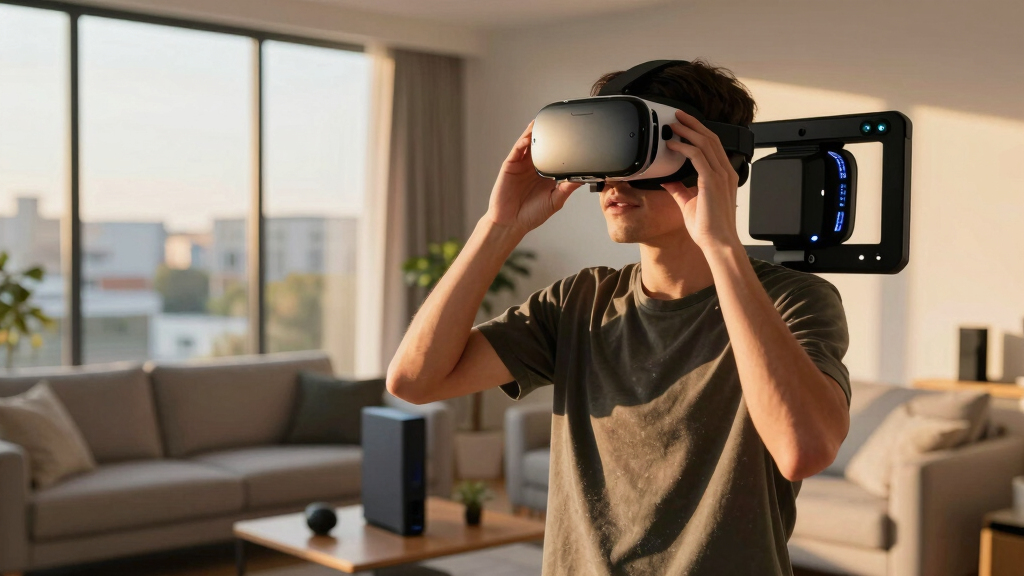
This guide gives you a practical overview of motion comfort on Steam Frame for new PC, Steam, and Steam Deck players. You will learn which settings matter, why some games feel smooth while others feel like a boat ride, and how to build comfort without forcing it.
Steam Frame and SteamVR comfort claims can vary by headset, game version, PC hardware, and Steam Deck support status. Rumors or leaks about future comfort features should be treated as unconfirmed until Valve or the game developer confirms them.
Steam Frame beginner comfort guide
Motion Comfort on Steam Frame: What New VR Users Should Know
Motion comfort is not willpower. It is the match between what your eyes see, what your body feels, how fast the image updates, and how well the headset sits. Start with stable settings, short sessions, and movement modes that keep your stomach out of the negotiation.
Your first great VR session can turn sour in five minutes if the world moves one way and your body feels another.
Treat nausea, eye pressure, cold sweat, or balance confusion as useful feedback. Pause, adjust, and return only when your body feels settled.
Begin with short, clean runs before adding time.
At 90Hz, a new VR image arrives about every 11.1 milliseconds.
Teleport, snap turn, vignette, and slower movement speed.
Do not push through cold sweat, eye pressure, or stomach churn.
What comfort really means
Comfort is a system, not a personality trait.
A smooth VR session happens when visual motion, tracking, headset fit, frame rate, and movement design agree with your body. When those signals clash, discomfort can arrive quickly.
The world should feel stable.
If menus swim, thin lines judder, or the room lurches when your head turns, your eyes have to work harder than they should.
Your inner ear keeps score.
Smooth artificial walking can feel strange because your eyes report movement while your feet report carpet, chair, or floor.
Movement style matters most.
Teleport movement, snap turning, lower speed, and peripheral vignettes are usually the quickest beginner comfort improvements.
Beginner build-up
Build VR legs with calm repetition.
The goal is not to endure a bad feeling. The goal is to teach your body that VR can be predictable, readable, and safe to exit.
Fit first
Set IPD, center the lenses, balance the rear strap, and check menu text before playing.
Low motion
Start with room-scale, seated puzzles, rhythm, painting, or object interaction.
Short run
Play for 10 to 15 minutes, then break before nausea has a chance to peak.
Add gently
Increase by about five minutes only after the last session felt clean.
Stop early
Cold sweat, burping, eye pressure, heat, or sour stomach means pause now.
Movement comfort table
Some movement styles are kinder on day one.
Comfort tags help, but the actual feel depends on headset setup, PC hardware, game version, graphics load, and how the developer handles turning and acceleration.
| Movement style | How it feels | Best for | Beginner comfort | First setting to try |
|---|---|---|---|---|
| Teleport | You blink from one spot to another. | Puzzle games, exploration, story play. | Keep teleport on for the first few sessions. | |
| Room-scale | You physically move inside your play area. | Rhythm, boxing, drawing, object interaction. | Clear your boundary and keep lighting steady. | |
| Snap turning | The view turns in fixed jumps. | Standing play in smaller rooms. | Try 30-degree snaps before smooth turning. | |
| Smooth locomotion | You glide with a stick or touchpad. | Shooters, open worlds, advanced play. | Lower speed and enable a vignette. | |
| Vehicle motion | You sit in a cockpit, car, ship, or mech. | Racing, flight, space sims. | Start seated, short, and avoid aggressive camera shake. |
Check Steam store pages, community notes, age ratings, and current compatibility status before buying for a new or younger player.
Frame rate and latency
Late frames can make the world feel rubbery.
Many comfortable PC VR experiences target 90Hz, but real comfort still depends on hardware, headset resolution, wireless link quality, tracking, and graphics settings.
Comfort pressure by setup factor
At 90Hz, the display gets a fresh image roughly every 11.1 milliseconds. Dropped or late frames can show up as judder, eye strain, or stomach unease.
Steam Deck support, PC GPU load, headset resolution, wireless streaming, and game patches can all change comfort from one setup to another.
Fit and first-aid checks
Before advanced settings, fix the basics.
A crooked headset can turn crisp text into a smeared halo. Fit, lens alignment, and room stability often solve discomfort faster than graphics tinkering.
Center the lenses.
Adjust IPD until text is sharp in the center of each lens. If letters double or shimmer, pause and refit.
Balance the strap.
Tighten the rear strap first, then tune front pressure so the headset feels supported rather than clamped.
Clean the optics.
Use a proper microfiber cloth. Smudged lenses can make your eyes hunt for focus throughout the session.
Stabilize the room.
Keep water nearby, leave a soft lamp on, and return to a stable chair or familiar wall after removing the headset.
Discomfort is information.
Cold sweat, eye pressure, heat in the face, burping, balance wobble, or stomach churn means the session should stop. Rest, adjust settings, and come back later; forcing it can make the headset feel harder to trust next time.
The motion comfort chain
Key Takeaways
- Motion comfort comes from matching visual motion, body position, headset fit, frame rate, and game movement style.
- New VR users should start with 10 to 15 minute sessions and add time only after a clean, comfortable run.
- Teleport movement, snap turning, lower movement speed, and vignette settings are the fastest comfort wins for beginners.
- A 90 Hz target gives a new VR image about every 11.1 milliseconds, but real comfort still depends on PC hardware, game version, and headset setup [1].
- Stop at early warning signs like cold sweat, eye pressure, or stomach churn; do not push through VR nausea.
As an affiliate, we earn on qualifying purchases.
What Motion Comfort Actually Means When You Put the Headset On
Motion Comfort on Steam Frame means how well a VR setup reduces nausea, dizziness, eye strain, and balance confusion while you play. It depends on frame rate, latency, tracking, headset fit, and movement design, not just your tolerance. If the image lurches when your body stays still, your brain notices fast.
Think of VR comfort like walking across a moving train car. Your eyes see motion, your feet feel the floor, and your inner ear tries to referee the argument. When the signals line up, the ride feels steady; when they clash, your stomach may start writing complaints.
A simple example: you load a smooth-locomotion shooter, push the stick forward, and glide across a gray hallway without moving your legs. Your eyes say you are running. Your body says you are standing on the carpet. That mismatch is where many first-session problems begin [2].
Discomfort is not a skill check. It is feedback from your body that a setting, pace, or game style needs adjustment.
As an affiliate, we earn on qualifying purchases.
The Settings That Make VR Feel Steadier Fast
Motion Comfort on Steam Frame improves fastest when you adjust movement, turning, vignette, headset fit, and play length before blaming yourself. Start with comfort-first settings, then loosen them only after your body feels settled. The best setup feels boringly stable, like a clear window rather than a wobbling camera.
- Use teleport movement in your first sessions when a game offers it. Point, click, arrive; your stomach gets fewer mixed messages.
- Turn on snap turning instead of smooth turning. A 30-degree snap can feel cleaner than a slow spin that smears the room around you.
- Add a vignette if available. Darkened edges can reduce the wide, rushing motion that makes your peripheral vision shout.
- Lower movement speed until walking feels controlled. Fast artificial sprinting can feel like sliding across ice in socks.
- Recheck IPD and straps before every longer session. A small lens or fit mistake can turn crisp text into a smeared halo.
Here is a real-world test: open a comfort-friendly SteamVR title, stand still, and turn your head slowly toward a menu. If the text swims, doubles, or feels sticky, pause and adjust fit before you touch any advanced graphics settings.
VR headset face padding replacement
As an affiliate, we earn on qualifying purchases.
As an affiliate, we earn on qualifying purchases.
How to Build Your VR Legs Without Ruining Your Evening
To build VR comfort, use short, repeatable sessions and stop before nausea peaks. Your goal is not to endure a bad feeling; your goal is to teach your body that VR can be predictable. Ten calm minutes today beats one miserable hour that makes you avoid the headset tomorrow.
- Start with 10 to 15 minutes in a low-motion app or room-scale experience.
- Take a 10-minute break before you feel sick, not after.
- Move up by 5 minutes only when the last session felt clean.
- Switch games slowly, especially from teleport movement to smooth walking.
- Stop at the first warning sign: heat in your face, cold sweat, burping, eye pressure, or a sour stomach.
For example, you might play a seated puzzle game on Monday, a room-scale rhythm game on Wednesday, and a slow exploration game on Friday. That pattern gives your brain small, friendly reps instead of tossing it into a spinning roller coaster on day one.
Keep water nearby and leave a soft lamp on in the room. When you remove the headset, a stable chair, familiar wall color, and quiet room can help your body settle back into the real space.
VR motion sickness relief products
As an affiliate, we earn on qualifying purchases.
As an affiliate, we earn on qualifying purchases.
Which Movement Styles Are Friendliest for New Players
Motion Comfort on Steam Frame depends heavily on how a game moves you through space. Teleportation and room-scale movement usually feel easier for new users because your virtual motion happens in clean chunks or matches your real body. Smooth locomotion can feel great later, but it asks more from your balance system.
| Movement style | How it feels | Best for | Beginner comfort |
|---|---|---|---|
| Teleport | You blink from one spot to another. | Puzzle games, exploration, story games. | High |
| Room-scale | You physically walk within your play area. | Rhythm games, boxing, object interaction. | High |
| Snap turning | The view turns in fixed jumps. | Standing play in smaller rooms. | Medium to high |
| Smooth locomotion | You glide with a stick or touchpad. | Shooters, open-world games, advanced play. | Low to medium |
| Vehicle motion | You sit in a cockpit, car, ship, or mech. | Racing, flight, space sims. | Varies widely |
If you are new, begin with a game where your hands do the work and the world stays mostly calm. A bow-and-arrow range, painting app, or rhythm track with clear beats can feel grounded, bright, and readable.
Check the Steam store page, community notes, and age rating before you buy for a younger player. Comfort tags help, but ratings still matter because intense action, horror, or online chat can change the experience even when movement feels fine.
Why Frame Rate and Latency Can Make or Break Comfort
Frame rate and latency matter because VR reacts to tiny head movements at close range. According to Valve’s SteamVR guidance, many comfortable PC VR experiences target 90 Hz, which means a fresh frame about every 11.1 milliseconds [1]. When frames drop or arrive late, the world can feel rubbery.
You may notice this most when you turn your head toward a bright menu, a white wall, or a thin railing. If the scene judders like a skipping record, your eyes work harder to lock on. That extra effort can become pressure behind your eyes or a slow wave in your stomach.
On a desktop PC, close heavy background apps before VR. On Steam Deck or Steam Deck streaming setups, check the game’s current Steam Deck compatibility notes and SteamVR requirements because verified status and performance behavior can change by game version.
Do not treat every performance claim as universal. A game that feels smooth on a high-end PC may struggle on another setup with a different GPU, headset resolution, wireless link, or graphics preset.
The Headset Fit Checks That Save Your Eyes
A headset that fits well can reduce blur, face pressure, and eye strain before any software setting changes. Align the lenses with your pupils, balance the strap weight, and keep the display centered. If the headset sits crooked, even a beautiful VR scene can look like wet paint on glass.
- Set IPD carefully so text looks sharp in the center of each lens.
- Tighten the rear strap first, then adjust the front pressure.
- Keep lenses clean with a proper microfiber cloth, not a shirt sleeve with dust on it.
- Take pressure seriously if your cheeks, brow, or nose feel sore after five minutes.
- Recenter your view after sitting down, standing up, or changing play position.
A good fit should feel firm, not clamped. You should be able to look at a SteamVR menu and read small labels without squinting, tilting your chin, or chasing the sweet spot around the lenses.
If you share the headset, make fit checks part of the handoff. One person’s perfect strap position can be another person’s forehead vise.
How to Choose Your First SteamVR Games Without Guessing
Choose your first SteamVR games by looking for comfort options, slower movement, clear menus, and recent user comments about nausea or performance. Store tags help, but player reports often reveal the gritty details: shaky turning, fast vehicles, tiny text, or frame dips after an update.
A beginner-friendly game usually lets you stand still while interacting with the world. You grab blocks, slice notes, paint in the air, or solve a puzzle on a table. The room feels present and stable, like a stage set waiting for your hands.
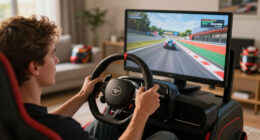
Be careful with cockpit games, horror games, and fast shooters early on. A racing sim can be comfortable for one player because the cockpit gives the brain a stable frame, while the same game may make another player queasy after the first sharp turn.
As an overview, the important aspects of a first purchase are comfort settings, hardware fit, and your own session plan. Those points are relevant for new VR users along with common questions readers tend to ask before buying: “Can I teleport?”, “Can I reduce turning speed?”, and “Can I play seated?”
What To Do the Moment VR Starts Feeling Wrong
When VR starts feeling wrong, stop playing, remove the headset, sit down, and let your eyes focus on a fixed real-world object. Pushing through nausea usually makes recovery slower. A calm reset works better than trying to win one more round while your body is already waving a red flag.
- Pause immediately and avoid sudden head turns.
- Remove the headset slowly so the room does not snap into view.
- Sit near fresh air or open a window if the room feels warm.
- Drink water and wait until your stomach feels normal again.
- Change one setting before the next session, such as turning on teleport or snap turning.
Imagine you are halfway through a space game and the stars start sliding sideways in a way that feels syrupy. That is your cue to quit the session cleanly. You can always return later with slower movement and a steadier frame rate.
If symptoms are strong, frequent, or last long after play, talk to a medical professional before more VR sessions. VR should feel exciting, not like a test of how much discomfort you can absorb.
Frequently Asked Questions
What causes motion sickness in SteamVR?
VR motion sickness often comes from a mismatch between what your eyes see and what your inner ear feels [2]. If your view glides forward while your body stands still, your brain gets mixed signals. Low frame rate, latency, blurry fit, and fast smooth turning can make that mismatch sharper.
Is teleport movement better for new VR users?
Teleport movement is usually better for new VR users because it reduces continuous artificial motion. You point to a spot, jump there, and avoid the long sliding feeling that can upset your balance. It may feel less realistic, but it often makes early sessions much more comfortable.
How long should my first Steam Frame VR session be?
Start with 10 to 15 minutes, then take a real break. If you feel fine afterward, add about 5 minutes next time. If you feel warm, dizzy, sweaty, or queasy, shorten the next session and choose gentler movement settings.
Does Steam Deck Verified mean a VR game will be comfortable?
No. Steam Deck Verified status can speak to Steam Deck playability, controls, text, or performance for that platform, but VR comfort depends on headset setup, SteamVR behavior, movement design, and frame stability. Always check the current game version, headset requirements, and recent player comments.
Should kids use the same comfort settings as adults?
No single setting fits every player, especially younger users. Check the game’s age rating, comfort options, and play length before letting a child use VR. Short sessions, seated play, and low-motion apps are the safer starting point.
Conclusion
The best thing you can do for motion comfort is treat VR like a new sport: warm up, adjust the gear, start small, and listen when your body gives you feedback.
Get the fit right, pick gentle movement, and quit while the room still feels steady. That is how your first Steam Frame sessions become something you want to return to, not something you recover from.
Fall Picks
fall essentials
As an affiliate, we earn on qualifying purchases.