
TL;DR
A hands-on XDA Developers report describes using Batocera to turn an older PC into a retro gaming system that starts in EmulationStation. It can be tested from a USB drive before installation, but installing it to an internal disk erases that disk, and performance depends on the games and hardware.
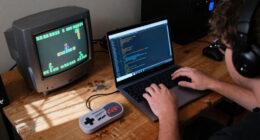
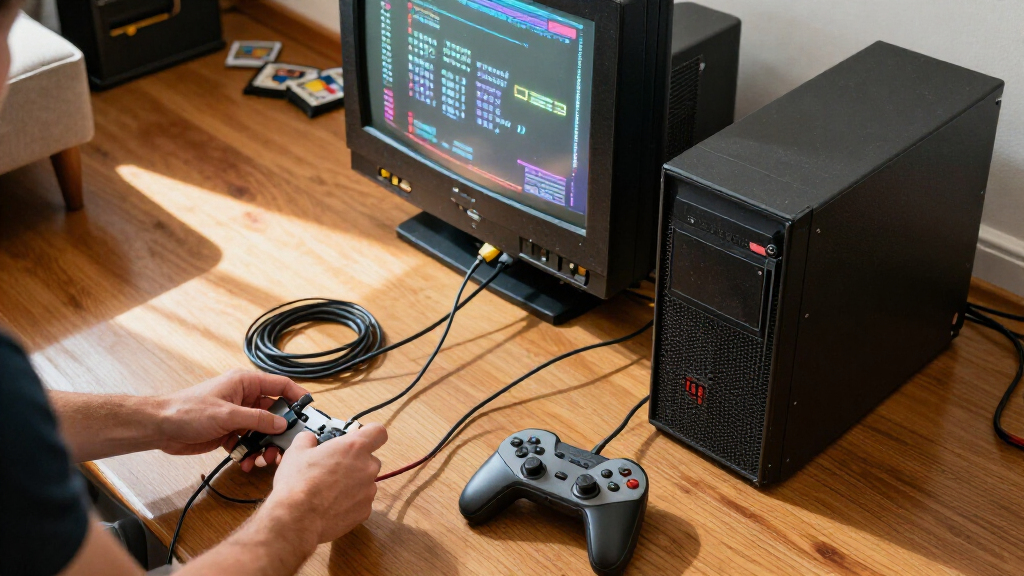
Batocera can turn an old PC into a dedicated retro gaming system that starts in EmulationStation, letting users browse and launch games with a controller rather than entering a regular desktop first. In a hands-on report published Nov. 8, XDA Developers describes testing the operating system from a USB drive and installing it on a PC’s internal storage for a console-style setup.

Play games on Amazon Luna for your game nights, included with Prime
- A rotating selection of games, no download needed
- Play on TV, laptop or phone
- Fast, free delivery for your gear, too
Batocera bundles emulators and presents games in one library through EmulationStation. Selecting a title launches the relevant emulator, while shared controller mappings can reduce the need to configure buttons separately for each system. The interface can display game artwork, descriptions and video previews; an All Games collection lets players browse across systems without selecting a console category first.
The report recommends trying Batocera from a USB drive before installing it permanently. For most Intel and AMD computers, the relevant release is the x86_64 image. The described process uses Raspberry Pi Imager to write the downloaded image to a USB drive, then starts the PC from that drive through its boot menu. Batocera’s first startup expands its data partition.
A permanent installation is available through Batocera’s System Settings. The report warns that installing to an internal drive wipes the selected destination, including an existing operating system and personal files. It also says the installer downloads a fresh image rather than copying the USB setup, so users need to add their game library again after installation. Batocera requires at least 32GB of storage for full functionality, with additional room needed for games.
Turn an old PC into a retro console
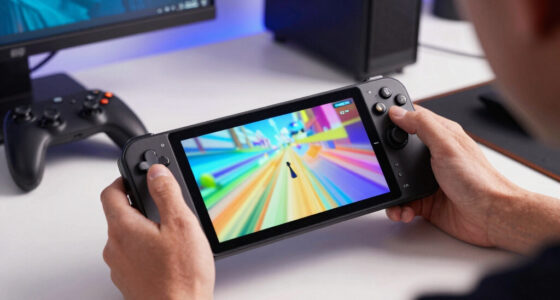
Batocera boots into a controller-friendly game library. Try it from USB first to see how your games run on your PC.
A console-style experience
Browse and launch games with a controller instead of starting at a desktop.
Games in one place
EmulationStation brings systems together, with artwork, descriptions and video previews.
Ready for the couch
Shared controller mappings can reduce setup across systems; a keyboard helps with setup and troubleshooting.
Quick returns
Supported emulators offer save states, and Hotkey + Start can return to the library.
Test before installing
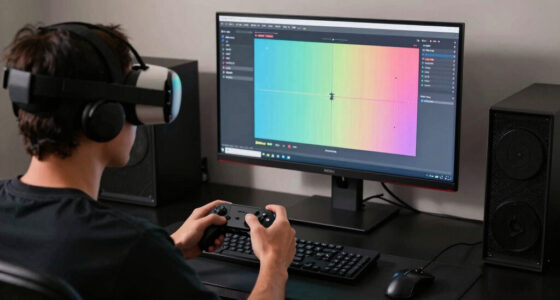
Boot from USB to check the games, controller and hardware before changing the internal drive.
Use the x86_64 image for most Intel and AMD computers and write it to a USB drive.
Start from the USB through the PC boot menu and test the systems you want to play.
Install from System Settings only after checking the target drive and backing up files.
Performance depends on the game
An older PC may handle classic systems while struggling with more demanding ones.
- NES, Mega Drive and SNES are relatively easy to emulate.
- Cartridge-era games generally use less storage than disc images.
- GameCube and PlayStation 2 need more processing power.
- Higher rendering resolutions add load; results vary by game and PC.
A Couch-Friendly Use for Older PCs
For people with an unused computer and a TV, Batocera offers a way to give that hardware a single-purpose gaming role without building a separate console. Its controller-oriented interface can make browsing, launching and switching games feel closer to using a dedicated living-room system than managing emulators from a desktop.
The convenience depends on matching expectations to the machine. The report says older systems such as NES, Mega Drive and SNES are relatively easy to emulate, while GameCube and PlayStation 2 titles demand more processing power. Higher rendering resolutions add further load. The approach can reuse existing hardware, but it does not make every older PC capable of running every system smoothly.
Batocera also includes features that suit short play sessions. Supported emulators can use save states, and the report describes returning to the library with Hotkey + Start in supported emulators. Users can shut down from the Batocera menu with a controller, although a keyboard remains useful for initial setup and troubleshooting.
Popular right now

TCL 55-Inch T7 Series 4K QLED Smart Google TV, 55T7

Sony WH-1000XM6 Wireless Noise-Canceling Headphones, Black

KitchenAid 5.5-Quart Bowl-Lift Stand Mixer, Porcelain White
As an affiliate, we earn on qualifying purchases.
Testing Before Replacing Windows
The XDA report frames Batocera as both a live test and a possible permanent operating system. Running it from USB lets an owner check whether the PC works for the games they want before changing the internal drive. That matters because a computer’s age alone does not determine compatibility: emulation demands vary by console, and the chosen resolution can affect performance.
Startup may require adjusting firmware settings. If Secure Boot blocks the USB drive, the report says users can enroll Batocera’s signing key or disable Secure Boot. Anyone keeping an encrypted Windows installation should have the BitLocker recovery key available before changing those settings. These steps can vary by PC, so the report does not establish a universal setup path for every machine.
Game storage needs also vary. Cartridge-era titles generally take less space than disc images, which can fill a drive more quickly. The author reports that their system had ample storage and a capable Ryzen 5 processor, and that they encountered few issues. That is an account of one setup, not a performance test applicable to all PCs.
““I can sit down with a controller, find something to play, and stay on the couch for the rest of the session.””
— XDA Developers report
Performance Depends on Each PC
The report does not provide benchmark results, a tested list of PC models or measured frame rates. Its account of a Ryzen 5 system is one user’s experience; it does not establish how a different processor, graphics hardware or memory configuration will perform. In particular, results for GameCube and PlayStation 2 emulation may vary by game and machine.
It is also not clear from the report how much storage a particular library will need beyond Batocera’s 32GB minimum for full functionality. Disc images can be larger than cartridge-based games, but no total library size or additional space estimate is given. The report does not claim that every controller or emulator supports each feature it describes.
Users should also verify that they have backups and understand which drive they selected before starting a permanent install. The reported installation process erases the destination, and firmware menus differ across PCs. No broader compatibility survey or independent performance measurements accompany the hands-on account.
Check the Games Before Installing
The practical next step is to identify the games and systems an owner wants to play, then test Batocera from USB on the intended PC. The XDA report’s approach avoids committing to an internal-drive installation before checking whether the hardware suits that library. Users should also confirm that the USB boots, their controller works and they have enough storage for both the operating system and games.
Anyone choosing a permanent setup should back up personal files, confirm the target disk and keep any needed Windows recovery information at hand. After installing, they will need to rebuild or add the game library because the internal installation uses a fresh image rather than transferring the USB setup. The report does not give a schedule for future Batocera releases or announce a new software update; its immediate takeaway is a setup method readers can try with their own hardware.
Key Questions
What does Batocera do on an old PC?
Batocera boots into EmulationStation, a controller-friendly interface for browsing a game library and launching games through supported emulators.
Can I test Batocera without installing it on the internal drive?
Yes. The report describes writing the x86_64 image to a USB drive and booting the PC from it before deciding whether to install Batocera internally.
Will an older PC run GameCube or PlayStation 2 games?
Not necessarily. The report says those systems require more processing power than older consoles such as NES, Mega Drive and SNES. Performance depends on the PC, game and rendering resolution.
Does installing Batocera erase my files?
Installing to an internal drive wipes the selected destination, including its operating system and personal files. Back up important data and verify the selected drive before proceeding.
How much storage does Batocera need?
The report gives 32GB as the minimum for full functionality, with more space needed for games. Disc images can take substantially more room than cartridge-based games, and the amount depends on the library.
Source: XDA Developers