
TL;DR

Play games on Amazon Luna for your game nights, included with Prime
- A rotating selection of games, no download needed
- Play on TV, laptop or phone
- Fast, free delivery for your gear, too
Mesh Wi-Fi uses a main router plus linked nodes to spread one wireless network across a home, which helps gaming most when distance, walls, or floors cause weak signal. For PC, Steam, and Steam Deck players, the biggest wins come from smart node placement, wired backhaul, Ethernet ports, and QoS settings that keep game traffic from fighting every stream and download.
Your ping can feel perfect in the office and turn rubbery ten feet later on the couch. Same internet plan. Same game. Same night. The only thing that changed is the path your signal takes through walls, floors, furniture, and a living room full of phones.
This guide explains mesh Wi-Fi for gaming homes in plain English, with PC, Steam, and Steam Deck players in mind. You will learn when mesh helps, when Ethernet still wins, which features matter, and how to place nodes so your connection feels less like a flickering candle and more like a clean wired line.
Mesh Wi-Fi Explained for Gaming Homes
TL;DR: Mesh Wi-Fi uses a main router plus linked nodes to spread one wireless network across a home. It helps gaming most when distance, walls, floors, or awkward router placement make the signal weak, but Ethernet and wired backhaul still decide how clean the route feels.
Your ping can feel perfect in the office and turn rubbery ten feet later on the couch.
Wired Backhaul
Ethernet between nodes keeps mesh traffic off the same wireless lane used by your PC, Steam Deck, streams, and calls.
2-3 Nodes
Most gaming homes need enough coverage to shorten the path, not a node in every room.
Square feet depending on node count and layout.
Possible locally with clean placement and strong links.
Common range for quality mesh systems.
Use Ethernet for PCs, docks, and busy nodes when possible.
One Network, Shorter Wireless Jumps
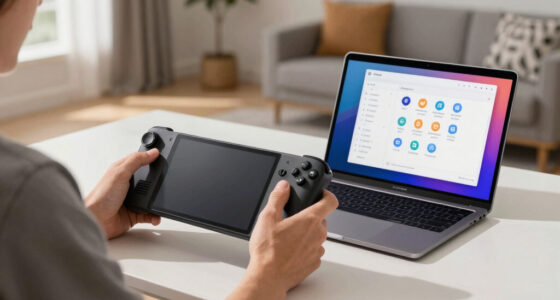
A traditional router shouts from one corner of the house. A mesh setup passes the signal through linked nodes, so your upstairs PC, living-room Steam Deck, and couch Remote Play session can stay on the same network name with fewer weak-room surprises.
Dead Zones Shrink
A node near the den, office, or upstairs hallway gives gaming devices a cleaner hop than dragging signal through appliances, walls, and floors.
Fewer Spikes
The win is not just download speed. Gaming feels better when jitter, packet loss, and voice-chat dropouts stop ambushing every match.
Apps Reveal the Culprit
Modern mesh apps help spot the mystery laptop pulling a giant Steam download while someone else is trying to hold a clean lobby.
When Mesh Beats One Router
Mesh helps most when the problem is weak signal caused by distance, thick walls, floors, or router placement. It does not make your ISP faster or move a remote game server closer.
| Setup | Best Fit | Gaming Strength | Tradeoff | Verdict |
|---|---|---|---|---|
| Single Router | Small homes, open apartments, gaming near the router | ✓ Fast and simple | ✗ Weak rooms stay weak | Good when your PC is close and walls are friendly. |
| Mesh, Wireless Backhaul | Medium homes, rental spaces, rooms where cable is messy | ~ Better coverage | ~ Each wireless hop can add delay | Great for coverage, decent for gaming if nodes have strong links. |
| Mesh, Wired Backhaul | Multi-story homes, serious PC setups, Steam Deck docks near nodes | ✓ Best mesh stability | ~ Requires Ethernet between nodes | Best mesh choice for gaming rooms. |
The Hidden Lane That Makes or Breaks Ping
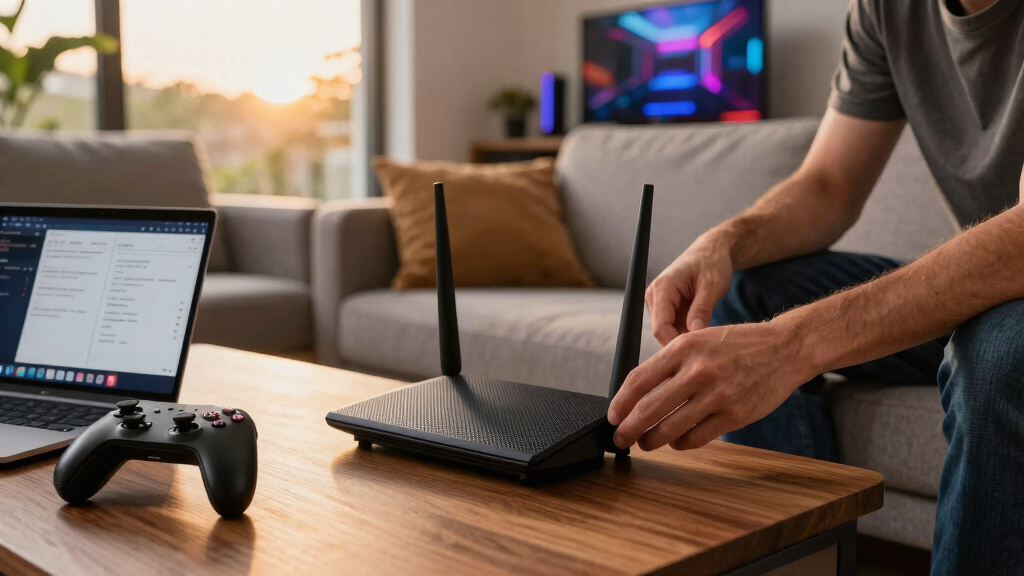
Backhaul is the link carrying traffic between mesh nodes. If it is wireless, node traffic shares airtime with phones, streams, controller updates, Discord, and game packets. If it is wired, your mesh has a stable lane behind the scenes.
Device
Your PC, Steam Deck, console, or dock sends game traffic to the nearest access point.
Node
The node must have a strong path back. A weak node only creates prettier signal bars.
Backhaul
Ethernet backhaul keeps packets off the crowded wireless lane whenever possible.
Router
The router sends traffic out to the internet, where server distance and ISP routing still matter.
Plain Rule
A mesh can only feel as fast as the path between its nodes. Wire the nodes that feed your busiest gaming spots, then use wireless mesh where cable is ugly or impossible.
What PC and Steam Deck Players Should Care About
The best gaming features are not just bigger speed numbers. Look for ports, traffic priority, newer Wi-Fi standards, clear app controls, and security updates that keep gaming accounts and devices protected.
Latency Feel: What to Test After Moving Nodes
Set Up Nodes So Lag Does Not Follow You
Place nodes for clean paths, not perfect symmetry. Every gaming device needs a strong link to the nearest node, and every node needs a strong path back to the router.
Open Router
Keep the main router on a desk or shelf, not buried in a cabinet.
Halfway Node
Place the first node between the router and problem room.
Wire Busy Rooms
Use Ethernet for the node feeding your PC or Steam Deck dock.
Test Ping
Watch jitter, packet loss, voice chat, and Remote Play feel.
Move Once
Shift one node a few feet, test again, then lock the stable setup.
The Gaming-Home Mesh Checklist
Mesh Wi-Fi is strongest when it solves the real local problem: weak coverage across rooms. It cannot fix a bad ISP route, overloaded game server, or slow plan, but it can make your home network stop being the bottleneck.
Use mesh when walls, floors, distance, or awkward router placement make gaming rooms unreliable.
Wired backhaul is the strongest mesh upgrade because it keeps node traffic off crowded Wi-Fi airtime.
Plug PCs, consoles, and Steam Deck docks into Ethernet when possible; let mesh handle handheld play and cable-hostile rooms.
Wi-Fi 6 and 6E help crowded homes, but ping, jitter, and packet loss tell you more than download speed alone.
Key Takeaways
- Mesh Wi-Fi helps gaming homes most when weak signal comes from distance, walls, floors, or awkward router placement.
- Wired backhaul is the strongest mesh upgrade for gaming because it keeps node traffic off the same wireless lane used by your devices.
- PCs and Steam Deck docks should use Ethernet when possible, while mesh covers handheld play, Remote Play, streaming, and rooms where cable is impractical.
- Wi-Fi 6 and Wi-Fi 6E help crowded homes, but they do not fix remote server lag, a slow ISP line, or game-side issues.
- Test ping, jitter, and packet loss after moving nodes, because download speed alone will not tell you how a match feels.
mesh Wi-Fi router for gaming homes
As an affiliate, we earn on qualifying purchases.
As an affiliate, we earn on qualifying purchases.
What Mesh Wi-Fi Gives Your Gaming Home
Mesh Wi-Fi Explained for Gaming Homes starts with this: mesh Wi-Fi is one network built from a main router and smaller nodes that talk to each other. Mesh Wi-Fi systems consist of multiple interconnected points, so your PC upstairs and Steam Deck on the couch can stay on the same network name.
If someone asks what is mesh Wi-Fi during a game night, say it is a team instead of one loud box. A traditional router shouts from one corner of the house. A mesh setup passes the signal from room to room, like players calling positions across a map.
Picture a router in the laundry room and a Steam Deck in the den. Without mesh, the signal may drag itself through two walls, a refrigerator, and a hallway before it reaches your hands. With a node on the bookshelf near the den, the Deck has a shorter, cleaner jump.
The win is coverage. A bedroom that used to show one shaky bar may get a cleaner link from a nearby node, which can reduce stutter during Remote Play, cloud saves, Discord calls, and multiplayer sessions. The rich green Steam download bar stops pulsing like it is gasping for air.
Ethernet backhaul mesh Wi-Fi system
As an affiliate, we earn on qualifying purchases.
As an affiliate, we earn on qualifying purchases.
When Mesh Beats One Router on Game Night
Mesh Wi-Fi Explained for Gaming Homes helps most when distance, floors, and thick walls make your signal wobble. A single router can work in a small apartment, but a mesh kit spreads coverage across roughly 2,000 to 6,000 square feet, depending on node count and layout [1].
| Setup | Best fit | Gaming tradeoff |
|---|---|---|
| Single router | Small homes, open apartments, gaming near the router | Fast and simple, but weak rooms stay weak |
| Mesh with wireless backhaul | Medium homes, rental spaces, rooms where cable is messy | Better coverage, but each wireless hop can add delay |
| Mesh with wired backhaul | Multi-story homes, serious PC setups, Steam Deck docks near nodes | Best mesh stability, but you need Ethernet between nodes |
Here is a real scene: your router sits beside the modem in a front hallway, while your gaming PC lives above the garage. One router has to punch through insulation, pipes, and a floor. A mesh node halfway up the stairs can give that PC a cleaner route, and a wired node can do even better.
Another common setup is the couch co-op house: the main TV streams 4K, someone is downloading a Steam sale haul upstairs, and a Steam Deck is using Remote Play from the sofa. Mesh will not make the internet plan bigger, but it can keep the sofa from being the weakest room in the chain.
As an affiliate, we earn on qualifying purchases.
Why Backhaul Makes or Breaks Your Ping
Backhaul is the link that carries traffic between mesh nodes, and it decides whether your low bars become smooth play or just prettier signal icons. Wired Ethernet backhaul gives nodes a stable lane, while wireless backhaul shares airtime with your controller updates, Discord call, and game packets.
Think of backhaul like the hallway behind a restaurant kitchen. Diners only see plates arriving, but the kitchen falls apart if servers squeeze through one narrow door. Wireless backhaul can work well, yet every extra hop adds another place for packets to wait.
Best rule: wire the nodes that feed your main gaming spots, then use wireless mesh for rooms where cable would be ugly or impossible.
Plain version: a mesh can only feel as fast as the path between its nodes. In best-case indoor setups, a well-configured mesh can keep local Wi-Fi latency under 20 ms, but that does not move the game server closer or fix a bad ISP route [1].
For example, a PC plugged into a bedroom node may look wired, but if that node whispers wirelessly through two walls to reach the router, your packets still wait in that wireless line. Run Ethernet from the router to that node, and the same PC suddenly has a much cleaner road back out of the house.
As an affiliate, we earn on qualifying purchases.
The Features PC and Steam Deck Players Should Care About
The best features for gaming are Ethernet ports, QoS, Wi-Fi 6 or Wi-Fi 6E, and app controls that show which device is using bandwidth. According to Wi-Fi Alliance guidance, Wi-Fi 6 improves efficiency when many devices crowd the same network, which helps busy homes more than empty ones [2].
- Ethernet ports: Plug a PC, console, or Steam Deck dock into the nearest node. If that node has wired backhaul, the link can feel close to a direct router connection inside the house.
- QoS settings: Give game traffic priority when someone starts a 4K stream or a giant download. Wi-Fi for gaming is often about fewer spikes, not a bigger number on the box.
- Wi-Fi 6 or 6E: Pick newer standards when your home has many phones, laptops, smart TVs, handhelds, and smart devices. Wi-Fi 6E can use 6 GHz on supported hardware.
- Clear app tools: A good app shows which device is eating bandwidth. The mystery laptop downloading 120 GB at midnight becomes very easy to spot.
- Security updates: Gaming accounts are valuable. Use WPA3 when your devices support it, keep firmware current, and retire ancient extenders that no longer get fixes.
Think of a Friday night stack: one person is in Counter-Strike, one is watching a movie, one is on a video call, and the Steam Deck is pulling updates on the dock. Ethernet ports give the serious machines a fixed lane, QoS tells the router which traffic should not be shoved to the back, and the app helps you spot the download that is quietly eating the room.
The important aspects of mesh are not just speed labels. A shiny gigabit claim means little if your gaming PC connects through two wireless hops and a node hidden behind a fish tank, bookshelf, and brick fireplace.
Set Up Your Nodes So Lag Does Not Follow You
Mesh Wi-Fi Explained for Gaming Homes gets practical when you place nodes for clean paths, not just equal spacing. Your goal is to give every gaming device a strong signal to the nearest node and give every node a strong path back to the router, preferably through Ethernet.
- Start with the main router in the open. Put it on a shelf or desk, not inside a cabinet beside a warm stack of plastic boxes.
- Place the first node halfway to the problem room. Do not hide it in the dead zone. It needs a good signal to repeat or pass along.
- Wire the busiest node if you can. A $10 Ethernet cable can beat a fancy wireless hop when your PC lives in the same room.
- Test ping, not just download speed. Run a few matches or a long Remote Play session. Watch for jitter, packet loss, and voice chat dropouts.
- Move one thing at a time. Shift a node three feet, test again, then stop when the connection stays steady.
One simple example: a Steam Deck on the sofa may connect better when the living room node sits high on a sideboard instead of low behind the TV. Less glass. Less metal. Fewer reflections bouncing around the room.
Another example: if the upstairs office drops Discord every time someone closes the bedroom door, do not put the node inside that office first. Put it in the hallway where it still hears the router clearly, then let it feed the office from a stronger middle position.
What Steam Deck Owners Should Check First
Steam Deck players should check the device, game, and network before blaming mesh Wi-Fi, because lag can come from several places at once. Steam Deck LCD uses Wi-Fi 5, while Steam Deck OLED supports Wi-Fi 6E where your region and router allow it, so hardware changes the ceiling.
For performance claims, match the platform and version. A Remote Play report from a Windows desktop on Ethernet does not equal a Steam Deck LCD over 5 GHz in a back bedroom. A SteamOS update, Proton version, or game patch can change the feel even when your Wi-Fi graph looks calm.
A good test is boring but useful: play the same Remote Play session three ways, first on the Deck near the router, then on the sofa, then docked with Ethernet if you have the hardware. If only the sofa run stutters, placement or mesh coverage is probably the problem. If all three stutter, look at the host PC, game settings, or internet route next.
Treat leaked router benchmarks, rumored firmware dates, and claimed Steam Deck Verified changes as unconfirmed until the vendor or Valve posts them. Network gear also has no age rating. Games do, so use ESRB or PEGI ratings and platform family controls when younger players share the setup.
What You Spend, Save, and Still Need to Wire
A good gaming mesh usually costs more than a basic router, but it can save you from dead zones, messy extenders, and nightly cable runs across the hallway. Strong kits often sit around $150 to $400, and many homes finish setup in under 30 minutes through an app [1].
The tradeoff is simple. Mesh buys coverage and convenience. Ethernet buys consistency. If your main PC plays ranked shooters every night, wire that machine if you can and let mesh serve the Steam Deck, phone, tablet, and living room TV.
For a three-bedroom home, two nodes may be enough: one near the modem and one near the upstairs landing. For a long house with a garage office, three nodes may make more sense. More nodes are not always better, because crowded placement can create extra handoffs and noise.
Here is the spending decision in human terms: do not buy a four-node kit because the box looks powerful if two rooms are the only trouble spots. Spend on the kit that lets you wire the office node, then use the extra budget for a decent switch, a longer Ethernet cable, or a Steam Deck dock with a reliable LAN port.
Use This 30-Second Buying Check
You should choose mesh when your problem is coverage, not when your problem is a bad ISP plan, overloaded game server, or distant matchmaking region. If your ping spikes only in one bedroom or on the patio, mesh can help; if every wired device lags, call your provider before buying hardware.
- Buy mesh if your home has dead zones, multiple floors, thick walls, or gaming spots far from the router.
- Pay for wired backhaul support if you can run Ethernet to the rooms where gaming matters most.
- Pick Wi-Fi 6 or 6E if your household has many devices or a Steam Deck OLED that can use 6E.
- Keep one device wired for testing, because it tells you whether lag comes from Wi-Fi or the internet line.
- Skip extra nodes when one small apartment router already gives strong signal everywhere.
Use this quick gut check: if your laptop shows full bars beside the router but your Steam Deck drops Remote Play in the basement, mesh is a reasonable fix. If the wired PC beside the router also lags during every match, the problem is probably upstream of Wi-Fi.
The cleanest gaming network has layers: Ethernet for the serious station, mesh for the places you actually relax, and enough app visibility to catch a runaway download before it ruins a match.
Frequently Asked Questions
Is mesh Wi-Fi better than a normal router for gaming?
Mesh Wi-Fi is better when your gaming spots sit far from the router or behind thick walls. A single strong router can still win in a small apartment where every device already gets full signal.
Will mesh Wi-Fi lower my ping?
Mesh Wi-Fi can lower lag caused by weak wireless signal, jitter, or dropouts inside your home. It will not lower ping caused by a distant game server, bad ISP routing, or overloaded matchmaking.
How many mesh nodes do I need for a gaming home?
Most homes start well with 2 to 3 nodes. Use fewer nodes when rooms are close together, and add one only when testing shows a real dead zone or unstable gaming spot.
Do I need Wi-Fi 6E for Steam Deck gaming?
You do not need Wi-Fi 6E for every Steam Deck setup. Steam Deck OLED can use Wi-Fi 6E where supported, but Steam Deck LCD uses Wi-Fi 5, so placement, backhaul, and Ethernet often matter more than chasing a new label.
Should I plug my gaming PC into a mesh node?
Yes, if the node has a strong path back to the router, and even better if that path uses wired backhaul. If the node talks wirelessly through a weak link, plugging into it may look wired while still acting like shaky Wi-Fi.
Conclusion
Remember this: mesh Wi-Fi is a coverage tool first and a speed tool second. Use it to bring a steadier signal to the rooms where you actually play, then wire the devices where every millisecond matters.
When the setup is right, the house gets quieter. No angry red bars, no hallway cable traps, no frozen Steam Deck stream mid-boss fight. Just a clean signal moving through the walls while you play.
Fall Picks
fall essentials
As an affiliate, we earn on qualifying purchases.