
TL;DR

Play games on Amazon Luna for your game nights, included with Prime
- A rotating selection of games, no download needed
- Play on TV, laptop or phone
- Fast, free delivery for your gear, too
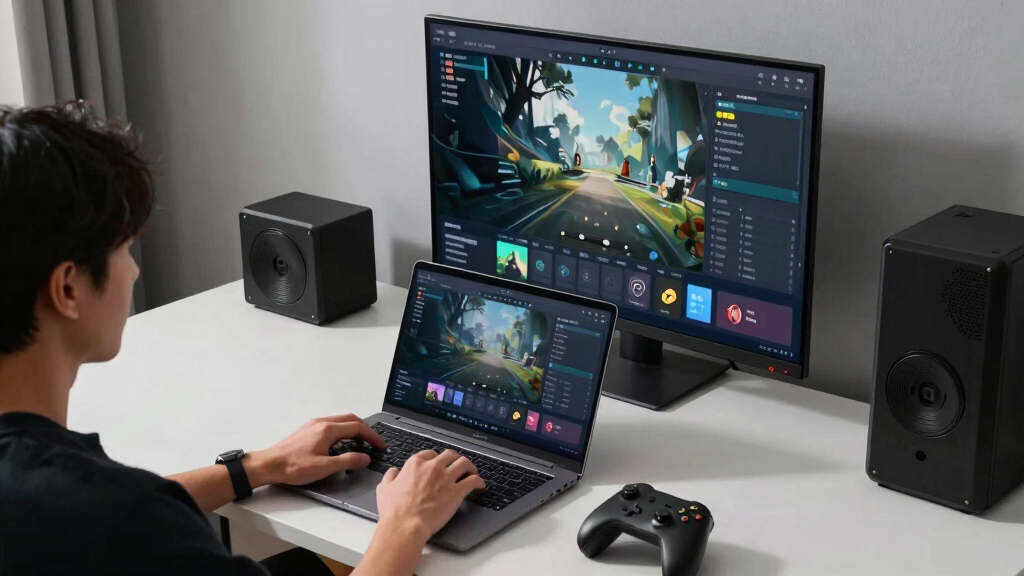
Steam Link is Valve’s free way to stream games from your gaming PC to another screen, such as a TV, phone, tablet, laptop, Raspberry Pi, or supported smart TV. Your PC runs the game, Steam Link shows the video and sends your controller input back, so network quality matters as much as graphics power. Use wired Ethernet or strong 5GHz Wi-Fi for the smoothest couch-to-PC setup.
Your gaming PC can sit humming under a desk while the game shows up across the house on a TV, tablet, phone, or Steam Deck. No hauling a tower into the living room. No long HDMI cable snaking across the floor.
This guide explains what Steam Link does, what it needs, and why your router can matter more than your GPU once streaming starts. You will also see when Steam Link feels silky, when it feels mushy, and how to fix the usual lag.
Think of it like a long HDMI cable made of Wi-Fi or Ethernet. Great when the signal is clean. Annoying when the connection coughs, stutters, and drops frames right as you press jump.
Games on Every Screen, Powered by the PC You Already Own
Steam Link is Valve’s free way to stream PC games to a TV, phone, tablet, laptop, Raspberry Pi, Steam Deck, or supported smart TV. Your gaming PC still runs the game. The other screen receives video, plays audio, and sends your controller input back, so network quality can matter as much as graphics power once streaming starts.
Think of it like a long HDMI cable made of Ethernet or Wi-Fi.
Great when the signal is clean. Mushy when the connection coughs.60fps-style play is realistic with Ethernet or strong 5GHz Wi-Fi.
The app replaced the original dedicated Steam Link box for most players.
Valve released Steam Link as a small HDMI receiver.
The box was discontinued as the app became the main path.
The computer renders the game and encodes the video stream.
Use strong Wi-Fi or Ethernet for the smoothest local play.
Outside-home play depends heavily on home upload and latency.
Your PC plays. The other screen watches and talks back.
Steam Link is not cloud gaming. It streams your own Steam session from a gaming PC to another device. The receiver displays the live feed, plays audio, and returns input from a controller, keyboard, mouse, or touch controls.
The engine room
Windows, macOS, or Linux runs Steam, launches the game, renders frames, and encodes video before sending it across the network.
The receiver
A phone, tablet, laptop, Raspberry Pi, supported TV, Steam Deck, or old Steam Link box decodes the stream and shows the result.
The return trip
Your button presses travel back to the PC. That round trip creates latency, which matters most in shooters, rhythm games, and ranked play.
How a button press becomes motion on the couch TV.
The whole experience is a live broadcast inside your home: the PC is the studio, the router is the control room, and the receiving device is the screen where the show lands.
Render
The host PC runs the game and draws every frame.
Encode
Steam turns the game into a live video and audio stream.
Transmit
Ethernet or Wi-Fi carries the stream across your network.
Decode
The app or receiver turns the stream back into picture and sound.
Return
Your controller input travels back to the PC for the next frame.
Local streaming feels controlled. Remote Play feels conditional.
Steam Link is usually best inside your home, where your own router controls most of the path. Steam Remote Play can work over the internet, but hotel Wi-Fi, upload speed, and wider internet routing make it less predictable.
| Use Case | Best Fit | What You Feel | Example | Verdict |
|---|---|---|---|---|
| Living-room TV | Local Steam Link | Low delay with Ethernet or strong 5GHz Wi-Fi | Your PC is upstairs, but Elden Ring lands on the couch TV. | ✓Smooth target |
| Tablet in bed | Local Steam Link | Good if bedroom Wi-Fi is strong | A slower RPG works well under a lamp with headphones. | ✓Good fit |
| Hotel laptop | Remote Play | Depends on public Wi-Fi and home upload speed | You check a save file while traveling. | ~Variable |
| Ranked shooter | Local PC play | Any delay can hurt aim and timing | You skip streaming for competitive matches. | ✗Avoid |
Your router can matter more than your GPU.
Once the game is rendering, streaming quality depends on how cleanly frames and inputs move through the network. A wired host PC removes one shaky wireless hop; 5GHz Wi-Fi keeps the client fast at short range.
Connection confidence
Latency feel spectrum
Strategy and RPGs tolerate small delays. Twitch shooters, rhythm games, and precision platformers expose them immediately.
Fix the signal path before you blame the app.
Most mushy Steam Link sessions come from weak Wi-Fi, crowded 2.4GHz channels, overloaded routers, Bluetooth interference, or bitrate settings that ask too much from the connection.
Wire the host PC
Ethernet on the gaming PC removes a major source of jitter and keeps encoding, sending, and input return more stable.
Use 5GHz for the client
Short-range 5GHz Wi-Fi is usually faster and less crowded than 2.4GHz, especially for video streaming.
Lower the bitrate
A clean 1080p stream often feels better than a sharper stream that stutters right as you press jump.
Test a second game
Shader compilation or a rough PC port can look like streaming trouble. Confirm the stream with another title before rebuilding everything.
From desktop tower to every screen in the house.
The practical formula is simple: keep the game on the strongest machine, keep the network clean, and choose games that forgive the tiny round trip between input and image.
Key Takeaways
- Steam Link streams video from your gaming PC and sends your inputs back; it does not run the game on the TV, phone, or tablet.
- A wired host PC plus 5GHz Wi-Fi or Ethernet on the client gives you the best shot at smooth 1080p, 60fps-style play.
- Steam Remote Play can work outside your home, but internet latency and home upload speed make it less predictable than local streaming.
- Steam Deck Verified status and age ratings belong to the game and platform context; Steam Link does not change either one.
- Use Steam Link for couch play, slower games, and flexible screens; use local PC play for ranked shooters, rhythm games, and anything that punishes delay.
As an affiliate, we earn on qualifying purchases.
What Steam Link Actually Gives You
Steam Link Explained for Players Who Want Games on Every Screen is the short version: your gaming PC does the hard work, and another device shows the result. The Steam Link app or hardware receiver displays your game, plays the audio, and sends your controller, mouse, or touch input back to the PC.
Valve originally sold Steam Link as a small HDMI box in 2015, then discontinued the hardware in 2018 as the app became the main path [2]. Today, you usually install the free app on a phone, tablet, TV device, Raspberry Pi, or supported smart TV.
A real example: you start Hades II on your desktop, walk to the couch, open Steam Link on a living-room TV, and keep playing with an Xbox controller. The PC still renders the sparks, shadows, and frantic dashes. The TV just receives the stream.
Steam Link is not cloud gaming. Your own PC runs the game, so your library, hardware, network, and Steam account do the heavy lifting.
As an affiliate, we earn on qualifying purchases.
How the Game Travels From Your PC to Another Screen
Steam Link Explained for Players Who Want Games on Every Screen works by turning your game into a live video feed. Your PC renders each frame, encodes it, sends it across your network, and the receiving device decodes it while firing your button presses back the other way [1].
The easiest analogy is a tiny live broadcast inside your home. Your PC is the studio, your router is the control room, and your phone or TV is the screen where the show lands. Press a trigger and the signal zips back with a tap, click, or soft thump.
That round trip creates latency, which is the delay between pressing a button and seeing the result. In a slow strategy game, a little delay barely matters. In a twitchy shooter, the same delay can feel like playing through wet cardboard.
For performance claims, name the setup. A wired Windows gaming PC streaming to the Steam Link app on an Apple TV can feel very different from a laptop on crowded 2.4GHz Wi-Fi streaming to a phone in the bedroom.
As an affiliate, we earn on qualifying purchases.
What You Need Before the First Button Press
You need four things for Steam Link: a gaming PC running Steam, a compatible receiving device, a controller or input method, and a fast network. According to Valve’s Remote Play guidance, Steam can stream from a powerful computer to another device running Steam or the Steam Link app [1].
- Host PC: A Windows, macOS, or Linux machine with Steam installed and the game ready to run.
- Client device: A phone, tablet, laptop, supported TV device, Raspberry Pi, or older Steam Link hardware.
- Network: Wired Ethernet is best; strong 5GHz Wi-Fi is the next practical choice.
- Controller: Xbox, PlayStation, Steam Controller, keyboard and mouse, or touch controls where supported.
- Account access: You need to sign in and pair the devices through Steam.
Imagine your PC in an office and a tablet propped beside the kitchen counter while dinner simmers. You can grind a few quiet turns in Civilization VI while the pan goes sizzle-pop, but you still need the PC awake and Steam available.
Age ratings do not change because you stream the game. If a game is rated ESRB M or PEGI 18, it keeps that rating on the TV, tablet, or Steam Deck screen. Use Steam Family settings when younger players share the setup.
gaming controller for PC streaming
As an affiliate, we earn on qualifying purchases.
As an affiliate, we earn on qualifying purchases.
Set Up Steam Link in 7 Clean Steps
The fastest setup path is to prepare the host PC first, then pair the receiving device, then tune quality after you test a real game. Do the first run near your router if you can, because setup feels much calmer when the signal is strong and the controller stays connected.
- Open Steam on your gaming PC and sign in to your account.
- Install the Steam Link app on the device you want to use, or power on older Steam Link hardware.
- Connect both devices to the same home network for the first pairing.
- Pair a controller by Bluetooth, USB, or the receiver your controller uses.
- Launch Steam Link and select your PC from the device list.
- Enter the pairing code shown on the client device when Steam asks for it.
- Start with Balanced quality, then raise or lower settings after testing movement and text clarity.
Use a game with clear motion for the first test. A racing game, action roguelike, or third-person adventure quickly reveals stutter, blur, and input delay. If the camera smears like paint on glass, lower the bitrate or move to Ethernet.
Do not judge the whole setup from a title with a rough PC port or heavy shader compilation. Test a second game before blaming Steam Link. Sometimes the stream is fine, and the game itself is the one coughing.
Local Streaming vs Remote Play: Choose the Right Mode
Local Steam Link streaming is best inside your home, while Steam Remote Play can work over the internet when your upload speed and latency are good enough. The local option usually feels cleaner because the signal stays on your own router instead of crossing wider internet routes [1].
| Use case | Best fit | What you feel | Real-world example |
|---|---|---|---|
| Living-room TV | Local Steam Link | Low delay with Ethernet or strong 5GHz Wi-Fi | Your PC is upstairs, but Elden Ring runs on the couch TV |
| Tablet in bed | Local Steam Link | Good if the bedroom Wi-Fi is strong | You play a slower RPG under a lamp with headphones |
| Hotel laptop | Remote Play | Depends on hotel Wi-Fi and your home upload speed | You check a save file while traveling |
| Competitive shooter | Usually local PC play | Any delay can hurt aim and timing | You skip streaming for ranked matches |
The tradeoff is simple. Local streaming gives you control over the network, like cooking in your own kitchen. Remote Play works farther away, but public Wi-Fi can be noisy, crowded, and full of surprise hiccups.
Steam Cloud can help your saves follow you when a game supports it, but Steam Link does not add cloud saves to games that lack them. Check the Steam store page before assuming your progress will follow every screen.
Fix Lag Before You Blame the App
Most Steam Link lag comes from the network, not the app itself. A weak Wi-Fi signal, crowded 2.4GHz band, overloaded router, or Bluetooth interference can add delay before the game ever reaches your screen. Fix the signal path first, then tune Steam’s streaming settings.
- Use Ethernet for the host PC. Wiring the PC removes one shaky wireless hop.
- Use 5GHz Wi-Fi for the client. It is usually faster and less crowded than 2.4GHz at short range.
- Lower the bitrate. A cleaner 1080p stream beats a sharper stream that stutters.
- Turn off downloads. A background game update can chew through bandwidth mid-session.
- Move the router into open air. A router trapped behind a TV cabinet often performs like it is wrapped in a blanket.
- Try USB for controllers. Bluetooth is handy, but USB can feel tighter on some setups.
A practical test: stand near the router with your phone and stream a familiar game. If it feels smooth there but rough in the bedroom, Steam Link is telling you the house has a Wi-Fi weak spot, not that the PC lacks power.
For many homes, 1080p at 60fps is the sane starting target, depending on host PC, client device, Steam Link app version, and network quality. Push resolution higher only after movement feels steady.
Where It Fits for Steam Deck, TVs, Phones, and Laptops
Steam Link Explained for Players Who Want Games on Every Screen matters most when each screen has a different job. Your TV gives you size, your phone gives you reach, your laptop gives you a spare display, and your Steam Deck can act as either a handheld PC or a streaming client.
On Steam Deck, streaming can save battery and heat because your desktop PC runs the game. That can be lovely for a demanding RPG at home. Still, the Steam Deck Verified badge refers to local Deck play and can change over time; it does not guarantee Steam Link stream quality.
On a TV, Steam Link is great for cinematic games, couch co-op, and slower single-player titles. The room fills with big color, controller clicks, and the low hum of the speakers. It feels close to a console when the network behaves.
On phones, small text becomes the enemy. A management sim may technically run, but menus can shrink into tiny silver threads. Action games with readable UI, cloud-save support, and controller-friendly layouts usually work better.
When Steam Link Is the Wrong Tool
Steam Link is the wrong tool when timing matters more than comfort, the network is weak, or the receiving screen makes the game hard to read. It shines for flexible play, but it cannot erase physics, bad Wi-Fi, tiny UI text, or a game that already runs poorly on the host PC.
- Skip it for ranked competitive play where a few milliseconds can decide a round.
- Skip it on hotel Wi-Fi if the connection drops during video calls or basic browsing.
- Skip it for tiny-text games on phones unless the game has UI scaling.
- Skip it when the PC is busy encoding video, downloading, or running heavy background tasks.
- Skip purchase decisions based on rumors. Any talk of new Steam Link hardware should be treated as unconfirmed until Valve announces it.
A good rule: if you would be angry after missing one parry, one headshot, or one rhythm note, play locally. If you want to continue a cozy farm save from the couch while rain taps the window, Steam Link is right at home.
For players who want games on many screens, the value is flexibility. You trade a little purity for comfort, distance, and fewer cables. That trade feels smart in some games and sloppy in others.
A Simple Setup That Works for Most Homes
The most reliable home setup is a wired gaming PC, a 5GHz client device near a decent router, a controller you trust, and Steam Link set to Balanced before you raise quality. This gives you a clean baseline and makes every later tweak easier to judge.
Start with the PC on Ethernet. Put the router in open air, not buried behind books, metal shelves, or a TV stand full of warm electronics. Then test one fast game and one slow game so you can feel both input delay and image quality.
If you are building a family-friendly living-room setup, create clear Steam accounts or Family settings before game night. Steam Link will happily stream what the host PC can access, including mature games. The screen changes; the content rules stay the same.
This is a blog article about a practical tool, so the practical answer is plain: Steam Link is best when you use it on purpose. Pick the right screen for the right game, and the whole setup feels less like a workaround and more like your PC stretching its legs.
Frequently Asked Questions
Is Steam Link free?
Yes. The Steam Link app is free to download and use on supported devices. You still need a gaming PC with Steam, the game you want to play, and a network strong enough to carry the stream.
Can Steam Link play non-Steam games?
Often, yes. You can add many non-Steam games to Steam as shortcuts and try streaming them through Steam Link. Some launchers, anti-cheat systems, overlays, or controller quirks may make certain games less smooth.
Does Steam Link work away from home?
Yes, Steam Remote Play can stream over the internet, but it depends on your home upload speed, the remote connection, and latency [1]. A wired home PC and strong remote Wi-Fi help, but hotel and public networks can still feel rough.
Is Steam Link good for Steam Deck owners?
Yes, especially at home. Streaming a demanding game from a desktop PC to Steam Deck can reduce handheld heat and battery drain. Just remember that Steam Deck Verified status describes local Deck compatibility, not streaming performance.
What internet speed do I need for Steam Link?
For local home streaming, your router and Wi-Fi quality matter more than your internet plan. For Remote Play outside the house, upload speed and latency matter a lot. Start with 1080p, 60fps-style settings, then lower bitrate if the image stutters or controls feel heavy.
Conclusion
Remember this: Steam Link is only as good as the path between your PC and the screen. Give it a wired host, a clean Wi-Fi signal, and the right kind of game, and your desktop library can spill comfortably into the living room, bedroom, kitchen, or handheld screen.
Start small with one game, one controller, and Balanced quality. When the first stream lands smoothly on the couch TV, it feels a little like finding a hidden room in a house you already owned.
Fall Picks
fall essentials
As an affiliate, we earn on qualifying purchases.