TL;DR
Open a free Amazon Business account
Business pricing, bulk buying and tax-exempt orders.
Create a free accountAs an affiliate, we earn on qualifying purchases.
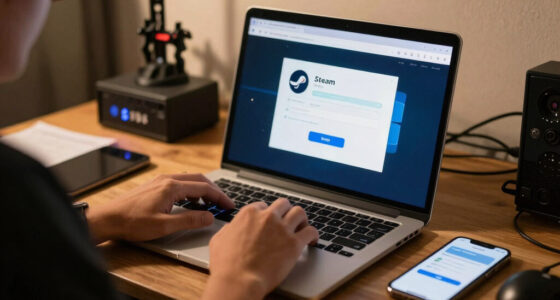
Why Ethernet Still Matters for Game Streaming is that Ethernet lowers the odds of latency spikes, jitter, and packet loss because it removes shared airwaves from the path between your gaming PC, router, and client device. Wi-Fi can work well, especially with Wi-Fi 6 or 6E, but Ethernet gives PC, Steam, and Steam Deck players a steadier stream when inputs and frames need to arrive on time.
One missed frame can make a perfect parry feel like you pressed the button through syrup.
If you stream from a gaming PC to a Steam Deck on the couch, you feel network problems in your thumbs before you see them in a speed test. This guide explains why a plain Ethernet cable still earns its place in a modern streaming setup.
You will learn where Ethernet helps most, when Wi-Fi is fine, and how to test your own setup without turning your room into a cable nest.
Ethernet Keeps the Stream in Rhythm
TL;DR: Ethernet lowers the odds of latency spikes, jitter, and packet loss by removing shared airwaves from the path between your gaming PC, router, and client device. Wi-Fi 6 and 6E can work well, but a cable gives PC, Steam, and Steam Deck players steadier timing when inputs and frames need to arrive on time.
Host PC first
Wiring the gaming PC usually removes the busiest and most fragile wireless hop from the stream.
25 Mbps+
High-resolution game streams need steady bandwidth every second, not just a flashy peak speed test.
One missed frame can make a perfect parry feel like you pressed the button through syrup.
Up to 50%
Lower latency is possible with Ethernet versus Wi-Fi in typical home setups.
Cat5e
Enough for Gigabit Ethernet in most normal home game-streaming runs.
1 Gbps
Gigabit switches offer far more headroom than most compressed streams require.
Jitter
Uneven delay and packet loss often hurt more than raw download speed.
Fast Games Punish Unstable Networks
Game streaming is not a 90 GB download. A download can slow down and catch up; a stream has no patience. Racing lines, parries, snap aim, camera turns, and audio cues all depend on frames and inputs arriving in rhythm.
Delay you can feel
A steady 35 ms link can feel better than a 20 ms link that spikes to 90 ms every few seconds.
Uneven frame timing
Jitter turns smooth motion into tiny pauses, mushy camera movement, and late-feeling inputs.
Missing stream data
Lost packets can show up as blocky shadows, blurred grass, audio crackle, or a frozen moment before impact.
Wire the Busiest Half of the Trip
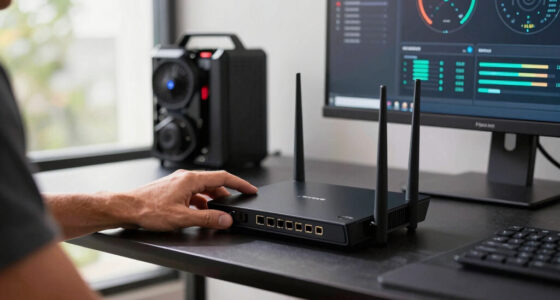
For Steam Deck players, the handheld can stay wireless while the host PC gets the cable. That one change often steadies the stream because the gaming PC no longer competes with phones, walls, mesh hops, and crowded channels.
Gaming PC
Encode frames and send them through a stable wired lane.
Router
Move traffic without fighting shared wireless air for the host.
Switch
Add ports for the PC, dock, TV box, or console.
Client
Use Wi-Fi for handheld play or Ethernet when docked.
Input
Keep button presses and video frames arriving in sync.
Wi-Fi Can Be Fast and Still Feel Worse
A 600 Mbps Wi-Fi speed test does not promise smooth play. The stream may need only a slice of that bandwidth, but it needs the slice at the right time. Ethernet’s advantage is consistency, not glamour.
| Connection | What it does well | What can go wrong | Best fit | Stream confidence |
|---|---|---|---|---|
| Ethernet | ✓ Low jitter, stable throughput, no wireless interference | ~ Cable routing or adapter needed for handhelds | Host PC, docked Steam Deck, TV streaming box | Highest |
| Wi-Fi 6 / 6E | ✓ Strong speed, flexible rooms, fewer cables | ~ Walls, crowded channels, device roaming | Casual play, same-room streaming, renters | Good when clean |
| Mesh Wi-Fi | ✓ Better coverage across larger homes | ✗ Wireless backhaul can add delay | Large spaces where cable runs are awkward | Variable |
What the Numbers Really Mean
For 4K or HDR streaming, steady delivery beats peak bragging rights. Try a dark, fast scene with rain, sparks, or tall grass; if Wi-Fi turns detail into blocks but Ethernet stays sharp, your bottleneck was consistency.
Stability Score
Illustrative score based on the factors players actually feel: jitter, packet loss, interference, and throughput consistency.
4K Stream Headroom
A 4K stream may run around 25 Mbps or more depending on codec, frame rate, HDR, and settings. Ethernet gives the stream room to breathe without depending on perfect wireless conditions.
Checklist Before You Blame the App
Steam Remote Play, Moonlight, GeForce Now, and other streaming apps can expose network problems, but the local path often creates them. Change one thing at a time and test the same scene.
Wire the host PC
Connect the gaming PC to the router or a basic unmanaged Gigabit switch first.
Replay the same scene
Compare Wi-Fi and Ethernet using identical motion, lighting, and action.
Watch the stream, not speed tests
Look for stutter, blocky video, audio crackle, and input drag.
Lower bitrate once
If reducing bitrate helps, bandwidth or consistency may be the pain point.
Check the client path
Test docked Deck Ethernet, TV box Ethernet, laptop Wi-Fi, or handheld Wi-Fi.
Stop when it feels native
The goal is not a room full of cables; it is a stream smooth enough to forget it is streamed.
Trace the Stream Before You Upgrade
Ethernet cannot fix a weak host, distant cloud server, wrong bitrate, or overworked encoder. It can clean up the local trip inside your home, which is often the cheapest first win.
Host hardware
Video encode
Router or switch
Wi-Fi or cable
Client decode
Hands feel it
When Ethernet wins
Competitive games, 4K or HDR streams, busy homes, docked Steam Deck sessions, TV boxes, and any setup where Wi-Fi speed looks fine but the game still feels uneven.
When Wi-Fi is enough
Same-room streaming, casual play, clean Wi-Fi 6 or 6E signal, stable inputs, smooth target resolution, and no household upload that can break the session.
Key Takeaways
- Wire the host PC first; it usually removes the busiest and most fragile wireless hop from the stream.
- A 600 Mbps Wi-Fi speed test does not promise smooth play if jitter or packet loss spikes during busy moments.
- For 4K or HDR streaming, steady bandwidth matters more than peak speed; around 25 Mbps or more may be needed depending on settings.
- Cat5e or Cat6 Ethernet plus a basic Gigabit switch is enough for most PC, Steam, and Steam Deck home setups.
- Ethernet cannot fix a weak host, distant cloud server, or wrong bitrate, so test one change at a time.
As an affiliate, we earn on qualifying purchases.
You Feel Ethernet Most When the Game Gets Fast
Why Ethernet Still Matters for Game Streaming is simple: fast games punish unstable networks. A racing line through Suzuka, a parry in Sekiro, or a snap aim in Counter-Strike needs each input and video frame to arrive in rhythm. Ethernet gives that rhythm a physical lane instead of shared radio space.
Game streaming is not the same as downloading a 90 GB game. A download can slow down, catch up, and still finish fine. A stream has no patience; if a frame arrives late, you see mushy motion, blocky shadows, or a tiny pause right when the boss swings.
Imagine your PC in the office, your Steam Deck in the bedroom, and two phones scrolling video in between. Wi-Fi has to share the same air and fight through walls. Ethernet removes that hallway traffic for the host PC, which is usually the best first cable to run.
As an affiliate, we earn on qualifying purchases.
Latency, Jitter, and Packet Loss Are the Real Boss Fight
Latency is the delay, jitter is uneven delay, and packet loss is missing data. For game streaming, jitter and packet loss often hurt more than raw speed because they turn steady play into stutter. According to Valve’s Steam Remote Play guidance, a wired network helps reduce delay and dropped frames [1].
A 20 ms connection that spikes to 90 ms every few seconds can feel worse than a steady 35 ms link. Your eyes see the stream wobble, but your hands feel it first: the jump lands late, the camera drags, the audio crackles for half a beat.
Ethernet does not make your internet provider faster. It cleans up the local trip inside your home: PC to router, router to handheld, TV box, or laptop. That short hop can decide whether a remote play session feels crisp or like pressing buttons through wet cardboard.
As an affiliate, we earn on qualifying purchases.
Wi-Fi Can Be Fast and Still Feel Worse
Wi-Fi can show a huge speed-test number and still feel worse for game streaming because the number hides delay spikes, interference, and signal changes. Ethernet’s advantage is not glamour; it is consistency. According to IEEE 802.3 standards, Gigabit Ethernet gives home networks far more headroom than most compressed game streams need [2].
| Connection | What It Does Well | What Can Go Wrong | Best Fit |
|---|---|---|---|
| Ethernet | Low jitter, stable throughput, no wireless interference | Cable routing, adapter needed for many handhelds | Host PC, docked Steam Deck, TV streaming box |
| Wi-Fi 6 or 6E | Strong speed, flexible rooms, fewer cables | Walls, crowded channels, device roaming | Casual play, same-room streaming, renters |
| Mesh Wi-Fi | Better coverage across larger homes | Wireless backhaul can add delay | Large spaces where cable runs are awkward |
Say your laptop reports 600 Mbps on Wi-Fi while Steam Remote Play still blurs grass into green fog during Elden Ring. The stream may need only a slice of that bandwidth, but it needs the slice at the right time. Ethernet makes that slice much more reliable.
high-speed Ethernet cable for streaming
As an affiliate, we earn on qualifying purchases.
As an affiliate, we earn on qualifying purchases.
Steam Deck Players Get the Biggest Win from One Cable
Why Ethernet Still Matters for Game Streaming shows up fast on Steam Deck: your handheld may move around, but your host PC does not have to. Wire the gaming PC to the router first, then let the Deck use Wi-Fi. That one cable can steady the busiest half of the trip.
If you dock the Steam Deck, a USB-C hub with Gigabit Ethernet can make couch-to-TV play feel cleaner, especially at 1080p or 1440p. You press the trigger, the fan hums, and the image responds without the little rubber-band tug that makes streamed games feel fake.
Platform details matter. Steam Deck Verified status can change by game and SteamOS version, and it describes game compatibility on Deck, not your network quality. Streaming a PEGI 18 or ESRB Mature 17+ game to another screen also does not change its rating; your living-room setup is still showing the same game.
4K Streams Need Steady Bandwidth, Not Big Speed-Test Bragging
Why Ethernet Still Matters for Game Streaming becomes clear at 4K because compressed video hates uneven delivery. A 4K stream may run around 25 Mbps or more depending on app, codec, frame rate, and settings, but it needs that bandwidth every second. Ethernet helps hold the line when Wi-Fi gets crowded [1].
Speed tests are like checking a highway at noon and assuming rush hour will feel the same. Game streaming happens in real time, so a short dip can smear fine textures, crush dark scenes, or make HDR lighting pulse.
Try a real test: stream a dark, fast scene with rain, sparks, or tall grass. If the image collapses into blocks on Wi-Fi but stays sharp after wiring the PC, your bottleneck was consistency, not raw internet speed. You just found the difference your eyes actually care about.
A Basic Switch Can Save a Messy Room Setup
A small unmanaged Ethernet switch solves the common problem of one router port and too many gaming devices. You plug one cable from the router into the switch, then connect the host PC, console, dock, or streaming box. It is boring hardware, which is exactly why it works so well.
In a real apartment setup, you might have a router by the TV, a gaming PC under the desk, and a Steam Deck dock beside the couch. A five-port Gigabit switch lets the PC, TV box, and dock stay wired without swapping cables under the media unit every night.
Cat5e is enough for Gigabit Ethernet in normal home runs, while Cat6 gives extra headroom and thicker shielding for longer or noisier paths. For most players, buying a sane cable length and keeping it away from power bricks matters more than chasing exotic labels.
Use This Checklist Before You Blame the Streaming App
You should test the local network before blaming Steam Remote Play, Moonlight, GeForce Now, or any other streaming app. Apps can expose the problem, but cables, router placement, and crowded channels often create it. Work through a short checklist and change one thing at a time.
- Wire the host PC to the router or switch.
- Run the same game scene on Wi-Fi and then with Ethernet.
- Watch for stutter and blocky video, not only speed-test numbers.
- Lower bitrate once to see whether bandwidth or latency is the pain point.
- Check the client path: docked Deck, TV box, laptop, or handheld Wi-Fi.
For example, if wiring only the host PC fixes most of your stutter, you can stop there. Leave the handheld wireless and enjoy the couch. The goal is not a museum of cables; the goal is a stream that feels native enough that you forget it is streamed.
Know When Wi-Fi Is Good Enough
Wi-Fi is good enough when your stream stays smooth at your target resolution, your inputs feel immediate, and nobody in the house can break your session by starting a big upload. You do not need cable purity. You need a repeatable result during the games you actually play.
A turn-based strategy game streamed at 720p to bed has more forgiveness than a 1440p/120 action game sent to a TV. If your Wi-Fi 6 router sits in the same room and your 5 GHz or 6 GHz channel is quiet, you may be fine.
Still, test during the noisy hour. The evening is when tablets wake up, video calls start, and the microwave adds its dry buzz from the kitchen. If your stream only falls apart at 8 p.m., Ethernet gives you a way around the household rush.
Know What Ethernet Cannot Fix
Ethernet cannot fix a weak host PC, a bad encoder setting, an overloaded router, or a cloud server far from your home. It improves the local link, not every part of the chain. Treat it as the first stable foundation, then tune bitrate, resolution, frame rate, and client settings.
If your PC struggles to render the game locally, streaming will not make it stronger. If a cloud service connects you to a distant data center, Ethernet can clean up your room’s side of the path but not shorten the miles outside your building.
Keep rumors about new handhelds, Wi-Fi chips, or streaming features in the unconfirmed bucket until the platform owner publishes details.
For performance claims, check the platform and version: SteamOS, Windows, router firmware, app build, and whether the game is running locally, through Steam Remote Play, or through the cloud.
Frequently Asked Questions
Is Ethernet always better than Wi-Fi for game streaming?
Ethernet is usually better for game streaming because it reduces wireless interference, jitter, and packet loss. Wi-Fi can still work well for casual play, same-room streaming, or slower games, especially with Wi-Fi 6 or 6E.
What Ethernet cable should I use for Steam Remote Play?
Use Cat5e or Cat6 for most home game streaming setups. Cat5e supports Gigabit Ethernet over typical home distances, while Cat6 gives more headroom if you are running longer cables or wiring near noisy electronics.
Should I wire my Steam Deck or my gaming PC first?
Wire the gaming PC first. The host PC sends the video stream and receives input data, so giving it a stable Ethernet path often improves the whole session even if the Steam Deck stays on Wi-Fi.
Does Ethernet help cloud gaming too?
Yes, Ethernet can help cloud gaming by cleaning up the connection inside your home. It cannot move a cloud server closer or fix a congested internet provider, but it can remove local Wi-Fi spikes from the problem.
Can Wi-Fi 6E replace Ethernet for game streaming?
Wi-Fi 6E can be excellent when your device supports it, your router is nearby, and the 6 GHz band is quiet. Ethernet still wins for repeatability because it does not depend on room layout, channel noise, or someone walking between you and the router.
Conclusion
The move to remember is simple: wire the machine doing the hardest work first. If your gaming PC feeds the stream, give it Ethernet before you buy a new router, change five settings, or blame the app.
A good game stream should disappear under your hands. No rubbery camera, no smeared shadows, no late jump; just the quiet click of a key, the soft fan hum, and the frame arriving when you asked for it.
NFL season / tailgating Picks
team gear
As an affiliate, we earn on qualifying purchases.