
TL;DR

Play games on Amazon Luna for your game nights, included with Prime
- A rotating selection of games, no download needed
- Play on TV, laptop or phone
- Fast, free delivery for your gear, too
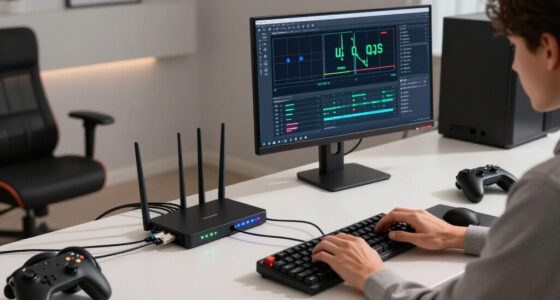
Home network latency is the time it takes data to travel from a player’s device to a game server and back, usually shown as ping in milliseconds. For Steam games, a stable connection with low jitter and no packet loss often feels better than a faster connection with wild ping swings, crowded Wi-Fi, or bufferbloat.
Your gigabit internet can download a huge Steam game in minutes and still leave your character skidding backward through a doorway. That apparent contradiction comes from measuring the wrong thing: download speed tracks capacity, while latency tracks delay. A wide pipe does not help much when every packet reaches the other end late or out of rhythm.
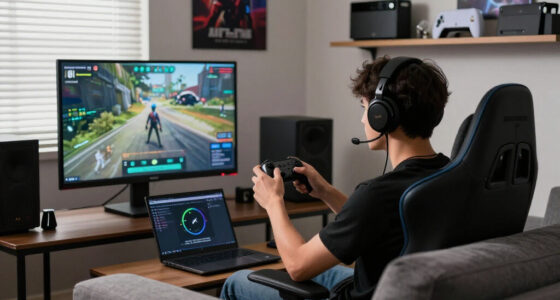
For Steam players, network delay can touch multiplayer matches, voice chat, community servers, and Steam Remote Play. You may see missed shots, broken audio, blocky streaming video, or an opponent who seems to blink across the screen. The displayed ping tells part of the story, but jitter, packet loss, Wi-Fi interference, routing, and server processing can hide behind that tidy number.[1]
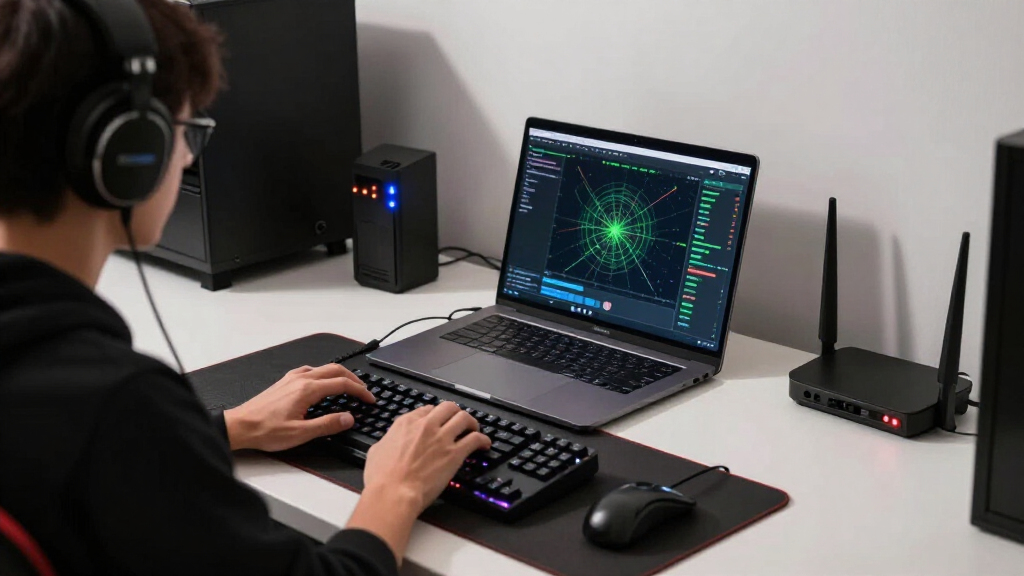
This guide shows you which measurements matter, what causes home network latency, and how to separate a Wi-Fi problem from an overloaded server or poor ISP route. You will also get a practical testing order, so you can change one variable at a time instead of buying a glossy gaming router and hoping the lag disappears.
Measure ping, jitter, packet loss, and loaded latency; a download-speed result alone cannot describe gaming responsiveness.
Test over Ethernet before replacing hardware because it quickly separates Wi-Fi trouble from routing, ISP, and server problems.
Pause uploads and Steam downloads during diagnosis, then use a bandwidth limit or FQ-CoDel or CAKE queue management if latency rises under load.
Treat Remote Play as a full response chain that includes encoding, decoding, network travel, controller delay, and display processing.
If only one game or region lags while wired tests remain stable, investigate that game’s server, matchmaking region, or network route.
Home Network Latency Explained for Steam Players
A gigabit connection can download a game in minutes and still make your character skid backward through a doorway. Speed measures capacity. Latency measures delay—and smooth play depends on packets arriving quickly, consistently, and intact.
Four numbers predict how a match feels
A download-speed result describes how much traffic the connection can carry. Gaming responsiveness also depends on whether small, time-sensitive updates arrive evenly and survive the trip.
Ping
Time for data to reach the game server and return. Lower is usually better, but one tidy average can hide unstable timing.
Jitter
The change in delay between measurements. High jitter produces rubber-banding, uneven voice and inconsistent hit registration.
Packet loss
Updates that never arrive. Symptoms include frozen actions, teleporting players, audio gaps, disconnects and streaming artifacts.
Loaded latency
Ping while the household uploads or downloads. A large increase commonly points to congestion or bufferbloat.
Ping bands: a practical reading
A wider pipe does not shorten the journey
Bandwidth is the width of the road; latency is travel time. More capacity helps when congestion is the bottleneck. It cannot erase physical distance, inefficient routing or slow server processing.
A fast download tier is not a low-latency guarantee. Multiplayer games usually need modest bandwidth. Distance, Wi-Fi contention, queues, ISP routing and server load have far more influence on packet timing.
What each delay actually changes
Low ping cannot repair a struggling frame rate, a slow display or overloaded game logic. Match the symptom to the measurement before replacing hardware.
| Measurement | What it describes | What you notice in Steam | Best first check |
|---|---|---|---|
| Bandwidth | Data capacity per second | Download time and available Remote Play bitrate | ✓ Check active traffic |
| Network latency | Round-trip travel time | Delayed movement, shots and voice | ✓ Test wired ping |
| Jitter | Variation in packet timing | Rubber-banding and unstable hit registration | ✓ Compare repeated tests |
| Frame time | Time required to render a frame | Stutter despite a low ping reading | ✓ Inspect frame pacing |
| Input latency | Delay after pressing a control | Heavy aiming or late button feedback | ✓ Test local/offline play |
| Server processing | Time spent simulating the match | Several players feel the same slowdown | ✓ Try another server |
64 ticks per second = approximately 15.6 milliseconds per server update.
Where unstable latency begins
Ethernet provides the clearest baseline. If the wired result is stable, focus on wireless conditions. If it remains poor, look beyond Wi-Fi toward congestion, routing, distance or the game server.
Bufferbloat can add hundreds of milliseconds under load. Steam downloads, cloud backups, video uploads and file synchronization can fill queues while the connection still appears fully online. FQ-CoDel or CAKE queue management can keep those queues controlled.
Ten checks instead of one expensive guess
Change one variable at a time. Record idle and loaded results, then compare games and regions before concluding that the router—or the ISP—is responsible.
Define the scope
Note whether every game lags, one title lags, or only one matchmaking region is affected.
Pause background traffic
Stop Steam downloads, cloud backups, updates, uploads and high-bitrate streams.
Test over Ethernet
A temporary cable quickly separates Wi-Fi trouble from ISP, routing and server issues.
Measure idle latency
Record repeated ping, jitter and packet-loss results while the connection is quiet.
Measure loaded latency
Repeat while uploading and downloading. A large increase signals queue congestion.
Inspect Wi-Fi conditions
Test 2.4, 5 and 6 GHz where available from the exact position used for play.
Simplify mesh paths
Move closer to the primary node or use wired backhaul to remove wireless hops.
Control the queues
Apply bandwidth limits or enable FQ-CoDel or CAKE when latency rises under load.
Compare regions
Select a nearby game server and compare routes at similar times of day.
Check the full response chain
For Remote Play, include encoding, network travel, decoding, controls and display processing.
Wired is stable
Investigate Wi-Fi placement, interference, channel congestion, mesh backhaul and retransmissions.
Loaded ping spikes
Investigate uploads, downloads, bandwidth saturation, bufferbloat and queue management.
Only one game lags
Investigate the game server, selected region, server load, netcode or the ISP route to that destination.
Know the Four Numbers That Predict Whether a Match Feels Good
Home network latency explained for Steam players begins with four measurements: ping, jitter, packet loss, and loaded latency. Together, they reveal whether game data arrives quickly, evenly, completely, and during household activity. A normal speed test cannot tell that whole story because it focuses heavily on throughput rather than packet timing.[1]
- Ping: The round-trip time between your device and the game server, measured in milliseconds.
- Jitter: The amount your latency changes from one measurement to the next.
- Packet loss: The percentage of packets that never reach their destination.
- Loaded latency: Your delay while uploads or downloads are using the connection.
As a rough guide, under 20 ms feels excellent, 20–50 ms feels very good, and 50–100 ms remains playable in many games. Once you cross 100–150 ms, actions often feel detached from your hands. The game matters, though: a turn-based strategy game can tolerate delay that makes a fighting game feel like every button is tied to the screen with elastic.
Consistency can beat a prettier average. Imagine one connection holding at 60 ms for an entire match while another jumps from 20 to 100 ms every few seconds. The second connection may report a lower average, yet its jitter makes players lurch, voice chat crackle, and hit registration feel random.
Sustained packet loss of only 1–2% can damage real-time play because missing updates force the game to guess or correct what happened.[1] You might see a teammate freeze beside a bright orange explosion, then snap five metres forward. That is not ordinary delay; it is information disappearing in transit.
As an affiliate, we earn on qualifying purchases.
See Why Faster Internet Does Not Always Produce Faster Reactions
Home network latency explained for Steam players rests on a simple distinction: bandwidth is the width of the road, while latency is the travel time. A 1 Gbps line can carry far more traffic than a 50 Mbps line, but it cannot shorten a distant route or make an overloaded server answer sooner.
| Measurement | What it describes | What you notice in Steam |
|---|---|---|
| Bandwidth | How much data can move each second | Download speed and available streaming bitrate |
| Network latency | How long a round trip takes | Delayed movement, shots, and voice |
| Frame time | How long the system takes to render a frame | Stutter or sluggish motion despite low ping |
| Input latency | Delay from pressing a control to game response | Heavy aiming or late button feedback |
| Server processing | Time spent simulating the match | Every player may feel the same slowdown |
Suppose you play a shooter at 25 ms ping, but your computer drops to 28 frames per second during a smoke-filled firefight. Your mouse can still feel slow because the rendering pipeline is stumbling. A low Steam ping cannot rescue poor frame pacing, display lag, or overloaded game logic.
Server tick rate adds another beat to the rhythm. If a server updates the match state at 64 ticks per second, each tick spans about 15.6 milliseconds. Your packet must travel, wait for processing, and return before your display can show the result, so the complete response feels more like a relay race than one isolated ping.
Network latency is one link in the response chain. Your controller, game, server, renderer, and display each take a turn carrying the baton.
This also explains why 2.5 GbE rarely lowers multiplayer ping compared with a healthy gigabit or 100 Mbps Ethernet link. The faster link can move local files and Steam downloads more quickly, but its extra capacity does not fold the map between your home and the server.[1]
As an affiliate, we earn on qualifying purchases.
Choose the Home Connection That Keeps Your Ping Steady
Home network latency explained for Steam players points to Ethernet as the most consistent home connection, while good Wi-Fi can still work well. The real goal is not a fashionable wireless standard. You want a short, clean path with little interference, few retransmissions, and no unnecessary wireless hops.
An Ethernet cable gives your packets a quiet private lane through the house. In a crowded apartment, Wi-Fi may feel more like a packed café where every device waits for a chance to speak. Phones, televisions, laptops, mesh nodes, and neighbouring routers all compete for airtime, even when your signal icon shows full bars.
- 2.4 GHz travels farther and passes through walls better, but it faces more interference and fewer clean channels.
- 5 GHz usually offers more capacity and less crowding, though thick walls can weaken it quickly.
- 6 GHz provides cleaner spectrum on compatible Wi-Fi 6E and Wi-Fi 7 equipment, but its shorter reach punishes poor router placement.
- Mesh Wi-Fi improves coverage, yet wireless backhaul may make each packet cross the air twice or pass through several nodes.
Consider a Steam Deck used two rooms from the router. The 5 GHz network may deliver 35 ms ping beside the router but become jumpy through a concrete wall, while 2.4 GHz holds a slower yet steadier connection. Test both bands in the actual chair where you play; the newest label does not automatically win.
For mesh systems, a wired backhaul often gives you the biggest stability gain. A gaming PC connected by cable to a mesh satellite still uses Wi-Fi if that satellite talks wirelessly to the main router. The cable has removed only the final hop, not the busy stretch in the middle.
Powerline adapters sit between cable and Wi-Fi in predictability. They can work beautifully in one house and stutter whenever a refrigerator compressor starts in another. Your electrical wiring, circuit layout, and appliances decide the result, so measure jitter and packet loss before treating powerline as an Ethernet replacement.
As an affiliate, we earn on qualifying purchases.
Stop Downloads and Bufferbloat from Hijacking Your Match
Bufferbloat is excessive packet queuing inside a router or modem when the connection becomes busy. Your internet stays online, but fresh game packets wait behind bulky downloads or uploads. That queue can push loaded latency hundreds of milliseconds above idle ping, turning a smooth match into sticky, delayed motion.[1]
Why does someone starting a stream wreck your match when multiplayer games use little bandwidth? The video or download fills the available lane, and the router begins stacking packets like cars behind a closed toll booth. Game traffic is small but time-sensitive; a packet describing your trigger pull becomes useless if it waits too long.
Uploads can cause especially ugly spikes on connections with limited upstream capacity. A cloud backup may fill the outgoing queue, forcing gameplay packets and acknowledgements to wait. You might hear voice chat break into metallic syllables just as a family phone sends a batch of glossy holiday photos to the cloud.
- Pause Steam downloads while testing a multiplayer match.
- Stop cloud backups and video uploads, not only obvious downloads.
- Set a Steam download-rate limit that leaves spare capacity for play.
- Test idle and loaded latency to see how far ping rises under traffic.
- Use Smart Queue Management when your router supports FQ-CoDel or CAKE.
Smart Queue Management acts like a calm traffic officer. Systems such as FQ-CoDel and CAKE control the queue and share capacity more fairly, so one giant transfer cannot bully every smaller flow. A good setup may shave a little from your maximum benchmark speed in exchange for far steadier latency while the household stays busy.
For example, a 100 Mbps connection might be managed slightly below its measured ceiling so the router, rather than the provider’s equipment, controls the queue. The Steam download may finish a few minutes later, but your match can stay near 40 ms instead of spiking past 250 ms. That is a worthwhile trade when responsiveness matters more than a perfect speed-test screenshot.
As an affiliate, we earn on qualifying purchases.
Fix Steam Lag in 10 Checks Instead of Guessing
You can trace most Steam latency problems by narrowing the scope, testing Ethernet, removing background traffic, and comparing several destinations. The order matters because each check removes one possible cause. Work from your device outward, and record what changes rather than flipping five router settings at once.
- Name the affected service. Check whether the problem hits one game, every game, Steam downloads, Remote Play, or the whole connection.
- Test with Ethernet. A cable separates Wi-Fi trouble from ISP, routing, and server trouble.
- Pause background traffic. Stop Steam downloads, cloud syncing, updates, streams, and uploads across the household.
- Compare idle and loaded latency. A large jump while the line is busy points toward saturation or bufferbloat.
- Measure jitter and packet loss. Average ping can hide sharp swings and missing packets.
- Try another nearby server. Compare several game regions or community servers rather than trusting one destination.
- Restart faulty equipment once. A restart can clear a temporary problem, but repeated trouble needs a real fix.
- Update network software. Router firmware and network-adapter drivers may contain stability, security, or compatibility fixes.
- Improve the Wi-Fi path. Move closer, reposition the router, test another band, or replace wireless mesh backhaul with cable.
- Repeat the test at another time. Evening-only trouble can point to household, neighbourhood, or ISP congestion.
Here is a practical example. One game reports 140 ms every evening, but three other games stay near 35 ms, Ethernet changes nothing, and another region works normally. That pattern points away from your Wi-Fi and toward the game’s server or the route to it.
Now change the pattern: every game spikes when someone uploads video, Ethernet still spikes, and loaded latency leaps from 25 to 300 ms. That evidence points toward queueing or upstream saturation. A Steam limit may help downloads, while router-level queue management can control traffic from every device.
When you contact your ISP, bring wired test results, dates, times, destinations, packet-loss readings, and loaded latency. A vague report that gaming feels laggy is easy to dismiss. A record showing 2% loss to several destinations between 19:00 and 22:00 gives support staff something concrete to investigate.
Make Steam Remote Play Feel Sharper on Every Screen
Steam Remote Play needs more than low network ping because it sends your controls toward the host and encoded video back to the client. Its total delay includes host encoding, network travel, client decoding, frame pacing, and display response. Any slow stage can make the stream feel heavy.[2]
Ordinary multiplayer sends small updates about movement, shots, and game state. Remote Play carries a moving wall of colour and sound. When bandwidth drops or jitter rises, the encoder may smear grass into a green mosaic, soften text, or pause briefly while your control input continues marching toward the host.
For in-home streaming, connect the host PC by Ethernet whenever possible. Then give the client either Ethernet or a strong 5 GHz or 6 GHz connection with a clear path to the router. This arrangement removes one wireless conversation, which can reduce contention even when your average ping changes only slightly.
- Lower the streaming resolution or bitrate if the image breaks into blocks during motion.
- Avoid multiple wireless mesh hops between the host and client.
- Use a wired controller where practical if Bluetooth delay or interference adds to the response chain.
- Check host performance because a struggling encoder can mimic network lag.
- Test the television’s game mode since image processing can add visible display delay.
Imagine streaming a racing game from an upstairs PC to a living-room television. The network holds at 8 ms, yet steering still feels syrupy until you enable game mode on the television. That change shows why Remote Play performance cannot be judged by ping alone.
Outside your home, upload speed at the host becomes a major limit, and the route is much longer. Steam client menus and streaming options can vary across Windows, macOS, Linux, Steam Deck, and client versions. Steam Deck Verified status can also change with game updates, and it does not certify the quality of your network or Remote Play session.
Know When the Lag Lives Beyond Your Router
Your home network is not always responsible for Steam lag. Physical distance, ISP routing, game-server load, relay choices, and netcode can add delay after traffic leaves your router. If wired tests look clean and only one game or region struggles, the fault probably sits farther along the route.
Steam distributes and launches games, but it does not run every multiplayer connection. A title may use developer-operated dedicated servers, community servers, peer-to-peer links, third-party services, or a player-hosted listen server. Calling every problem Steam lag hides the system you actually need to test.
Games using Valve’s Steam Datagram Relay can send traffic through Valve’s relay network to conceal player IP addresses, support connection setup, and help defend against denial-of-service attacks.[2] A relay may find a cleaner route in some cases, but it cannot erase physical distance. Traffic still has to cross fibre, routers, cities, and sometimes oceans.
Changing your Steam download region may help slow or unreliable content downloads, yet it usually does not change the server chosen inside a multiplayer game. Download delivery and match hosting are separate systems. Likewise, changing DNS may speed up an initial name lookup by a small amount, but ongoing gameplay traffic does not keep passing through the DNS resolver.
Port forwarding deals mainly with connection setup and hosting. It can fix a specific peer-to-peer problem when the developer documents the required ports, but open NAT does not automatically lower ping. Avoid forwarding broad port ranges based on an unconfirmed forum post; follow the game developer’s current guidance and remember that UPnP carries security tradeoffs.
A VPN is best treated as a routing experiment. It normally adds another hop and more delay, though it can help when your ISP takes a poor route to one server. If a nearby VPN endpoint cuts one game from 120 to 55 ms while other tests remain unchanged, you have evidence of a route-specific issue rather than a universal gaming upgrade.
Source notes: [1] skeldrift.com guidance for home streaming and network latency. [2] Valve Steamworks documentation covering Steam Datagram Relay and Steam Remote Play behavior.
Frequently Asked Questions
Why is my Steam download fast while my game still lags?
Download speed measures throughput, while games depend heavily on latency, jitter, packet loss, routing, and server response. Your connection can move a large game file at 800 Mbps while real-time packets arrive unevenly. Think of a freight train carrying enormous loads but never arriving on schedule.
What ping is too high for Steam gaming?
Under 50 ms feels good for most games, while 50–100 ms is often playable and 100–150 ms becomes noticeable. Fast shooters and fighting games expose delay sooner than strategy or turn-based games. A stable 70 ms can still feel better than 25 ms with frequent jitter or packet loss.
Will Ethernet lower my Steam ping?
Ethernet may lower local delay slightly, but its larger benefit is consistency: fewer retransmissions, less interference, and lower jitter. It cannot fix a distant server or poor ISP route. If Ethernet removes sudden spikes while average ping barely changes, it has still solved a meaningful problem.
Should I pause Steam downloads while playing?
Pause or limit Steam downloads if they raise your ping or fill the connection. You can leave headroom through Steam’s rate limit, though router-level Smart Queue Management works across the whole household. This lets a download continue without forcing every game packet to wait behind it.
Why does my game show low ping but still feel delayed?
The displayed ping covers only part of the response chain. Packet loss, jitter, server overload, low frame rate, poor frame pacing, input delay, display processing, and netcode can all make controls feel slow. Check performance and packet stability instead of treating one green number as the final verdict.
Conclusion
Chase stability before speed. Test with Ethernet, stop background traffic, compare idle and loaded latency, and record jitter and packet loss. Those four moves tell you far more than a bigger broadband number or a router box covered in neon lightning.
Your best connection is the one that delivers each packet on time, in order, and without drama. When the household starts streaming and your ping graph stays flat like a calm horizon, you have fixed the part that Steam players can actually feel.
Fall Picks
fall essentials
As an affiliate, we earn on qualifying purchases.