
TL;DR

Get games and gaming gear delivered free — and shop member deals
- Fast, free delivery on millions of items
- Access to Prime Big Deal Days deals on October 6–7
- Prime Video, Amazon Music and more included
Moonlight and Sunshine form a free, open-source game-streaming setup that lets players run Steam games on a powerful host PC while playing from a laptop, phone, handheld, television, or other client. Sunshine captures and encodes the game on the host, while Moonlight displays the stream and sends your controls back.
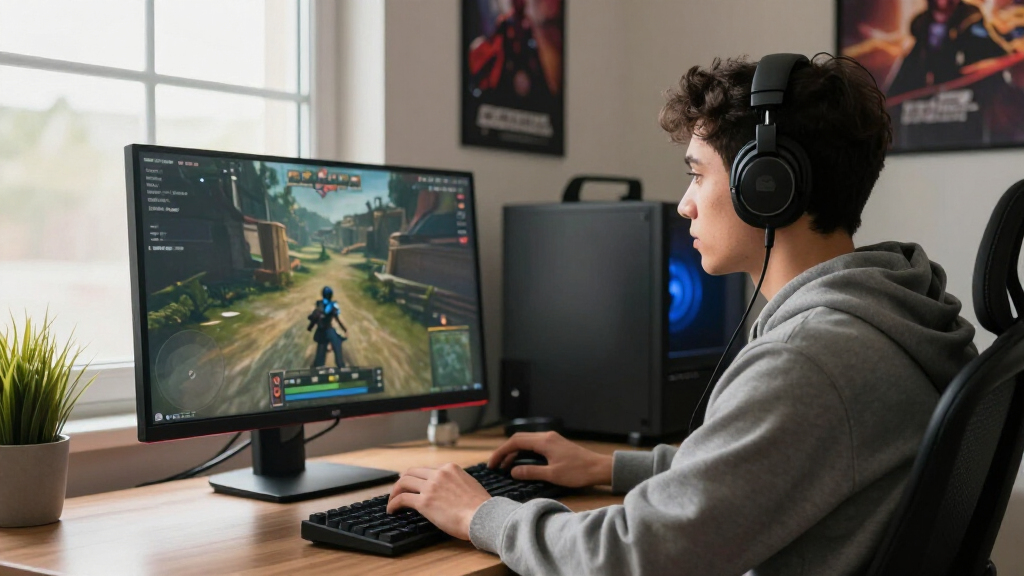
Your gaming PC can sit upstairs humming beneath a desk while you play its Steam library on the quiet television downstairs. The game still runs on your PC, but its image travels across your network like a live video feed, and your controller inputs race back in the opposite direction.
Moonlight and Sunshine make that arrangement possible without tying you to a cloud-gaming catalog or reinstalling a 100 GB game on every device. You bring the host PC, the receiving screen, and the network; the two open-source apps handle video, audio, and remote input.
This guide shows you what each app does, why latency can appear even on fast hardware, and where this pairing differs from Steam Remote Play. You will also get a concrete setup path, sensible codec choices, fixes for common problems, and safer remote-access habits for playing beyond your home.
Install Sunshine on the host PC and Moonlight on the receiving device; the host still renders every Steam game.
Begin with a wired host and 1080p60 SDR, then raise bitrate, resolution, frame rate, or codec complexity one setting at a time.
Use H.264 as the compatibility baseline, HEVC when it improves quality per bit, and AV1 only when both devices support it reliably.
Treat the television, Wi-Fi path, client decoder, and refresh-rate match as parts of the latency chain, not just the host GPU.
Use a trusted VPN or mesh VPN for remote sessions and never expose Sunshine’s management interface casually.
Moonlight and Sunshine Explained for Steam Players
Your gaming PC does the heavy lifting. Sunshine captures and encodes the game on the host, while Moonlight displays the stream on another screen and sends your controls back. The result feels like an invisible HDMI-and-USB cable running through your network.
Open-source host and client applications.
Every stage can add delay or disturb frame pacing.
Start with SDR and a wired host before scaling up.
One machine runs the game. Another becomes the window.
The Steam game never moves to the receiving device. Only compressed video, audio, and control data cross the network, so a modest laptop, phone, handheld, television, or Raspberry Pi can display a game rendered by a much stronger PC.
Sunshine
Runs on the gaming PC and manages the outgoing session.
- Captures rendered frames and game audio
- Uses supported GPU hardware encoding
- Receives controller, keyboard, and mouse input
- Can launch Steam, other launchers, games, or the desktop
Moonlight
Runs on the screen and device in the player’s hands.
- Receives and decodes compressed video and audio
- Displays the stream at the selected mode
- Sends player input back to the host
- Supports many desktop, mobile, TV, and handheld platforms
Delay can hide in six linked places.
A powerful graphics card only solves part of the problem. Rendering, capture, encoding, delivery, decoding, and display processing combine into the response you feel. Stable timing throughout the chain matters more than one impressive speed-test result.
Game rendering
The host GPU produces the original frame.
Frame capture
Sunshine collects the completed image.
Video encoding
Hardware compresses the frame for travel.
Network
Packets cross Ethernet or Wi-Fi.
Video decoding
The client reconstructs the picture.
Display
The screen processes and presents it.
An overloaded GPU, congested Wi-Fi, software decoding, mismatched refresh rates, or television motion processing can each soften controls. Diagnose whether the symptom is consistently high delay, sudden spikes, or uneven frame pacing before changing settings.
Choose the codec your complete chain handles well.
The newest codec is not automatically the fastest. Host encoding support, client hardware decoding, drivers, operating systems, resolution, and bitrate all matter. Reliability is the first benchmark.
H.264
The broadest support and usually the easiest path to troubleshoot across older and newer devices.
Begin hereHEVC / H.265
Can deliver better image quality at a given bitrate, provided the client decodes it reliably in hardware.
Test after baselineAV1
Offers strong compression potential but needs sufficiently modern encoding and decoding hardware.
Use when fully supportedMore control—or less setup friction?
Moonlight with Sunshine generally exposes more streaming controls. Steam Remote Play is tightly integrated with Steam and may be simpler for Steam-only libraries or remote sessions that benefit from automatic relay services.
| Capability | Moonlight + Sunshine | Steam Remote Play |
|---|---|---|
| Open-source host/client pairing | ✓ Yes | ✗ Proprietary service |
| Resolution, bitrate, and codec control | ✓ Extensive | ~ Simpler controls |
| Steam library integration | ✓ Supported | ✓ Native |
| Non-Steam games and full desktop | ✓ Flexible | ~ Possible |
| Automatic relay convenience | ~ VPN often preferred | ✓ Integrated |
| Best fit | Tuning, flexibility, mixed libraries | Quick setup and Steam-first use |
Build a stable 1080p60 stream before chasing 4K and HDR.
Change one variable at a time. A conservative baseline reveals whether the host, network, decoder, or display is responsible when something goes wrong.
Install Sunshine
Place the host software on the gaming PC and confirm hardware encoding.
Install Moonlight
Add the client app to the laptop, phone, handheld, or television device.
Wire the host
Connect the gaming PC to the router with Ethernet whenever possible.
Pair locally
Test on the home network with H.264, SDR, and moderate bitrate.
Scale carefully
Raise bitrate, resolution, frame rate, codec complexity, or HDR one by one.
Match the symptom to the likely stage.
Streaming problems often look similar but originate in different places. Preserve your working baseline, make one adjustment, and retest under the same conditions.
Inspect the network path
Wire the host, test the client over Ethernet, move Wi-Fi clients to a clean 5 GHz or 6 GHz channel, and reduce bitrate temporarily.
Check the display and decoder
Enable television game mode, disable motion processing, verify hardware decoding, and match the output refresh rate.
Stabilize frame production
Cap the game frame rate, leave GPU headroom for capture and encoding, and align host and client refresh modes.
Return to SDR, then verify the chain
Confirm compatible host, codec, client, operating-system settings, display mode, and current app support before enabling HDR again.
Keep Sunshine private when you leave home.
Remote streaming expands the path beyond your trusted local network. Convenience should not turn the host’s management interface into a casually exposed internet service.
Use a trusted VPN or mesh VPN.
Create a private route between the client and host, keep Sunshine updated, use strong credentials, and expose only what the session needs. Do not casually forward the management interface to the public internet.
See Exactly What Moonlight and Sunshine Do for Your Steam Library
Moonlight and Sunshine Explained for Steam Players starts with one simple split: Sunshine hosts the session on your gaming PC, while Moonlight receives it on the device in your hands. The Steam game never moves to the client; only compressed video, audio, and control data cross the network.
That distinction explains both the system’s flexibility and its limitations. Because the host performs the demanding work, a modest client can display games far beyond its local rendering ability. However, the host must stay powered, unlocked enough to launch the game, and capable of rendering and encoding simultaneously. Streaming therefore extends one gaming PC rather than turning the client into a second independent machine.
Sunshine captures each frame after your host GPU renders it, compresses the image through a hardware encoder, and sends the result to Moonlight. Moonlight decodes that stream, paints it on your client display, and returns controller, keyboard, mouse, or touch input. According to the Sunshine project documentation, supported hardware encoding can include NVIDIA NVENC, AMD encoders, and Intel Quick Sync, depending on the operating system, driver, and GPU generation [2].
Hardware encoding matters because it performs video compression on dedicated GPU circuitry instead of competing heavily with the game for general processing time. Even so, encoding is not free: an overloaded GPU can delay frame capture or encoding when a game consumes nearly all available resources. Limiting the game’s frame rate or reducing a demanding graphics option can sometimes make the stream feel more responsive even when the host could render more frames locally.
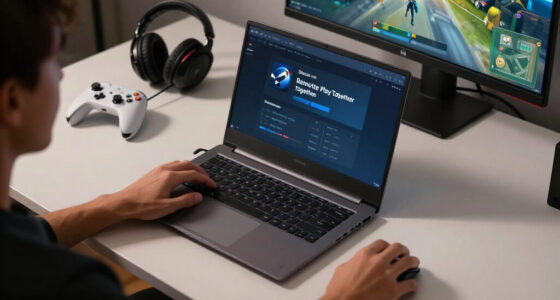
For instance, you could run Cyberpunk 2077 on a desktop RTX, Radeon, or Intel-equipped PC and display it on a lightweight laptop that could never render the game by itself. The laptop does not need a gaming-class GPU. It needs a compatible video decoder, a stable connection, and enough display capability for your chosen resolution and frame rate.
This shifts the buying tradeoff on the client side. A powerful CPU is less useful than reliable hardware video decoding, low-latency display output, and a good network adapter. A cheap device that decodes 1080p60 in hardware may outperform a more expensive older laptop that has to decode a newer codec in software.
Moonlight began as a client for NVIDIA GameStream, but NVIDIA GameStream is no longer required. Sunshine now supplies the host side across a broader range of hardware, while Moonlight remains the client. Official Moonlight documentation describes support for clients including Windows, macOS, Linux, Android, iOS, Apple TV, and other platforms [1]. Availability and features can differ by current release.
Together, the apps form a free and open-source streaming setup that lets players run Steam games on a powerful host while using another screen as the window into that PC. You can also launch non-Steam games, other launchers, or the full desktop. It feels a little like stretching a very long, invisible HDMI and USB cable through your home, except every image must be compressed and reconstructed before you see it.
As an affiliate, we earn on qualifying purchases.
Find the Six Places Where Streaming Delay Can Hide
Moonlight and Sunshine Explained for Steam Players means understanding that streaming delay comes from the whole pipeline, not one headline number. Rendering, capture, encoding, network delivery, decoding, and display processing each take time, and a slowdown at any stage can make controls feel soft or uneven.
Your host first renders a frame, Sunshine captures it, and the GPU encoder compresses it. The network carries the packet stream to Moonlight, the client decoder reconstructs the picture, and the display finally shows it. Six short waits become one visible delay, like runners passing a baton around a track.
- Game rendering: The host produces the original frame. Higher graphics settings or an uncapped, overloaded GPU can increase or destabilize this time.
- Frame capture: Sunshine collects that frame for streaming. Capture-method, display, and operating-system differences can affect how consistently frames become available.
- Video encoding: The host GPU compresses the image. Faster presets can reduce delay, while more complex compression may improve quality per bit at the cost of compatibility or processing time.
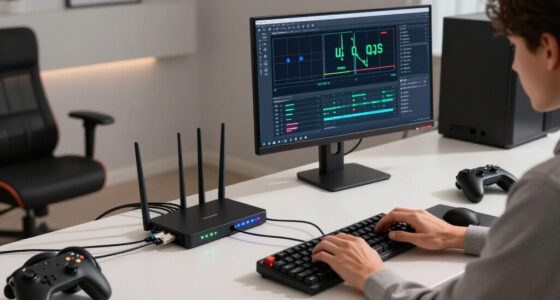
- Network transmission: Your router and cables deliver the data. Consistent delivery matters more than a high speed-test result because late packets disturb frame pacing.
- Video decoding: The client rebuilds the frame. Hardware decoding is usually quicker and more efficient than software decoding, especially at high resolutions.
- Display processing: The screen scales, smooths, and presents the image. Motion processing can add delay after Moonlight has already completed its part.
The stages do not merely add latency; they influence one another. If the network delivers a frame late, the client may wait, drop it, or present it unevenly. If the game renders at an unstable cadence, perfect encoding and Ethernet preserve that instability rather than correcting it. This is why the right diagnosis begins by identifying whether the problem is high average delay, occasional spikes, or uneven frame pacing.
Imagine that Moonlight reports a steady 60 frames per second, yet turning the camera still feels like dragging it through syrup. The television may be applying motion smoothing, noise reduction, or cinematic processing after Moonlight has finished its work. Switching the TV to Game Mode can matter more than buying a faster router in that situation.
A mismatch can also create rough movement without obvious network trouble. Sending a 60 fps stream to a 50 Hz display mode, or asking a client decoder to handle 4K120 beyond its limits, causes uneven frame delivery. Matching the client resolution and refresh rate to the stream often makes a slow pan look smooth again.
Frame rate also changes the latency budget. At 60 fps, a new frame arrives roughly every 16.7 milliseconds; at 120 fps, that interval falls to about 8.3 milliseconds. The higher rate can feel more immediate, but only when the host renders it consistently, the network carries the extra data, the client decodes it, and the screen truly refreshes at that rate. Otherwise, 120 fps can trade a stable experience for more dropped or repeated frames.
A fast host GPU cannot repair unstable Wi-Fi, and perfect Ethernet cannot make a slow client decoder display 4K120 cleanly.
This works well when every link supports your chosen mode, but only if the game, encoder, network, decoder, cable, and screen agree. Claims about 4K, 120 Hz, ultrawide, or HDR performance always depend on the exact host OS, GPU generation, Moonlight and Sunshine versions, client platform, and display connection.
As an affiliate, we earn on qualifying purchases.
Choose Moonlight or Steam Remote Play Without Guesswork
Moonlight and Sunshine Explained for Steam Players reveals a practical choice: use Moonlight plus Sunshine for deeper control, or choose Steam Remote Play for easier Steam integration. Both stream games from your own PC, but they differ in setup effort, network handling, application support, and the number of settings placed in your hands.
| Area | Moonlight + Sunshine | Steam Remote Play |
|---|---|---|
| Initial setup | More manual steps and host configuration | Usually quicker inside Steam |
| Quality controls | Broad resolution, bitrate, codec, and frame-rate choices | More automated and streamlined |
| Non-Steam software | Designed to launch games, apps, scripts, or a desktop | Possible, but Steam remains the center |
| Remote connections | May need a VPN or network configuration | Steam infrastructure often handles the connection |
| Troubleshooting | More data and more variables to inspect | Friendlier for basic setups |
| Software model | Open-source host and client | Part of Valve’s ecosystem |
The central tradeoff is not simply quality versus convenience. It is manual control versus managed behavior. Moonlight and Sunshine let you choose more of the pipeline, which helps when a specific display, codec, or network needs special treatment. Steam Remote Play makes more decisions for you, reducing setup friction but sometimes leaving fewer levers when automatic choices do not suit your hardware.
Suppose you want to play only Steam titles on a laptop while visiting family. Steam Remote Play may connect with less work, especially when automatic relay services help across separate networks. You trade some codec and network control for a shorter route from installation to the Play button.
That shorter route has practical value. Remote networking can involve address changes, carrier-grade NAT, firewall rules, or routers you do not control. A managed connection may be preferable even if it is not the most tunable path, because a slightly softer image that connects reliably can be more useful than an ideal configuration that fails outside your home.
Now suppose your living-room client uses an unusual ultrawide resolution, you want to launch an emulator, and you need a specific HEVC bitrate. Sunshine exposes more configuration, while Moonlight gives you detailed stream options and performance statistics. That control can turn a blurry grass field into crisp blades, but it also gives you more switches that can be set poorly.
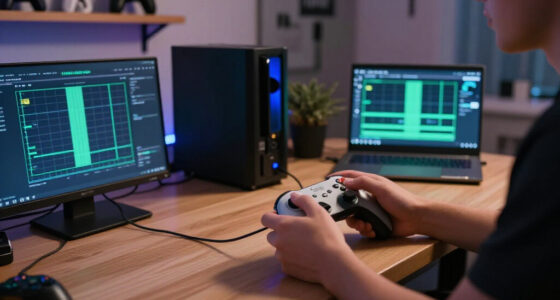
Detailed statistics make Moonlight and Sunshine especially useful for methodical troubleshooting. You can distinguish network jitter from slow decoding or an incorrect resolution instead of treating every problem as generic lag. The cost is maintenance: host updates, driver changes, virtual displays, firewall rules, and client-specific settings become part of a system you manage.
Neither system makes your library a cloud service. Your host PC must remain available, the game runs under its normal license, and any anti-cheat or account restrictions still apply. Streaming also does not alter a game’s ESRB, PEGI, or platform age rating; use the host account’s family controls when younger players can reach the library.
Steam Deck users should separate streaming compatibility from Valve’s game labels. A title can stream well even when local Deck performance struggles, but Steam Deck Verified status applies to the game and can change after updates. Streaming can therefore preserve battery life and improve visual quality, but it gives up portability: once the Deck leaves a reliable connection to the host, local compatibility matters again. Moonlight client behavior also varies by SteamOS, Flatpak, Moonlight, driver, and firmware version, so performance claims need a dated platform and version.
Open source game streaming software
As an affiliate, we earn on qualifying purchases.
As an affiliate, we earn on qualifying purchases.
Build a Working Setup Before Chasing 4K and HDR
A reliable first setup uses Sunshine on a wired host, Moonlight on a local client, and conservative 1080p60 settings. Pair the devices, launch Steam Big Picture, and confirm that video, audio, and input work before adding remote access, HDR, virtual displays, or demanding frame rates.
The conservative baseline is a diagnostic tool, not merely a low-quality starting point. H.264, SDR, and 1080p60 are supported by a wide range of clients, so success proves that pairing, capture, networking, decoding, audio, and input all function together. If you begin with several advanced features, a failure gives you too many possible causes.
- Install Sunshine on the gaming PC. Use the current release for your host platform and review its installation notes.
- Open Sunshine’s local management page. Create strong credentials and keep this page private.
- Add Steam Big Picture or another application. Big Picture gives you a controller-friendly library that feels close to a console dashboard.
- Install Moonlight on the client. Choose the build intended for that device and operating system.
- Pair with the displayed PIN. Approve only a client you recognize and control.
- Start at 1080p60 in SDR. Use H.264 and the suggested bitrate as a clean baseline.
- Test a game, sound, and controller. Walk through menus, rotate the camera, and listen for crackling or delay.
- Raise one setting at a time. Try more bitrate, HEVC, 1440p, or a higher frame rate only after the baseline stays smooth.
Changing one setting at a time preserves cause and effect. If the stream becomes unstable immediately after moving from H.264 to HEVC, you can examine codec support rather than questioning the router, controller, and display simultaneously. Keep the last known-good profile so experimentation does not force you to rebuild the setup.
For instance, launch a familiar game with a slow camera pan and a busy scene, such as a city street glowing with signs and moving traffic. Watch thin objects like fences and overhead wires. Blocky edges point toward bitrate or packet loss, while a sharp image with heavy controls points toward latency elsewhere in the chain.
A familiar game is useful because you already know how its controls and camera should feel. Fast motion exposes compression problems, slow pans reveal uneven frame delivery, and quiet scenes make audio crackling easier to hear. Testing several kinds of content prevents one forgiving menu or static scene from hiding a weak configuration.
Steam Big Picture makes a useful starting application because you can sit down with one controller and browse your existing library. Sunshine can also launch an individual executable or the full desktop, but desktop access grants wider control of the host. Add it only when you need that reach.
Keep HDR out of the first test. HDR streaming can work across compatible hardware and software, but a mismatched setting may produce gray blacks, pale colors, or harsh brightness. Get a clean SDR stream first, then confirm that the host display mode, codec, client, screen, and current app versions all support the HDR path.
HDR is an end-to-end format rather than a single switch. The host must render or expose the correct color space, the encoder must preserve it, the client must decode and signal it, and the display must enter the appropriate mode. If one stage treats HDR values as SDR, the image may remain technically visible while looking wrong, which makes a working SDR reference especially valuable.
Some PCs need an active display before Sunshine can capture the right resolution. If the host monitor must stay on, a supported virtual display or display-emulator plug can provide an active target. A client-matched virtual display can also stop games from opening on the wrong monitor, though setup varies across Windows, Linux, and macOS.
A virtual display improves convenience but adds another component that can fail after driver, operating-system, or resolution changes. It may also alter which screen games consider primary. Use it after the physical-display setup works, and record the resolution, refresh rate, and display selection that form your known-good state.
As an affiliate, we earn on qualifying purchases.
Get a Sharper Picture Without Flooding Your Network
The best-looking stream uses a codec both devices handle well, a resolution the full chain supports, and a bitrate your network can sustain consistently. Start with H.264, raise quality gradually, and treat HEVC or AV1 as tested options rather than automatic upgrades.
These three choices solve different problems. Resolution determines how many pixels must be represented, frame rate determines how often they change, and bitrate limits how much compressed data describes them. Raising resolution or frame rate without increasing bitrate asks the encoder to describe more information with the same budget, which can make motion look worse even though the settings menu shows a higher number.
H.264 offers the widest compatibility and usually gives you the cleanest troubleshooting baseline. HEVC, also called H.265, can preserve more detail at a similar bitrate, which helps when fine grass or drifting smoke turns into square patches. AV1 can compress even more efficiently, but it requires recent hardware support on both ends.
- Choose H.264 when compatibility and simple diagnosis matter most.
- Try HEVC when both devices decode it well and bandwidth is limited.
- Test AV1 when the host can encode it, the client can decode it, and real play shows a benefit.
Codec efficiency matters most when bandwidth is constrained or the picture contains difficult detail. On a clean wired network with ample capacity, H.264 at a higher stable bitrate may look as good as a newer codec while supporting more clients. On a limited remote connection, HEVC or AV1 may preserve texture at a bitrate that H.264 cannot use as efficiently.
The newest codec is not automatically the fastest. An older client may decode H.264 in dedicated hardware but struggle with AV1 through software, making the fan whine while frames arrive late. In that case, the older codec produces the better experience even if its compressed image uses more data.
Bitrate behaves like water pressure in a narrow pipe. Adding more can make the image richer and cleaner, but pushing beyond the pipe’s capacity causes packet loss, stutter, and sudden muddy bursts. Network consistency beats the highest possible bitrate, especially on Wi-Fi shared with video calls, security cameras, or large downloads.
Average bandwidth can hide the real constraint. A network that transfers a large file quickly may still pause for brief bursts because of interference or queued traffic. Interactive streaming has little time to recover from those pauses, so a bitrate with spare headroom often produces a cleaner moving image than one set near the connection’s measured maximum.
Wire the host through Ethernet when you can. A client on modern 5 GHz or 6 GHz Wi-Fi may perform beautifully from the next room, yet signal bars do not reveal interference, mesh backhaul load, or bufferbloat. For instance, a phone can show full Wi-Fi strength while a nearby wireless camera produces a tiny hitch every few seconds.
Wiring the host removes one unpredictable radio hop. This is especially important because every wireless hop shares airtime: a host sending data to an access point and a wireless mesh repeating it can consume the channel more than once. Keeping only the mobile client on Wi-Fi leaves more capacity for the part of the setup that cannot easily be wired.
Resolution and frame rate carry their own costs. A stable 1080p60 stream can feel better than unstable 4K120, particularly on a small handheld screen where extra pixels add little visible detail. This is true, but only if 1080p matches the screen well; a 1440p desktop monitor may expose soft scaling that a phone hides.
Choose settings according to viewing conditions rather than prestige. Higher frame rate usually benefits fast camera movement and competitive input more directly, while higher resolution benefits large screens, text, and fine scenery. When the network or decoder cannot support both, a fast game may justify prioritizing frame rate, whereas a slower strategy or role-playing game may benefit more from additional resolution.
Fix Stutter, Black Screens, and Double Inputs in Minutes
Most Moonlight and Sunshine problems become manageable when you return to 1080p60 SDR, test one network path, and change a single variable at a time. This baseline separates capture, network, decoding, display, audio, and input faults instead of letting several experimental settings hide the cause.
Begin by describing the symptom precisely. Regular pauses may indicate frame-rate or refresh mismatch, random spikes often point toward network variation, constant input heaviness can come from display processing, and visual corruption without control delay suggests insufficient or disrupted video data. Different symptoms call for different tests even when players casually describe all of them as lag.
If the picture stutters, connect the client or host with Ethernet for one test and lower the bitrate. Match the stream frame rate to the display, then switch the television to Game Mode. A smooth wired test points toward Wi-Fi congestion or mesh backhaul; a stutter that remains may come from frame pacing, decoding, or screen processing.
The wired test is valuable even when you intend to return to Wi-Fi because it changes the network path without replacing the entire setup. If Ethernet fixes the problem, you can investigate channel congestion, access-point placement, mesh routing, or competing traffic. If it does not, spending money on a new router is unlikely to address the actual fault.
A blurry or blocky picture usually needs a modest bitrate increase, a more efficient supported codec, or a cleaner network path. Confirm that Moonlight receives the intended resolution before adding bandwidth. Very high bitrate can worsen an unstable connection, much like forcing more cars onto an already jammed road.
Notice whether blur is constant or appears only during motion. Constant softness can result from the wrong stream resolution or display scaling, while detail that collapses during explosions, foliage, or rapid camera turns points more strongly toward bitrate pressure or packet loss. That distinction prevents unnecessary codec changes when the client is simply receiving a lower resolution than expected.
For a black screen, stream the desktop at 1080p60 in SDR. Check host drivers, capture settings, hybrid-GPU routing, active displays, and the selected monitor. Protected video, unsupported display modes, or a disconnected screen can also produce darkness even while audio keeps playing.
Audio and input continuing behind a black image is useful evidence: pairing and much of the network path still work, so the fault is more likely in capture, display selection, encoding, or decoding. If the entire session disconnects instead, investigate host availability, firewall behavior, or application failure before focusing on monitor settings.
Controller trouble often comes from two layers changing the same input. For instance, Sunshine may present an Xbox-style virtual pad while Steam Input remaps that pad again, causing one button press to jump two menu entries. Test one physical controller, one emulation method, and one Steam Input profile before restoring special layouts.
- Wrong button prompts: The game may see an emulated Xbox controller rather than your physical pad.
- Double input: Disable one overlapping remapping or virtual-controller layer.
- Missing special controls: Motion sensors, touchpads, adaptive triggers, and extra buttons vary by client.
- Blocked input: Administrator prompts on Windows may sit outside the remote session’s control.
- Wrong audio output: Check Sunshine’s selected audio sink and what the host restores after disconnecting.
Input emulation improves compatibility because many Windows games understand an Xbox-style controller, but translation can discard device-specific features. The tradeoff is therefore broad game support versus faithful access to motion, touchpads, adaptive triggers, or extra buttons. Decide which behavior matters for the game instead of enabling every remapping layer at once.
End the Sunshine session cleanly rather than only closing the Moonlight window. An abrupt exit can leave a game, virtual controller, display mode, or audio route active. If a game opens on the wrong monitor next time, check whether it remembered a physical display identifier instead of merely remembering a resolution.
Play Away From Home Without Exposing Your Gaming PC
Remote Moonlight play works best when you place Sunshine behind a trusted VPN or mesh VPN instead of casually exposing its management interface to the public internet. Your host upload speed, end-to-end latency, firewall rules, and credentials then matter alongside the same encoding and decoding stages used at home.
The security implication is larger than protecting a video feed. A paired client can send controls to a computer that may contain browsers, files, launchers, and logged-in accounts. Remote streaming should therefore be treated as remote computer access, with the same care given to authentication, software updates, and device removal.
At home, traffic may travel a few metres from your desk to your sofa. Away from home, every frame crosses your internet provider, several network routes, and the connection at your destination. A hotel connection with 100 Mbps download can still feel slow if latency jumps or packet delivery wobbles.
The host’s upload is often the overlooked limit because it sends the video stream outward. Yet raw speed is only part of the result: geographic distance adds propagation time, busy routes add jitter, and shared hotel or mobile networks may queue packets unpredictably. Lowering bitrate can improve stability, but it cannot remove the physical delay of a long route.
A VPN can make the remote client behave more like a device on your private network. Direct port forwarding can work, but it places more responsibility on you: keep Sunshine current, use strong unique credentials, restrict firewall access, and understand which services you expose. Do not publish the local management page as a shortcut.
A VPN does not make insecure credentials or an outdated host harmless, but it reduces the number of services directly reachable from the public internet and centralizes access control. Its tradeoffs are extra setup and potentially a less direct network path. Test whether traffic travels directly between devices or through a relay, because relaying can add latency and limit throughput.
An authorized Moonlight client can send input to your host PC. Pair only devices you trust, and remove access when a device is sold, lost, or shared.
Imagine leaving your desktop powered on while traveling for a week. Sunshine must be running, and the PC needs an active physical or virtual display. Wake-on-LAN may help, but waking a home PC across the internet depends on the router, network design, sleep state, and VPN arrangement.
Remote availability involves a tradeoff between convenience and exposure. Leaving the PC awake simplifies access but consumes more power and leaves the session continuously available. Sleeping it reduces idle use, yet wake failures may be impossible to fix while you are away. Test waking, connecting, launching, and recovering from a reboot before depending on the setup during travel.
Remote access also inherits the rules of the host. Age ratings, account permissions, anti-cheat systems, game licenses, and parental controls still apply. Streaming does not bypass restrictions, and anti-cheat behavior can differ by game or update; claims based on rumors or leaks remain unconfirmed until a developer or platform holder publishes details.
One standard Sunshine session does not create two independent gaming PCs. Two players generally share the same desktop, GPU, audio environment, and input session. Separate simultaneous games require advanced virtualization or multi-seat work, which may conflict with licenses, launchers, or anti-cheat tools.
This shared-session design also affects privacy and interruption. Someone using the host locally may see or alter the streamed desktop, while a remote player can move the pointer, change audio routing, or open applications on the same session. Agree on who controls the machine and use separate operating-system accounts where practical, while recognizing that account separation alone does not turn one active desktop into two isolated gaming environments.
Frequently Asked Questions
Is Moonlight cloud gaming?
No. Your own host PC runs the game, while Moonlight displays its compressed video and returns your input. Unlike a cloud service, this setup uses hardware and games you already control, so the host must be powered on and reachable.
Do I need an NVIDIA graphics card?
No. Sunshine can use supported NVIDIA, AMD, and Intel hardware encoders, though available codecs, resolutions, and frame rates depend on the GPU generation, driver, host OS, and current Sunshine release. Test your exact platform before relying on HEVC, AV1, HDR, or 4K120.
What bitrate should I use for Moonlight?
Start with Moonlight’s suggested value for your resolution and frame rate, then adjust gradually while checking packet loss, dropped frames, and decoding time. A lower stable bitrate often looks better in motion than a higher rate that overwhelms Wi-Fi.
Can I stream Steam games outside my home?
Yes, when the host is online and your remote network path supports it. Prefer a trusted VPN or mesh VPN, protect Sunshine with strong credentials, and avoid exposing its management page publicly. Host upload speed and end-to-end latency shape remote play more than the client’s headline download speed.
Can Moonlight stream 4K, 120 Hz, or HDR?
Potentially, but every link in the chain must support the selected format: the game, host display mode, encoder, network, client decoder, cable, screen, and current software versions. Start at 1080p60 SDR, then test 4K, 120 Hz, and HDR separately so a washed-out image or stutter has one clear cause.
Conclusion
Your best first move is simple: wire the host, pair Moonlight locally, and prove 1080p60 SDR works. Once that baseline feels crisp and immediate, add higher resolution, HEVC, HDR, remote access, or a virtual display one piece at a time. Stable settings beat impressive menu numbers every night of the week.
Moonlight and Sunshine do not replace your gaming PC; they let its power reach another room, another screen, or another city. Build the path carefully, and pressing a controller button on the sofa can feel almost as direct as sitting at the desk—a quiet client screen lit by the power of the host.
Fall Picks
fall essentials
As an affiliate, we earn on qualifying purchases.