TL;DR

Play games on Amazon Luna for your game nights, included with Prime
- A rotating selection of games, no download needed
- Play on TV, laptop or phone
- Fast, free delivery for your gear, too
For most gaming homes, use 20 MHz on 2.4 GHz and 80 MHz on 5 GHz, then test 40 MHz on 5 GHz if evening congestion causes jitter or packet loss. Use 80 or 160 MHz on nearby 6 GHz equipment, while treating 320 MHz as a high-throughput Wi-Fi 7 option rather than an automatic way to lower ping.
Your router can show a blazing 1,200 Mbps link rate while your game stutters like a scratched record. The problem is often not raw speed but jitter, packet loss, or interference on the short wireless trip between your gaming device and router. A wide channel can move a huge download quickly and still trip over itself during a tense match.
This guide gives you Wi-Fi channel width explained for gaming without turning your router settings into alphabet soup. You will learn why 20, 40, 80, 160, and 320 MHz behave differently, which width fits each Wi-Fi band, and how to test a connection where you actually play. The goal is simple: stable latency under load, not a glamorous speed-test screenshot.
Think of your radio spectrum as a row of workbenches in a busy garage. Joining several benches creates room for a bigger project, but it also puts you closer to every drill, hammer, and rattling toolbox nearby. In the same way, wider channels can carry more data, yet they touch more potential interference and leave fewer clean channels for neighboring access points. Why reserve an eight-lane motorway for gaming traffic that would fit comfortably in one lane?
Use 20 MHz on 2.4 GHz in most homes because that crowded band has little room for wide, clean channels.
Start with 80 MHz on 5 GHz, but test 40 MHz when evening traffic causes jitter, packet loss, or repeated ping spikes.
Use 80 or 160 MHz on 6 GHz when compatible equipment sits nearby; walls can make 5 GHz the steadier choice at distance.
Judge every setting by loaded latency, jitter, packet loss, and stability at the gaming device—not by download speed alone.
Use Ethernet, wired mesh backhaul, and SQM before expecting 160 or 320 MHz channels to solve every form of gaming lag.
Wi-Fi Channel Width Explained for Gaming Homes
A blazing 1,200 Mbps link rate can still stutter like a scratched record. Channel width changes local wireless capacity and interference exposure—but the winning setting is the one that keeps latency, jitter, and packet loss steady under load.
Width is capacity, not a ping-reduction switch
Channel width is the amount of radio spectrum used by the local Wi-Fi connection. Wider channels can carry more data at once, but they touch more potential interference and leave fewer clean lanes for neighboring access points.
More benches create more workspace—and more noisy neighbors.
Joining adjacent slices of spectrum is like combining workbenches in a busy garage. A large project fits more easily, but your workspace now sits beside more drills, hammers, and rattling toolboxes. Large downloads love the room; tiny gaming packets mainly need a clear, predictable route.
One width does not fit every radio
Each band offers a different balance of usable spectrum, range, wall penetration, device compatibility, and neighborhood traffic.
Good range and wall penetration, but cramped spectrum is shared with nearby Wi-Fi, Bluetooth equipment, and household electronics. A 40 MHz channel often occupies too much of the usable band.
More spectrum and usually less interference than 2.4 GHz. Start at 80 MHz, then test 40 MHz in dense buildings. A narrower setting can reduce contention and retransmissions during evening traffic.
Cleaner spectrum makes wide operation practical near the access point. Range and wall penetration are weaker, while compatible Wi-Fi 6E or Wi-Fi 7 hardware and regional support are required.
Match the channel to the workload
The widest option wins the capacity contest. It does not automatically win the stability contest—especially when walls, neighboring networks, DFS events, and incompatible clients enter the picture.
| Width | Throughput potential | Congestion resilience | Gaming fit | Best scenario |
|---|---|---|---|---|
| 20 MHz | ~ Low | ✓ Strong | ✓ Stable when crowded | 2.4 GHz and highly congested airspace |
| 40 MHz | ~ Moderate | ✓ Good | ✓ Excellent fallback | Crowded 5 GHz apartment networks |
| 80 MHz | ✓ High | ~ Balanced | ✓ Best default | Most 5 GHz gaming homes |
| 160 MHz | ✓ Very high | ✗ More exposed | ~ Situational | Clean 6 GHz or large local transfers |
| 320 MHz | ✓ Extreme | ✗ Needs clean spectrum | ~ Throughput-first | Nearby Wi-Fi 7 hardware with regional support |
A narrower channel can produce smoother matches
Games usually send modest amounts of frequent traffic. Fewer retries and predictable delivery matter more than moving a mountain of data at once.
Wider channels raise the theoretical ceiling
Conceptual comparison only. Real scaling is reduced by protocol overhead, walls, interference, signal quality, and device limits.
More spectrum means more places for noise to enter
This is why 40 MHz can outperform 80 MHz for evening gaming in a dense building, even while the speed test reports a lower download figure.
Test at the gaming device, during the busy hours
Change one variable at a time. Repeat the same test from the normal playing location so the result reflects your walls, neighbors, router queues, and evening conditions.
Record a baseline
Note band, channel, width, signal, idle ping, loaded latency, jitter, packet loss, and time of day.
Set the default
Use 20 MHz on 2.4 GHz, 80 MHz on 5 GHz, or 80–160 MHz on nearby 6 GHz.
Create load
Run a download or stream on another device while monitoring the gaming system’s latency.
Narrow once
If 5 GHz spikes or loses packets, switch from 80 to 40 MHz and repeat the same workload.
Keep stability
Choose the width with the best repeatable latency profile—not the largest peak throughput.
Channel width cannot fix every form of lag
A strong signal icon only says your device can hear the router. It does not prove the spectrum is quiet, packets are avoiding queues, or the internet route is healthy.
Width can influence
Width cannot repair
Fix the path before chasing the widest channel
For a stationary gaming PC or console, prioritize Ethernet, wired mesh backhaul, sensible access-point placement, and Smart Queue Management. Then optimize channel width for the local radio environment.
What Channel Width Changes—and What It Cannot Fix
Wi-Fi Channel Width Explained for Gaming Homes begins with one plain definition: channel width is the amount of radio spectrum a connection uses. A wider channel can carry more data at once, but it cannot shorten the internet route to a distant server, repair ISP congestion, or rescue an overloaded game host.
Widths such as 20, 40, 80, and 160 MHz describe how broad that local radio lane is. Wi-Fi 7 can add 320 MHz on 6 GHz where compatible hardware and regional rules allow it. According to the channel definitions used by IEEE 802.11, wider modes combine more spectrum into one connection [2]. Doubling width can roughly double the theoretical link rate, though walls, interference, protocol overhead, and device limits keep real gains below that neat mathematical promise.
Suppose you download a 90 GB game from a fast local server. An 80 MHz or 160 MHz connection may finish much sooner than a 20 MHz connection because the transfer can fill the wider lane. During the game itself, however, traffic often arrives as small, frequent packets; steady delivery matters more than hauling a mountain of data at once.
A strong signal icon also tells only part of the story. Your laptop can hear the router loudly while both devices wait for neighboring networks, repeat damaged frames, and build packets in a queue. Channel width controls the local wireless link; it does not fix bufferbloat, server routing, or ISP delay. That boundary saves you from changing the wrong setting for hours.
Channel width shapes capacity and exposure to interference. It does not guarantee lower ping.
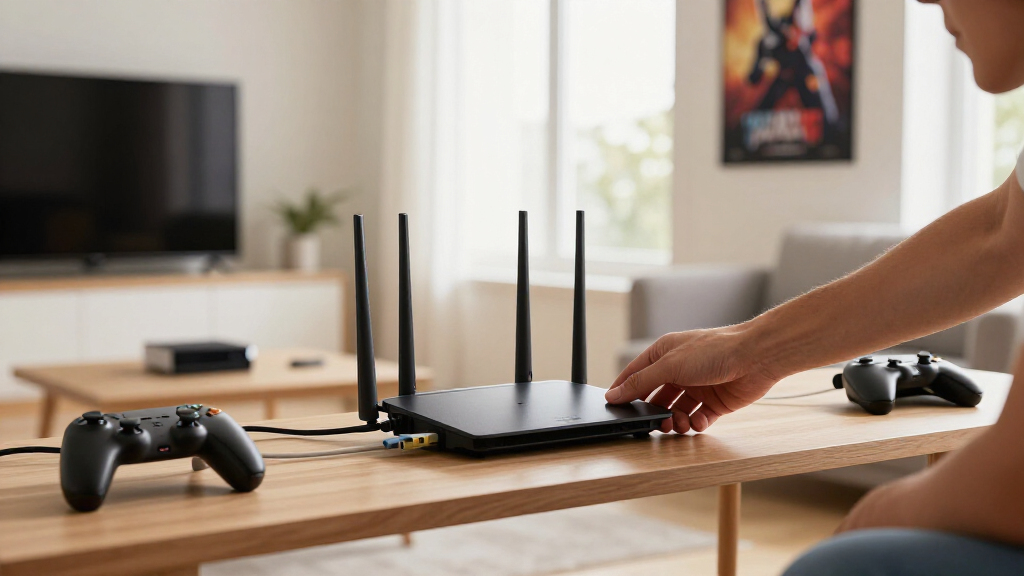
Wi-Fi 6E router with 160 MHz channels
As an affiliate, we earn on qualifying purchases.
As an affiliate, we earn on qualifying purchases.
Choose the Width That Fits Each Wi-Fi Band
The best starting width is 20 MHz on 2.4 GHz, 80 MHz on 5 GHz, and 80 or 160 MHz on 6 GHz. Each band has a different amount of usable spectrum, wall penetration, and neighborhood traffic, so copying one width across every radio wastes capacity or invites interference.
| Band | Common widths | Practical gaming choice | Best use |
|---|---|---|---|
| 2.4 GHz | 20/40 MHz | 20 MHz | Distant and low-bandwidth devices |
| 5 GHz | 20/40/80/160 MHz | 80 MHz, or 40 MHz when crowded | Most gaming PCs and consoles |
| 6 GHz | 20/40/80/160/320 MHz | 80 or 160 MHz near the router | Compatible Wi-Fi 6E and Wi-Fi 7 devices |
The 2.4 GHz band travels farther and pushes through walls better, but it shares a cramped room with nearby Wi-Fi, Bluetooth equipment, and some household electronics. In a block of flats, a 40 MHz setting can spread across much of the usable band. A console two rooms away may show decent signal strength while retransmissions pepper the connection with tiny pauses.
The 5 GHz band gives you more space and usually less interference. In a detached house, 80 MHz often balances speed and stability beautifully. In a busy apartment at 9 p.m., dropping to 40 MHz may reduce collisions and turn a jagged 25-to-120 ms ping pattern into a steadier line, even if the speed test loses several hundred megabits.
The 6 GHz band, introduced for Wi-Fi 6E and expanded by Wi-Fi 7, offers many cleaner channels and no older Wi-Fi clients. Its signal fades faster through walls, though. A gaming laptop three metres from a 6 GHz access point may fly on 160 MHz, while the same laptop behind two brick walls may play more reliably on 5 GHz.
As an affiliate, we earn on qualifying purchases.
Why a Narrower Channel Can Give You Smoother Matches
Wi-Fi Channel Width Explained for Gaming Homes comes down to a counterintuitive rule: less spectrum can produce steadier play. Narrow channels touch fewer interference sources, leave more room for nearby networks, and may need fewer retransmissions, which can lower jitter when the airwaves become crowded.
Imagine four people trying to carry sofas through adjacent doors. Opening two doors for one person sounds faster, but it blocks everyone else and creates a noisy pile-up. A wide Wi-Fi channel works in a similar way: it claims more airtime territory, and a connection uses every included slice as part of its working lane.
This matters because online games usually need modest bandwidth. Voice chat, player positions, and controller inputs do not demand a multi-gigabit pipe. They demand packets that arrive in order and on time. A single jump from 20 ms to 180 ms can make an opponent snap across the screen, even when your average ping and download speed look respectable.
Consider a player using 80 MHz on 5 GHz in a building with fifteen visible networks. At lunchtime, the connection feels clean. During the evening rush, nearby video calls and streaming boxes fill the same spectrum, causing retries and sharp latency spikes. Switching that radio to 40 MHz may cut peak throughput but give the gaming packets a quieter path.
Guidance from skeldrift.com [1] favors predictable latency over headline speed for this reason. You should watch loaded latency, jitter, and packet loss, not just the large number in a speed-test result. A slightly slower link that holds 28 ms under pressure beats a faster link that jumps between 18 and 200 ms.
Ethernet cable for gaming high speed
As an affiliate, we earn on qualifying purchases.
As an affiliate, we earn on qualifying purchases.
Test Your Router Settings in Five Practical Steps
You can find the best width by changing one setting at a time, testing at the gaming device’s normal location, and repeating the test during busy hours. Record idle ping, loaded latency, jitter, packet loss, and disconnects; the winner is the setting with the tightest, most repeatable results.
- Write down your baseline. Test the current setting three times at the desk, sofa, or console cabinet where you play. Include one test while another device uploads a large file.
- Choose a sensible starting point. Set 2.4 GHz to 20 MHz, 5 GHz to 80 MHz, or 6 GHz to 80 MHz. Changing the setting will usually restart that radio and briefly disconnect its devices.
- Apply one alternative. In a crowded home, compare 40 MHz with 80 MHz on 5 GHz. Near a 6 GHz router, compare 80 MHz with 160 MHz.
- Repeat under pressure. Run a download, an upload, and a 4K stream while watching ping. Test for at least several minutes, not one clean ten-second burst.
- Keep the stable result. Favor lower packet loss and fewer spikes over the highest download figure. Retest after several weeks because neighboring networks change.
For example, suppose 80 MHz delivers 720 Mbps and 6 ms of idle local delay, yet an upload pushes latency above 160 ms. The 40 MHz setting reaches only 430 Mbps but holds loaded latency near 35 ms. For gaming, the second result is the stronger connection because it keeps your inputs moving while the household is busy.
If every width suffers during uploads, investigate bufferbloat. Smart Queue Management, often labeled SQM, can control oversized router queues and keep a cloud-backup job from trapping game packets behind a wall of data. Channel width and SQM solve different bottlenecks, so changing both at once hides which fix worked.
As an affiliate, we earn on qualifying purchases.
Use Wi-Fi 6E and Wi-Fi 7 Features Without Chasing Hype
Wi-Fi 6E and Wi-Fi 7 can improve gaming when they provide cleaner spectrum, better scheduling, or another usable link. Their widest channels do not automatically cut internet ping. You still need compatible devices, close placement, clean airwaves, and a healthy connection beyond your router.
Wi-Fi 6E extends Wi-Fi 6 operation into the 6 GHz band. Its gaming advantage comes mainly from escaping crowded 5 GHz traffic, not from a magical latency switch. If your router sits beside your gaming room and both devices support 6 GHz, an 80 or 160 MHz connection can feel wonderfully quiet, like moving from a clattering station platform into an empty carriage.
Wi-Fi 7 adds channels up to 320 MHz in regions with enough 6 GHz spectrum and the right regulatory support [2]. A 320 MHz setting can widen your channel and your expectations. It shines during multi-gigabit local transfers, such as copying a 100 GB game library from a home server, but ordinary online play rarely consumes enough bandwidth to expose a large gameplay benefit.
Multi-Link Operation, or MLO, can let compatible equipment use or coordinate more than one link. Depending on the hardware and software, a device may avoid congestion, improve reliability, or combine capacity. Both the access point and client need compatible MLO modes, and early implementations can behave differently across firmware versions.
Wi-Fi 7 also supports puncturing, which can avoid an interfered slice of a wide channel instead of discarding the whole width. Think of road crews closing one motorway lane while traffic keeps flowing through the others. Real gains depend on router firmware, client support, regional channel availability, and conditions inside your home, so verify performance on your exact hardware version.
Fix the Lag Sources That Channel Width Cannot Touch
Wi-Fi Channel Width Explained for Gaming Homes also tells you when to stop adjusting width. If every setting produces spikes, check router queues, signal quality, mesh hops, ISP congestion, and server routing; channel width changes only the local radio lane between a client and access point.
- Bufferbloat: If ping soars when someone uploads photos or a video, enable effective SQM or QoS and set realistic connection limits.
- Weak placement: Move the access point into the open, above furniture, and away from metal cabinets rather than hiding it behind a television.
- Wireless mesh backhaul: Use wired Ethernet backhaul where possible, because each wireless hop consumes airtime and can add delay.
- ISP or server trouble: Compare several game regions and test a wired device. A width change cannot repair a poor route across the wider internet.
Take a family home where a teenager plays upstairs while a laptop backs up 60 GB of video. The game runs smoothly until the upload begins, then ping climbs from 24 ms to 240 ms on every channel width. That pattern points to a swollen internet queue, not radio width; SQM can help far more than switching from 80 to 40 MHz.
Another common trap is trusting the signal icon. Four bright bars can coexist with congestion, noise, and repeated frames. The icon measures something closer to volume than clarity: you can hear a person shouting in a crowded café, yet still miss half the sentence.
If a wired test also lags under load, stop tuning Wi-Fi width. Fix the router queue, ISP path, or server choice.
For a stationary gaming PC or console, Ethernet remains the reliability benchmark. A cable avoids radio interference and mesh airtime altogether. Keep Wi-Fi for devices that move, and let copper carry the match that matters.
Match the Setting to the Home You Actually Have
The right gaming width depends on building density, room layout, device support, and access-point distance. Start with a proven baseline, then adapt it to the home around you. Your neighbor’s perfect 160 MHz setup may perform badly through your concrete wall or beside twelve competing routers.
In a busy apartment building, set 2.4 GHz to 20 MHz and compare 40 with 80 MHz on 5 GHz. Test after dinner, when nearby streams, calls, and downloads fill the air. If 40 MHz loses some speed but removes the sharp red spikes from your latency graph, keep it.
In a detached house with moderate congestion, 20 MHz on 2.4 GHz and 80 MHz on 5 GHz make a strong baseline. Put smart plugs, speakers, and distant sensors on 2.4 GHz when practical, leaving 5 GHz capacity for a console in the next room. A separate network name can help organization and security, though the number of network names alone does not create extra radio capacity.
For a nearby Wi-Fi 6E setup, test 80 and 160 MHz on 6 GHz. A laptop at the same desk as the access point may gain fast downloads and a clean gaming link. Move that laptop down a hallway and behind two thick walls, and 5 GHz may become steadier despite its older label.
In a Wi-Fi 7 home, start with automatic channel selection or 160 MHz. Try 320 MHz when a compatible client sits close by and you need very high local throughput. Treat device software, firmware, region, and hardware revision as part of any performance claim; supported channel widths and MLO behavior can change between models and updates.
Frequently Asked Questions
What channel width is best for gaming?
Use 20 MHz on 2.4 GHz and start with 80 MHz on 5 GHz. In a crowded building, 40 MHz on 5 GHz can produce steadier latency; on nearby 6 GHz equipment, test 80 or 160 MHz. The best result has low jitter and packet loss during busy periods.
Is 20, 40, 80, or 160 MHz better for ping?
No width guarantees the lowest ping. Wider channels raise potential throughput, while narrower channels can avoid more interference and retransmissions. Compare loaded latency, jitter, and packet loss at each width instead of choosing by the largest number.
Should you use 160 MHz for gaming?
Use 160 MHz when the router and client support it, the signal is strong, and nearby networks leave enough clean spectrum. It offers clearer value for large downloads and local file transfers than for ordinary gameplay. If matches develop random spikes, compare it directly with 80 or 40 MHz.
Is a 320 MHz Wi-Fi 7 channel worth using?
A 320 MHz channel can deliver very high local throughput to compatible Wi-Fi 7 equipment on 6 GHz, subject to regional support. It provides little direct benefit to a game that uses modest bandwidth, and it needs a strong nearby signal plus broad clean spectrum. Confirm support for your exact router, client, firmware, and region.
Is 5 GHz or 6 GHz better for gaming?
6 GHz can be cleaner at short range because it avoids older clients and often has fewer neighboring networks. Through several walls, 5 GHz may hold a stronger link and produce fewer disconnects. Test both from the chair or desk where you play rather than beside the router.
Why does gaming lag when someone uploads a file?
The likely cause is bufferbloat: a saturated connection builds an oversized queue, forcing small gaming packets to wait behind the upload. Effective SQM or QoS can keep that queue short and protect latency. Changing channel width may help only when local wireless interference also contributes to the delay.
Conclusion
The setting to remember is simple: choose the narrowest channel that delivers enough speed and the steadiest latency. For most homes, that means 20 MHz on 2.4 GHz and 80 MHz on 5 GHz, with 40 MHz ready for crowded airwaves. Nearby 6 GHz equipment can use 80 or 160 MHz well, while 320 MHz belongs mainly to close-range Wi-Fi 7 transfers and requires compatible hardware plus regional support.
Run your tests where you play, repeat them while the house is busy, and keep the setting with fewer spikes rather than the flashiest number. If uploads still send ping skyward, turn to SQM, better access-point placement, wired backhaul, or Ethernet. Your best gaming network should feel almost invisible: one button press, one clean packet, one instant response.
Fall Picks
fall essentials
As an affiliate, we earn on qualifying purchases.