TL;DR
A capture card records or streams video and audio from a gaming device by receiving its HDMI output and sending that signal to a recording computer. For most Steam Deck setups, a reliable 1080p60 UVC card with HDMI passthrough, USB 3.x connectivity, a powered USB-C dock, and a second computer provides the best balance of quality, simplicity, and cost.
Your Steam Deck run looks perfectly smooth on the television, but the OBS preview moves half a beat behind every button press. The picture may also appear gray, the audio may crackle, or the recording may stop at 30 frames per second despite a bright 4K label on the capture card box. That little adapter sits in the middle of a surprisingly long chain.
This guide shows you what a capture card actually does, when you need one, and which specifications change the result you record. You will see how capture resolution differs from passthrough, why a USB-C plug says almost nothing about speed, and how to connect a Steam Deck without forcing the handheld to handle the stream itself.
You will also get a practical setup path for 1080p60 recording, a clear comparison of external and internal cards, and fixes for black video, missing audio, dropped frames, and delayed controls. The goal is simple: help you build a setup where the game feels immediate on your display while the recording computer quietly turns those frames into a clean video.
Use a powered USB-C dock, HDMI passthrough, an external UVC card, and a second computer for a straightforward Steam Deck recording setup.
Check capture resolution and passthrough resolution separately; 4K120 passthrough does not promise 4K120 recording.
Start at 1920×1080 and 60 fps, then test color, audio sync, and a full 10-minute recording before raising quality settings.
Connect through a verified USB 3.x port and data cable because USB-C describes the plug shape, not the available bandwidth.
Skip the capture card for most single-PC games and use OBS Game Capture unless you need an external source or a dual-PC workflow.
Capture Cards Explained for Steam Deck and PC Gaming
A capture card is the bridge between gameplay and recording software. The source creates the picture, the card transports it, and a second computer compresses, stores, or streams it.
What the card actually does
It accepts video and audio over HDMI, exposes that feed to recording software, and may send a separate low-delay copy to your display. It does not increase game performance or invent image detail.
Gaming device
Steam Deck, console, or gaming PC creates the original signal.
Capture card
Receives HDMI video and audio, then duplicates or converts the feed.
Recording PC
OBS receives the source and handles encoding, storage, and streaming.
Display
Passthrough provides the responsive screen used for actual play.
If the Steam Deck outputs 1080p60, the card cannot create native 4K detail or double the game’s real frame rate.
External USB or internal PCIe?
External cards fit handheld and movable setups. Internal cards suit permanent production desktops where bandwidth, multiple inputs, and demanding signal modes matter more than portability.
External USB
Best for Steam Deck, laptops, consoles, travel kits, and recording in different locations.
Internal PCIe
Best for a dedicated desktop streaming PC with available slots and higher-bandwidth requirements.
UVC support
Webcam-like operation can simplify use across Windows, macOS, Linux, and SteamOS.
Powered dock + external UVC card
The dock provides HDMI output, charging, and useful ports for Ethernet, controllers, keyboards, or other accessories during long recording sessions.
Single-PC games
Use OBS Game Capture for most games running on the same PC unless you need an external source or dual-PC workflow.
Choose for the workflow
The connector format is only one part of the decision. Match the hardware to the source device, installation, portability, and signal bandwidth you genuinely need.
| Feature | External USB card | Internal PCIe card |
|---|---|---|
| Best fit | ✓ Steam Deck, console, laptop | ✓ Dedicated streaming desktop |
| Installation | ✓ Connect USB and HDMI | ~ Open desktop and use a PCIe slot |
| Portability | ✓ Easy to move | ✗ Fixed inside one computer |
| Typical bandwidth | ~ Depends on card, port, hub, and cable | ✓ Often supports demanding modes |
| Common risk | ~ USB bottlenecks or charge-only cables | ~ Slot space, installation, and cost |
| Typical Deck value | ✓ Practical recommendation | ✗ Usually unnecessary for one Deck |
Passthrough is not capture
A bright 4K label may describe only the signal shown on your gaming display. Always inspect the card’s capture and passthrough limits separately, including frame rate, HDR, and variable-refresh-rate support.
This is the signal the recording computer can encode, save, or stream.
This is the direct signal delivered to the connected television or monitor.
Build the Steam Deck setup
Keep the signal moving in one direction. Let the powered dock handle video output and charging, let the card duplicate the feed, and let the second computer handle recording.
Dock the Deck
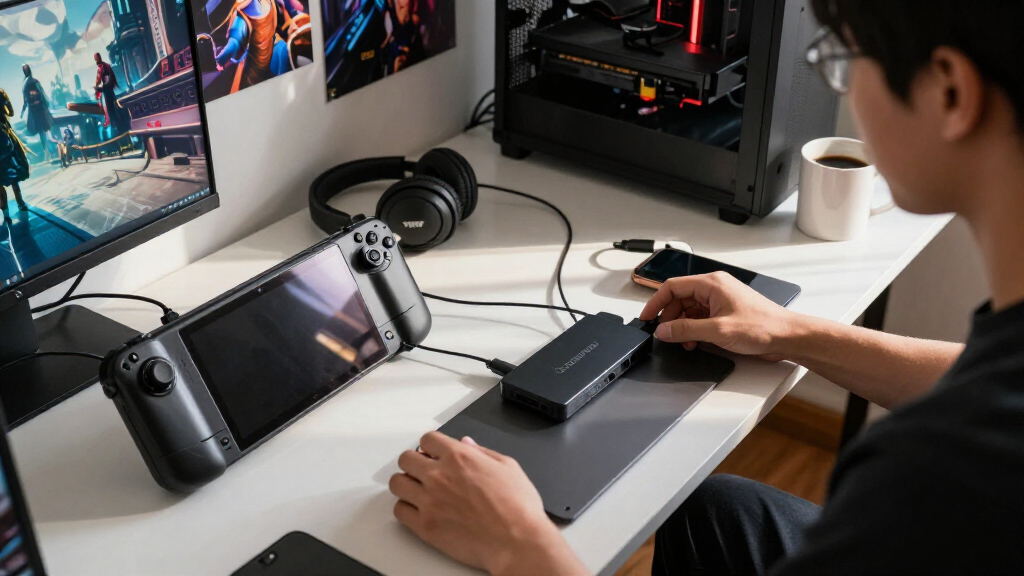
Connect the Steam Deck to a powered USB-C dock with HDMI output.
Feed HDMI in
Run HDMI from the dock output to the capture card’s HDMI input.
Connect USB 3.x
Attach the card to the recording computer with a verified data cable.
Route passthrough
Run HDMI from the card’s output to the gaming monitor or television.
Add the OBS source
Select Video Capture Device, then begin at 1920×1080 and 60 fps.
Play on the display
Ignore the delayed preview for controls and use the passthrough screen.
The plug shape proves nothing
USB-C describes the connector, not its speed. The card, port, hub, and cable must all support the required data rate or the setup may fall back, stutter, disappear, or produce unstable audio.
Verify USB 3.x
Use a known data port and the supplied cable. Avoid charge-only cables and overloaded hubs.
NV12, YUY2, MJPEG
Available resolutions and frame rates may change when the selected format changes.
Range and chroma
Match RGB or limited range, SDR or HDR, bit depth, and chroma sampling across the chain.
Check HDCP
Protected HDMI content can produce a black screen even when every cable is connected correctly.
Plan the route
Keep HDMI game audio and microphone audio on separate OBS sources when practical.
Prefer UVC
Class-compliant cards often appear as standard video devices without proprietary software.
Fix the symptom at its source
Work through the chain instead of changing random OBS settings. Confirm the source signal first, then cables and bandwidth, then capture format, and finally encoding performance.
Black video
SignalSet the Deck to 1080p60, confirm HDMI input selection, reseat cables, disable unsupported HDR modes, and rule out HDCP-protected content.
Missing audio
RoutingConfirm HDMI is the Deck’s output, enable the card’s audio source in OBS, and monitor the correct device without creating feedback.
Dropped frames
BandwidthUse a verified USB 3.x port and data cable, bypass slow hubs, lower the capture format, and check recording-computer encoding load.
Gray picture
ColorMatch full or limited color range, verify SDR versus HDR, and compare the card’s configured format with the source output.
Audio crackle
StabilityTest another USB port, remove hub contention, match sample rates, and inspect whether bandwidth problems affect both audio and video.
Delayed controls
LatencyPlay from the card’s HDMI passthrough display. The OBS preview is an encoded monitoring feed and can arrive visibly later.
When do you need one?
A capture card is valuable when video originates outside the recording computer or when you want encoding work separated from gameplay. It is unnecessary for many ordinary single-PC recordings.
Steam Deck or console
Record an external HDMI source while a second computer handles OBS and storage.
Dual-PC streaming
Keep gameplay on one computer and encoding, scenes, and broadcasting on another.
Single-PC gameplay
Use OBS Game Capture unless an external source, camera workflow, or isolated production system requires hardware.
See Exactly What a Capture Card Does Between Your Game and OBS
Any guide to capture cards explained for Steam Deck and PC gaming should begin with one fact: a capture card is a bridge that accepts an HDMI signal and presents it to recording software. It carries video and audio; the receiving computer usually handles compression, storage, and streaming.
The basic path looks like gaming device → capture card → recording computer. If the card has HDMI passthrough, another cable runs from the card to your television or monitor. You play on that direct display while OBS watches a separate feed, much like a camera operator recording a football match without standing between the player and the ball.
Imagine that you start Hades II on a Steam Deck connected to a powered dock. The dock sends a 1080p60 HDMI signal into the card, and the card appears inside OBS as a Video Capture Device. According to OBS Project documentation, capture hardware is added through this source type, where you can select its resolution, frame rate, color format, and audio behavior [2].
The card does not make the game run faster or sharpen a soft image. It simply receives frames from a gaming device and passes them onward. Put plainly, it is a doorway, not a graphics upgrade: if the Deck outputs 1080p at 60 Hz, the card cannot invent native 4K detail or double the game’s real frame rate.
A capture card moves a signal. Your source creates the picture, your card carries it, and your recording computer compresses it.
1080p60 USB-C capture card for gaming
As an affiliate, we earn on qualifying purchases.
As an affiliate, we earn on qualifying purchases.
Choose External USB or Internal PCIe Without Paying for the Wrong Hardware
For shoppers reading about capture cards explained for Steam Deck and PC gaming, the useful choice is simple: external USB cards suit handhelds, laptops, and movable setups, while internal PCIe cards suit permanent desktop production stations. Your source devices, available ports, and desired signal bandwidth should decide the format.
| Feature | External USB card | Internal PCIe card |
|---|---|---|
| Best fit | Steam Deck, console, laptop, travel setup | Dedicated desktop streaming PC |
| Installation | Connect USB and HDMI cables | Open the desktop and use a PCIe slot |
| Portability | Easy to move between systems | Stays inside one computer |
| Typical bandwidth | Limited by the card, USB port, hub, and cable | Often supports more inputs or demanding signal modes |
| Common risk | USB bottlenecks and confusing cable specifications | Slot availability, installation space, and higher cost |
A Steam Deck owner who records at a kitchen table benefits from an external UVC card. You can place the palm-sized box beside the dock, connect it to a laptop, then pack the whole setup into a small case. A powered dock also keeps the Deck charging and provides room for Ethernet, a controller receiver, or a keyboard.
An internal card makes more sense when you have a tower that stays under a studio desk. For example, a dual-PC broadcaster may want two HDMI inputs, high-refresh passthrough, and predictable PCIe bandwidth during a four-hour session. The tradeoff is obvious: you gain a tidy, fixed installation but lose the ability to move the card to a laptop in seconds.
For most Steam Deck streams, 1080p60 capture, HDMI passthrough, UVC support, and a genuine USB 3.x connection cover the job. An internal card with several inputs can be excellent hardware, but buying it for one Deck is like installing a restaurant oven to toast one sandwich.
HDMI passthrough capture card for Steam Deck
As an affiliate, we earn on qualifying purchases.
As an affiliate, we earn on qualifying purchases.
Build a Steam Deck Capture Setup That Works on the First Recording
A practical setup for capture cards explained for Steam Deck and PC gaming uses a powered USB-C dock, two HDMI connections, an external capture card, and a second computer. The signal should travel in one direction, while HDMI passthrough sends an immediate copy to the display you use for playing.
- Connect the Steam Deck to a powered USB-C dock so the handheld can charge during long sessions.
- Run HDMI from the dock’s output to the capture card’s HDMI input.
- Connect the card to the recording PC with its supplied USB 3.x cable.
- Run another HDMI cable from the card’s output to your gaming monitor or television.
- Open OBS and add the card as a Video Capture Device.
- Set a starting format of 1920×1080 at 60 fps, then configure game audio and your microphone separately.
- Play from the passthrough display, not the delayed OBS preview.
Suppose you are recording a fast parry sequence in Sekiro. Your sword clangs against steel the instant you press the shoulder button on the television, but the OBS window shows the impact a moment later. That preview delay is normal; switching your eyes to the passthrough screen keeps your timing sharp while OBS records in the background.
Valve lists DisplayPort support through the Steam Deck’s USB-C connection, so the dock or adapter converts that external display signal into HDMI for the card [1]. A simple USB-C-to-HDMI adapter can work, but a powered dock gives you charging, stable cabling, and extra ports in one solid base.
If the card receives no usable image, open the Deck’s display settings and start with 1080p at 60 Hz. Desktop Mode can make external-display controls easier to inspect. Steam Deck Verified status applies to how a game runs on the handheld; it does not promise that every dock, capture card, SteamOS release, or external resolution will behave the same way.
USB 3.x external capture card for PC gaming
As an affiliate, we earn on qualifying purchases.
As an affiliate, we earn on qualifying purchases.
Read Capture and Passthrough Specs Without Falling for a 4K Label
Capture resolution is the signal your recording computer can save or stream, while passthrough resolution is the signal you see on your gaming display. They are separate limits, so a card may pass 4K120 to your screen while sending 4K60 or 1080p120 to OBS.
Think of the card as a train station with two tracks. One express track carries the original signal to your monitor, while the other sends a recording-friendly version to your computer. A large 4K input claim on the box may describe only what enters the station, not what reaches the recording track.
For example, you might connect a desktop gaming PC to a 1440p monitor running at 144 Hz. A card that captures 1080p60 but passes through 1440p144 can preserve the smooth feel of your game while producing a practical stream. A card limited to 1080p60 passthrough could force your display into a slower mode, even if you never planned to record above 1080p.
Check the exact combinations supported at the same time: resolution, refresh rate, HDR, VRR, and capture frame rate. HDMI 2.1 hardware increasingly supports 4K120 passthrough, but that does not automatically mean 4K120 recording. The source, dock, cables, card, computer interface, software, and display must all accept the selected mode.
Color specifications matter too. NV12, YUY2, and MJPEG can produce different bandwidth demands and image quality, while limited-range and full-range settings can turn deep shadows into a gray haze or crush detail into black patches. HDR, 10-bit color, and 4:4:4 chroma can look excellent, but only when the whole chain supports them; otherwise, clean SDR often gives you the steadier result.
best capture card for 4K streaming
As an affiliate, we earn on qualifying purchases.
As an affiliate, we earn on qualifying purchases.
Know When a Capture Card Helps—and When OBS Alone Is Better
A capture card helps when you record an external device, separate gaming from encoding, or bring an HDMI camera into a production. If you play and stream on one capable PC, OBS Game Capture is usually simpler because it avoids extra hardware, cables, and signal conversion.
Take a single-PC player with a recent graphics card. OBS can capture the game directly and use NVENC, Intel Quick Sync, or AMD’s media engine to encode without hammering the CPU. Adding a capture card to that same machine rarely improves frame rate; it merely takes the image out through HDMI and brings it back through another interface.
A Steam Deck changes the equation. If a laptop records the Deck’s HDMI output, the handheld spends its power budget on the game while the laptop handles H.264, HEVC, or AV1 encoding. That can keep fan noise, frame pacing, and battery drain more predictable than running a full recording workflow locally on the Deck, though your exact result depends on the game, SteamOS version, resolution, and power profile.
Dual-PC capture follows the same idea on a larger scale. One PC renders the game, and a second PC records or streams the incoming feed. Modern hardware encoders have made this arrangement less necessary, but it still helps with complex broadcasts, production backup, competitive workloads, or a gaming system that cannot encode smoothly at the desired settings.
- Use a card for a Steam Deck, console, HDMI camera, BIOS screen, or second gaming PC.
- Use direct OBS capture for a game running on the same PC as OBS.
- Choose standalone recording hardware only when you need to save directly to SD storage without a nearby computer.
A standard capture card does not stream by itself. It supplies frames; your recording computer usually compresses and sends them to Twitch or YouTube. In plain language, the card catches the picture, but OBS and the encoder do the heavy lifting.
Stop USB, Audio, and Preview Problems Before They Ruin a Session
Most capture failures come from three places: insufficient USB bandwidth, tangled audio routing, or playing through a delayed software preview. Start with the supplied cable, a direct USB 3.x port, HDMI passthrough, and one simple audio path before adding microphones, chat, Bluetooth headphones, or extra hubs.
USB-C describes a connector shape, not a speed. A slim cable may support charging but carry little or no usable data, while a crowded hub may split bandwidth among storage, Ethernet, and the capture card. During a busy boss fight, that weak link can produce blocky motion, stutters, missing frames, or a device that disappears from OBS.
Audio creates a different knot. HDMI normally carries game sound, but connecting a dock can make the Steam Deck switch away from its speakers or headphones. In OBS, you may need separate sources for HDMI game audio, a USB microphone, and Discord, plus monitoring headphones connected to the recording computer.
For example, record a 10-minute test before a long stream. Speak, open a menu, fire a weapon, and clap once on camera if you use a webcam. The sharp clap makes sync errors easy to spot: if your hands meet before the sound arrives, adjust the audio delay rather than discovering a drifting soundtrack after three hours.
Play through HDMI passthrough. A claim of zero-latency passthrough means the direct display path feels immediate during normal play; it does not make the encoded OBS preview latency-free.
If OBS shows black video, test 1080p60 SDR, connect the card directly to the host, swap one cable at a time, and confirm that HDMI runs into the input rather than the output. Protected video services may trigger HDCP and produce a black screen. Capture hardware should not be used to bypass copy protection.
Use This Buying Checklist to Get Reliable 1080p60 Instead of Box-Art Promises
The safest purchase for a typical Steam Deck stream is a 1080p60 UVC capture card with HDMI passthrough, USB 3.x support, and clear platform compatibility. Confirm the card’s simultaneous capture and passthrough modes, because a bold 4K badge may refer only to accepted HDMI input.
- Capture mode: Verify the actual resolution, frame rate, and color format sent to OBS.
- Passthrough mode: Match your monitor’s resolution, refresh rate, HDR, and VRR needs.
- Host connection: Check the required USB generation or PCIe slot rather than trusting connector shape.
- Compatibility: Look for UVC support and confirmed operation on your Windows, macOS, Linux, or SteamOS version.
- Audio: Check HDMI audio capture, microphone inputs, monitoring options, and reports of long-session drift.
- Support: Look for firmware updates, usable documentation, included high-speed cables, and clear simultaneous-mode charts.
Cheap USB dongles can handle an occasional 1080p call or casual recording, but their limits often hide behind vague wording. A device advertised as 4K may accept 4K input while capturing 1080p30 in MJPEG, with soft text, noisy audio, washed-out color, and a warm plastic shell after an hour.
Imagine that you stream turn-based games twice a month. An inexpensive 1080p30 card might be perfectly adequate because fast motion and razor-thin input timing matter less. If you record racing games at 60 fps for weekly edits, stable frame pacing, accurate color, clean audio, and solid heat management deserve more weight than the largest number printed on the package.
Independent tests should confirm whether advertised modes operate together. Also check the return policy before testing Linux or SteamOS features, since a UVC feed may work while proprietary HDR controls or firmware tools remain limited to Windows or macOS. The practical goal is not the highest specification; it is a card that records your real setup reliably.
Frequently Asked Questions
Do you need a capture card to stream Steam Deck games?
No, not in every setup. You can record or stream with software on the Deck, but that uses the handheld’s own processing power and may require more setup. A capture card attached to a second computer offers a cleaner route when you want the Deck focused on running the game.
Can you connect a capture card directly to a Steam Deck?
The usual setup needs a USB-C dock or HDMI adapter because the Steam Deck lacks a full-size HDMI port. The dock sends HDMI into the card, while the card’s USB connection goes to a recording computer. A powered dock is better for long sessions because it can charge the Deck at the same time.
Can a capture card record without a PC?
Most USB and PCIe cards need a host computer running OBS or similar software. Only standalone recorders with onboard encoding and storage can save footage without a PC. Check for an SD-card slot and explicit standalone-recording support rather than assuming every card records internally.
Does a capture card improve Steam Deck or PC performance?
A capture card does not raise frame rates or graphics quality. In a two-device setup, it can move recording and streaming work to the receiving computer, leaving the gaming device focused on play. The benefit comes from dividing the workload, not from the card accelerating the game.
Why does OBS show a black screen from the capture card?
Common causes include an unsupported resolution or refresh rate, HDCP-protected content, weak USB bandwidth, reversed HDMI connections, or a faulty cable. Test 1080p60 SDR, connect the card directly to the host, and replace one cable at a time. Protected streaming-video apps may remain black by design.
Can you capture Steam Deck gameplay at 4K or 120 fps?
You can only capture a mode supported by the game, Deck, dock, cables, card, host interface, software, and display. Many demanding Steam Deck games will not run smoothly at native 4K, making 1080p60 or 1440p a more practical recording target. Some cards pass through 120 Hz while capturing only 60 fps.
Why is there no game audio in OBS?
The source may be sending sound to speakers, Bluetooth headphones, or another device instead of HDMI output. Select HDMI on the Steam Deck or gaming PC, confirm that OBS receives the card’s audio, and check mute and monitoring settings. Add your microphone and chat as separate sources when you need independent volume control.
Conclusion
Choose your capture setup around the signal you will actually record, not the loudest number on the box. For most Steam Deck owners, that means 1080p60 UVC capture, a powered dock, stable USB 3.x bandwidth, and HDMI passthrough to the screen in front of you.
Run one short test before every major session and watch for dropped frames, pale blacks, delayed sound, and heat. When every link matches, the hardware fades into the background: your controls feel sharp, OBS meters glow steadily, and the only thing left to think about is the game.