
TL;DR

Play games on Amazon Luna for your game nights, included with Prime
- A rotating selection of games, no download needed
- Play on TV, laptop or phone
- Fast, free delivery for your gear, too
Steam Deck Beta Channels Explained: Stable, Beta, and Preview means Stable is best for everyday play, Beta gives you earlier public fixes, and Preview gets experimental SteamOS changes first with the most bug risk. Switch in Settings > System > System Update Channel, then restart; choose Preview only when you have time to troubleshoot.
A tiny setting on your Steam Deck can decide whether Friday night feels smooth as warm plastic under your thumbs or jagged with surprise bugs.
You will learn what Stable, Beta, and Preview actually mean, when each one makes sense, and how to move between them without turning a quick patch into a couch-side repair session. This is for normal owners, tinkerers, and anyone who has seen steam deck beta chatter and wondered whether the shiny new build is worth it.
Stable, Beta, and Preview: Which Steam Deck Channel Fits Your Patience?
TL;DR: Stable is best for everyday play, Beta gives you earlier public fixes, and Preview gets experimental SteamOS changes first with the most bug risk. Switch in Settings > System > System Update Channel, then restart; choose Preview only when you have time to troubleshoot.
Stable
Best for normal owners, travel, family sharing, and any night when the update channel should stay invisible.
Beta
Useful when a listed fix matters now, such as download behavior, controls, dock support, or UI changes.
Preview turns the Deck into a test bench, not just a game machine.
Pick the Channel That Matches the Evening
Steam Deck channels mostly change update timing. Your library, saves, and games remain yours, but the system layer beneath them arrives on a different schedule.
Stable
Best for: couch sessions, flights, family visits, and one-hour-before-bed gaming. It favors tested public updates over speed.
Beta
Best for: owners who read patch notes and want a specific fix before it reaches Stable, while keeping a reasonable path back.
Preview
Best for: tinkerers, developers, and curious owners who can handle broken behavior, logs, restarts, and surprise changes.
Stable, Beta, and Preview Side by Side
Think of the three options as checkout lanes: steady, early, and experimental. The fastest lane is not always the best lane.
| Channel | Best For | What You Get | Main Tradeoff | Quick Verdict |
|---|---|---|---|---|
| Stable | Daily play, travel, family sharing | ✓ Public updates after more testing | ~ New features arrive later | Choose this when nothing interesting should happen. |
| Beta | Early fixes, UI tweaks, curious owners | ✓ Features and fixes before Stable | ~ Some bugs may slip through | Use it when a patch note solves your problem. |
| Preview | Testing, tinkering, developer curiosity | ✓ Earliest public SteamOS changes | ✗ Highest chance of broken behavior | Enter only when troubleshooting is acceptable. |
Risk Rises as Updates Arrive Earlier
Stable is the family car, Beta is borrowing the newer model for the weekend, and Preview is opening the hood while the engine is still warm.
A listed fix matters tonight
Display-off low-power downloads reached Beta and Preview first in Valve update notes. That is the kind of practical improvement worth testing when it solves a real annoyance.
You have time to test
Preview is reasonable on a spare Sunday with a charger nearby, not ten minutes before a co-op session. Treat rumor posts about hardware, prices, or frame rates as unconfirmed unless Valve posts them.
Update Timing Spectrum
Switch Channels in 5 Safe Steps
The work is simple; the timing matters. Change channels when your battery is charged, downloads can wait, and a restart will not ruin the session.
Open Steam
Press the Steam button from Game Mode.
Go to Settings
Open the system settings menu.
Find System
Locate System Update Channel.
Choose a Lane
Select Stable, Beta, or Preview.
Restart & Test
Try one familiar game before settling in.
Trace the Decision Before You Tap Update
Performance claims should always name the device and SteamOS version because Steam Deck LCD, Steam Deck OLED, and other SteamOS handhelds can behave differently.
Key Takeaways
- Stable is the default choice for normal play because it favors tested public updates over speed.
- Beta is useful when a listed fix matters now, such as a download, controller, or UI change.
- Preview is best for testers; treat leaks and rumors about future hardware or frame rates as unconfirmed.
- Switch channels through Settings > System > System Update Channel, then restart and test one game before you settle in.
- Performance claims should name the device and SteamOS version because Steam Deck LCD, Steam Deck OLED, and other SteamOS handhelds can behave differently.
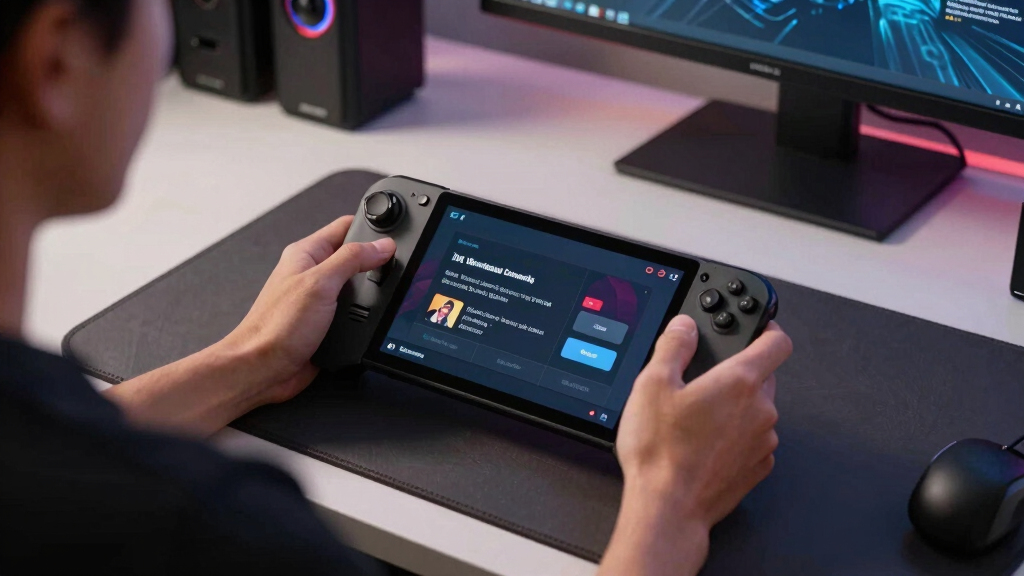
Steam Deck system update channel switch
As an affiliate, we earn on qualifying purchases.
As an affiliate, we earn on qualifying purchases.
Pick the Channel That Matches Your Patience
Steam Deck Beta Channels Explained: Stable, Beta, and Preview is really a choice about patience. Stable gives you the calmest public software, Beta gives you earlier changes after some testing, and Preview puts you closest to Valve’s workbench. The closer you sit to that workbench, the more sawdust you may get on your hands.
If you only play after work, with a drink sweating on the side table and one hour before bed, Stable fits. If you enjoy checking patch notes the way some people check weather radar, Beta may feel right. If logs, weird menus, and bug reports sound fun, Preview has your name on it.
Imagine three Steam Deck owners on the same Thursday night. One wants to finish a story mission before sleep, so Stable keeps the Deck boring in the best way. One is stuck with a download bug and spots a Beta note that mentions the fix, so Beta is worth a try. One has a spare evening, a charger nearby, and curiosity about a new SteamOS menu, so Preview turns the Deck into a test bench instead of just a game machine.
As an affiliate, we earn on qualifying purchases.
See Stable, Beta, and Preview Side by Side
Steam Deck Beta Channels Explained: Stable, Beta, and Preview works best as a comparison because the channels change update timing more than ownership. Your games, saves, and library stay yours, but the system layer beneath them arrives on a different schedule. Think of it as three checkout lanes: steady, early, and experimental.
| Channel | Best For | What You Get | Main Tradeoff |
|---|---|---|---|
| Stable | Daily play, travel, family sharing | Public updates after more testing | New features arrive later |
| Beta | Early fixes, UI tweaks, curious owners | Features before Stable | Some bugs may slip through |
| Preview | Testing, tinkering, developer curiosity | The earliest public SteamOS changes | Highest chance of broken behavior |
For a long train ride, choose Stable and pack your charger. For a weekend at home where you can restart, test, and roll back, Beta is reasonable. Preview belongs on a day when a broken overlay would make you curious, not furious.
A simple rule helps: Stable is the family car, Beta is borrowing the newer model for the weekend, and Preview is opening the hood while the engine is still warm. All three can get you where you want to go, but only one is built for the trip where nothing interesting should happen.
As an affiliate, we earn on qualifying purchases.
Stay on Stable When You Just Want Games to Work
Stable is the right Steam Deck channel when you want the lowest-friction public experience. Valve sends updates here after more testing, so you usually trade speed for steadiness. If your Deck lives beside the sofa and you reach for it the way you reach for a controller, Stable is the lane.
Picture a 90 GB RPG finishing right before dinner. You tap Play, hear the soft fan rise, and expect the same controls, battery readout, and sleep behavior you had yesterday. Stable protects that ordinary comfort better than any other channel.
Stable also makes sense before anything with stakes: a flight, a hotel stay, a family visit, or a week when the Deck is your only gaming device. If your kid expects Minecraft after homework or you expect two quiet Hades runs before bed, you do not want the update channel to become part of the evening’s plot.
According to Valve’s SteamOS 3.8 release notes [2], SteamOS 3.8 reached Stable in June 2026 after earlier testing, with changes for supported SteamOS devices. If a patch mentions performance work, read it by platform and version: Steam Deck LCD on SteamOS 3.8 is not the same claim as every handheld running every game.
As an affiliate, we earn on qualifying purchases.
Use Beta When You Want Early Fixes Without Full Turbulence
Steam Deck Beta Channels Explained: Stable, Beta, and Preview gives Beta the middle seat: newer than Stable, less raw than Preview. Beta suits you when a fix sounds useful now, but you still want a path back if the build makes your fan howl or your overlay behave strangely.
According to Valve’s update notes [1], display-off low-power downloads reached Beta and Preview first. The feature let Steam Deck finish active downloads with the screen off, turned on by default while plugged in, and sent the system to sleep at 20% battery when used unplugged.
That is a perfect Beta example. If your internet crawls and a giant game update would otherwise keep the bright screen glowing all night, Beta can solve a real annoyance. You accept some rough edges because the feature saves you time right now.
Another Beta-shaped moment is a controller or dock bug that matches a patch note exactly. Say your external controller keeps disconnecting, Valve lists a fix in Beta, and you have an evening free to test it. That is a good reason to step forward. Chasing Beta just because the word sounds newer is less useful, like changing lanes in traffic without knowing whether your exit is coming up.
Use Preview Only When Troubleshooting Sounds Acceptable
Preview is the Steam Deck channel for the earliest public SteamOS changes and the highest bug risk. You choose it when testing is part of the fun, not when you need a guaranteed bedtime session. Preview can expose interface changes, driver work, and hardware support before they reach the calmer lanes.
In March 2026, SteamOS 3.8 appeared in Preview with initial support for upcoming Steam Machine hardware; by June 2026, it had reached Stable [2]. Treat release-date leaks, pricing chatter, and frame-rate claims from rumor posts as unconfirmed unless Valve posts them.
Use Preview on a night when troubleshooting sounds acceptable. If you have one hour before bed, Stable is kinder to you.
A good Preview session feels like testing a new recipe while the kitchen is already messy. A bad one feels like finding out your favorite shortcut moved while a boss fight is loading.
For example, Preview might be fine on a spare Sunday when you can test sleep mode, docked display output, Bluetooth audio, and one favorite game before deciding whether to stay. It is a poor choice ten minutes before a co-op session, when discovering that the quick access menu behaves differently would turn curiosity into a chore.
Switch Channels in 5 Safe Steps
You can switch Steam Deck update channels from Game Mode in a few minutes, but you should treat the change like swapping tires before a trip. The work is simple; the timing matters. Do it when your battery is charged, your downloads can wait, and you have a few minutes for a restart.
- Press the Steam button and open Settings.
- Go to System and find System Update Channel.
- Choose Stable, Beta, or Preview based on what you want to test.
- Install the update and restart when prompted.
- Test one familiar game, sleep and wake the Deck, check Wi-Fi, and make sure controls feel normal.
Before a flight or hotel stay, switch at home. Launch a game you know well, listen for odd audio pops, and check that your cloud saves synced. A five-minute test beats learning about a bug at 30,000 feet.
Pick the Right Channel for Real Life, Not Bragging Rights
The best Steam Deck channel is the one that matches what you are doing tonight. Stable wins for travel, family sharing, and long single-player sessions. Beta wins when one known fix matters to you. Preview wins when you want to test and report problems more than you want a silent evening.
- Choose Stable if your Deck is your main gaming device.
- Choose Beta if a patch note fixes a problem you already have.
- Choose Preview if you like testing SteamOS changes and can handle bugs.
- Switch back to Stable before trips, shared use, or long offline stretches.
If you share the Deck with a kid, Stable is the polite choice. The channel does not change ESRB, PEGI, or store age ratings, but it can change menus and behavior, and nobody wants surprise settings drama before couch co-op.
Think of it like choosing shoes. Stable is the pair you wear through an airport. Beta is the newer pair you test on errands because it might be better. Preview is the pair you try on at home while admitting they may rub, squeak, or need to go back in the box.
Know What the Channels Do Not Control
Update channels change SteamOS and Steam client timing; they do not rewrite a game’s age rating, your license, or the basic limits of the hardware. A channel can improve compatibility or fix a bug, but it cannot turn an unsupported game into a verified one by magic.
Deck Verified status can change on Steam store pages, and performance claims should name both device and software version. A game that stutters at 25 fps on Steam Deck LCD under one SteamOS build may behave differently on Steam Deck OLED under another build. Same couch, different software story.
For example, moving from Stable to Beta might fix a specific crash in the Steam overlay, but it will not make a demanding game suddenly run at max settings with double the battery life. Likewise, Preview might add early hardware support or a new menu behavior, but it does not change the fact that a tiny handheld still has thermal limits, storage limits, and game-by-game compatibility quirks.
That nuance matters when you read patch notes. If someone says Preview made a game faster, ask: which game, which Deck model, which SteamOS version, and which settings? Without those details, the claim is just fog on the screen.
Frequently Asked Questions
Which Steam Deck update channel should most people use?
Most people should use Stable. It gives you the most tested public updates and the fewest surprises during normal play, travel, or shared use.
Will switching to Beta or Preview erase my games?
Switching channels usually does not erase installed games or saves. Still, check Steam Cloud status before changing channels, especially before travel or long offline sessions.
Can I switch back from Preview to Stable?
Yes, you can switch back through Settings > System > System Update Channel. Expect a restart and possibly a larger download as the Deck moves back to the Stable build.
Is Preview the same as Steam Deck Verified?
No. Preview is a system update channel, while Steam Deck Verified is a game compatibility label on Steam store pages. One changes your software lane; the other describes how a game is expected to run on Steam Deck.
Are Steam Deck Beta and Preview channels safe?
They are public channels, but they carry more bug risk than Stable. Use Beta for specific fixes you want early, and use Preview only when you are comfortable troubleshooting odd behavior.
Conclusion
Keep Stable as your home base, move to Beta for a specific fix, and touch Preview only when testing sounds like part of the hobby. That simple rule saves you from treating your Steam Deck like a science project every time you wanted ten quiet minutes with a game.
The best channel is the one that disappears while you play. Choose the lane, start the game, and let the fan’s soft rush fade behind the music.
Fall Picks
fall essentials
As an affiliate, we earn on qualifying purchases.