
TL;DR

Play games on Amazon Luna for your game nights, included with Prime
- A rotating selection of games, no download needed
- Play on TV, laptop or phone
- Fast, free delivery for your gear, too
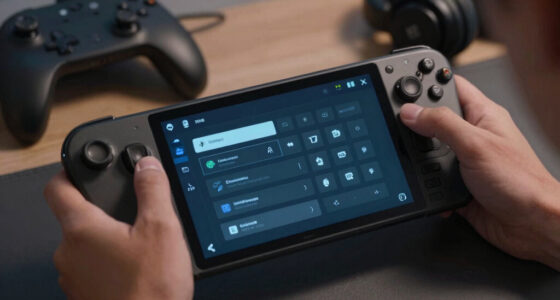
Steam Deck controller templates are preset Steam Input layouts that give you a fast starting point for controls, such as gamepad, keyboard-and-mouse, or mouse-heavy play. You use them to avoid mapping every button from scratch, then tweak trackpads, gyro, triggers, and back buttons for the specific game in front of you.
Your Steam Deck can pretend to be a console controller, a mouse, a keyboard, a flight panel, or a strange little control cockpit with trackpads and gyro aiming.
That magic comes from Steam Input, and controller templates are the cleanest way to start using it without staring at a blank mapping screen. You will learn what templates do, which ones fit which games, and how to turn a rough preset into something that feels made for your hands.
Preset controls are the fast lane into Steam Input.
Steam Deck controller templates are preset Steam Input layouts for gamepad, keyboard-and-mouse, mouse-heavy, and hybrid play. Pick one as a starting point, then tune trackpads, gyro, triggers, and rear buttons until the game feels built for your hands.
A template saves setup time. A tuned layout saves your thumbs.
Typical template tuning beats rebuilding every button from a blank screen.
Trackpads, gyro, touchscreen, triggers, sticks, and four rear grips expand the map.
What a Template Actually Gives You
A template is a ready-made control scheme. Steam Input can translate Deck controls into gamepad, mouse, and keyboard commands, which is why one handheld can behave like a console pad, laptop mouse, hotkey board, or precision aiming rig.
For controller-native games
Start here for platformers, racers, action adventures, and modern games that already expect A, B, triggers, sticks, and bumpers.
For PC-first interfaces
Use the right trackpad as a mouse, keep touch as backup, and map clicks or scroll to triggers and pads for launchers and dense menus.
For games that need both
Blend analog movement with mouse-like aiming, gyro correction, radial menus, and back buttons for games that resist one neat category.
Pick the Starting Point That Matches the Game
The best template is not the fanciest one. It is the one closest to how the game expects input before you add comfort tweaks.
| Game Type | Best Template Starting Point | Quick Tweak | Deck Fit |
|---|---|---|---|
| Action adventure or platformer | Gamepad | Put dodge, sprint, or interact on a rear grip button. | ✓ Strong |
| First-person shooter | Gamepad with mouse-style aiming | Add gyro on left trigger pull for fine aim. | ✓ Strong |
| Strategy, sim, or builder | Keyboard and mouse | Use right trackpad as mouse and left trackpad as radial menu. | ~ Needs tuning |
| Classic RPG or visual novel | Gamepad or mouse-only | Map confirm, cancel, quick save, and inventory to easy buttons. | ~ Depends |
| Launcher-heavy PC game | Mouse-focused template | Keep touchscreen as backup for tiny checkboxes. | ✗ Awkward raw |
Why Templates Matter More on Deck
A normal controller has fewer surfaces. The Steam Deck has enough inputs that a plain layout can leave useful controls unused, especially trackpads, gyro, and rear grips.
- Trackpads help with mouse-heavy menus, inventory grids, launchers, and strategy maps.
- Gyro helps with fine aiming after the stick gets the camera close.
- Back buttons let you jump, crouch, sprint, or reload without lifting your thumbs.
- Mode shifts let one button change what another control does.
Fix what you touch every thirty seconds.
Start with camera, movement, interact, sprint, and menu access. Sensitivity, dead zones, gyro behavior, and radial menus come after the core loop feels steady.
Use a Template Without Fighting the Menus
Apply the template from the game’s controller settings, test it in a short loop, then edit only the parts that feel wrong.
Open Game Page
Find the title in your Steam Deck library.
Select Controls
Use the controller icon to open controller settings.
Browse Layouts
Choose current layout, then open the Templates tab.
Apply Base
Pick gamepad, mouse, keyboard, or hybrid controls.
Test & Save
Play five minutes, tune, then save the per-game layout.
Template, Layout, Community Pick, Recommended Setup
These words sound interchangeable until you start editing. Keep them separate and the Steam Input screen becomes far easier to reason about.
Generic starting point
Best when you want a clean base for a genre or input style before shaping it to a specific game.
Edited and saved version
Best when you know your habits, favorite back-button binds, and preferred sensitivity.
Someone else’s shared setup
Best for complex games with many shortcuts, but test it because patches and personal habits change the feel.
Game-specific official option
Best when Valve or the developer has prepared a setup that matches the current game version.
The Ten-Minute Custom Pass
Use templates as scaffolding. Then make the controls disappear into muscle memory with a few targeted edits.
Traceability: From Preset to Personal Layout
The control chain is simple: match the game’s input needs, apply a base, test the loop, move repeated actions, and preserve the result.
Key Takeaways
Controller templates do not change performance, Steam Deck verification status, or age ratings. They change how quickly you get from awkward inputs to playable control.
Do This
- Use templates as starting points, then save per-game layouts after tuning.
- Pick gamepad templates for controller-native games and mouse templates for PC-first games.
- Move repeated actions to back buttons before rebuilding the whole layout.
- Add gyro when aiming needs precision, not merely because the option exists.
Check This
- Test community layouts because patches and personal habits can change how they feel.
- Revisit layouts when a game receives better official Deck support.
- Lower trackpad sensitivity first if the cursor feels slippery.
- Confirm menu, camera, sprint, pause, and the most repeated action before polishing.
Key Takeaways
- Use templates as starting points, then save per-game layouts after you tune them.
- Pick gamepad templates for controller-native games and mouse or keyboard templates for PC-first games.
- Back buttons, trackpads, and gyro are the fastest ways to make a basic template feel made for Steam Deck.
- Community layouts can be excellent, but test them because patches and personal habits change how they feel.
- Controller templates do not change performance, Steam Deck verification status, or age ratings.
As an affiliate, we earn on qualifying purchases.
What You Actually Get From A Template
Steam Deck Controller Templates Explained starts with one simple idea: a template is a preset control scheme you can apply before you customize. It gives you a ready-made base for buttons, sticks, triggers, trackpads, and sometimes gyro, so you can spend two minutes tuning instead of twenty minutes rebuilding controls.
Think of it like picking a jacket before tailoring the sleeves. A gamepad template may already put jump on A, aim on the right stick, and fire on the right trigger. You can then move reload to a back button or turn the right trackpad into a mouse if the game needs sharper aiming.
According to Valve’s Steam Input documentation [1], Steam Input can translate controller actions into gamepad, mouse, and keyboard commands. That matters because many PC games were never designed for a handheld, especially older strategy games, launchers, and indie titles with tiny menu buttons.
A template saves time, but a good layout saves your thumbs.
As an affiliate, we earn on qualifying purchases.
Why Templates Matter More On Steam Deck Than On A Normal Controller
Steam Deck Controller Templates Explained matters because the Deck has more control surfaces than a standard Xbox-style pad. You get thumbsticks, triggers, bumpers, a touchscreen, two trackpads, gyro, and four rear grip buttons, so a plain gamepad layout can leave half the machine sleeping.
In a shooter like Half-Life 2, you might start with a normal gamepad template, then add gyro aiming for small corrections. The result feels like steering a flashlight beam with your wrists, especially when you need to land a careful headshot from a moving platform.
In a management game, the right trackpad can act like a laptop mouse while the left trackpad becomes a radial menu. That tiny change turns messy cursor work into organized chaos you can control from the couch, blanket included.
- Trackpads help with mouse-heavy menus and inventory grids.
- Gyro helps with fine aiming after the stick gets you close.
- Back buttons let you jump, crouch, sprint, or reload without lifting your thumbs.
- Mode shifts let one button change what another control does.
gaming controller customization kit
As an affiliate, we earn on qualifying purchases.
As an affiliate, we earn on qualifying purchases.
Pick The Right Starting Point For The Game In Front Of You
The best template is the one that matches how the game expects input. If the game was built around controller support, start with a gamepad-style template. If it expects a mouse cursor, use a keyboard-and-mouse or mouse-focused template before you add comfort tweaks.
| Game type | Best template starting point | Quick tweak that helps |
|---|---|---|
| Action adventure or platformer | Gamepad | Put dodge, sprint, or interact on a rear grip button. |
| First-person shooter | Gamepad with mouse-style aiming | Add gyro on left trigger pull for fine aim. |
| Strategy, sim, or builder | Keyboard and mouse | Use the right trackpad as mouse and left trackpad as a radial menu. |
| Classic RPG or visual novel | Gamepad or mouse-only | Map confirm, cancel, and quick save to easy buttons. |
| Launcher-heavy PC game | Mouse-focused template | Keep touchscreen as backup for tiny checkboxes. |
For example, a racing game usually wants triggers for gas and brake, so a gamepad template feels natural. A city builder wants a pointer, scroll wheel, and keyboard shortcuts, so a mouse-based layout feels less like forcing a square brick into a round slot.
Valve’s Steam Deck compatibility labels can change as games receive updates [2]. If a game moves from playable to verified, check the current control layout too, because a developer-backed layout may have improved since the last time you opened it.
Steam Deck trackpad and gyro accessories
As an affiliate, we earn on qualifying purchases.
As an affiliate, we earn on qualifying purchases.
- Open the game page in your Steam Deck library.
- Select the controller icon to open controller settings.
- Choose your current layout, then browse available layouts.
- Open the Templates tab and pick a starting point that fits the game.
- Apply the template, test it for five minutes, then edit the parts that feel wrong.
You apply a Steam Deck controller template from the game’s controller settings, then adjust it through Steam Input. The whole process takes about a minute once you know where the controller icon lives, and you can back out if the template feels stiff or strange.
Try this with a mouse-heavy game. Apply a keyboard-and-mouse template, open the first menu, and move the cursor with the right trackpad. If it skates across the screen like a soap bar, lower sensitivity before you remap anything else.
A good test is short and concrete: open a menu, move the camera, sprint, pause, and perform the game’s most repeated action. If those five actions feel good, you have a solid base.
Know The Difference Between Templates, Layouts, And Community Picks
Steam Deck Controller Templates Explained gets easier once you separate three things: templates, saved layouts, and community layouts. A template is a generic starting point, a saved layout is your edited version for a game, and a community layout is someone else’s shared setup you can download.
Imagine opening an older PC RPG with no official controller support. The template gives you a basic keyboard-and-mouse shell. Your saved layout adds quick save to L4 and inventory to R4. A community layout might already have clever radial menus for spells, potions, and map screens.
Community layouts can be brilliant, but they can also carry someone else’s habits. If a layout puts jump on a trackpad click and crouch on a rear button, that may feel clever for them and bizarre for you.
- Template: best when you want a clean base.
- Your layout: best when you know what your hands prefer.
- Community layout: best when a complex game needs lots of mapped shortcuts.
- Recommended layout: best when the developer or Valve has prepared a game-specific setup.
Make A Rough Template Feel Custom In Ten Minutes
You can make most templates feel better by changing the controls you touch every thirty seconds. Start with camera, movement, interact, sprint, and menu access. Then tune sensitivity, dead zones, gyro behavior, and back buttons only after the core loop feels comfortable.
For a shooter, bind jump or crouch to a rear grip button so your thumb stays on the right stick or trackpad. For a farming game, put map, inventory, and tool swap on the back buttons so daily chores feel smooth instead of clicky and cramped.
Use this quick pass before you spend an evening polishing tiny details:
- Play for five minutes and notice where your thumbs leave the sticks.
- Move repeated actions to back buttons or bumpers.
- Adjust camera speed before changing every button.
- Add gyro only when aiming needs precision, not because the option exists.
- Save the layout once the game feels steady.
The Deck rewards small changes. One back-button remap can feel like moving a pebble out of your shoe.
Avoid The Template Mistakes That Make Games Feel Broken
Most template problems come from mismatched input modes, doubled bindings, or sensitivity that feels too fast for the screen size. If a game ignores buttons, shows the wrong prompts, or flips between keyboard and controller icons, your layout may be sending mixed signals.
A common example: you apply a keyboard-and-mouse template to a game with strong controller support. The game may work, but the prompts show keyboard keys instead of A, B, X, and Y. Suddenly every tutorial looks like it was written for a desk, not your hands.
Another trap is mapping too much too soon. A radial menu for every spell, stance, and snack sounds powerful, then turns into a tiny ferris wheel of confusion during a boss fight.
- If button prompts flicker, use either gamepad inputs or keyboard inputs more consistently.
- If aiming feels floaty, lower sensitivity before changing dead zones.
- If menus feel painful, assign mouse to the right trackpad and left click to a trigger or trackpad press.
- If you use an external controller, check the layout again because back buttons and trackpads may not map cleanly.
When Community Templates Beat The Default Choice
Community templates are best for games with awkward PC controls, lots of shortcuts, or no official handheld-friendly setup. They can save you real time because another player has already mapped menus, hotbars, camera controls, and odd launcher behavior through trial and error.
Say you install a dense colony sim. A basic template gives you a cursor and a few clicks, but a strong community layout may add zoom to bumpers, pause to a rear button, and build menus to a trackpad wheel. That feels less like a workaround and more like a custom dashboard.
Still, treat community picks as unconfirmed until you test them yourself. Layout names and descriptions come from users, and a layout made for one update may feel wrong after a patch changes menus or shortcuts.
Use community layouts like trail markers: helpful, human-made, and still worth checking against the ground under your feet.
What Templates Can And Cannot Fix
A controller template can fix comfort, speed up setup, and make unsupported games playable. It cannot change game performance, remove tiny text, alter age ratings, or make anti-cheat compatibility vanish. Those issues belong to the game, SteamOS, or the platform version you are using.
For example, a template can make a strategy game’s menus easier to click, but it cannot make a crowded interface readable on the Deck’s 7-inch or 7.4-inch screen, depending on model. You may still need in-game UI scaling if the text looks like pepper flakes.
Age ratings also stay attached to the game, not the controller layout. If a game is rated M by ESRB or PEGI 18, a family-friendly button map does not change the content rating.
Performance claims need the same care. A layout may make a game feel smoother because you control it better, but frames per second depend on the game build, SteamOS version, graphics settings, and device model.
Build Your Own Template When You Keep Making The Same Edits
You should create your own reusable template when you repeat the same remaps across several games. If you always put sprint on R4, screenshot on L4, gyro on aim, and mouse on the right trackpad, saving that pattern turns future setup into a quick rinse instead of a full rebuild.
This works well if you play several games in the same genre. A personal shooter base, a personal farming sim base, and a personal strategy base can cover a huge part of your library.
Name layouts clearly so future you knows what they do. FPS gyro soft aim beats My Layout 7 when you come back three months later and cannot remember which experiment worked.
- Use genre names like shooter, builder, RPG, or sim.
- Mention special features such as gyro, radial menu, or mouse trackpad.
- Keep one clean version before making wild experiments.
- Update after patches if a game changes shortcuts or input behavior.
Frequently Asked Questions
What is a Steam Deck controller template?
A Steam Deck controller template is a preset Steam Input control scheme you can apply to a game. It gives you a ready base for buttons, sticks, triggers, trackpads, and other inputs before you make personal edits.
Are Steam Deck controller templates the same as layouts?
No. A template is a reusable starting point, while a layout is the specific control setup Steam applies to a game. Once you edit and save a template for one game, you are working with a layout.
Should I use official or community controller layouts?
Use official or recommended layouts first when they exist, especially for Steam Deck verified games. Try community layouts when a game has complex PC controls, no good default setup, or lots of shortcuts that other players may have already mapped well.
Can controller templates improve Steam Deck performance?
No. A controller template can make a game feel easier to control, but it does not raise frame rate or change graphics performance. Performance depends on the game version, SteamOS version, settings, and Steam Deck model.
Do templates work with an external controller?
Many layouts can work with external controllers, but you may need edits because most external pads do not have Steam Deck trackpads or four rear grip buttons. Check the layout after connecting the controller so missing inputs do not leave key actions stranded.
Conclusion
The best Steam Deck controller template is not the fanciest one. It is the one that gets you into the game quickly, then leaves room for your hands to say what feels right.
Start simple, change the controls you touch most, and save the result when the game stops feeling like a PC squeezed into a handheld. That is when the Deck gets quiet and the game finally takes over.
Fall Picks
fall essentials
As an affiliate, we earn on qualifying purchases.