
TL;DR

Play games on Amazon Luna for your game nights, included with Prime
- A rotating selection of games, no download needed
- Play on TV, laptop or phone
- Fast, free delivery for your gear, too
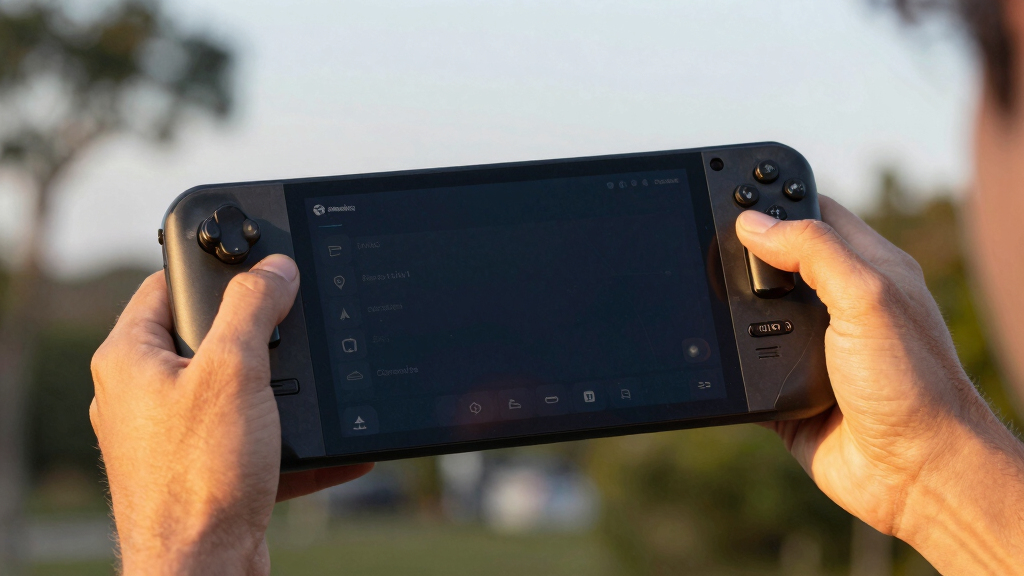
The Steam Deck OLED settings that make the interface feel instant are a 90Hz refresh rate, reduced motion where possible, clean UI scaling, current SteamOS updates, and fewer background downloads while browsing. The OLED panel already helps because its pixels respond faster than LCD, but the real win comes from removing small delays you feel every time you open Quick Access, scroll your library, or wake the device.
Your Steam Deck can feel slow even when the game runs perfectly.
That laggy feeling often lives in tiny moments: the half-beat before a menu opens, the soft smear when you scroll your library, the sleepy pause after waking from standby. You are not imagining it. The OLED model gives you a faster screen, but SteamOS still needs the right settings to feel sharp under your thumbs.
This guide shows you the settings that make the interface feel immediate without turning your handheld into a loud, hot science project. You will tune refresh rate, motion, updates, downloads, scaling, and storage habits so every button press feels like it lands with a clean click.
The Steam Deck OLED Settings That Make the Interface Feel Instant
The fastest-feeling setup is simple: run SteamOS menus at 90Hz, reduce motion where possible, use clean UI scaling, stay current on stable SteamOS updates, and pause background downloads before judging responsiveness.
The OLED screen already helps with faster pixel response, but the real win is removing the tiny delays you feel every time Quick Access opens, your library scrolls, or the device wakes from standby.
Use the OLED panel’s full SteamOS refresh headroom for tighter scrolling and cleaner panel movement.
At 90Hz, the screen can show a new frame roughly every 11.1 milliseconds.
Make the interface feel like a light switch: less waiting, less smear, fewer background interruptions.
Five Tweaks That Remove the Small Delays
These settings do not chase risky performance hacks. They target the moments that make SteamOS feel sticky: menu animation, scrolling clarity, update drag, storage pressure, and per-game battery caps spilling into general use.
Set SteamOS Menus to 90Hz
Open Quick Access, visit Performance, and use 90Hz for the system interface. Keep game frame caps separate so battery profiles do not make every menu feel slower.
Trim Visual Waiting
Limit animated artwork, close unused overlays, and avoid stacking plugin panels. Fewer moving layers make SteamOS feel more direct under your thumbs.
Keep Text Sharp
Use a UI scale that feels readable from your real play position. Sharp labels and predictable spacing make your brain spend less time correcting the picture.
Stay on Stable SteamOS
Stable SteamOS updates are one of the safest ways to get OLED display fixes, wake improvements, and smoother daily interface behavior.
Pause Background Churn
Heavy patching competes for storage, Wi-Fi, and background attention. Pause downloads before browsing a huge library or changing settings.
Disable One at a Time
If the Deck feels slower after customization, remove themes or plugins individually before changing core settings. That keeps diagnosis clean.
Why 90Hz Feels Quicker Than 60Hz
The gap between 16.7ms and 11.1ms sounds tiny on paper. In a handheld interface full of sliding panels, focus rings, and fast lists, it is exactly the kind of tiny you feel repeatedly.
Good, But Softer
At 60Hz, library covers and quick panels can feel like they are sliding under a thin film. It is usable, just less crisp during rapid motion.
Cleaner Edges
At 90Hz, the OLED panel refreshes more often, so menu movement and fast scrolling feel tighter before you consciously notice lag.
Perceived Interface Snap
Which Setting Changes What You Feel?
Not every tweak creates true speed. Some reduce latency, some improve clarity, and some remove background friction so the system can feel calm again.
| Setting | Best Choice | Feels Faster? | Battery Risk | When to Revisit |
|---|---|---|---|---|
| SteamOS refresh rate | 90Hz for menus | ✓ Strong | ~ Moderate | When tuning games separately |
| Per-game frame caps | Set per title | ✓ Targeted | ✓ Helps | When a game drains battery |
| Animated artwork | Keep limited | ~ Visible | ✓ Low | When browsing a huge library |
| UI scaling | Default or readable | ~ Perceptual | ✓ Low | When text feels crowded |
| Background downloads | Pause while browsing | ✓ Strong | ✓ Low | On patch day or shader updates |
| Preview or Beta channel | Stable for daily use | ✗ Variable | ~ Stability | Only when testing new fixes |
The Instant-Feel Setup Path
Use this order before blaming the hardware. It starts with the visible display wins, then clears the software and storage friction that makes menus hesitate.
Set 90Hz
Give SteamOS the OLED panel’s smoothest menu refresh first.
Trim Motion
Limit animated clutter and close extra overlays before browsing.
Fix Scale
Choose readable UI sizing so targeting and scanning feel clean.
Update Stable
Install SteamOS updates when charged, then restart cleanly.
Pause Downloads
Stop patch traffic before judging library or store responsiveness.
Keep It Fast Without Turning It Into a Project
The best Steam Deck OLED settings are boring in the right way: smooth menus, simple visuals, stable software, and no background work stealing attention while you move around SteamOS.
Best First Move
Use 90Hz for SteamOS, then tune demanding games one by one for battery life.
- Pause downloads before browsing a large library.
- Keep at least 10% free space on the drive you use most.
- Update after a session, not right before playing.
- Disable plugins or themes one at a time if the interface gets sluggish.
Key Takeaways
- Use 90Hz for SteamOS menus because it refreshes every 11.1 milliseconds, which makes scrolling and panel movement feel tighter than 60Hz.
- Keep game frame caps per game so a battery-saving profile does not make the whole interface feel slower.
- Pause downloads and leave storage breathing room before judging SteamOS responsiveness.
- Stable SteamOS updates are one of the safest ways to get OLED display fixes and smoother interface behavior.
- If the Deck feels slower after customization, disable plugins or themes one at a time before changing core settings.
Popular right now

Samsung 42-Inch Class OLED S90F 4K Smart TV (2025)

Breville Barista Pro Espresso Machine with Grinder, Brushed Stainless Steel

Vitamix Propel Series 510 Professional-Grade Blender, 3 Programs, Black
As an affiliate, we earn on qualifying purchases.
Start With 90Hz So Menus React Before You Notice Lag
The Steam Deck OLED settings that make the interface feel instant start with the display refresh rate because it controls how often the screen can show a new frame. At 90Hz, the OLED panel updates about every 11.1 milliseconds; at 60Hz, it updates every 16.7 milliseconds. That small gap is visible when you flick through tiles or tap the Quick Access button.
According to Valve’s Steam Deck OLED specifications, the OLED model uses a 7.4-inch HDR OLED display with a refresh rate up to 90Hz [1]. That extra headroom matters most in SteamOS, where the interface is full of sliding panels, focus rings, and fast vertical lists.
- Press the Quick Access button on the right side of the Deck.
- Open the Performance tab.
- Set the refresh rate to 90Hz for the system interface.
- Leave per-game frame limits separate, so one demanding game does not shape how your whole handheld feels.
A simple test helps. Open your library, hold the left stick down, and watch the game covers stream past. At 60Hz, the movement feels a little like sliding a card under wax paper. At 90Hz, the same motion has cleaner edges and less drag.
Best first move: Use 90Hz for SteamOS, then tune games one by one for battery life.
Turn Down Motion So Every Panel Opens With Less Waiting
The Steam Deck OLED settings that make the interface feel instant also include trimming animation where SteamOS lets you. Animations can look slick, but each slide, fade, and bounce adds a tiny pause between your input and the thing you wanted. Less motion makes the interface feel less like a curtain opening and more like a light switch.
SteamOS does not give you one giant “make everything instant” switch, so treat this as a practical cleanup pass. Use the fastest menu behavior available, avoid extra overlays when you do not need them, and keep your home screen from becoming a busy storefront of moving parts.
- Keep animated artwork limited when browsing a large library.
- Close unused overlays before moving through Steam, especially after long sessions.
- Use simple library views when you want speed over big cover art.
- Avoid stacking plugin panels if you use community tools.
Think of it like clearing a kitchen counter. One mug and a cutting board are fine. Ten jars, a toaster, a mail pile, and yesterday’s pan make every movement slower, even if nothing is technically broken.
For example, if you wake your Deck on a train and want to jump into Hades before the next stop, a lighter interface helps. You press Steam, move three tiles, hit A, and go. No soft parade of panels getting in your way.
Use Stable Scaling So Text Looks Sharp and Menus Stop Feeling Mushy
UI scaling makes the Steam Deck OLED feel faster when it keeps text crisp, buttons predictable, and menu spacing steady. Bad scaling does not always create true lag, but it can make the interface feel smeared or hesitant because your eyes need an extra beat to read and aim. Sharp text feels faster because your brain spends less time correcting the picture.
The OLED screen gives you deep blacks and strong contrast, which helps white text pop cleanly from dark SteamOS panels. If your interface looks crowded, resist the urge to chase novelty. Pick the size that lets you read game names from a relaxed grip without turning every row into a chunky billboard.
| Setting Choice | What You Feel | Best Use |
|---|---|---|
| Default scaling | Balanced spacing, clear text, fewer surprises | Most players |
| Larger UI | Easier reading, less visible content at once | Small text fatigue or handheld-only play |
| Smaller UI | More items on screen, tighter targeting | Docked use or sharp eyesight |
Here is the real-world check: sit where you actually play. Couch, bed, airport gate, desk. If you squint at “Installed” or overshoot the Settings icon twice in a row, the interface is not set for you.
A clean scale makes the Deck feel calmer. You stop hunting. Your thumb knows where to go.
Keep SteamOS Updated Because Valve Keeps Sanding Off Rough Edges
The Steam Deck OLED settings that make the interface feel instant depend on current SteamOS software because updates can improve display behavior, wake speed, Bluetooth handling, and general UI smoothness. A fresh update will not turn a cluttered setup into magic, but it can remove little snags you feel dozens of times a week.
Valve has released SteamOS updates that include Steam Deck OLED support, display fixes, and performance-related changes [2]. That means “check for updates” is not boring housekeeping. It is one of the safest speed tweaks you can make.
- Open Settings.
- Go to System.
- Select Check For Updates.
- Install updates when you have battery and time, not when you are already halfway out the door.
- Restart after major updates so SteamOS starts clean.
A practical habit helps: update after a gaming session, not before one. Nobody wants to sit with a warm handheld and a full coffee while a progress bar crawls across the screen.
If you use Preview or Beta channels, expect sharper new features with a higher chance of odd behavior. Stable is the better choice when your goal is an interface that feels quick every day.
Pause Downloads Before Browsing a Huge Library
Downloads can make the Steam Deck OLED interface feel slower because they compete for storage, Wi-Fi, and background attention while you scroll. Even if the screen runs at 90Hz, heavy patching can make cover art load late, store pages hesitate, and menus feel sticky. Stop the background churn first, then judge the interface.
This matters most on patch day. You open the Deck after dinner, three games start updating, shader work begins, and the fan whispers from the vents. Then you wonder why your library feels thick and syrupy.
- Pause active downloads before browsing or changing settings.
- Schedule updates for times when you charge the Deck.
- Leave extra storage space so SteamOS has room to breathe.
- Restart after large update batches if the interface feels odd.
Storage fullness can also change the feel. A nearly packed internal drive or microSD card may make library art, screenshots, and game pages load with a dull delay. You press down, but the tile catches up a blink later.
A good rule: keep at least 10% free space on the drive you use most. That is not a magic number from a sacred manual; it is a practical buffer that keeps updates, caches, and downloads from crowding the hallway.
Set Per-Game Limits Without Slowing the Whole Deck
Per-game performance limits help the Steam Deck OLED feel instant because they let you save battery inside games without making SteamOS itself feel sleepy. Your interface can stay quick at 90Hz while a slower RPG runs at 45fps or 60fps. Separate the menu feel from the game feel.
This is where many players accidentally make the Deck feel worse. They set a global cap, forget about it, then later wonder why every menu seems less lively. A global limit is a wide brush. Per-game profiles are a fine pen.
| Profile | Interface Feel | Battery Tradeoff | Good Example |
|---|---|---|---|
| 90Hz SteamOS | Fastest scrolling and menus | Uses more display power than 60Hz | Library browsing, settings, store |
| 60fps game cap | Smooth gameplay | Balanced for many games | Action games, platformers |
| 45fps game cap | Still fluid on OLED | Often better battery life | Open-world games |
| 30fps game cap | Playable, less snappy | Best savings | Slow strategy or story games |
For example, you might keep SteamOS at 90Hz, run Stardew Valley at 60fps, and cap Cyberpunk 2077 lower for battery and heat. The Deck stops acting like one setting must fit every room in the house.
The tradeoff is simple: higher refresh feels better, lower caps last longer. Fast hands want 90Hz. Long flights may ask for restraint.
Clean Up Startup Clutter Before Blaming the OLED Screen
Startup clutter can make the Steam Deck OLED interface feel delayed even when the display settings are correct. Extra plugins, background tools, custom themes, and overloaded startup behavior can add friction before you touch a game. The OLED panel is fast; your software stack may be the part dragging its feet.
Community tools can be fantastic. They can also turn a simple interface into a crowded workbench. If the Deck feels slower after customization, test the plain setup before changing ten unrelated settings.
- Restart the Deck and test the interface before opening any plugin menus.
- Disable one add-on at a time if you use plugin loaders or custom themes.
- Check wake behavior after each change.
- Keep only the tools you use weekly, not every clever tweak you installed once.
One common scenario: you install a battery overlay, a theme, a library tweak, and a custom animation pack on the same night. The next morning the Deck wakes with a tiny stutter. You do not need a full reset; you need a patient five-minute cleanup.
Fast feels plain sometimes. That is not a flaw. It is the sound of fewer things asking for attention.
Use This Quick Setup When You Want the Interface to Feel New Again
The fastest practical setup is a 90Hz SteamOS interface, current Stable updates, paused downloads, default or comfortable UI scaling, and per-game performance profiles. This combination gives you the OLED model’s best menu feel without risky system tweaks. It is boring in the best way: reliable, repeatable, and easy to undo.
Use this after a reset, after a major update, or anytime your Deck starts feeling a little gummy. It takes about 10 minutes, including the restart.
- Set SteamOS display refresh to 90Hz.
- Install SteamOS updates from the Stable channel.
- Pause downloads and let shader work finish before browsing.
- Pick readable UI scaling and leave it alone for a day.
- Create per-game caps instead of using one global performance limit.
- Remove or disable add-ons you do not use often.
- Restart, then test library scrolling, Quick Access, Settings, and wake from sleep.
Your test route should mimic real life. Wake the Deck, open Quick Access, change brightness, jump to Library, scroll 30 games, open a store page, then return home. If that feels crisp, your setup is working.
[1] Valve Steam Deck OLED technical specifications. [2] Valve SteamOS update notes and display support information.Instant is not one setting. It is the feeling you get when the screen, software, storage, and background tasks stop arguing with each other.
Frequently Asked Questions
Does 90Hz drain more battery on the Steam Deck OLED?
Yes, 90Hz can use more power than 60Hz because the display updates more often. The best balance is to keep SteamOS at 90Hz for fast menus and use per-game caps when you want longer battery life.
Should I use Beta updates for a faster interface?
Use the Stable channel if you want the interface to feel reliable every day. Beta updates can bring fixes earlier, but they can also bring small bugs that make the Deck feel less polished.
Why does my Steam Deck OLED feel slow after waking from sleep?
Wake lag often comes from downloads, shader work, overloaded storage, or add-ons starting in the background. Pause downloads, restart once, and test with plugins disabled before changing display settings.
Do custom themes make SteamOS slower?
Some custom themes are light, and some add extra visual work. If your menus feel slower after installing a theme, disable it for one restart and compare library scrolling, Quick Access, and wake behavior.
What is the single best setting for a faster Steam Deck OLED interface?
The single best setting is 90Hz refresh rate for SteamOS. It gives menus, focus highlights, and scrolling more chances to update each second, which makes the whole interface feel more immediate.
Conclusion
The Steam Deck OLED feels instant when you let the screen run fast and keep everything around it light. Start with 90Hz, stay updated, pause background work, and use per-game limits instead of slowing the whole system.
Do that, and the Deck stops feeling like a tiny PC waking up. It feels like a switch under your thumb: press, click, glow.