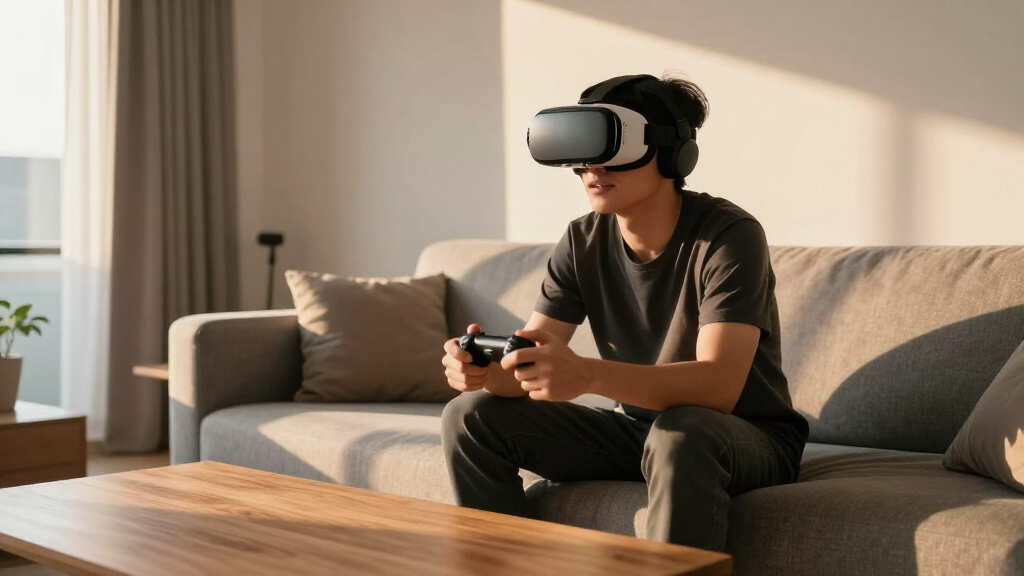

TL;DR

Play games on Amazon Luna for your game nights, included with Prime
- A rotating selection of games, no download needed
- Play on TV, laptop or phone
- Fast, free delivery for your gear, too
Why 72 FPS matters for VR comfort comes down to timing: on a 72 Hz headset, a stable 72 FPS delivers one new frame about every 13.9 milliseconds, keeping head movement and visual updates closely aligned. Higher rates such as 90 or 120 FPS can feel smoother, but a locked 72 FPS usually feels better than a higher rate that repeatedly stutters or falls back to generated frames.
A single late frame can make a solid virtual room feel briefly loose from your head. Turn toward a bright window, and the image may drag, double, or twitch before snapping into place. On a monitor, that flaw looks annoying; inside a headset, it can leave you with cold sweat, eye strain, or a rolling stomach because the display fills most of your view and reacts to every small movement.
Seventy-two frames per second gives a VR system about 13.9 milliseconds per frame. That number is not a magic shield against motion sickness, but it is a widely used baseline for standalone VR because it balances smooth motion with the limited graphics and battery power available inside a headset. According to the VR performance guidance summarized by skeldrift.com, maintaining at least 72 FPS helps reduce judder and the mismatch between head movement and visual updates [2].
You will learn why FPS matters for VR in a way it does not matter for ordinary flat-screen games, what changes at 90 and 120 FPS, and why a stable number often beats an ambitious average. You will also get a practical set of checks for fixing drops before your next session. The first clue sits inside the tiny slice of time between one frame and the next.
Match a 72 Hz display with a stable 72 FPS whenever possible; each frame then has about 13.9 milliseconds to render.
Judge VR performance by frame-time consistency and visible hitches, not only the average FPS shown by a counter.
Use 90 or 120 FPS for faster motion when your hardware can sustain the matching refresh target without repeated drops.
Test graphics settings in the busiest scene and lower resolution, shadows, reflections, or object distance one change at a time.
Stop when nausea, cold sweat, eye strain, or disorientation begins; no frame-rate target makes pushing through discomfort a good training method.
Why 72 FPS Matters for VR Comfort
A stable 72 FPS gives a 72 Hz headset one fresh frame every 13.9 milliseconds. That regular timing helps the virtual world remain attached to your head instead of dragging, doubling, or twitching during movement. Higher rates can feel smoother—but a locked baseline usually beats an ambitious average interrupted by hitches.
Every scene, shadow, reflection, object and effect must be prepared inside this tiny window.
Why one late frame can loosen the whole room
On a monitor, a hitch affects a rectangle across the room. In VR, it affects nearly your entire visual field—including the horizon and nearby surfaces your balance system treats as stable references.
Your head moves now
Your inner ear and neck muscles immediately report the direction and speed of a turn. The visual response is expected to agree.
The image arrives late
A missed frame can make bright edges hop, nearby objects double, or the environment appear to lag behind your movement.
Your senses disagree
The mismatch can contribute to eye strain, disorientation, nausea or cold sweat—often before the hitch is consciously identified.
The motion-to-comfort chain
What 72, 90 and 120 FPS actually buy
Higher refresh targets improve motion clarity and responsiveness, but they also shrink the time available to render every frame. The correct target is the highest rate your hardware can sustain consistently.
| Display target | Time per frame | Often suited to | Motion benefit | Main tradeoff |
|---|---|---|---|---|
| 72 FPS / 72 Hz | 13.9 ms | Exploration, media, social spaces and many standalone games | ✓ Comfortable baseline | ~ Less fluid in rapid motion |
| 90 FPS / 90 Hz | 11.1 ms | Room-scale action, fitness, shooters and PC VR | ✓ Clearer fast movement | ✗ About 20% less render time |
| 120 FPS / 120 Hz | 8.3 ms | Rhythm games, sports and responsive hand interaction | ✓ Highest motion clarity | ✗ More GPU load, heat and battery use |
Matching FPS to the active display refresh target helps minimize tearing, judder and repeated-frame artifacts.
Rendering time available per frame
Longer bar = more time for the CPU and GPU to complete the frame
Stable timing beats a flattering average
An FPS counter can report a respectable average while hiding disruptive spikes. Your brain notices the uneven gap between frames—not the average printed at the end of the minute.
Locked 72 FPS
✓ PredictableEven 13.9 ms delivery: movement appears continuous and the room remains visually anchored.
“85 FPS average”
✗ UnevenIrregular frame times: late frames create visible hitches even when fast frames lift the average.
A locked 72 FPS can feel better than a higher rate that repeatedly stutters, drops below target, or falls back to generated frames.
Five checks that protect the frame-rate target
Test in the busiest scene you expect to encounter. Change one setting at a time so you can identify what actually improves stability.
Confirm display mode
Pair a 72 Hz mode with a stable 72 FPS target. Do the same for 90 or 120 Hz.
Watch frame time
Look for spikes, visible hitches and reprojection—not only the average FPS number.
Use the busiest scene
Test smoke, crowds, reflections, rapid turns and complex lighting before a long session.
Lower one cost
Try resolution, shadows, reflections or object distance individually and retest.
Respect warning signs
Stop early if text swims, focus becomes difficult, or discomfort begins to build.
The comfort logic, end to end
Why 72 FPS Can Be the Line Between Wonder and Wooziness
Why 72 FPS matters for VR comfort is simple: it gives a 72 Hz display a fresh image roughly every 13.9 milliseconds, so the virtual world follows your head with fewer visible jumps. That steady rhythm reduces judder and helps the room feel anchored instead of sliding a few millimeters whenever you turn.
Think of frame delivery as a waiter carrying glasses across a crowded room. At 72 FPS, a new glass must arrive every 13.9 milliseconds, evenly spaced; one slow delivery creates a visible gap even if the next two arrive quickly. VR works the same way: consistent frame pacing matters because your brain notices the gap, not the respectable average printed on a performance graph.
Suppose you are exploring a quiet stone ruin on a standalone headset running in 72 Hz mode. When the game holds 72 FPS, carved pillars sweep past smoothly as you turn, and the moonlit floor stays firm beneath your feet. If performance drops into the mid-50s during a smoky battle, those pillars may appear to hop sideways, while the floor feels like a stage set being tugged by an unseen rope.
The effect grows stronger because VR images sit inches from your eyes and stretch across much of your field of view. A dropped frame affects not only a small character on a distant screen but the entire visible world, including the horizon your balance system treats as a reference. That is why frames per second directly impacts the smoothness of visuals and why 72 FPS became a practical baseline on many standalone experiences [2].
Seventy-two FPS is not a universal comfort guarantee. It is a useful floor when the application, display, tracking, and frame pacing all work together.
That last detail changes everything. The display can show 72 images each second, yet uneven delivery can still make the experience feel rough—and your inner ear may notice before you consciously see it.
Popular right now

Breville Bambino Espresso Machine, Brushed Stainless Steel
Dyson Car+Boat Cordless Handheld Vacuum

Ninja Luxe Café Premier 3-in-1 Espresso Machine, Drip Coffee & Cold Brew
As an affiliate, we earn on qualifying purchases.
Why a Missed Frame Can Turn a Quick Head Turn Into Nausea
Why 72 FPS matters for VR comfort becomes clearest during head movement: your eyes expect the displayed world to react immediately while your inner ear reports that your head is turning. When frames arrive late, visual motion trails physical motion, creating a mismatch linked with nausea, disorientation, and fatigue in VR research [2].
Your balance system behaves a little like a strict fact-checker. Your inner ear says you rotated left, your neck muscles confirm it, and your eyes should see the room rotate right by the matching amount. If the image hesitates, smears, or jumps, those reports stop agreeing; sensory conflict is the alarm bell, and discomfort can follow.
Imagine playing a rhythm game with glowing red and blue targets flying toward you. During a slow song, a lower frame rate may seem tolerable, but a rapid sideways glance can expose judder along bright edges. The targets appear as a broken trail rather than a clean streak, and ten minutes later you may feel warmth behind your eyes or the first hint of nausea.
Frame rate is only one part of the delay between movement and the final image, often called motion-to-photon latency. Tracking, game logic, rendering, display scanning, and pixel response all add time. Holding 72 FPS cannot repair poor tracking or a sluggish panel, but missing the 13.9-millisecond frame budget adds another problem to that chain.
Modern runtimes use asynchronous reprojection or related techniques when an application misses its target. The software adjusts an older image using your latest head pose, which can keep the horizon steadier than simply repeating the frame. It is a useful safety net, yet moving hands, nearby objects, and sideways motion may still bend or shimmer because the system is estimating an image it never fully rendered.
Your body usually whispers before it shouts. If the virtual world starts swimming, text becomes hard to hold in focus, or your face turns clammy, stop the session early; pushing through often teaches you to associate the headset with feeling ill. Next, it helps to see exactly what the higher frame-rate options buy you.
See What You Gain at 72, 90, and 120 FPS
Why 72 FPS matters for VR comfort does not mean 72 FPS is the best rate for every experience. It is a practical baseline, while 90 FPS shortens each frame to 11.1 milliseconds and 120 FPS shortens it to 8.3 milliseconds, improving motion clarity when the hardware can sustain those targets.
| Target | Time per frame | Where it often works well | Main tradeoff |
|---|---|---|---|
| 72 FPS at 72 Hz | About 13.9 ms | Slower exploration, media, social spaces, and many standalone games | Fast motion can look less fluid than at higher rates |
| 90 FPS at 90 Hz | About 11.1 ms | Room-scale action, fitness, shooters, and PC VR | Needs roughly 20 percent less rendering time per frame than 72 FPS |
| 120 FPS at 120 Hz | About 8.3 ms | Rapid rhythm games, sports, and responsive hand movement | Higher GPU load, heat, and battery use |
The table reveals the real bargain. Raising the target from 72 to 90 FPS adds 18 more complete frames each second, but the system also loses about 2.8 milliseconds of working time for every frame. A dense forest scene that fits neatly into 13 milliseconds may miss an 11.1-millisecond deadline once moving shadows, transparent leaves, and two high-resolution eye views enter the workload.
Consider a boxing game on a headset that supports both 72 and 90 Hz modes. At 90 FPS, a glove crossing your view can look cleaner, and defensive head movements may feel more connected. If that mode repeatedly falls to 75 FPS, however, visible stutter or runtime-generated frames may make the supposedly faster setting feel worse than a locked 72 FPS mode.
Higher frame rates also draw more power. On a standalone headset, the processor works harder, the fan or passive cooling system handles more heat, and the battery may empty sooner. Developers may reduce shadows, reflections, crowd size, or render resolution to hold 90 or 120 FPS, so visual detail and motion clarity often sit on opposite sides of the scale.
Supported rates depend on the headset model, platform software, and application version. A mode available on one Meta Quest model may be missing, experimental, or configured differently on another, and support can change after system updates [1]. Check the current device and app settings before treating any performance claim as permanent.
Why a Stable 72 FPS Beats a Shaky Higher Average
A stable 72 FPS usually feels better than an unstable 90 FPS average because comfort depends on the spacing between frames, not only the total counted over one second. If several frames arrive late and others arrive early, uneven frame pacing produces visible jolts even when an average counter shows an impressive number.
An average can hide a messy second. A game might render most frames at 90 FPS, stall for 45 milliseconds while loading an enemy, and then race ahead; the counter may still report something close to 88. Your eyes remember the stall as a sharp hitch, like a shopping cart wheel catching on a crack in an otherwise polished floor.
For a concrete example, imagine opening a heavy wooden door in a fantasy dungeon. The empty corridor holds 90 FPS, but the next room contains torches, reflective armor, smoke, and six animated characters. Performance collapses for half a second just as you lean through the doorway, making the room jerk around your head at the exact moment you need a stable visual reference.
Watch frame time when a platform or developer overlay provides it. For 72 FPS, the rendering line should remain under roughly 13.9 milliseconds; for 90 FPS, it should remain under 11.1 milliseconds. A flat line just below the limit is usually healthier than a jagged line bouncing between 7 and 20 milliseconds, even if the jagged result has a higher average.
Reprojection complicates performance counters. An application may render at 36 native FPS while the runtime creates or adjusts intermediate images for a 72 Hz display. Head rotation can remain fairly smooth, but a moving sword may show doubled edges, and nearby railings may wobble as you walk past them.
Generated frames are a repair crew, not a new foundation. They can cover brief misses and protect comfort during a sudden load spike, but repeated activation signals that the settings exceed the hardware’s dependable budget. Once you focus on stability, the useful fixes become surprisingly practical.
5 Checks That Keep Your Headset Near Its Frame-Rate Target
You can protect VR comfort by matching the display mode, graphics load, and hardware limits before you start playing. These five checks target the common causes of frame drops: an unrealistic refresh setting, heavy graphics options, background activity, heat, and performance problems tied to a particular app or location.
- Match FPS to the active refresh rate. If the headset runs at 72 Hz, aim for a stable 72 FPS; if it runs at 90 Hz, aim for 90. Sending 72 unique frames to a 90 Hz display can create uneven repetition unless the runtime uses a deliberate synchronization method.
- Lower the costly settings first. Reduce render resolution, dynamic shadows, reflections, anti-aliasing, or crowd density before stripping away every texture. In a racing simulator, dropping mirror quality and trackside shadows may recover several milliseconds while leaving the dashboard sharp enough to read.
- Test the busiest scene. Do not tune performance while staring at an empty menu. Load the rainy city, crowded arena, or particle-heavy boss fight that normally causes trouble, then turn your head rapidly and watch the frame-time graph.
- Remove background load and check heat. On PC VR, close an active browser video, recording tool, or update process that competes for CPU and GPU time. On a standalone headset, repeated slowdowns after twenty minutes may point to heat-related clock reductions rather than a scene that was heavy from the start.
- Change one setting at a time. Test for two or three minutes after each adjustment so you can identify what actually helped. If you reduce resolution, shadows, effects, and refresh rate together, you may get smoother play but learn nothing about the true bottleneck.
Treat the process like tuning a bicycle. The refresh rate is your chosen gear, the frame-time budget is the cadence you must hold, and graphics settings are the hill’s steepness. Picking a higher gear looks ambitious, but a lower gear with a smooth cadence gets you up the hill without violent stops.
Suppose a PC VR flight simulator delivers 72 FPS over open water but falls to 48 near a detailed airport. Lowering cloud quality may help only in storms, while reducing object distance can cut the load created by buildings, service vehicles, and runway lights. Test where the drop occurs, and the right setting often becomes obvious.
Platform tools and performance overlays vary by headset, runtime, operating-system version, and game build. Developer updates can improve or worsen a specific scene, so repeat your busiest-scene test after a large patch. A five-minute check can save you from discovering the problem halfway through a long session.
Know When 72 FPS Is Enough—and When It Is Not
Seventy-two FPS is often enough for comfortable, slower VR experiences, but it cannot guarantee comfort for every person or game. Fast artificial movement, wide peripheral motion, tracking errors, poor headset fit, and a narrow field of view can still cause discomfort even when a performance counter shows a perfectly locked 72 FPS.
A seated puzzle game offers a useful example. You reach for brass levers, inspect dusty clockwork, and teleport between small rooms; at 72 FPS, the scene may feel solid because most motion comes from your real head and hands. A futuristic racer at the same rate floods your peripheral vision with walls and lights, so 90 or 120 FPS may deliver a more comfortable result if the hardware holds it steadily.
Your movement settings can matter as much as the frame rate. Teleport locomotion, snap turning, a reduced movement speed, and comfort blinders limit the visual motion that your inner ear cannot confirm. If smooth turning makes the room spin like wet paint on a wheel, switching to 30-degree snap turns may help more than raising the rate by a few frames.
Headset fit also directly impacts the experience. A loose strap lets the image bounce, an incorrect lens spacing can blur text, and a dirty tracking camera may cause the world to drift or jump. Before blaming 72 FPS, clean the lenses with the maker-approved method, improve room lighting for inside-out tracking, and adjust the headset until the image remains sharp without crushing your cheeks.
Some people remain sensitive even at high rates, while others tolerate lower rates in calm content. Start with 10- to 15-minute sessions, stop at the first signs of nausea or headache, and return only after you feel normal. Check the game’s age rating and the headset maker’s current age guidance when setting up VR for a child, since ratings and account rules vary by region, platform, and software version.
According to Meta/Oculus developer performance guidance, applications should meet the selected device refresh target, though available modes and requirements differ across headset and software versions [1]. Skeldrift.com’s VR & XR Gaming guidance identifies 72 FPS as a commonly accepted baseline, with 90 to 120 FPS offering added smoothness for faster content [2]. The final choice belongs to your hardware, the experience, and how your body responds.
Frequently Asked Questions
Is 72 FPS enough for every VR game?
No single frame rate suits every VR experience. Stable 72 FPS often works well for exploration, social spaces, video, and slower puzzle games, while racing, fitness, rhythm, and combat games can benefit from 90 or 120 FPS. The higher target only helps when your hardware can maintain it without repeated stalls.
What is the difference between 72 FPS and 72 Hz?
FPS measures how many images the application produces, while hertz measures how many times the display refreshes each second. A game producing 72 FPS on a 72 Hz headset can supply one new frame for each display refresh. If production falls below that rate, the runtime must repeat, adjust, or generate images to fill the missing updates.
Why does 72 FPS feel smoother in VR than 60 FPS?
At 72 FPS, each frame lasts about 13.9 milliseconds; at 60 FPS, each lasts about 16.7 milliseconds. That shorter interval lets the displayed world react more often during a head turn. On a matching 72 Hz display, it also avoids the uneven frame repetition that can occur when 60 FPS and 72 Hz run out of step.
Can reprojection make 36 FPS feel like 72 FPS?
Reprojection can make head rotation appear smoother by adjusting older frames or creating intermediate images for a 72 Hz display. It does not recreate every detail of a fully rendered 72 FPS stream. In a sword game, the room may stay steady while the blade shows double edges or warped motion, so native frame delivery remains the cleaner target.
Is stable 72 FPS better than unstable 90 FPS?
Stable 72 FPS is usually more comfortable than a 90 FPS mode with frequent drops. A locked 72 FPS stream delivers frames at an even rhythm, while an unstable 90 FPS stream can produce sharp hitches and repeated reprojection. Test both modes in the game’s busiest location rather than choosing from the headline number alone.
How can I tell whether low FPS is making me uncomfortable?
Look for judder during head turns, doubled object edges, swimming scenery, or sudden hitches when a scene becomes busy. Physical warning signs include eye strain, facial warmth, cold sweat, headache, and nausea. Stop immediately if those symptoms appear, then test a lower graphics preset or a stable refresh mode after you feel fully normal.
Will 120 FPS prevent VR motion sickness?
Higher FPS can reduce latency and improve motion clarity, but 120 FPS cannot remove every cause of VR sickness. Artificial locomotion, smooth turning, tracking errors, poor fit, and individual sensitivity can still cause discomfort. A player racing through neon tunnels may need both a stable high frame rate and gentler movement settings.
Conclusion
Treat 72 FPS as a dependable floor, not a finish line or a promise. Match it with a 72 Hz display, keep frame times below roughly 13.9 milliseconds, and favor a steady rhythm over a higher number that buckles whenever smoke, crowds, or reflections fill the scene. If your headset and game can hold 90 or 120 FPS, the extra smoothness can help during rapid movement—but stability still leads.
Your next step is simple: load the busiest part of your favorite VR game, watch for hitches during a quick head turn, and adjust one graphics setting at a time. When the timing is right, the machinery disappears. The stone floor stays planted, the glowing sword traces one clean arc, and the virtual world moves as if it were bolted firmly around you.