
TL;DR
For a Steam Deck, buy a legitimate microSDXC UHS-I card with U3 or V30 and preferably A2; 512GB to 1TB fits most libraries. UHS-II and UHS-III cards advertise higher speeds, but Valve’s Steam Deck slot is UHS-I, so those cards fall back to UHS-I behavior in the Deck [2]. Spend for real capacity and reliability, then use SteamOS to format and test the card before moving huge games.
A tiny card the size of your fingernail can hold a wall of Steam games, but the wrong label can make installs crawl like cold syrup.
You do not need a product roundup, affiliate chart, or a shiny badge war. You need to know which microSD specs matter on Steam Deck, which ones mostly sell packaging, and how to avoid fake cards that turn your weekend library into scrambled plastic confetti.
This guide gives you the plain version: capacity, speed classes, setup, reliability, and the point where internal SSD storage still wins.
Steam Deck microSD Cards Explained Without the Marketing Noise
Buy a legitimate microSDXC UHS-I card with U3 or V30 and preferably A2. For most libraries, 512GB to 1TB is the sensible range. UHS-II and UHS-III cards advertise bigger numbers, but the Steam Deck slot is UHS-I, so the extra lane mostly stays on the package.
UHS-I
Valve lists the Steam Deck microSD reader as UHS-I, so faster card buses fall back inside the Deck.
U3 / V30
Both indicate at least 30 MB/s sustained write speed under SD Association classes.
Spend on real capacity and reliability first. Format in SteamOS, test small, then move the huge games.
UHS-I theoretical bus ceiling, before real-world overhead.
Good fit for a mixed library of big games and smaller favorites.
Useful when slow internet or long trips make reinstalling painful.
Better random-access target for app-like game libraries.
Buy the Label That Actually Matters
Steam games are a messy bundle of textures, shaders, saves, patches, and tiny files. That makes the real symbols more useful than “gaming grade” packaging.
microSDXC
32GB to 2TB is the practical Steam Deck lane. microSDHC is cramped; microSDUC is not today’s normal shopping target.
U3 or V30
Both point to a 30 MB/s minimum sustained write target, which helps installs, patches, and large file moves feel less sticky.
Prefer A2
A2 is a useful tie-breaker because games ask for many little pieces, not one clean video stream.
Capacity Lane Check
Why Faster Than UHS-I Usually Wastes Money
A UHS-II or UHS-III card may copy faster in a separate high-speed reader, but the Steam Deck reader is the narrow point during Deck use.
Huge read speed on the front
Cards often advertise peak read speed prominently while hiding the write speed and the bus compatibility details.
UHS-I behavior in the slot
For Steam Deck play, a steady, reputable UHS-I card beats paying extra for a camera-oriented bus the Deck cannot fully use.
Card claims
Packaging shouts peak read speed.
Deck slot
Steam Deck reads through UHS-I.
Real workload
Games load many file types.
Install pain
Write speed matters during patches.
Best buy
Legitimate UHS-I U3/V30 A2.
Pick Capacity by Games, Not Vibes
Count the games you actually keep installed. Bigger cards reduce storage juggling, but a single huge card also concentrates more risk if it fails.
| Capacity | Best Fit | Real-World Feel | Steam Deck Verdict |
|---|---|---|---|
| 256GB | Indies, emulation, smaller backlog | Roomy for small games; one giant RPG can eat half the card. | ~ Tight but workable |
| 512GB | Mixed Steam library | The sweet middle; SteamOS may show about 476GiB after unit conversion. | ✓ Best default |
| 1TB | Large PC games and offline trips | Comfortable for big open-world games plus smaller comfort games. | ✓ Great for travel |
| 1.5TB to 2TB | Collectors and slow-internet homes | Useful, but price jumps can bite harder than the extra space helps. | ~ Check price first |
| microSDHC | Tiny files only | 2GB to 32GB is too cramped for modern Steam storage. | ✗ Skip for games |
Read Speed Cuts Waiting; Write Speed Cuts Install Pain
Load screens lean on read speed and random reads. Downloads, patching, shader movement, and library transfers expose write speed, Wi-Fi, decompression, and server limits.
Read + random reads
Around 100 MB/s read is a sensible UHS-I target without chasing fantasy numbers.
Write speed
30 MB/s or better sustained write helps large installs and patches feel less syrupy.
Usually not the card
Frame rate issues usually point to GPU, CPU, settings, shader behavior, or game optimization.
Set Up and Test Before Trusting It
A fake card can report the wrong capacity at first, then corrupt files when it reaches its hidden real limit. Test before moving the whole library.
Insert
Let the Deck detect the card.
Format
Use SteamOS System settings.
Install small
Try a game under 5GB first.
Move large
Check loading and patching.
Verify
Test capacity before trust.
Fake-card warning
Distrust huge cards priced like lunch. Buy from a trusted seller and run a full-capacity test before storing anything painful to replace.
SSD still wins
Internal NVMe storage remains better for the most demanding games, heavy patching, and anything you launch constantly.
Key Takeaways
- The Steam Deck uses a UHS-I microSD slot, so UHS-II and UHS-III cards cannot deliver their full advertised speed inside the Deck.
- For most players, microSDXC, UHS-I, U3 or V30, and A2 is the spec bundle that matters.
- 512GB fits many mixed libraries, while 1TB makes sense if you keep several huge PC games installed for travel or slow internet.
- Use SteamOS to format the card, then test with a small game before moving a large library.
- Fake cards often report the wrong size at first, so full-capacity testing matters before you trust the card.
microSDXC UHS-I U3 V30 for Steam Deck
As an affiliate, we earn on qualifying purchases.
As an affiliate, we earn on qualifying purchases.
Buy the Label That Actually Matters
Steam Deck microSD Cards Explained Without the Marketing Noise starts with one useful rule: buy microSDXC, UHS-I, U3 or V30, and A2 when the price makes sense. Those markings tell you more than glossy claims like gaming grade because they connect to real minimum speeds and random-access behavior.
According to the SD Association, U3 and V30 both mean at least 30 MB/s sustained write speed, while A1 and A2 describe app-style random read and write targets [1]. That matters because a game library is not one neat movie file. It is a cluttered toolbox of shaders, textures, saves, patches, and tiny bits the Deck keeps grabbing.
- microSDHC: 2GB to 32GB. Fine for tiny files, too cramped for modern Steam games.
- microSDXC: 32GB to 2TB. This is the normal lane for Steam Deck storage.
- microSDUC: up to 128TB in the standard, but not the practical Steam Deck shopping target today.
If you are standing in a store aisle, ignore the fire-colored packaging and flip the card over. You want the little symbols: XC, U3, V30, and ideally A2. A plain Class 10 card may install a small indie game, but it can feel sticky when a 70GB patch lands.
As an affiliate, we earn on qualifying purchases.
Why Faster Than UHS-I Usually Wastes Your Money
Steam Deck microSD Cards Explained Without the Marketing Noise means matching the card to the slot. According to Valve’s Steam Deck specifications, the microSD reader is UHS-I [2]. UHS-I tops out at a 104 MB/s bus speed under SD Association specs [1], so UHS-II or UHS-III cards cannot show their full headline speed inside the Deck.
Think of it like pouring coffee through a narrow travel mug lid. You can own the fastest kettle in the kitchen, but the lid still controls the flow. A card advertised at 180 MB/s may help when you copy files through a separate high-speed reader, yet the Deck will not use that extra lane during play.
This is where marketing gets loud. Some cards print huge read numbers on the front, then hide modest write numbers on the back. For the Steam Deck, a steady card that behaves near the UHS-I ceiling beats a flashy card built for camera gear you will never use here.
Key point: Pay for a better UHS-I card before you pay for UHS-II speed the Steam Deck slot cannot use.
As an affiliate, we earn on qualifying purchases.
Pick Capacity by the Games You Actually Keep Installed
Steam Deck microSD Cards Explained Without the Marketing Noise becomes easier when you count games, not gigabytes. A 256GB card feels roomy for indies and emulators, 512GB suits a mixed library, and 1TB makes sense when you keep several 80GB to 150GB PC games ready for travel.
| Capacity | Best fit | Real-world feel |
|---|---|---|
| 256GB | Indies, emulation, smaller backlog | Great for a tight travel kit; one giant RPG can eat half the card. |
| 512GB | Mixed Steam library | The sweet middle for many players; SteamOS may show about 476GiB after unit conversion. |
| 1TB | Large PC games and offline trips | Comfortable when you want a few big open-world games plus smaller comfort games. |
| 1.5TB to 2TB | Collectors and slow internet homes | Useful, but price jumps can bite harder than the extra space helps. |
Say you are packing for a long flight. A 512GB card can hold a big 120GB adventure, a 60GB action game, and a thick stack of 2GB to 15GB indies. A 1TB card lets you stop playing storage Tetris every Friday night.
Capacity has a sneaky tradeoff: the bigger the card, the more painful a failure becomes. If your whole library sits on one tiny black fingernail of plastic, keep cloud saves on and back up anything you cannot replace.
reliable microSD card for Steam Deck
As an affiliate, we earn on qualifying purchases.
As an affiliate, we earn on qualifying purchases.
Set Up the Card in Five Clean Steps
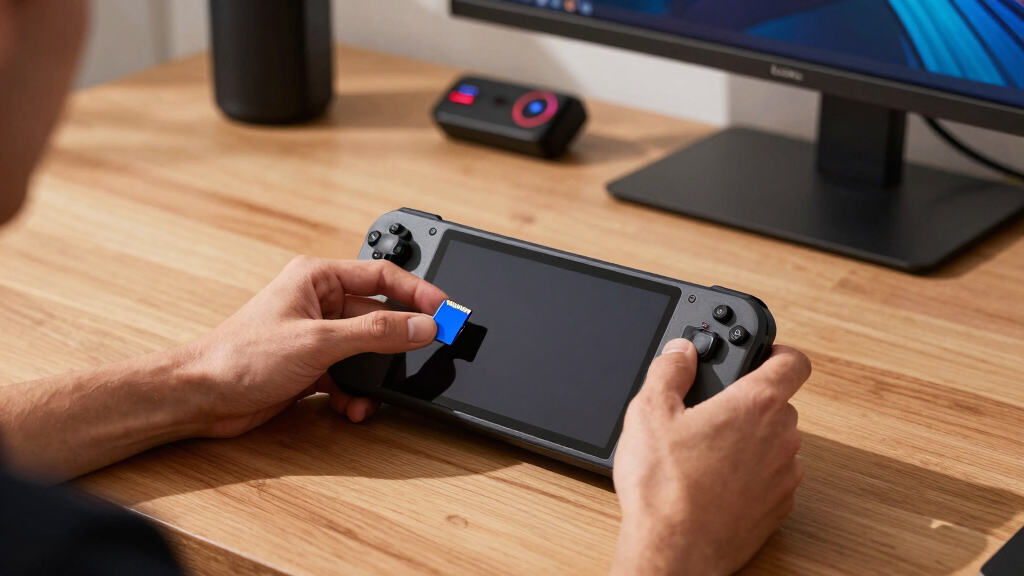
The clean setup is simple: let SteamOS format the card, install one small game first, then move bigger games after you know the card behaves. That short test catches bad cards before you pour a whole weekend library onto them and hear the sad little click of failed downloads.
- Insert the card with the Steam Deck powered on or asleep, then wait for the system to detect it.
- Open Settings, go to System, and use Format SD Card for Steam game storage.
- Install a small game first, something under 5GB, and launch it once.
- Move one larger game from internal storage, then check load time, patching, and resume behavior.
- Check your storage locations in Steam settings if you swap cards, so you do not delete the wrong library later.
If you format on a PC, exFAT works well for simple file transfer, but Steam game storage behaves best when SteamOS prepares the card. FAT32 belongs to older workflows because its 4GB file limit collides with modern game files fast.
A good setup feels boring. You slot the card in, the Deck formats it, and ten minutes later a small game opens cleanly. That boring moment tells you the card is ready for heavier lifting.
Read Speed Cuts Waiting; Write Speed Cuts Install Pain
Read speed mostly changes how long you stare at loading screens, while write speed changes how long installs, patches, and file moves take. For Steam Deck play, a card around 100 MB/s read and 30 MB/s or better sustained write gives you the right target without chasing fantasy numbers.
A game load is like finding gear in a packed closet. Big texture files are the coats hanging in plain sight; tiny shader and config files are the socks tucked behind a box. Random access matters because the Deck asks for many little pieces, not one smooth ribbon of data.
According to the SD Association, A1 cards target at least 1,500 random read IOPS and 500 random write IOPS, while A2 targets 4,000 read IOPS and 2,000 write IOPS with host support [1]. That makes A2 a good tie-breaker, especially when the price gap is only a few dollars.
- Loads feel slow: read speed and random reads may be the bottleneck.
- Installs drag: write speed, Wi-Fi, decompression, or Steam servers may be the bottleneck.
- Frame rate drops: the GPU, CPU, settings, or shader behavior usually matters more than the microSD card.
Here is the ordinary pain: you download a 90GB game over decent Wi-Fi, then the Deck spends ages unpacking and writing. A faster card helps, but it will not turn a handheld into a desktop SSD tower.
Spot Fake or Weak Cards Before They Ruin a Weekend
A fake or weak microSD card can look fine for the first few gigabytes, then chew up files once it reaches its real hidden limit. Buy from a trusted seller, test the full capacity, and distrust huge cards priced like lunch; that bargain can turn into corrupted textures and missing saves.
The classic fake-card trick is ugly. The package says 1TB, your Deck sees 1TB, and the first installs seem normal. Then old files vanish because the card only contains a fraction of the memory it claimed.
- Buy from known retailers, not random listings with strange spacing, blurry labels, or prices far below normal.
- Test the whole card with a full-write tool such as H2testw on Windows or F3 on macOS and Linux.
- Watch early behavior: repeated format failures, vanishing games, and wild speed swings are bad signs.
- Keep receipts until the card passes a full-capacity test and a real game install.
Warning: A fake card does not fail like a light switch. It often fails like rotten floorboards, one step at a time, right when you trust it.
If you are setting up before a trip, test the card before your suitcase is zipped. Hotel Wi-Fi and a corrupted library make a miserable pair.
Know When Internal SSD Still Wins
Internal SSD storage still wins when a game loads huge worlds, patches often, or hammers small files over and over. The Steam Deck’s UHS-I microSD slot lives around card-speed limits, while NVMe storage works in a much faster lane; your card expands your library, but it does not replace the SSD.
Many games run beautifully from microSD. A 2D roguelite, a visual novel, a retro collection, or a compact action game can feel almost the same once you are past the loading screen. The quiet win is convenience: more games in your bag, fewer deletions before bed.
Move the demanding stuff to internal storage when it annoys you. If a huge open-world game makes you stare at black screens, if patches take forever, or if a modded game crawls through thousands of tiny files, the SSD deserves that slot. Use the microSD card for the rest of the library.
This split keeps your Deck feeling quick without turning storage into a spreadsheet. Big, fussy games get the fast room. Smaller, patient games get the roomy shelf.
Choose Your Card With This Simple Rule
The best buying rule is boring in the best way: get a real microSDXC UHS-I card, aim for U3 or V30, prefer A2 when prices are close, and choose enough capacity for the games you truly keep installed. The right card feels invisible once you start playing.
- Start with capacity: choose 512GB for a balanced library or 1TB if you travel, share slow internet, or hate deleting games.
- Check the symbols: look for microSDXC, UHS-I, U3 or V30, and A2 if the price gap is small.
- Skip UHS-II premiums: the Steam Deck slot cannot use the extra interface speed during normal play [2].
- Buy safely: use a trusted seller and test the full card before loading it with your favorites.
- Use SteamOS formatting: let the Deck prepare the card for game storage, then test with a small install.
That gives you an overview suitable for buying today, covering important aspects without turning shopping into homework. You are not hunting the loudest package. You are matching a tiny storage card to the handheld you actually use on the couch, train, porch, and plane.
The final check is simple. If the card is real, UHS-I, U3 or V30, and large enough for your habits, you are in the good zone. Everything after that is polish.
Frequently Asked Questions
Can I use any microSD card in a Steam Deck?
The Steam Deck supports microSD cards, but you should treat microSDXC UHS-I as the real target for game storage. Old 32GB microSDHC cards work for small files, yet modern Steam games can fill them in one gulp.
Is A2 better than A1 for Steam Deck games?
A2 can help random reads and writes, but it is not magic. According to the SD Association, A2 targets 4,000 random read IOPS and 2,000 random write IOPS with host support, while A1 targets 1,500 and 500 [1]. If A2 costs much more, a strong U3 or V30 A1 card can still serve many players well.
Should I buy a UHS-II microSD card for the Steam Deck?
Usually no. Valve lists the Steam Deck microSD slot as UHS-I, so a UHS-II card falls back to UHS-I behavior inside the Deck [2]. Buy UHS-II only if you also need faster copying through a separate UHS-II reader on another device.
What size microSD card is best for Steam Deck?
For most players, 512GB is the clean middle ground. Choose 1TB if you travel often, download large 80GB to 150GB games, or share a slow connection at home. Choose 256GB if your library leans toward indies, emulation, and smaller games.
Will Steam Deck games run slower from microSD?
Some games load slower from microSD than from the internal SSD, especially large games with many small files. Frame rate usually depends more on the Deck’s CPU, GPU, settings, and shader behavior. If one game feels sluggish from microSD, move that game to internal storage and keep lighter titles on the card.
Conclusion
Buy for the slot you own, not the sticker trying to shout over it. A real UHS-I microSDXC card with U3 or V30 speed, enough capacity, and a clean SteamOS format will do more for your Deck than a flashy number the hardware cannot use.
The best card disappears. No drama, no mystery, no storage math at midnight; just your games waiting quietly in your hands.