
TL;DR
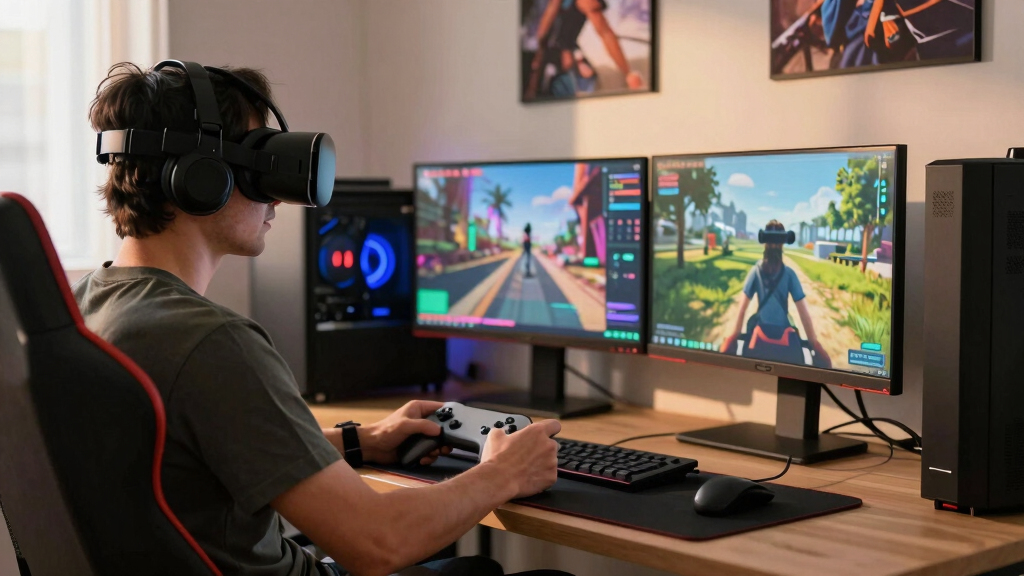
Steam Frame can run VR and non-VR games through local SteamOS play, compatibility layers for Windows and Android-style apps, and Steam Link streaming from a gaming PC. Local play suits lighter or verified titles; demanding PC VR games will usually make more sense streamed from a stronger PC over the included 6 GHz link.
Your Steam library is about to stop caring where the screen is.
Steam Frame is built to blur a line players already know from Steam Deck: some games run right on the device, some need a compatibility layer, and some are better when a bigger PC does the heavy lifting. The difference is that this time, the screen is strapped to your face, the room is your play space, and your Wi-Fi has a real job.
You’ll learn what runs locally, what streams, why non-VR games still matter, and what to check before you expect a buttery VR session. No hype fog. Just the moving parts, named plainly.
How Steam Frame Can Run VR and Non-VR Games
TL;DR Steam Frame can run games locally on SteamOS, use compatibility layers for Windows and Android-style apps, or stream from a stronger gaming PC with Steam Link. Local play suits lighter or verified titles; demanding PC VR usually belongs on the PC side of the 6 GHz link.
Your Steam library is about to stop caring where the screen is.
Standalone headset + streamed PC powerLocal play, compatibility, and Steam Link streaming.
LPDDR5X in published coverage.
With microSD expansion for local installs.
A dedicated wireless path for streaming sessions.
One headset, three ways to get a game running
Steam Frame works less like a single-purpose VR viewer and more like a SteamOS computer with a headset attached. Some games live on the device, some need translation, and some are better when your desktop PC handles the heavy rendering.
Run it on the headset
Best for lighter titles, native headset software, and games Valve or developers tune for Steam Frame’s display, controls, comfort, and battery profile.
Translate what was built elsewhere
Windows PC games can lean on Proton-style compatibility, while Android-style headset apps may arrive through APK support inside Steam’s ecosystem.
Stream from a gaming PC
Demanding VR and high-end flat games make more sense when a VR-ready desktop renders the frames and Steam Frame becomes the private display.

Meta Quest 3 512GB | VR Headset — Thirty Percent Sharper Resolution — 2X Graphical Processing Power — Virtual Reality Without Wires — Access to 40+ Games with a 3-Month Trial of Meta Horizon+ Included
NEARLY 30% LEAP IN RESOLUTION — Experience every thrill in breathtaking detail with sharp graphics and stunning 4K+…
As an affiliate, we earn on qualifying purchases.
As an affiliate, we earn on qualifying purchases.
VR depends on where the hard work happens
VR is hungry because it needs two sharp views, fast head tracking, and low latency. A small stutter in a flat game is annoying; in VR it can break comfort fast.
Track
The headset follows head and controller movement so the world responds to your body instead of a fixed monitor.
Render
Either Steam Frame draws the scene locally, or a stronger PC renders dense lighting, physics, crowds, mirrors, and effects.
Deliver
The image lands in the headset through local display output or Steam Link over the dedicated 6 GHz wireless connection.
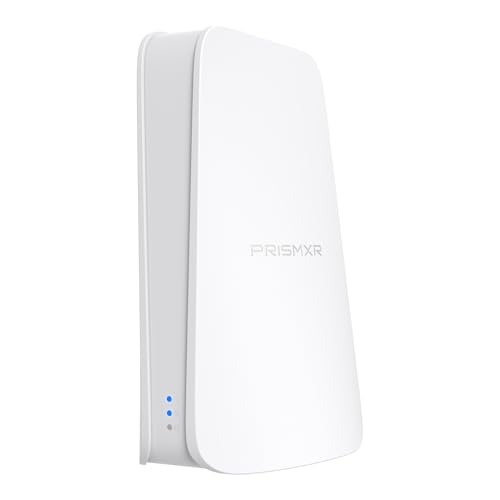
PRISMXR VR Router Replace Link Cable Compatible with Meta Quest 3S/3/2/Pro/Switch2, PC-VR Streaming Air Link AX1500 WiFi6, Wireless Stable and Fast (Puppis S1 Lite)
High-Speed Cable-Free Streaming: Equipped with Wi-Fi 6 dual-band wireless, the cost-effective Puppis S1 Lite delivers a total network…
As an affiliate, we earn on qualifying purchases.
As an affiliate, we earn on qualifying purchases.
Pick the right route before you press install
The practical question is simple: does the headset need to render it, translate it, or receive it from a PC? That answer controls storage, battery drain, network needs, and smoothness.
| Play path | Best for | Example scenario | What to watch | Fit |
|---|---|---|---|---|
| Native SteamOS | Games built or verified for Steam Frame | You install a lightweight VR puzzle game directly on the headset. | Storage, battery, heat, and Frame Verified status. | ✓ Strong |
| Windows compatibility | Steam PC games running through Proton and translation | You try an indie non-VR title without walking to your desktop. | Anti-cheat, launchers, text size, and controller prompts. | ~ Case by case |
| Android-style apps | Standalone headset apps brought to Steam as APKs | You run a headset fitness app adapted for Steam Frame. | Account systems, store rules, and comfort ratings. | ~ Developer dependent |
| Steam Link streaming | Demanding VR and high-end non-VR PC games | Your desktop renders a racing sim while Frame shows the cockpit. | Router placement, PC GPU power, and network latency. | ✓ Best for heavy games |
| Deck Verified only | Early clue, not a final headset answer | A handheld-friendly game still needs lens, comfort, and control checks. | Deck Verified does not equal Steam Frame Verified. | ✗ Not enough |

Meta Quest 3S 256GB | VR Headset — Thirty-Three Percent More Memory — 2X Graphical Processing Power — Virtual Reality Without Wires — Get Batman: Arkham Shadow Included Plus Access to 40+ Games
NO WIRES, MORE FUN — Break free from cords. Game, play, exercise and explore immersive worlds — untethered…
As an affiliate, we earn on qualifying purchases.
As an affiliate, we earn on qualifying purchases.
Where performance should shine, and where it may wobble
Steam Frame looks strongest when the game matches the headset’s hardware or streams cleanly from a stronger PC. It gets riskier when translation, high resolution, high refresh, and low latency all stack up at once.
Render pressure scale

Machenike G3S Wireless Gaming Controller for Windows PC,Switch,Android,PC Controller With LED Backlight Dual Vibration Motors, Dual Connection Modes,Plug and Play
💟Note: Supported Multi-Platform: Switch/Switch 2/iOS/Android/Windows PC 💔Not compatible with Xbox, PlayStation or GeForce Now, For game platforms not…
As an affiliate, we earn on qualifying purchases.
As an affiliate, we earn on qualifying purchases.
Check game fit before a bad buy
Treat the store page like a weather report. It will not play the game for you, but it can tell you whether you need local install space, a stronger PC, or patience.
Check the badge
Look for Steam Frame Verified when Valve’s headset ratings appear.
Read control notes
Launchers, mouse prompts, and tiny UI can feel clumsy in a headset.
Scan comfort info
Fast movement, snap turning, and horror lighting hit harder in VR.
Check age ratings
A private headset can make mature games feel more intense.
Choose the path
If the game is visually heavy, plan on Steam Link from a VR-ready PC.
How the pieces connect in a real session
The same Steam library can land in very different places depending on game weight, comfort, compatibility, and network quality.
Non-VR games still matter
A regular Steam game can become a private floating display. Turn-based tactics, cozy sims, visual novels, and controller-friendly indies may be excellent headset uses even without full VR.
Hype needs labels
Launch chatter, price leaks, and broad compatibility claims should stay marked as unconfirmed until Valve publishes final details and Steam Frame-specific verification appears.
Sources referenced in article copy: [1] PC Gamer reported Snapdragon 8 Gen 3, 16 GB LPDDR5X, storage tiers, microSD, 2160 x 2160 per-eye panels, experimental 144 Hz, controllers, and 6 GHz wireless adapter details. [2] The Verge reported Valve’s Android APK support path for Steam Frame. [3] Valve’s Deck Verified criteria cover input, display, launch behavior, and Proton support, but headset verification adds lens readability, comfort, controls, and latency.
Key Takeaways
- Steam Frame can play games locally on SteamOS, through compatibility layers, or by streaming from a gaming PC with Steam Link.
- Demanding PC VR games are more likely to feel right when streamed from a VR-ready PC over the dedicated 6 GHz link.
- Non-VR Steam games can still be useful on Frame because they can run as flat-screen games on a private virtual display.
- Steam Deck Verified does not equal Steam Frame Verified; headset display, comfort, controls, and latency change the test.
- Price leaks and launch chatter should stay marked as unconfirmed until Valve publishes final details.
See the Three Ways Steam Frame Gets a Game Running
How Steam Frame Can Run VR and Non-VR Games comes down to three play paths: local SteamOS games on the headset, compatibility layers for Windows and Android-style software, and Steam Link streaming from a gaming PC. Local games live inside the headset; heavier games ride your network.
Think of it like a tiny theater with three projection rooms. One projector is built into the headset. One translates games that were made for a different setup. One borrows the bright, loud projector from your desktop PC down the hall.
According to PC Gamer, Steam Frame uses a Qualcomm Snapdragon 8 Gen 3 chip, 16 GB of LPDDR5X memory, and 256 GB or 1 TB storage options, with microSD expansion for more room [1]. That matters because the headset is a real standalone computer, not just a screen with straps.
Key idea: Steam Frame is not only a PC VR receiver. It is a SteamOS headset that can run some games itself and stream others when the job gets too heavy.
Play VR Without Turning Your Room Into a Cable Trap
How Steam Frame Can Run VR and Non-VR Games in VR mode depends on where the rendering happens: the headset can handle lighter native VR software, while PC VR can stream through Steam Link. The headset tracks your hands and head; your PC can supply the muscle.
That split matters in a real living room. If you launch a small rhythm game or social VR app, local hardware may be enough. If you want something like Half-Life: Alyx with dense lighting, glass shards, and physics objects clattering across the floor, a VR-ready PC is the safer bet.
Steam Frame’s panels are listed at 2160 x 2160 per eye, with refresh-rate support up to 144 Hz experimental in reported specs [1]. VR is hungry because it needs two high-resolution views, fast head tracking, and low latency. A stutter in a flat game annoys you; a stutter in VR can make your stomach file a complaint.
The practical win is the included 6 GHz wireless adapter for a direct PC link, separate from normal household traffic [1]. Your laptop downloading a huge patch should not be fighting your headset frame by frame.
Turn Flat Steam Games Into a Private Big Screen
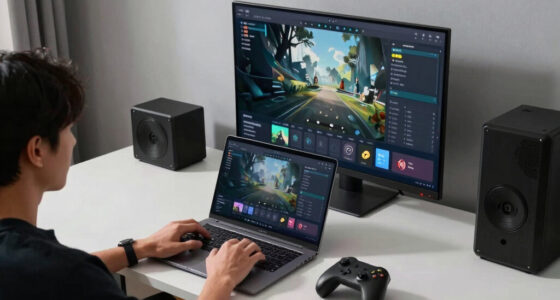
How Steam Frame Can Run VR and Non-VR Games for flat-screen titles is simple: Steam can show a regular game on a virtual display inside the headset. You are still playing a normal PC game, but the monitor becomes a floating screen in your own quiet bubble.
This is where non-VR support gets sneaky useful. You could play a turn-based tactics game while sitting on the couch, or run a cozy farming sim on a huge virtual panel while the actual TV is busy. The game does not need swords flying past your ears to make the headset useful.
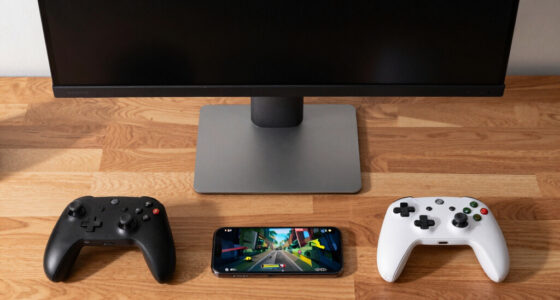
The Steam Frame controllers also help here because they include familiar gamepad-style inputs, including sticks, face buttons, and a D-pad in reported coverage [1]. That makes non-VR games less awkward than trying to force a VR wand into pretending it is a normal controller.
The tradeoff is comfort. A 20-minute roguelike run may feel crisp and private; a 4-hour strategy session may remind you that a headset still has weight, warmth, and battery limits. The headset can hide the room, but your neck still gets a vote.
Pick the Right Play Path Before You Press Install
The best way to choose a Steam Frame game path is to ask one question first: does the headset need to render it, translate it, or receive it from a PC? That answer decides your storage use, battery drain, network needs, and how smooth the game is likely to feel.
| Play path | Best for | Example scenario | What to watch |
|---|---|---|---|
| Native SteamOS | Games built or verified to run well on Steam Frame | You install a lightweight VR puzzle game directly on the headset | Storage, battery, and Frame Verified status |
| Windows compatibility | Steam PC games running through Proton and x86 translation | You try an indie non-VR Steam game without walking to your desktop | Anti-cheat, launchers, text size, and controller prompts |
| Android-style apps | Standalone headset software brought to Steam as APKs | You run a Quest-style fitness app that has been adapted for Steam | Account systems, store rules, and comfort ratings |
| Steam Link streaming | Demanding VR and non-VR games from a stronger PC | Your desktop renders a racing sim while Frame shows the cockpit | Router placement, PC GPU power, and network latency |
According to The Verge, Valve is welcoming Android apps into Steam for Steam Frame, with developer support for APKs aimed at headset-style software [2]. That does not mean every Android game magically becomes great in VR. It means developers have a cleaner route to bring those apps into the Steam world.
Check Game Fit in Five Minutes, Not After a Bad Buy
You can avoid most Steam Frame disappointment by checking compatibility, control needs, and performance path before purchase. Treat the store page like a weather report: it will not play the game for you, but it tells you whether you need a raincoat, a stronger PC, or patience.
- Check the badge first. Look for Steam Frame Verified once Valve’s headset ratings appear, and do not treat Steam Deck Verified as the same thing.
- Read controller notes. A launcher that needs a mouse can feel harmless on desktop and clumsy inside a headset.
- Look for VR comfort info. Fast artificial movement, snap turning, and horror lighting can hit harder when the screen fills your vision.
- Check age ratings. A mature-rated flat game can feel more intense in a private headset, especially for younger players sharing a library.
- Choose local or streamed play. If the game is visually heavy, plan on Steam Link from a VR-ready PC instead of local rendering.
Valve’s Deck Verified criteria already judge input, display, smooth launch behavior, and Proton support on Steam Deck [3]. Steam Frame needs similar thinking, but the headset adds new questions: is the text readable inside lenses, do the controllers map cleanly, and does the motion feel kind to your body?
Know Where Performance Will Shine and Where It May Stutter
Steam Frame performance will shine when the game matches the headset’s hardware or streams cleanly from a stronger PC. It may stutter when a demanding PC game needs translation, high resolution, fast refresh, and low latency all at once on local hardware.
This is the antithesis at the heart of Frame: it is portable, but not magic; flexible, but not limitless. A pixel-art platformer may purr along like a warm handheld session. A heavy VR sim with mirrors, rain, and crowds may ask for a desktop GPU breathing hard in the next room.
According to Tom’s Guide, Valve’s June 2026 update placed Steam Frame inside an expanded Verified program, with pricing still unannounced at that time [4]. Any price numbers floating around before Valve posts final details should be treated as unconfirmed rumors, not buying advice.
Performance warning: Claims about Steam Deck performance do not automatically apply to Steam Frame. Deck ratings target a handheld screen around 1280 x 800 or 1280 x 720, while Frame has headset displays, VR tracking, and different controller demands.
Set Up Your Room So Streaming Feels Invisible
The best Steam Frame streaming setup starts with a strong gaming PC, the included 6 GHz adapter, and a room layout that gives your headset clear tracking space. Good streaming should fade into the background, like clean glass; bad streaming feels sticky, late, and loud.
- Put the PC nearby when possible. Shorter wireless paths usually mean fewer hiccups.
- Use the dedicated adapter for PC VR. It keeps headset traffic away from phones, TVs, and downloads on your normal Wi-Fi.
- Clear a real play space. A chair leg at shin height becomes very convincing when you cannot see it.
- Test with a calmer game first. Start with a seated cockpit game or a slow puzzle scene before loading a fast shooter.
- Keep flat games in your plan. Non-VR play is not a side dish; it may be the headset’s most relaxed everyday use.
A simple example: your desktop sits by the router, Steam Frame connects through the adapter, and you launch a racing game. The PC handles the engine roar and wet asphalt reflections; the headset gives you the cockpit view and head movement without a cable brushing your shoulder.
Frequently Asked Questions
Can Steam Frame run VR games by itself?
Yes, Steam Frame can run some VR games locally if they are built or adapted for its SteamOS headset hardware. More demanding PC VR games will usually make more sense through Steam Link from a VR-ready gaming PC.
Can Steam Frame play normal non-VR Steam games?
Yes. Non-VR Steam games can appear on a virtual flat screen inside the headset, either running locally when compatible or streaming from your PC. This is useful for slower games, controller-friendly games, and anything you would enjoy on a private big screen.
Will every Steam game work on Steam Frame?
No. Some games may fail because of anti-cheat, launchers, control problems, text readability, performance limits, or missing headset support. Wait for Steam Frame Verified details when available, and treat unknown games as a test case.
Is Steam Frame the same as using a Steam Deck for VR?
No. Steam Deck is a handheld PC, while Steam Frame is a standalone VR headset with different displays, controls, tracking, and comfort needs. A game that works well on Steam Deck may still need separate testing on Steam Frame.
Do I need a gaming PC for Steam Frame?
You do not need a PC for every use, because Steam Frame can run some games locally. You will want a gaming PC for heavier PC VR games, high-end visuals, and the kind of smooth streaming setup that makes VR feel natural.
Conclusion
Remember this: Steam Frame is not asking every game to become VR. It is trying to make your Steam library fit a headset, whether that means local play, smart translation, or a powerful PC doing the work from across the room.
Check the play path before you buy, respect the limits, and you get the good version: the screen floating in front of you, the cable gone, and your Steam library waiting like a lit doorway.