
TL;DR

Get games and gaming gear delivered free — and shop member deals
- Fast, free delivery on millions of items
- Access to Prime Big Deal Days deals on October 6–7
- Prime Video, Amazon Music and more included
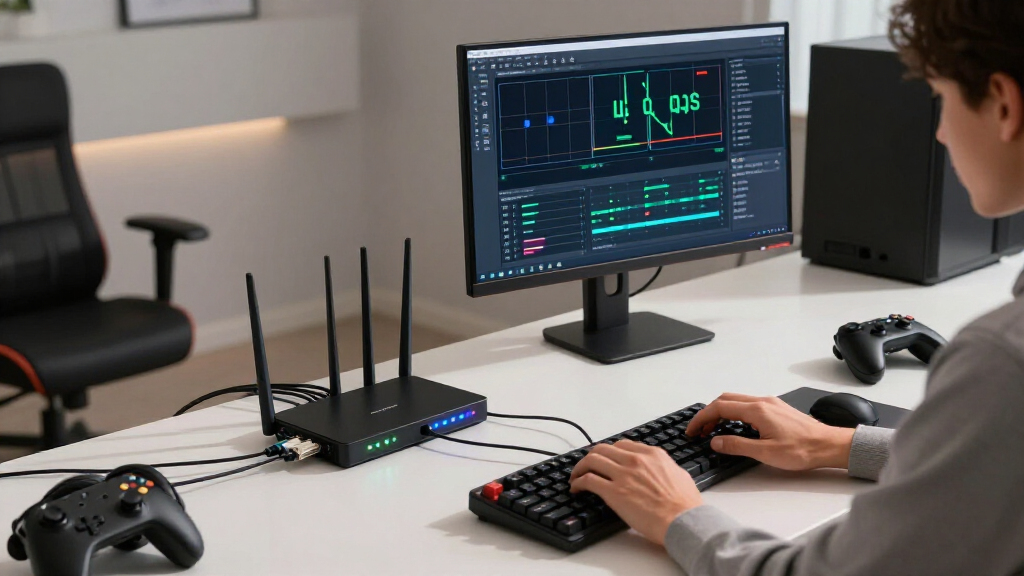
QoS on routers for Steam Remote Play reduces lag caused by congestion by stopping uploads, downloads, backups, and video calls from filling your router’s queues. Smart Queue Management using FQ-CoDel or CAKE usually helps more than a generic gaming-priority button, but it cannot make weak Wi-Fi, slow encoding, poor internet routes, or display delay disappear.
A fast speed test can hide a miserable game stream. Your connection may flash 500 Mbps on screen, yet the camera lurches the moment someone uploads holiday photos. Steam Remote Play cares about steady packet delivery and short queues, not the biggest number your broadband line can briefly produce.
This guide shows you where Quality of Service fits into that problem. You will learn why Smart Queue Management often beats a shiny gaming mode, why local and internet streaming need different fixes, and how to test whether congestion really causes your lag. You will also see what QoS cannot repair, from a weak wireless signal to slow video decoding.
The goal is practical: you should be able to open your router settings, recognize the useful controls, and test them without guessing. Think of QoS as a traffic officer at a narrow bridge. It keeps a lumbering backup job from blocking your tiny controller packets, but it cannot make the bridge wider or move a distant server closer.
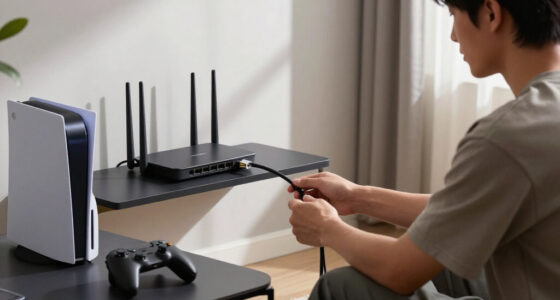
Wire the host PC first; removing one wireless hop often improves local Remote Play more than changing WAN QoS.
Use SQM with FQ-CoDel or CAKE when available, starting near 85–95% of stable measured upload and download capacity.
For internet Remote Play, protect the host’s upload because it carries the video stream; configure the client network too if congestion occurs there.
Set a conservative Steam bitrate and raise it only while loaded latency, packet loss, and frame delivery remain steady.
If Steam reports low network latency during a stutter, investigate encoding, decoding, rendering, and display delay instead of adding more priority rules.
QoS on Routers Explained
Remote Play needs steady packet delivery and short queues—not the biggest speed-test number. Smart queue management keeps backups, downloads, and video calls from turning a responsive stream into a lurching one.
Set upload and download below stable measured capacity so the router controls the queue.
Active queue control usually matters more than a generic gaming-priority switch.
Removing one wireless hop can outperform every WAN priority rule for local play.
A traffic officer at a narrow bridge
QoS does not create bandwidth. It decides how packets wait when several devices compete for a limited connection.
Less waiting is the win
A large backup can fill an upload queue with bulky traffic. SQM keeps that queue controlled so tiny, delay-sensitive controller packets and real-time video are not trapped behind it.
Encoded video and audio
The host sends the stream toward the client. Scene complexity can make bitrate rise and fall from moment to moment.
Controller and input data
Mouse, keyboard, touch, and gamepad messages use little bandwidth but feel terrible when delayed.
Control and session traffic
Steam also exchanges session-management data that benefits from consistent delivery during congestion.
Local and internet play need different fixes
A local stream may never pass through the router’s WAN shaping engine. Internet Remote Play usually makes the host connection’s upload the critical choke point.
Local streaming
The stream may be switched or bridged entirely inside the home network.
- Wire the gaming PC first
- Prefer clean 5 GHz, 6 GHz, or suitable Wi-Fi 7
- Avoid overloaded mesh backhaul and repeaters
- Keep WMM enabled
- Reduce competing wireless airtime
Internet streaming
The host’s encoded video must fit through its internet upload capacity.
- Shape the host upload below stable capacity
- Protect the client network from download congestion
- Test both locations independently
- Keep Steam bitrate conservative
- Remember that ISP queues remain outside your control
Queue management beats the shiny gaming button
Manufacturer labels vary. Look beyond the icon and identify whether the router actually shapes bandwidth and controls loaded latency.
| Router feature | What it does | Remote Play value | Important limitation |
|---|---|---|---|
| SQM with CAKE | Shapes capacity, shortens queues, and shares bandwidth across flows. | ✓ EXCELLENT | Needs accurate upload and download rates. |
| SQM with FQ-CoDel | Separates flows and actively controls persistent queues. | ✓ EXCELLENT | Router hardware must handle the shaped speed. |
| Anti-bufferbloat | May be SQM under a manufacturer-specific name. | ✓ STRONG | Confirm that manual rates or loaded-latency controls exist. |
| Device priority | Gives one device preferential treatment during competition. | ~ VARIABLE | May not control the oversized queue itself. |
| Gaming mode | May classify traffic, open ports, or simply alter device priority. | ~ UNCLEAR | A marketing label reveals little about queue behavior. |
| WAN QoS for local play | Controls traffic crossing the internet interface. | ✗ OFTEN BYPASSED | Local switched or bridged traffic may never enter it. |
Trade a little peak speed for steadier latency
Starting rangeChange one layer at a time
A clean baseline makes QoS measurable. If several settings change together, a temporary improvement can hide the real fault.
Wire the host
Remove one wireless hop before tuning the router.
Measure stability
Run repeated tests, not one flattering speed result.
Enable SQM
Select CAKE or FQ-CoDel when available.
Shape to 90%
Apply conservative upload and download values.
Retest under load
Watch latency, loss, bitrate, and frame delivery.
Load the line while playing
Start a large upload or download during Remote Play. If latency and stutter rise together—and SQM reduces both—congestion was part of the problem.
The practical checklist
QoS is one tool in a full latency chain. Use it where congestion exists, then investigate the next layer instead of piling on priority rules.
Wire the host PC first
Removing one wireless hop often improves local Remote Play more than WAN QoS.
Prefer real SQM
Start with CAKE or FQ-CoDel at roughly 85–95% of stable measured capacity.
Protect the host upload
For internet play, outgoing video frequently meets the narrowest part of the connection.
Raise bitrate cautiously
Increase it only while loaded latency, packet loss, and frame delivery remain steady.
Trust the latency evidence
If Steam shows low network latency during a stutter, inspect game rendering, encoding, decoding, and display delay instead of adding QoS rules.
Trace the whole latency chain
QoS influences only network stagesQoS can shorten congested network queues. It cannot strengthen weak Wi-Fi, accelerate a slow codec, repair a distant route, or reduce television processing delay.
What QoS Actually Changes During a Steam Stream
QoS on routers for Steam Remote Play is a way to control which packets wait when your network becomes busy. It keeps latency-sensitive input and video traffic moving while downloads, cloud backups, and file transfers compete for capacity. Its main job is congestion control, not creating bandwidth or speeding up game rendering.
Remote Play carries several conversations at once. The host sends encoded video and audio toward your client, while the client sends small controller, mouse, keyboard, or touch messages back. Video consumes most of the bandwidth, but a delayed input packet can make a dodge, parry, or camera turn feel sticky even though that packet contains only a few bytes.
Imagine your gaming PC sending a bright, fast-moving racing scene while a laptop begins a 20 GB cloud backup. Without useful queue management, the backup can pack the router’s upload queue like a supermarket line full of overflowing carts. Your tiny input packet arrives with one item in its basket, yet it still waits behind everyone else.
That long wait is commonly called bufferbloat. According to the networking guidance summarized by skeldrift.com [1], QoS helps Steam Remote Play mainly by preventing other traffic from making stream packets sit in oversized queues. A connection with a 12 ms idle ping can jump past 100 ms under load, which feels far worse than a steady 25 ms connection.
Good queue management is usually more useful than a generic gaming priority switch because it controls the congested queue itself.
QoS can soften lag spikes when another person starts a 4K stream, joins a video call, or syncs a phone full of photos. It cannot make weak Wi-Fi stronger, shorten a poor ISP route, repair packet loss beyond your network, or accelerate a client that struggles to decode the selected codec. Less waiting is the win; lower every kind of delay is not.
As an affiliate, we earn on qualifying purchases.
Know Whether Local or Internet Play Needs Your Attention
QoS on routers for Steam Remote Play matters most when the stream crosses a controlled bottleneck, especially your internet upload. A purely local stream may stay inside the router’s switch or wireless bridge and bypass its WAN shaping engine. In that case, Ethernet and Wi-Fi airtime matter more than internet QoS.
| Streaming path | Main pressure point | Best first move | QoS value |
|---|---|---|---|
| Host and client at home | Wi-Fi airtime, signal, mesh backhaul | Wire the host with Ethernet | Variable; WAN rules may never see the stream |
| Host at home, client elsewhere | Host internet upload | Shape the host connection below stable upload capacity | Often high when uploads cause bufferbloat |
| Remote client on shared Wi-Fi | Client download and wireless contention | Use clean 5 GHz or 6 GHz Wi-Fi | Useful if the client network becomes congested |
| Wireless host and wireless client | Shared airtime in both directions | Wire at least one endpoint | Limited if radio contention is the real problem |
For an in-home example, suppose your PC sits beside the router while a tablet runs Steam Remote Play from the sofa. Wiring the PC removes one wireless hop, so the access point only has to transmit the stream once. If both devices use the same busy radio, every video frame can consume airtime on two links while nearby phones and televisions also take turns.
Keep Wi-Fi Multimedia, or WMM, enabled on modern wireless networks. WMM organizes wireless traffic into access categories and supports high-throughput Wi-Fi operation, but it does not replace SQM at an internet bottleneck. On a crowded evening, a clean 5 GHz or 6 GHz link near the access point can help more than any WAN priority rule.
Internet streaming flips the pressure outward. The host’s video must fit through its upload connection, so a household with 500 Mbps down but 20 Mbps up can still struggle when a backup saturates that smaller upstream pipe. QoS at the host protects outgoing video, while QoS at the client can protect downloads and returning input packets.
Neither router controls queues inside an ISP or along the wider internet. If play mainly by remote connection works perfectly at dawn but stutters every evening even with both homes idle, congestion beyond your equipment may be involved. Test each location separately before changing both routers, or you can hide the real fault beneath layers of settings.
As an affiliate, we earn on qualifying purchases.
Choose Router Features That Keep Queues Short
QoS on routers for Steam Remote Play works best when the router uses Smart Queue Management, commonly with FQ-CoDel or CAKE. These systems shape traffic slightly below the connection’s real capacity, keep queues short, and share bandwidth across flows. A vague gaming mode may only label packets without controlling the bottleneck.
Start with SQM, Smart Queue, Anti-Bufferbloat, Traffic Optimization, or a similarly named control. Manufacturers use inconsistent labels, so read the description and look for CAKE, FQ-CoDel, loaded-latency control, or manual upload and download rates. The implementation matters more than the neon game-controller icon beside it.
A common starting range is 85–95% of consistently measured throughput [2]. If your line repeatedly delivers 100 Mbps down and 20 Mbps up, try shaping near 90 Mbps and 18 Mbps. That small speed sacrifice gives the router room to hold the queue instead of letting a modem or ISP device build a much longer one.
Variable cable, cellular, and fixed-wireless connections may need lower figures because their available capacity changes. If your evening upload swings between 12 and 20 Mbps, an 18 Mbps shaping rate can still exceed the real bottleneck when the neighborhood gets busy. Try 11 Mbps, load the connection, and raise the value slowly while watching latency.
- Device priority: Favor the host PC and Remote Play client when SQM alone is not enough.
- Per-device caps: Limit a backup server or download box that repeatedly monopolizes capacity.
- WMM: Leave it active for wireless scheduling and modern Wi-Fi performance.
- DSCP rules: Use them only if your network equipment preserves and honors the markings.
Device-based priority is often safer than a static Steam port rule. Steam can use multiple flows, dynamic ports, encrypted traffic, and direct or relayed connections, while application classifiers can guess incorrectly. If you prioritize both endpoints, the router does not need to identify every packet perfectly.
Avoid marking every console, television, phone, and computer as highest priority. That is like giving every car an emergency siren: the intersection becomes noisy, but nobody moves faster. Protect the two Remote Play devices, control bulk transfers, and leave enough capacity for the rest of the household.
As an affiliate, we earn on qualifying purchases.
Set Up QoS in an Order That Exposes the Real Problem
The most reliable QoS setup begins with a wired host, a stable client link, and a clean baseline test before you change router rules. You then measure loaded latency, enable queue management, enter realistic rates, and retest. This order separates congestion problems from weak Wi-Fi, slow hardware, and unsuitable Steam settings.
- Wire the host PC. Connect it to the router or primary mesh node with Ethernet so the outgoing video avoids wireless interference.
- Improve the client path. Use Ethernet when practical, or choose strong 5 GHz or 6 GHz Wi-Fi near the access point.
- Test while the network is idle. Play the same game scene for several minutes and record Steam’s network, encoding, and decoding figures.
- Create heavy traffic. Run a large upload and download, then watch ping, jitter, packet loss, and visible stutter.
- Enable SQM or adaptive queue control. Enter roughly 85–95% of stable measured upload and download rates.
- Prioritize both devices if needed. Give the host and client consistent access without marking every household device as high priority.
- Repeat the loaded test. Use the same game, location, bitrate, and background transfers so the results are comparable.
- Tune Steam after the network. Adjust bitrate, resolution, frame rate, and hardware acceleration one setting at a time.
For example, say your idle ping is 14 ms, but a laptop upload pushes it to 180 ms and makes a platformer feel like it is running through syrup. After setting SQM to 90% of your stable rates, the speed test may look slower while loaded ping stays near 28 ms. That is a useful trade: slightly less throughput for much steadier control.
If the game already stutters while every other device is idle, pause before tuning qos on routers. Connect both endpoints by Ethernet and lower the stream to 1080p at 60 frames per second. If the problem remains while Steam reports low network latency, inspect encoding, decoding, rendering, or display time instead.
Mesh networks deserve extra care. A client connected to a satellite with wireless backhaul may send every frame across two radio hops, adding contention and jitter. Try the primary node, use wired backhaul, or move the satellite where it receives a stronger link rather than hiding it behind a thick brick wall.
Change one variable at a time. If you alter QoS, bitrate, Wi-Fi channel, codec, and resolution together, a smoother stream will not tell you which change worked.
You also want one active traffic manager. Running QoS on an ISP gateway, a second router, and a mesh kit can produce competing limits and confusing results. A single-router design, bridge mode, or access-point mode often makes the packet path easier to understand, especially when double NAT has complicated direct Steam connections.
As an affiliate, we earn on qualifying purchases.
Pick a Bitrate That Leaves Breathing Room
A good Steam Remote Play bitrate stays below the path’s stable capacity and leaves room for scene changes, input traffic, and other users. The best value is not the highest number the connection can touch; it is the highest value that maintains steady latency, low packet loss, and smooth frame delivery.
A dark strategy-game map may compress easily, while rain, smoke, grass, and a spinning camera can make the encoder send a sudden flood of detail. If your chosen bitrate already hugs the connection ceiling, that burst can fill the queue. The image then turns into chunky blocks, resolution falls, or motion freezes for a fraction of a second.
Start conservatively and increase the cap in small steps. On a host with a stable 20 Mbps upload, choosing a 15 Mbps stream leaves more room than setting Steam to unlimited bandwidth. Run the same busy scene, watch the displayed bitrate and frame loss, then move upward only while loaded latency remains steady.
Higher resolution, frame rate, visual detail, and quality presets usually demand more bandwidth. A 1440p, 120 fps stream places more pressure on the network and hardware than 1080p at 60 fps. Yet bitrate alone cannot rescue a client that lacks smooth hardware decoding or a host GPU that takes too long to encode each frame.
Think of Remote Play as an eight-link chain: input, client network, host, rendering, encoding, network, decoding, and display. QoS strengthens only the network links. If a television adds heavy image processing or a small client overheats during decoding, packets can arrive on time while your button press still appears late.
Hardware acceleration often reduces processing delay, but results depend on the GPU, driver, operating system, client, and codec. Test it on and off rather than assuming the label guarantees better play. Platform and software versions matter here, and performance can change after a Steam client, driver, or operating-system update.
Steam Deck compatibility labels describe whether a game runs well on the handheld; they do not certify the quality of your Remote Play network. Steam Deck Verified status can change as games and compatibility layers receive updates. For performance claims, record the client model, Steam version, connection type, resolution, and frame rate so your test has useful context.
Prove QoS Is Working Before You Trust the Checkbox
QoS is working when your latency stays relatively stable while uploads and downloads saturate the connection. Compare idle and loaded ping, then watch jitter, packet loss, Steam network latency, frame loss, and stutter. A lower speed-test result can still represent a better network if controls remain responsive under pressure.
Create a repeatable stress test. Start Remote Play in a scene with steady movement, such as driving the same lap or panning across the same crowded town square. On another device, begin a large cloud upload and a download, then listen for audio cracks and watch whether camera movement changes from silk-smooth to jerky.
Record an idle ping, a download-loaded ping, and an upload-loaded ping. If the idle result is 15 ms and uploads raise it to 160 ms, upstream bufferbloat is a strong suspect. If SQM holds the loaded result near 25–35 ms with no packet loss, queue control is doing its job.
Consistency often matters more than shaving two milliseconds from an idle number. A turn-based game can tolerate more delay, while a rhythm game or competitive platformer exposes every uneven beat. You are looking for a flat road, not one that is very fast for a second and then buckles into potholes.
- Lag appears only under traffic: Tune SQM rates and inspect which direction becomes saturated.
- Lag appears only on Wi-Fi: Test Ethernet, signal strength, channel congestion, and mesh backhaul.
- Network latency is low but frames arrive late: Inspect encoding, decoding, rendering, and display time.
- Both homes test well: A poor ISP route or distant relay may sit outside your QoS control.
- Throughput collapses with SQM: Check shaping values and whether the router CPU can handle your line speed.
Common mistakes include entering the ISP’s advertised maximum, testing only on an idle network, and prioritizing Steam without controlling the full queue. Port forwarding is also separate from packet priority. Automatic connectivity may already work, and opening ports will not cure bufferbloat, weak Wi-Fi, or an overloaded encoder.
Very fast broadband brings another wrinkle: some routers cannot run CAKE or FQ-CoDel at gigabit speeds without becoming CPU-limited. If enabling SQM cuts a 900 Mbps connection to 250 Mbps, the router may lack shaping power. Decide whether your household needs full peak throughput or stronger loaded-latency control, then test with the features your hardware can sustain.
Frequently Asked Questions
Will QoS reduce Steam Remote Play input lag?
QoS can reduce input-lag spikes caused by a busy upload or download queue. It will not remove rendering, encoding, decoding, display, Wi-Fi, or internet-routing delay. Test while another device saturates the connection; improvement under that load points to a congestion fix.
Should I prioritize the host PC or the Steam Remote Play client?
Prioritize both devices when your router allows it. For internet play, the host PC deserves special attention because its outgoing video usually forms the largest flow and must fit through the host connection’s upload limit. The client still needs clean download capacity and a quick path for returning input.
Does QoS help with in-home Steam Remote Play?
It can help, but WAN QoS may not touch local traffic that stays inside a switch or wireless bridge. For a local stream, wiring the host, reducing wireless airtime use, keeping WMM enabled, and using a strong 5 GHz or 6 GHz connection often produce a larger change.
Why did enabling QoS lower my speed-test result?
Traffic shaping intentionally leaves headroom so your router controls the queue before another device fills it. A modest reduction, often from shaping near 85–95% of stable capacity, is expected. A drastic drop can point to incorrect rates or a router processor that cannot shape traffic at your connection speed.
Should I set Steam Remote Play bandwidth to unlimited?
Unlimited bandwidth is risky on a shared or variable connection because the stream can repeatedly press against the bottleneck. Begin with a conservative bitrate cap, test a visually busy scene, and raise it until added bandwidth stops improving the image or begins causing latency spikes and frame loss.
Can QoS fix packet loss during Remote Play?
QoS can reduce packet loss caused by local congestion, such as an upload filling your router’s queue. It cannot repair weak signal, radio interference, damaged cabling, unstable mesh backhaul, or loss inside an ISP network. Compare Ethernet and Wi-Fi tests to narrow down where the packets disappear.
Is Wi-Fi 7 better than Ethernet for Steam Remote Play?
Wi-Fi 7 can provide high throughput and low latency when the router, client, drivers, and operating system support its features. Ethernet remains more predictable because walls, interference, channel use, and wireless backhaul can still add jitter. For the steadiest result, wire at least the host PC.
Conclusion
Treat QoS as queue control, not a magic gaming switch. Wire your host, measure latency under load, enable SQM, and shape the connection just below its stable capacity. If your speed-test number shrinks while Remote Play stays smooth during a backup or video call, the lower number is the better result.
Then stop tuning the router and play. The goal is not a dashboard full of maximum-priority badges; it is a controller press that reaches the screen without a sticky pause, even while the rest of the house remains online. Keep the queue short, leave the stream some breathing room, and let the road stay clear.
Halloween Picks
halloween
As an affiliate, we earn on qualifying purchases.