
TL;DR

Play games on Amazon Luna for your game nights, included with Prime
- A rotating selection of games, no download needed
- Play on TV, laptop or phone
- Fast, free delivery for your gear, too
TV Game Mode disables the motion smoothing and image processing that can add dozens of milliseconds of delay between your controller and the screen, making it the single most impactful TV setting for a SteamOS or living-room gaming PC. Game Mode does not raise your frame rate — it removes television-side lag, and works best when paired with correct refresh rate, VRR, and HDMI configuration. Enable it on your TV’s gaming-capable HDMI port, disable motion smoothing and overscan, and test it on and off in a fast game.
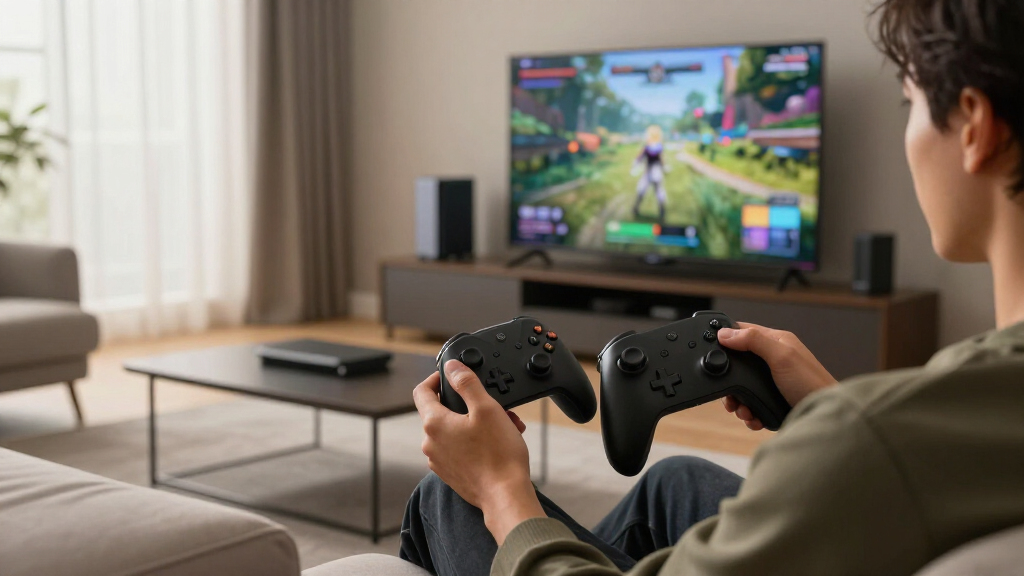
You press jump. A heartbeat later, your character jumps. Your Steam Machine is rendering at a smooth 60 fps, your controller has fresh batteries, and yet something feels… sticky. The culprit is probably not your PC at all. It’s your television, quietly massaging every frame through motion smoothing, noise reduction, and edge enhancement before it lets you see it.
That hidden queue of image processing can add more delay than most people expect — sometimes more than the entire rest of the input chain combined. Game Mode is the TV setting that strips most of that processing away, and for any SteamOS or living-room gaming PC, it’s the single biggest free responsiveness upgrade you can make tonight.
In this guide, you’ll learn exactly what Game Mode does, why it matters more than any cosmetic picture tweak, how it interacts with VRR and ALLM, and a step-by-step setup checklist for your TV settings for gaming. No reviews, no fluff — just what to change and why.
Game Mode reduces TV processing delay only — it never increases FPS, which depends entirely on your Steam Machine’s hardware and game settings.
ALLM just auto-switches the TV into Game Mode; VRR handles frame-delivery mismatch. They’re complementary, not interchangeable.
Cap your frame rate slightly below the display’s maximum refresh rate (e.g., ~117 fps on a 120 Hz TV) to keep VRR engaged without hitting the ceiling.
Receivers, soundbars, docks, and splitters can silently block 4K/120, VRR, HDR, or ALLM even when your PC and TV both support them — test with a direct connect…
Output at the TV’s native resolution but render internally at 1440p or 1080p with upscaling: a stable capped frame rate beats an unstable native 4K attempt eve…
Why TV Game Mode Matters for Steam Machine
You press jump. A heartbeat later, your character jumps. The culprit is usually not your PC — it’s your television, quietly massaging every frame through motion smoothing and noise reduction. Game Mode strips that processing away, making it the single biggest free responsiveness upgrade you can make tonight.
What Game Mode Actually Does to Your TV (And Your Reflexes)
Standard picture modes run motion smoothing, frame interpolation, noise reduction, and edge enhancement — a pipeline that polishes the image but queues it behind a wall of computation. Game Mode cuts most of that pipeline, so the frame your Steam Machine sends is the frame you see, nearly immediately.
TV-Side Processing Delay · Typical Comparison
Game Mode Fixes Exactly One Link
Input latency is end-to-end. Game Mode shrinks only the “TV processing” box — everything before it is your Steam Machine’s problem. Someone running 35 fps on a midrange build gains nothing from Game Mode; someone with a locked 60 fps build and a processing-heavy TV mode gains a shocking amount from one settings change.
Two other links deserve attention: wireless controller latency is normally modest, but Bluetooth congestion can cause spikes — try a wired connection for competitive play. And V-sync, while preventing tearing, may add latency; the fix is VRR plus a frame-rate cap just under the display’s maximum refresh.
ALLM vs. Game Mode vs. VRR: Which One Does What
They’re complementary, not interchangeable. One attacks processing lag; one automates the toggle; one attacks frame-delivery mismatch.
| Feature | What it does | What it doesn’t do |
|---|---|---|
| Game Mode | ✓ Reduces TV processing delay inside the television | ✗ Raise FPS or change your PC’s output in any way |
| ALLM | ✓ Auto-switches the TV into Game Mode via HDMI signaling | ✗ Provide low latency by itself — manual Game Mode achieves the same result |
| VRR | ✓ Matches refresh to frame delivery, cuts tearing and stutter | ✗ Reduce TV processing delay — that’s Game Mode’s job |
⚠ Enable FreeSync in your GPU panel but the TV still tears? Nine times out of ten, one weak link — GPU, driver, HDMI port, cable, or display — is breaking the chain.
Your 12-Step Game Mode Setup Checklist
Change variables in isolation, in this order — the fastest path to a responsive couch gaming setup.
Enable Game Mode on your TV’s gaming-capable HDMI port (check the manual — often only 1–2 ports support full features).
Disable motion smoothing and all interpolation in the picture settings menu.
Disable overscan — set the picture size to “Just Scan” or “Full” so pixels map 1:1.
Turn off noise reduction and edge enhancement, which queue frames behind extra computation.
Set the correct refresh rate in your GPU control panel — 60 or 120 Hz, matching the panel.
Enable VRR on both the TV and the GPU side; verify with a tearing test.
Cap your frame rate slightly below max refresh (~117 fps on 120 Hz) to keep VRR engaged.
Replace the cable with an Ultra High Speed HDMI cable if 4K/120, VRR, or HDR misbehave.
Connect directly to the TV — receivers, soundbars, docks, and splitters can silently block 4K/120, VRR, HDR, or ALLM.
Output native, render lower: keep the desktop at the TV’s native resolution but render internally at 1440p or 1080p with FSR, DLSS, or XeSS upscaling.
Configure HDR carefully across game, OS, GPU, cable, input, and picture mode — mismatched tone mapping looks washed out or clipped.
Test on and off in a fast game. A stable capped frame rate beats an unstable native 4K attempt every time.
Signal Negotiation: Common Refresh Targets
The television and PC must negotiate an appropriate signal. Higher-resolution, high-refresh, HDR signals demand more bandwidth — and some TVs support their best gaming features on only certain HDMI ports.
What Game Mode Actually Does to Your TV (And Your Reflexes)
Game Mode is a TV picture mode that disables or simplifies the video processing your television applies to every frame before displaying it. Standard modes run motion smoothing, frame interpolation, noise reduction, and edge enhancement — a pipeline that polishes the image but queues it behind a wall of computation. Game Mode cuts most of that pipeline, so the frame your Steam Machine sends is the frame you see, nearly immediately.
Here’s the thing most couch PC gamers miss: Game Mode does not increase your frame rate. Your GPU still renders at whatever pace it can manage. What changes is the delay inside the television — the gap between the frame arriving over HDMI and the pixels lighting up. skeldrift.com’s testing philosophy is simple: measure the whole chain, and the TV portion is routinely the fattest target.
Where does this actually matter? Fast-twitch genres, full stop:
- Shooters — aim feels glued to your hand instead of drifting behind it
- Fighting games — combo timing windows are measured in single frames
- Rhythm games — a few milliseconds of lag breaks note timing completely
- Racing games — steering correction needs to land immediately
- Platformers — precision jumps punish any input delay
- Mouse-controlled games — a cursor that lags behind your hand is miserable
Picture a rhythm game on a TV in its default “Standard” mode, with interpolation “helpfully” smoothing everything. Notes you hit dead-on register as misses. Flip on Game Mode, and suddenly the same hardware, same game, same song feels playable. The game never changed — the television stopped getting in the way.
Rule of thumb: motion smoothing should be disabled for games, always. It adds delay and can introduce artifacts that no amount of GPU horsepower fixes.
TV gaming monitor with low input lag
As an affiliate, we earn on qualifying purchases.
As an affiliate, we earn on qualifying purchases.
The Full Input Chain: Why Game Mode Fixes Only One Link
Input latency is end-to-end, and Game Mode improves exactly one segment of it. The complete chain looks like this: controller → game engine → CPU/GPU rendering → HDMI output → TV processing → panel response. Game Mode shrinks the “TV processing” box. Everything before it is your Steam Machine’s problem.
This distinction matters because it prevents a common disappointment. Someone enables Game Mode on a midrange living-room PC struggling to hold 35 fps in a demanding title, and complains nothing improved. Of course it didn’t — a frame-rate cap set below the display’s ceiling, better GPU settings, or upscaling would help there. Game Mode can’t compensate for an overloaded GPU or wildly variable frame times.
Conversely, someone with a locked 60 fps build but a processing-heavy TV mode can gain a shocking amount of responsiveness from one settings change. skeldrift.com puts it bluntly: Game Mode normally provides a larger responsiveness improvement than any cosmetic picture setting you could adjust instead.
Two other links in the chain deserve attention. Wireless controller latency is normally a modest slice of total delay — but Bluetooth congestion or poor reception can cause spikes and outright disconnections, so a wired connection or dedicated adapter is worth trying for competitive play. And V-sync, while it prevents screen tearing, may increase latency depending on the game and frame queue. The fix isn’t to abandon synchronization — it’s to use VRR (covered below) and cap your frame rate just under the display’s maximum refresh.
A quick naming note so you don’t get lost in menus: manufacturers rarely just say “Game Mode.” LG ships Game Optimizer, Samsung has its Game Bar, and other brands use their own labels. They’re all the same idea — a low-latency mode — wearing different badges.
As an affiliate, we earn on qualifying purchases.
ALLM vs. Game Mode vs. VRR: Which One Does What
ALLM (Automatic Low-Latency Mode) is a signaling feature that lets a compatible source device tell the TV to switch into Game Mode automatically. It is not a separate picture mode and it does not add anything Game Mode lacks — it just automates the toggle. VRR (Variable Refresh Rate) is different again: it synchronizes the TV’s refresh timing with your game’s frame delivery to reduce tearing and smooth out fluctuating frame rates.
Here’s the clean way to keep them straight:
| Feature | What it does | What it doesn’t do |
|---|---|---|
| Game Mode | Reduces TV processing delay | Raise FPS or change your PC’s output |
| ALLM | Auto-switches the TV into Game Mode | Provide low latency by itself — you can get that by enabling Game Mode manually |
| VRR | Matches refresh to frame delivery, cuts tearing | Reduce TV processing delay |
Game Mode and VRR are complementary, not competitors — one attacks processing lag, the other attacks frame-delivery mismatch. VRR implementations include HDMI Forum VRR, AMD FreeSync, and Nvidia G-Sync Compatible behavior, and compatibility must hold across the GPU, driver, HDMI port, cable, and display. One weak link kills it.
Practical example: you enable FreeSync in your GPU control panel but the TV still tears. Nine times out of ten, you’re plugged into the wrong HDMI port — many TVs confine their best gaming features to specific inputs. Also know that VRR ranges are limited; below the supported window, behavior changes, and features like Low Frame Rate Compensation can help if both display and source support them.
A common configuration for keeping VRR engaged: cap your frame rate slightly below the display’s maximum refresh rate (say, 117 fps on a 120 Hz panel). Constantly slamming into the VRR ceiling causes judder; a small buffer keeps everything inside the smooth zone.
As an affiliate, we earn on qualifying purchases. As an affiliate, we earn on qualifying purchases.gaming TV with VRR and ALLM support
HDMI Ports, Cables, and 120 Hz: Why Your Refresh Rate Won’t Go Higher
If your 120 Hz TV refuses to offer 120 Hz, the likely causes are the wrong HDMI port, insufficient cable or intermediary bandwidth, an unsupported resolution, an operating-system setting, a GPU limitation, or a TV setting that hasn’t enabled enhanced HDMI input. The TV and PC must negotiate an appropriate signal, and that negotiation fails quietly more often than it fails loudly.
Common targets worth knowing: 1080p at 60 or 120 Hz, 1440p at 60 or 120 Hz, 4K at 60 Hz, and 4K at 120 Hz. Higher resolution plus higher refresh plus HDR demands more bandwidth, and full 4K/120 operation generally depends on an appropriate GPU output, a suitable TV input, and an Ultra High Speed HDMI cable.
Two facts that save people money and headaches:
- A television advertised as 120 Hz may not accept every resolution at 120 Hz — check per-mode support, not the marketing number.
- An expensive HDMI cable does nothing for image quality once a compliant cable works. The link either carries the required bandwidth reliably or it doesn’t.
Here’s a scenario skeldrift.com hears constantly: a Steam Machine plugged through an AV receiver or soundbar, unable to hit 4K/120 or VRR. Receivers, soundbars, splitters, and adapters can restrict refresh rate, HDR, VRR, or ALLM even when both the PC and TV support them. The fix is to connect the PC directly to the TV and return audio via ARC or eARC — then reintroduce the receiver one component at a time to find the bottleneck.
And if you’re docking a handheld like a Steam Deck rather than running a dedicated box, remember the dock itself adds variables: its HDMI specification, firmware, power supply, and support for HDR, VRR, or 4K/120 all sit between your hardware and your television.
As an affiliate, we earn on qualifying purchases.
Render at 1440p, Output at 4K: The Smart Living-Room Compromise
Render resolution and output resolution are different things, and separating them is often the best move for a Steam Machine. Your PC can push a native 4K signal to the TV while a demanding game renders internally at 1080p or 1440p, with upscaling — FSR, XeSS, DLSS where supported, or plain resolution scaling — reconstructing the image. The TV sees a clean 4K signal; the GPU does a fraction of the work.
This works because the alternative is worse. An unstable attempt at native 4K that stutters between 38 and 55 fps feels worse than a locked 60 at upscaled 1440p, every single time. Consistency beats peaks in perceived smoothness.
The recipe skeldrift.com recommends for most living-room builds:
- Keep the TV connection at its native resolution and desired refresh rate — don’t lower the desktop output.
- Lower the game’s internal rendering resolution until frame times stabilize.
- Enable FSR, XeSS, or DLSS where the game supports it, or use ordinary resolution scaling.
- Set a stable frame-rate target — a cap slightly under the display’s max refresh keeps VRR happy.
One caution on frame generation: it can increase displayed smoothness, but it does not reduce input latency the way a genuinely higher base frame rate does, and it may add latency or artifacts. Treat it as a polish tool, not a substitute for real performance.
Is 60 fps enough on a 120 Hz television? Yes. A 120 Hz panel can display 60 fps content well and may offer better timing or lower latency than a 60 Hz-only display — plus VRR catches the dips when performance fluctuates. Native 4K is sharper on paper; upscaled 1440p at double the frame rate is sharper where it counts: in your hands.
The Picture-Quality Traps: HDR, Overscan, and “PC” Input Labels
Game Mode changes how your TV looks, and not always for the better out of the box. Because it disables processing, you may notice less motion interpolation, less aggressive noise reduction, different local-dimming behavior, different HDR tone mapping, and more visible low-frame-rate judder. These are usually fair trades for lower latency — but Game Mode doesn’t automatically mean accurate color, so calibrate sensibly rather than assuming “game” equals “correct.”
HDR deserves special care because the entire chain must support it: game, SteamOS implementation, GPU and driver, HDMI connection, TV input, and TV picture mode. When signal ranges and tone mapping mismatch, HDR looks washed out, overly dark, or clipped. And here’s the trap: some TVs have a separate HDR Game Mode that must be configured independently of the SDR version, and TVs frequently store separate settings for each HDMI input, signal type, and SDR/HDR mode. Verify your settings twice — once in SDR, once in HDR.
Then there’s the desktop itself. If your SteamOS interface spills past the screen edges, overscan is enabled — fix it with the TV’s “Just Scan,” “Screen Fit,” “1:1 Pixel,” or “Full Pixel” option. And a technically correct 4K desktop can still be a squint-fest from sofa distance if text scaling is too small, so bump up interface scaling.
Finally, the PC-versus-Game dilemma. Some TVs offer both a Game Mode and a PC-labeled input mode:
| PC input mode | Game Mode |
|---|---|
| Better text clarity and chroma 4:4:4 | Lower latency |
| Better desktop usability, less overscan | VRR and higher refresh rates |
| May restrict certain picture controls | Gaming-specific HDR controls |
On some models, labeling the input “PC” enables full chroma but disables features you want; on others, Game Mode already preserves sufficient text clarity. Test both. Keep whichever combination gives you readable text and low latency — your TV, your rules.
Your 12-Step Game Mode Setup Checklist
The fastest path to a responsive couch gaming setup is to change variables in isolation, in this order. Follow it and you’ll know exactly which component caused any problem that appears.
- Connect the Steam Machine directly to the TV while testing — no receiver, no soundbar, no dock.
- Use the TV’s gaming-capable HDMI port (check the manual; it’s rarely all of them).
- Enable the port’s enhanced-bandwidth setting if the TV requires it.
- Select Game Mode or the manufacturer’s equivalent (Game Optimizer, Game Bar).
- Disable motion smoothing and unnecessary processing.
- Disable overscan — choose 1:1 pixel mapping.
- Set your intended resolution and refresh rate in the operating system.
- Enable VRR and HDR only after basic output works.
- Verify settings separately in SDR and HDR — the TV remembers different settings for each.
- Test a responsive game and compare Game Mode on and off — feel the difference yourself.
- Adjust rendering resolution or upscaling to achieve stable frame times.
- Reintroduce a receiver, soundbar, dock, or adapter one at a time to identify any feature bottleneck.
Step 10 is the one people skip and shouldn’t. Load a rhythm game or a fast shooter, toggle Game Mode off, and play for thirty seconds. Then flip it back on. That immediate before-and-after converts “I read an article” into “I felt twenty milliseconds disappear.”
Frequently Asked Questions
Does Game Mode really make a noticeable difference?
Usually, yes. The difference is most noticeable in fast games or on TVs whose standard modes perform extensive image processing. The magnitude varies considerably by model — a budget TV in “Vivid” mode can gain far more than a high-end set with lean defaults.
Does Game Mode improve FPS?
No. Game Mode reduces television processing latency — it changes nothing about how many frames your Steam Machine renders. FPS is determined by your GPU, CPU, and game settings. Use resolution scaling or upscaling to change frame rate, not TV settings.
Why can’t I select 120 Hz on my TV?
Likely causes include the wrong HDMI port, an insufficient cable or an intermediary device like a receiver limiting bandwidth, an unsupported resolution, an operating-system refresh-rate setting, a GPU limitation, or a TV setting that hasn’t enabled enhanced HDMI input. Try a direct connection to the TV’s gaming-capable port with an Ultra High Speed HDMI cable first.
Should I set the HDMI input to ‘PC’ or use Game Mode?
Test both. PC mode may improve text clarity and chroma 4:4:4, while Game Mode may offer lower latency, VRR, and gaming-specific HDR controls. On some TVs, PC mode restricts picture controls or disables features — pick whichever combination gives you readable desktop text and low latency together.
Why does HDR look washed out on my Steam Machine?
Typical causes include incorrect HDR activation, a mismatched RGB range (full vs. limited), poor tone mapping, an unsuitable HDR picture mode, or limited application and driver support. Some TVs have a separate HDR Game Mode configured independently from the SDR version — verify your settings in both modes.
Will a receiver or soundbar add latency or break gaming features?
It can, especially if video routes through the device. Receivers and soundbars may also restrict bandwidth, VRR, HDR, or ALLM even when the PC and TV support them. Connect the PC directly to the TV and return audio through ARC or eARC, then reintroduce the device to identify the bottleneck.
Is Valve’s original Steam Machine still relevant?
The original Steam Machines launched in 2015 as PCs from multiple manufacturers and were later discontinued; the initiative is no longer an active hardware platform. Today, ‘Steam Machine’ often refers informally to a SteamOS-based living-room PC, and Valve has not confirmed a modern successor. Existing machines remain ordinary PCs but may lack the hardware for current games or modern TV features like 4K/120 and VRR.
Conclusion
If you remember one thing: enable Game Mode before you touch anything else. It’s a free, two-minute change that removes the single largest hidden source of input delay between your controller and your couch gaming session — and it matters more than any cosmetic picture tweak you could spend an evening chasing.
Tonight, do the toggle test. Play thirty seconds of a fast game with Game Mode off, then flip it on and play again. Feel the difference once, and you’ll never leave it off again — the same television, finally staying out of your way.
Columbus Day / Indigenous Peoples' Day Picks
long weekend sales
As an affiliate, we earn on qualifying purchases.