TL;DR

Play games on Amazon Luna for your game nights, included with Prime
- A rotating selection of games, no download needed
- Play on TV, laptop or phone
- Fast, free delivery for your gear, too
Why Steam Deck docked audio sometimes goes to the wrong device: SteamOS may see several valid outputs at once, including HDMI, DisplayPort, USB, Bluetooth, and the built-in speakers. The fastest fix is to manually choose the right output after docking, then update SteamOS and dock firmware if the choice keeps changing.
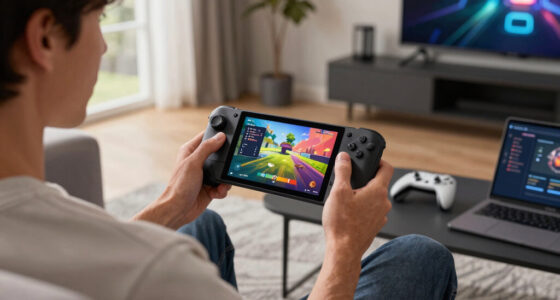
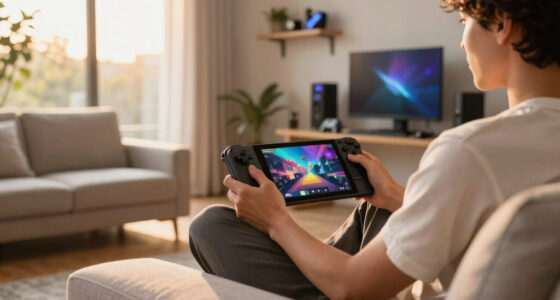
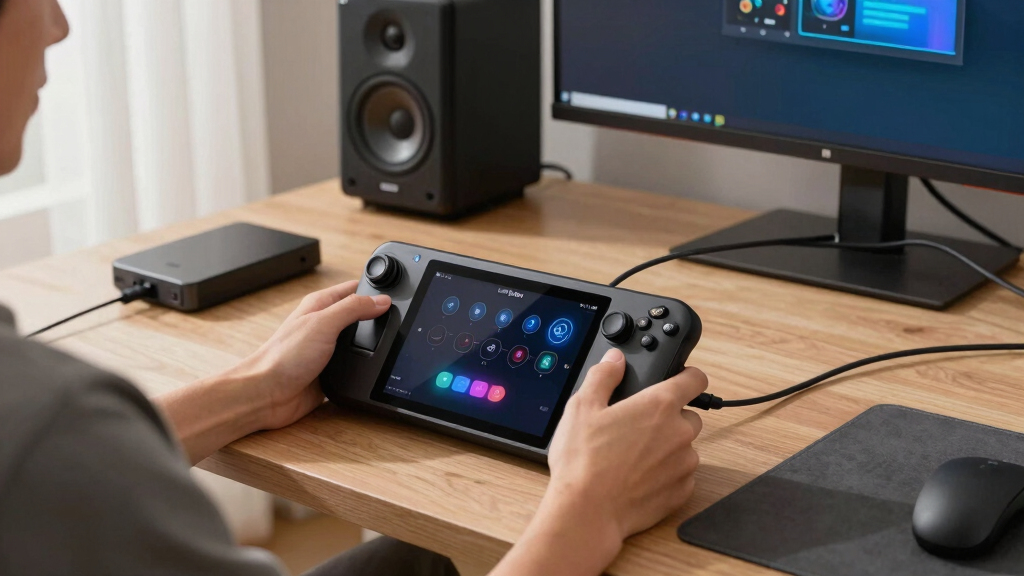
Your game can be on the big TV while the sound squeaks out of the Steam Deck on the coffee table. The screen glows, the controller works, and the menu clicks come from the wrong place like a tiny speaker hiding under a blanket.
You will learn why Steam Deck docked audio sometimes goes to the wrong device, what SteamOS is trying to do behind the scenes, and how to fix it without tearing apart your whole setup. This guide applies to Steam Deck LCD and Steam Deck OLED running SteamOS in docked mode, not Windows installs or game-specific audio mods.
Why Steam Deck Docked Audio Sometimes Goes to the Wrong Device
TL;DR: SteamOS may see several valid outputs at once, including HDMI, DisplayPort, USB, Bluetooth, and the built-in speakers. The fastest fix is to manually choose the right output after docking, then update SteamOS and dock firmware if the choice keeps changing.
The picture goes big. The sound stays tiny.
Common couch-mode symptomMore than one audio path announces itself as usable.
Your Deck Sees Too Many Speakers
Docked Steam Deck audio goes wrong because SteamOS may see several valid outputs and choose the first or highest-priority one. A monitor with weak built-in speakers may report itself as an audio device even if you never use those speakers.
A Bluetooth headset in another room can wake up first and steal the signal before your TV finishes its HDMI handshake. The wrong output still looks valid to the system, so the choice can feel random from the couch.
HDMI or DisplayPort
The TV, monitor, receiver, or soundbar can report a speaker device through the same cable carrying video.
USB Audio
Headsets, DACs, docks, and adapters may appear as separate outputs with their own names and priority.
Built-In Speakers
If the display audio path is late or missing, SteamOS may keep the Deck speakers as the active default.
SteamOS Picks a Default While Devices Are Still Waking Up
TV or monitor wakes
Display audio may not be ready the instant the screen lights up.
Dock identifies itself
USB-C can expose video, power, USB devices, and audio together.
Bluetooth reconnects
Previously paired headphones can arrive before HDMI audio.
SteamOS chooses
The audio graph links streams to the current default output.
Sound lands wrong
The game is on the TV while audio comes from somewhere else.
Why One Cable Gets Crowded
Valve lists USB-C DisplayPort 1.4 Alt Mode support on Steam Deck, so the same compact connection can carry display and audio data through a dock or adapter.
Why the List Keeps Changing
Modern Linux audio can behave like a graph of devices, streams, and links. Docking, waking, pairing Bluetooth, and switching displays can redraw that graph.
Get Sound Back Without Rebuilding the Setup
Start with the visible audio menu, then move outward to the dock only if the setting refuses to stick. The goal is to make the intended output appear before SteamOS settles on a default.
Routing Risk Spectrum
This Table Helps You Spot the Real Culprit
| What you see or hear | Likely cause | Best first move | Confidence |
|---|---|---|---|
| TV shows the game, but sound comes from the Deck. | SteamOS kept the internal speakers as default. | Pick HDMI, DisplayPort, TV, or dock output in Audio settings. | ✓ Strong |
| Sound comes from a monitor you never use for audio. | The monitor reports itself as a valid speaker device. | Select the receiver, TV, or USB audio device by name. | ✓ Strong |
| Bluetooth headphones steal sound after docking. | The headset connects before display audio is ready. | Disconnect Bluetooth audio, dock again, then reconnect only if needed. | ~ Situational |
| Audio works until sleep, then changes after wake. | The dock and display renegotiate at different speeds. | Wake the display first, then reconnect the Deck USB-C cable. | ~ Common |
| Only one dock causes the problem. | Dock firmware or audio chip reports devices oddly. | Update the dock, or test a simpler USB-C to HDMI path. | ✓ Strong |
| A game is Steam Deck Verified but audio still routes wrong. | Verified status does not decide system output routing. | Treat it as a SteamOS device-selection issue. | ✗ Not game-specific |
From Docking to the Wrong Speaker
Updates Help
SteamOS and official dock firmware updates can improve device detection and wake behavior. Valve support notes that the official Steam Deck Docking Station can receive firmware updates through the Steam Deck.
But Docks Still Differ
Third-party docks may report audio devices differently, update through separate tools, or never receive firmware updates. If one dock keeps misrouting sound, compatibility may be part of the problem.
Keep This Fix Order
- Turn on the TV, monitor, receiver, or soundbar before docking.
- Dock the Steam Deck and wait 10 seconds for devices to appear.
- Open Steam settings, choose Audio, and select the named output you want.
- If the output is missing, unplug USB-C for 10 seconds and reconnect.
- If the choice keeps changing, update SteamOS and dock firmware.
Key Takeaways
- Docked Steam Deck audio goes wrong because SteamOS may see several valid outputs and choose the first or highest-priority one.
- The quickest fix is to manually choose the right device in SteamOS Audio settings after the Deck is docked.
- Wake order matters: turn on the TV, monitor, or receiver before connecting the Deck to the dock.
- SteamOS and dock firmware updates can help, but third-party docks may still report audio devices differently.
- Steam Deck Verified status and game age ratings do not decide where system audio goes.
Steam Deck dock audio output selector
As an affiliate, we earn on qualifying purchases.
As an affiliate, we earn on qualifying purchases.
The Short Answer: Your Deck Sees Too Many Speakers
Why Steam Deck docked audio sometimes goes to the wrong device is usually simple: SteamOS sees more than one usable speaker path after you dock. Your TV, monitor, USB headset, Bluetooth buds, dock audio chip, and the Deck’s own speakers may all raise their hands at once, so the system picks one.
That choice can feel random because the wrong output still looks valid to the system. A monitor with weak built-in speakers may report itself as an audio device even if you never use those speakers. A Bluetooth headset in another room can wake up first and steal the signal before your TV finishes its HDMI handshake.
A common couch setup makes this obvious. You drop the Deck into a USB-C dock, the TV flashes black for a second, and the Steam menu appears in bright blue. Then the game starts, but the sword clangs come from the Deck’s small front speakers instead of the soundbar under the screen.
The Steam Deck is not guessing where you are sitting. It is choosing from the audio devices that announce themselves first, loudest, or as the current default.
As an affiliate, we earn on qualifying purchases.
SteamOS Picks a Default While Devices Are Still Waking Up
Why Steam Deck docked audio sometimes goes to the wrong device comes down to timing: the audio stack chooses a default device while the dock, display, and accessories finish identifying themselves. If your monitor reports its speakers late, or your Bluetooth headset wakes first, SteamOS may route sound before your intended output is ready.
According to Valve’s Steam Deck technical specifications, the Deck’s USB-C port supports DisplayPort 1.4 Alt Mode, the same lane many docks use for picture and sound [1]. That means one small cable can carry a lot of choices. The cable looks simple, but the device list behind it can get crowded fast.
Think of it like boarding a train with several people holding the same ticket type. SteamOS has to assign a seat quickly, even while more passengers keep stepping through the door. If the TV audio device arrives late, the seat may already belong to the monitor, a USB headset, or the Deck speakers.
According to PipeWire documentation, modern Linux audio can work as a graph of devices, streams, and links [2]. That graph changes when you dock, undock, sleep, wake, pair Bluetooth audio, or switch displays. SteamOS hides most of that wiring, but you hear the result when sound lands in the wrong room.
SteamOS audio settings USB Bluetooth
As an affiliate, we earn on qualifying purchases.
As an affiliate, we earn on qualifying purchases.
A Five-Step Fix That Gets Sound Back Fast
The fastest fix is to set the output yourself after docking, then make the Deck remember that choice for the current setup. You do not need to reinstall games or swap every cable first. Start with the visible audio menu, then move outward to the dock only if the setting refuses to stick.
- Turn on the TV, monitor, or receiver first. Let it fully wake before you connect the Deck to the dock.
- Dock the Steam Deck and wait 10 seconds. Give HDMI, DisplayPort, USB, and Bluetooth devices time to appear.
- Open Steam settings and choose Audio. In Gaming Mode, use the Steam button, go to Settings, then Audio, and pick the output you actually want.
- Choose the named device, not just the loudest one. Look for HDMI, DisplayPort, USB audio, your TV name, your receiver name, or your dock’s audio name.
- Test with a menu click or a game splash screen. If sound still goes elsewhere, unplug the USB-C cable from the Deck for 10 seconds and reconnect it with the display already on.
Here is the real-life version. You launch a co-op game, the title music comes from the handheld, and everyone on the couch stares at the TV in silence. Open the audio settings, pick the HDMI or TV output, and the room suddenly fills with the low thump of the menu bass.
If the right output disappears from the list, treat that as a detection problem rather than a game problem. Sleep and wake can leave the dock half-recognized, like a door that did not latch. A clean unplug and reconnect often forces the display audio device to announce itself again.
As an affiliate, we earn on qualifying purchases.
This Table Helps You Spot the Real Culprit
The real culprit is usually the last device that joined the chain or the device with the most aggressive audio claim. A TV over HDMI, a monitor over DisplayPort, a USB DAC, and Bluetooth headphones all announce themselves differently, so the same Deck can behave one way at your desk and another on the couch.
| What you see or hear | Likely cause | Best first move |
|---|---|---|
| TV shows the game, but sound comes from the Deck | SteamOS kept the internal speakers as default | Pick the HDMI, DisplayPort, TV, or dock output in Audio settings |
| Sound comes from a monitor you never use for audio | The monitor reports itself as a valid speaker device | Select the receiver, TV, or USB audio device by name |
| Bluetooth headphones steal sound after docking | The headset connects before the display audio is ready | Disconnect Bluetooth audio, dock again, then reconnect only if needed |
| Audio works until sleep, then changes after wake | The dock and display renegotiate at different speeds | Wake the display first, then reconnect the Deck’s USB-C cable |
| Only one dock causes the problem | The dock firmware or audio chip reports devices oddly | Update the dock if possible, or test with a simpler USB-C to HDMI path |
At a desk, the wrong device may be harmless: you hear thin monitor speakers instead of your USB speakers. In a living room, it feels worse because the TV picture says movie night while the sound whispers from the handheld. The symptom looks dramatic, but the fix often starts with one output name.
Updates Help, But They Do Not Fix Every Dock
Why Steam Deck docked audio sometimes goes to the wrong device can change after updates because SteamOS, dock firmware, display firmware, and game audio settings do not update as one package. Valve can improve device detection in SteamOS, yet a third-party dock may still report audio in a delayed or messy way.
According to Valve support information, the official Steam Deck Docking Station can receive firmware updates through the Steam Deck [3]. Third-party docks may need a vendor tool, a Windows updater, or no update at all. That difference matters when one dock behaves neatly and another keeps handing SteamOS a tangled audio list.
SteamOS updates can also change what you see in menus. A device that once showed up as a generic digital output may later show a clearer name, or the Deck may handle sleep and wake more cleanly. Treat forum posts about a future audio fix as unconfirmed until Valve lists it in SteamOS or Dock firmware notes.
Imagine two setups in the same house. Your living room TV works after a SteamOS update, but your desk monitor still grabs sound every time you wake the Deck. That does not mean the update failed. It means each docked chain has its own handshake, timing, and device names.
Build a Docked Setup That Stays Put
A stable docked setup gives the Deck fewer audio choices and a predictable order when everything wakes up. Turn on the display first, connect the dock second, and keep one preferred speaker path active. That small habit removes a lot of guesswork before you press play.
- Use one main audio path. Pick TV speakers, a receiver, a soundbar, USB speakers, or Bluetooth headphones, then avoid leaving extras connected for no reason.
- Wake the display before docking. TVs and receivers often need a few seconds before they report audio correctly.
- Keep SteamOS and dock firmware updated. Updates often include device stability fixes, even when the release note does not mention your exact TV.
- Turn off auto-connect on unused Bluetooth audio. A headset in a drawer should not beat your living room speakers to the default slot.
- Simplify long chains. Dock to receiver to TV to soundbar can work, but direct dock to TV is easier to test when sound wanders.
A good test is Friday-night simple. Start with Deck, dock, HDMI cable, and TV only. If audio behaves there, add the soundbar, receiver, USB hub, or headset one at a time until the wrong-device problem returns.
This is also where Steam Deck Verified status does not help much. Verified status can change by game and version, but system audio routing happens below the game layer. Age ratings do not affect it either; a family game and a mature shooter use the same SteamOS output list.
When the Dock Is More Suspect Than the Deck
It is probably the dock when the same Steam Deck chooses the right output everywhere else, but one hub or one TV chain keeps stealing sound. Bad routing does not prove the dock is dead. It means the dock may be reporting devices in a way SteamOS struggles to rank.
Test the Deck in three places if you can: handheld mode, a simple USB-C to HDMI adapter, and your full dock setup. If handheld audio works and the simple adapter behaves, the dock or the display chain becomes the main suspect. If every setup fails, look back at SteamOS audio settings or a paired Bluetooth device.
Third-party dock compatibility varies because docks use different hub chips, firmware, HDMI behavior, and audio handling. Some behave like a clean hallway with one open door. Others feel like a hotel lobby at checkout time, with devices appearing, leaving, and asking for attention all at once.
Before replacing hardware, write down the exact output names you see in Audio settings. Take a minute to note which one works, which one steals sound, and whether the problem happens after sleep, after an update, or only with one display. That tiny log can save you from buying a new dock when the fix is a setting.
Frequently Asked Questions
Why does my Steam Deck play sound through its speakers when docked?
SteamOS may keep the built-in speakers as the default output if the TV, monitor, or dock audio device is late to appear. Open Audio settings after docking and choose the HDMI, DisplayPort, TV, receiver, or dock output by name.
How do I choose HDMI audio in Gaming Mode?
Press the Steam button, open Settings, go to Audio, and choose the output tied to your TV, monitor, receiver, or dock. If the device is missing, turn on the display first, unplug the Deck’s USB-C cable for 10 seconds, then reconnect it.
Is wrong docked audio a hardware fault?
Most cases are software routing or device detection problems, not a broken Steam Deck. If the Deck works with another dock or a simple USB-C to HDMI adapter, your dock, cable, receiver, or display chain is more likely causing the confusion.
Do Steam Deck Verified games handle docked audio differently?
No. Steam Deck Verified status relates to how a game runs and presents itself on Steam Deck, and that status can change after game or SteamOS updates. Docked audio output is a SteamOS system setting, so a verified game and an unverified game can both use the same wrong output.
Should I replace my dock if audio keeps going to the wrong device?
Replace the dock only after you test the basics: manual output selection, SteamOS updates, dock firmware updates, a different HDMI cable, and a simpler connection path. If one dock fails across several TVs while another dock works, the dock is a fair suspect.
Conclusion
Treat docked audio like a seat assignment, not a mystery. After you connect the dock, choose one named output, keep SteamOS and dock firmware up to date, and simplify the chain if sound keeps jumping.
The fix is usually quiet and ordinary: one menu, one output name, one reconnect. Then the next sword clash, engine roar, or soft menu chime comes from the screen where your eyes already are.
Evergreen bestsellers Picks
bestsellers
As an affiliate, we earn on qualifying purchases.