
TL;DR
Listen free for 30 days with Audible
Thousands of audiobooks and originals — cancel anytime.
Start your free trialAs an affiliate, we earn on qualifying purchases.
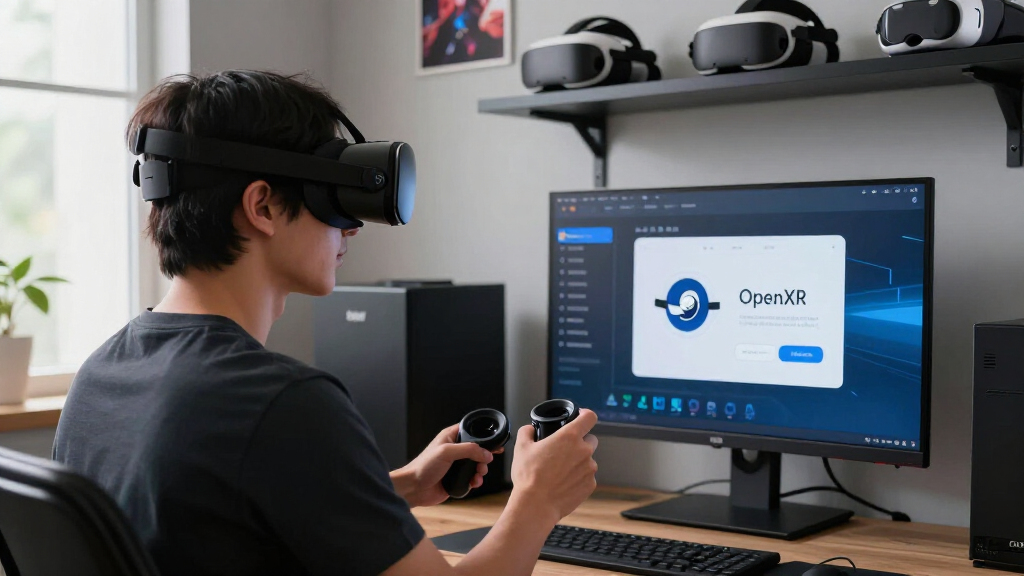
An OpenXR runtime is the PC software layer that connects an OpenXR game to your headset’s display, tracking, and controllers. Only one runtime can be active in Windows, so Steam games may open through SteamVR, Meta Quest Link, VDXR, WMR, Pimax, or another runtime depending on that setting.
A Steam game can sit in your library, start from a green Play button, and still open the Meta Quest Link app instead of SteamVR. That feels like the software has taken a wrong turn, but it often works exactly as designed. The game uses OpenXR, and Windows sends it to whichever runtime currently holds the keys.
This matters because the runtime controls the last stretch between your game and the headset: tracking poses, controller input, display timing, and rendered frames. Choose the wrong path and you may see an unexpected launcher, a black display, missing controllers, or just enough extra frame time to turn smooth motion into a faint stutter. At 90 Hz, the whole frame must arrive in about 11.1 milliseconds.
You will learn how that chain works, why OpenVR games behave differently, which runtime fits common headsets, and how to repair the setting when it goes sideways. The goal is not to crown one runtime as the universal winner. It is to help you trace the route from game to API, from runtime to headset, and choose the shortest reliable path for your own PC VR setup.
Your Steam library does not choose the OpenXR runtime. The active operating-system setting decides where an OpenXR game goes.
OpenVR and OpenXR follow different routes. Changing the OpenXR default will not normally affect an older OpenVR game that calls SteamVR directly.
Start with your headset’s direct supported runtime , then compare other paths using identical resolution, refresh rate, graphics, and connection settings.
Use the runtime’s settings button before editing the registry. The Windows ActiveRuntime value should point to an existing JSON manifest.
Test OpenComposite and API layers one at a time. Their gains depend on the exact game, runtime, headset, and software version.
OpenXR Runtimes Explained for SteamVR Users
Your Steam library does not decide which OpenXR runtime launches. Windows sends an OpenXR game to the single runtime currently holding the system pointer—whether that is SteamVR, Meta, VDXR, WMR, Pimax, Varjo, or another compatible layer.
Several runtimes can be installed, but only one system default receives OpenXR applications.
Tracking, rendering, submission, and display timing must all fit inside this narrow window.
A game bought and launched through Steam can legally route through Meta Quest Link or VDXR.
OpenXR 1.0 established one royalty-free interface for compliant XR systems.
SteamVR became a full OpenXR runtime in its 2021 generation.
Released in April 2024, consolidating widely used capabilities into the core.
The Windows pointer references the manifest for the active runtime.
What sits between your game and headset?
An OpenXR runtime is the PC software layer that implements the API and brokers the final connection to tracking, controllers, display timing, and rendered frames. Think of it as the dispatcher that turns standard OpenXR instructions into commands your headset understands.
Game
A simulator, shooter, or creative application generates the virtual world and requests XR services.
OpenXR API
A common language lets the developer target compliant systems without building a separate API path for every vendor.
Active Runtime
SteamVR, Meta, VDXR, WMR, Pimax, Varjo, or another runtime receives and implements the request.
Headset
The display, tracking system, and controllers receive precisely timed data through the selected hardware route.
HKLM\SOFTWARE\Khronos\OpenXR\1\ActiveRuntime points to a runtime’s JSON manifest. Change this single destination and the same OpenXR game may open through completely different PC VR software.
Why some games ignore the OpenXR setting
Storefront and API are separate decisions. Two games beside each other in your Steam library can follow different routes because one calls Valve’s older OpenVR interface while the other calls OpenXR.
OpenVR
Valve’s older PC VR interface. Many titles released before roughly 2021 call SteamVR directly.
- Normal destination: SteamVR
- Active OpenXR pointer: usually irrelevant
- Can be intercepted by a translation tool
OpenXR
The open Khronos standard. The game is routed to whichever compliant runtime is active in the operating system.
- Normal destination: active runtime
- Steam store does not choose the route
- Increasingly standard for newer releases
Vendor SDK
A game speaks directly to a vendor-specific interface rather than asking Windows for the active OpenXR runtime.
- Normal destination: vendor software
- Active OpenXR pointer: usually irrelevant
- Behavior depends on the application
The shorter path can remove a software hop
For a Quest connected through Link or Air Link, a native OpenXR route can go directly through Meta’s runtime. Selecting SteamVR may introduce an additional platform layer. Compatibility still matters more than theoretical simplicity.
Meta runtime active
A natural starting point for Quest 2, Quest 3, or Quest Pro using Meta’s PC connection software.
SteamVR runtime active
Useful when a title behaves better through SteamVR or depends on SteamVR-specific compatibility and features.
Total time available for one complete frame.
Match the first test to your headset
There is no universal winning runtime. Begin with the most direct currently supported vendor path, then compare alternatives under identical resolution, refresh rate, graphics, connection, and game conditions.
| Headset or connection | Good starting runtime | Why it fits | When to test another route |
|---|---|---|---|
| Valve Index | SteamVR | Native SteamVR tracking and display ecosystem. | Game-specific OpenXR compatibility issue. |
| HTC Vive with SteamVR tracking | SteamVR | Direct match for base-station tracking. | Vendor guidance requires another route. |
| Bigscreen Beyond | SteamVR | Designed around SteamVR tracking. | Follow current vendor application guidance. |
| Quest through Link or Air Link | Meta runtime | Direct OpenXR path through Quest Link. | SteamVR features or title compatibility. |
| Quest through Virtual Desktop | VDXR | Direct streaming route for supported OpenXR apps. | A title behaves better through SteamVR. |
| HP Reverb G2 | WMR OpenXR | Original native software route on supported Windows builds. | Windows support changes or tested community options. |
| Pimax headset | Pimax runtime | Can expose supported headset-specific features. | SteamVR compatibility or a title-specific issue. |
| Varjo headset | Varjo Base | Direct access to supported Varjo features. | Application guidance specifies SteamVR. |
Start with the runtime officially designed for the connected headset and transport method.
A slightly longer route that works reliably is better than a fragile path with theoretical savings.
Keep resolution, refresh rate, graphics, connection, and test scene identical between runs.
Fix the active runtime in four checks
Most runtime problems can be resolved without manually editing Windows. Use the runtime’s own settings button first, restart the relevant software, and confirm the result with a known OpenXR application.
Close every VR application
Exit the game, SteamVR, Quest Link, Virtual Desktop streamer, and vendor control software before switching.
Select the runtime in its own settings
Use options such as “Set SteamVR as OpenXR Runtime” or the equivalent button in the vendor application.
Restart the software chain
Reopen the headset connection software, then launch the intended OpenXR mode from the game.
Verify the route
Check the runtime status, game log, launcher behavior, display output, tracking, and controller input.
Change one layer at a time
Optional API layers and translation shims can add valuable features, but they also add variables. Test the native route first, record a baseline, then introduce each tool separately.
Relative troubleshooting complexity, not measured performance. Actual results depend on the game, runtime, headset, connection, drivers, and software versions.
Layers can provide overlays, upscaling, foveated rendering, diagnostics, or other optional behavior.
A compatibility shim can let selected OpenVR games bypass SteamVR, with highly game-specific results.
Record frame time and behavior before adding a tool, then reproduce the same scene and settings.
When a launch goes sideways, trace the route
Do not begin with the storefront. Start with the game’s interface, identify the active runtime, confirm the connection software, and finish at the physical headset.
Your Steam library does not select the active OpenXR runtime. The operating-system setting does.
OpenVR normally calls SteamVR directly; changing the OpenXR default usually will not reroute it.
Start with the headset’s direct supported runtime, then compare alternatives under identical conditions.
Use the runtime’s settings button before editing the registry, and verify that the JSON manifest exists.
Test OpenComposite and optional API layers one at a time; benefits are specific to each software chain.
See Exactly What Sits Between Your Game and Headset
OpenXR runtimes explained for SteamVR users begins with a simple chain: an OpenXR game sends standard commands to one active runtime, and that runtime talks to your headset. The runtime handles tracking, display submission, and input, acting like a station dispatcher that sends every train onto the correct hardware track.
OpenXR is a royalty-free standard from the Khronos Group, finalized as version 1.0 in 2019 [1]. Instead of building separate versions for Meta, Valve, Microsoft, Varjo, and other headset systems, a developer can target one API. The headset vendor or platform then supplies the software that implements that API.
Imagine starting an OpenXR flight simulator with a Quest 3 connected through a USB cable. The route could be simulator → OpenXR → Meta runtime → Quest Link → headset. If SteamVR owns the active-runtime setting, the route changes to simulator → OpenXR → SteamVR → Meta connection software → headset, adding another piece of machinery to the line.
Only one OpenXR runtime can be active at the operating-system level. You can install several, including SteamVR, Meta’s runtime, VDXR, Pimax Play, Varjo Base, or Monado on Linux, but an OpenXR application needs one default destination. Think of the active setting as the address written on every OpenXR envelope.
The store does not select the runtime. A game bought on Steam can use another company’s OpenXR runtime because the game’s API and your active Windows setting control the route.
SteamVR has supported OpenXR as a full runtime since the SteamVR 1.16 generation in 2021. Valve modernized SteamVR’s interface with the 2.x releases, but menu names can move between builds. Before following a screenshot or old forum post, verify the current SteamVR version and check the OpenXR or Developer area in Settings.
As an affiliate, we earn on qualifying purchases.
Know Why Some Games Ignore Your OpenXR Setting
OpenXR runtimes explained for SteamVR users must separate OpenXR from OpenVR: OpenXR games follow the active runtime, while traditional OpenVR games normally call SteamVR directly. Changing the OpenXR setting will not reroute a game that never uses OpenXR, which explains many failed fixes and contradictory forum reports.
OpenVR is Valve’s older API and the native language of many PC VR titles released before roughly 2021. When one of those games starts, SteamVR usually opens because the application asks for SteamVR’s OpenVR services. The Windows OpenXR pointer can say Meta, VDXR, or WMR without changing that request.
Newer simulators and VR releases increasingly ship with a native OpenXR mode. DCS, Microsoft Flight Simulator, and iRacing are familiar examples, though supported launch modes can change across game updates. If a title offers buttons such as Launch in SteamVR and Launch in OpenXR, those choices may send the game through two very different routes.
| Game interface | Normal destination | Does the active OpenXR runtime matter? |
|---|---|---|
| OpenVR | SteamVR | No, unless a translation tool intercepts it |
| OpenXR | Active OpenXR runtime | Yes |
| Vendor SDK | Vendor software | Usually no |
Consider two games sitting beside each other in your Steam library. An older rhythm game may trigger the familiar whoosh of the SteamVR dashboard every time, while a newer racing sim opens Meta Quest Link with no SteamVR window at all. The storefront looks identical; the API beneath each game differs.
You can often identify the mode through the game’s launch menu, log file, graphics settings, or official documentation. Community posts can help, but match them to the game build, headset, and runtime version you use. A two-year-old launch flag may have disappeared or become the default.
VR headset compatibility with OpenXR
As an affiliate, we earn on qualifying purchases.
As an affiliate, we earn on qualifying purchases.
Choose the Shortest Reliable Route for Your Headset
| Headset or connection | Good starting runtime | Why it fits | When to try another path |
|---|---|---|---|
| Valve Index | SteamVR | Native SteamVR tracking and display path | A game-specific compatibility problem |
| HTC Vive with SteamVR tracking | SteamVR | Direct match for the tracking ecosystem | Vendor software requires a different route |
| Bigscreen Beyond | SteamVR | Built around SteamVR tracking | Follow current vendor guidance |
| Quest 2, 3, or Pro through Link or Air Link | Meta runtime | Direct OpenXR path through Quest Link | SteamVR-only features or game compatibility |
| Quest through Virtual Desktop | VDXR or SteamVR | VDXR can give OpenXR apps a direct streaming path | A title behaves better through SteamVR |
| HP Reverb G2 | WMR OpenXR runtime on supported Windows builds | Native route for the headset’s original software stack | Windows support changes or tested community options |
| Pimax headset | Current Pimax runtime | Vendor path can expose headset-specific features | SteamVR compatibility or a title-specific issue |
| Varjo headset | Varjo Base | Direct access to supported Varjo features | Application guidance calls for SteamVR |
OpenXR runtimes explained for SteamVR users leads to one practical rule: start with the runtime that offers your headset’s most direct supported path. SteamVR fits Index-class hardware naturally, while a Quest connected through Link often has a cleaner OpenXR route through Meta’s runtime. Compatibility can still outweigh theoretical efficiency.
For a Valve Index, routing an OpenXR game through SteamVR keeps tracking, controllers, and display handling under one roof. You hear the base stations wake with a faint whirr, the SteamVR room appears, and the game follows. An Oculus runtime offers no native advantage to hardware it does not manage.
Quest users face more choices. Meta Quest Link, Air Link, Virtual Desktop with VDXR, Steam Link, and SteamVR can all play a part, but they do not form one interchangeable path. Steam Link for Quest, released in late 2023, targets streamed SteamVR content, while Meta’s runtime and VDXR can run compatible OpenXR software without using SteamVR as the application runtime.
Reverb G2 owners need extra caution. According to Microsoft’s deprecation notice, Windows Mixed Reality was deprecated and scheduled for removal from Windows [2]. Continued use depends on the installed Windows release and retained WMR components, while third-party work remains an evolving area; treat any unconfirmed workaround as unconfirmed, not a promised replacement.
Use the table as a starting point, then test the actual game. Save the runtime version, connection method, render resolution, refresh rate, and one repeatable scene. That small record turns a foggy impression into a useful comparison.
As an affiliate, we earn on qualifying purchases.
Fix the Active Runtime in Four Clear Checks
You can fix most active-runtime problems by closing VR applications, selecting the desired runtime in its own settings, restarting the software, and testing one known OpenXR title. The process changes only the OpenXR default; it does not move games, alter ownership, or convert an OpenVR application into OpenXR.
- Close the game and competing VR software. Exit SteamVR, Meta Quest Link, Virtual Desktop, and vendor launchers that are not needed for the next test. This prevents an old session from hiding the new setting.
- Set your chosen runtime. In SteamVR, open Settings and find the OpenXR or Developer control labeled along the lines of Set SteamVR as OpenXR Runtime. Meta, Pimax, Varjo, and other platforms provide their own OpenXR-default controls, though labels vary by version.
- Restart the required connection software. Reconnect Link, Air Link, Virtual Desktop, or your headset cable if the runtime reports stale hardware. Wait until tracking and controllers appear before starting the game.
- Launch a confirmed OpenXR title. Check which dashboard or runtime log appears, then verify head tracking, controller input, audio, and a repeatable game scene.
On Windows, advanced users can inspect HKLM\SOFTWARE\Khronos\OpenXR\1\ActiveRuntime. The value points to a JSON runtime manifest, not the game executable. A missing file, an old path left by uninstalled software, or a damaged vendor installation can produce “runtime not found,” initialization failure, or error -50 messages.
Suppose Half-Life: Alyx opens SteamVR normally, but an OpenXR racing sim opens Meta software. That contrast does not prove either installation is broken: Alyx may be using OpenVR while the sim follows the active OpenXR pointer. Test with a game whose API mode you can confirm before changing drivers or reinstalling gigabytes of software.
Do not edit the registry as your first move. Let the runtime’s own settings button write the pointer whenever possible, and inspect the registry only when the normal control fails or points to software you removed.
Menu locations and labels change. A guide written for SteamVR 1.x may not match a current 2.x interface, and Meta has renamed PC software over time. Verify any version-specific instruction against the software installed on your Windows PC before clicking through.
As an affiliate, we earn on qualifying purchases.
Measure Performance Without Chasing Phantom Gains
OpenXR runtimes explained for SteamVR users can improve performance decisions, but no runtime wins on every headset and game. Compare frame time, dropped frames, visual quality, and stability in the same scene; a direct runtime path may reduce overhead, while a less direct path may offer better compatibility or tools.
Refresh rate gives you a hard clock. At 72 Hz, the PC has about 13.9 ms for each frame; at 90 Hz, it has 11.1 ms; at 120 Hz, only 8.3 ms. If your system produces a frame in 11.6 ms at 90 Hz, even a small tested improvement can separate full-rate motion from repeated reprojection.
Run a repeatable scene, such as the same DCS runway start or the same iRacing practice lap. Keep the render resolution, headset refresh rate, graphics preset, streaming bitrate, and encoder settings unchanged. If you change the runtime and raise resolution at the same time, the comparison becomes muddy water.
- Record CPU and GPU frame time, not just average frames per second.
- Watch for dropped or synthesized frames during turns and busy scenes.
- Repeat the test at least three times after the shader cache settles.
- Check controller behavior, overlays, audio, and recentering alongside speed.
- Write down the Windows, game, runtime, and headset-software versions.
For Quest Link or Air Link on Windows, a direct Meta OpenXR route can avoid running an OpenXR game through SteamVR first. VDXR can offer a similarly direct route for compatible Virtual Desktop sessions. Those are paths worth testing, not guaranteed victories; game updates, runtime builds, GPU drivers, wireless traffic, and overlay software can change the result.
Imagine saving 1 ms in a quiet menu but losing hand tracking after the first race. The chart may look greener, yet the experience is worse. Performance is a three-legged stool made from speed, image quality, and reliability; shorten one leg too far and the whole setup rocks.
Use OpenComposite and API Layers Without Breaking a Stable Setup
OpenComposite translates many OpenVR calls into OpenXR, allowing a compatible OpenVR game to bypass its normal SteamVR route. OpenXR API layers solve a different problem: they sit between an OpenXR application and its runtime to add features such as overlays, upscaling, or supported forms of foveated rendering.
OpenComposite became popular in simulation communities because cockpit games often press hard against the frame-time limit. A DCS player with a headset using a non-SteamVR native runtime might translate the older OpenVR path into OpenXR and remove SteamVR from the middle. The result can be smoother, but controller bindings, overlays, anti-cheat, or game updates may spoil the trade.
Treat OpenComposite as a per-game compatibility tool, not a global speed switch. Confirm that your title lacks a good native OpenXR mode before adding translation. If the game already offers native OpenXR, that route usually gives you fewer moving pieces to diagnose.
API layers work more like clear sheets placed over a map. The underlying road stays visible, but the sheet adds new markings. OpenXR Toolkit used this model for features including upscaling, overlays, and some foveated-rendering options; active development ceased in early 2023, so current users should check successor layers and runtime-native features rather than expect continuing fixes.
OpenXR 1.1 arrived in April 2024 and moved several widely used capabilities into the core specification, including local-floor tracking, eye-gaze interaction, and foveated or quad-view rendering support [1]. That does not make every feature automatic. The headset, runtime, API layer, and game must support the required path together.
A Varjo or eye-tracked headset may expose gaze data, yet a game that never requests it cannot gain dynamic foveated rendering by magic. Likewise, an API layer can stop loading after a game update even when the runtime remains healthy. Add one component at a time, test it, and keep a clean way back to your last stable setup.
Turn Black Screens and Surprise Launchers Into Useful Clues
A surprise launcher, black headset display, missing controller, or “runtime not found” message tells you where to start: confirm the game’s API, inspect the active runtime, and check whether its manifest still exists. These symptoms often come from a route mismatch, not failed headset hardware.
If a Steam game opens the Meta app, ask whether the title uses OpenXR. When Meta owns the active runtime, that behavior is normal even though Steam sold and launched the game. If you want SteamVR’s dashboard, overlays, or controller handling, set SteamVR as active and test again.
If nothing opens and the game reports no runtime, use your desired platform’s Set as active OpenXR runtime control. A runtime removed during cleanup may leave its old JSON path behind, like a street sign pointing to a demolished house. Reinstalling or repairing the desired runtime can restore the manifest and reset the pointer.
A black screen needs a narrower test. Confirm that the headset works in its home environment, disable optional API layers, remove unnecessary overlays, and start a plain OpenXR application. When the display returns, add each layer back until the screen goes dark with a soft click or the application fails.
- SteamVR opens unexpectedly: Check whether SteamVR is active or whether the game uses OpenVR.
- Meta software opens unexpectedly: Check whether the game uses OpenXR and Meta owns the active setting.
- No runtime found: Reset the runtime through its settings and verify the manifest path.
- Controllers disappear: Test without translation tools or API layers, then check the runtime’s interaction profile.
- Performance changes after an update: compare the new build with recorded settings and versions.
For SteamVR users with hybrid setups, write down one working route per game. “Quest 3, Virtual Desktop, VDXR, 90 Hz” carries far more value than “OpenXR works.” That small note becomes your trail of breadcrumbs when a driver, runtime, or game patch rearranges the forest.
Frequently Asked Questions
Do I need OpenXR if all my VR games are on Steam?
You need OpenXR only for games that use the OpenXR API; the store where you bought them does not decide that. Older OpenVR games generally call SteamVR directly, while many newer PC VR games and simulators can follow whichever OpenXR runtime is active.
Why does a Steam game launch the Meta Quest Link app?
The game likely uses OpenXR, and the Meta runtime is active on your Windows PC. That behavior can be correct even when you own the game on Steam; set SteamVR as the active OpenXR runtime if you want to test the SteamVR route.
Which OpenXR runtime gives a Quest headset the best performance?
For Quest Link or Air Link on Windows, Meta’s runtime offers a direct OpenXR path, while VDXR provides a direct option through compatible Virtual Desktop sessions. SteamVR may still win on game compatibility or required features, so compare frame time in the same scene with identical resolution, refresh rate, and streaming settings.
Is SteamVR becoming obsolete because OpenVR is old?
OpenVR is a legacy API, but SteamVR is also an OpenXR runtime and PC VR platform. Valve added full OpenXR support in the SteamVR 1.16 generation, so newer OpenXR software can still run through SteamVR without using OpenVR.
Should I use OpenComposite for every OpenVR game?
No. Use OpenComposite per game when a tested OpenVR-to-OpenXR route offers a real benefit for your headset and application. Native OpenXR is usually the cleaner choice when available, while translation can introduce controller, overlay, anti-cheat, or update-related problems.
Conclusion
Remember one rule: follow the route, not the storefront. Identify whether the game uses OpenVR or OpenXR, check which runtime owns the active setting, and start with the shortest supported path for your headset. Then measure the result in a repeatable scene instead of trusting a launcher logo or a stranger’s frame-rate claim.
Once you can trace game → API → runtime → headset, most PC VR mysteries lose their smoke and mirrors. The next time a Steam title wakes the “wrong” dashboard with a ping, you will know where the track switched—and exactly which lever to check.
NFL season / tailgating Picks
team gear
As an affiliate, we earn on qualifying purchases.