
TL;DR

Play games on Amazon Luna for your game nights, included with Prime
- A rotating selection of games, no download needed
- Play on TV, laptop or phone
- Fast, free delivery for your gear, too
Steam launch options are per-game startup parameters that change how a game opens, and you can remove them by clearing one field. On SteamOS and Proton, order matters: environment variables usually go before %command%, while game arguments often go after it. Test one change at a time so you know what helped, what hurt, and what did nothing.
One stray dash can turn a clean Steam launch into a silent black screen. You meant to skip an intro video or fix a Proton crash, but now the game just blinks, hangs, and leaves you staring at your library like it owes you money.
This guide gives you Steam explained without copy-paste folklore. You will learn what the box actually does, why SteamOS and Proton make syntax matter, and how to test launch options on Steam without stacking random commands like wet laundry.
Steam launch options are per-game startup parameters, and clearing the field removes them without reinstalling the game.
On SteamOS and Proton, environment variables usually belong before %command%, while game arguments often belong after it.
Test one launch option at a time so you can connect the result to the change you made.
Steam Deck performance claims need platform, SteamOS build, Proton version, and game version details before you trust them.
Treat leaks, Discord screenshots, and future beta claims as unconfirmed until Valve or the developer confirms them.
What You Can Safely Change Before the Game Starts
Launch Options on Steam Explained Without Copy-Paste Confusion means treating the launch box as a small startup instruction field, not a magic spell book. A launch option is a command-line parameter that Steam attaches to one game before it opens, so you can change startup behavior, test fixes, or undo everything by clearing the box.
According to Valve Steam Support, you reach the field from your Library by opening a game’s Properties and using the General tab [1]. That matters because the setting is local to that game. A line you add to Half-Life 2 will not quietly spread to Elden Ring, Stardew Valley, or the rest of your library.
A simple example is -windowed. If a game opens off-screen after you unplug a monitor, forcing windowed mode can pull it back onto your display like tugging a stuck drawer. Once you fix the resolution inside the game, you can delete the option and go back to normal.
Use launch options like a scalpel, not a sledgehammer. The goal is one clean change that solves one visible problem.
As an affiliate, we earn on qualifying purchases.
Why Proton Makes One Small Line Feel Weird
Launch Options on Steam Explained Without Copy-Paste Confusion gets trickier on SteamOS because Proton sits between Steam and many Windows games. Proton reads environment variables, wrapper commands, and game arguments in a precise order, so the same copied line can help on one Linux setup and do nothing on another.
According to Valve’s Proton project, Proton builds on Wine and related tools to run Windows games on Linux [2]. That means a launch line can speak to different layers. PROTON_LOG=1 %command% talks to Proton, while -novid talks to the game if that game supports it.
The rough pattern is simple. Put Proton environment variables before %command%, because they need to exist before the game starts. Put ordinary game flags after the command when the game expects them, like giving instructions to the person driving after the car is already on the road.
Here is the real-world trap: a forum post says to paste PROTON_USE_WINED3D=1 %command% -fullscreen. That line mixes a Proton graphics choice with a game display request. It might help an old DirectX 9 title on desktop Linux, yet make a newer Vulkan-friendly game slower on your Steam Deck.
SteamOS compatible game controllers
As an affiliate, we earn on qualifying purchases.
As an affiliate, we earn on qualifying purchases.
Which Common Commands Are Worth Knowing
Launch Options on Steam Explained Without Copy-Paste Confusion works best when you match a command to a real symptom. You do not paste -dx12 because it sounds faster; you try it because a game offers DirectX 12 support, your Proton version handles it well, and you can compare it against a clean launch.
| Option type | Example | Use it when | Watch for |
|---|---|---|---|
| Display mode | -windowed or -fullscreen | A game opens off-screen, gets stuck minimized, or ignores your monitor choice. | Some games save display settings separately after launch. |
| Intro skip | -novid | A supported game plays the same startup video every time. | Many games ignore it because the flag is engine-specific. |
| Renderer choice | -dx11 or -dx12 | A game officially supports more than one graphics API. | On Proton, the best choice can change after a game or Proton update. |
| Proton logging | PROTON_LOG=1 %command% | You need a log to diagnose a crash on Linux or SteamOS. | Logs can grow fast, so turn it off after testing. |
| Input cleanup | -nojoy | A Source-engine game scans old controller support slowly. | Do not use it if you need controller input. |
Think of this table as an overview suitable for careful tinkering, not a shopping list. A command is useful only when the game understands it. Copying five unrelated flags is like wearing five pairs of socks because your feet are cold; more fabric does not always solve the problem.
Proton compatible gaming accessories
As an affiliate, we earn on qualifying purchases.
As an affiliate, we earn on qualifying purchases.
A 5-Minute Test That Saves You From Mystery Crashes
A safe launch-option test changes one thing, watches the result, and leaves you a clean way back. The whole routine takes about five minutes: save the old line, test a single flag, play the same scene, and remove the flag if you see crashes, stutter, missing audio, or a black screen.
- Copy your current line into a note before you edit anything.
- Clear the box and launch once so you know the baseline still works.
- Add one option, not a bundle from a comment thread.
- Test the same moment, such as the main menu, benchmark, or first save file load.
- Keep, remove, or label it based on what you actually saw.
Say Cyberpunk 2077 crashes after a patch and someone recommends three flags. Test only -dx11 first if the game supports that path. If the neon street loads cleanly, traffic sounds normal, and the frame pacing feels steady on your hardware, you have a useful clue instead of a superstition.
This is the point where many players lose the thread. They add -high, -fullscreen, and a Proton variable in one pass, then cannot tell which one made the game better or worse. Your challenge: paste less, learn more.
Steam game performance optimization tools
As an affiliate, we earn on qualifying purchases.
As an affiliate, we earn on qualifying purchases.
Why Steam Deck Tweaks Need a Smaller Hammer
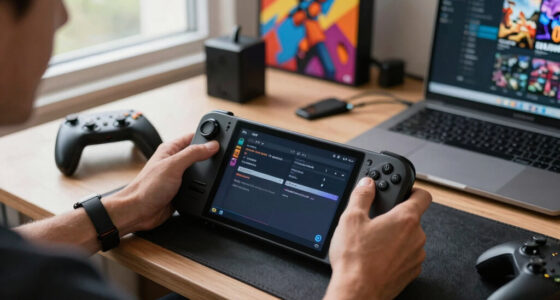
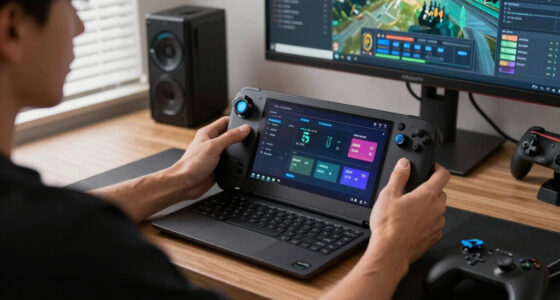
Steam Deck launch options need extra care because handheld play mixes Proton, battery limits, controller layers, and a 1280 by 800 display. A desktop fix can waste power on Steam Deck, and a Deck-specific trick can look cramped on a monitor, so tie every claim to your platform and SteamOS build.
Start with the Deck’s built-in controls before you touch the launch box. Try game resolution settings, the Quick Access Menu, frame limits, and controller layouts first. Those settings are visible, reversible, and designed for the handheld, which makes them cleaner than a buried string you found in a two-year-old thread.
If a post claims a hidden flag will improve performance after a future beta, treat it as unconfirmed until Valve or the developer says so. Steam Deck compatibility badges and Proton behavior can change after SteamOS, Proton, or game patches. A claim from SteamOS 3.x on one build should not be treated as a lifetime promise.
Launch options also do not change age ratings, content warnings, anti-cheat rules, or online terms. If a game carries a Mature, PEGI 18, or similar rating, a startup flag only changes startup behavior. It does not change who the game was rated for.
Where You Should Trust a Command Before You Paste It
A trustworthy launch option comes from a developer post, Valve documentation, Proton release notes, or a community guide that explains the game version, platform, and reason. You want a trail of breadcrumbs, not a mystery string with fifteen flags and a promise of free frames.
- [1] Valve Steam Support: use this for where launch options live in Steam and how to clear them.
- [2] Valve Proton project: use this for Proton behavior, logging, compatibility notes, and release-related changes.
- Developer forums: use these when a studio recommends a flag for a named patch or engine issue.
- Community guides: trust them more when they list the game version, Proton version, hardware, and date tested.
You do not need a blog article stuffed with forty magic strings. You need covering important aspects like game engine, platform, Proton version, and what problem the flag claims to solve. If those pieces are missing, the command is a guess wearing a confident hat.
A practical example: a 2021 guide for a Unity game may recommend forcing OpenGL. That advice might have helped an old Linux build, then became useless after the developer moved renderer support or Proton improved DirectX handling. Dates are not decoration; they are part of the fix.
What to Do When a Game Refuses to Launch
When a launch option breaks a game, remove the whole line first and test a clean boot before changing Proton versions or reinstalling. That single reset tells you whether the problem came from the copied command, the game update, the Steam client, or something deeper in SteamOS.
- Clear Launch Options and start the game once with no custom text.
- Verify game files if the clean launch still fails after a patch.
- Switch Proton versions only after you know the launch line was not the cause.
- Turn off logging after using PROTON_LOG=1 %command% so you do not keep writing bulky logs.
- Check recent reports from the same platform before trusting a fix from another OS.
Imagine a game worked yesterday, then died after you pasted PROTON_NO_ESYNC=1 %command% -dx12. Clear the field and launch again. If it opens, the line caused the pain; if it still fails, your next suspect is the game patch, Proton choice, or files on disk.
The Few Rules That Keep Launch Options Useful
The best launch-option rule is boring: use the shortest line that solves the exact problem you can see. One clear flag beats a crowded string, especially on SteamOS where Proton, controller layers, and game updates can turn a once-useful tweak into dead weight.
Keep a small note with the game name, date, platform, and reason for each option. It sounds fussy until three months pass and you forget why a game has a strange startup line. Future you will thank present you while the loading screen glows instead of stalls.
Good launch options create evidence. Bad launch options create rituals.
That is the callback to the black screen from the start. The fix is not bravery; it is restraint. Change one thing, test one scene, and let the result tell you what belongs in the box.
Frequently Asked Questions
Can launch options damage my PC or Steam Deck?
Launch options rarely damage hardware, but bad ones can cause crashes, poor performance, missing input, or a game that will not open. Clear the field first if something goes wrong. Treat hardware-level performance claims on Steam Deck as platform-specific, not universal.
Where is the Launch Options box in Steam?
Open your Steam Library, right-click the game, choose Properties, then use the General tab. Valve’s Steam Support docs describe launch options as a per-game setting [1]. If the box is empty, the game starts without custom startup parameters.
Do I need %command% for every Proton launch option?
No. You usually need %command% when you place a Proton environment variable or wrapper before the game command, such as PROTON_LOG=1 %command%. Plain game arguments may work after the command or by themselves, depending on what the game expects.
Why did a copied Steam Deck launch option stop working?
A copied tweak can stop working after a game patch, SteamOS update, Proton update, or driver change. The old flag may target a problem that no longer exists. Check the date, platform, and tested Proton version before you keep using it.
Can Steam save multiple launch option profiles?
Steam does not offer native launch-option profiles for one game in the standard client. Keep a small note with your working lines if you swap between desktop, Steam Deck, and testing setups. That simple habit beats guessing when a game starts acting strange.
Conclusion
Remember this: launch options are tests, not trophies. Use the smallest line that solves the visible problem, write down why you added it, and remove it when the game no longer needs it.
The cleanest setup is quiet. You press Play, the screen fades in, the fan settles, and the game starts without a mystery command hiding in the walls.
Fall Picks
fall essentials
As an affiliate, we earn on qualifying purchases.