
TL;DR
Ping measures travel time, jitter measures changes in that travel time, and packet loss measures data that never arrives. Whether cloud gaming or streaming gameplay, a good experience depends on network consistency as much as raw speed: aim for ping below 40–60 ms, jitter below 10 ms, and packet loss as close to 0% as possible.
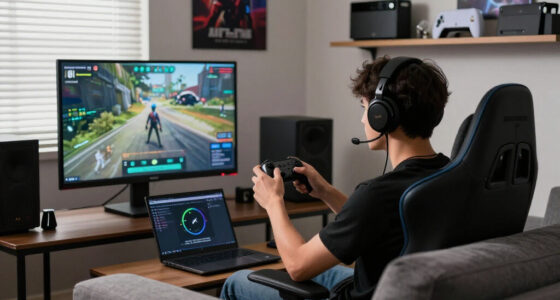
Your character turns half a second late, the screen melts into a patchwork of muddy squares, and the audio cracks like a loose headphone cable. Yet the speed test proudly shows 500 Mbps. The missing clue is that headline speed measures capacity, while game streaming needs timely, predictable delivery.
Three measurements expose most of that hidden trouble. Ping tells you how long a round trip takes, jitter shows how much that timing changes, and packet loss counts data that disappears along the route. They work together, but each produces a different flavor of lag—and each points toward a different fix.
This guide gives you practical ranges, a way to read the symptoms, and a 20-minute testing routine you can run at home. You will also see why cloud gaming reacts differently from broadcasting, where Wi-Fi and bufferbloat enter the story, and why a wired 45 ms connection may beat a wireless 20 ms result that bounces around like a pinball.
Treat under 40 ms ping, under 10 ms jitter, and 0% packet loss as strong targets, while remembering that game type and total device latency change how those nu…
Test latency during both downloads and uploads; a jump from tens to hundreds of milliseconds under load points toward bufferbloat or saturation.
Compare the same setup over Ethernet and Wi-Fi before blaming the provider, because Ethernet often improves stability more than the average ping number.
Use cloud-gaming symptoms and broadcast symptoms differently: delayed controls point toward latency and jitter, while outgoing dropped frames often expose uplo…
Lowering resolution reduces bandwidth pressure but usually does not shorten the network route, so treat it as a stability fix rather than a direct ping fix.
Ping, Jitter, and Packet Loss Explained for Game Streaming
Speed is capacity. Responsiveness is delivery. A 500 Mbps connection can still produce delayed controls, muddy video, and broken audio when packets arrive late, arrive unevenly, or never arrive at all.
Three metrics, three different failures
They interact, but they do not mean the same thing. Identify which signal is unhealthy before changing settings or buying more bandwidth.
Ping
How long a packet takes to reach the server and return. High ping makes controls feel late even when the video remains clear.
Jitter
How much latency changes from packet to packet. High jitter creates uneven response, stutter, audio pops, and brief freezes.
Packet loss
The share of transmitted packets that never arrive. Loss can damage video frames, audio, controls, or the outgoing broadcast.
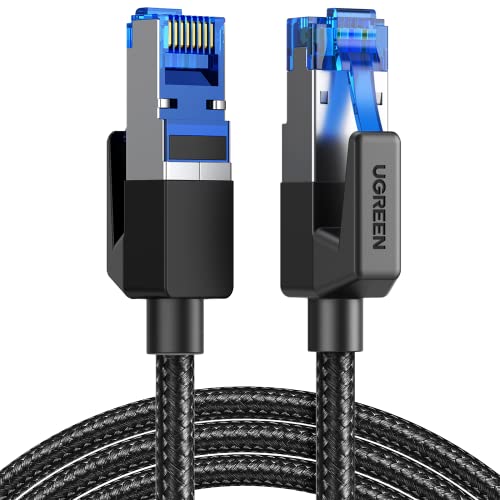
UGREEN Cat 8 Ethernet Cable 6FT, High Speed Braided 40Gbps 2000Mhz Network Cord Cat8 RJ45 Shielded Indoor Heavy Duty LAN Cables Compatible with Gaming PC PS5 PS4 PS3 Xbox Modem Router 6FT
40 Gbps 2000 Mhz High Speed: The Cat 8 ethernet cable support max. 40 Gbps data transfer and…
As an affiliate, we earn on qualifying purchases.
As an affiliate, we earn on qualifying purchases.
A steady 50 ms can beat a spiky 30 ms
Average ping hides the shape of a connection. Predictable delivery helps the streaming system schedule inputs, frames, and audio on time.
Stable connection
Average: 50 ms. Small variation keeps timing predictable throughout the session.
Spiky connection
Average: about 30 ms. Repeated jumps produce uneven controls and frame pacing.
Bandwidth is road width. Latency is travel time. More lanes do not move the server closer.
gaming network test kit
As an affiliate, we earn on qualifying purchases.
As an affiliate, we earn on qualifying purchases.
Cloud gaming and broadcasting fail differently
Cloud gaming closes a rapid input-to-video loop. Broadcasting sends an encoded stream outward and can tolerate more buffering.
| Metric | Cloud gaming | Broadcasting gameplay | What you notice |
|---|---|---|---|
| Latency | Critical — every input makes a round trip | Moderate — less critical unless interacting live | Late turns, missed parries, soft steering |
| Jitter | Immediate control and frame disruption | Visible as dropped frames or encoder instability | Stutter, audio pops, sudden quality shifts |
| Packet loss | Damages video and input responsiveness | Interrupts the outgoing stream | Blocks, frozen frames, missing inputs |
| Buffering | Must stay tiny to preserve response | Can be larger to absorb timing variation | Smoothness improves, but delay increases |
| Upload | Modest but stable for controller data | Essential for the encoded video stream | Dropped frames under upload saturation |
Wi-Fi analyzer for gaming
As an affiliate, we earn on qualifying purchases.
As an affiliate, we earn on qualifying purchases.
Ping measures only one part of the journey
A low network number cannot guarantee fast button-to-screen response. Processing stages before and after the network trip add their own delay.
Controller polls
The device detects your input.
Network trip
Input travels to the server.
Game processes
The simulation updates.
Frame encodes
Video is compressed.
Client decodes
The returned video is rebuilt.
Display refreshes
The result appears on screen.
network latency tester
As an affiliate, we earn on qualifying purchases.
As an affiliate, we earn on qualifying purchases.
Expose the weak link at home
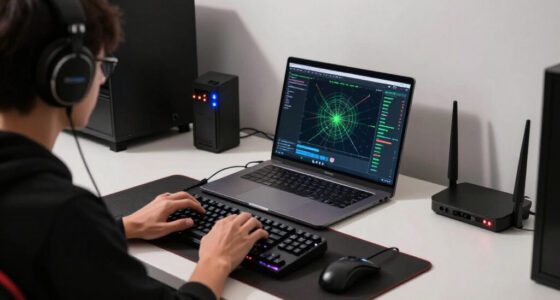
Record median, maximum, jitter, and packet loss—not just a single average. Run the same checks while the network is idle and busy.
Build an idle baseline
Pause large transfers. Test the game server or nearest practical endpoint for several minutes. Record median, maximum, jitter, and loss.
Add download load
Start a large download or speed test. A jump from tens to hundreds of milliseconds indicates saturation or bufferbloat.
Add upload load
Upload a large file. Watch for latency spikes, jitter, and loss. Upload saturation can damage cloud controls and broadcasts.
Compare cable and Wi-Fi
Repeat over Ethernet from the same device. A large stability gain points toward Wi-Fi interference or signal quality.
Ethernet fixes it?
Investigate channel congestion, distance, walls, weak signal, mesh backhaul, and competing wireless devices before blaming the provider.
Load breaks it?
Enable smart queue management or QoS, limit background transfers, and avoid saturating upload or download capacity during play.
Trace the symptom back to the fix
Begin with what you experience, measure the matching signal, isolate the environment, and then apply the narrowest useful correction.
What Your Ping Number Reveals—and What It Hides
Ping, Jitter, and Packet Loss Explained for Game Streaming begins with ping: the round-trip travel time between your device and a server, measured in milliseconds. Lower ping usually means faster control feedback, but the number covers only the network trip—not every delay between pressing a button and seeing the result.
As a practical guide, under 20 ms is excellent, 20–40 ms feels very good, and 40–60 ms remains comfortable for many games. At 60–100 ms, fast shooters, racing games, and rhythm games start feeling soft around the edges. Above 100 ms, corrections arrive late enough that you may oversteer, miss a parry, or fire at an opponent who has already moved.
Imagine pressing jump in a platform game. Your command travels through the router, reaches the data center, enters the game simulation, becomes a rendered frame, gets encoded as video, returns across the internet, gets decoded, and waits for the display refresh. A 25 ms ping measures only part of that chain; it does not promise a 25 ms button-to-screen response.
Ping is the road-trip time, not the whole journey. Controller polling, game processing, video encoding, decoding, and display processing all add delay after the network measurement.
Frame rate adds its own timing steps. One frame lasts about 16.7 ms at 60 fps and 8.3 ms at 120 fps, so an input can wait for the next frame before anything else happens. A television outside game mode may add more image processing, turning a clean connection into controls that feel wrapped in wet wool.
Distance, routing, server location, and congestion shape ping more than your advertised download tier. A nearby server reached through a short route may respond quickly on a 100 Mbps line, while a distant region can feel slow on gigabit fiber. Bandwidth is road width; latency is travel time. More lanes do not move the destination closer.
Why a Steady 50 ms Can Feel Better Than a Spiky 30 ms
Ping, Jitter, and Packet Loss Explained for Game Streaming becomes more useful once you stop judging a connection by average ping alone. Jitter is the variation in packet timing, and a stable 50 ms connection often feels smoother than one averaging 30 ms while repeatedly leaping from 15 to 100 ms.
Under 10 ms of jitter is generally good. At 10–20 ms, you may notice uneven response or occasional frame pacing problems. Persistent jitter above 20–30 ms can bring video stutter, audio pops, short freezes, delayed inputs, and sudden resolution drops.
Think of a restaurant kitchen sending one plate every ten seconds. Diners stay happy when the plates arrive in rhythm, even if each takes a minute to prepare. If three plates arrive together and the next one comes forty seconds late, the dining room lurches between overload and silence; high jitter creates that same stop-start rhythm for packets.
Streaming software can hold early packets in a jitter buffer while it waits for late ones. That makes ordinary films and video calls look smoother, but every extra moment in the buffer adds latency. A movie can sit several seconds ahead without caring; a cloud game cannot hide that delay because your next button press depends on the frame you are seeing now.
A real household example makes the problem easy to spot. You start a cloud game with a steady 35 ms ping, then someone uploads a folder of phone videos. Ping begins jumping past 150 ms even though the download speed remains high, and your steering starts arriving in uneven bursts. The likely culprit is upload saturation or bufferbloat, not a lack of raw download capacity.
Jitter also explains why a one-second speed test snapshot can look clean while a full match feels rough. Measure for several minutes, record the median and maximum latency, and test during actual household use. Consistency is not a decorative statistic; for interactive streaming, it is part of responsiveness.
How Packet Loss Turns Clear Video Into a Broken Mosaic
Ping, Jitter, and Packet Loss Explained for Game Streaming reaches its harshest metric with packet loss, which means data was sent but never arrived. Even small amounts can damage a real-time stream because a missing video frame or control message may become useless before the network has time to replace it.
0% packet loss is the target. Loss below 0.5% is often manageable, around 1% may become visible, and sustained loss above 2% can badly damage responsiveness and image quality. Above 5%, a stream commonly suffers severe freezing, breakup, or disconnection, though the exact result depends on the protocol and which packets disappear.
Picture a dark racing scene full of rain, neon signs, and spray from the tires. Lose the wrong video packets and the wet road may smear into chunky blocks while the car ahead freezes for a moment. Lose a control packet instead, and your steering correction may arrive late or vanish, sending the car scraping along the barrier.
Network systems fight loss with error correction, retransmission, bitrate cuts, and extra protection. Each defense has a price. Error correction consumes bandwidth, while retransmitted data may return after its deadline—like a firefighter arriving with water after the flames have already crossed the roof.
Common causes sit close to home: a weak Wi-Fi signal behind two brick walls, interference from neighboring networks, an overloaded router, or a damaged Ethernet cable with a loose clip. Loss can also appear farther away through provider congestion or poor routing. Comparing Ethernet against Wi-Fi helps split local radio trouble from a wider network problem.
Patterns matter as much as averages. One lost packet every few minutes may pass unnoticed, while a burst of fifty missing packets can freeze the screen even if the long-term result still reads 1%. Run a longer test and watch for bursts, time-of-day patterns, and load-related loss, not just a single percentage.
Cloud Gaming and Broadcasting Punish Different Weak Spots
Cloud gaming and gameplay broadcasting use similar network resources but react differently to delay. Cloud gaming needs tiny buffers because every input must travel to a remote machine and return as video. A broadcast platform can hold several seconds of footage, making momentary timing changes less visible to viewers.
| Metric | Cloud gaming | Broadcasting gameplay |
|---|---|---|
| Latency | Directly changes how controls feel | Usually affects viewer interaction more than gameplay |
| Jitter | Can disturb controls, audio, and frame delivery | Can cause dropped frames or an unstable outgoing feed |
| Packet loss | May damage both video and input response | May interrupt or soften the uploaded stream |
| Buffering | Must stay very small | Can be several seconds larger |
| Upload capacity | Usually modest but must remain responsive | Often carries the full encoded stream |
Say you are playing a remote fighting game while your friend broadcasts a locally rendered adventure. Your 80 ms network delay makes a counterattack feel late because every button press crosses the internet. Your friend may play normally, yet viewers see dropped frames when the broadcast upload runs out of room.
Viewer interaction adds a wrinkle. A streamer reading chat can tolerate a few seconds of platform delay, but a remote multiplayer session cannot. If someone shouts behind you in chat, that warning may arrive after the ambush; if your controller input arrives late in cloud gaming, the game itself reacts late.
Upload capacity matters in both cases. Cloud gaming sends relatively small control messages upstream, but a saturated upload can trap those tiny packets behind a huge cloud-backup queue. Broadcasting sends the encoded video upstream, so a steady upload rate with some spare capacity is a direct requirement.
The practical lesson is to match the metric to the symptom. Heavy control delay points toward total latency or jitter, while an outgoing broadcast that drops frames under load points toward upload capacity, congestion, or loss. Same home connection. Different pressure points.
A 20-Minute Test Can Expose the Weak Link
A useful game-streaming test compares timing, loss, and load across more than one setup. You need idle and busy measurements, several minutes of observation, and a Wi-Fi-versus-Ethernet check. One big download number cannot tell you whether your connection stays responsive when the household becomes active.
- Record the baseline. Close large transfers, connect as you normally play, and measure ping, jitter, packet loss, download speed, and upload speed for at least five minutes.
- Add realistic load. Start a large download, then an upload or cloud backup. Watch whether ping climbs from 30 ms to 150 ms or loss begins.
- Switch to Ethernet. Repeat the test with a known-good cable connected to the primary router. A large improvement points toward Wi-Fi coverage, interference, or an extra wireless hop.
- Test the real service. Use the game-streaming app’s diagnostics or closest available server region, since a generic test server may follow a different route.
- Repeat later. Run the same checks during a quiet morning and a busy evening. Night-only trouble often points toward congestion.
For example, your first test may show 22 ms idle ping, 4 ms jitter, and no loss. During an upload, ping shoots to 240 ms while the line still reports 300 Mbps downstream. That pattern strongly suggests bufferbloat or upload saturation, because the connection is fast when empty but develops a long queue under pressure.
Average ping can hide the ugly moments. Record the median, maximum, and high-percentile latency when the tool provides them. A 35 ms average looks healthy, yet repeated 300 ms peaks can still produce the metallic audio clicks and frozen half-seconds you remember from play.
Basic ping utilities often use ICMP traffic, which networks may handle differently from game data. Treat them as useful clues, then compare them with in-service diagnostics. If a generic test looks clean but one platform fails, server distance, service routing, or that application’s delivery method may explain the gap.
Keep a small test log with the time, connection type, room, server region, and household activity. Three evenings of repeatable results tell a provider far more than saying the internet feels slow. Concrete evidence turns a foggy complaint into a visible pattern.
Fix Streaming Lag in the Order Most Likely to Work
The fastest path to smoother streaming starts inside your home: remove wireless uncertainty, stop heavy background traffic, control router queues, and then check the wider route. Work from the nearest link outward, because replacing a router will not shorten a distant server route, while calling your provider will not fix a weak signal behind a concrete wall.
- Use wired Ethernet when possible, especially for the device receiving or sending the stream.
- Pause large uploads and downloads, including cloud backups, game updates, and photo syncing.
- Use clean 5 GHz or 6 GHz Wi-Fi at short range when a cable is not practical.
- Enable Smart Queue Management or carefully configured QoS if your router supports it.
- Select the nearest service region and test more than one automatic region when the platform allows it.
- Turn on display game mode to cut television image-processing delay.
Ethernet’s biggest win is often not a dramatic drop in average ping. It removes radio contention, walls, neighboring channels, and signal fades, which can cut jitter and packet loss. If Wi-Fi is your only choice, move closer to the access point and avoid a basic extender that adds another wireless hop.
Smart Queue Management systems such as FQ-CoDel and CAKE can keep short, time-sensitive packets from waiting behind a giant upload. They may trim peak throughput slightly to keep queues short. That trade resembles leaving a little empty space in a crowded hallway so people can keep moving instead of packing shoulder to shoulder.
If instability remains, lower the stream resolution or frame rate. This usually does not shorten the physical network path, but it reduces bandwidth pressure and may prevent loss, decoder overload, and quality swings. Dropping from 4K to 1080p can turn a pulsing, watercolor-like image into a clean and steady one.
Changing DNS rarely lowers latency after the game connection is established. A VPN also usually adds distance and processing, though it can help when its route happens to bypass a poor provider path. Treat both as special-case tests, not default remedies.
When wired tests show persistent loss beginning outside your router, save the times and results before contacting the provider. If only one service region performs badly, report that pattern to the platform as well. A clean diagnosis keeps you from endlessly restarting equipment that was never the cause.
New Network Tech Helps, but It Cannot Rescue a Bad Connection
Newer network and video technologies can reduce delay, improve recovery, and use bandwidth more efficiently, but they cannot erase severe congestion or a weak wireless link. Your results depend on compatible routers, clients, service regions, codecs, and local spectrum—not just the generation number printed on a box.
Wi-Fi 6, 6E, and 7 can improve efficiency in busy homes. Wi-Fi 6E adds the 6 GHz band, while Wi-Fi 7 can use features such as Multi-Link Operation with compatible hardware and regional support. At short range, 6 GHz can feel like moving from a noisy café into a quiet room, but its shorter reach makes thick walls a real obstacle.
Modern transports also change how streams react to loss. According to IETF RFC 9000, QUIC supports multiple streams without transport-level head-of-line blocking between them [1]. In practical language, delayed data in one stream does not always force unrelated stream data to sit behind it, though applications still need good congestion control and timely packet delivery.
L4S, described by the IETF architecture in RFC 9330, is designed to support low queuing delay, low loss, and scalable throughput when the application and network path support it [2]. Deployment remains uneven, so you cannot assume every provider, router, and game-streaming service uses it from end to end.
Newer codecs such as AV1 can deliver stronger compression efficiency, potentially producing cleaner video at a given bitrate. Hardware decoding matters, since a device that struggles to decode the stream can add heat, battery drain, skipped frames, or delay. Performance claims also vary by client version, operating system, service plan, and device firmware, so check the platform’s current support notes.
Edge servers can shorten the network path by placing game machines closer to you, while adaptive streaming can rapidly change bitrate, resolution, frame rate, and error protection. These tools soften smaller problems. They cannot make persistent 5% loss or a crowded 2.4 GHz link behave like clean Ethernet—the broken road still wins over the clever car.
Frequently Asked Questions
Is ping the same as total gaming latency?
Ping measures round-trip network latency, not the whole button-to-screen delay. Controller polling, game processing, video encoding, decoding, frame timing, and display processing all add time, so a 25 ms ping never guarantees a 25 ms visual response.
What is a good ping for cloud gaming?
Under 40 ms is a strong result for most cloud-gaming sessions, while 40–60 ms is often comfortable. Fast shooters, rhythm games, and fighting games benefit more from very low latency, but a stable 50 ms can feel better than a 25 ms connection that keeps spiking.
Is 1% packet loss bad for game streaming?
Sustained 1% packet loss can become visible in an interactive stream because video and control packets have tight deadlines. You may see blockiness, short freezes, or delayed inputs, and bursts of loss can feel worse than the same average spread evenly across an hour.
Why does cloud gaming lag on a fast internet plan?
A fast plan can still suffer from high latency, jitter, packet loss, bufferbloat, or poor routing. For example, a 500 Mbps line may feel smooth while idle but jump above 200 ms when a cloud backup fills the upload queue. Test latency under load instead of trusting throughput alone.
Does Ethernet reduce ping?
Ethernet may shave a few milliseconds from ping, but its bigger benefit is often lower jitter and fewer lost packets. A cable avoids radio interference, crowded channels, and signal fades, giving your stream a steadier rhythm than Wi-Fi through several walls.
Should you use 2.4 GHz, 5 GHz, or 6 GHz Wi-Fi?
Use 5 GHz or 6 GHz at short range when the signal remains strong, since those bands usually offer more capacity and less congestion for game streaming. Use 2.4 GHz when you need greater range, while expecting more interference and lower capacity in crowded areas.
Can QoS or Smart Queue Management improve cloud gaming?
Properly configured Smart Queue Management can keep controller and stream packets from sitting behind large downloads or uploads. Systems such as FQ-CoDel and CAKE may limit peak throughput slightly, but that small sacrifice can prevent enormous latency spikes under load.
Will lowering stream resolution reduce ping?
Lowering resolution usually does not reduce the physical network travel time. It lowers bandwidth demand, which can prevent congestion, loss, decoding strain, and sudden quality drops; on a crowded connection, that can make play feel smoother even when the baseline ping stays unchanged.
Conclusion
Judge your connection by stability, not the biggest speed-test number. Measure ping, jitter, and packet loss for several minutes, repeat the test under upload and download load, then compare Wi-Fi with Ethernet. That short routine tells you whether to move closer to the router, manage queues, pause background traffic, switch regions, or contact the provider with solid evidence.
Remember the earlier racing scene: a wide highway does not help when cars arrive in unpredictable bursts or vanish along the way. Give your stream a short road, steady rhythm, and clean delivery, and every jump, turn, and trigger pull will land closer to the moment your hands intended.