
Set up your gaming headset for surround sound by connecting it to your platform, choosing one spatial audio mode, and checking that game sounds come from the correct directions. This guide is for players who have a compatible headset and want to configure it on a PC or console. No audio engineering experience is needed. Allow about 15-30 minutes, including time to test a game and adjust the fit.

Play games on Amazon Luna for your game nights, included with Prime
- A rotating selection of games, no download needed
- Play on TV, laptop or phone
- Fast, free delivery for your gear, too

HyperX Cloud III Wired Gaming Headset, Black/Red
- ✔ Connectivity: Wired; USB-C, USB-A, and 3.5 mm
- ✔ Compatibility: PC, PS5, Xbox Series X|S, Xbox One, Nintendo Switch, Mac, and mobile
- ✔ Driver size: 53 mm, angled drivers
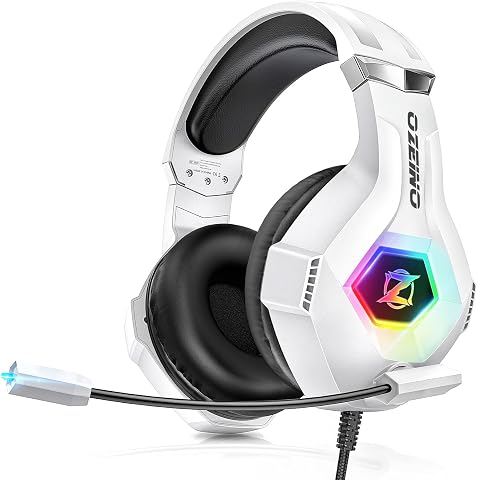
Ozeino ZW1 Gaming Headset with 7.1 Surround Sound and Noise-Cancelling Microphone
- ✔ Audio: 7.1 surround sound
- ✔ Connectivity: 3.5 mm audio jack; USB connector for lighting
- ✔ Compatibility: PC, PS5, PS4, Xbox One, Xbox Series X/S, Switch, laptop, and mobile with 3.5 mm jack

BENGOO G9000 Stereo Gaming Headset with Microphone
- ✔ Connectivity: Wired; USB cable listed
- ✔ Compatibility: PlayStation 4 and 5, Xbox consoles, PC, Nintendo 3DS, laptops, tablets, and mobile phones
- ✔ Driver size: 40 mm neodymium
Difficulty: Beginner | Time: 15-30 minutes
What You’ll Need
Tools & Materials:
- Gaming headset with a wired or wireless connection supported by your PC or console
- USB cable, wireless receiver, or audio cable supplied with the headset
- A game with directional sound or a surround audio test clip
- Headset companion app, if the manufacturer provides one
Knowledge:
- Basic ability to open your device’s audio settings
- The name of your headset model and the platform you play on
Check the headset manual or product page for supported platforms and surround features. Some headsets process surround sound in the headset or a companion app; others rely on Windows, a console, or a game setting. A regular stereo headset may work with virtual spatial audio, but it cannot produce separate physical surround speakers. Use only one surround processing mode at a time to avoid echo or muffled audio.
HyperX Cloud III Wired Gaming Headset, Black/Red
The Cloud III is our leading choice for players who want a gaming-focused headset without committing to one connection type. Its angled 53 mm drivers are described as tuned for gaming audio, and its USB-C, USB-A, and 3.5 mm options make it easier to match a PC, console, or mobile device. That flexibility matters when a setup changes or when a player switches between platforms.Comfort and voice controls strengthen its position. Memory foam cushions and headband padding are intended for long sessions, while the detachable noise-cancelling microphone has an LED mute indicator. Compared with the Ozeino and BENGOO, the HyperX description does not specifically promise 7.1 surround sound, so buyers choosing strictly by that label may prefer one of those models. Its clear tradeoff is the wired connection, which limits movement; the payoff is a more versatile connection lineup than the BENGOO specifies.
Pros:
- USB-C, USB-A, and 3.5 mm wired connection options
- Angled 53 mm drivers tuned for gaming audio
- Memory foam cushions and headband padding
- Detachable noise-cancelling microphone with LED mute indicator
Cons:
- Wired connection restricts movement
- Does not specifically list 7.1 surround sound
Best for: Players who want a comfortable wired headset with multiple connection choices and a detachable microphone.
Not ideal for: Buyers who require an explicitly stated 7.1 surround sound feature or want wireless movement.
Bottom line: Choose the Cloud III for its comfort and connection flexibility, provided its gaming audio focus matters more to you than an explicit 7.1 label.
“Choose the Cloud III for its comfort and connection flexibility, provided its gaming audio focus matters more to you than an explicit 7.1 label.”
Ozeino ZW1 Gaming Headset with 7.1 Surround Sound and Noise-Cancelling Microphone
The ZW1 is the clearest match for shoppers who start with the words 7.1 surround sound. It pairs that feature with a rotatable noise-cancelling microphone and breathable over-ear pads, giving it a straightforward gaming headset profile. Compared with the HyperX, its surround sound claim is more explicit; compared with the BENGOO, its connection details explain how audio and lighting are handled.That distinction also reveals a potential setup snag. Game audio connects through the 3.5 mm jack, while USB powers RGB lighting only, so plugging in USB will not carry the sound signal. PC users may need the supplied 1-to-2 splitter, and older Xbox One controllers can require an additional Microsoft adapter. This makes the ZW1 less plug-and-play across every configuration than the Cloud III, but it offers a stated 7.1 feature and a three-year warranty. Buyers should still confirm that their own platform and games support the surround processing they expect.
Pros:
- Explicitly specified 7.1 surround sound
- Rotatable noise-cancelling microphone
- Breathable over-ear pads and adjustable headband
- Includes an audio splitter and extension cord
Cons:
- USB connector powers RGB lighting only
- PC use may require the included audio splitter
- Older Xbox One controllers may need a separate adapter
Best for: Players prioritizing a headset explicitly described with 7.1 surround sound and using compatible 3.5 mm audio connections.
Not ideal for: Buyers who expect USB to carry game audio, need a simple PC setup without splitter cables, or want wireless use.
Bottom line: The ZW1 is the most direct pick for an explicit 7.1 feature, as long as its 3.5 mm audio path suits your device.
“The ZW1 is the most direct pick for an explicit 7.1 feature, as long as its 3.5 mm audio path suits your device.”
BENGOO G9000 Stereo Gaming Headset with Microphone
The G9000 suits players who value easy cable-mounted controls alongside a surround sound specification. Its rotary volume control and microphone mute button sit in line, so common adjustments are within reach during play. The flexible omnidirectional microphone and padded, breathable earcups round out a familiar over-ear design. As with the Ozeino, the BENGOO lists 7.1 surround sound; the HyperX instead emphasizes angled drivers tuned for gaming.Its main compromise is the 49-inch cable, which gives less room to shift away from the device than a longer extension-equipped setup such as the Ozeino package. The listing also describes a wired USB cable but does not clarify the audio connector details as fully as the other two products, so check your intended device’s ports before choosing. The wide compatibility claim covers consoles, computers, and mobile devices, but older Xbox One controllers may need a separate Microsoft adapter. Pick it for accessible controls and broad stated compatibility, not for maximum setup flexibility.
Pros:
- Rotary in-line volume control and microphone mute button
- Flexible noise-isolating microphone
- Padded, breathable over-ear earcups
- Stated compatibility across consoles, PC, and mobile devices
Cons:
- 49-inch cable may limit movement
- Older Xbox One controllers may require an additional adapter
- Connection details are less specific than the Cloud III and Ozeino
Best for: Players who want a wired headset with volume and microphone mute controls on the cable.
Not ideal for: Buyers who need a longer cable, detailed connection guidance, or the Cloud III’s multiple stated connection options.
Bottom line: Choose the G9000 if reachable in-line controls matter most, after confirming its connection fits your gaming device.
“Choose the G9000 if reachable in-line controls matter most, after confirming its connection fits your gaming device.”
As an Amazon Associate we earn from qualifying purchases.
Before You Start
Charge a wireless headset and install any available firmware or companion app updates before changing sound settings. Keep the headset volume low while connecting it, then raise it gradually. Find the platform’s current audio menu in advance: menu names can differ by operating system version and console model. If you use a USB receiver, connect it directly to the device during setup instead of through an unpowered hub.
Step-by-Step Instructions
Step 1: Connect the headset
Turn off or mute the headset, then connect it using its supported method. For USB or wireless models, plug in the receiver or cable and turn on the headset. For a 3.5 mm model, connect the plug to the headset port or controller jack. If the headset has separate microphone and headphone plugs, use the supplied adapter when the device has a single combined jack.
Tip: Use the connection type listed for your platform. Bluetooth may carry sound but can add delay or disable the headset microphone on some computers.
Check: The headset powers on, appears as an audio device if applicable, and plays a quiet system sound.
Step 2: Select the headset for output
Open your PC or console sound settings and choose the headset as the audio output. If you plan to use its microphone, select the headset microphone as input too. On PC, check both the system output device and the output device selected inside the game or voice chat app. On a console, check the audio device and chat output options in the sound or accessories menu.
Tip: Some wireless headsets show separate game and chat outputs. Choose the game output for game audio and adjust chat separately if your model supports it.
Check: A system sound or short game clip plays through the headset, and the device’s volume control changes its level.
Step 3: Choose one surround sound method
Check the headset app and platform audio menu for spatial or surround sound options. If the headset app offers a surround mode, turn it on and leave operating system spatial processing off for the first test. If the headset has no processing option, use the platform’s supported spatial audio feature instead. On PC, open the selected output device’s properties and choose an available spatial format. Console options vary by model; choose a supported headset or spatial audio format in the sound menu.
Tip: Do not enable virtual surround in the headset app, operating system, and game at the same time. Stacked processing can smear directional cues.
Check: One surround or spatial option is active, and the other processing options are off.
Step 4: Set the game’s audio format
Open the game’s audio settings and select headphones, headset, or binaural audio when offered. Choose a surround or spatial option only when it matches the method you enabled in the previous step. Set music and effects to comfortable levels, and keep dialogue or team chat audible. If the game offers a speaker setup test, run it with the headset on.
Tip: A game option labeled home theater may be tuned for speakers and can sound distant over headphones. Compare it with the headphone option before keeping it.
Check: The game produces clear dialogue and effects without crackling, strong echo, or missing channels.
Step 5: Fit and balance the headset
Place the earcups so they fully cover or sit evenly over your ears, then adjust the headband until the headset feels secure without pressing painfully. Move the microphone near the corner of your mouth if it is adjustable. Use the headset controls or platform mixer to balance game audio and chat, then set a comfortable listening level.
Tip: Glasses, hair, or a loose earcup seal can change bass and directional detail. Reposition the cups before changing equalizer settings.
Check: Both ears receive similar volume, the microphone stays in place, and the headset remains comfortable during a short session.
Step 6: Test directional sound
Play a surround test clip or enter a safe area in a game with identifiable sound sources. Keep your head still and listen for a sound moving from left to right, then repeat with a source behind or in front of your character. Make small changes to the headset or platform spatial setting, testing after each change. Save the configuration once directions sound distinct and natural.
Tip: Use a quiet room and avoid changing several settings between tests; that makes it easier to identify which change helped.
Check: Left and right sounds are distinct, front and rear cues are reasonably clear, and speech remains easy to understand.
Common Mistakes to Avoid
- Turning on several surround processing features at once, which can create hollow or echoing sound. — Use one surround mode at a time. Turn off the other processing options before comparing modes.
- Leaving the game output set to speakers or a different device. — Check the game audio menu after selecting the headset at the system level.
- Expecting every stereo headset to create physical multi-speaker surround sound. — Check the product specifications and treat software spatial audio as simulated positioning through the headset.
- Raising volume to compensate for a poor earcup fit. — Adjust the cups and headband first, then set a comfortable level.
Troubleshooting
Problem: There is no sound in the headset.
Solution: Confirm the headset is powered and connected, select it as the output device, and check the system, game, and headset volume controls. Reconnect the cable or receiver, then restart the game if it was open during setup.
Problem: Surround sound is unavailable or grayed out.
Solution: Check whether the headset and platform support the selected feature. Install the manufacturer’s app or driver if required, select the headset output first, and look for an alternative supported spatial mode.
Problem: Audio sounds echoing, distant, or muffled.
Solution: Disable surround processing in the game, platform, or headset app until only one mode remains active. Select the game’s headphone setting and test again.
Problem: The microphone works, but game audio is quiet or missing.
Solution: Select the headset’s game output rather than its chat output, then raise the game channel in the headset mixer. Check the game’s chosen output device as well.
What Success Looks Like
Your headset is selected for game audio, the microphone works if needed, and one surround or spatial processing method is active. During a test, left and right sounds are distinct, front and rear cues are understandable, and dialogue stays clear. The headset fits comfortably and plays audio without unexplained dropouts, severe echo, or distortion.
Next Steps
Save the working settings in the headset app or platform profile if one is available. Recheck output selection after installing a system update, changing headsets, or moving the wireless receiver. If you use different games, keep the system setup and adjust only the game’s audio mode when its headphone mix sounds better. Take listening breaks and lower the volume if audio becomes uncomfortable.
Frequently Asked Questions
Do I need a special headset for surround sound?
You need a headset supported by your device and a compatible surround or spatial audio feature. Many stereo headsets can use simulated spatial audio in software; they do not contain separate speakers for every direction.
Should I use the headset’s surround mode or the platform’s spatial audio?
Start with one mode. Try the headset app’s mode if the manufacturer provides one, or use the platform feature if the headset does not. Compare them with the same test and keep the one that gives clear positioning without echo.
Why does surround sound work in one game but not another?
Games offer different headphone and spatial audio options, and some process directional sound internally. Check each game’s audio menu and choose its headphone or binaural mode when available.
Can I use surround sound and voice chat together?
Usually. Set the headset as the microphone input and select its game and chat outputs as needed. If game audio becomes quiet when chat starts, adjust the headset’s game-to-chat balance or the platform mixer.
Fall Picks
fall essentials
As an affiliate, we earn on qualifying purchases.