
TL;DR

Play games on Amazon Luna for your game nights, included with Prime
- A rotating selection of games, no download needed
- Play on TV, laptop or phone
- Fast, free delivery for your gear, too
The Steam Deck supports multiple controllers through Bluetooth and USB, with practical support for up to four connected controllers in local multiplayer setups [1]. SteamOS recognizes each controller, Steam Input lets you reorder and remap them, and the game decides whether split-screen or local co-op actually works.
Your Steam Deck can turn from a quiet handheld into a tiny party console in about five minutes.
You can pair Xbox pads, PlayStation controllers, and many third-party gamepads, then hand them around the couch like warm slices of pizza. This guide gives you an overview of how the Steam Deck handles multiple controllers, what Steam Input changes, and where the rough edges still show up.
The big thing to remember: the Deck can connect the controllers, but the game decides what to do with them. That small difference saves you a lot of menu hunting.
How Steam Deck Handles Multiple Controllers
From Handheld To Couch Co-op Console
TL;DR: Steam Deck supports multiple controllers through Bluetooth and USB, with practical support for up to four connected controllers in local multiplayer setups. SteamOS recognizes each controller, Steam Input lets you reorder and remap them, and the game decides whether split-screen or local co-op actually works.
Practical controller count for local multiplayer through Bluetooth, USB, or a mixed setup.
Main compatibility paths: Xbox pads, PlayStation controllers, and third-party gamepads.
The Deck can connect the controllers. The game decides what to do with them.
Four Controllers Can Join In
SteamOS detects each controller as its own input device, then Steam Input lets you reorder, remap, and assign it. That makes the Deck surprisingly good for docked TV play, tabletop sessions, and party games.
SteamOS Sees Each Pad
Bluetooth and USB controllers are recognized as separate devices, so Xbox, PlayStation, and third-party pads can sit side by side.
Steam Input Normalizes Buttons
An Xbox A button, PlayStation Cross button, and generic face button can all map to the same in-game command.
The Game Makes The Call
Fighting games, kart racers, and split-screen shooters may use every pad. Single-player games may ignore extras completely.
Quick rule: Steam Deck can handle the controllers; the game must handle the multiplayer.
Bluetooth Or USB: Pick The Room, Not The Spec Sheet
The best multi-controller setup depends on where you play. Bluetooth keeps the coffee table clean, while USB through a dock or hub keeps long sessions steady when batteries are low.
| Setup | Best For | Strength | Tradeoff | Fit |
|---|---|---|---|---|
| Bluetooth | Docked TV play, handheld tabletop play, quick couch co-op. | ✓ Clean room layout. | ~ Needs charged batteries and first-time pairing. | Great for casual nights. |
| USB hub | Long sessions, tournaments, older wired pads. | ✓ Reliable wired input. | ~ Cables can crowd the floor. | Best for predictable setups. |
| Mixed | Four-player nights with whatever friends bring. | ✓ Flexible controller pool. | ~ Player order may need fixing. | Most realistic couch setup. |
| Unsupported game | Single-player titles or games without local multiplayer. | ✗ Extra pads may be ignored. | ✗ Hardware support cannot create co-op mode. | Check the Steam page first. |
Set Up The Session Before The Room Starts Waiting
Pair, order, launch, test. Doing those four things before the first match prevents the classic problem where Player 3 controls Player 1 and everyone blames the Deck.
Dock
Connect the Deck to a display with a USB-C dock or hub if you want TV play.
Pair
Pair Bluetooth controllers in SteamOS settings or plug wired pads into the dock.
Order
Open controller order and move each controller into the intended player slot.
Launch
Start a game that lists split-screen, shared-screen, or local co-op support.
Test
Ask every player to press a button in the main menu before the match begins.
Player Order
The built-in controls may sit in Player 1 while an external controller lands in Player 2. Fix order before launch.
Restart After Reordering
Some older PC games read controllers only at startup, so late input changes may not stick until relaunch.
Use Steam Overlay
The Steam button gets you to controller settings quickly when the couch session starts drifting sideways.
Steam Input Gives Each Controller Its Own Toolbox
Multiple controllers do not have to share one layout. Steam Input can remap buttons, change stick behavior, adjust supported gyro settings, and save profiles per controller and per game.
Where The Friction Usually Appears
Controller Compatibility Spectrum
- Xbox and PlayStation controllers are the easiest mainstream choices.
- Third-party controllers often work, especially when Steam Input can translate them cleanly.
- Non-Steam games through Proton may need manual input settings or a relaunch.
- Split-screen works only when the game itself supports local multiplayer.
What Actually Happens After You Pair Another Controller
Think of Steam Input as a switchboard. Controllers plug into one side, the game listens on the other, and Steam tries to keep the wires neat.
Best use: change only the controller that needs help, then save the layout for that game. That is useful for inverted camera preferences, accessibility remaps, or controllers with different button names.
Non-Steam Games Can Work, But Expect More Tinkering
Non-Steam games can use multiple controllers through Proton, but they may not label controllers cleanly or may expect older Windows input behavior. Steam Input still helps, but testing matters.
Player 1 Works, Player 2 Is Silent
The controller may be connected while the game reads input through a different path than Steam expects.
Toggle Steam Input
Try enabling or disabling Steam Input for that specific game, then relaunch before judging the setup.
Game Support Wins
If SteamOS sees four pads but the game sees one, the problem usually sits with the game or compatibility layer.
Key Takeaways
- Steam Deck supports up to four connected controllers through Bluetooth or USB for local multiplayer setups.
- Steam Input lets you remap and customize each controller instead of forcing one shared layout.
- Split-screen and couch co-op depend on the game, not just the Steam Deck hardware.
- Player order is the most common multi-controller problem, and fixing it before launch saves time.
- Non-Steam games can work through Proton, but they often need more input testing.
As an affiliate, we earn on qualifying purchases.
The Fast Answer: Four Controllers Can Join In
How Steam Deck Handles Multiple Controllers is simple at the surface: SteamOS detects each controller as its own input device, then Steam Input lets you reorder, remap, and assign it. In normal local play, the Steam Deck can connect up to four controllers through Bluetooth or USB [1].
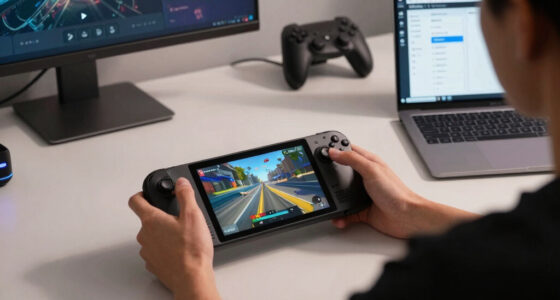
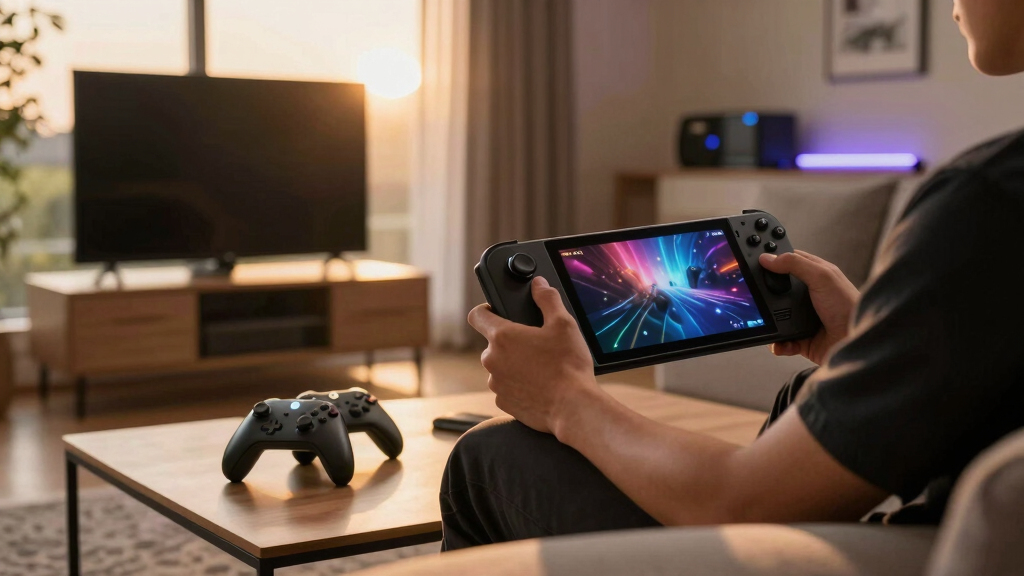
That makes the Deck surprisingly good for couch co-op. You can dock it to a TV, pair four controllers, launch a party game, and have everyone yelling at the same glowing screen within minutes.
The catch sits inside the game. A fighting game, kart racer, or split-screen shooter may see all four pads right away. A single-player RPG may ignore the extras completely.
Quick rule: Steam Deck can handle the controllers; the game must handle the multiplayer.
PlayStation controller compatible with Steam Deck
As an affiliate, we earn on qualifying purchases.
As an affiliate, we earn on qualifying purchases.
What Happens After You Pair Another Controller
How Steam Deck Handles Multiple Controllers starts with SteamOS recognizing the device, then Steam Input translating its buttons into something the game can understand. That means an Xbox A button, a PlayStation Cross button, and a third-party face button can all act like the same in-game command [2].
Think of Steam Input as a switchboard. Your controllers plug into one side, your game listens on the other, and Steam tries to keep the wires neat.
In practice, you might pair a DualSense for Player 1 and an Xbox Wireless Controller for Player 2. The button labels may look different in menus, but both players can jump, dodge, brake, or swing without the game needing native support for every controller brand.
- Bluetooth controllers work well for clean couch setups with fewer cables.
- USB controllers make sense when batteries are low or wireless pairing gets fussy.
- Steam Input profiles let you change layouts per controller and per game.
USB gamepad for multiplayer gaming
As an affiliate, we earn on qualifying purchases.
As an affiliate, we earn on qualifying purchases.
Bluetooth Or USB: Pick The Setup That Fits Your Room
The best Steam Deck multi-controller setup depends on where you play: Bluetooth keeps the coffee table clean, while USB gives you steady wired input through a dock or hub. The Steam Deck is designed to seamlessly support multiple controller types, but your room layout matters more than spec sheets.
| Setup | Best For | Tradeoff |
|---|---|---|
| Bluetooth | Docked TV play, handheld tabletop play, quick couch co-op | You need charged batteries, and pairing can take a minute the first time. |
| USB through a hub | Long sessions, tournaments, older wired pads | Cables can turn the floor into organized chaos. |
| Mixed Bluetooth and USB | Four-player nights with whatever controllers friends bring | You may need to reorder players before the game starts. |
A good real-world setup is two wireless controllers for the couch and two wired controllers near the TV stand. It looks a little messy, but it works when someone forgot to charge their pad.
This guide applies to Steam Deck running SteamOS. If you install Windows, use beta firmware, or test leaked controller updates, treat performance claims and rumors as unconfirmed until Valve posts official notes [2].
Bluetooth controllers for Steam Deck
As an affiliate, we earn on qualifying purchases.
As an affiliate, we earn on qualifying purchases.
Set Up A Couch Co-op Session Without Menu Fumbling
You can set up Steam Deck local multiplayer by pairing each controller, checking player order, launching a game with local co-op, and adjusting Steam Input only if something feels wrong. Do the setup before everyone sits down, because nothing drains a room faster than four people staring at a blinking Bluetooth light.
- Connect the Deck to a display if you want TV play, using a USB-C dock or hub with HDMI.
- Pair Bluetooth controllers from SteamOS settings, or plug wired controllers into the dock.
- Open the controller order screen and move each controller into the player slot you want.
- Launch a local multiplayer game that lists split-screen, shared-screen, or local co-op support on its Steam page.
- Test every controller in the main menu before starting the match.
For example, before a four-player night, open the game menu and ask each person to press one button. If Player 3 controls Player 1, fix it there, not after the race starts and everyone blames the Deck.
Fix Player Order Before It Ruins The First Round
Player order problems happen when SteamOS, Steam Input, and the game disagree about which controller belongs to which player. The fix usually takes less than a minute: open the controller order menu, move the active pads into the right slots, then restart the game if it already locked inputs.
This is most common in docked play. The Deck’s built-in controls may sit in Player 1, while your external controller lands in Player 2. On the couch, that feels like the game has a mind of its own.
If a game keeps choosing the wrong pad, close it fully and set order from the Steam overlay before relaunching. Some older PC games read controllers only at startup, so late changes may not stick.
- Use the Steam button to reach controller settings quickly.
- Put the main player’s controller first before opening the game.
- Restart stubborn games after changing controller order.
Steam Input Gives Each Controller Its Own Toolbox
How Steam Deck Handles Multiple Controllers gets powerful when you use Steam Input per device instead of accepting one shared layout. You can remap buttons, change stick behavior, adjust gyro settings where supported, and save profiles for a specific game without changing every controller you own [2].
Say your friend loves inverted camera controls, but you do not. You can set that preference on their controller while keeping yours normal. Peace restored, at least until someone picks the cheap character.
This is also handy for accessibility. A player who has trouble pressing stick clicks can move sprint, crouch, or melee to a face button or paddle on a supported controller.
Best use: change only the controller that needs help, then save the layout for that game.
Some games already ship with great controller layouts. Others feel like a drawer full of tangled cables. Steam Input gives you a way to clean that up without waiting for a patch.
Non-Steam Games Can Work, But Expect More Tinkering
Non-Steam games can use multiple controllers on Steam Deck through Proton, but they may need manual controller settings, launch options, or in-game input changes. Steam Input still helps, yet games outside Steam may not label controllers cleanly or may expect older Windows input behavior.
A common scenario: you add a non-Steam party game, launch it from Gaming Mode, and Player 1 works while Player 2 sits silent. The controller is connected, but the game may not be reading it through the same path Steam expects.
Try enabling or disabling Steam Input for that game, then relaunch. If it can connect to four pads in SteamOS but the game sees only one, the issue usually sits with the game, Proton, or that game’s own input code.
Also check age ratings before handing controllers to younger players. Controller support does not change ESRB, PEGI, or regional ratings; it only changes who can press the buttons.
Performance Usually Holds, But The Game Still Sets The Ceiling
The Steam Deck handles multiple controller inputs with little overhead on SteamOS, so four connected pads rarely cause performance drops by themselves. Frame rate problems usually come from the game rendering split-screen views, heavy effects, or a docked resolution that asks more from the hardware [1].
That difference matters. Four controllers sending button presses is a light task. Four camera views in a split-screen racing game can feel like asking the Deck to carry a sofa up stairs.
If a game starts stuttering, lower resolution, reduce shadows, cap frame rate, or switch from split-screen to shared-screen play if the game allows it. On Steam Deck, a stable 40 FPS cap can feel smoother than a shaky chase toward 60.
Steam Deck Verified status can also change after updates, so check the current Steam page before buying a game for a local multiplayer night. A badge is useful, but your exact controller mix still deserves a two-minute test.
The Best Games Make Controller Sharing Feel Invisible
The smoothest Steam Deck multiplayer games clearly support local co-op, show controller prompts correctly, and let players join from the character select screen. When a game supports split-screen or shared-screen play well, the Deck fades into the background and your group focuses on the match.
Before game night, look for Steam tags such as Local Co-op, Shared/Split Screen, and Full Controller Support. Those labels do more for your evening than a shiny trailer ever will.
A four-player brawler is a good test case. If each person can join from the character screen, choose a profile, and move independently in the first level, your setup is ready.
If the game only lists online multiplayer, do not expect four couch controllers to create local play from thin air. Steam Deck can open the door, but the game has to build the room.
Frequently Asked Questions
Can you connect four controllers to a Steam Deck?
Yes. The Steam Deck can connect up to four controllers at once through Bluetooth or USB [1]. You can use Xbox, PlayStation, and many third-party controllers, though unusual pads may need extra setup.
Can one player use the Steam Deck controls while others use controllers?
Yes, many games let the Deck’s built-in controls act as one player while external controllers handle the others. If the wrong person controls Player 1, open controller order settings and move the inputs around before relaunching the game.
Does Steam Deck support split-screen with multiple controllers?
Yes, but only when the game supports split-screen or local co-op. The Steam Deck can manage the inputs, but it cannot add split-screen to a game that was built for single-player or online-only multiplayer.
Do multiple controllers add input lag on Steam Deck?
Usually, controller count alone does not create a noticeable lag problem on SteamOS. If play feels slow, check Bluetooth signal strength, battery level, dock quality, display game mode, and the game’s frame rate before blaming the number of controllers.
Can non-Steam games use multiple controllers on Steam Deck?
Yes, non-Steam games can use multiple controllers through Proton, but results vary by game. Add the game to Steam, test every controller from Gaming Mode, and try changing Steam Input settings if one pad fails to respond.
Conclusion
The Steam Deck handles multiple controllers best when you check three things: connection, player order, and game support. Do that before the first round, and the Deck becomes a pocket-sized living room console with a bright screen, a warm fan hum, and four people arguing over who gets Player 1.
Remember this: controller support gets you to the starting line, but local multiplayer support lets the race happen.
Fall Picks
fall essentials
As an affiliate, we earn on qualifying purchases.