TL;DR
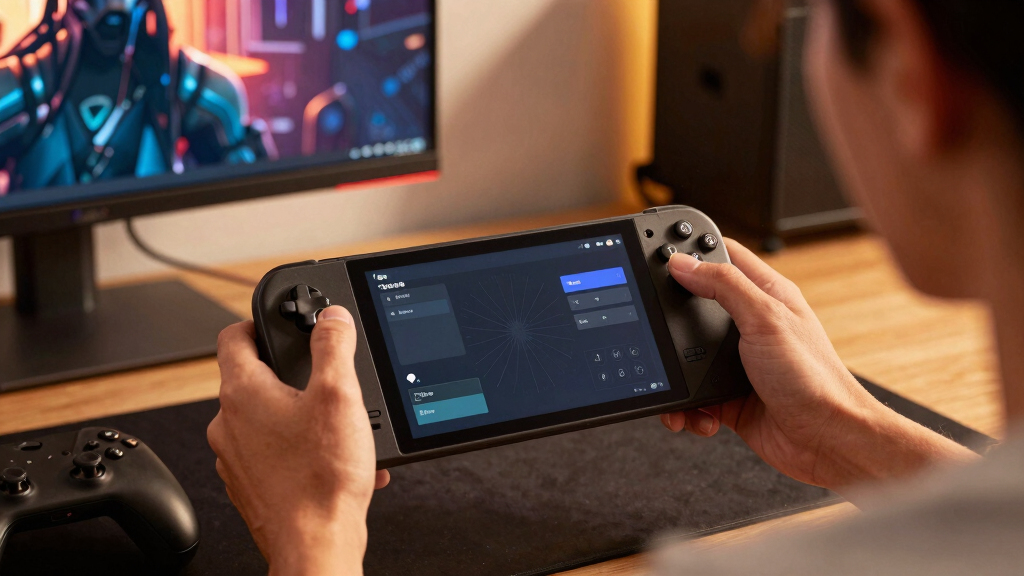
Steam Deck radial menus are custom Steam Input command wheels that let you place keyboard shortcuts, mouse clicks, and game actions on a trackpad, thumbstick, or button hold. They help most when you keep urgent actions on physical buttons and move slower, keyboard-heavy commands into small labeled wheels. This practical overview is suitable for players who want complex PC games to feel calm on a handheld instead of crowded.
A keyboard-heavy PC game can turn the Steam Deck into a tiny cockpit with half the switches missing.
Radial menus fix that by turning one thumb movement into a command wheel. Weapons, map layers, construction tools, party orders, quick saves, and a dozen other keyboard habits can live under one pad instead of spilling across the whole controller.
You will learn when radial menus help, when they slow you down, and how to build a layout that works during a real mission, factory repair, or inventory scramble.
Steam Deck Radial Menus Explained for Complex PC Games
Radial menus turn a trackpad, stick, trigger, or button hold into a compact command wheel. The best layouts keep panic actions on physical controls and move slower keyboard-heavy commands into small, labeled wheels.
A good wheel makes the Deck feel like a calm cockpit, not a keyboard with half the keys missing.
Commands used often, but not during split-second pressure.
Dodge, reload, heal, parry, jump, confirm, cancel.
Trackpads are the natural home for labeled wheels.
SteamOS, Proton, game, and mod updates can shift behavior.
Sort Commands by Pressure
Radial menus work because they separate urgent muscle-memory actions from keyboard commands that can tolerate a deliberate thumb movement.
| Control Choice | Best Use | Real Game Scenario | Radial Fit |
|---|---|---|---|
| Physical buttons | Actions needed in under a second | Reloading, dodging, jumping, confirming, canceling | ✗ Keep off wheels |
| Radial menu | Frequent commands without panic timing | Crafting, tool swaps, overlays, squad orders | ✓ Best match |
| Touch menu | Larger labeled command grids | Strategy hotkeys, city panels, MMO pages | ~ Use when dense |
| On-screen keyboard | Text entry and rare setup | Save names, chat, server passwords | ✗ Too slow for play |

JSAUX ModCase for Steam Deck/Steam Deck OLED, PC0104 Modular Valve Steam Deck Case Include Protective Case, Face Cover, Cooling Fan, Metal Bracket and Strap – Cooler Set
Complete Protection: The JSAUX ModCase provides full protection for your Steam Deck with its eco-friendly PC-ABS and silicone…
As an affiliate, we earn on qualifying purchases.
As an affiliate, we earn on qualifying purchases.
Build the First Useful Wheel
Start small, label everything, and test in a quiet moment. A clean six-slice menu beats a crowded twelve-slice menu almost every time.
Choose the easier thumb
Assign the left or right trackpad based on what the game already demands from your hands.
Use six short labels
Map, Bag, Save, Torch, Skills, and Build are the right length. Two words should be the ceiling.
Touch, click, or release
Many players prefer touch to show and click or release to select because it feels deliberate.

eXtremeRate Face Clicky Kit for Steam Deck Handheld Console, Custom Dpad View A B X Y Menu Keys Face Buttons Mouse Clicky Kit for Steam Deck LCD – WITHOUT Console
The SD Face Clicky kit is exclusively designed for the Steam Deck LCD (2022) handheld console, NOT fit…
As an affiliate, we earn on qualifying purchases.
As an affiliate, we earn on qualifying purchases.
One Wheel Can Change Jobs
Action sets let the same input surface become different wheels for different game states, so the layout follows the scene instead of carrying the entire keyboard chart.
On Foot
Inventory, journal, map, quick save, flashlight, stance.
Vehicle
Camera, radio, horn, map, lights, photo mode.
Building
Blueprints, rotate, copy, paste, logistics, production stats.
Map
Zoom, marker, layers, quest list, filters, fast travel.
Menu
Tabs, sort, compare, drop, inspect, favorite.

PXN V9 GEN2 Gaming Steering Wheel for PC, Xbox & PS4
Multi-Platform Compatibility – PXN V9 GEN2 is compatible with PS3, PS4, Xbox One, Xbox Series X/S, and PC….
As an affiliate, we earn on qualifying purchases.
As an affiliate, we earn on qualifying purchases.
Comfort Rises When Urgency Drops
Use radial menus where accuracy matters more than raw reaction speed. The more stressful the input, the closer it should stay to a physical button.
Radial Menu Suitability
Slice Count Accuracy
Six to eight slices gives your thumb room to land cleanly. Add more only after the layout feels automatic.
Wireless Mobile Gaming Controller, Phone Controller for iPhone/Android, Hall Joystick/Trigger, Bluetooth Handheld Gaming Controller with Programmable, No Dead Zone, Adjustable Light/Turbo, for Xbox Cloud, Steam Link
Wireless Mobile Gaming Controller for iPhone & Android: Experience seamless Bluetooth connectivity with zero latency, compatible with Xbox…
As an affiliate, we earn on qualifying purchases.
As an affiliate, we earn on qualifying purchases.
Genre Wheels That Make Sense
The best radial menu solves the busiest moment in the genre, not the longest possible keybind list.
- RPG WheelMap, journal, inventory, character sheet, quick save, quick load.
- Factory WheelBlueprint book, copy, paste, rotate, map, production stats, trains, logistics.
- Survival WheelFlashlight, stance, radio, crafting, medical menu, shout, journal, map.
- Strategy WheelPause, speed up, speed down, build menu, research, economy, army, diplomacy.
- Modded RPG WheelFavorites, spell menu, quest log, inventory, wait, map, screenshot, console.
- Deck RuleKeep camera, movement, attack, aim, and emergency inputs outside the wheel.
Trace the Control Logic
Every good Steam Deck radial menu connects the same chain: game pressure, input speed, thumb accuracy, and update discipline.
Emergency wheels
Heal, parry, dodge, and reload usually belong on physical buttons because hesitation is expensive.
Crowded slices
Twelve commands look efficient on paper, then become thumb-hunting when the screen is busy.
Unconfirmed claims
Treat leaked radial features, community rumors, and unofficial patches as chatter until official notes confirm them.
Key Takeaways
- Put urgent actions like dodge, reload, heal, and parry on physical buttons, not radial menus.
- Start with six to eight radial slices; add more only after your thumb lands accurately without hunting.
- Use action sets for different game states, such as walking, driving, building, or map use.
- Retest layouts after major game, SteamOS, Proton, or mod updates because bindings and Deck Verified notes can change.
- Treat leaked radial menu features or unofficial patch claims as unconfirmed until Valve or the developer confirms them.
What You Gain From a Command Wheel on a Handheld
Steam Deck Radial Menus Explained for Complex PC Games starts with a simple trade: you move rare keyboard commands onto a circular wheel and leave urgent moves on real buttons. A radial menu is a Steam Input command wheel you open with a pad, stick, trigger, or button hold, then choose by pointing.
According to Valve’s Steam Input documentation, radial menus are part of the controller configurator and can send keyboard, mouse, or gamepad commands from one input surface [1]. That matters because the Deck has two trackpads, four rear grip buttons, sticks, triggers, and face buttons, but no full keyboard under your fingers.
In a survival game, you might keep sprint, aim, reload, and crouch on physical controls. Then you place flashlight, map, journal, push-to-talk, lean left, and lean right on the left trackpad wheel. The game stops feeling like a cramped desk and starts feeling like a small control panel that actually fits your hands.
Map Fast Actions to Buttons and Slow Actions to Menus
Steam Deck Radial Menus Explained for Complex PC Games works best when you sort commands by speed. Put actions you press under stress on buttons, put actions you use every minute or two on radial menus, and leave true typing for the on-screen keyboard or a paired keyboard.
| Control choice | Best use | Real game scenario |
|---|---|---|
| Physical buttons | Actions you need in under a second | Reloading, dodging, jumping, confirming, canceling |
| Radial menu | Commands you use often but not under panic | Opening crafting, swapping tools, toggling overlays, choosing squad orders |
| Touch menu | Larger grids with labels | Strategy hotkeys, city builder panels, MMO ability pages |
| On-screen keyboard | Text entry and one-off setup | Naming a save, typing chat, entering a server password |
In Factorio, for example, keep movement, confirm, rotate, and cancel close to your thumbs. Put production stats, train overview, blueprint book, map, logistics, and quickbar pages on a wheel. You will touch those commands all night, but you do not need them at dodge-roll speed.
Build Your First Useful Radial Menu in 7 Minutes
A useful first radial menu needs a small command set, clear labels, and one activation habit you can repeat without staring at your hands. Start with six slices, test inside a paused game, then add more only after your thumb lands cleanly on the right choices.
- Open the game’s controller layout from the Steam Deck game page or the Steam button menu while the game is running.
- Choose Edit Layout, then pick the left or right trackpad, depending on which thumb has the easier job in that game.
- Set the behavior to Radial Menu and add your first six commands. Use keyboard keys if the PC version expects keyboard input.
- Name every slice with short labels like Map, Bag, Save, Torch, Skills, or Build. Two words should be your ceiling.
- Choose an activation style. Many players like touch to show and click or release to select, because it feels deliberate.
- Test in a quiet moment, not during combat. Pause near a workbench, campfire, or menu screen and press every slice twice.
- Remove one command if the wheel feels crowded. A clean six-slice wheel beats a wobbly twelve-slice wheel almost every time.
Project Zomboid is a good test case because it asks for inventory work, map checks, crouching, shouting, and tool use. Put the calm, planning-heavy actions on the wheel. Keep movement, shove, aim, and attack away from it.
Use Action Sets So One Wheel Does More Than One Job
Action sets let one radial menu change jobs when the game changes context, so your controls can feel native instead of crowded. You can use one wheel on foot, another in a vehicle, and a third in a map screen, all without asking one menu to carry every command.
Think of action sets like changing tool belts. A carpenter does not carry every drill bit, clamp, pencil, and saw blade in one hand. You should not cram every combat, driving, crafting, and menu command into one wheel either.
Your best radial menu is not the one with the most slices. It is the one that appears at the right moment.
In the ESRB Mature 17+ game Cyberpunk 2077, you might keep aim, fire, interact, and dodge on buttons while a vehicle wheel holds map, camera, radio, and photo mode if those commands matter to your setup. The layout should match what you are doing, not the full keyboard chart.
Avoid the Mistakes That Make Radial Menus Feel Mushy
Steam Deck Radial Menus Explained for Complex PC Games also means knowing when the wheel gets in your way. Radial menus feel slow when you overload them, stack them on panic actions, or forget that a handheld screen gives you less visual space than a desk monitor.
- Do not put emergency actions on a wheel. Heal, parry, dodge, and reload usually belong on real buttons.
- Do not start with twelve slices. Six to eight entries give your thumb room to be accurate.
- Do not duplicate everything. If a game already has a clean controller shortcut, keep it there.
- Do not trust unlabeled icons at first. Labels train your hand faster than mystery symbols.
- Do not ignore patches. A game update, SteamOS update, or Proton change can alter behavior, so retest after big updates.
Community layout names and patch rumors can move fast. Treat leaks as unconfirmed until Valve or the game developer says it plainly. If someone claims a new radial system is coming next week, mark it as chatter until you see official notes.
Try These Layouts for Games With Too Many Keys
Good radial layouts match the genre’s busiest moments, not the longest keybind list. You want a wheel that solves the scene in front of you: a quiet camp inventory check, a frantic factory repair, or a late-night map marker hunt while the Deck hums warmly in your hands.
- RPG wheel: map, journal, inventory, character sheet, quick save, quick load. Useful when a game still leans on PC function keys.
- Factory wheel: blueprint book, copy, paste, rotate, map, production stats, train menu, logistics. Great for games where the screen fills with belts and tiny machines.
- Survival wheel: flashlight, stance, radio, crafting, medical menu, shout, journal, map. Good for tense games where your thumbs already have enough to do.
- Strategy wheel: pause, speed up, speed down, build menu, research, economy panel, army panel, diplomacy. Keep camera movement separate.
- Modded RPG wheel: favorites, spell menu, quest log, inventory, wait, map, screenshot, console only if you truly use it.
According to skeldrift.com, radial menus shine when a game asks for quick access to inventories, abilities, or commands. That is why they feel natural in complex PC games: they turn a row of keyboard keys into a round muscle-memory pattern.
Tune the Feel Until the Wheel Disappears
Steam Deck radial menus feel best when your thumb can choose by direction before your eyes read the label. Tune the activation style, haptics, and slice count until the wheel feels like a well-worn kitchen drawer: your hand reaches for the opener before you name it.
Research from human-computer interaction on marking menus shows that directional selection can become faster with practice because users learn the gesture, not just the label. That is the secret. After a week, Map is not a word on a slice; it is up-left on the pad.
Try this simple feel test: bind six commands, turn on haptic feedback, then use the wheel ten times without looking down at your hands. If you miss the same slice twice, move that command to a stronger direction like up, down, left, or right. Corners ask for more thumb precision.
Small changes make the Deck feel less slippery. Use click-to-confirm for costly commands like quick load. Use release-to-select for harmless commands like opening the map. If the wheel pops up over tiny UI text, move it to the other trackpad or lower the slice count.
Check Compatibility Before You Blame the Menu
Compatibility checks save you from blaming a good menu for a game-side problem. Steam Input can send keyboard and mouse commands to many PC games, but native controller UI, modded launchers, anti-cheat behavior, and post-patch keybind changes can still change how a radial menu behaves.
According to Valve’s Deck Verified guidance, compatibility labels can reflect controller support, readable text, default graphics settings, and system support [2]. Check the Steam store page again after major game updates, because Steam Deck Verified status and notes can change over time.
For performance talk, be precise. A radial menu does not raise FPS on Steam Deck LCD or Steam Deck OLED; it only reduces input friction. Frame-rate claims depend on the game version, SteamOS version, Proton version, graphics settings, and whether you run mods.
If a modded Skyrim layout breaks after an update, test one vanilla keybind first. If the base key works, your radial menu probably needs a binding fix. If the base key fails, you are dealing with the game, launcher, mod stack, or compatibility layer.
Frequently Asked Questions
Are Steam Deck radial menus built into every game?
No. Steam Input can create radial menus for many games, but native in-game radial support varies by title. Some games have their own command wheels, while others rely on Steam Input sending keyboard or mouse commands.
Should I use the left or right trackpad for radial menus?
Use the trackpad that has the calmer job. In mouse-heavy games, the right trackpad often controls the pointer, so the left trackpad makes a better command wheel. In controller-friendly RPGs, either pad can work.
Can radial menus improve Steam Deck performance?
No. Radial menus do not improve FPS on Steam Deck LCD or Steam Deck OLED. They improve control flow, while performance depends on game version, SteamOS version, Proton version, settings, and mods.
How many commands should I put in one radial menu?
Start with six commands and stop at eight unless you have a strong reason. More slices can work for slow strategy games, but action games punish tiny thumb errors.
Do radial menus affect age ratings or content warnings?
No. A Steam Input layout changes controls, not game content. Mature-rated games still carry their original rating, and mods can add content that may not match the base game’s rating notes.
Conclusion
The cleanest Steam Deck radial menu does not make the controller busier. It makes the game quieter. Keep fast actions under your fingers, move slower PC commands into small labeled wheels, and tune until the wheel feels like a habit instead of a menu.
When it works, you stop fighting the keyboard that is not there. You just tap the pad, feel the soft tick of haptics, and the right command lands.