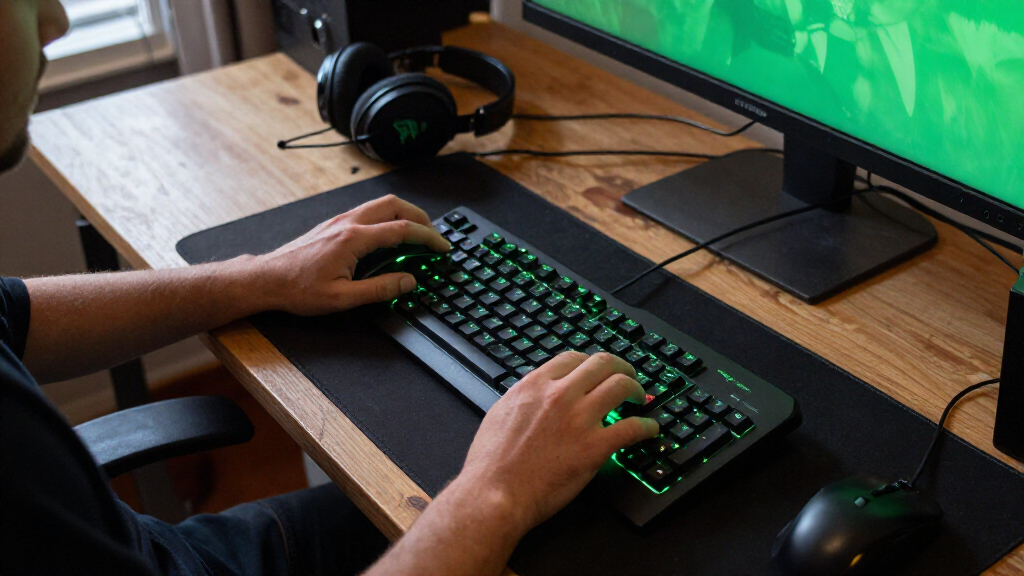

The best Razer gaming accessories depend on what your setup needs most: I’d make the Razer Basilisk V3 my overall pick for its versatile wired controls, while the BlackShark V2 X is a straightforward headset choice and the Thunderbolt 5 Dock Chroma suits demanding desk setups. The lineup spans practical upgrades and specialized gear, so the right choice depends on your devices, desk space, and whether you prioritize gameplay, comfort, or connectivity. Some accessories add useful functions; others mainly tidy or personalize a setup. I compare the tradeoffs across all 15 picks so you can focus on gear that solves a real need. Read on for the full breakdown and buying advice.

Play games on Amazon Luna for your game nights, included with Prime
- A rotating selection of games, no download needed
- Play on TV, laptop or phone
- Fast, free delivery for your gear, too
Complete the kit

Key Takeaways
- The Basilisk V3 is the most versatile single upgrade: its ergonomic wired design and programmable controls give it broader everyday appeal than the more specialized DeathAdder Essential.
- Headset choice comes down to fit and intended use: the Kraken V3 X offers USB connectivity, while the BlackShark V2 X is a simpler alternative for buyers who want a wired gaming headset without adding a desk hub.
- Razer’s docks serve different levels of connectivity: the 11-port USB-C Docking Station is a general expansion option, while the Thunderbolt 5 Dock Chroma targets newer, more demanding setups and adds an M.2 SSD slot.
- Desk accessories are not interchangeable: the Firefly V2 Pro is a hard, illuminated mouse mat, the Goliathus Extended Chroma adds broad soft-surface coverage, and the Mouse Bungee V3 Chroma manages a wired mouse cable.
- Specialized accessories make sense only when they address a specific problem: the Tartarus V2 supports programmable left-hand input, the Laptop Cooling Pad focuses on laptop airflow, and the Mouse Dock Pro is for compatible wireless mouse charging and polling features.
| Razer Mouse Dock Pro with Wireless Charging Puck – Magnetic Wireless Charging, Integrated HyperPolling 8K Hz Transceiver, Anti-Slip Base, Chroma RGB Lighting, Classic Black |  | Best for Compatible Wireless Mice | Compatible mice: Basilisk V3 Pro, Cobra Pro, Naga V2 Pro | Transceiver: Integrated HyperPolling 8K Hz | Charging: Magnetic wireless charging | VIEW LATEST PRICE | See Our Full Breakdown |
| Razer Kraken V3 X Wired USB Gaming Headset |  | Best Lightweight PC Headset | Model: Kraken V3 X | Weight: 285 g | Drivers: 40 mm TriForce | VIEW LATEST PRICE | See Our Full Breakdown |
| Razer Tartarus V2 Left-Handed Gaming Keypad with 32 Programmable Keys | 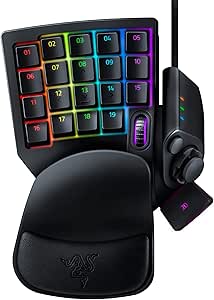 | Best for Programmable One-Handed Controls | Key count: 32 programmable keys | Switch type: Mecha-Membrane | Hand orientation: Left | VIEW LATEST PRICE | See Our Full Breakdown |
| Razer Laptop Cooling Pad with Adaptive Smart Fan Control |  | Best for Laptop Cooling and Desk Expansion | Laptop compatibility: 14–18 in | Fan: One 140 mm brushless fan | Maximum fan speed: 3000 RPM | VIEW LATEST PRICE | See Our Full Breakdown |
| Razer Base Station V2 Chroma Headphone Stand with RGB Lighting, Black |  | Best Headset Stand with Audio and USB Ports | Materials: Aluminum and rubber | Lighting: Chroma RGB, 16.8 million colors | USB ports: Two USB 3.1 charging ports | VIEW LATEST PRICE | See Our Full Breakdown |
| Razer Gaming Mouse Bungee V3 Chroma, Black |  | Best for Taming a Wired Mouse Cable | Model: RC21-01520100-R3U1 | Color: Black | Base weight: 240 g (8.5 oz) | VIEW LATEST PRICE | See Our Full Breakdown |
| Razer 11-Port USB-C Docking Station |  | Best for a Flexible USB-C Gaming Setup | Hardware interface: USB Type-C | Total ports: 11 | Ports: 4 USB-A, 2 USB-C, HDMI, Gigabit Ethernet, 3.5 mm audio combo jack, SD and MicroSD card slots | VIEW LATEST PRICE | See Our Full Breakdown |
| Razer Base Station V3 Chroma RGB Headset Stand with USB Hub, Black |  | Best Headset Stand for Synapse Automation | Form factor: Desk | Mounting type: Tabletop | USB ports: 2 USB 3.1 ports | VIEW LATEST PRICE | See Our Full Breakdown |
| Razer Thunderbolt 5 Dock Chroma with M.2 SSD Slot, 11 Ports, Black |  | Best Premium Dock for High-Bandwidth Setups | Model: RC21-02290100-R3U1 | Ports: 11 | Hardware interface: Thunderbolt | VIEW LATEST PRICE | See Our Full Breakdown |
| Razer DeathAdder Essential Ergonomic Wired Gaming Mouse, Black | 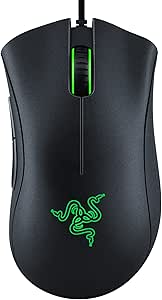 | Best Entry-Level Wired Mouse | Sensor: 6,400 DPI optical | Connectivity: Wired | Buttons: 5 programmable | VIEW LATEST PRICE | See Our Full Breakdown |
| Razer Firefly V2 Pro RGB Gaming Mouse Mat, Black |  | Best Premium RGB Mouse Mat | Model: RZ02-04920100-R3U1 | Lighting: 15 customizable Chroma RGB zones | Surface: Micro-textured, low-friction surface | VIEW LATEST PRICE | See Our Full Breakdown |
| Razer BlackShark V2 X Gaming Headset |  | Best Lightweight Wired Headset | Model: BlackShark V2 X | Model number: RZ04-03240100-R3M1 | Type: Wired over-ear gaming headset | VIEW LATEST PRICE | See Our Full Breakdown |
| Razer Goliathus Extended Chroma RGB Gaming Mouse Pad |  | Best Extended RGB Mouse Pad | Model: RZ02-02500300-R3U1 | Surface: Micro-textured cloth | Base: Natural-foam rubber, non-slip | VIEW LATEST PRICE | See Our Full Breakdown |
| Razer Leviathan V2 Multi-Driver PC Gaming Soundbar with Subwoofer |  | Best Desktop Audio Upgrade | Audio output mode: Surround | Drivers: 2 full-range drivers | Subwoofer: 5.5-inch down-firing | VIEW LATEST PRICE | See Our Full Breakdown |
| Razer Basilisk V3 Ergonomic Wired Gaming Mouse |  | Best Programmable Wired Mouse | Connectivity: USB | Design: Ergonomic, right-handed | Buttons: 11 programmable | VIEW LATEST PRICE | See Our Full Breakdown |
| Razer gaming accessorie | Lighting |
|---|---|
| Razer Mouse Dock Pro with Wire | — |
| Razer Kraken V3 X Wired USB Ga | Razer Chroma RGB |
| Razer Tartarus V2 Left-Handed | — |
| Razer Laptop Cooling Pad with | Chroma RGB |
| Razer Base Station V2 Chroma H | Chroma RGB, 16.8 million colors |
| Razer Gaming Mouse Bungee V3 C | RGB underglow with 16.8 million colors |
| Razer 11-Port USB-C Docking St | — |
| Razer Base Station V3 Chroma R | 12-zone Chroma RGB, 16.8 million colors |
| Razer Thunderbolt 5 Dock Chrom | — |
| Razer DeathAdder Essential Erg | — |
| Razer Firefly V2 Pro RGB Gamin | 15 customizable Chroma RGB zones |
| Razer BlackShark V2 X Gaming H | — |
| Razer Goliathus Extended Chrom | Customizable Razer Chroma RGB with 16.8 million colors |
| Razer Leviathan V2 Multi-Drive | 18 Razer Chroma RGB zones |
| Razer Basilisk V3 Ergonomic Wi | 11 Chroma RGB zones |
More Details on Our Top Picks
Razer Mouse Dock Pro with Wireless Charging Puck – Magnetic Wireless Charging, Integrated HyperPolling 8K Hz Transceiver, Anti-Slip Base, Chroma RGB Lighting, Classic Black
I rank the Mouse Dock Pro as the most specialized pick here: it combines a charging home for select Razer mice with an integrated HyperPolling 8K Hz transceiver. That means fewer loose accessories on the desk and a high-polling connection without a separate transceiver. Magnetic charging and charge-status lighting make it easier to park a compatible mouse between sessions, while the anti-slip base helps keep the dock in place.
Its main limit is compatibility: it works with the Basilisk V3 Pro, Cobra Pro, and Naga V2 Pro, not arbitrary mice. Unlike the Base Station V2 Chroma, it does not add general headset ports or an audio jack; its value depends on owning one of those supported mice. I’d skip it if your mouse is wired or outside that short list.
Pros:- Magnetic wireless charging reduces cable handling for compatible mice.
- Integrated 8K Hz HyperPolling transceiver avoids the need for a separate transceiver.
- Chroma RGB lighting includes charge-status indicators.
- Anti-slip base helps keep the dock stable on a desk.
Cons:- Compatible with only three listed Razer mouse models.
- Its specialized charging function offers little benefit for wired or unsupported mice.
Best for: Owners of a Basilisk V3 Pro, Cobra Pro, or Naga V2 Pro who want magnetic charging and an integrated high-polling transceiver at their desk.
Not ideal for: Gamers with other mouse models or anyone seeking a general-purpose charging hub, since compatibility is limited to select Razer mice.
- Compatible mice:Basilisk V3 Pro, Cobra Pro, Naga V2 Pro
- Transceiver:Integrated HyperPolling 8K Hz
- Charging:Magnetic wireless charging
- USB interface:USB 3.0
- USB ports:1
- Wattage:4.5 W
- Dimensions:3.29 x 2.2 x 1.71 in
- Weight and color:4.32 oz; black
Our verdict“Choose it if you own a compatible Razer wireless mouse and want charging and an 8K Hz transceiver combined in one dock.”
Razer Kraken V3 X Wired USB Gaming Headset
The Kraken V3 X suits PC players who want a lightweight, straightforward headset rather than a multi-device audio setup. At 285 g, with breathable fabric and memory foam cushions, it is designed to be less burdensome during long sessions. Its 40 mm TriForce drivers, bendable cardioid mic, and Chroma lighting cover the core gaming needs, while Windows 10 64-bit users can access 7.1 surround sound.
That PC focus is also the catch. The USB-A connection rules out consoles, phones, Macs, and devices that need USB-C or 3.5 mm audio. Compared with the Base Station V2 Chroma, this is a complete headset rather than a desk accessory with ports and a DAC, but it offers less flexibility across devices. I’d choose it for a compatible Windows setup, not a mixed-platform household.
Pros:- Lightweight 285 g construction is suited to extended gaming sessions.
- Breathable fabric and memory foam cushions provide an over-ear fit.
- Bendable cardioid microphone is designed to focus on voice.
- Chroma RGB lighting and Windows 10 64-bit 7.1 surround support add PC-focused features.
Cons:- Wired USB-A connection limits where it can be used.
- 7.1 surround sound is limited to Windows 10 64-bit.
- Not compatible with consoles, Mac, or mobile devices according to the supplied product details.
Best for: Windows PC and laptop players who prioritize a lightweight over-ear fit, a built-in microphone, and USB-A plug-in connectivity.
Not ideal for: Console, Mac, and mobile players, or anyone who needs a 3.5 mm or USB-C headset connection.
- Model:Kraken V3 X
- Weight:285 g
- Drivers:40 mm TriForce
- Connectivity:Wired USB-A
- Microphone:Bendable HyperClear cardioid
- Surround sound:7.1 on Windows 10 64-bit
- Lighting:Razer Chroma RGB
- Warranty:2 years
Our verdict“Pick the Kraken V3 X for lightweight wired gaming on a compatible Windows PC, but skip it if you need cross-platform headset support.”
Razer Tartarus V2 Left-Handed Gaming Keypad with 32 Programmable Keys
The Tartarus V2 is the control-expansion pick in this group: instead of replacing a keyboard, it gives one hand 32 programmable keys, an 8-way thumbpad, and a three-way scroll wheel. That layout can put movement, macros, and extra commands within reach, which is useful in games or creative workflows where a standard keyboard leaves controls spread out. Its adjustable two-position palm rest and individually lit keys let buyers tune comfort and visibility.
It asks for more setup than plug-and-play accessories such as the Kraken V3 X, and its left-handed, single-hand design will not suit every player’s habits. The wired USB-A connection also keeps it tethered to the desk. I’d favor it over a simple mouse accessory when custom control is the goal, but skip it if you want a conventional full keyboard or need a wireless pad.
Pros:- 32 programmable keys support custom game commands and macros.
- 8-way thumbpad and three-way scroll wheel add controls beyond the key grid.
- Individually backlit RGB keys support customizable lighting.
- Two-position adjustable palm rest offers a choice of hand support.
Cons:- Left-handed, single-handed layout may not fit every player’s control preferences.
- Wired USB-A connection limits placement and portability.
- Programmable controls require setup to suit each game or workflow.
Best for: PC gamers and creators who want to assign complex commands and macros to a dedicated one-handed control surface.
Not ideal for: Players who prefer standard two-handed keyboard layouts, want wireless controls, or do not want to configure programmable keys.
- Key count:32 programmable keys
- Switch type:Mecha-Membrane
- Hand orientation:Left
- Connectivity:Wired USB-A
- Controls:8-way directional thumbpad; three-way scroll wheel
- Backlighting:RGB, 16.8 million colors
- Palm rest:Adjustable, two positions
- Dimensions:6.02 x 2.36 x 0.8 in
Our verdict“Choose the Tartarus V2 if you want a dedicated one-handed macro and movement pad, not a replacement for a standard keyboard.”
Razer Laptop Cooling Pad with Adaptive Smart Fan Control
Unlike the Mouse Dock Pro, which serves one compatible peripheral, Razer’s Laptop Cooling Pad targets the laptop itself and adds useful desk connectivity. Its adaptive fan control adjusts speed in response to system temperature, and preset or custom fan curves give buyers control over how cooling responds. The airtight pressure chamber, foam seals, and 140 mm fan are designed to direct airflow across compatible 14–18-inch laptops; three USB-A ports help offset the space the pad occupies.
This is the most setup-dependent choice in the group: custom curves and button remapping use Razer Synapse, while HyperBoost is limited to compatible Blade laptops. It also takes up more desk room than a small accessory such as the Base Station V2 Chroma. I’d choose it for a laptop setup that needs active cooling and extra USB-A connections, not for a desktop PC or a Synapse-free setup.
Pros:- Adaptive fan control adjusts fan speed based on laptop temperature.
- Airtight pressure chamber and foam seals help direct airflow.
- Three USB-A hub ports add connectivity around the laptop.
- Supports preset and custom fan curves and fits 14–18-inch laptops.
Cons:- Custom fan curves and button remapping rely on Razer Synapse.
- HyperBoost is limited to compatible Razer Blade laptops.
- Its cooling-pad form takes more desk space than smaller accessories.
Best for: Laptop gamers with a 14–18-inch machine who want temperature-responsive fan control and extra USB-A ports on the desk.
Not ideal for: Desktop PC users, buyers unwilling to use Razer Synapse for custom controls, or anyone expecting HyperBoost on a non-compatible Blade laptop.
- Laptop compatibility:14–18 in
- Fan:One 140 mm brushless fan
- Maximum fan speed:3000 RPM
- Cooling design:Airtight pressure chamber
- Fan control:Adaptive control; preset and custom fan curves
- USB hub:Three USB-A ports
- Lighting:Chroma RGB
- Warranty:2 years
Our verdict“Choose this pad if your 14–18-inch gaming laptop needs active cooling and added USB-A ports, and you are comfortable using Synapse for customization.”
Razer Base Station V2 Chroma Headphone Stand with RGB Lighting, Black
The Base Station V2 Chroma is the lineup’s desk-organizing pick: it holds a headset while adding two USB 3.1 ports and a 3.5 mm audio jack with a built-in 7.1 surround sound DAC. That makes it more functional than a basic headphone stand and a better fit for someone who wants audio connections close at hand. Its aluminum construction, rubber elements, and low-center-of-gravity base are designed to keep a headset stable; the detachable base also helps when moving the setup.
It is less useful if you only need a place to hang headphones. Unlike the Kraken V3 X, it does not include a headset or microphone, and it needs a USB connection for its lighting and port features. At 10.94 inches tall, it also claims noticeable vertical desk space. I’d choose it for a wired headset desk setup, not a minimal surface or a stand-alone storage need.
Pros:- Two USB 3.1 ports provide convenient connections at the desk.
- 3.5 mm audio jack includes a built-in 7.1 surround sound DAC.
- Aluminum build and rubber base support stable headset storage.
- Detachable base makes the stand easier to transport.
Cons:- Requires a USB connection for lighting and port features.
- 10.94-inch height takes substantial vertical desk space.
- Adds less value for buyers who do not need its ports or audio DAC.
Best for: PC gamers who want a stable headset stand that also puts USB charging ports and a 3.5 mm audio connection within reach.
Not ideal for: Minimalist desk owners or anyone who only needs a simple headphone hook and does not need the USB ports or audio DAC.
- Materials:Aluminum and rubber
- Lighting:Chroma RGB, 16.8 million colors
- USB ports:Two USB 3.1 charging ports
- Audio connection:3.5 mm jack with built-in 7.1 surround sound DAC
- Headphone compatibility:Headphones of various sizes
- Base diameter:4.72 in (120 mm)
- Height:10.94 in (278 mm)
- Weight and color:1 lb (460 g); black
Our verdict“Pick the Base Station V2 Chroma if you want headset storage plus nearby USB and audio connections, rather than a stand alone.”
Razer Gaming Mouse Bungee V3 Chroma, Black
The Mouse Bungee V3 Chroma is a practical add-on for players who want a wired mouse cable to move with less drag and snagging. Its adjustable spring arm guides rubber, braided, and paracord cables, while the weighted base and non-slip feet help keep it planted during quick movements. Compared with the DeathAdder Essential, this does not change how a mouse tracks or feels; it improves the desk setup around a wired mouse. The compact footprint and RGB underglow make it easier to fit into a coordinated Razer setup, though lighting is a visual extra rather than a performance feature. It only helps with wired mice, and its base still occupies desk space, so wireless-mouse owners have little reason to choose it.
Pros:- Adjustable spring arm guides rubber, braided, and paracord mouse cables
- Weighted base and non-slip feet help resist movement
- Compact footprint with customizable RGB underglow
- Can reduce cable tangling and drag during play
Cons:- Only useful with a wired mouse
- The base takes up desk space
- RGB customization requires Razer Synapse 3
Best for: Wired-mouse players whose cable catches on the desk or pulls during quick swipes
Not ideal for: Wireless-mouse owners and players with very limited desk space, since the bungee needs a cable and a place for its base
- Model:RC21-01520100-R3U1
- Color:Black
- Base weight:240 g (8.5 oz)
- Dimensions:3.55 × 4.83 in
- Cable compatibility:Rubber, braided, and paracord mouse cables
- Lighting:RGB underglow with 16.8 million colors
- Software compatibility:Razer Synapse 3
- Warranty:1 year manufacturer
Our verdict“Choose this bungee if you want a steadier cable path for a wired mouse, but skip it if you play wirelessly.”
Razer 11-Port USB-C Docking Station
This 11-port USB-C dock suits laptop gamers who want display, wired networking, audio, card readers, and older USB peripherals connected through one dock. Its HDMI output up to 4K at 60 Hz, Gigabit Ethernet, and four USB-A ports make it more broadly useful for a mixed desk than the mouse-focused Mouse Bungee V3 Chroma. It can also deliver up to 85 W to a connected laptop, helping reduce cable clutter, though the charging cable and adapter are not included. The dock supports Full HD output up to 240 Hz, but buyers should check their device and display requirements before relying on a particular setup. Compared with the Thunderbolt 5 Dock Chroma, this is the more general USB-C option, with less stated power delivery and no listed M.2 expansion.
Pros:- Combines 11 ports, including Gigabit Ethernet, HDMI, audio, and SD and MicroSD readers
- Supports HDMI output up to 4K at 60 Hz and Full HD up to 240 Hz
- Provides up to 85 W laptop power delivery
- Lightweight aluminum alloy enclosure
Cons:- USB charging cable and power adapter are not included
- Laptop power delivery is limited to up to 85 W
- Display and charging performance depend on the connected device and setup
Best for: Laptop gamers and hybrid-work users who need Ethernet, HDMI, card readers, and USB-A peripherals from one USB-C connection
Not ideal for: Owners building a high-bandwidth Thunderbolt display or storage setup, or anyone expecting a power adapter and charging cable in the box
- Hardware interface:USB Type-C
- Total ports:11
- Ports:4 USB-A, 2 USB-C, HDMI, Gigabit Ethernet, 3.5 mm audio combo jack, SD and MicroSD card slots
- Display output:Up to 4K at 60 Hz; Full HD up to 240 Hz
- Laptop power delivery:Up to 85 W
- Power input:Up to 100 W PD
- Material:Aluminum alloy
- Weight:8.16 oz
- Compatibility:Windows, Mac, iPad, Chromebook, and other USB-C devices
Our verdict“Pick this dock for a versatile USB-C laptop desk, but choose the Thunderbolt 5 Dock Chroma for higher-bandwidth expansion needs.”
Razer Base Station V3 Chroma RGB Headset Stand with USB Hub, Black
The Base Station V3 Chroma is more than a place to park a headset: its automatic headset detection can trigger Synapse profiles for audio switching, game launches, and lighting. That makes it a better fit for players who actively use software-driven desk routines than a simpler stand such as the Base Station V2 Chroma. Two USB 3.1 ports also provide convenient peripheral connections, while the curved rubberized ledge and felt base help support the headset without an easy slide. The tradeoff is that much of the appeal depends on Synapse, and the listed 7.1 surround enhancement specifically requires Synapse 4 on Windows 11. Buyers who only need storage for headphones may find the software and RGB features unnecessary; the plastic enclosure is also less premium in material than the aluminum docks in this roundup.
Pros:- Automatic headset detection can trigger custom Synapse profiles
- Two USB 3.1 ports support peripheral connections at up to 5 Gbps
- 12-zone Chroma RGB can sync with supported games and devices
- Curved rubberized support and felt anti-slip base help stabilize a headset
Cons:- 7.1 surround sound enhancement requires Synapse 4 on Windows 11
- Automation and lighting controls depend on Synapse software
- Plastic enclosure may feel less premium than the roundup’s aluminum docks
Best for: Razer headset owners who want a tidy stand with USB ports and Synapse-triggered audio or lighting profiles
Not ideal for: Buyers seeking a simple, software-free headphone hook or users who need the 7.1 feature outside Windows 11 with Synapse 4
- Form factor:Desk
- Mounting type:Tabletop
- USB ports:2 USB 3.1 ports
- USB transfer speed:Up to 5 Gbps
- Lighting:12-zone Chroma RGB, 16.8 million colors
- Audio feature:7.1 surround sound with Synapse 4
- Software compatibility:Synapse on Windows 11
- Item weight:10.88 ounces
- Enclosure material:Plastic
Our verdict“Choose this stand if Synapse automation and added USB ports matter to your headset setup; skip it if you only need basic storage.”
Razer Thunderbolt 5 Dock Chroma with M.2 SSD Slot, 11 Ports, Black
For a demanding laptop or desktop setup, the Thunderbolt 5 Dock Chroma combines a single host connection with up to 140 W power delivery, Gigabit Ethernet, audio, an SD reader, and an M.2 slot that supports up to 8 TB of NVMe storage. Its stated display options reach triple 4K at 144 Hz or 8K at 60 Hz, giving it a much higher ceiling than the Razer 11-Port USB-C Docking Station. That capacity is most relevant when the connected computer supports Thunderbolt 5/4 and the displays match the intended configuration; the dock cannot add bandwidth that the host lacks. The M.2 SSD is an expansion option, not a specified included drive. It is a strong choice for a consolidated workstation, but excessive for buyers who only need everyday USB-C ports.
Pros:- Supports display configurations up to triple 4K at 144 Hz or 8K at 60 Hz
- Up to 140 W power delivery can power or charge a connected laptop
- M.2 slot supports up to 8 TB of NVMe storage
- Adds Gigabit Ethernet, UHS-II SD card reading, and a 3.5 mm audio combo jack
Cons:- Full transfer and display capabilities depend on compatible Thunderbolt hardware
- M.2 SSD is an expansion option and is not specified as included
- More capability than necessary for buyers with basic USB-C docking needs
Best for: Owners of compatible Thunderbolt laptops or desktops who need high-refresh multi-display output, strong laptop power delivery, and expandable NVMe storage
Not ideal for: USB-C-only users with basic peripheral needs, or buyers expecting an M.2 SSD to be included
- Model:RC21-02290100-R3U1
- Ports:11
- Hardware interface:Thunderbolt
- Transfer speed:Up to 120 Gb/s
- Power delivery:140 W
- Storage expansion:M.2 slot, supports up to 8 TB NVMe SSD
- Display support:Up to 8K at 60 Hz, 4K at 240 Hz, triple 4K at 144 Hz, or 1440p at 500 Hz
- Networking and audio:Gigabit Ethernet and 3.5 mm audio combo jack
- Compatibility:Thunderbolt 5/4 Windows laptops and desktops; Mac computers with M-series chips
Our verdict“Choose this dock for a compatible, high-bandwidth workstation that benefits from multiple fast displays and expandable storage.”
Razer DeathAdder Essential Ergonomic Wired Gaming Mouse, Black
The DeathAdder Essential is the straightforward mouse pick in this group: its ergonomic shape, 6,400 DPI optical sensor, and five programmable buttons cover the basics without the extra setup features of Razer’s more advanced wired options, such as the Basilisk V3. On-the-fly sensitivity buttons let players change tracking response without opening software, while the ridged rubberized scroll wheel adds grip for controlled scrolling. Mechanical switches are rated for up to 10 million clicks, though that rating does not make this a wireless or feature-rich model. The wired connection keeps the setup simple but leaves a cable to manage; the Mouse Bungee V3 Chroma can help guide it, at the cost of desk space. Macro assignment also requires Razer Synapse on PC.
Pros:- 6,400 DPI optical sensor with on-the-fly sensitivity adjustment
- Five programmable buttons support remapping and macro assignment
- Mechanical switches rated for up to 10 million clicks
- Ridged, rubberized scroll wheel offers a tactile grip
Cons:- Wired connection requires cable management
- Macro assignment requires Razer Synapse on PC
- Fewer listed controls and advanced features than the Basilisk V3
Best for: New PC gamers and budget-conscious wired-mouse buyers who want an ergonomic shape, adjustable sensitivity, and a few remappable buttons
Not ideal for: Players who require wireless freedom, extensive controls, or advanced features beyond a basic five-button layout
- Sensor:6,400 DPI optical
- Connectivity:Wired
- Buttons:5 programmable
- Switch durability:Up to 10 million clicks
- Scroll wheel:Ridged, rubberized
- Sensitivity control:On-the-fly adjustment through reprogrammable DPI buttons
Our verdict“Pick the DeathAdder Essential for a simple ergonomic wired mouse, and pair it with the Mouse Bungee V3 Chroma if cable drag is an issue.”
Razer Firefly V2 Pro RGB Gaming Mouse Mat, Black
I’d pick the Firefly V2 Pro for a desk where lighting is part of the setup, not an afterthought. Its edge-to-edge illumination and 15 customizable Chroma zones give it a more fully lit look than the Goliathus Extended Chroma, whose cloth surface and edge lighting put more emphasis on a broad play area. The Firefly’s micro-textured surface is designed for smooth movement and precise optical tracking, while its built-in USB 2.0 port keeps a mouse dongle within reach. That convenience comes with limits: the illuminated mat needs power, and the port is useful for basic connectivity rather than faster data transfer. I’d choose it over the Goliathus when compact desk lighting and the integrated port matter more than an extended cloth surface.
Pros:- Edge-to-edge lighting with 15 customizable Chroma zones creates a more complete illuminated look than edge-lit alternatives.
- Micro-textured, low-friction surface is designed for smooth movement and optical tracking.
- Built-in USB 2.0 port keeps a mouse dongle close to the playing surface.
- Detachable USB-C cable makes setup and cable replacement more convenient.
Cons:- Illumination requires a powered connection, adding another cable to the desk.
- The built-in USB port is limited to USB 2.0.
- Its surface and lighting format may not suit players who prefer a wide cloth mat.
Best for: PC gamers building a compact, highly illuminated desk setup who want a smooth tracking surface and a nearby USB port for a mouse dongle.
Not ideal for: Players who want a large cloth mat, avoid extra powered accessories, or need a fast USB hub rather than a USB 2.0 port.
- Model:RZ02-04920100-R3U1
- Lighting:15 customizable Chroma RGB zones
- Surface:Micro-textured, low-friction surface
- USB port:USB 2.0
- Cable:Detachable USB Type-C
- Base:Anti-slip
- Warranty:1 year manufacturer
Our verdict“Choose the Firefly V2 Pro for a compact hard mouse mat with standout lighting and a handy dongle port, but pick the Goliathus Extended Chroma if you want a larger cloth play area.”
Razer BlackShark V2 X Gaming Headset
The BlackShark V2 X is the headset I’d favor for long gaming sessions where low weight and straightforward connections matter more than wireless freedom. At 240 g, with breathable foam cushions and closed earcups, it is built to reduce the burden of wearing a headset while helping block some room noise. Its 50 mm TriForce Titanium drivers are designed to tune highs, mids, and lows separately, and the cardioid microphone focuses on voice while reducing pickup from the sides and rear. Compared with the Kraken V3 X, this model uses a 3.5 mm jack instead of USB, which can make it easier to move between supported consoles and computers. The tradeoff is that its software-enabled 7.1 surround is limited to Windows 10 64-bit, and some Xbox One setups may need a separate stereo adapter.
Pros:- Light 240 g design can feel less burdensome during extended sessions.
- Breathable foam cushions and closed earcups combine comfort with passive noise isolation.
- TriForce Titanium drivers are designed to tune high, mid, and low frequencies separately.
- Cardioid microphone is designed to emphasize voice and reduce sound from the sides and rear.
Cons:- Software-enabled 7.1 surround sound is limited to Windows 10 64-bit.
- The wired 3.5 mm connection does not provide wireless freedom.
- An Xbox One stereo adapter may be required and is sold separately.
Best for: Players who want a lightweight wired headset with a 3.5 mm connection for switching among a PC, PlayStation, Xbox One, and Nintendo Switch.
Not ideal for: Gamers seeking wireless play, USB-only features, or surround sound across platforms; its software-enabled 7.1 support is limited to Windows 10 64-bit.
- Model:BlackShark V2 X
- Model number:RZ04-03240100-R3M1
- Type:Wired over-ear gaming headset
- Drivers:50 mm TriForce Titanium
- Surround sound:Software-enabled 7.1 on Windows 10 64-bit
- Microphone:Razer HyperClear cardioid
- Connection:3.5 mm audio jack
- Weight:240 g
- Warranty:2 years
Our verdict“Choose the BlackShark V2 X if you want a lightweight, multiplatform 3.5 mm headset; choose the Kraken V3 X if a USB connection better fits your setup.”
Razer Goliathus Extended Chroma RGB Gaming Mouse Pad
I’d choose the Goliathus Extended Chroma when a mouse mat needs to cover more of the desk than the Firefly V2 Pro. Its micro-textured cloth surface offers tactile feedback and precise tracking, while the extended rectangular format gives players more room for broad mouse movements. Customizable Chroma lighting can sync with compatible games and devices, including Philips Hue, so it suits a setup built around coordinated effects. Compared with the Firefly V2 Pro, the Goliathus puts more emphasis on a cloth feel and extended coverage rather than an edge-to-edge illuminated surface and built-in USB port. Its natural-foam rubber base helps keep the mat in place. The catch is that the lighting’s game and device synchronization depends on a compatible setup, and buyers focused on a clean, unlit desk may not benefit from the RGB hardware.
Pros:- Extended cloth surface provides more room for mouse movement than a compact mat.
- Micro-textured fabric is designed to combine tactile feedback with precise tracking.
- Customizable Chroma RGB supports color, pattern, and compatible in-game effects.
- Natural-foam rubber base helps keep the pad from slipping.
Cons:- RGB synchronization features depend on compatible games and devices.
- The extended format takes up more desk space than the Firefly V2 Pro.
- It lacks the Firefly’s built-in USB port.
Best for: PC gamers who want an extended cloth surface for wide mouse movements and already use compatible Chroma devices or games.
Not ideal for: Players with limited desk space, those who prefer a hard low-friction mat, or buyers who do not want RGB lighting and its compatible-setup requirements.
- Model:RZ02-02500300-R3U1
- Surface:Micro-textured cloth
- Base:Natural-foam rubber, non-slip
- Lighting:Customizable Razer Chroma RGB with 16.8 million colors
- Color:Classic Black
- Shape:Rectangular
- Warranty:1 year
Our verdict“Choose the Goliathus Extended Chroma for broad cloth coverage and synced lighting, but pick the Firefly V2 Pro if you want a smaller illuminated mat with a built-in USB port.”
Razer Leviathan V2 Multi-Driver PC Gaming Soundbar with Subwoofer
The Leviathan V2 makes the most sense for a desk where speakers need to sit beneath a monitor rather than occupy separate positions on either side. Its two full-range drivers and down-firing 5.5-inch subwoofer give games and media a fuller speaker-based presentation than the personal listening offered by the BlackShark V2 X headset. THX Spatial Audio, Dolby Digital 7.1 encoding, app controls, and 18 Chroma zones add options for tailoring the setup, while Bluetooth 5.2 lets it connect to compatible devices beyond a desktop. The soundbar is compact for a desktop system, but at 23.6 inches wide and 9.6 pounds, it still needs a clear spot and corded power. I’d skip it if private listening or a cable-free speaker setup matters more than filling the desk with room audio.
Pros:- Two full-range drivers and a down-firing subwoofer provide a fuller desktop audio setup than a headset alone.
- THX Spatial Audio and Dolby Digital 7.1 encoding support surround-oriented listening.
- Bluetooth 5.2 adds wireless connections for compatible devices.
- App controls and 18 Chroma RGB zones allow sound and lighting customization.
Cons:- Requires corded power, so it is not a cable-free speaker option.
- Its 23.6-inch width and 9.6-pound weight require a dedicated desk spot.
- Not water resistant.
Best for: Desktop gamers who want speaker-based game audio and a subwoofer beneath a monitor, with Bluetooth available for compatible secondary devices.
Not ideal for: Players who need private listening, battery-powered audio, or a small speaker that can be moved easily; this system needs corded power and substantial desk width.
- Audio output mode:Surround
- Drivers:2 full-range drivers
- Subwoofer:5.5-inch down-firing
- Bluetooth:Bluetooth 5.2
- Bluetooth range:10 meters
- Audio encoding:Dolby Digital 7.1
- Lighting:18 Razer Chroma RGB zones
- Dimensions:4.5 x 23.6 x 3.5 inches (D x W x H)
- Power source:Corded electric
Our verdict“Choose the Leviathan V2 if you want room-filling desktop audio with a subwoofer; choose the BlackShark V2 X for private listening and a lighter, more portable setup.”
Razer Basilisk V3 Ergonomic Wired Gaming Mouse
The Basilisk V3 is my pick for right-handed players who want more control options built into a single mouse. Its ergonomic shape, thumb rest, and 11 programmable buttons suit games and work routines that benefit from mapped commands, while the dual-mode HyperScroll wheel can switch between tactile scrolling and free-spin. That flexibility gives it a different purpose from the simpler DeathAdder Essential: the Basilisk is better for players who will use its extra inputs, while the DeathAdder is a more straightforward alternative. The 26,000 DPI optical sensor offers a broad sensitivity range, and 11 Chroma zones let the mouse match a coordinated setup. Those additions do not suit everyone. It is right-handed only, connects by cable, and its extra controls may feel unnecessary to players who prefer a minimal mouse.
Pros:- Ergonomic right-handed shape includes a thumb rest.
- Eleven programmable buttons support macros and secondary commands.
- Dual-mode HyperScroll tilt wheel offers tactile and free-spin scrolling.
- 26,000 DPI optical sensor and 11 Chroma zones support a customizable gaming setup.
Cons:- Right-handed shape makes it unsuitable for left-handed users.
- Wired USB connection limits cable-free movement.
- The number of controls may be unnecessary for players who prefer a simpler mouse like the DeathAdder Essential.
Best for: Right-handed PC gamers who want programmable controls for macros or secondary actions and a scroll wheel that can switch between tactile and free-spin modes.
Not ideal for: Left-handed players, wireless-first buyers, or anyone who wants a simple mouse without extra buttons and software customization.
- Connectivity:USB
- Design:Ergonomic, right-handed
- Buttons:11 programmable
- Sensor:Optical, up to 26,000 DPI
- Lighting:11 Chroma RGB zones
- Scroll wheel:Dual-mode HyperScroll tilt wheel
- Switches:Optical Mouse Switches Gen 2
- Compatible devices:Laptops and personal computers
- Cable range:5.0 meters
Our verdict“Choose the Basilisk V3 if you are right-handed and will use its extra buttons and dual-mode wheel; choose the DeathAdder Essential for a simpler wired mouse.”
How We Picked
I compared the 15 products by the job each one does for a gaming setup: input control, audio, device connectivity, cable management, cooling, or desk organization. My criteria included practical usability, compatibility signals in the product descriptions, build and feature breadth, how much desk space or setup effort each accessory may demand, and whether its benefits extend beyond appearance.
The ranking reflects breadth of appeal and the clarity of the benefit, not a claim that every item serves the same purpose. A versatile mouse ranks ahead of niche add-ons for most buyers, while premium docks and dedicated gaming keypads rank lower because they make sense for narrower setups. I treat lighting as a secondary benefit: connectivity, comfort, and solving a real workflow or gameplay need matter more.
Factors to Consider When Choosing Best Razer Gaming Accessories
Before adding Razer gear, I’d start with the limitation in your current setup rather than matching accessories by brand or lighting. A new peripheral can be a meaningful upgrade, but several items in this lineup overlap in purpose or depend on particular hardware. These broader checks help separate a useful addition from another device competing for desk space.
Choose by the problem you want to solve
Name the frustration first: a mouse that lacks controls, a laptop that needs better airflow, or a desk short on ports calls for different gear. This keeps RGB lighting and brand consistency from overshadowing function. An accessory that addresses no recurring problem can add software, cables, or clutter without changing how you play. I’d prioritize an input device or headset if the issue affects every session, and treat stands or lighting as finishing touches. If several problems compete, tackle the one that interrupts you most often. That simple order can prevent buying multiple accessories that make the setup busier but not better.
Check host-device compatibility before buying a dock
Port count alone does not tell you whether a dock fits your computer. Check the host device’s USB-C or Thunderbolt support, the connections you need, and any display or data requirements before choosing between the 11-port USB-C Docking Station and Thunderbolt 5 Dock Chroma. A newer connection standard does not automatically improve performance on a host that cannot use it. The Thunderbolt 5 model’s M.2 SSD slot is useful only if you have a compatible drive and a reason to add storage at the desk. Also count the ports that will remain available after connecting power and displays. Buying for your actual laptop or desktop avoids paying for capabilities your system cannot use.
Match mouse surfaces and cable tools to your mouse
A mouse mat, extended pad, and bungee solve separate problems, even if all sit near the mouse. The Firefly V2 Pro offers a hard illuminated surface, while the Goliathus Extended Chroma prioritizes a larger soft surface that can also cover space beneath a keyboard. A bungee is for reducing cable drag from a wired mouse; it does not replace a pad or improve tracking by itself. Consider your mouse’s feet, preferred glide, desk dimensions, and whether a lit surface is worth the extra cable and setup. One common mistake is choosing an oversized pad before measuring the usable desk area. If you use a wireless mouse, a cable bungee may be unnecessary, while a charging dock only helps if your mouse supports it.
Prioritize comfort and control over feature count
Mouse shape and headset fit influence long sessions more than a long feature list. An ergonomic design may suit one hand position and feel wrong in another, so check the product’s form and controls against your grip and preferred games. The same applies to headsets: connection type, weight, clamping feel, and the way you use voice chat can matter more than a model name. A programmable keypad can provide extra commands, but it also asks you to learn a new layout and dedicate desk space. I’d pay more attention to familiar controls and fit than to features you may rarely use. When possible, check return terms for comfort-sensitive gear before committing.
Treat lighting and desk footprint as real tradeoffs
Chroma lighting can tie a setup together, but it does not improve a mouse’s control or a dock’s compatibility. Multiple illuminated accessories may also increase cable use and take up outlets or USB ports. Stands and soundbars need a clear spot on the desk, while a cooling pad changes where a laptop sits and how its cables route. Map the footprint and connection needs before adding another peripheral. If space is limited, prioritize gear that combines functions you will use, such as a stand with a USB hub, rather than buying decorative pieces first. A restrained setup can be easier to manage and just as capable.
Frequently Asked Questions
Which Razer accessory should I buy first if I’m upgrading one part of my setup?
I’d start with the device that creates the most friction during your regular sessions. For many players, that will be a mouse or headset because each affects frequent interactions, while a stand or RGB mat is more of a desk refinement. The Basilisk V3 is the broadest mouse choice in this lineup, but the DeathAdder Essential may suit someone who wants a more direct wired mouse. If your main issue is limited connectivity, a dock can matter more than either peripheral. Make the first purchase solve a specific problem rather than aiming for a matching collection.
Should I choose the Thunderbolt 5 Dock Chroma or the 11-Port USB-C Docking Station?
Choose based on the ports and standards your computer actually supports, not the larger-sounding feature list. The Thunderbolt 5 model is aimed at a newer, more demanding setup and includes an M.2 SSD slot, which can be useful if you plan to add compatible storage. The 11-port USB-C Docking Station is the more general expansion route when its connections fit your devices. Check your host’s documentation and list every monitor, drive, and accessory you plan to attach. If your computer cannot use the newer dock’s capabilities, a simpler dock may be the more sensible match.
Do I need both the Firefly V2 Pro and the Goliathus Extended Chroma?
Most buyers do not need both because they serve different surface preferences rather than stacking into a single required setup. The Firefly V2 Pro is a hard, illuminated mouse mat, while the Goliathus Extended Chroma provides a larger soft surface that can extend under a keyboard. Choose by glide feel, available desk area, and whether you want a compact mouse zone or broad coverage. A hard surface may feel too slick or unfamiliar to someone who prefers cloth, while an extended pad can consume more desk space. Add the other only if you have a clear second use for it.
Is a gaming keypad useful if I already have a gaming keyboard?
A keypad can help if you want programmable commands concentrated under your left hand or need a dedicated control layout for particular games. It is less compelling if your keyboard already gives you comfortable access to the keys and macros you use. The Tartarus V2 also requires space and a period of adjustment, so its extra controls are not an immediate benefit for every player. Think about the games and commands you would assign before buying. If you cannot name a repeated task the keypad would simplify, a standard keyboard may remain the more practical choice.
Which items in this lineup make sense for a laptop-only setup?
The Laptop Cooling Pad is the most directly laptop-focused option, while a compatible USB-C or Thunderbolt dock can help reduce the number of connections you make at the desk. The right dock depends on the laptop’s supported standards and the devices you want to attach. A headset or mouse can also suit laptop gaming, but check available ports and whether you prefer wired connections. Full-size mats, stands, and soundbars need more desk room, so measure before adding them to a compact workspace. A laptop setup does not need every accessory; prioritize cooling, input, or connectivity based on the limitation you actually face.
Conclusion
For most buyers, I’d choose the Basilisk V3 as the best overall because its wired ergonomic mouse design and programmable controls offer a useful balance of everyday control and gaming flexibility. The DeathAdder Essential is my best value-style pick for someone who wants a simpler wired mouse, while the Thunderbolt 5 Dock Chroma is the best premium option for a compatible, connection-heavy setup that can make use of its newer standard and M.2 slot. For beginners, I’d start with a straightforward peripheral that addresses an immediate need, such as the BlackShark V2 X headset, rather than a specialist dock or keypad. For specific needs, choose the Tartarus V2 for programmable left-hand input, the Laptop Cooling Pad for laptop airflow, or the Mouse Dock Pro if you own a compatible mouse and want its charging and polling features. The best addition is the one that fixes a real limitation in your setup; the rest can wait.